This five-step process using Visual Composer allows users to update their master data without having to load master data using standard InfoPackages or a data transfer process. Giving users access to master data attributes reduces the number of requests to upload data manually. At the same time, it gives users the power to make changes as needed.
Key Concept
Visual Composer enables users to create custom applications (portal iViews) in SAP NetWeaver Portal through a drag-and-drop process. It ensures an easy and quick development/deployment time, giving users direct access to data that normally they would have no other way to manage. It’s Web based and does not require manual coding, making it a useful tool for business experts. For example, you can use Visual Composer to develop a query screen in which end users can enter master data.
My organization’s customer service department wanted a way to identify customers who do not wish to receive phone calls as “do not call” customers. This ensures that we do not contact these customers during our daily marketing campaigns.
In the past we used a spreadsheet to maintain the list of customers. Often one user would be in the file, thereby locking it, when another user needed to edit it. Occasionally, an agent would lock the file during loads, causing the nightly process chains to fail. We also had several incidences in which we would add a customer to the spreadsheet in the morning, but then that customer would receive a call that evening from another agent, simply because the master data in SAP NetWeaver BI was not yet updated.
Our solution was to create a pop-up screen using Visual Composer that enabled agents to select whether or not the call should be on the “do not call” list. The screen also has a field for the phone number. Very little documentation exists that describes the methods and classes used to update attributes. I’ll show you how to update master data via Visual Composer using the function modules ZBWEX_SAMPLE_GET and ZBWEX_ SAMPLE_UPDATE.
This article assumes that you have Visual Composer installed in your SAP NetWeaver Portal environment and that you define your SAP NetWeaver BI system as an R/3 or SAP ERP Central Component (ECC) type source system. This is required to gain access to the function module. Your portal administrator should be able to create the source system if it does not exist.
The Five-Step Process
Step 1. Find the InfoObject’s master data table (ABAP workbench transparent table)
Step 2. Define the function module to display the master data (ZBWEX_SAMPLE_GET)
Step 3. Define the function module to update the master data (ZBWEX_SAMPLE_UPDATE)
Step 4. Create a Visual Composer model to search and display the master data from the ZBWEX_SAMPLE_GET function module
Step 5. Create a Visual Composer pop-up screen
Although the objective is to update the attributes of a custom InfoObject, you can apply the method to any standard InfoObject.
Step 1. Find the InfoObject’s master data table (ABAP workbench transparent table)
For my example, the master data table is /BIC/PZBWXDNC referenced in the ZBWEX_SAMPLE_GET and ZBWEX_SAMPLE_UPDATE function modules in steps 2 and 3.
To view the master data table, execute transaction RSA1, then select InfoObject from the left toolbar. On the right the list of available InfoObjects appears. After you have found the InfoObject that you wish to use, double-click on it to view its detail screen. To update the InfoObject, you first need to display the data available to users, and then allow them to select the record they wish to modify.
Step 2. Define the function module to display the master data (ZBWEX_SAMPLE_GET)
Go to transaction code SE37 and enter the name ZBWEX_SAMPLE_GET. Click on the Create button. You use this function module to get the data from the master data table. This function module allows users to input one or multiple values to find the person they wish to mark as a “do not call” customer.
If the quantity of records in the master data table is small and you wish to display all the available records, then you do not need to create any import parameters. However, if you have many records in your master data table, you can create import parameters, using a standard select statement in the ZBWEX_SAMPLE_GET function module, to filter the records the system displays. In this case, I created two, I_PHONE and I_DNC, on the Import tab of the function module (Figure 1).
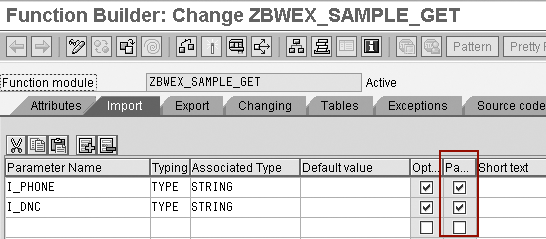
Figure 1
Import parameters for ZBWEX_SAMPLE_GET
I selected the pass value (Pa…) check boxes to ensure that the system passes the values into the function module and not just the reference. In a standard function module, parameters are defined as references to the original object. However, you cannot reference the parameter for remote-enabled function modules.
In this case, SAP NetWeaver Portal requests the data, and the SAP NetWeaver BI system cannot directly access the Portal to read the value in the object. Therefore, the system must pass the values within the objects through the parameters. Selecting the pass value check box for all imports is a requirement for remote-enabled function modules.
Next, click on the Tables tab in Figure 1. Here you define the table based on the master data table /BIC/PZBWXDNC, as shown in Figure 2.
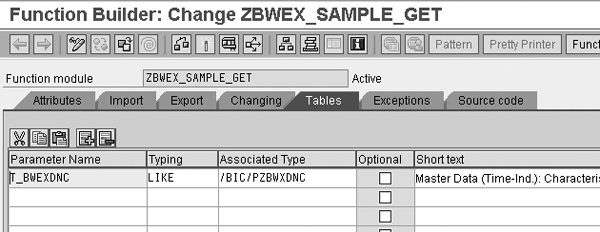
Figure 2
Add the table to the function module, which returns data to the Visual Composer table
The code for the ZBWEX_SAMPLE_GET function module is available for by clicking here. After you download the code, click on the Source code tab, and then copy and paste in the code.
Next, click on the Attributes tab and select Remote-Enabled Module (Figure 3). If the function module is not remote enabled, it is not available to Visual Composer. This selection allows other external systems to communicate directly with these function modules. When finished, click on the activate icon to save and activate the function module.
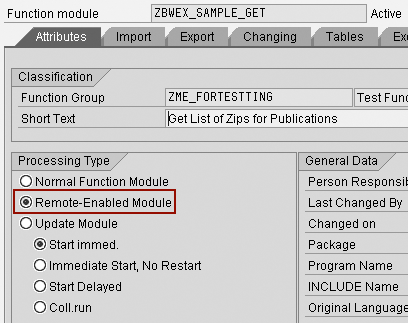
Figure 3
Select Remote-Enabled Module for all function modules with which you want to use Visual Composer
Step 3. Define the function module to update the master data (ZBWEX_SAMPLE_UPDATE)
Before I dive into the update function module, here are some key factors about the function modules you should know.
- You can use the ZBWEX_SAMPLE_UPDATE function module to add or update data. If you want to add a new record, you can simply enter data where the key for the master data does not exist. Do this by filling in all the fields for the InfoObject and passing information to the update function module. In this example, the user can only update current information.
- When updating the data, you must send the entire record to the update function module. For example, if you only change one out of 10 attributes, you must send the entire record, including the other nine attributes, to the function module. Otherwise the update process clears those fields.
- The process does an attribute change run, so the data is active immediately
To update the data in the InfoObject, you create a function module that can do the updates and inserts. Go to transaction code SE37 and enter the name ZBWEX_SAMPLE _UPDATE. Click on the Create button.
On the Import tab, create a table parameter as shown in Figure 4. The system fills this table with the new information that you wish to save to the master data InfoObject.
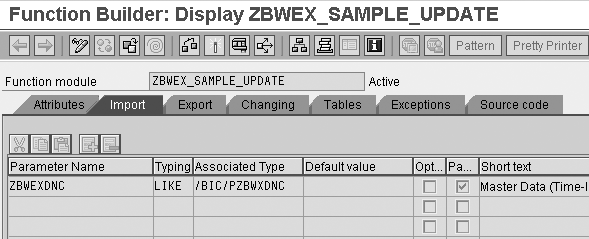
Figure 4
The import parameter for the update function module
Next, click on the Export tab and define the RETURN_MSG parameter as shown in Figure 5. The system uses this parameter to send a success or failure message back to the calling application (Visual Composer, in this example) based on what occurs when the customer service representative requests a change. The function module ZBWEX_SAMPLE_UPDATE returns a success message (Successfully Updated) when the update is completed successfully. Otherwise it returns an error message (Error Occurred).
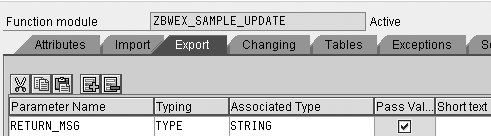
Figure 5
The RETURN_MSG parameter returns a success or failure message to the calling application, in this case Visual Composer
When finished, download the code for ZBWEX_SAMPLE_UPDATE by clicking here. For more information about this code, see the sidebar, “Notes About the Update Code for ZBWEX_SAMPLE_UPDATE”.
After you download the code, click on the Source code tab, and copy and paste in the code. Finally, set the function module to Remote-Enabled Module as you did in step 2 for the ZBWEX_SAMPLE_GET function module (Figure 3).
Step 4. Create a Visual Composer model to search and display the master data from the ZBWEX_SAMPLE_GET function module
Open Visual Composer via your Web browser. In most cases, the URL is https:// [portalservername]:[port-number]/VC/default.jsp. If this does not work, or if you are unsure about the name and port number, you should contact your portal administrator.
After you have Visual Composer open, select Model>New Model. Give the model a name, example zdonotcall. The design page appears after you name your model. On the right side is the compose model tool bar with three components: iView  , Page
  , and Package
  . Select and drag the iView component to the blank design page on the left. Then double-click on the iView you just dragged to the design page. This opens the iView to a new design page.
Next, find the function modules that you created, ZBWEX_ SAMPLE_GET and ZBWEX_SAMPLE_UPDATE. Select Find Data from the toolbar on the far right to bring up the Find Data Services screen (Figure 6).
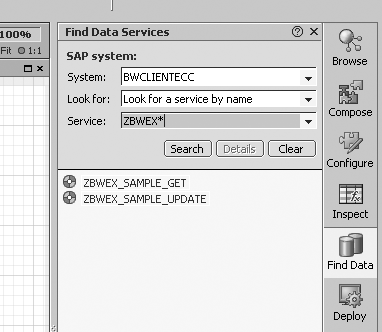
Figure 6
Find the two function modules you created
For System, select the system in which you designed the function modules. For Look for, select Look for a service by name. In the Service field enter the name of the first function module — note that this field accepts wildcards (*). Then click on the Search button to review the search results.
Tip!
If you cannot find the function module, or if you do not have the Look for a service by name option, then the system you have chosen is not correctly defined in the Portal or it’s defined as an SAP NetWeaver BI system. Visual Composer requires a defined system to access the BI queries and a second system to access the ABAP layer. You should define the system that you use to access the function modules (ABAP layer) as an ECC system.
After you find the function module, drag it to the design page on the left. If the function module has several parameters, the Define Data Service screen appears. Another way to access this screen is to right-click on the function module and click on Define Data.Service. Click on Select all in the top right corner. Do this for the Input Ports and the Output Ports, and then click on the OK button.
Note
If the function module has mandatory inputs, they appear in red with an asterisk in the Define Data Service screen.
Next, to communicate with the function module, you must define a form, which is a group of Web page elements that collect information from the user. When the user submits the form, the Web page form sends the information to the server. For example, the types of elements in a form could be a drop-down list, input text box, or check boxes.
In the design area, left-click and hold on the small circle to the left of Input (Figure 7). This displays the options. Select Add Input Form and the form then appears on your iView.

Figure 7
The function module on the Visual Composer design page
Now that you have the form on the page, you need to configure it. Right-click on the form and select Configure Element. The Configure Element screen appears on the right side of the screen. Set up the form view and layout as shown in Figure 8.

Figure 8
Configure the input form
To limit the types of data that users can enter, change the input for I_DNC to a drop-down menu. Limiting the data that the user can input ensures that when the system sends the request to the function module, it asks for information that exists.
To change the field to a drop-down list, double-click on the I_DNC field in Figure 8. In the Control Properties screen that appears, change the Control type to Drop-down List and then click on the Entry List tab. Select Static and then click on the plus icon (Figure 9). The Value field contains the data that the system submits to the function module. The Display Text field contains what the user sees in the drop-down menu. Click on the Close button when finished.
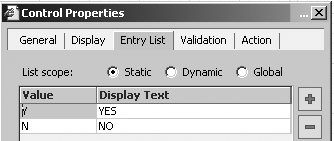
Figure 9
Adjust the field properties for the pop-up screen
After the user submits the request to the function module, you need a method by which to display the results — this is where you can use a table. To add a table to the Visual Composer design page, left-click and hold on to the output of the function module (e.g., T Bwexdnc). Drag the mouse a short distance and let go. Select Add Table View from the menu that appears.
After the table icon appears, right-click on it and select Configure Element. In the screen that appears, click on the Edit button next to the Toolbar field. The Create Toolbar Buttons screen appears.
Click on the plus icon at the bottom left of the screen and give the button a name, such as Modify. Select Custom action for the Action type and give it a name, such as Edit. Click on the OK button. By doing this, you create an event called “Edit.” When you run Visual Composer and click on the Modify button, it triggers the event you tied to the “Edit” event, for example, to pass the selected record of a table to a function module. I describe this in more detail later in the article.
At this point you can compile and deploy the Visual Composer model. Although this part of the process is optional, it would be a good idea to test the model as you go along. The compile process checks the code of the Visual Composer model. If you wish to see the code, select the Source tab from the Visual Composer screen. The deploy process saves your work to the Portal. If you have the proper administrative rights, you can find the model under the content/Visual Composer/Models in the portal.
To compile and deploy, click on the Deploy button in the far right toolbar of the Visual Composer screen. The Deploy to Portal screen appears. Select the Deploy entire model check box and then click on the Deploy button.
When the system has completed the compile and deployment process, a link with the name of your iView appears below the Deploy button. Click on the link and it opens your browser directly to the iView page where you can test the application. If you do not get an error during this entire process, then more than likely your application is working fine.
Step 5. Create a Visual Composer pop-up screen
In this screen, the user can change the data and submit those changes to the update function module (ZBWEX_SAMPLE_ UPDATE). Select and hold the small circle to the right of out on the table, drag it out a small distance, and then let go. In the menu that appears, select Open Popup (Figure 10).

Figure 10
Drag the small circle to the right and select Open Popup
In the Select Pop-up iView screen that appears, select the Create new iView and give it the name Edit Screen. Click on the OK button. That takes you back to the main iView. Select the line that links the table to the pop-up screen and change the Event name in the Configure Element section so that it is the same as the name of your custom action, in this case Edit (Figure 11).
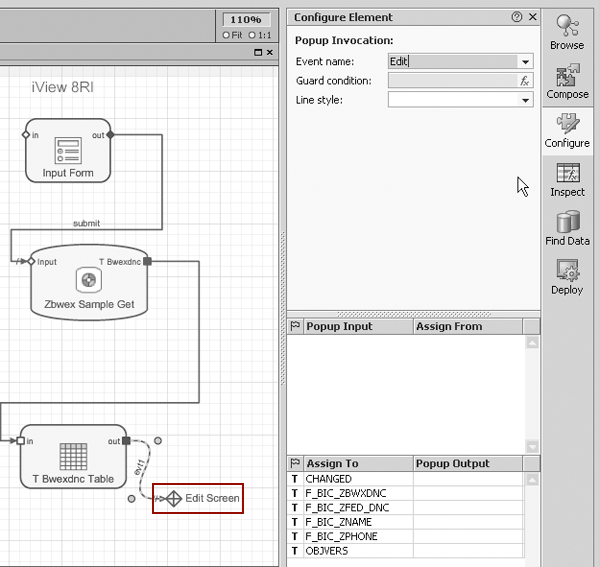
Figure 11
Double-click on Edit Screen for direct access to the design screen for the new iView
The next part of the process is to change the Edit screen. Double-click on Edit Screen on the Visual Composer design page in Figure 11 to enter the pop-up iView. Select Find Data from the Visual Composer toolbar on the right, as you did in step 4.
Drag in ZBWEX_SAMPLE_UPDATE. Select and hold on the small circle beside the input (Zbwexdnc), drag it out, and let go. Select Start Point from the menu that appears. The input name should be the same as the table you defined in the update function module, in this case ZBWEXDNC.
After you have selected the start point, the Select Input Fields screen appears (Figure 12). You can check all the check boxes individually or click on the Select all button at the top of the screen. The start point connector allows you to pass information between the first iView and the pop-up iView. In this case, I am passing one record at a time, so you could consider it a work area being based between screens.
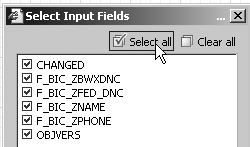
Figure 12
Click on the Select all button to select all the input fields
Then select and delete the line linking the start connector to the function module. This allows you to connect the start point to a form. You might ask, why not connect the start point to the form first? If you create the start point first based on the function module, and then create the form, the system pulls the metadata from the function module to the start point, so you do not have to enter the field names into the start point manually. If you have 30 attributes, this simple trick can save you a ton of typing. Another advantage to doing it this way is that you ensure that all the necessary fields are created in the start point and are spelled correctly.
The next step is to add the form. Left click and hold on to the input circle of the function module the same way as when you created the start point. Drag it and let go. In the menu that appears, select Add Input Form. Then drag a line connecting the start point to the input form. Now your screen should look like what you see in Figure 13.
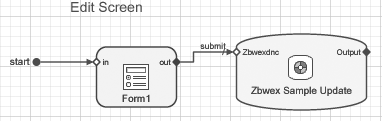
Figure 13
How the pop-up screen should look on the Visual Composer design page
If your portal is on Patch 14 or higher, the system may have created a Submit button in the form by default. If you see a button listed in the field list as Submit, then you do not have to set up this button and can skip to the part where you double-click on F_BIC_ZFED_DNC. The submit button will be used by the user to submit the data from the form to the update function module (ZBWEX_SAMPLE_UPDATE).
Right-click on Form1 and select Configure Element. Select all the fields by placing a check mark next to each name in the Configure Element section. Click on the plus icon. In the screen that appears select Pushbutton as the control type and enter Submit for the Field name. Click on the OK button.
Next, double-click on the Submit button in the Configure Element screen to access the Control Properties screen. Select the Control Properties Action tab, and set the following:
- Action Type: Select System action
- System Action: Select Submit form
- Apply to: Select Self
When finished, click on the Close button.
Double-click on F_BIC_ZFED_DNC in the Configure Element toolbar to bring up the Control Properties screen. Select the General tab and change the Control Type to Drop-down List. Next, select the Entry List tab and add in the static list data as you did earlier in Figure 9. Click on the Close button when done.
Double-click on CHANGED in the Configure Elements toolbar, which opens the Control Properties screen. On the General tab select the Hidden check box. Repeat this process for the OBJVERS field in the Configure Elements toolbar.
In some cases you may want the user to see information in the edit screen, but not edit it. A good example of this is the name or account number. For both items, double-click on them in the Configure Elements toolbar to call the Control Properties screen. Under the General tab, select Disabled. This allows the user to see the information, but not change it.
Now you need to return to the main iView to map the data to the pop-up iView. To do this, click on the back icon on the top toolbar of the Visual Composer screen. Double-click on the Edit line between the table and the pop-up screen, and then map the Assign From fields accordingly as shown in Figure 14.
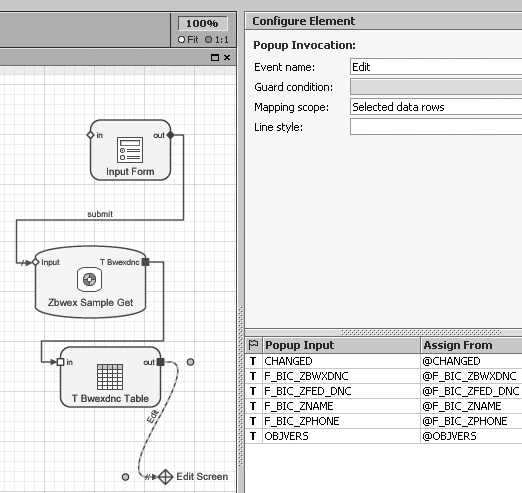
Figure 14
Map the fields from the table directly to the fields of the start point inside the pop-up iView
At this point you are finished with the pop-up input. You use the pop-up output if you want to return information to the original iView, but I don’t use this in my example. Now you are ready to compile, deploy, and test.
Click on the Deploy button in the far right toolbar of the Visual Composer screen. In the Deploy to Portal screen that appears, select the check box that says Deploy entire model. Click on the Deploy button.
After the system completes the compile and deploy process, a link with the name of your iView appears below the Deploy button. Click on the link and it opens your browser directly to the iView page where you can test the application.
To test the application, click on the link provided within Visual Composer when the deploymentis completed. When the screen appears as in Figure 15, make the needed selection to filter the data, and then click on the Submit button. The system returns the list of records.

Figure 15
The first iView allows the user to search for the information and select the record to modify
Select the record to modify, and then click on the Modify button. This triggers the “Edit” event you defined, which opens the pop-up iView shown in Figure 16. Use the drop- down menu in the Do not Call field to change the record, then click on the Submit button. When finished, click on the x icon to exit and save.
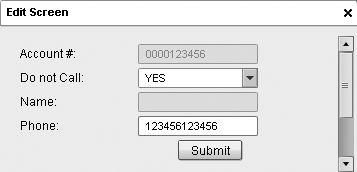
Figure 16
The pop-up iView screen that appears when you click on the Modify button
Making It Look Neat
In Figure 16, two of the fields are not editable (Account # and Name). You can set this in the Layout tab of the iView. Here you can change the way the iView appears by dragging the input boxes or drop-down lists into the layout you desire.
You can also change the names of the table headers and form field names, by right-clicking on the input boxes or drop-down lists in the layout screen, and then selecting Properties to bring up the Control Properties screen. Select the display tab and change the label to a desired name. To make any of the elements on the iView not visible, select Hidden.
From the General tab in Control Properties, you can also make any of the elements editable based on the status of data. Say you want the phone number input box to only be editable if no phone number is available. To do this select the Disabled check box, and in the Condition box to the left, enter the following line of code:
BOOL(IF(ISNULL(@F_BIC_ZPHONE),false,true))
To use the IF statement, you have to use the BOOL function, which returns a standard Boolean.
Notes About the Update Code for ZBWEX_SAMPLE_UPDATE
All the methods used are standard SAP methods. Therefore, these methods are used during normal master data loads. They include some functionality that you may or may not wish to use. For example, you may want to monitor who updates the data and when users update it. In this case, you should set the I_MONITOR rs_c_true. Below are some of the details of each parameter.
The method call has four exporting parameters:
- i_iobjm: The technical name of the InfoObject you are updating
- i_t_data: The data that you are updating/inserting in the InfoObject
- i_s_minfo: The function used during standard data loads. Under normal circumstances the system fills this table with the request number, the requesting InfoPackage, and the rest of the necessary information. Theoretically, you could use this to monitor who does what to the data and when. In this case I’m leaving it empty.
- i_monitor: The parameter that tells the method if this process occurs through the normal background process. I set it to False, so as to not log the information in the i_s_minfo table. The monitoring is designed to monitor standard SAP InfoPackage and data transfer process (DTP) loads. I don't recommend using this because you are not actually using an InfoPackage to insert data.
Hubert Alistair Wallace
Hubert Alistair Wallace has worked for Morris Communications, a media/newspaper company in Augusta, GA, as a business intelligence developer for more than six years. He has extensive experience in SAP BW 3.1and SAP NetWeaver BI 7.0 as a developer. He has also developed front-end applications using Web Dynpro (for ABAP), Web Application Designer, and Visual Composer.
If you have comments about this article or publication, or would like to submit an article idea, please contact the editor.



 Premium