Discover how to easily build a role for technical batch or interface users who are very difficult to track — even if they have held SAP_ALL in production for years.
Key Concept
Every company has cross-functional and cross-technical batch users who run jobs to post data and reorganize tables. They are the do-it-all technical users that companies become more and more dependent on over the years. As a result, SAP_ALL is often assigned to them, and once they receive it, those users don’t want to give it up. The SAP_ALL role, which grants all possible SAP authorizations to a user, presents a high compliance risk to companies because it can jeopardize data confidentiality, integrity, and availability.
Sometimes SAP_ALL is just not allowed.
“Ha!” you say. “Of course SAP_ALL is not allowed. Each user should have a specific role with a specific task!” However, as soon as those words leave your lips, you’ve already realized the error. “Oh, right…I forgot about our batch users who span multiple servers and multiple SAP modules, and that WF-BATCH user we’ve never addressed who was assigned SAP_ALL when we first built the SAP instance. But it’s too late to make changes now ¾ besides, it’s only a system user. Nobody can log on with it.”
The above response is common and you’ve likely heard it before. Perhaps the conversation never came to a positive conclusion, tabling the topic indefinitely until someone could find a safe solution. However, auditors today hesitate to allow even non-dialog interface user IDs with such powerful access. Herein lies the problem: How do you create a role for a user with nearly no limits?
The answer is surprisingly simple. I’ll show you how to quickly make sense out of the difficult and complex task of building a role for a privileged batch user. I’ll start with the most complex user of all: WF-BATCH. If you can harness WF- BATCH, then you can easily control all other technical batch users. Most batch users have specific jobs assigned to them. Specific jobs mean a finite number of authorizations that you can plan and implement. WF-BATCH, however, is not so simple. It was once thought that WF-BATCH could only run with SAP_ALL because you cannot predict its access requirements. Compounding the problem, WF-BATCH access requirements can differ for each system and even each client.
Yet, there is a solution.
Note
Although I’m using WF-BATCH as my example, keep in mind that the principle behind this process works with any type of user, be it batch, system, job, or normal logon user.
Before I delve into the details of creating a role for WF-BATCH, I’ll give an overview of the basic steps. I’ll show you how to:
- Gather historical posting data from WF-BATCH using an authorization trace
- Regularly collect, filter, and analyze the data
- Start building and adding to a new role in development
- Continue this iterative process until no new changes are detected in the trace files
This article is intended for security administrators or compliance analysts, and requires access to SAP transactions ST01 and SM51 as well as Microsoft Access and standard SAPGUI software.
Data Gathering
Normally, the most effective way to build a role is to gather the requirements up front with the company and spend most of the time planning the required transactions and activities. However, this is not always possible in a productive environment in which batch users have been in the system for years. The most effective way to gather data for such complex users is to allow the user to run with excessive access that it already has and trace its activities. Because you probably use WF-BATCH in your production system and most likely with SAP_ALL, you can easily subject WF-BATCH to an authorization trace.
Running an authorization trace in productive systems can help you determine what type of data being accessed is required for the new role. The authorization trace tells you what transactions and authorization objects are being used with the exact activities and data values. If you run traces not only during a typical business day, but also during special events such as weekends, quarter-end, and year-end closing, you can capture all activity run under the user. Before you start the trace, keep in mind these points of caution:
- Running traces in a productive system uses some system resources, so check with your Basis person before running a lengthy trace
- WF-BATCH has been known to generate more than 200,000 log entries in large production environments in less than 24 hours — per application instance
If your production environment is on old and stressed hardware, you might experiment tracing with a short time limit and ask your Basis professional to monitor system performance. However, in my experience, running authorization traces uses minimal resources. Do not be overwhelmed with the amount of log entries: You can quickly filter these out, but check with your Basis professional to make sure the system has adequate disk space to hold them. Again, you can estimate disk space requirements with a limited trace time limit.
You can activate authorization traces with transaction ST01. Make sure the Authorization check option is active, and click on the General Filters button (Figure 1).
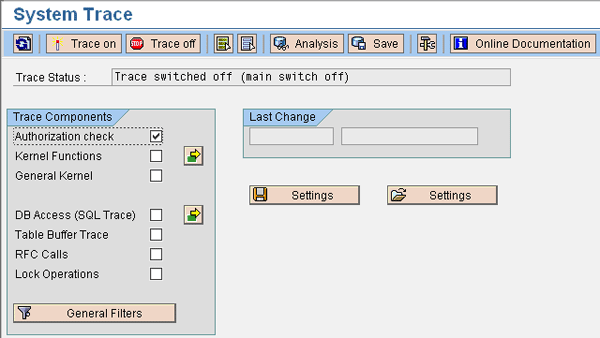
Figure 1
Activate the Authorization check option
In the pop-up screen that appears, enter the desired user to trace (e.g., WF-BATCH) and click on the Continue button (Figure 2). Then click on the Trace on button in Figure 1 to activate the trace.
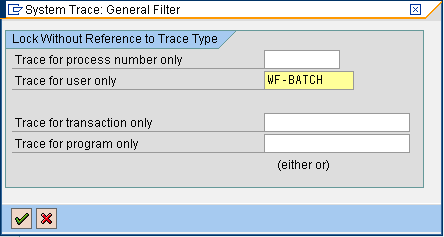
Figure 2
Enter the user to trace
Note
Traces are server dependent, so it is important to activate the trace on each server. To do this, you can either log on to each server manually, or if you have access, you can use transaction SM51 to jump between the application and database servers of your system.
Download the Trace Log
As mentioned earlier, WF-BATCH can generate anywhere between a few hundred logs to several hundred thousand. This generally depends on how much workflow you use in your SAP production system. However, even in systems with no official workflow processes, the SAP application can still use WF-BATCH internally. Initially, it is best to set regular intervals for downloading the data so you can analyze it. Intervals of every 24 hours might be required for some systems, and once a week for others.
After some time running the trace, you should analyze the logs. At each interval, you may choose to stop the trace before analyzing it, or you can continue running the trace and analyze specific time periods. For my example, I left the trace running and am just downloading the trace logs on a daily basis.
To start the download process, use transaction ST01 and click on the Analysis button. Change the user name to the user you are tracing (e.g., WF-BATCH) and set the date parameters to meet your needs.
The default Max. No. Records is usually set to 10,000; however, you might need to download multiple files just to capture all the data. The best thing to do is to increase your Max. No. Records to a greater number than what you expect, such as 999,999 (Figure 3). You’ll know you have increased the number sufficiently when you execute the report and an End of trace file reached message appears at the bottom of the screen. Ensure that the Authorization check option is selected and execute the report (Figure 4).
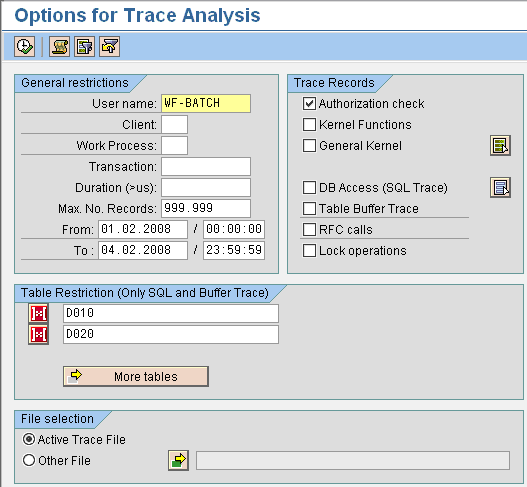
Figure 3
Set the maximum number of records
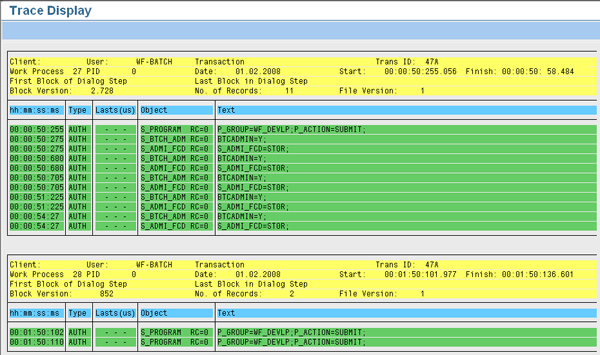
Figure 4
Execute the report
From the trace log screen, follow menu path List > Save/Send > File… to produce a pop-up screen. Choose the Spreadsheet option and click on the green check mark icon to continue. This produces another pop-up screen in which you need to choose a destination to save the file. Make sure to save it as a .txt file, not an .xls file (Figure 5). The reason for this is two-fold:
- Trace files larger than 65,000 lines become unusable with older versions of Excel
- My Microsoft Access database example is uploading a tab-delimited text file
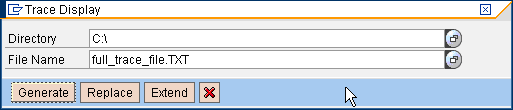
Figure 5
Save the file as .TXT
Repeat the process for each application and database server on your system. Each download should generate a new file.
Data Mining
Now that you have saved the data to disk, you can start interpreting the data. Manually analyzing hundreds of thousands of log entries could take quite some time, but within an hour, you will have set up a nearly automated solution for repetitive analysis sessions.
The first step in the data mining process is to create a new Microsoft Access database called trace_log_analysis.mdb. If you are familiar with another database vendor, then you may use that specific product. In the new and empty database, choose Create table in Design view (Figure 6).

Figure 1
Open a new database
Then create 29 column fields (Figure 7). Twenty-nine fields is sufficient to contain all fields that might be in the file. These should be a standard Text type of 255 characters each. The column names in this table are not important. When you upload the tab-delimited file, each tabbed field is parsed into a new field in the database table. Save this table name as trace_log (Figure 8).
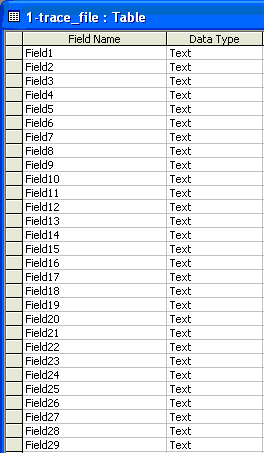
Figure 7
Create 29 fields
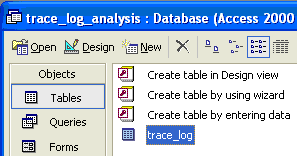
Figure 8
Save the table
Now import your downloaded trace log file into the new database table. To do this from Microsoft Access, follow menu path File > Get External Data > Import. Choose the directory and file (e.g., full_trace_file.TXT) that you want to import and click on the Import button. If you don’t see your file, change the Files of type to Text Files. After you click on the Import button, choose the Delimited option even though Microsoft Access recommends Fixed Width (Figure 9). Then click on the Next button.

Figure 9
Choose Delimited
Because you saved the SAP file earlier as .TXT in a spreadsheet format, the file is now tab delimited. To continue, select the delimiter type as Tab and click on the Next button (Figure 10).
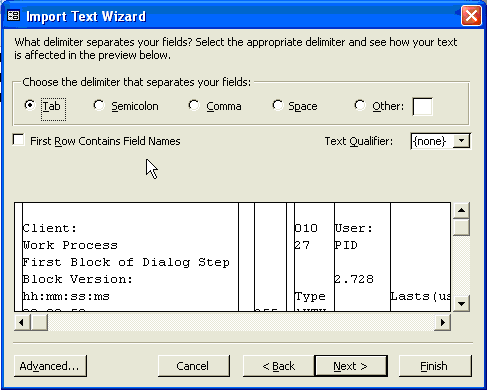
Figure 10
Select the delimiter type
Then choose the In an Existing Table radio button and select trace_log from the drop-down box to store your imported data in the existing trace_log table (Figure 11). Finally, click on the Finish button and click on OK in the resulting message.
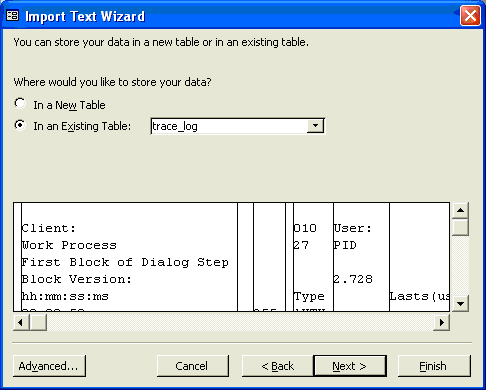
Figure 11
Store the data in trace_log
Right-click on the table trace_log and choose Open. Look at the table and data to analyze the data in its raw format (Figure 12).
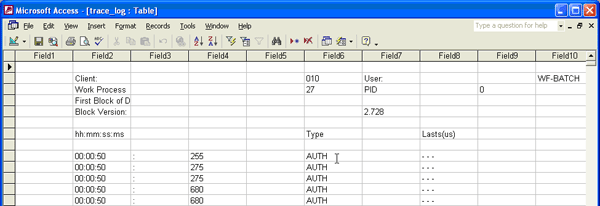
Figure 12
The table shows raw data
The data is now loaded. Out of the 29 fields, only two columns are really important in this example. Field11 and Field15 contain the authorization object and values that were checked during the trace logging (Figure 13).
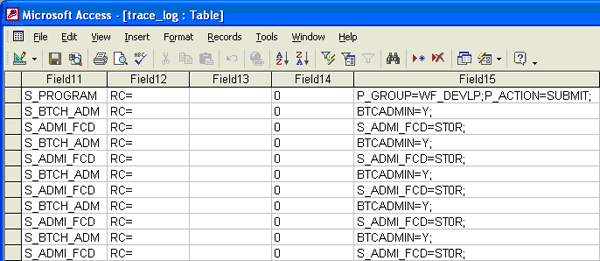
Figure 13
Field11 and Field15 contain authorization objects
In this condition, the table still contains a lot of unnecessary data. Before you save both the Field11 and Field15 columns, remove the majority of the rows because they contain a lot of data not related to authorization objects.
To do this, create a delete query called 1-DELETE_Bad_Records. This delete query removes all records from Field11 that have text called Object (used in the trace header information) and removes any record in the Field11 column that has a null value (i.e., is empty). Change to the Queries section in Microsoft Access and double-click on Create query in Design view.
Add the trace_log table to the query by clicking on the Add button and close the pop-up box. Select all the fields from the table by holding the Ctrl key while clicking on the columns and drag all the fields to the section below so it fills the column names in the lower half of the query screen (Figure 14).
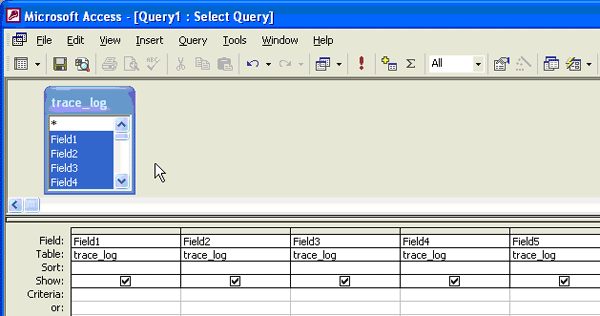
Figure 14
Drag the fields to a new section
Change the normal query to a delete query by following Query > Delete Query from the user menu. Update the Criteria field in column Field11 to delete the record if it matches the text “Object” or if it is null. Just type in the words Object and Is Null and press Enter (Figure 15).
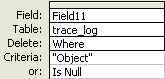
Figure 15
Update the criteria
Save the query as 1-DELETE_Bad_Records. Then run the query from the user menu by choosing Query > Run. The system produces a message alerting you that you will be deleting rows from the table. Click on the Yes button.
The system then removes the unnecessary records. At this point, you have to extract the unique authorization object and its corresponding value. To do this, you create a new table to hold the unique data. Create a new table from the table design view and insert three fields: Object, Value, and InRole.
The Object and Value fields should be of Text type and 255 characters in length for each (Figure 16). The InRole field should be of data type Yes/No because you use this to keep track of the values you have inserted into the new role. Highlight the Object and Value fields and select Edit > Primary from the user menu to make columns Object and Value the primary key. This constraint ensures that you do not get duplicate entries in the new table. Save the table as trace_auth_values and exit from table maintenance.
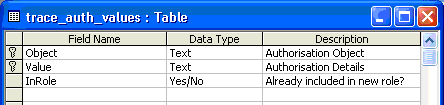
Figure 16
Set the data type for each field
Now you need an append query that can read the trace_log table and move the entries to the new trace_auth_values table. From the query area, create a new query from design view. Choose the trace_log table and add it as the source into the new query by clicking on the Add button.
Drag and drop Field11 and Field15 into the query view from the trace_log table, and then change the query type from the user menu by selecting Query > Append Query…. Then choose to append your query to the trace_auth_values table and click on the OK button (Figure 17).
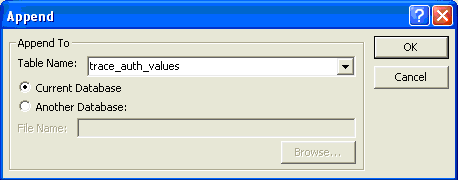
Figure 17
Append the query to the table
In Figure 13, I noted two fields of interest: Field11 and Field15. These correspond to the authorization object and the corresponding object values. In Figure 16, I created a new table that contains unique combinations of authorization objects and their values. Now, in the Append To field of the new query, click on the drop-down menu for each column (Figure 18). Field11 relates to column Object and Field15 relates to column Value.
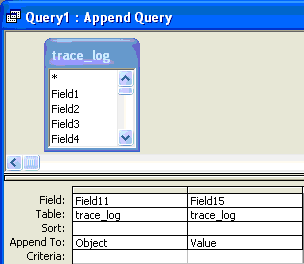
Figure 18
Click on the drop-down menu for each column
Save your query as 2-APPEND_trace_auth_values and run the query. The system warns that you are about to append records into your new table. Complete the transaction by clicking on the Yes button.
The system then warns you that not all rows can be appended because they violate the primary key constraints you put on the trace_auth_values table. This warning is actually a good sign because the original trace log might have thousands of duplicates. Click on the Yes button in the warning screen.
You end up with unique records of both the authorization object checked during the trace and its corresponding values (Figure 19). The system has ignored any duplicates. In this example, the system only added three records, but you might have an initial pass with 100 or more.
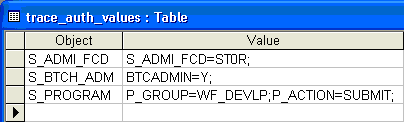
Figure 19
The system added three records
Finally, you need to clean up all the records in the original trace_log table. Create a second delete query in the query design view. In this query, add the trace_log table and double-click on * to indicate that the system includes all column fields automatically in this query (Figure 20).
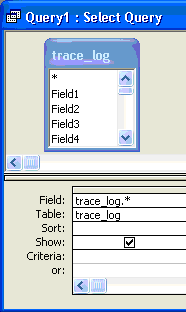
Figure 20
Clean up the records in the table
Change the query type from the user menu by selecting Query > Delete Query. Save the query as 3- DELETE_trace_log_data and run the query. The system prompts you to confirm that you are deleting rows from the trace_log table. Click on the Yes button to do so.
Note
I have been saving the queries with numeric prefixes (e.g., 1-…, 2-…, 3-…) so that it is easier to run multiple iterations of this process in a simple check-list fashion following the numerical sequence.
The last important item is to open your trace_auth_value table, analyze it, and add the values to the new role that you are building in the SAP system. Once done, check the InRole check box or select Yes as the value depending on your Microsoft Access release (Figure 21). As you gather trace files, you can quickly determine what has been added to the role and what has not.

Figure 21
Analyze the table
Now that the database is complete, you can continue to gather log data about your batch user and import the new data within a few minutes to Microsoft Access. You can process hundreds of thousands of log entries in just a few minutes.
To repeat this process for several servers, follow these simple steps:
- Download the next trace file as Spreadsheet, but save it as type .TXT
- Open Microsoft Access and click on File > Get External Data > Import
- Import your new trace log file into the empty trace_log table
- Run query 1-DELETE_Bad_Records to clean up the trace_log table
- Run query 2-APPEND_trace_auth_values to append the unique authorization objects and their values
- Run query 3-DELETE_trace_log_data to empty the original trace_log table
- Analyze the trace_auth_values table to see what values are not included in your role yet, and as they are included mark the record with a checkmark or Yes
- Repeat steps 1 through 7 for additional trace files
Dylan Hack
Dylan Hack is a senior SAP compliance and authorization consultant with more than 10 years of SAP experience. He has designed custom segregation of duties programs and helps customers achieve pre-audit compliance. Dylan speaks five languages and advises companies in the US, Canada, and Western and Eastern Europe. He holds a bachelor of science degree in information systems from the University of Phoenix.
You may contact the author at sapcompliance@gmail.com.
If you have comments about this article or publication, or would like to submit an article idea, please contact the editor.




 Premium