Understand how to add an attribute, such as a user-defined field, to an action workflow condition to customize how your system carries out an action.
Key Concept
Attributes are characteristics of business objects. Different business objects have different default attributes. You use attributes to define action workflow conditions, which control how the system executes an action, a planned activity or task that you assign to a business process. A person, group of people, or a system in the background can carry out an action.
You probably know that you can configure mySAP CRM to check certain action workflow conditions (manually or automatically) before it triggers an action. For example, you can set the system to ensure that a contract does not have any errors before it generates a credit memo. However, what if the attribute you want to include in your action workflow condition does not exist for it?
Here’s an easy way to extend the attributes that enable these action workflow conditions. I’ll describe how to add attributes to action workflow conditions by using the item category field, which does not exist as an attribute available for action conditions. This process works with any attribute that you create via Easy Enhancement Workbench. I’ve tested this process with mySAP CRM 2005. For more information about the overall concept of actions and how to use action workflow conditions, refer to the March 2006 CRM Expert article, “Send Alerts and Customer Confirmations Using Actions,” by Karen Lindholm.
In Figure 1, you can see that you are unable to use the item category field in a standard system because it’s missing — only a limited number of order item components is available in standard action processing. Access this screen via transaction /nspro and follow menu path SAP Implementation Guide>Customer Relationship Management>Basic Functions>Actions in Transaction>Define Conditions.

Figure 1
The item category field is missing, so you can’t use it for conditions
In my example, I am enabling the item category field for the sales item object BUS2000131 because I want to extend a transaction item that is a sales item. To find out which business object you want to work with, look at the details of your transaction type. Find its leading transaction category via transaction /nspro and follow menu path Customer Relationship Management>Transactions>Basic Settings>Define Item categories. Double-click on the item category to view the leading transaction category. Figure 2 shows the details of item category TAN with the item object type BUS2000131.

Figure 2
Item category TAN with item object type BUS2000131
Then, in transaction SWO1 (Business Object Builder) enter the business object name in the Object/Interface Type field and select Object type under the Category tab (Figure 3). Click on the Display button. In the screen that appears, notice that the attributes listed are the same attributes that you can use for sales item action condition configuration (Figure 4). If you look to the right of these attributes, you can see that no listing exists for the item category field.

Figure 3
Enter the business object BUS2000131 in transaction SW01

Figure 4
The item category field is missing from the list of attributes for BUS2000131
Click on the back arrow to return to the screen shown in Figure 3. Now it’s time to create an object type so that later in the process you can extend this object with your new item category attribute. Object type attributes create action conditions. Because I want to use a new attribute, I need to extend the object type with this new attribute. In the Object/Interface Type field, enter a Z in front of the object type — ZBUS2000131. You copy and set the object with a Z (or Y) prefix to note that the object is a custom object and not a standard object. If I had changed the standard object directly, it would cause problems when I upgraded the system, which would require a repair — a bad idea.
Click on the Create button. In the screen that appears (Figure 5), enter the following values:
- Enter the original object type for the Supertype. In my example, this is BUS2000131, which passes the standard object values to the new object type.
- Enter the other values based on what best fits your business scenario. For example, if the extension is for a sales item, enter a description similar to the one shown in Figure 5, unless the environment you work in has different rules.
- Enter an asterisk (*) in the Application field for cross applications so the system can use the object type for all applications.

Figure 5
Enter the values for the new object type ZUS2000131
Press Enter or click on the green check mark icon. In the screen that appears, enter a package in the Package field for your object to validate with your project what package to use. (Generally, you group objects that belong together in a package.) Click on the Save button.
After you create the new object type, you must enable it so the application uses it instead of the standard object. Click on the back arrow so that you’re on the first screen again. Click on Settings>Delegate, then click on the New Entries button.
In the screen that appears, enter the Object type as the standard object type BUS2000131 (Figure 6). For the Delegation type, enter the new object type ZUS2000131. Click on the save icon. Attach this to a new workbench request based on your system administrator’s rules. Click on the save icon and press Enter. Note that the system enters TOJTD (what the table request contains) for the Table Contents field by default.

Figure 6
Enter the Object type and the Delegation type
Now you can add the new item category attribute to your object type. Go back to the initial page (Figure 3). With ZUS2000131 in the Object/Interface Type field, click on the Change button. In the screen that appears, open the attribute details by expanding the Attributes node. Click on the create icon to create the new item category attribute. The Create Attribute pop-up screen appears and asks if you want to create the item category attribute with ABAP dictionary field proposals. Click on the No button, so that the system does not create a program automatically for this attribute. If the system creates the program automatically, it looks at historical data, but not current data.
Create the item category attribute with the settings shown in Figure 7. Make sure to select Virtual under the Source tab. Notice that I used CRMD_ORDERADM_I for the reference table, which I obtained after a bit of debugging. The system updates this table in runtime (before it saves the transaction) as opposed to, for example, table CRMD_CUSTOMER_I, which uses historical values (i.e., saved values). If a user wants the system to check that a transaction has no errors prior to executing an action, the CRMD_ORDERADM_I table checks the status used at that time. This table uses the status that was last saved to the transaction.

Figure 7
Item category attribute settings for object type ZUS2000131
When you extend an object with Easy Enhancement Workbench, the system links new fields to the CRMD_CUSTOMER_I table. The reference field ITM_TYPE is the technical description used for item category. To find out what fields are available, move your cursor to the Reference field area and press F4. Select the field that you need based on your scenario.
Press Enter to see the new Item Category line that appears under the Attributes listing (Figure 8). Highlight this line and click on the Program button. In the Extend Program pop-up screen that appears, click on the Yes button to generate a template automatically for the ZCRM_SALES_ ITEM.ITEMCATEGORY attribute. In the screen that appears, you can see default ABAP code similar to the code shown in Figure 9.

Figure 8
Notice the new Item Category line that appears under the ZUS2000131 attributes
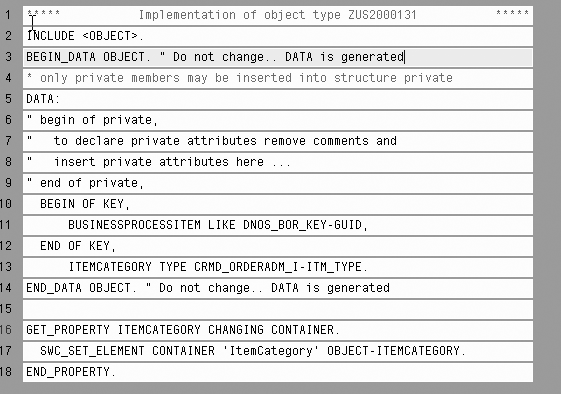
Figure 9
Default code for ZCRM_SALES_ITEM.ITEMCATEGORY
Insert the code shown in Figure 10 so that it replaces lines 16-18 in Figure 9. Simply delete the lines, then copy and paste the new code. This code first identifies the transaction item used. Then it passes this information to a function module that returns the current attributes of the item. The system uses the item category information and passes it back to the attribute. If you use a different attribute, replace the ITEMCATEGORY references with the attribute name you used.
OBJECT-ITEMCATEGORY = LS_ORDERADM_I_WRK-
ITM_TYPE.
SWC_SET_ELEMENT CONTAINER 'ItemCategory' OBJECT-ITEMCATEGORY. GET_PROPERTY ITEMCATEGORY CHANGING CONTAINER. DATA : LV_ITEM_GUID TYPE CRMT_OBJECT_GUID,
LS_ORDERADM_I_WRK TYPE CRMT_ORDERADM_I_WRK. * Get item GUID
LV_ITEM_GUID = OBJECT-KEY-BUSINESSPROCESSITEM. * Call standard API to read details
CALL FUNCTION 'CRM_ORDERADM_I_READ_OW'
EXPORTING
IV_GUID = LV_ITEM_GUID
IMPORTING
ES_ORDERADM_I_WRK = LS_ORDERADM_I_WRK EXCEPTIONS
ITEM_NOT_FOUND = 1
OTHERS = 2. * Populate container parameter
OBJECT-ITEMCATEGORY = LS_ORDERADM_I_WRK-ITM_TYPE.
SWC_SET_ELEMENT CONTAINER 'ItemCategory' OBJECT-ITEMCATEGORY.
END_PROPERTY.
|
| Figure 10 |
Replacement code for the default code in Figure 9. It determines the value of the attribute used dynamically. |
After you change the code, you must release the attribute. The indicator next the attribute in Figure 8 shows that the system has not yet released this attribute. Follow menu path Edit>Change Release Status>Object type component>To Implemented. You should test the attribute in an implemented state, which makes the attribute available for the application.
Tip!
If you would like to have the object available for external applications then, as a later step, set the status to Released. Follow menu path Edit>Change Release Status>Object type component>To Released. Note that if you want to release this, you cannot use a local ($TMP) object for the workbench request mentioned earlier in the process.
Finally, perform a check by clicking on the test icon. This test checks if the code that you inserted has any errors. Next, click on the save icon and then click on the generate icon. Now you can use the new attribute in your action conditions (Figure 11).
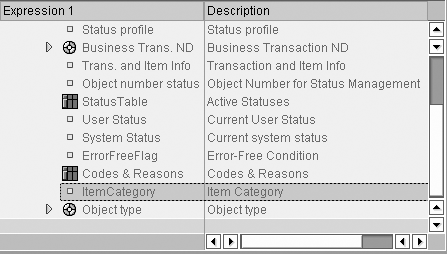
Figure 11
The Item Category attribute is available
Conny Dahlgren
Conny Dahlgren is a senior consultant with SAP Australia in Melbourne. He has worked with mySAP CRM since 2000, and with SAP products, including SD and MM, for more than nine years. Within mySAP CRM, Conny has experience in most areas in different roles. Currently he is a CRM solution architect for a large CRM project focusing on service and marketing.
You may contact the author at c.dahlgren@sap.com.
If you have comments about this article or publication, or would like to submit an article idea, please contact the editor.





 Premium