Faisal Altaf shows how to enhance the standard data browser functionality (transaction codes SE16 and SE11) to add an advanced filtering option using implicit enhancement options.
Key Concept
Enhancement options allow you to add your own functionality to SAP standard programs without modifying the original code. They resemble plug-ins that you can add or remove any time as per your requirement. Your functionality remains the same even after an upgrade from SAP. There are many enhancement types, but to fulfill the current requirement, the implicit enhancement is key.
In data browser SE16 and SE11 you can add conditions to filter data to suit your business requirements. However, these conditions are limited to one field only (e.g., the condition can be applied on individual fields, but two fields can’t be compared). If you need the system to compare the value of two or more fields and show only the data fulfilling this condition, you can use an enhancement. The following examples show the currently available option and my scenario that allows you to use one condition for two fields.
A standard example scenario is that you have a requirement to show all the billing documents that were created on a specific date condition (e.g., greater than, less than, or not equal to) from table VBRK (Billing Document: Header Data). Transaction codes SE16 and SE11 can both be used to display the data. You can filter the data by applying this condition on field ERDAT (Created on) as shown in Figure 1. This condition shows you only the billing documents that were created after 01.11.2014. In the same way you can add more conditions to individual fields, but you can’t compare the values of two fields.

Figure 1
Display a billing document in which the Created on date is greater than 01.11.2014
You can enhance the data browser (transaction codes SE16 and SE11) to add an advanced filtering option so that you can compare two or more fields (e.g., display only billing documents where the Billing Date [FKDAT] and Created on date [ERDAT] are equal). In many business scenarios you need to get data such as my example of the creation and billing dates. To do so follow two simple steps:
Step. 1 Create a program for getting user input for filtering.
Step 2. Create an enhancement and add code for filtering.
Step 1. Create a Program for Getting User Input for Filtering
Since this program requires that I develop some screens, you can’t just copy and paste code. Therefore, I created this .nugg file that you can download for NUGG_ZFSL_Z_AFO_DB_SE16_SE11. (Here is a link to documentation that explains how to download a .nugg file: instructions for how to download.) You can install it on your system using SAPlink - Google Code. Use ZFSL_Z_AFO_DB_SE16_SE11 as your program name as I am using this name in the code for calling this program. If you want to use a different name you have to replace the old name with the new one in the code.
Step 2. Create an Enhancement and Add Code for Filtering
Open the include LSETBF03 using transaction code SE38 or SE80. Click the enhance icon or press Shift+F4 (Figure 2).
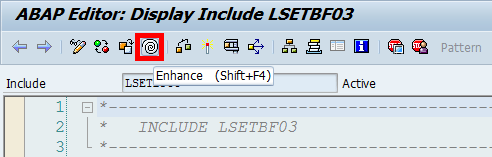
Figure 2
Open include LSETBF03
Now you can see the include in enhancement mode as the left side of the code turns white (Figure 3).
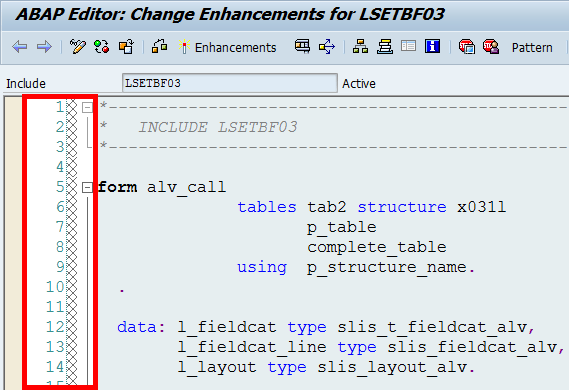
Figure 3
The include in enhancement mode
Follow menu path Edit > Enhancement Operations > Show Implicit Enhancement Options.
At the start of the include, you can see the implicit enhancement point (Figure 4) at the start of the form alv_call. The alv_call is the form that displays the data. At the start of this form you add code to filter data as per the conditions requested by the user.

Figure 4
The implicit enhancement point at the start of form alv_call
Right-click the enhancement point line and select Enhancement Operations > Create Implementation from the context menu. A pop-up message box appears. Click the Code button (Figure 5).
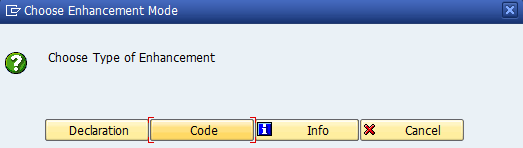
Figure 5
Select the Code button
Enter the Enhancement Implementation name and Short Text (Figure 6). Click the green checkmark icon to go to Figure 7.

Figure 6
Enter the Enhancement Implementation name and Short Text
Click the new request icon highlighted in Figure 7. The transport request is like a bucket in which you place all your changed or newly created objects. Later, after testing, you transport this bucket to the quality system. After your changes are applied to the quality system and tested, you transport the request to the production system.

Figure 7
Create a new transport request
Enter a Short Description and click the save icon (Figure 8). In my short description in Figure 8, AFO stands for advanced filtering option.
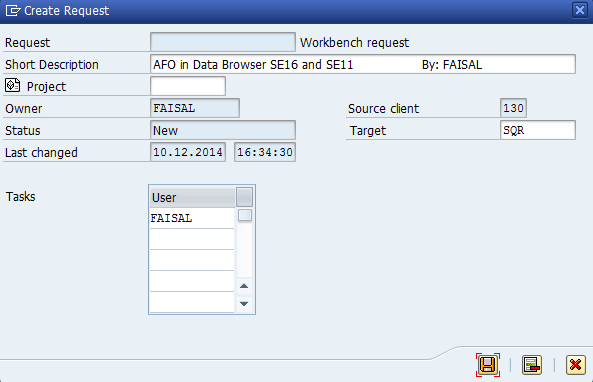
Figure 8
Add a Short Description and click the save icon
Add the enhancement implementation object to the request by clicking the green checkmark icon (Figure 9). This is the enhancement implementation that you are entering in the standard code for adding the custom functionality.
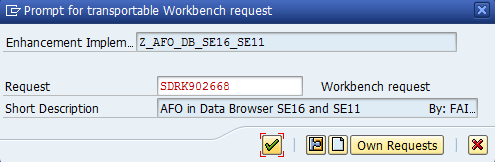
Figure 9
Add the object to this request
Add the code in Figure 10 inside the enhancement and activate it (Figures 11 to 13). This code is the most important part of this article. I am writing a dynamic program with one subroutine called ADVANCE_FILTERING. After appending this complete program to an internal table, I generate a subroutine in memory with a temporary program name using GENERATE SUBROUTINE POOL. At the end I call this subroutine with three parameters (condition table, data table, and the name of the data table in the Data Dictionary). The routine returns the filtered data in an internal table base on the condition table.
TYPES:  BEGIN OF  zz_ty_dd03l,
          tabname1    LIKE dd03l-tabname,
          fieldname1  LIKE dd03l-fieldname,
          operator    TYPE char2,
          tabname2    LIKE dd03l-tabname,
          fieldname2  LIKE dd03l-fieldname,
          and_or      TYPE vsconj,
          sflag       TYPE char1,
          END OF zz_ty_dd03l.

  DATA: zz_it1_dd03l  TYPE STANDARD TABLE OF zz_ty_dd03l,
        zz_wa1_dd03l  TYPE zz_ty_dd03l.
  DATA: zz_it_sc      TYPE STANDARD TABLE OF char255,
        zz_wa_sc      TYPE char255.
  DATA: zz_tabix      TYPE sy-tabix.
  DATA: zz_ntabix     TYPE sy-tabix.
  DATA: zz_ctabix     TYPE string.
  DATA: zz_ctabix1    TYPE string.
  DATA: zz_ctabix2    TYPE string.

  DATA: zz_routine(32) VALUE 'ADVANCE_FILTERING',
        zz_program(8),
        zz_message(128),
        zz_line TYPE i.

  DEFINE zz_append_it_sc.
    APPEND: zz_wa_sc to zz_it_sc.
    CLEAR: zz_wa_sc.
  END-OF-DEFINITION.

  IF ( sy-tcode = 'SE16' or sy-tcode = 'SE11' ).
    SUBMIT ZFSL_Z_AFO_DB_SE16_SE11 AND RETURN WITH ptabname = p_structure_name.
    IMPORT it1_dd03l = zz_it1_dd03l FROM MEMORY ID 'ZZ_IT1_DD03L'.
    FREE MEMORY ID 'ZZ_IT1_DD03L'.
    IF zz_it1_dd03l IS NOT INITIAL.
      zz_wa_sc = 'REPORT ZFSL_DBAF.'. zz_append_it_sc.
      APPEND INITIAL LINE TO zz_it_sc.
      zz_wa_sc = '" Data Declaring'. zz_append_it_sc.
      zz_wa_sc = 'TYPES:  BEGIN OF ty_dd03l,'. zz_append_it_sc.
      zz_wa_sc = '        tabname1    LIKE dd03l-tabname,'. zz_append_it_sc.
      zz_wa_sc = '        fieldname1  LIKE dd03l-fieldname,'. zz_append_it_sc.
      zz_wa_sc = '        operator    TYPE char2,'. zz_append_it_sc.
      zz_wa_sc = '        tabname2    LIKE dd03l-tabname,'. zz_append_it_sc.
      zz_wa_sc = '        fieldname2  LIKE dd03l-fieldname,'. zz_append_it_sc.
      zz_wa_sc = '        and_or      TYPE vsconj,'. zz_append_it_sc.
      zz_wa_sc = '        sflag       TYPE char1,'. zz_append_it_sc.
      zz_wa_sc = '        END OF ty_dd03l.'. zz_append_it_sc.
      zz_wa_sc = 'TYPES: tty_dd03l TYPE STANDARD TABLE OF ty_dd03l.'. zz_append_it_sc.
      APPEND INITIAL LINE TO zz_it_sc.
      zz_wa_sc = '"Macro for Declaring FIELD-SYMBOLS.'. zz_append_it_sc.
      zz_wa_sc = 'DEFINE fs.'. zz_append_it_sc.
      zz_wa_sc = '  FIELD-SYMBOLS <&1>.'. zz_append_it_sc.
      zz_wa_sc = '  FIELD-SYMBOLS <&2>.'. zz_append_it_sc.
      zz_wa_sc = 'END-OF-DEFINITION.'. zz_append_it_sc.

      APPEND INITIAL LINE TO zz_it_sc.
      zz_wa_sc = 'FORM & '. REPLACE '&' WITH zz_routine INTO zz_wa_sc. zz_append_it_sc.
      zz_wa_sc = '                       TABLES it_condition TYPE tty_dd03l'. zz_append_it_sc.
      zz_wa_sc = '                              it_data'. zz_append_it_sc.
      zz_wa_sc = '                       USING  tablename.'. zz_append_it_sc.
      APPEND INITIAL LINE TO zz_it_sc.
      zz_wa_sc = '" Data Declaring'. zz_append_it_sc.
      zz_wa_sc = '  DATA: tabix LIKE sy-tabix.'. zz_append_it_sc.
      zz_wa_sc = '" FIELD-SYMBOLS Declaring'. zz_append_it_sc.

      LOOP AT zz_it1_dd03l INTO zz_wa1_dd03l.
        CLEAR: zz_tabix, zz_ctabix, zz_ctabix1, zz_ctabix2.
        zz_tabix = zz_ctabix = sy-tabix.
        CONCATENATE: '_a' zz_ctabix  INTO zz_ctabix1.
        CONCATENATE: 'fs' zz_ctabix1 INTO zz_ctabix1.
        CONDENSE: zz_ctabix1.
        CONCATENATE: '_b' zz_ctabix  INTO zz_ctabix2.
        CONCATENATE: 'fs' zz_ctabix2 INTO zz_ctabix2.
        CONDENSE: zz_ctabix2.
        CONCATENATE: '<' zz_ctabix1 '>.' INTO zz_ctabix1.
        CONCATENATE: '<' zz_ctabix2 '>.' INTO zz_ctabix2.
        CONCATENATE: '  FIELD-SYMBOLS' zz_ctabix1 INTO zz_wa_sc SEPARATED BY space.
        zz_append_it_sc.
        CONCATENATE: '  FIELD-SYMBOLS' zz_ctabix2 INTO zz_wa_sc SEPARATED BY space.
        zz_append_it_sc.
      ENDLOOP.

      APPEND INITIAL LINE TO zz_it_sc.

*      zz_wa_sc = '  BREAK-POINT.'. zz_append_it_sc. " Uncomments if want to switch on Debugger

      zz_wa_sc = '  LOOP AT it_data.'. zz_append_it_sc.

      zz_wa_sc = '    tabix = sy-tabix.'. zz_append_it_sc.
      zz_wa_sc = '    IF tabix = 1.'. zz_append_it_sc.
      zz_wa_sc = '      LOOP AT it_condition.'. zz_append_it_sc.
      zz_wa_sc = '        CASE sy-tabix.'. zz_append_it_sc.

      LOOP AT zz_it1_dd03l INTO zz_wa1_dd03l.
        CLEAR: zz_tabix, zz_ctabix, zz_ctabix1, zz_ctabix2.
        zz_tabix = zz_ctabix = sy-tabix.
        CONCATENATE: '_a' zz_ctabix  INTO zz_ctabix1.
        CONCATENATE: 'fs' zz_ctabix1 INTO zz_ctabix1.
        CONDENSE: zz_ctabix1.
        CONCATENATE: '_b' zz_ctabix  INTO zz_ctabix2.
        CONCATENATE: 'fs' zz_ctabix2 INTO zz_ctabix2.
        CONDENSE: zz_ctabix2.
        CONCATENATE: '<' zz_ctabix1 '>' INTO zz_ctabix1.
        CONCATENATE: '<' zz_ctabix2 '>' INTO zz_ctabix2.
        CONCATENATE:  '           WHEN ''' zz_ctabix '''.' INTO zz_wa_sc RESPECTING BLANKS. zz_append_it_sc.
        CONCATENATE:  '            ASSIGN COMPONENT it_condition-fieldname1 OF STRUCTURE it_data TO ' zz_ctabix1 '.' INTO zz_wa_sc RESPECTING BLANKS. zz_append_it_sc.
        CONCATENATE:  '            ASSIGN COMPONENT it_condition-fieldname2 OF STRUCTURE it_data TO ' zz_ctabix2 '.' INTO zz_wa_sc RESPECTING BLANKS. zz_append_it_sc.
      ENDLOOP.

      zz_wa_sc = '          WHEN OTHERS.'. zz_append_it_sc.
      zz_wa_sc = '        ENDCASE.'. zz_append_it_sc.
      zz_wa_sc = '      ENDLOOP.'. zz_append_it_sc.
      zz_wa_sc = '    ENDIF.'. zz_append_it_sc.

      LOOP AT zz_it1_dd03l INTO zz_wa1_dd03l.
        CLEAR: zz_tabix, zz_ctabix, zz_ctabix1, zz_ctabix2.
        zz_tabix = zz_ctabix = sy-tabix.
        CONCATENATE: '_a' zz_ctabix  INTO zz_ctabix1.
        CONCATENATE: 'fs' zz_ctabix1 INTO zz_ctabix1.
        CONDENSE: zz_ctabix1.
        CONCATENATE: '_b' zz_ctabix  INTO zz_ctabix2.
        CONCATENATE: 'fs' zz_ctabix2 INTO zz_ctabix2.
        CONDENSE: zz_ctabix2.
        CONCATENATE: '<' zz_ctabix1 '>' INTO zz_ctabix1.
        CONCATENATE: '<' zz_ctabix2 '>' INTO zz_ctabix2.

        zz_ntabix = zz_tabix + 1.
        IF sy-tabix = 1.
          zz_wa_sc = 'IF'.
        ENDIF.

        READ TABLE zz_it1_dd03l TRANSPORTING NO FIELDS INDEX zz_ntabix.
        IF sy-subrc = 0.
          CONCATENATE: zz_wa_sc zz_ctabix1 zz_wa1_dd03l-operator zz_ctabix2 zz_wa1_dd03l-and_or INTO zz_wa_sc SEPARATED BY space.
          CONDENSE: zz_wa_sc.
          CONCATENATE: '    ' zz_wa_sc INTO zz_wa_sc RESPECTING BLANKS.
          zz_append_it_sc.
        ELSEIF sy-subrc <> 0 AND zz_tabix = 1.
          CONCATENATE: '    IF' ' ' zz_ctabix1 ' ' zz_wa1_dd03l-operator ' ' zz_ctabix2 '.' INTO zz_wa_sc RESPECTING BLANKS.
          zz_append_it_sc.
        ELSEIF sy-subrc <> 0 AND tabix <> 1.
          CONCATENATE: '      ' zz_ctabix1 zz_wa1_dd03l-operator zz_ctabix2 INTO zz_wa_sc RESPECTING BLANKS SEPARATED BY space.
          CONCATENATE: zz_wa_sc '.' INTO zz_wa_sc.
          zz_append_it_sc.
        ENDIF.
      ENDLOOP.

      zz_wa_sc = '    ELSE.'. zz_append_it_sc.
      zz_wa_sc = '      DELETE it_data INDEX tabix.'. zz_append_it_sc.
      zz_wa_sc = '    ENDIF.'. zz_append_it_sc.
      zz_wa_sc = '  ENDLOOP.'. zz_append_it_sc.
      zz_wa_sc = 'ENDFORM.'. zz_append_it_sc.

      GENERATE SUBROUTINE POOL zz_it_sc NAME zz_program
                                        MESSAGE zz_message
                                        LINE zz_line.
      IF sy-subrc = 0.
        PERFORM (zz_routine) IN PROGRAM (zz_program) TABLES zz_it1_dd03l
                                                            complete_table
                                                      USING p_structure_name.

      ELSE.
        MESSAGE: zz_message TYPE 'W'. "'Advanced Filtering option not working' TYPE 'W'.
      ENDIF.

    ENDIF.
  ENDIF.
Figure 10
Code for enhancement Z_AFO_DB_SE16_SE11
Figure 11
Figure 11
Activate the enhanced code
You then see the enhancement object selected in the next window (Figure 12). Click the green checkmark icon.

Figure 12
Click the green checkmark
Now you can see the enhancement is activated (Figure 13).
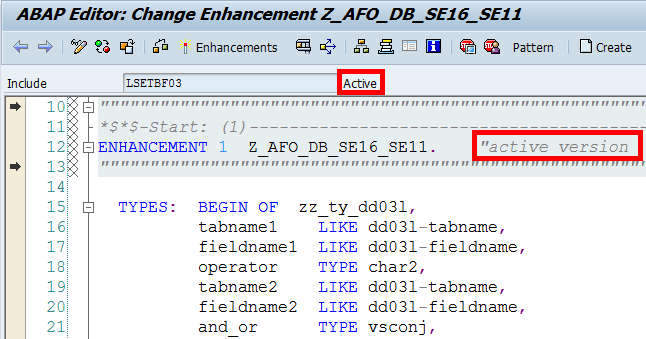
Figure 13
Enhancement activated
To test the enhancement. execute transaction code SE16 or SE11. If you use SE16 enter the table or view name. Click the Table Contents button or press F7 (Figure 14). The system displays the Table VBRK: Selection Screen shown in Figure 15.

Figure 14
Enter the name of the table or view

Figure 15
Selection screen for table VBRK
If you execute transaction code SE11, enter the table name in the Database table field or view name in the View field of the screen that appears. Click the Display button (Figure 16).
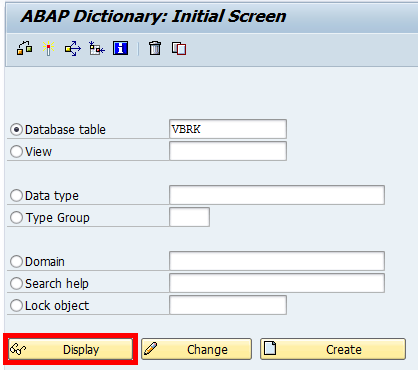
Figure 16
Click the Display button
In the next window click the contents icon (highlighted) or press Ctrl+Shift+F10 (Figure 17), which also takes you to Figure 15.
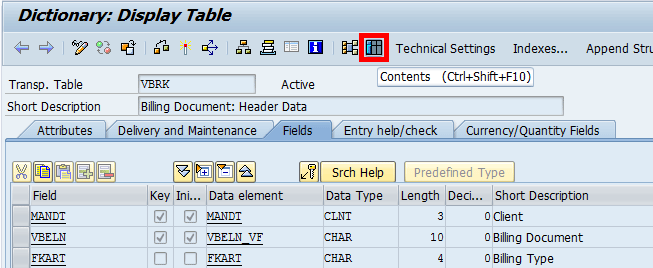
Figure 17
Click the Contents button or press Ctrl+Shift+F10
If you want to apply some filtering conditions in Figure 15 you can do so. Otherwise, click the execute icon or press F8. The system shows you the custom screen you just added for the advanced filtering option using the enhancement (Figure 18).
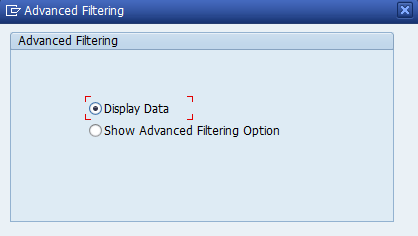
Figure 18
The custom screen is added using the enhancement
On this screen you have two options: Display Data or Show Advanced Filtering Option. If you select the first option and press Enter, the system shows you the normal data without any advanced filtering (Figure 19). You can see the records for which FKDAT is equal to ERDAT and also the records for which FKDAT not equal to ERDAT.

Figure 19
Display of data using the Display Data option
If you select the second radio-button option, Show Advanced Filtering Option, and press Enter, it takes you to Figure 20. Add the condition in Table Control. Table Control contains all the columns (including Table Name, Field Name, and Operator). Click the execute icon or press F8.
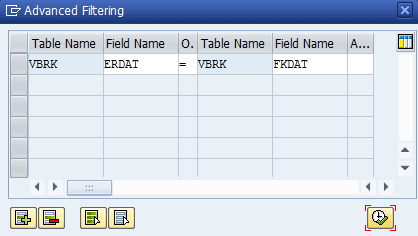
Figure 20
Add the condition
This time the system shows you only the filtered records in which FKDAT is equal to ERDAT, based on the condition (Figure 21), which is the main purpose of this process.

Figure 21
Filtered records as per condition FKDAT=ERDAT
Faisal Altaf
Faisal Altaf is a certified development consultant. He has more than seven years of experience and currently is working with Al Yamamah Steel Industries Co., Saudi Arabia, as the SAP technical division head. He completed his MS in software engineering and intends to complete his Ph.D. in the field of SAP.
You may contact the author at faisalatsap@gmail.com.
If you have comments about this article or publication, or would like to submit an article idea, please contact the editor.




 Premium