Understand the concept of case records in the context of SAP Dispute Management and learn how to adapt the layout of a dispute case. Look into the implementation of Business Add-Ins within SAP Dispute Management to set up automatic follow-up activities such as determining the next processor of a dispute case.
Key Concept
SAP Financial Supply Chain Management (FSCM) is a suite of applications that helps companies optimize working capital levels, streamline receivables, and eliminate excess costs for payments. FSCM addresses virtually every process within the cash-to-cash cycle and provides information to corporate employees as well as customers and vendors. All applications use SAP NetWeaver technology and are integrated with SAP ERP Financials and other components.
Handling payment deductions is a major hassle for most companies. It can cost approximately $150 to process one receivables-related dispute and solve the underlying issues. These disputes could arise because of various reasons: Customers might complain about pricing or service issues, or they could simply decide to deduct a certain invoice amount without proper authorization.
SAP Dispute Management is an application designed to streamline the manual processes involved with receivables-related dispute cases. One core component used by Dispute Management is SAP Case Management, an application for processing any incidents. The system displays an overview of all the information relating to a case on one screen and enables electronic forwarding of the case to other users. Because a case always contains an electronic record, Case Management is integrated in SAP Records Management, a component for the electronic management of records and documents.
I’ll describe the configuration of Case Management and Records Management and show you how to adapt the pre-delivered case record model from the SAP system. A second challenge in every SAP Dispute Management implementation is often the automation of follow-up activities to speed up the processing of payment deductions. The application provides a couple of Business Add-Ins (BAdIs), which are sections in an object’s source code in which you can insert additional functions or statements without having to modify the original coding. I’ll pay special attention to some of these customer enhancements and use an example to demonstrate the flexibility of a BAdI implementation. This article applies to both SAP ERP and R/3 systems.
Case Structure and Basic Terms of Records Management
Every dispute case has the same general setup (Figure 1):
- Header Data: Attributes with important data for the case. Standard SAP includes a number of attributes including customer details, the status of the case, various amount fields, and information about the involved persons and roles. The system fills some of the attributes with data automatically when you create a case.
- Linked Objects: Actual electronic record. These objects include all information objects that are relevant for the case. The folder structure of the case record, in which you can link SAP objects and other documents, contains the following folders, which are maintained in the pre-delivered case record model UDM_DISPUTE (you can display them by clicking on the Attributes button):
- Business partner: Master data of the customer who initiated the payment deduction
- Disputed objects: Accounting documents that were originally assigned to the dispute case such as invoices or residual items
- Resolved objects: Accounting documents that were already resolved such as residual items or invoices
- Items assigned during clearing: Documents used to clear disputed items such as credit memos and partial payments
- Other objects: Documents that helped resolve the dispute case such as billing documents from Sales and Distribution (SD) or related dispute cases
- Various: Any other types of documents that were used to clarify the dispute such as office documents
- Notes: Internal and external status information related to the dispute case entered by dispute processors. The system structures notes through the use of note categories.
- Log: Folder with a list of all the activities performed on the case. This is specifically useful in the context of compliance.
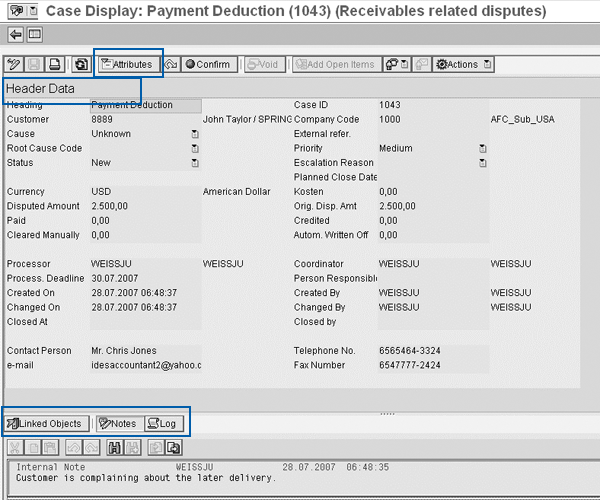
Figure 1
General layout of a dispute case
The folder structure is the actual case record. You configure it as part of a record model in Records Management. A record model is a template that defines the structure of the records. Records that are based on the same record model always have the same structure.
One of the key objects of Records Management is the Records Management System (RMS). This is a discrete unit within Records Management and is similar to a client in the SAP ERP environment. RMS divides various business units logically and provides users with access to different records.
For example, there is one RMS for Dispute Management to process dispute cases and another one for Credit Management to process credit limit requests. Each RMS has a dedicated ID. The standard RMS for Dispute Management has the RMS ID UDM_DISPUTE. You could define more than one RMS for Dispute Management, but there is no cross-RMS search for dispute cases and you cannot use dispute cases or other elements of an RMS as linked objects. Therefore, SAP recommends that you use only RMS for Dispute Management. The central spot to maintain RMS is the RMS Registry.
In the framework area S_AREA_CMG, you find a special entry for Dispute Management (Figure 2). To access the RMS Registry, follow IMG menu path Financial Supply Chain Management > Dispute Management > Dispute Case Processing > Create RMS ID.
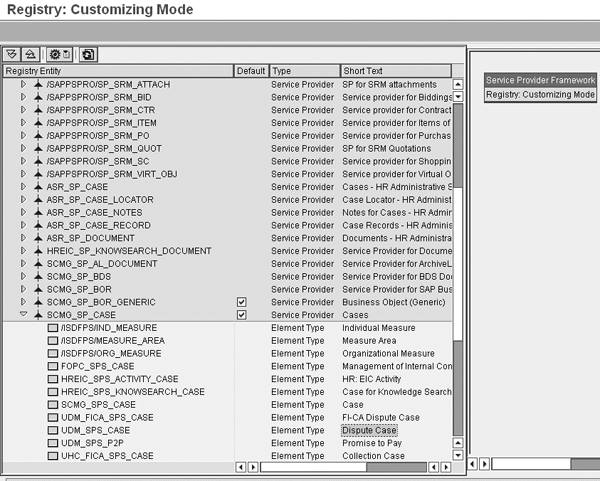
Figure 2
RMS registry
You should become familiar with a number of terms in the RMS Registry:
- Areas. These contain a group of service providers. They define attributes for the element types of these service providers.
- Service providers. These are technical entries in the RMS Registry that enable the integration of elements into Records Management. Each service provider is responsible for a particular group of elements (i.e., there might be a service provider for documents and another one for notes). Service providers group element types and the corresponding elements. You can only use a service provider if at least one element type exists in this service provider. A service provider can contain any number of element types. UDM_SPS_CASE is the element type ID of Dispute Management.
- Element types. These are divisions of similar elements belonging to one service provider (e.g., business partners, FI invoices, or residual items). Element types that you define in the RMS Registry determine what objects are available in the Dispute Management Organizer (which is the first screen when you enter the transaction SCASE). They also determine the Modeler of case records, which you use to define folder structures (i.e., case records) of the dispute case. The Dispute Management element types delivered by SAP start with the prefix UDM.
- Elements. These are specific characteristics of an element type. For example, the business partner 1000 would be an element belonging to the element type business partners. Elements are linked automatically via Dispute Management or manually by the user to dispute case folders (case records).
Adapt the Case Record Model
Now I’ll look more closely at the configuration of Dispute Management. You don’t need to start by creating your own RMS or by modifying the existing element types. If you are fine with the pre- delivered SAP contents in the case record model UDM_Dispute, you can simply adopt this pattern.
The simplest way of doing this is to copy the standard SAP model and adapt it to your needs. To do this, use the Records Modeler by following IMG menu path Financial Supply Chain Management > Dispute Management > Dispute Case Processing > Element Types and Case Record Model > Create and Process Case Record Model.
After you search for and select the model UDM_DISPUTE, right- click on the model and select Other Functions and copy the standard SAP model. Enter a description of your model in Short description, and assign a Unique ID, and save the model.
Now that you have created a new model as a copy of the SAP standard model, you can adapt the model to your needs. SAP recommends that you not use the standard model delivered; you should copy it instead. The reason for this is that SAP reserves the right to make non- compatible changes to the standard case record model.
Adapt the Standard SAP Model
Now I’ll show you some examples for possible next steps if you decide to adapt the record model to your needs. I can’t explain all available options, but I’ll show you some of the available possibilities.
Rename the structure node titles (structure nodes are symbolized with a folder icon) Disputed Objects to Disputed Items and Resolved Objects to Cleared Items. To do this, right-click on the node and select Rename in the context menu. Then enter your new name. You can of course pick any other description for these structure nodes.
You then add a new structure node for documents that customers could upload via SAP Biller Direct. You have to open the structure node Various, right- click on it, and select Create on Same Level (After). In the window on the right side of the screen, enter the following data:
- Description: Biller Direct Attachments
- Node type: Structure Node
- Instances: At least 1; Max *
Then assign a model node (symbolized with the gray x icon that appears before Biller Direct Documents in Figure 3) and choose Create one level below. In the window on the right, enter the following attributes for your new model node and select them from the available options (Figure 3):
- Description: Biller Direct Documents
- Node type: Model Node
- Instances: At least 0; Max *
- Elmnt Type: All Element types
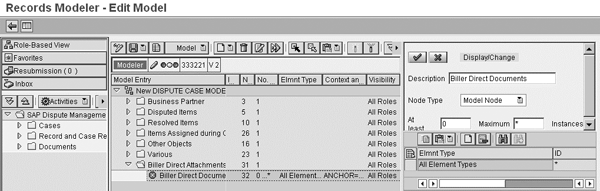
Figure 3
Adapt a records model in the Records Modeler
The difference between structure and model nodes is very simple. You cannot assign elements to structure nodes; they act only as headers for other nodes. The structure nodes are the folders within a dispute case.
You can only assign element types such as residual items or office documents to model nodes. The elements are either linked automatically via the process integration of Dispute Management (i.e., when you create a dispute case for a residual item) or users can assign them manually. After you feel comfortable with your changes, you can save the model and release it. Click on the Model button, select Change Status, and then select Status Released to start using the model. I don’t recommend setting the status to Final because you can then still make subsequent changes to the model and continue to use it in production. If you’re happy with the results, don’t forget to transport the model copy afterwards. You can do this in the modeler by selecting Model > Administration > Transport in the menu.
In the next step, create an element type for the case record in the RMS Registry. Copy the SAP standard element type UDM_SPS_CASE_RECORD. I strongly suggest you not make any changes to the standard element type because the SAP system could apply non- compatible changes to the standard element type. You should also be aware that configuration within the RMS Registry is client-independent. You can enter a new element type ID and short description before saving the element type.
You need to assign the case record model you just created to the element type. Right-click on the new element type and select Change from the context menu. On the Connection Parameter Values tab, select MODEL_ID (Figure 4). Change it by clicking on the pencil icon and assign the new records model by selecting it from the list. Finally, save these changes.
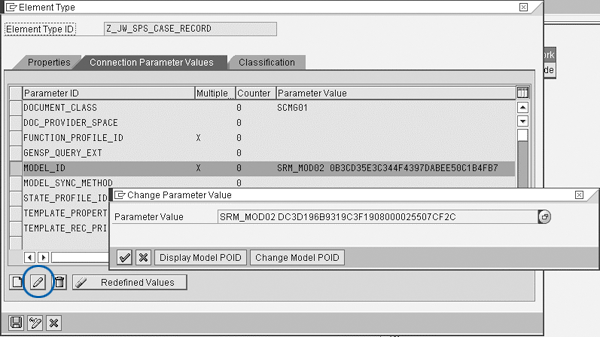
Figure 4
Assign a different records model to the new element type
Change the Attribute Profile of the Dispute Case
Many users want to adjust the standard dispute case layout for their own needs. To do this, follow IMG menu path Financial Accounting > SAP Financial Supply Chain Management > SAP Dispute Management > Attribute Profile > Create Attribute Profile. You maintain the dispute case layout within this attribute profile. The standard attribute delivered by SAP is called FIN_DISPUTE. You can create your own by copying this profile, including all dependent entries, to a new profile.
The system stores attributes used in Dispute Management in two different tables: SCMG_T_CASE_ATTR for generic case attributes (such as the processor) and UDMCASEATTR00 for all dispute case-specific attributes. I’ll now show you how to apply some changes to the entries in this second table.
Let’s have a look at the attribute profile before starting. For each attribute, you can assign the following display characteristics (Figure 5):
- Group: SAP recommends using group 1 for all attributes because it is the default group
- Row: The number of the row in which the attribute appears. The top row is row 1.
- Column: The number of the column in which the attribute appears. You can choose column 1 or 2.
- Required: Check this box if you have to enter the attribute value (for example, if you want to force users to enter a processor for a case)
- Invisible: Check this box if the attribute should not be displayed on the screen. You must still assign it to a unique row and column — it cannot share the same space as a displayed attribute.
- Dropdown: Check this box if you want the system to display the list of possible values in a drop-down menu. Only use this one for attributes with a value table (for example, Reason Code). Do not use it for fields that have search helps (e.g., customer) because the drop-down icon will replace the search help icon.
- Checkbox: Check this box if you want the system to display the attribute as a check box rather than a value
- Not Modifiable: Check this box if you cannot change the attribute value. This is appropriate for attributes that are maintained by the integration with R/3 (such as the value and currency fields).
- Modif. New: Check this box if you can enter the attribute when creating a case but you can’t subsequently change it
- Log: Check this box if you want the system to record changes to this attribute value in the dispute case log

Figure 5
Attribute profile of the dispute case
Now you can apply some changes to the new attribute profile. You can hide the attributes Root Cause Code and Person Responsible because you don’t need them. If you want to use custom attributes as well as the standard attributes, then you must first add the fields you want to the include CI_UDMCASEATTR00 in the Data Dictionary and save your changes.
Create a New Case Type
Before the changes are visible in the system, you have to define a new case type. The case type is the central property of a dispute case and encompasses various configuration settings (including the attribute profile). Every time a user creates a dispute case, he needs to specify the case type. Follow the IMG menu path Financial Accounting > SAP Financial Supply Chain Management > SAP Dispute Management > Case Types > Define Case Types and select the SAP standard type F_DM. Copy it to create your own case type. Enter a new name for your case type and assign your newly created case record model, element type, and attribute profile (Figure 6). If you decide to apply additional changes (for example, your own status profile with different dispute cases’ status) you would change these settings here as well. If you’re done with your adjustments, you can save your case type.
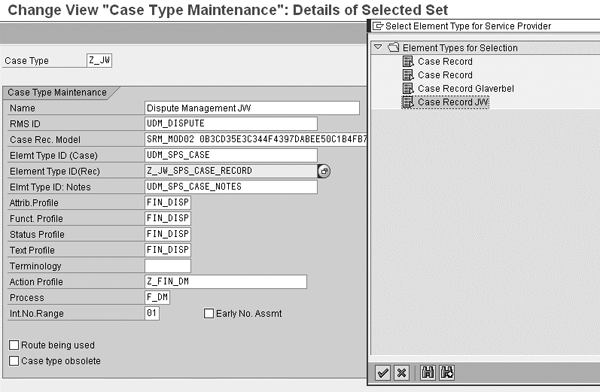
Figure 6
Adapt the case type settings
One final step is necessary before you can start testing the new settings: You need to assign your case type to the respective company code. Follow IMG menu path Financial Supply Chain Management > Dispute Management > Process Integration with Accounts Receivable Accounting > Define Default Values for Creation of Dispute Cases. Select the case type you just created and assign it to the respective company code. The next time you create a dispute case, you will notice that all your changes are effective from now on.
Automation of Dispute Case Processing
Now that you can adapt Records Management and Case Management to your needs as the technical foundation of Dispute Management, I’ll focus on another area that causes users problems. When you create a dispute case within Dispute Management, there is often a desire for automation of case processing. This means that you would like to populate case attributes automatically with certain values.
For example, you might want to assign certain processors for specific reason codes. Dispute Management doesn’t provide configuration settings to do this because requirements could vary significantly from implementation to implementation. What is offered instead is a number of events in which you can create customer-specific enhancements in BAdIs. BAdIs are points in an object’s source code at which you can insert additional functions or statements without having to modify the original. These interfaces are upwardly compatible and won’t be affected by an upgrade.
To find the events that are specific for the integration with Accounts Receivable (AR), follow IMG path Financial Supply Chain Management > Dispute Management > Process Integration with Accounts Receivable Accounting > Customer Enhancements > Customer Default Values for Creating Dispute Cases. I’ll use an example to explain the implementation of a BAdI in which I create a simple BAdI that assigns processors of a dispute case subject to the reason code assigned to a case. To create your own implementation for the BAdI Customer-Specific Default Values for Processor (definition name FDM_AR_DEF_PROCESSOR) you can either double-click on the respective BAdI in the IMG or you can use transaction SE18. This specific BAdI consists of only one method, which is called GET_DEFAULT_PROCESSOR.
Initially, the coding of this method is completely empty and therefore the BAdI implementation and the method are inactive. What you need to do first is to find the right parameters for the BAdI. In this case, you need the reason code, which is a data element of the structure FDM_UI_ATTRIBUTES. You can find all of the import parameters in the upper section of the BAdI method implementation screen. You maintain the reason codes under IMG menu path Financial Supply Chain Management > Dispute Management > Dispute Case Processing > Case Types > Create Values for Attribute “Reason”. In my example, I set up the following reason codes:
- 0001: Late delivery
- 0002: Shortage/freight claims
- 0003: Payment problems
- 0004: Returns
- 0005: Trade promotion
- 0006: Damaged goods
- 0007: Pricing issue
Now you need to create some simple IF … ELSEIF coding for this BAdI method to make the system work how you want it. This assigns the processors ACCOUNTANT1 for all dispute cases with the reason codes 0001, 0004, and 0007. It also assigns ACCOUNTANT2 for all cases with the reason codes 0002 or 0005 and ACCOUNTANT3 for cases 0003 or 0006 (Figure 7).

Figure 7
Sample coding for automation of dispute cases
There are much more complex scenarios with BAdIs if you have sufficient ABAP know-how, but this simple example should demonstrate that even non-technical application consultants can use the BAdI technique. After you’re happy with your coding, you can check the syntax by using the scale icon or selecting Check Method from the context menu. If everything is OK, you can activate your method by clicking on the activate icon or by selecting Method > Activate from the context menu. Then activate your BAdI and you’re ready to test your implementation.
Juergen Weiss
Juergen Weiss works in the functional area of SAP Financial Supply Chain Management. As part of SAP’s product management team, he was globally responsible for the Financial Supply Chain Management applications, including Electronic Bill Presentment and Payment, Dispute Management, Collections Management, Credit Management, Treasury and Risk Management, Bank Relationship Management, and In-House Cash as well as Accounts Payable and Receivable.
You may contact the author at juergen.weiss@sepa-now.de.
If you have comments about this article or publication, or would like to submit an article idea, please contact the editor.


 Premium