Learn how to set up, use, and customize the default Computer Telephony Integration Analytics Live Interactions reports on service level, connection volume, average handling time, average speed of answer, and abandonment rate. These reports provide interaction center managers and supervisors with a snapshot of how well the interaction center is running.
Key Concept
SAP provides a Statistics Interface that allows third-party Communication Management Software vendors to implement a Remote Function Call to extract Computer Telephony Integration (CTI) data into SAP BW. This enables CTI reporting for the SAP CRM Interaction Center.
Interaction center managers and supervisors rely on various metrics and statistics to evaluate how well the interaction center is running and improve interaction center performance. SAP provides several out-of-the-box Computer Telephony Integration (CTI) reports, called Live Interaction reports, in SAP BW. These reports are based on communication data that you import into SAP CRM using a third-party Communication Management Software (CMS) system. The system then enriches the data with CRM business data and exports it to SAP BW.
Let us share with you a new process that you can use to enable CTI Analytics for your interaction center. We’ll also provide descriptions of each report and then take you through the steps to set up and customize them. The process is available with SAP CRM 2005 and later. It also requires SAP BW 3.x or later. To enable CTI Analytics you must have CTI in place.
How the New Process Works
When an agent receives a telephone call in SAP CRM Interaction Center, the CRM system stores the relevant business data, such as the customer information and any business transactions that the agent created. The CRM system also stores the connection ID of the communication, which the external third-party CMS provider supplies.
The external CMS system saves the information about the customer communication, including the duration of calls, the amount of time that calls are in ringing status, the length of time that callers wait in the queue, and how long agents spend talking with callers. The CMS then uses a Remote Function Call (RFC) to export this data to SAP CRM to enrich the data. Later, the CMS exports the data to SAP BW to create the CTI reports.
CTI Reports
The CTI reports are located under the Live Interactions section of the IC Manager role. For SAP CRM 2005, you access this section in SAP Enterprise Portal. For SAP CRM 2006s and above, you access this section via the IC_Manager business role in the WebClient user interface. The standard available CTI reports cover metrics such as :
- Connection volume
- Average handling time
- Service level
- Average speed of answer
- Abandonment rate
Connection Volume. This report provides information that is similar to the industry- standard call volume metric (Figure 1). The report displays the number of connections, such as telephone calls, that an interaction center makes and receives.
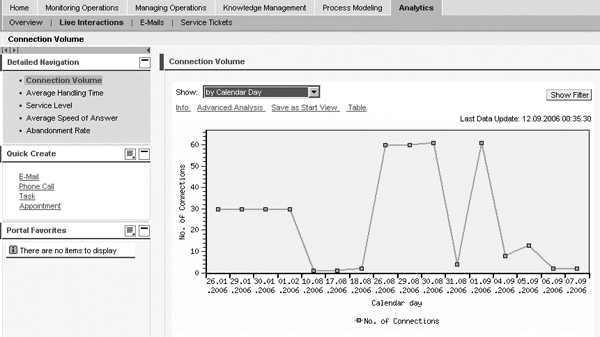
Figure 1
Example of a Connection Volume report in SAP CRM 2005
Interaction center managers can filter the Connection Volume report by various attributes, including communication direction, which allows them to differentiate between inbound and outbound call volumes. These managers can also use the Connection Volume report to view the number of connections at 30-minute intervals on a daily basis. This information can help them determine peak calling periods when the contact center needs to deploy more agents.
Average Handling Time. This report is a combination of the amount of time that an interaction center agent spends talking with a customer — referred to as average talk time — plus the amount of time the agent spends entering notes and otherwise wrapping up the call — referred to as after-call work.
Average handling time is useful when scheduling agents. In general, longer handling times require more agents to achieve the desired service level and speed of answer targets. Also, average handling time is helpful when calculating and analyzing the costs associated with a particular interaction center location, region, or customer because a large portion of the cost of running an interaction center is spent on hourly labor for agents — generally around 60%. As with the other reports, you can also filter this report for more detailed information.
Service Level. Service level refers to the percentage of all calls that agents answer within a predefined desired response time. Although the service level can vary across industries, the typical service level goal is usually 80/20, meaning that agents should answer 80% of calls within 20 seconds, about five to six telephone rings.
You can filter the Service Level report by BW characteristics such as interaction center location. For example, the report might show that the Asia Pacific interaction center is meeting the 80/20 goal. The North American interaction center consistently answers all its calls either on the first ring (in around three seconds) or after 30 seconds. Half of the time the call is answered immediately. The other half of the time, the caller is placed on hold for 30 seconds.
Even though the average speed of answer (described below) is quite good at 16.5 seconds, the percentage of calls that are answered in the desired time frame of 20 seconds or less is only 50%. This interaction center is not meeting the planned 80/20 service level because it takes longer than the planned 20 seconds to answer more than 50% of the calls. Therefore, the North American interaction center manager needs to take action, perhaps by adjusting staffing levels or routing rules.
Average Speed of Answer. Average speed of answer is the average number of seconds that it takes agents to answer incoming telephone calls. For example, the typical average speed of answer for an interaction center might be 30 seconds. The Average Speed of Answer report shows the average number of seconds that it takes for calls to reach an agent, including when the call first started ringing, when the call entered the queue, and when the call reached the Interactive Voice Response (IVR) system.
You can filter the Average Speed of Answer report by BW characteristics such as agent queue or interaction center location. Based on this data, a call center manager might notice that agents answer calls slowly during the early morning when the call center first opens, but answer calls faster than necessary later in the morning, around 10:00 am. Based on this observation, the manager may decide to shift staffing levels to increase the number of agents available in the early morning and reduce the number of agents later in the morning.
Abandonment Rate. Abandonment rate (also sometimes referred to as abandon rate) is the percentage of callers who hang up before speaking with an agent — whether they hang up while the phone is ringing, in the queue, or when navigating the IVR system. This metric does not include callers who receive a busy signal.
Abandonment rate is important because not all callers who hang up try back again at a later time. Some customers may place an order with a competitor — resulting in a lost sale — while other customers may defect completely and switch their service to another vendor. Essentially, this metric warns you when your interaction center is losing business.
Several factors can influence abandonment rate. However, the most relevant factor is usually the average speed of answer discussed previously. In addition to displaying the percentage of the total callers who abandon, the report can also show the average amount of time that it takes for a customer to abandon the call. The longer the customer waits on hold, the more likely the caller is to hang up.
To set up a report to examine this, add a free characteristic called Time Interval (30min) as a row or column in the report via the Advanced Analysis link. (We’ll explain how to do this in the next section.) Based on the report, you may find that most customers are willing to stay on hold for five to seven minutes, but many of them start to abandon after being on hold for over seven minutes.
Steps to Enable CTI Analytics
Follow these three steps to enable CTI Analytics for Interaction Center.
Step 1. Upload CTI data from the CMS system to SAP CRM. Upload the CTI data via transaction CRM_CIC_CTI_LOAD, which you can access by following menu path Interaction Center>Supporting Processes>Upload Interaction Statistics. Make sure to select the Upload to BW check box (Figure 2). Otherwise the system does not upload the data. If the Upload to BW check box is grayed out, it means that you do not have an SAP BW system connected to your SAP CRM system. In this case, use transaction RSA1 in SAP BW to define the connection.
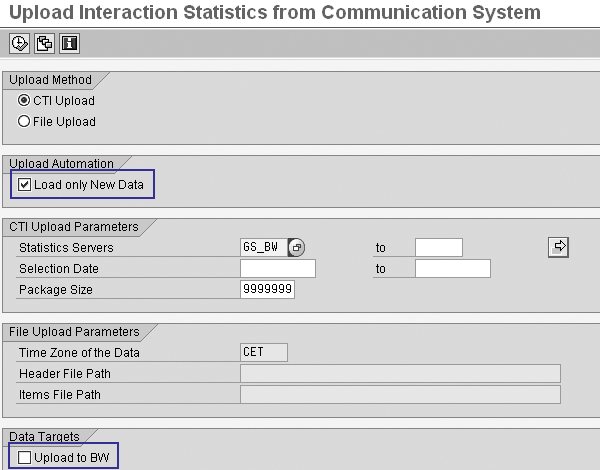
Figure 2
Run transaction CRM_CIC_CTI_LOAD
Select the Load only New Data check box to ensure that the system selects only new data since the last CRM upload. It is not necessary to reload existing data that is already in the system; thus, most people choose the option to load only new data. Reloading existing data consumes more system resources and time than just loading the delta data.
You can limit the number of uploaded records that the system displays by entering a value in the Maximum number of records field in the Display data entries pop-up screen that appears when you click on the Display data entries button. This does not affect the number of records that the system uploads, just the number of records that the system displays.
Tip!
Run the BW upload as a batch job rather than a runtime job due to the large volume of data. Be patient as the upload could easily take 10 to 15 minutes for every 10,000 records.
Under the CTI Upload Parameters tab, select the desired SAPphone server for the third- party CMS statistics servers in the Statistics Servers field. You do not need to actually download and install the SAPphone Server software. A technical resource just needs to maintain the RFC destination for the selected statistics server using transaction SPHB. Make sure that the technical resource checked the Statistics check box under the Functions tab for each server site you plan to use.
Next, verify that the system uploaded the data correctly via transaction RSA7 by selecting the 0CRM_CIC_CTI DataSource and clicking on the Display data entries button (Figure 3). Then click on the Execute button.

Figure 3
Select desired BW system data source in transaction RSA7
After the CTI data uploads to SAP CRM, you see a list of the entries in the queued Remote Function Call (qRFC) Monitor (Figure 4). In the next step, you upload this data from SAP CRM to SAP BW without actually doing anything with the data in CRM. Using this two-step upload process, rather than uploading the data directly to CRM, allows the system to enrich the data with CRM business data behind the scenes. Later, this enables you to filter and drill down in the BW reports using CRM data such as agent, customer, or region.
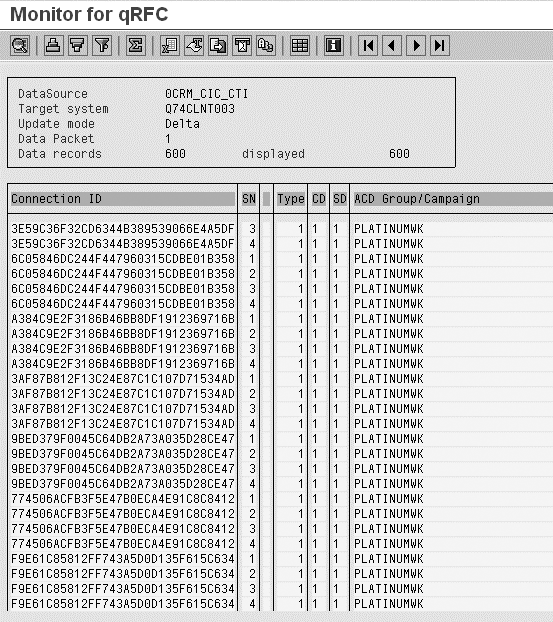
Figure 4
View the list of uploaded entries in SAP CRM
Step 2. Upload the CTI data from SAP CRM to SAP BW. You may need assistance from your BW team for this step. To carry out this step, ensure that the BW team has already activated the business content using transaction CRM_CIC_CTI_LOAD.
Log on to the BW system and run transaction RSA1. Then, expand the InfoSource by following menu path SAP Application Components>Customer Relationship Management>Interaction Channel Analyses>Interaction Center Analyses>Interaction Statistics>Load CTI Data. The exact path depends on your BW release. For example, in SAP NetWeaver BI 7.0.3 the path says Contact Channel Analyses rather than Interaction Channel Analyses. The first time that you upload the CTI data from CRM to BW, you need to create an InfoPackage by selecting the Update tab and choosing Initialize Delta Process in the Update Mode section (Figure 5).

Figure 5
Select the appropriate Update Mode for either initialization or delta upload Click here to to view a larger version of this image
Select the Schedule tab and click on the Start button to upload the data from SAP CRM to SAP BW. Then, press the F6 key to view the successfully uploaded BW entries and confirm that the correct number of entries uploaded (Figure 6). Next, re-run transaction RSA1. Go back to the Update tab and change the Update Mode to Delta Update for subsequent uploads after the initial upload is complete.
Note
After you complete the first upload and the system creates the InfoPackage, you must change the Update Mode value to Delta Update — never change it again. Otherwise you may end up with system slowdowns or corrupt data.
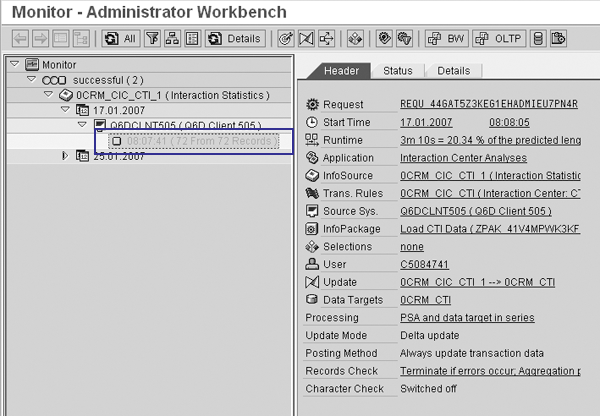
Figure 6
View details of successfully completed upload
Step 3. View the Live Interactions reports from the IC Manager role. Log on to the SAP Enterprise Portal with the IC Manager role (SAP CRM 2005) or log on to the CRM WebClient application with the IC Manager business role (SAP CRM 2006s and above). Follow menu path Analytics>Live Interactions (for SAP CRM 2005) or go to Reports (for SAP CRM 2006s and above).
View the desired report: Service Level, Connection Volume, Average Handling Time, Average Speed of Answer, or Abandonment Rate. For our example, we chose the Connection Volume report. Then, filter the report as desired using the Show drop-down menu (Figure 7). You can also filter values by clicking on the Show Filter button.
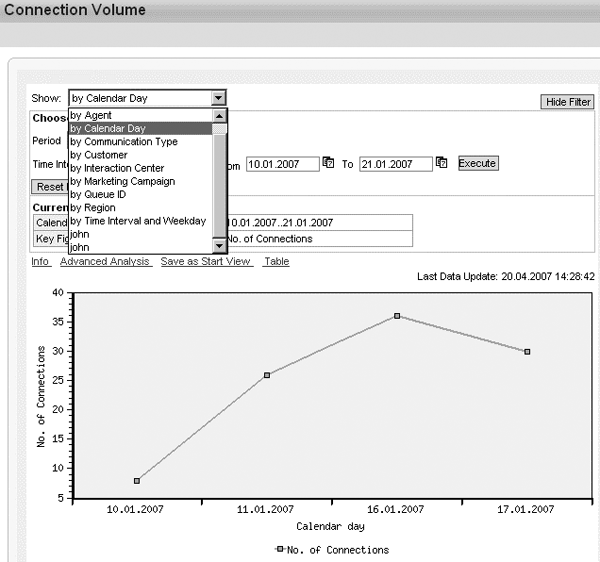
Figure 7
Filter the report with a default drop-down list of values
Click on the Advanced Analysis link to customize the report using the available BW free characteristics (Figure 8). You can use the standard filtering available in any BW report in terms of defining fixed filters (drop-down menus), rows, columns, and free characteristics.
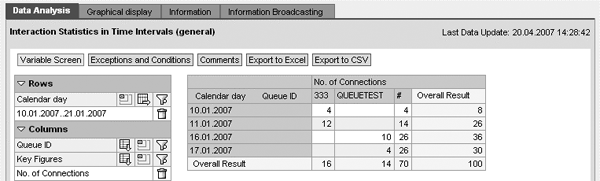
Figure 8
Use the Advanced Analysis link to customize report with free characteristics
John Burton
John Burton is a director of product management at SAP and is responsible for the SAP CRM Interaction Center (including ERMS) and social CRM topic areas. John has 13 years of experience at SAP and has been involved with SAP CRM and the Interaction Center since 1999. He is also the author of Maximizing Your SAP CRM Interaction Center, available at the SAPinsider Store. John is an alumnus of the University of Michigan and Central Michigan University. John can be found on LinkedIn at www.linkedin.com/in/sapjohnburton.
You may contact the author at john.burton@sap.com.
If you have comments about this article or publication, or would like to submit an article idea, please contact the editor.
Satit Nuchitsiripattara
Satit Nuchitsiripattara is an SAP CRM developer with more than seven years of experience in the Interaction Center area. He specializes in the SAP CRM Interaction Center communications channels and has worked with SAP CRM since CRM 2.0B.
You may contact the author at satit.nuchitsiripattara@sap.com.
If you have comments about this article or publication, or would like to submit an article idea, please contact the editor.
Yufeng Zhou
Yufeng Zhou is a senior software developer with 10 years of SAP experience. He has worked at SAP Japan and SAP China and now works at SAP Labs performing functional and empirical analysis related to the development and enhancement of SAP CRM.
You may contact the author at yufeng.zhou@sap.com.
If you have comments about this article or publication, or would like to submit an article idea, please contact the editor.



 Premium