Muhammad Abdul Jamil provides this guide to connecting SAP ERP Central Component (ECC) and Microsoft Active Directory. You can fetch users along with details from the Active Directory to ECC rather than having to create them one by one on the ECC system.
Key Concept
The Lightweight Directory Access Protocol (LDAP) provides a central user repository in which you can centrally maintain user data. It helps avoid redundant, error-prone maintenance of user information in several systems and reduces total cost of ownership.
Following are the detailed steps to take to configure integration between ECC and Active Directory with the help of the Lightweight Directory Access Protocol (LDAP). The LDAP directory acts as a leading system wherein users are imported to the SAP system every time user synchronization happens. User synchronization is a process executed in ECC that takes users from the Microsoft Active Directory server to the ECC system.
The LDAP connecter requires access to a specific library that is installed on the application server platform. The LDAP connector is called using ABAP functions and communicates with the directory services using LDAP.
First you should check whether the LDAP connector is operable so that you know the LDAP Library is available on the SAP system. To do so use the LDAP_RFC command that resides in the kernel directory on the SAP system. Log in to the SAP system and open the Windows command prompt via menu path Start > Run as shown in Figure 1.

Figure 1
Open the Windows command prompt
When you click the OK button in Figure 1 the Windows command prompt opens. You need to write the LDAP_RFC command in the Windows command prompt as shown in Figure 2 and press Enter. You then get the LDAP information shown in Figure 2.
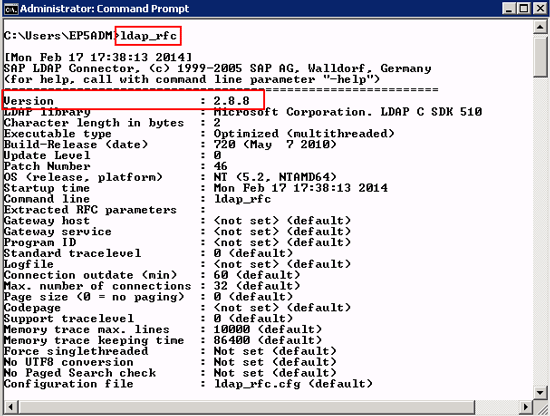
Figure 2
LDAP information
Configure the LDAP Connector
To communicate with the server on which Active Directory is running, log in to the SAP system and create a Remote Function Call (RFC) with type T (TCP/IP Connection) with system information. You can create it using transaction SM59. Run SM59 on the SAP system as shown in Figure 3.

Figure 3
Transaction code for creating an RFC
Click the create icon as shown in Figure 4.
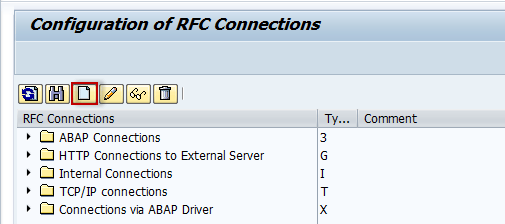
Figure 4
Create icon
In Figure 5 you need to enter information such as RFC Destination, Connection Type, and Description for the RFC connection.

Figure 5
RFC information
Note
SAP recommends that you use the following naming convention: LDAP_<server_name>. If you want to start multiple LDAP connectors on one server, extend the name as follows: -<sequence_number>, that is LDAP_MYSERVERNAME-01.
Figure 6 Figure 5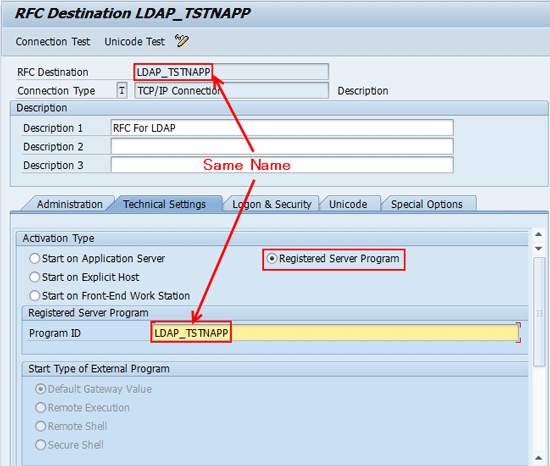
Figure 6
RFC destination with detail
Specify the Program ID to be the same as the RFC Destination. You need to mention the Gateway Host and Gateway service as shown in Figure 7. (You reach the information shown in Figure 7 by scrolling down.) The Gateway host and service communicate with Active Directory.

Figure 7
Gateway option
To save your entries click on highlighted save icon in Figure 8, which is also part of Figure 6.

Figure 8
Save the RFC information
From the LDAP server, you now create users. You need to log in to the Active Directory server and Figure 9 is opened. Click the SAP group along with some of the departments showing in Figure 9. You can fetch these users from Active Directory to ECC.
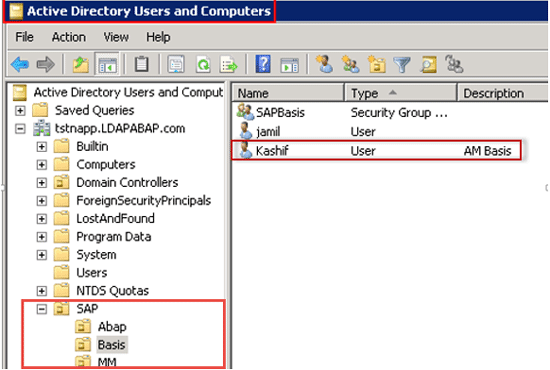
Figure 9
User defined in Active Directory
You can open any user from SAP departments. As an example, I’m opening the Basis user shown in Figure 10. Double-click the name Kashif in the Basis department. The user-related information is already maintained in Active Directory including General (First name, Last name, E-mail address and telephone number), Telephones (Home number, Mobile number, Fax), and Organization (Job Title, Department, and Company).
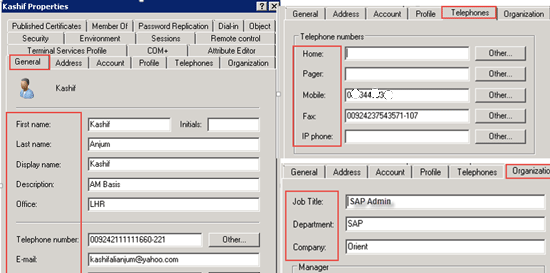
Figure 10
User detail in Active Directory server
Defining System Users
You need to define a communication user which the LDAP connector uses to bind to the LDAP Directory Server while you maintain it in the LDAP server. Log in to the SAP system and run transaction code LDAP to access the LDAP connector. Click the System Users button as shown in Figure 11 to go to Figure 12.
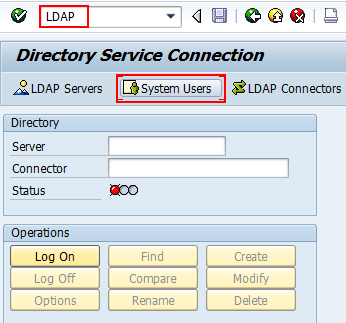
Figure 11
Click the System Users button
Click the highlighted change icon in Figure 12 to switch into change mode. The New Entries button appears as shown in Figure 13.

Figure 12
Change mode
Click the New Entries button in Figure 13.
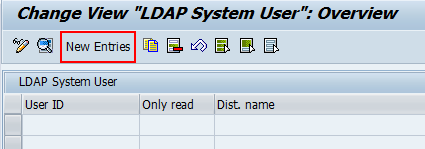
Figure 13
Create new entries
Enter the required data such as User ID, Distinguished Name, authentication mechanism, and Credential storage as shown in Figure 14. Click the save icon to save the entries as shown in Figure 14.

Figure 14
Save the user detail
A communication user is created as shown in Figure 15.
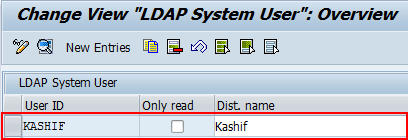
Figure 15
Communication user
Defining Server Details
Create a new logical LDAP server in which you maintain the connection details of the physical directory. Run transaction code LDAP and specify the LDAP server name. Click the LDAP Servers button shown in Figure 16 to go to Figure 17.
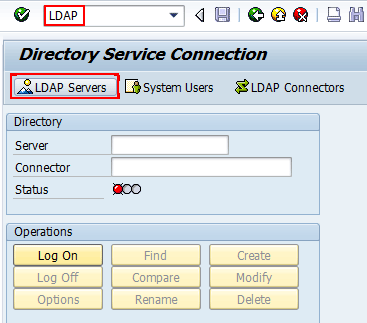
Figure 16
Create the LDAP server
Select the Mapping button in Figure 17 and enter the Server name, Host name, Port Number, Product name, Protocol Version, LDAP application, Base entry, and System Logon and save it. The Host Name on which Active Directory is installed is tstnapp.LDAPABAP.com. Now you can segregate the name as a base entry like this: Base Entry: OU=sap, DC=tstnapp, DC=ldapabap, DC=com. I segregated the fully qualified domain name into OU (organization units) and DC (domain component).
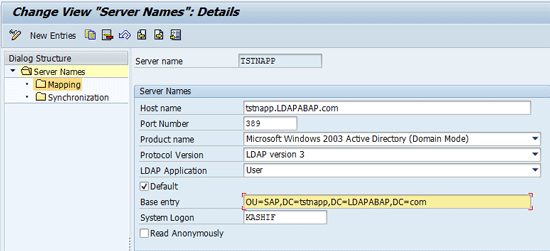
Figure 17
Detail of server name
After saving the entry, Server Names appear as shown in Figure 18.
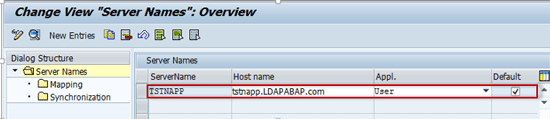
Figure 18
Overview of servers
Log on to the SAP server and browse menu path C:WindowsSystem32driversetc. Open the hosts file that exists in the etc folder. Put the entry of the IP address and host name in the hosts file of that server on which Active Directory is configured (Figure 19).

Figure 19
Entry in host file
Defining LDAP Connectors
As already mentioned, the LDAP connector requires access to a specific library installed on the application server platform. The LDAP connector is called using ABAP functions and communicates with the directory services using LDAP. Therefore, you need to create an LDAP connector that communicates with the directory service. You need to run transaction code LDAP on the ECC system and click the LDAP Connectors button as shown in Figure 20.

Figure 20
LDAP connection
Click the New Entries button to create the LDAP connector as shown in Figure 21.
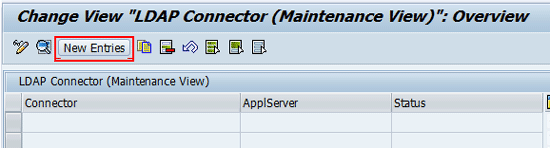
Figure 21
Create new entries
Provide the Connector Name you created in Figure 6. Enter the Application Server, Status, and Trace Level. I set the trace level to Trace OFF but you can turn it on by selecting Trace ON. You usually enable it when you encounter a connectivity issue. Click the Start Connector button shown in Figure 22.

Figure 22
LDAP server detail
The connector’s Current Status changes to green status as shown in Figure 23.
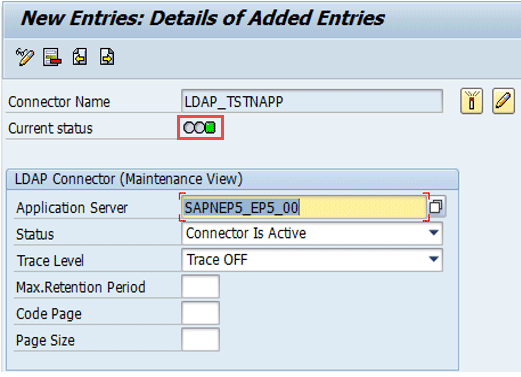
Figure 23
LDAP connector after activating
Now that the LDAP connector has been successfully created, the status is shown as active in Figure 24.

Figure 24
LDAP connector overview
SAP recommends that you test the connection via transaction code SMGW. Click the Logged on Clients option under the Goto option, as shown in Figure 25.
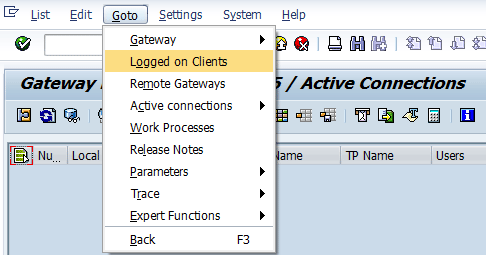
Figure 25
Logged on client for test connection
You can check the status of LDAP_TSTNAPP shown in the Gateway Monitor (Figure 26).

Figure 26
Connection detail
Logging On to the Directory Service
Now you must check the connection to the directory service by logging on to the SAP system and confirming whether it is running. You can check via transaction code LDAP. In the initial screen of the LDAP transaction, specify the LDAP server name and the LDAP connector you created in previous figures. Click the Log On button as shown in Figure 27.
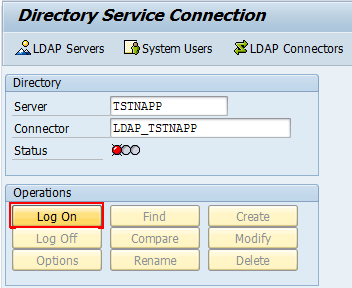
Figure 27
Directory service connection
Check the Use System User button and then click the Execute button (Figure 28).

Figure 28
Log in to the server with the user
You can check the status. In my example it shows green, which indicates that the connection is successfully configured (Figure 29).

Figure 29
Directory service connection
Mapping
In transaction LDAPMAP you can map specific SAP data fields to the desired directory attributes. Run transaction code LDAPMAP and select the Mapping option along with Host name, Port Number, Product name, Protocol Version, LDAP Application, Base entry, and System Logon as shown Figure 30. Then you save it.
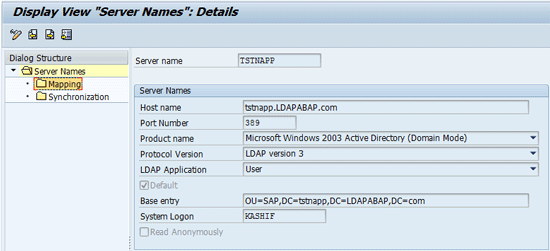
Figure 30
Mapping with server detail
Add the Object class user as shown in Figure 31 because you are going to map the field of the SAP user with the user attribute of Active Directory.
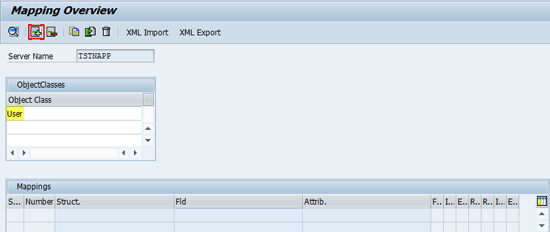
Figure 31
Mapping overview
Function Module and Mapping
If the desired mapping is not a simple 1:1 relationship, function modules can be used to enable a more complicated mapping procedure. With the help of a function module, you can map the Directory attribute with the SAP system in the Mapping Details screen. Specify the Table Name and Field name under the SAP System section. Specify the attribute under Directory (Figure 32).
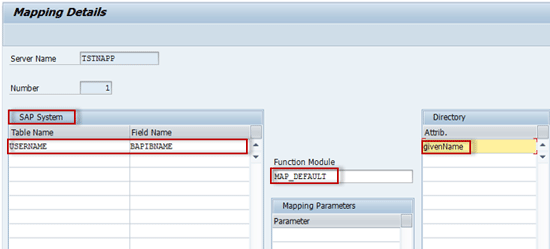
Figure 32
Mapping detail with function module
A simple example of an attribute is a telephone number. The telephone number of a user is stored in the directory attribute telephone (in Active Directory). The extension is normally split by a hyphen (-).
In an SAP system the telephone number of a user is stored in two data fields: ADDRESS-TEL1_NUMBR and
ADDRESS-TEL1_EXT. Therefore you can use the function module MAP_SPLIT_CHAR. This module reads the value for the telephone number from the directory attribute telephone. The extension
is split at the position where the system finds a hyphen (-_ in the string and the two values are stored in the
SAP data fields ADDRESSTEL1_NUMBR and ADDRESS-TEL1_EXT) as shown in Figure 33.
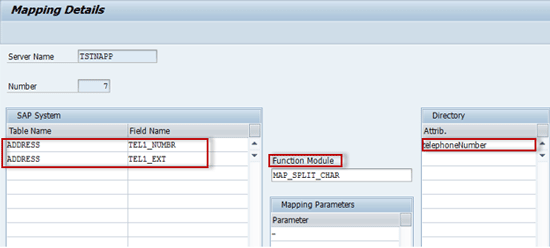
Figure 33
Mapping detail of SAP system and Active Directory
SAP offers directory-specific proposals for the mapping of the directory attributes to SAP data fields. To see a list of available attributes click here: Available Attributes. After importing the proposal the mapping details you can customize them as desired. For each attribute there is the option to specify whether the customized mapping is only valid for import, export, or for both ways of synchronization. You can see the mapping of SAP system fields with Active Directory attributes as shown in Figure 34.

Figure 34
Mapping overview of users
Table 1 provides details related about function modules, parameters, and comments and includes an example for each function module. You can use these function modules and map the fields between the SAP system and Active Directory.
| Function module |
Parameter value |
Comment |
Example |
| MAP_DEFAULT |
None |
Standard linking type that maps one field to one attribute |
SAP data field BAPIBNAME is mapped one-to-one to the directory attribute cn (common name) |
| MAP_CONCAT_CHAR |
Separator (such as - /; SPACE*)
Only the parameter specified in the first line is taken into account.
|
Maps two directory attributes to one field. |
The directory attributesgivenName and sn (surname) are merged into the field FULLNAME during import to the SAP system. |
MAP_SPLIT_CHAR |
Separator (such as - / ; SPACE*)
Only the parameter specified in the first line is taken into account.
|
Maps two SAP data fields to one directory attribute. |
The directory attribute telephoneNumber is split into TEL1_NUMBR and TEL1_EXT when imported to the SAP system. |
| MAP_UNION |
None |
Creates a union of values from more than one data source. |
Each system stores the role assignment in its own attribute. To show all assigned roles in your SAP systems, the MAP_UNION function module reads the values of all of these attributes and outputs the complete list. |
Table 1
Function Module Details
Synchronization of SAP User Administration with LDAP Directory
Figure 35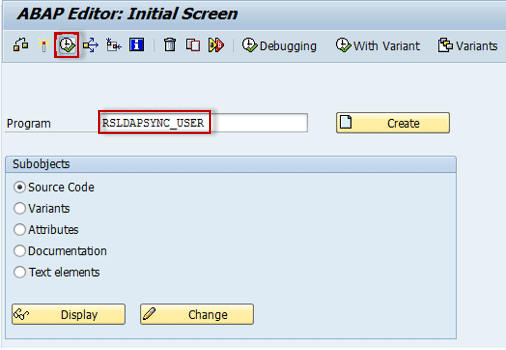
Figure 35
Run the synchronization program
Specify the logical LDAP server and LDAP connector. Then define how the report has to process the entries of the objects that are found during the search. The search result is made up of three subsets.
a) Objects that exist in both in directory and database
b) Objects that exist only in directory
c) Objects that exist only in database
Select the subset as per your requirement (Figure 36). I selected the Create button so that the user detail will be fetched/imported from Active Directory and created in the ECC database.

Figure 36
Synchronize with subset option
Click the save icon to save your entries and then click the execute icon. For example, the highlighted users under LDAP Synchronization have been created in the Active Directory server. When the synchronization report is executed in an SAP system, the users (including ABDUL, ASAD, HASSAN, JUNAID, and JAMIL) are taken from the Active Directory server to the SAP system. Figure 37 is the LDAP synchronization log after the report has been executed successfully.
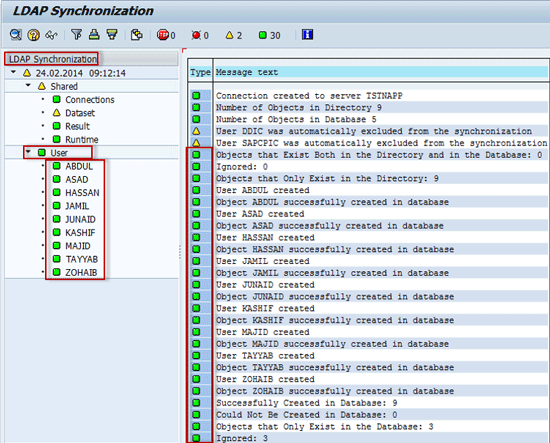
Figure 37
Results of synchronization
If you want to check all created users in the SAP system use transaction SU01. Click the User check box and press F4 (Figure 38).
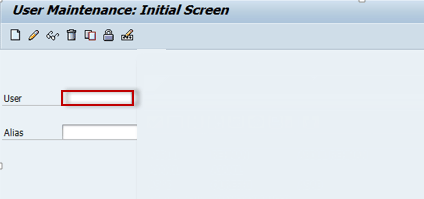
Figure 38
User maintenance window
You see a screen showing the newly created users in the user management screen of the SAP system as shown in Figure 39.
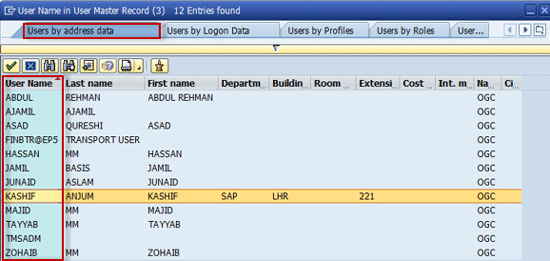
Figure 39
User master records
If you want to check a specific user you can do so via transaction SU01. Put the user name in the User check box (Figure 40).
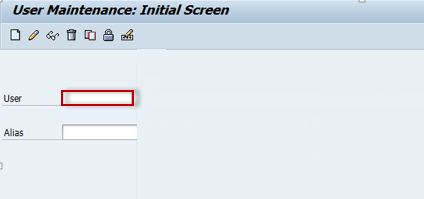
Figure 40
User maintenance window
Now enter the required user name, in my example Kashif. Click the display icon to see the final result (Figure 41).

Figure 41
Maintain user
All users who were under the SAP department in Microsoft Active Directory are now successfully imported into ECC.
Muhammad Abdul Jamil
Muhammad Abdul Jamil is an SAP Basis Administrator at the Orient Group of Companies. He has more than four years of SAP Basis experience. He has a degree in computer science and has worked in industries such as Beverages, Home Appliances, Food, and Chemicals. Previously, he worked at Siemens Pakistan Consulting and he completed four SAP projects (E2E) as a SAP technical (Basis) consultant at Siemens Pakistan Consulting.
You may contact the author at majamil1@hotmail.com.
If you have comments about this article or publication, or would like to submit an article idea, please contact the editor.