In this excerpt from Michael Füchsle and Matthias Zierke’s SAP PRESS book SAP CRM Web Client Customizing and Development, available at SAPinsider.com/Store, learn how to enhance your CRM WebClient UI’s header area to make it more user-friendly and efficient.
Key Concept
Part of the CRM WebClient UI design, the header area is located in the upper section of the screen. This area provides you with both comprehensive and general shortcuts as well as special functions.
Along with the navigation bar, the header area of the CRM WebClient UI is often the starting point for navigation. You can see how it fits into the fixed, L-shaped layout of the CRM WebClient UI (which also includes the navigation bar) in Figure 1. You use the header area to access the page history, saved searches, and system links. You can also use the header area to obtain information about the page content you call (work area title) as well as possible adjustments to the page content (work area toolbar). The header area for marketing applications can also contain a working context.
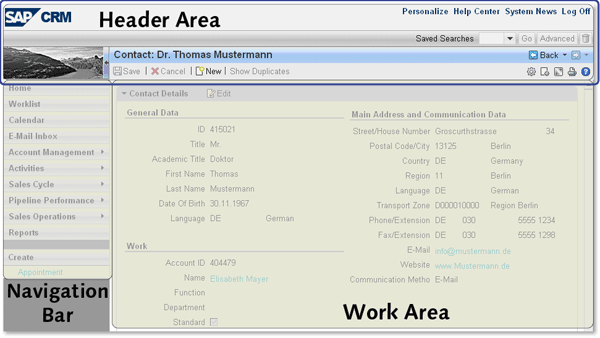
Figure 1
How the header area fits in the CRM WebClient UI area
The header area is a static area within the CRM WebClient UI framework that you cannot scroll. Only one header area is provided per session. You can hide and display some of the areas (e.g., the saved searches and the central search) or change their position within the header area. You can adjust the color and screen skins as well as the size of the header area. You customize the areas within the header in Customizing for the navigation frame, among others.
The header area of the navigation frame comprises three areas, which are represented by the attributes UI_COMPONENT_1, UI_COMPONENT_2, and UI_COMPONENT_3. These attributes are available in the UI component CRM_WORKAREAHDR. In these areas you can customize the position of the central search, saved search, or the working context, for example.
Note
The UI component CRM_WORKAREAHDR is used to position header applications such as central search, saved search, and working context.
Configuring the Header Area
To display the central search in the header area of the navigation frame, you configure the necessary settings in the UI component CRM_WORKAREAHDR. As a prerequisite, you must have activated the WORKAREA_HEADER component for your selected layout profile. To display a saved search in the header area, activate the SAVEDSEARCH_LAUNCHER component for your selected layout profile in the same Customizing activity.
You use the Component Workbench and the UI component CRM_WORKAREAHDR for the Work Area Header view to configure the header area for your business role. On the Configuration tab page, select your role configuration key (represented by the number 1 in Figure 2). Here, you can use the More > Attributes path to display the attributes UI_COMPONENT_1, UI_COMPONENT_2, and UI_COMPONENT_3.
To display the central search on the right-hand side of the header area, define, for example, the following value for UI_COMPONENT_3 (2 in Figure 2): UI_COMPONENT_3:Window=CRM_ALLSEARCHES.CRM_ALLSEARCHES/LauncherWindow;horizontalAlignment=right;.
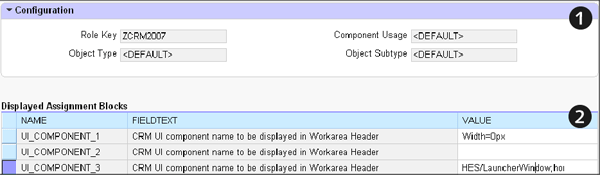
Figure 2
Configure the header area
To ensure that the central search has sufficient space within the header area, you should define Width=0px for UI_COMPONENT_1 or UI_COMPONENT_2 if one of these components will not be used.
To ensure that saved searches are displayed on the right side of the header area, define the following value: UI_COMPONENT_3:Window=CRM_SAVEDSEARCH.LauncherWindow;horizontalAlignment=right;. If you want to display the working context on the right side of the header area, define the following value: UI_COMPONENT_3:Window=CMP_WCTXT.CMP_WCTXT/MainWindow;Width=350px. If you want to center the working context in the header area of the CRM WebClient UI, specify the aforementioned value (i.e., UI_COMPONENT_2:Window=CMP_WCTXT.CMP_WCTXT/MainWindow;Width=350px) in UI_COMPONENT_2.
Defining the Navigation Frame
The navigation frame for the header area is customized in the IMG under the menu path Customer Relationship Management > Business Roles > Define Navigation Frame. Here, you select the navigation frame specified for your business role (1 in Figure 3).
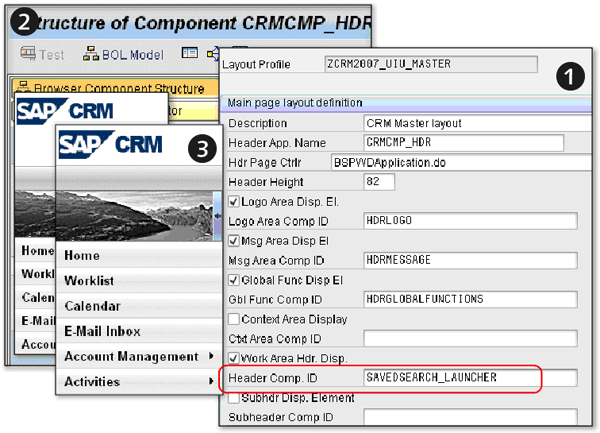
Figure 3
Navigation frame for the header area
The name of the header application, the component ID for the logo area, the message bar, and global functions for the header area are defined in the sample definition of the navigation frame. You can use the Component Workbench to customize the header application in greater detail (2). In addition, you can use the layout profile to change the height of the header area (3). This entry is useful if you want to define a larger company logo for the user interface. The number 1 in Figure 3 also shows that, in this example, the saved search (SAVEDSEARCH_LAUNCHER) has been defined for the header area.
Defining the Layout Components
You define the layout components in the SAP IMG under menu path Customer Relationship Management > UI Framework > Technical Role Definition > Define Layout Component. Here, you also see the component IDs from the navigation frame definition (1 in Figure 4). The layout component describes the component definition view (2).
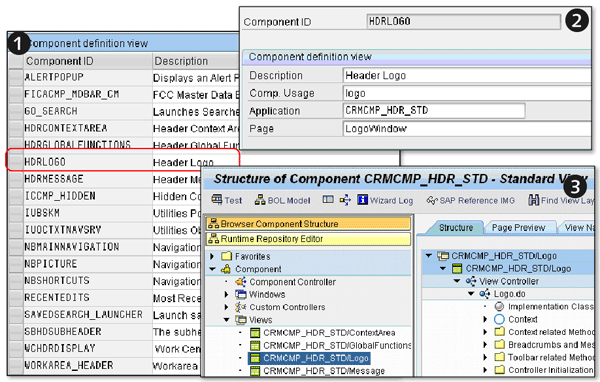
Figure 4
Layout components
Explaining the process in detail is beyond the scope of this article, but you can use the Component Workbench to customize parts of the header area with the information from the layout component (application name).
Displaying the Central Search
You can use the central search to find CRM business objects both in a standalone CRM WebClient UI and in the CRM WebClient UI integrated into SAP NetWeaver Portal. In both applications, the central search is available in the header area and is therefore displayed at all times. You can always access the header area irrespective of the CRM business object displayed.
The visual appearance of the central search in the CRM WebClient UI integrated into the portal is similar to the appearance of the central search in the standalone CRM WebClient UI. The search menu comprises a hierarchical list of business objects and saved searches available in the upper work area. You can also use the Advanced button to navigate to a search page or a saved search. Figure 5 shows examples of integrating the central search and saved search into the header area of the user interface.
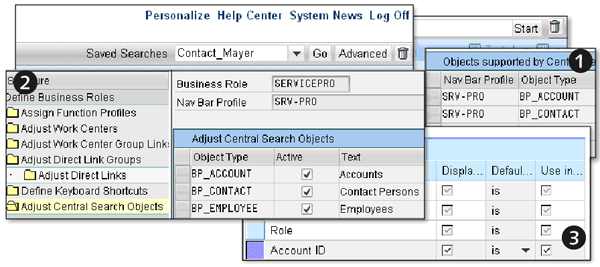
Figure 5
Searches in the header area
If you have entered search criteria and started the central search from the header area, the system navigates to the search page for the corresponding CRM business object and performs the search in accordance with the search criteria you have entered. The result is displayed on the search page for the business object.
You can define the relevant Customizing settings for each business object to be supported by the central search by following IMG menu path Customer Relationship Management > UI Framework > Technical Role Definition > Define Central Search (1 in Figure 5). To enable new settings to be displayed at the business role level in the central search, they are made known in Customizing for the business role (2). However, the new search criterion has not yet been integrated into the search page. Therefore, use the UI Configuration Tool (which is beyond the scope of this article, but covered in the book) to set the Use in Central Search (3) indicator for the search criterion you have created.
For example, to configure the search criterion for account IDs in the central search for your business role, start the UI Configuration Tool and select the UI component BP_HEAD_SEARCH and the MainSearch view. Then, set the Use in Central Search indicator for the search criterion you want to display in the central search. Additional information about the central search is available by following menu path SAP Library > Customer Relationship Management > UI Framework and Configuration of the User Interface (UI) > Search > Central Search.
Note
You can perform the central search for business objects in the standalone CRM WebClient or in the CRM WebClient integrated into the portal. Its usage restrictions (e.g., special characters and Internet browser) are summarized in SAP Notes 1247914 and 1252827.
Before you conclude the configuration, you should check whether the two search parameters CNTRLSEARCH_UI_TYPE and SEARCH_MAX_HITS are enabled. To do this, follow menu path SAP Implementation Guide > Customer Relationship Management > UI Framework > Technical Role Definitions > Define Parameter. The two search parameter values are contained in the standard delivery. The parameter CNTRLSEARCH_UI_TYPE specifies the number of fields displayed in the central search. You must also enable the SEARCH_MAX_HITS parameter. It determines the number of data records displayed in the results list (100 by default).
Using the Working Context
The working context is a group of attributes that used as default values during an advanced search or when creating a new object. Working contexts are available for marketing applications only. You can use this function to select attribute values that the system then uses to automatically pre-populate the UI. For example, the values you specify for a working context are displayed as default entries on the pages for advanced searches, the pages for creating marketing objects, and the master data pages.
First, let’s take a look at a brief example: A product manager (PM) is responsible for a range of chocolate products and works primarily with the business partner Chocolate Ltd. The PM creates a working context and assigns it the name Chocolate. The working context comprises Chocolate Ltd. as an account, a product group for chocolate, and a planning horizon. If Chocolate is the active working context, the system pre-assigns the account name and product group as well as the start and end dates each time the PM creates a new promotion.
You define the working context profile by following IMG menu path Customer Relationship Management > UI Framework > Technical Role Definition > Define Working Context Profiles (number 1 in Figure 6). In the Assign working context providers folder, you can determine the control level (e.g., strict) of the function profile and assign one or more provider classes (e.g., CL_CRM_TPM_WORKING_CONTEXT) to the working context profile. Next, you can define language-dependent descriptions for the attributes in the Adjust working context attributes folder. You must then assign the newly created working context profile to the business role using the Assign Function Profiles folder (2).
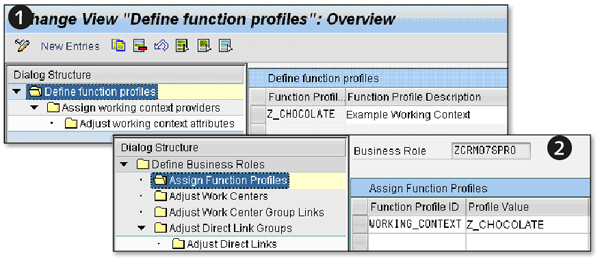
Figure 6
Working context
The behavior of the working context depends on whether you set the strict indicator (Column 3 — Define Working Context Profile, not shown in Figure 6) for strict monitoring of the working context profile. If you enable strict monitoring, you cannot override the working context. For example, you cannot search for a product that differs from the product specified in the working context.
Otherwise, you can disable and override the working context. You can, for example, create trade promotions for an account other than the account defined in the working context.
Note
At present, SAP delivers only one working context profile: TPM. You can only use the TPM profile in trade promotion management (including receivables management and funds management). If you need to restrict the attributes for certain business roles, you can create additional working context profiles.
Michael Füchsle
Michael Füchsle worked for several years as a development consultant and business process consultant for SAP Deutschland AG. As a ramp-up coach, he gained in-depth knowledge of the CRM WebClient UI Framework in SAP CRM 2007 and 7.0. Since the middle of 2009, Michael has been working as a freelancer on international projects.
You may contact the author at editor@CRMexpertonline.com.
If you have comments about this article or publication, or would like to submit an article idea, please contact the editor.
Matthias E. Zierke
Matthias E. Zierke holds a degree in information management and a master degree in management and consulting. After international SAP projects for Siemens AG, he now works as an SAP CRM consultant at SAP Deuthschland AG, both on a national and international scale.
You may contact the author at editor@CRMexpertonline.com.
If you have comments about this article or publication, or would like to submit an article idea, please contact the editor.




 Premium