Learn how to use automated control rules in version 3.0 of SAP BusinessObjects Process Control to identify potential duplicate payments.
Key Concept
The risk of a company accidentally paying twice for the same product or service can be mitigated by monitoring a potential duplicate payments report. Such reports are often custom developed to look for transactions with similar amounts, such as vendor codes or invoice reference numbers. Searching for potential duplicate payments can also be performed with a few standard control rules included in version 3.0 of SAP BusinessObjects Process Control.
Version 3.0 of SAP BusinessObjects Process Control is used to document control frameworks (such as Sarbanes-Oxley) and to document assessments of the effectiveness of the controls in the frameworks. In addition, the product has certain automated controls that you can deploy to regularly perform structured tests against all transactions within a given work process, such as general ledger, order to cash, or procure to pay. In this article, we examine the automated controls for monitoring potential duplicate payments. Before proceeding, note that SAP had previously branded this product as SAP GRC Process Control 3.0, and the GRC reference may still be used in some technical notes.
Payables functions rely on many preventive controls to ensure that all disbursements are properly authorized and recorded, including matching purchase order receipts and invoices as well as using configuration settings designed to warn invoice processors about potential duplicate invoices. However, there is still some residual risk that a payment related to the same event may be issued twice. By deploying a few automated controls in version 3.0 of SAP BusinessObjects Process Control a payables analyst or auditor can quickly identify potential duplicate payments and determine if any need to be investigated and possibly reversed.
A Matching Exercise
The search for potential duplicate payments is ultimately a matching exercise — a search across a very large body of data. A classic example is a match between vendor number, amount, and invoice posting date. If these three match, you probably want to double-check to ensure that you meant to pay a vendor the exact same amount more than once on the same day. There are reasons why this might make sense, but it is just as likely to be an error.
Another check is to look for matches in the vendor number and vendor’s reference number. Also, consider ignoring the amount. Why? If an invoice is accidentally posted twice, but for different amounts or in different currencies, you still want to know that two payments are scheduled for the same activity.
The philosophy with regard to which criteria are the most important to match varies slightly from company to company. However, the process generally involves the use of a few reports, thus allowing the invoice auditor to quickly examine the data from different angles — a good report will include extra data points in the output to facilitate retrieval.
Note
If you put too many input-delimiting variables into a single report, the odds are it won’t deliver sufficient results because it is unlikely that duplicated or erroneous input would match in every category. Recognizing this, SAP provides four reports that match different payment attributes.
How to List Potential Duplicate Payments
Four automated control rule scripts in version 3.0 of SAP BusinessObjects Process Control generate lists of potential duplicate payments:
- LOPURVAP_08T1_01_A
- LOPURVAP_08T2_01_A
- LOPURVAP_08T3_01_A
- LOPURVAP_08T4_01_A
All of the scripts use vendor numbers as one of their matching delimiters. The first three also match on document date; the last three match on amount or currency. Reports 1, 2, and 4 match on document reference numbers (Table 1).
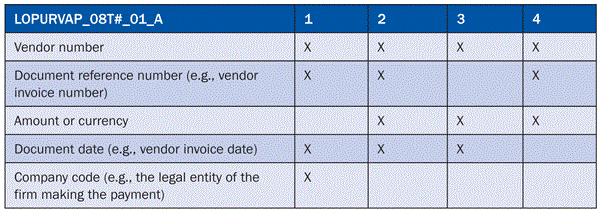
Table 1
Matching delimiters in four variations of duplicate payment reports
Now we will explain how you list potential duplicate invoice payments in version 3.0 of SAP BusinessObjects Process Control. You need to follow six steps.
Step 1. Ensure That the Prerequisite Data Has Been Assigned
Apply SAP Note 1514560 to SAP ERP Central Component (SAP ECC) and SAP Note 1514561 to SAP BusinessObjects Process Control to ensure that the currency wild card works. All controls in SAP BusinessObjects Process Control (whether manual or automated) need to be defined and assigned to a subprocess and aligned to a related risk and control objective. To do this from your SAP BusinessObjects Process Control home screen go to the Global Compliance Office, and then to the Global Compliance Structure tab. From there define your risk (e.g., accidental duplicate payment) using the Risk Classification Button. Then use the Control Objectives button to define a corresponding objective (e.g., to ensure that payments are accurately posted). Finally, use the Processes and Controls Button to define the process (e.g., accounts payable), subprocess (e.g., invoice audit), and control (e.g., monitor potential duplicate payment reports and follow up on exceptions.
Within the control, the Test Automation checkbox should be set to Automated or Semi-Automated. (At this point, we should point out to SAP users who may not be familiar with this module that Process Control is portal based, so transaction codes are not used (except when the module is referencing an SAP ECC transaction.)
Now you need to assign the subprocess that contains your control to the organization that is responsible for executing it. So at this point, you leave the Global Compliance Office and go to your Regulation tab (e.g., SOX). Within the Compliance Structure section of your Regulation tab, click the Organizations button and assign the subprocess to the organization in which the task occurs (e.g., regional payables). Now assign a control owner and a subprocess owner. To do this, stay in your Regulation area, click the User Access button, and from there click the Assign Process, Subprocess, and Control Roles button.
Step 2. Set Up the Rule Script with an SAP ECC Connector
The next step is to ensure that you have your SAP-ECC-to-SAP-BusinessObjects-GRC connector assigned in the rule script that drives these automated control rules. In Global Compliance Office, go to Evaluation Setup; Automated Test Customizing – Rule Script and select one of the four rule scripts, such as LOPURVAP_08T1_01_A as shown in Figure 1.
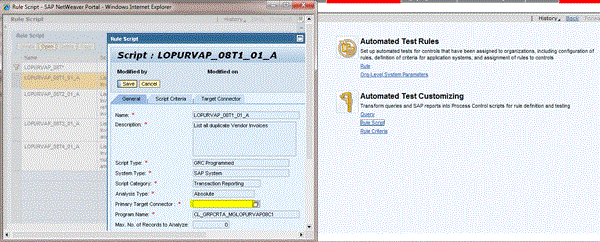
Figure 1
Assign the Primary Target Connector between SAP ECC and SAP BusinessObjects GRC in a rule script
Step 3. Customize and Release the Rule
The next step is to open up the rule, which pulls duplicate payments (e.g., LOPURVAP_08T1_A). (Standard rules and rule scripts have similar names, as their ultimate functionality is correlated.) Then modify any of the input criteria in the rule, and release the rule. In this procedure, some companies may want to copy the SAP system standard rule to a slightly different name and leave the original rule as is. To customize the rule, from the Home page, go to Global Compliance Office then to Global Evaluation Setup, then to Automated Test Rules Rule, and open LOPURVAP_08T1_01_A (or numbers T2, T3, T4, or copies thereof). Now you have some choices — the most important of which is do you care about all potential duplicate payments of any size or only those over a certain amount? SAP BusinessObjects Process Control 3.0 defaults to a range between $30,000 and $75,000. However, we have changed ours to be greater than 1 with the currency being left as a wild card “*” (Figure 2). This range essentially shows all duplicate amounts to the same vendor — with other delimiters for rules 2–4. This setup is done by following Set Deficiency > Add/Change Parameters and then returning to the General tab.
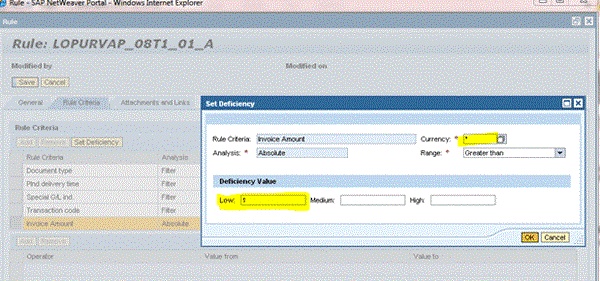
Figure 2
Set deficiency (note that we changed Currency to * for wild card)
On the General tab, change the Rule Status from Work-in-Progress to Released (Figure 3), and press Save.
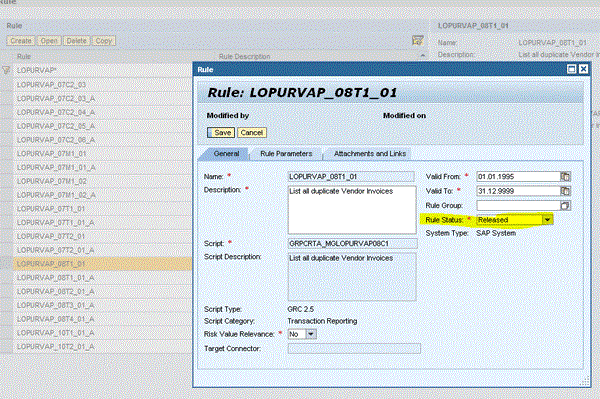
Figure 3
Setting rule status to Released in the rule General tab
Step 4. Control Rule Assignment
At this point, you assign the rule (e.g., LOPURVAP_08T#_01_A) to your control. Go back to your Regulation (SOX) area and select the Evaluation Setup tab. Now, click the Control Rule Assignment button within Automated Test Rules, as shown in Figure 4. After this screen opens, type in the control you wish to assign to a rule and click Search. After the control appears, click the Assign Rules To Selected Control button and then select the rule you wish to assign (e.g., LOPURVAP_08T1). Finally, you are required to select the frequency of this control. We suggest selecting Any frequency as a duplicate payment report is something you may wish to execute at any time (Figure 5).
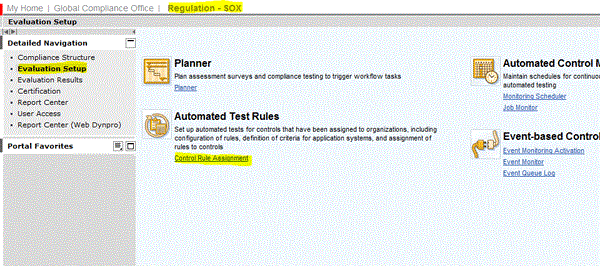
Figure 4
Use Control Rule Assignment to assign a control to a rule
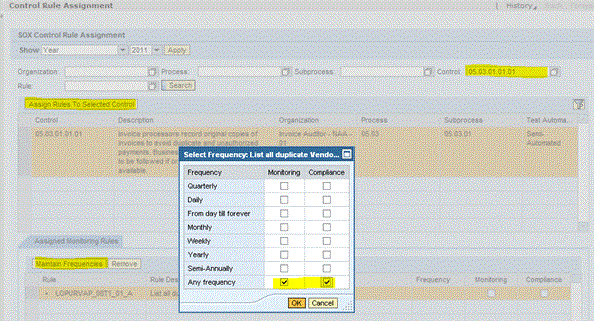
Figure 5
Assign the rule to a control
Note
The preceding procedures showed only one of the four rules assigned to the control as an example. In fact all four rules can be set to run for this control.
Step 5. Schedule the Automated Tests to Run
Now you are ready to execute the running of these monitoring reports in the Monitoring Scheduler. This is found in Regulation (SOX)/Evaluation Setup/Automated Control Monitoring. After the Monitoring Scheduler window opens, click the Create Schedule button. Give the report a Job Name. Set the Frequency, with the best practice being to run a duplicate check payment report daily. Assign the report a period range. These are the dates the report will run; this information is not relevant to the test data. Add the control in another pop-up window and click the Schedule button to launch (Figure 6).
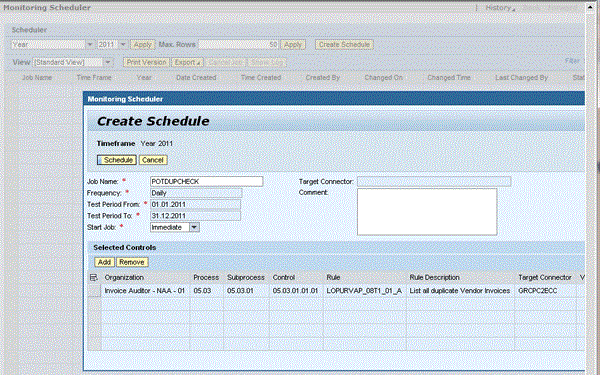
Figure 6
Create a schedule in the Monitoring Scheduler
Note
There is a chance that the first time you run this rule, there may be an unknown error in some key prerequisite data element (e.g., a broken connector or faulty logic in the user-selected delimiter). To prevent the system from running a schedule of meaningless reports, we suggest that you set the test period dates very close together (e.g., today and tomorrow) until you have proven expected output against your known pay data.
Step 6. Extract the Data for Review
Your output from these reports can be found via Job Monitor, which is located right below Monitoring Scheduler in the Evaluation Setup tab. Follow IMG path Regulation (SOX) > Evaluation Setup > Automated Control Monitoring > Job Monitor. Depending on how many jobs you have been running, you can just search on wide-open parameters, but after a short while, you will likely decide to sort on your job name and a short range of execution dates (e.g., today’s date), as shown in Figure 7.
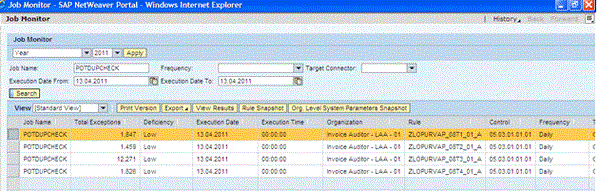
Figure 7
Job Monitor – based on selection by job name and date range
You now can review the results on the screen by highlighting the square button to the left of the output (highlighted in Figure 7) and then clicking the View Results button. This step provides you with the detailed output (Figure 8). However, you may also export the detailed output into Excel by clicking the Export button shown in either the Job Monitor (Figure 7) or the Job Result (Figure 8) view. Simply click Export and then Export to Microsoft Excel. The output opens into an Excel format that you rename and save as any Excel file.
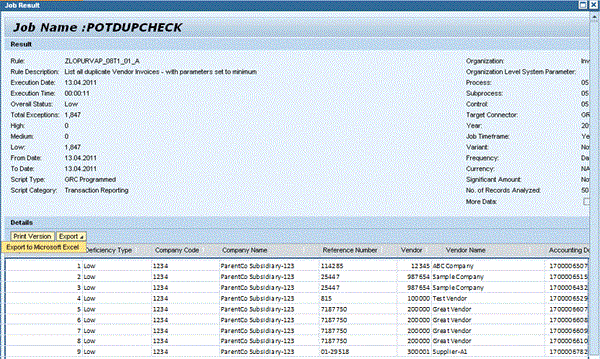
Figure 8
View results from the Job Monitor (sample test results)
Other Things to Consider
Within Excel, you can start a sort and analysis procedure from recent posting dates and ignore the older data, which should already have been examined and approved in a prior review session.
Note that Figures 7 and 8 include a large number of exceptions and a category for Deficiency Type. Such verbiage is somewhat generically derived from other uses of SAP BusinessObjects Process Control. An exception is merely a potential duplicate payment, and even in rare instances when an exception does occur, you most likely will have only one error. In other words, one of the transactions is probably fine, and an authorized user within SAP ECC needs to reverse the other one.
You do have the option of setting up the exceptions as deficiencies that would be sent to the control owner’s inbox. For some automated control rules, this probably makes sense. However, we don’t think this step is necessary for a potential duplicate payments check. The reports are intentionally designed to cast a wide net, and defining these exceptions as probable deficiencies tends to create unnecessary steps. If you do choose this route, the control owner still can close the deficiency without a remediation plan for the days when no real duplicate payments are found. This step can be done from the control owner’s work inbox; from the SAP BusinessObjects Process Control homepage go to My Inbox > Remediate Exception and click the Close Without Plan button (Figure 9).
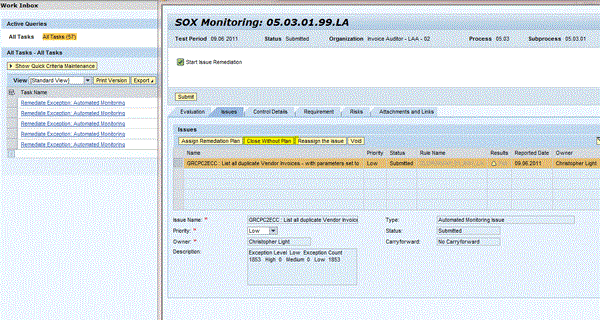
Figure 9
How the duplicate payments notices can also appear as exceptions in control owner’s inbox (optional step)
Another option to consider in setting up the rules is to delimit the rule criteria for only the company codes that are relevant to the invoice auditors in a particular region. This option probably makes sense for companies using regional service centers. The only caveat is that you may wish to make copies of the rules and rename them with the separate regional delimiters.
Regardless of what systems you use for paying vendors — and regardless of how effective you believe your preventive controls are — a duplicate payments check report is still an important tool to ensure that a vendor has not been paid twice for the same goods or service. SAP BusinessObjects Process Control provides one method for identifying such erroneous transactions.
The authors would like to thank Naomie Baars of SAP and Joel Banister of B&W for their ongoing ideas in configuring the SAP BusinessObjects GRC suite.
Christopher Light
Christopher Light (CPA, CMA, CIA) is a senior finance manager with The Dow Chemical Company.
You may contact the author at CULight@dow.com.
If you have comments about this article or publication, or would like to submit an article idea, please contact the editor.
Amanda Moxie
Amanda Moxie (CISA) is an IT application specialist with The Dow Chemical Company.
If you have comments about this article or publication, or would like to submit an article idea, please contact the editor.





 Premium