SAP Learning Solution (LSO) configuration builds on SAP Training Management configuration. Follow these expert tips that relate to Training Management and LSO. Understand key configuration decisions before moving into your blueprint phase to configure LSO quickly and painlessly.
Key Concept
Your blueprint documentation should describe your key business processes and mirror the structure of the IMG. SAP does not deliver a blueprint document for LSO, but many consulting resources have a blueprint questionnaire to guide you through the workshop in which you create your blueprint.
Your business processes and structures should drive how you design your SAP Learning Solution (LSO) system. Although the IMG for LSO does not contain a lot of complex configuration, several undocumented features can help you improve usability and expand the delivered system’s functionality without modifying the system.
The IMG breakdown for LSO configuration consists of logical sections, such as Training Management (Figure 1), Learning Portal, and Authoring Environment. Depending on what your organization has already set up, when configuring Training Management and Learning Portal you need to be aware of obsolete Training Management configuration embedded in the IMG as well as new areas of configuration delivered with LSO.
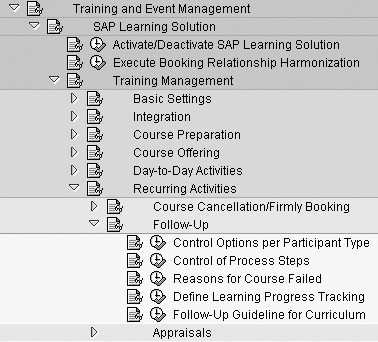
Figure 1
IMG for LSO configuration
Key Training Management Configuration Considerations
The Training Management section of the IMG covers the basic mySAP ERP 2005 back-end configuration. Most, but not all, of the configuration mentioned is relevant to previous releases of LSO as well, including Enterprise Release 4.7 and mySAP ERP 2004. As noted in part 1 of this series, if you have already implemented Training Management (TEM), most of your configuration in this section will already be complete, although you should review it while keeping any new, distance learning requirements in mind. After you open the node to Training Management in the IMG, you see several subsections.
The first section of Training Management, Basic Settings covers the standard configuration that exists in all of the Personnel Development (PD) submodules. If you have configured anything in Organizational Management (OM) or PD, you have probably already reviewed most of these settings. We’ll highlight the few IMG entries that are specific to or have a significant impact on LSO functions.
The first of these areas is Number Range Maintenance. To book a person to a course via LSO, you must set up participant document number ranges. Your system generates these document numbers every time a learner books an online course to track enrollment in the back-end tables with the prefix LSO. You see the document numbers referenced in the additional data structure of every online learning enrollment record (field TPARTDOCNO in structure PAD614). The additional data structure relates to relationship 614 in table HRP1001. Use the IMG or transaction LSP_TP_C to locate the number range object LSO Partic. Document. Your configuration should mirror that shown in Figure 2.

Figure 2
Number ranges configuration
You also should become familiar with the new object types in table T7770 and infotypes in table T777T and understand how they work together. Tables 1 and 2 highlight the objects and infotypes for LSO.
| DC |
Curriculum type |
| EC |
Curriculum |
| ET |
eLearning |
|
| Table 1 |
LSO objects |
| 5003 |
Course content static |
| 5004 |
Curriculum type info |
| 5006 |
Course type content |
| 5007 |
Delivery method |
| 5008 |
Completion specifications |
| 5009 |
Course content |
| 5041 |
Workflow settings |
| 5042 |
External catalog connection |
| 5043 |
External training provider |
| 5044 |
Electronic signature |
| 5045 |
Collaboration Room |
| 5046 |
Collaboration Room template |
|
| Table 2 |
LSO infotypes |
The next section of the Training Management portion of the IMG, Integration, lists all the integration points and their related configuration. In this section, you turn on any integration points you identified during your blueprinting session. This area has no new functionality for LSO except for the configuration that relates to collaboration. However, we will give a high-level outline of the different integration points and how they support LSO. For the majority of the integration configuration, you need to work with your cross- functional experts (identified in part 1, Table 2 of this article series) as you set up each integration point.
Note
LSO always checks for attendance/attendance conflicts, attendance/instructor conflicts, and instructor/instructor conflicts with or without PT integration. However, this data is not tracked in PT for time evaluation purposes.
Integration to the Personnel Time Management (PT) module allows the system to check an attendee’s attendance and absence types to prevent schedule conflicts. For example, you might indicate that an attendee can’t take instructor-led training (ILT) courses off shift or during a scheduled leave of absence. If this is the case, LSO issues an error when an attendee attempts to book a class at one of these times. PT integration to LSO then updates an attendee’s time records with training or instructor-related attendance types. You can use these attendance types later in payroll processing and for training cost analysis. This integration only applies to course types that are instructor led.
The integration point between LSO with Materials Management (MM) allows your organization to track materials inventory. For instance, you can track course manuals in your material master and ensure that each class has enough manuals to support an instructor-led class. The Budget Management (PM) module follows similar budgeting processes as Compensation Management (CM). Managers administer a training budget (object BU) at the organizational unit level. Using this process, managers may track credits and debits to their training budgets based on attendance and cancellation costs. SAP does not deliver a Manager Self-Service (MSS) view or iView to access this data. In the delivered system, it is only available directly through the mySAP ERP Central Component (ECC) environment. Therefore, if you wish to leverage this functionality, you probably need to develop access views via the portal.
Note
A wizard walks you through each of the configuration steps for billing, cost transfer posting, and activity allocation. You also can access all steps in the wizard via individual IMG entries except for the creation of the number range for HRTEM reference documents. HRTEM reference documents are created during integration activities that support integration scenarios via Application Link Enabling (ALE). Even if you do not use ALE, these documents are required. You need a number range interval 01 in the number range object HRTEM_REFN to support the billing and activity allocation functions.
The Billing and Activity Allocation section of the LSO IMG supports three separate activities: billing, cost transfer posting, and activity allocation. Billing functions allow your company to charge attendance and cancellation fees to third-party customers who have customer master data in Sales and Distribution (SD). The cost transfer posting function moves course setup and maintenance costs among departments within your organization. For example, you might have a training room equipped with desktops. Each time you hold a course in that room, you can automatically transfer a charge of $10 per desktop from the educational services department to the IT department for maintenance costs.
The activity allocation functionality is commonly referred to as chargebacks. This function charges an attendee fees for course attendance and course cancellation. The standard system configuration charges the attendees’ cost center and credits the organizer or owner of the course’s cost center. However, mySAP ECC also supports charging projects or internal orders for the attendee and crediting cost centers other than those of the course organizer (such as a centralized training cost center). Activity allocation also supports chargebacks for instructor activity.
The Appointment Calendar and the SAP Knowledge Provider integration points become obsolete when you implement LSO600. Appointment Calendar updates the mySAP ECC appointment calendar. However, LSO600 correspondence functions allow you to attach Microsoft Outlook or Lotus appointments to any correspondence. SAP Knowledge Provider integrates TEM and SAP Knowledge Warehouse (KW), but this is unnecessary with SAP’s Content Management System (CMS). No support exists for KW integration to the SAP Learning Solution and you may not use KW to store online content.
Integrating LSO with Mail Connection requires you to identify the subtype on infotype 0105 that stores email. SAPConnect (transaction SCOT) directs email to the correct mailing system.
Finally, Collaboration Room integration supports linking SAP NetWeaver Portal’s collaboration functionality to LSO. It allows administrators to associate Collaboration Rooms to course types or course groups via the mySAP ECC back end. SAP supports collaboration functions as of Enterprise Portal 6.0, Support Package 4 and Learning Solution 2.0, Support Package 8. Within the IMG collaboration configuration, you identify the types of rooms and the properties you will support for collaboration via room templates. Then you determine who can access these rooms by setting up roles. Figure 3 shows an example of a Collaboration Room for a basic sales class.
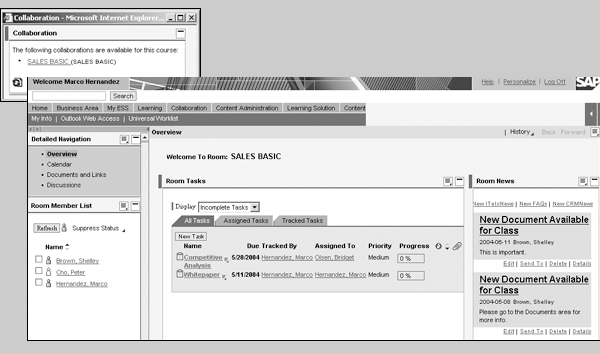
Figure 3
Collaboration Room for a basic sales class
Room templates drive the functions of the room and determine its status, such as whether the rooms are open to everyone, open only to those who are registered for a class, or open to attendees who are specifically invited. They also determine the options that are available within a specific collaboration room. Commonly used functions include asynchronous collaboration functions such as discussion boards and team calendars and synchronous collaboration functions such as instant messaging or application sharing.
Common roles are the learner and the instructor (or tutor) role. Maintain authorizations to certain functions, such as booking learners to a room, canceling learners from a room, or continued admittance to a room upon completion of the associated course, at the role level. Additionally, the role drives which functions in the room users can access. Work with your KM consultant to make these configuration decisions.
Configure TEM Master Data and Training Processes
Once you have made your integration decisions, you can move on to the training process and master data configuration. Four sections of the IMG reflect the typical training processes in an organization: Course Preparation, Course Offering, Day-to-Day Activities, and Recurring Activities.
Course Preparation
All of the transactional data available in the Course Preparation IMG section is accessible via the Current Settings section of the Easy Access Menu in the mySAP ECC back end. Training coordinators use Current Settings transactions to create the training data for their course catalog. Much of this activity takes place in the Master Data Catalog (LSO_PVCT). This data includes the catalog structure, the courses offered within the catalog, and all of the data that supports courses, such as instructor assignments, standard schedules, room and equipment requirements, and training providers.
Because the tables that store this data are considered customizing tables, you could set up this information initially in the IMG and transport it to the production client. Transports take place using the RHMOVE30 and RHMOVE50 programs. The setting TRSP CORR in table T77S0 controls transports. After a client goes live, you can maintain this data typically via the Easy Access menu in the production system.
Although these tools are available to create master data via the IMG and transport it, most companies create this data during the initial implementation via a conversion and then training coordinators maintain it as needed in the production system.
In addition to the Current Settings data discussed above, there are two true configuration points in the Course Preparation section of the IMG. The first allows you to integrate vendors you create in the system to external training providers who host your learning content or who manage Virtual Classrooms (VCs). To set up this configuration, follow IMG menu path Course Preparation>Training Provider>Specify External Provider.
Your first step in setting up external training providers is to identify the training provider by using a unique key. Once you’ve done that, indicate the services each training provider supports. mySAP ERP supports services that allow for the following functions: course enrollment, course access, course cancellation, and learning progress. Once you’ve associated the appropriate functions with each vendor ID, you associate the ID with an actual vendor or company and include such information as vendor address and contact information. If you use this functionality, work with an XI resource to manage the connections to and from the third-party providers.
Tip
If you receive transport pop-up windows as you create this data, you can turn them off by setting entry TRSP CORR in table T77S0 to X to deactivate the automatic transport connection for TEM objects.
The Delivery Method node of the Course Preparation section of the IMG contains the second new configuration point. Here you can review the SAP standard delivery methods and, if necessary, rename or copy them to create new delivery methods. Note that you cannot change the properties of the standard delivery methods. Figure 4 shows a list of standard delivery methods and their properties.
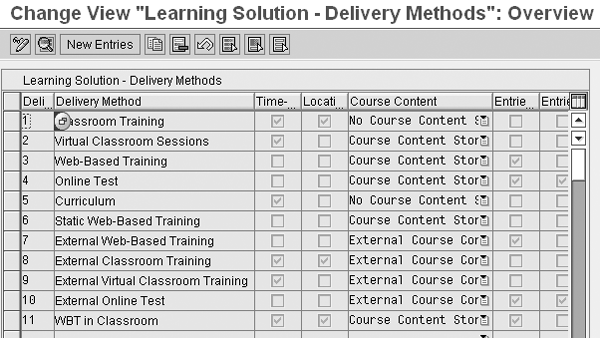
Figure 4
Standard delivery methods and their properties
Once you’ve completed Course Preparation, you move on to the Course Offering section of the Training Management IMG. This section of configuration corresponds to the training phase in which training coordinators plan course offerings and set up course dates with and without resources. No new configuration in this section relates to LSO, so if you have already configured it for a previous TEM implementation, you may skip the following configuration steps.
Course Offering
Course Offering has only three configuration entries, all of which are in table T77S0. These items are located under the IMG executable Control Elements. For entry SEMIN FORCA, indicate how many days in advance that training coordinators view the training catalog by default. The delivered entry is 90 and this is generally acceptable, as administrators may override this value when they personalize their view of the catalog. The entry SEMIN KAP indicates the default capacity for a course if an administrator neglects to enter this information when scheduling a class. Finally, the entry SEMIN PFORC drives the demand planning period. If you schedule classes on a quarterly basis, this entry would be 90 but if you plan them a year in advance, this entry would be 360.
Day-to-Day Activities
The section of the IMG called Day-to-Day Activities controls booking, cancellation, and correspondence functions. A variety of parameters defines how the system should react to: handle waitlists and cancellations; determine participants’ organizational assignments; decide whether someone can teach and attend a class at the same time; determine whether attendees can cancel parts of a curriculum; and track reasons for course cancellations.
During your blueprint session, you should discuss each of these items. There is nothing new from an LSO standpoint except the items surrounding curriculum cancellation and course cancellation reasons, so we’ll focus on these two new items. The other items rely on standard Training Management configuration items and provide no new LSO functions.
You set up rules surrounding self-cancellations for curricula and Web-based trainings via the portal in the IMG via menu path Cancel Participation>Guidelines in structure LSO_T77S0. An administrator in the system may override both of these settings at the course type level when scheduling the actual Web- based training or curriculum. In entry HRLSO ECCAN, you indicate whether learners can cancel themselves from a curriculum (object EC). As curricula group multiple courses together into the single object EC, the ability to cancel from a curriculum also allows cancellation from each of the elements that make up the curriculum. At a global level, you indicate whether learners can cancel from a curriculum and, if so, whether they must cancel from every element in that curriculum or only from those not already completed. In entry HRLSO ETCAN, you indicate whether or not a learner can self-cancel from Web-based training that has already started.
Once you have completed this section of the IMG, you can enter a reason for self-cancellation via the portal in the IMG entry Reasons for Participant Cancellation (table T77CART). If you have already implemented TEM, you have already configured common cancellation reasons such as no show and unplanned leave. You should add a reason such as self-cancellation via the portal to this list.
The next step is to indicate that your newly configured reason is the default reason used when someone self- cancels via the portal. Set this up in Cancellation Reason for Cancellations in Learning Portal (entry SEMIN WEBST in structure LSO_T77S0). Finally, if you wish to enhance the cancellation functionality in the portal, use the Business Add-In (BAdI) Define Customer Specific Cancellation Reasons (LSO_CANCELREASONS_C). You might use this if you wish to allow learners to choose from a drop-down list of cancellation reasons when self-cancelling rather than using the single default configured in the previous step.
While the previous entries are simple configuration switches, the next two entries in Day-to-Day Activities are more complicated. Out of the box, SAP delivers standard approval workflow and correspondence functions. We’ll explain the standard processes, but you may want to consult technical resources to customize workflow and correspondence to fit your business requirements.
LSO-delivered workflow allows you to request approvals for booking and cancellations globally by delivery method and by attendee type or at the course type level. The delivered approval functionality checks for the attendee’s manager via the chief (A/B 012) relationship and routes the appropriate request to the holder of the chief position.
If the request relates to booking, the system holds a spot for the attendee until receiving an approval or rejection. You can set a time frame to indicate what to do when the system receives no approval. For example, if the system does not receive approval five days before the class starts, it automatically enrolls the attendee. The cancellation request works similarly. See Figure 5 for an example of standard booking configuration entries for the booking request in table LSOWF_CUSTOMIZE. As shown here, the delivered booking workflow ID is task 12000003, the object type is LSO_PARTIC, and the event is BOOKREQUEST for booking. For cancellation, the delivered cancellation workflow ID is task 12000004, the object type is LSO_PARTIC, and the event is CANCELREQUEST.
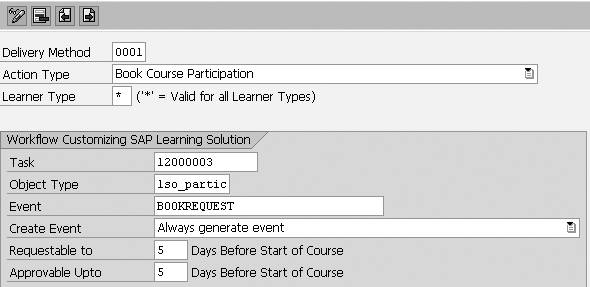
Figure 5
Standard booking configuration in table LSOWF_CUSTOMIZE
The option shown in the Create Event field in Figure 5 is Always generate event. Select this option if you want the system to call workflow regardless of the learner’s authorization profile. Another setting is Execute action without event generation: Choose this option if you wish to lock down cancellation or booking requests within a certain time frame but not invoke workflow approvals. The final setting is Only generate event if authorization for action is missing. Select this option if you wish to trigger workflow for certain users only. For example, you might decide that workflow should only trigger for employees in a certain organizational unit.
LSO600’s correspondence functions allow you to use Adobe PDF and SmartForm functionality via Print Workbench. You still have the option to use SAPScript-based TEM correspondence functions if you prefer. In addition to the new output format, the new functions allow you to determine which business processes trigger which notifications; which roles should receive which notifications; the exact notification per activity and role; and where and when to send notifications (by activity, role, and notification type).
Additionally, the new correspondence supports Microsoft Outlook or Lotus appointments and short message service (SMS) notifications. You can further personalize the correspondence functions with five BAdIs: LSO_CORRESPONDENCE41 (specify correspondence control options), LSO_CORRESPONDENCE43 (change output control options), LSO_CORRESPONDENCE44 (determine sender control options), LSO_CORRESPONDENCE45 (specify communication parameters for recipients) and LSO_CORRESPONDENCE46 (specify access to communication data).
The specify correspondence control options BAdI allows you to fine tune the rules you have set up to control correspondence. For example, you may use this BAdI to identify specific attendees who should not receive correspondence when they attend specific classes. The change output control options BAdI allows you to change the delivered name of a notification (in the standard, the email title is the same as the form set up in the Print Workbench), while the determine sender control options BAdI allows you to specify who the sender of a mail should be (for example, a default email address for the training department). The BAdIs called specify communication parameters for recipients and specify access to communication data allow you to send correspondence to recipients via methods other than email, such as SMS and pagers.
An ABAP resource familiar with the correspondence tool and Print Workbench functions is necessary as these tools are not LSO specific. You may also choose to attend SAP’s BC480 course, PDF-Based Print Forms, for more information about this functionality.
Note
If you choose to use the new request-based correspondence functionality, you have to turn off the old SAPscript-based correspondence in the IMG under Day-to-Day Activities>Correspondence>Set Up Correspondence>SAPscript-Based Correspondence.
Recurring Activities
The Recurring Activities section of the IMG governs how you configure follow-up and course cancellation processes. You should have covered many of the options available via the Recurring Activities configuration during your blueprint session. Ensure that you discuss the following questions to speed through most of this configuration: What course cancellation reasons does your organization need to track? Upon course completion, will you impart qualifications to attendees, when relevant? How will you track successful completion of online learning? How will you follow up on curricula (on a course-by-course basis or all at once when one curriculum is complete)? Who/what should handle the follow-up process for different delivery methods (the system automatically, the learner, the portal, the administrator in the back end, or some combination)? What types of appraisals (or course/instructor/attendee evaluations) do you wish to support?
Much of this configuration is part of the standard TEM configuration. Areas that are LSO specific include managing how to track completion of online courses, follow-up processes by delivery methods and course types, and appraisals. IMG entry Follow Up>Define Learning Progress Control allows you to enter default values in structure LSO_T77S0 to indicate how to manage completion of online courses (Figure 6). An administrator may override these entries at the course type level.

Figure 6
Manage completion of online courses
Tip!
If you wish to send Lotus or Microsoft Outlook attachments, the delivered documentation for correspondence describes the process in detail, including code examples. Review the chapter Example: Adding Attachments under
Training Management > Day-to-Day Activities > Correspondence > Request-Based Correspondence > Integration of SAP Tools > Examples for Changing Output Options via link
https://help.sap.com/saphelp_erp2005/helpdata/en/30/e63a3c24b4a00ae10000000a11402f/frameset.htm.
Entry HRLSO FPEB0 indicates how many learning objectives or knowledge indicators a learner must achieve to pass an online course. Learners often attain these by passing a pre-test or post-test associated with a course. Entry HRLSO PPL0 indicates how many learning objects or content chunks a learner must progress through to pass an online course. The next two entries, HRLSO FREB0 and HRLSO FRL0, simply indicate whether to take the first two values into account as success criteria. Another entry in structure LSO_T77S0 called HRLSO ECFUP indicates whether to follow up on or mark curricula as complete in one fell swoop or individually (element by element). This entry is available in the IMG via menu path Follow-Up>Follow-Up Guides for Curriculum.
New functionality in LSO600 allows you to configure more specific follow-up functions for all delivery methods. In this configuration, you indicate per participant whether to impart qualifications during course completion activities. Then, by delivery method, you indicate whether different elements of follow-up processing occur automatically or based on administrator activity.
For example, you might indicate that for online courses, the system grants qualifications automatically and learners label a course as complete. However, for classroom training, an administrator must manually evaluate each qualification prior to indicating that participation is complete. You also have the option to track failure reasons with LSO600. Administrators may overwrite these follow-up functions at the course type level using infotype 5047. If you use an older version of LSO, infotype 5047 replaces the electronic signature functionality on infotype 5044.
For the course appraisal functions, SAP delivers a template for instructor-led training and Web-based training course evaluations that you can copy and use for level 1 appraisals based on Kirkpatrick’s four levels of evaluation (widely used in the HR community). If you wish to move beyond level 1, the system supports more sophisticated appraisals with ABAP and workflow customization.
Via the IMG from Recurring Activities, open the section titled Appraisals. Here you see the option to switch on performance management in structure LSO_T77S0, entry HAP00 REPLA. Although multiple options for turning on appraisals seem possible, the only valid entries are blank (you are not using the appraisals functionality) or A (you are replacing the old appraisals functions with the new).
Regardless of what the configuration options seem to indicate, be aware that selecting this entry also requires that you replace the old performance management functionality (called Appraisals) with the new performance management appraisal functionality. Note that the new appraisals functionality is also called Management by Objectives (MBO) or Objective Settings and Appraisals (OSA) but LSO refers to it as Performance Management. To access appraisals via LSO, you must complete this replacement step. LSO does not support appraisals functionality from older releases (R/3 4.6C and back).
Once you have indicated that you are using the new appraisals functions, you must create your appraisal templates via the IMG entry Edit Forms. Here, you use SAP’s delivered templates as models to create custom templates. Finally, in structure LSO_T77S0, entry HRLSO TEMPL, you indicate the default template to use for all courses when the system does not detect a course-specific template.
Configure Learning Portal
When configuring the Learning Portal section of the IMG, you may want to enlist the help of portal and KM resources. Learning Portal configuration consists of these subsections: Formatting Options, Learning Management System (LMS) Configuration, and Offline Player. Some of the specific IMG entries are control parameters similar to those discussed above, but many of the entries require technical expertise.
The first subsection, Formatting Options, drives how the portal appears to learners. Again, you can simplify much of the configuration by ensuring your blueprint workshop covers these key configuration points:
- Determine whether learners can see others who have booked ILT courses
- Identify a default setting as to how far in the future learners can see scheduled classes (note that they can override this setting in their preferences)
- Decide whether courses should be available for booking prior to the course type’s validity begin date
- Determine how soon in advance you wish to notify learners that a qualification essential for their job expires, so they can search for relevant courses to recertify in that qualification.
The Formatting Options subsection also includes two BAdIs. Define customer specific course offering (TRAININGTYPE_ ADV_C) allows you to push information (such as a Top 10 list showing the 10 most popular classes based on bookings in the delivered portal view) to your learners in the navigation portion of Learning Portal (Figure 7). The other BAdI, create customer specific personalized training activities (LSO_LEARNER), pushes content to learners based on a factor other than job, position, organizational unit, or person relationships in the Messages and Notes section of the portal. For example, you might need to push personalized content to learners based on their personnel subarea assignment or their hire date.
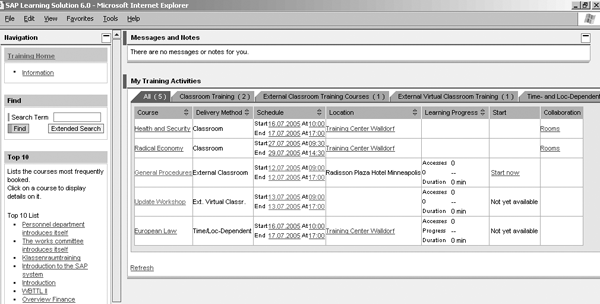
Figure 7
Learning Portal displays Top 10 and Messages and Notes
The next subsection, LMS Configuration, requires technical expertise. The main tasks in this subsection include:
- Map the front-end to the back-end system via a Remote Function Call (RFC) via transaction SM59
- Identify the location of Content Player so learners can launch and play courses. Structure LSO_T77S0 entry COPLA ADRES stores this configuration
- Determine CMS’s URL address and enter it in structure LSO_T77S0, entry CPCFG RSURL. This is how LSO identifies where to store content when a learner launches it
If you plan to use Offline Player, the next subsection of the IMG (called Offline Player) provides an entry in LSO_T77S0 to store its URL location so learners can download it to their local workstation.
The last two entries under the Learning Portal section of the IMG are straightforward. The first entry, Select Learning Strategies, allows you to enter your learning strategies in table V_LSOSTRAT_C. If you are not using learning strategies, you must ensure that you have identified at least one active learning strategy, or learners will not be able to launch content. See Figure 8 for an example of learning strategy configuration.
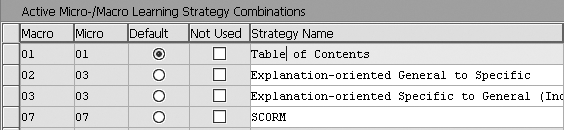
Figure 8
Set up your learning strategy
Finally, the LSO_LEARNER BAdI allows you to indicate that a learner’s user ID is stored somewhere other than the standard communications infotype 0105, subtype 0001.
The last section of the IMG, Authoring Environment, covers setup specific to this area. The next LSO article covers Authoring Environment in detail. You should be aware that some configuration is required in Authoring Environment to indicate how authors access CMS and Publisher Database in the mySAP ERP system and to support content search functions via SAP’s Text Retrieval and Information Extraction engine (TREX).
Tammie Eldridge
Tammie Eldridge is a solution principal for SAP America responsible for HCM solutions in the retail, telecommunications, utilities, and finance industries. Prior to this, Tammie was the solution manager responsible for SAP Learning Solution, Performance Management, and SAP Tutor. She also served as a consultant implementing mySAP ERP HCM solutions as well as building ROI business cases to help organizations justify implementing HCM solutions. Before joining SAP, Tammie served as a training manager for a major manufacturing company as well as implemented the mySAP Logistics module. She received a bachelor’s degree in business administration in management and a master’s degree in Human Resources/Labor Relations from the University of Illinois.
You may contact the author at tammie.eldridge@sap.com.
If you have comments about this article or publication, or would like to submit an article idea, please contact the editor.

Sharon Wolf Newton
Sharon Wolf Newton, principal and CEO of hyperCision Inc., worked for SAP America for 10 years prior to joining hyperCision. At hyperCision, she currently supports multiple clients implementing SAP Learning Solution (LSO). While at SAP, Sharon was a platinum consultant in LSO and other Talent Resource Management processes. She supported many of SAP’s initial ramp-up customers during their LSO implementations. Other roles Sharon enjoyed while at SAP America included those of HCM practice manager and HCM curriculum product manager.
You may contact the author at snewton@hypercision.com.
If you have comments about this article or publication, or would like to submit an article idea, please contact the editor.



 Premium