Find out how to develop a dashboard using SAP BusinessObjects Dashboards (formerly Xcelsius) into a language other than the standard 19 languages that SAP provides, with Arabic used as an example. The development of Web Intelligence reports and Crystal Reports in Arabic is also explored. Such language additions make reports and charts more user-friendly globally and save time otherwise spent on translating data.
Key Concept
Language packs allow developers to add new foreign fonts into an SAP BusinessObjects document if a dialect is not supported by the standard SAP package. You do not need to purchase additional licenses for the aforementioned software and packs. You can download them freely or install them from the Windows operating system.
SAP BusinessObjects Dashboards (formerly Xcelsius) is offered in 19 languages. In a recent project, our customer wanted to see dashboards in their native Arabic language, which is not a supported language in the standard SAP package.
We completed a proof of concept and discovered that with some additional software and language packs, we are able to develop Xcelsius dashboards in a customer’s native language. We use Arabic as an example language to demonstrate our approach. This approach, as tested by us, also applies to other BI tools in SAP BusinessObjects, such as SAP BusinessObjects Web Intelligence and SAP Crystal Reports.
Note
The instruction in this article applies to SAP BusinessObjects Enterprise XI 3.1, SAP Crystal Xcelsius 2008, and all related service packs.
Prerequisites to Observe
To implement our solution, you need to install the following additional software on the system:
- Arabic Transparent font, for the correct appearance and format of Arabic data (e.g., arranging information so that you read it from right to left as done in Arabic, as opposed to English text, which is read from left to right)
- The i386 pack, which brings the Arabic language onto the system so that the operating system understands the Arabic characters
- The Arabic language pack, which allows the operating system to understand the Arabic language
Meanwhile, to develop SAP BusinessObjects Web Intelligence reports and SAP Crystal Reports in Arabic, you just need a data source or database having Arabic data.
A Step-by-Step Dashboards Approach
Complete the following steps to install Arabic fonts into SAP BusinessObjects Dashboards:
Step 1. Download and copy Arabic Transparent font into the Font folder in the control panel (Figure 1).
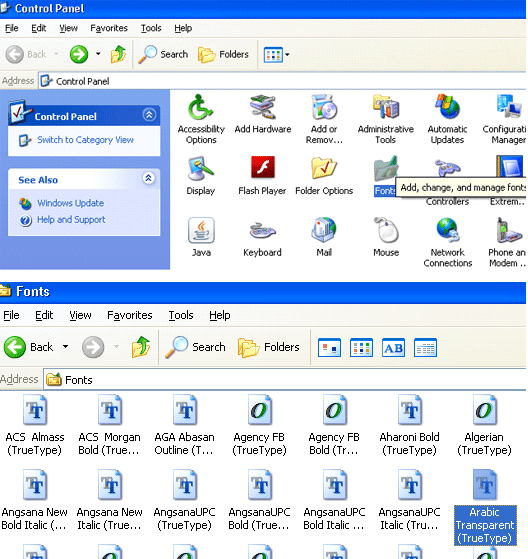
Figure 1
Copy Arabic Transparent into the control panel
Step 2. Download the i386 pack so that the operating system can support new languages that you are going to install on your system. You can access this pack from the Windows operating system software CD.
Step 3. Install the Arabic language pack. Download fbarab.zip pack (search in your favorite Web browser for it). Extract the installation package from fbarab.zip with a decompression utility. Run fbarab.exe to install the Arabic keyboard layouts. Restart Windows.
Now load the keyboard layouts by following menu path Start button > Control Panel > Date, Time, Language, and Regional Options > Add other languages. You can also click Control Panel > Regional and Language Options and select the Languages tab. Check the option for Install files for complex script and right-to-left languages, and click the Apply button. The system asks for the i386 pack of files. Browse for this pack from the location where you saved it (Figure 2).
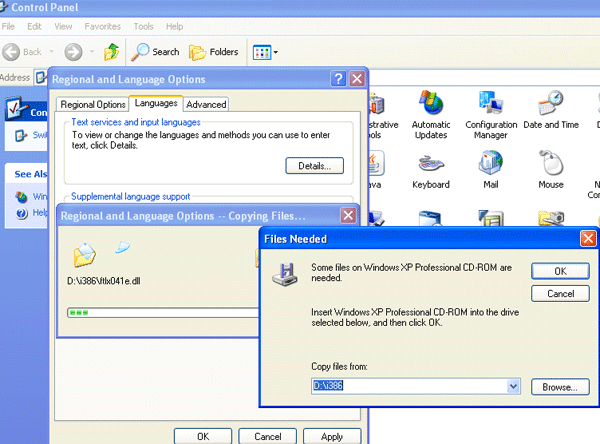
Figure 2
The system asks for the i386 pack of files
Click Yes when you are asked to restart Windows. Click OK as many times as you are prompted to and then close the Regional and Language Options window.
Step 4. Create or use a database with Arabic data. We tested our approach using a Microsoft Access database and created two tables (Employee and Department) in that database.
Step 5. On top of that database, create a universe with the Universe Designer tool in SAP BusinessObjects XI 3.1 and export it to an SAP BusinessObjects repository (Figure 3).
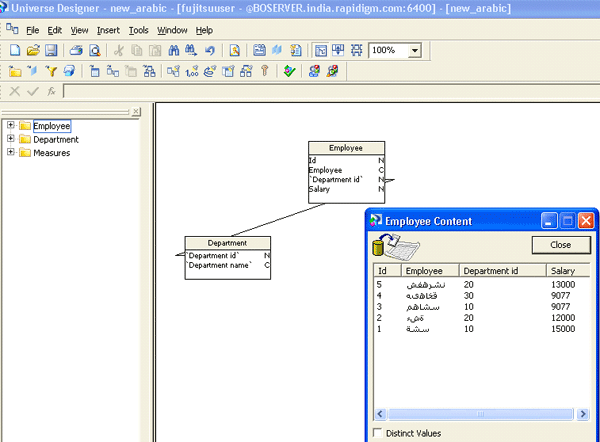
Figure 3
The universe created on a Microsoft Access database
At the universe level, Arabic data is not seen correctly (i.e., it is not presented in the correct format of right to left indented) because the table values are not affected by the font or the language pack you installed. A universe understands only the default languages set for it. However, at further levels, the data from the universe tables comes in the correct format.
Now use an SAP BusinessObjects Live Office connection to pull the Arabic data from the universe into an Excel file (Figure 4) or use a Query-as-a-Web-Service connection and move the data directly into the dashboard.
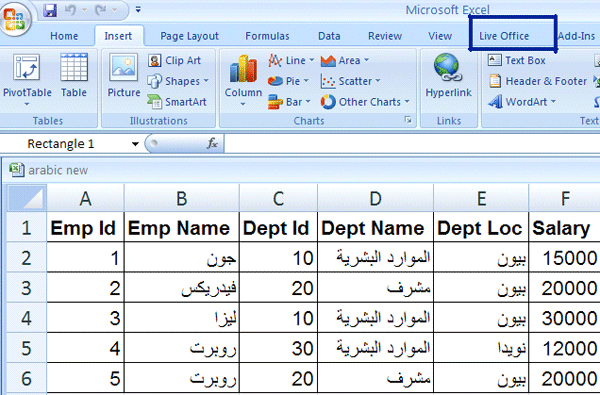
Figure 4
Data pulled in Microsoft Excel via an SAP BusinessObjects Live Office connection from the universe
Next, develop the dashboard. You need to change the font of the Arabic data in the spreadsheet of the dashboard to the Arabic Transparent font using the drop-down font menu on the main toolbar. From there, the components show up in the correct format of Arabic data (i.e., right to left indented as shown in Figure 5).
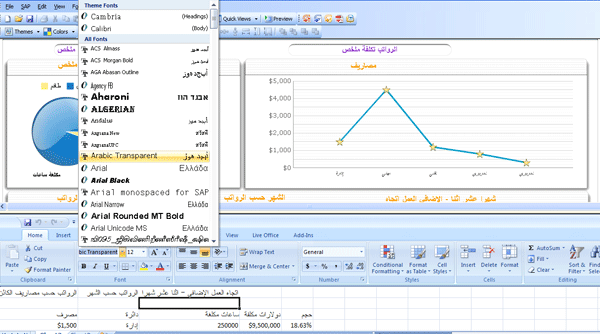
Figure 5
Arabic data in the dashboard displays in the correct right-to-left-indented format
Click the preview button of the dashboard you created to see the ShockWave Flash (SWF) file of the dashboard (Figure 6).
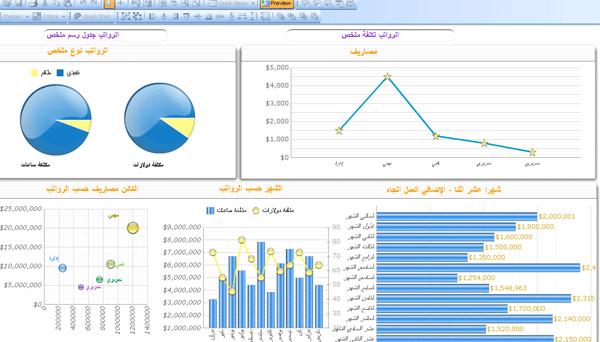
Figure 6
Preview the dashboard in Arabic
Save the dashboard by clicking the save icon and export to it to an SAP BusinessObjects repository as an SWF file.
Installing Fonts in Web Intelligence
To install Arabic fonts in SAP BusinessObjects Web Intelligence reports, complete these steps:
Step 1. Create a database having Arabic data.
Step 2. On top of that database, develop a universe (although at the universe level, Arabic data is not coming in the correct format) and export it to an SAP BusinessObjects repository.
Step 3. Develop an SAP BusinessObjects Web Intelligence report on top of the universe (Figure 7). This report displays the correct format of Arabic language.
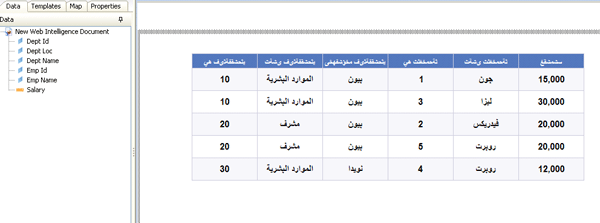
Figure 7
SAP BusinessObjects Web Intelligence report showing Arabic fonts
However, the chart components in the report are left to right justified. Therefore, Arabic data comes into the report in its correct format (from right to left), but the chart components cannot be modified to also run right to left. We have not found any workarounds to this obstacle. However, in SAP BusinessObjects Dashboards, you can modify the chart components (except the stacked charts) by altering the properties of the charts to be seen from right to left as shown in Figure 8.
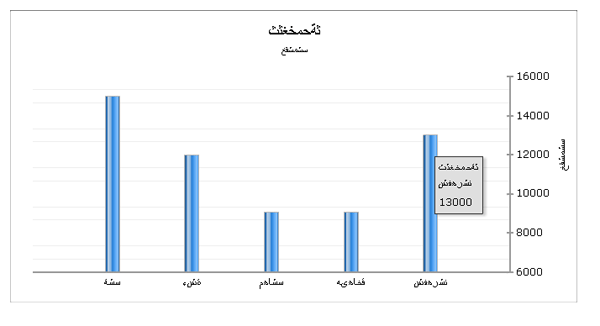
Figure 8
A dashboard showing a chart running from right to left
Installing Fonts in Crystal Reports
Finally, to install Arabic fonts in SAP Crystal Reports, complete these steps:
Step 1. Create a database having Arabic data. We use a Microsoft Access database that has Arabic data.
Step 2. Develop a Crystal Report on top of the database. Use the normal procedure for report development by choosing ODBC (RDO) connection (Figure 9), Access/Excel (DAO) connection, or Database files connection (Figure 9).
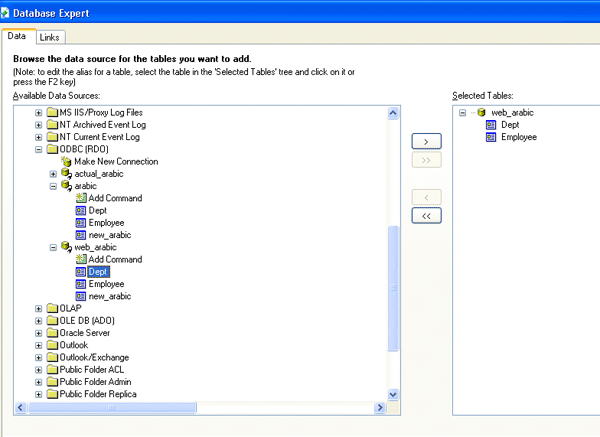
Figure 9
Create a connection with the data source
We also tested developing Crystal Reports on a universe (using the universe connection) with the table values in Arabic as shown in Figure 10.
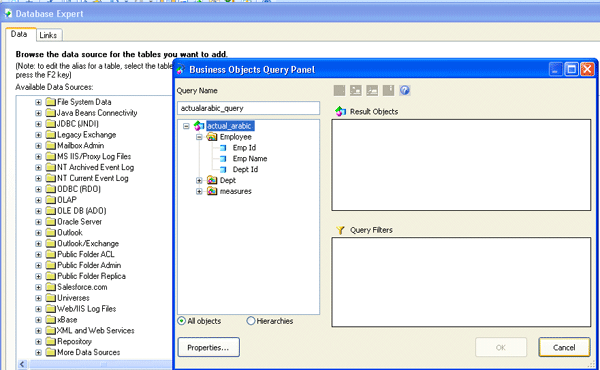
Figure 10
Selecting columns from the universe tables
Once you create a report, press the preview icon to look at the Crystal Report in Arabic (Figure 11).
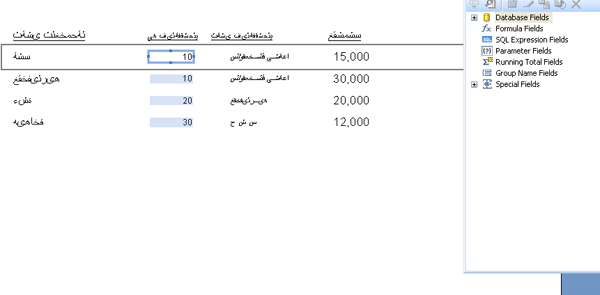
Figure 11
Preview of a Crystal Report using Arabic fonts
For SAP Crystal Reports, we tested only simple scenarios. Neither complex ones nor scenarios from other data sources were tested.
Limitations in Our Approach
Below are caveats to note in terms of installing fonts in SAP BusinessObjects BI tools:
- Some designs and artifacts in SAP BusinessObjects come left justified to comply with the English standards, in which text flows from left to right. On the contrary, Arabic language aligns from right to left. This format limits Arabic dashboards in that they must use specific design components.
- This alignment limitation centers more on the SAP BusinessObjects Web Intelligence design type because in SAP BusinessObjects Xcelsius, you enjoy the freedom to modify components to flow from either side (left or right).
Shirish Dubey
Shirish Dubey has more than four years of experience in SAP BusinessObjects toolsets and their integration with other enterprise applications. He has worked with and developed best practices for deployments, administration, development, migration, integration, architecture, solution scoping, and training.
If you have comments about this article or publication, or would like to submit an article idea, please contact the editor.
Rohini Rattan Haksar
Rohini Rattan Haksar has one year of experience in SAP BusinessObjects Web Intelligence development, universe development, and SAP BusinessObjects Xcelsius work.
If you have comments about this article or BI Expert, or would like to submit an article idea, please contact the BI Expert editor.
You may contact the author at Rohini.Haksar@in.fujitsu.com.
If you have comments about this article or publication, or would like to submit an article idea, please contact the editor.