Understand the basics of installing enhancement package 5 for SAP ERP 6.0 and learn important tips and tricks to smooth your upgrade.
Key Concept
The SAP Enhancement Package Installer (SAPehpi) tool enables users to install enhancement packages and other functional upgrades without going through an actual upgrade process.
In the midst of ongoing production support and new project implementations, your business has asked the SAP Basis team to install SAP ERP 6.0 enhancement package 5 (EHP 5). Upon further investigation, you learn that the business is actually most interested in evaluating the new functionality enabled by EHP 5.
As the company’s SAP system lead and senior technical resource, you’ve been tapped to oversee the installation. The technical steps are similar to performing an SAP version upgrade, but simpler. SAP enhancement packages are designed to introduce incremental functionality while helping to reduce the downtime traditionally associated with executing a full upgrade to a higher version of an SAP application. We outline how to begin the installation and include several tips and tricks intended to streamline the process. We also discuss a number of pitfalls to avoid.
Using the resources of your favorite SAP-certified public or private cloud provider, you quickly obtain the resources necessary to build a new SAP technical sandbox. This system serves as your business demo environment. Before you can install EHP 5, however, you first need to check several things in your SAP Solution Manager system.
Preparation
To install EHP 5, you need to path SAP Solution Manager to release level enhancement package 1, Stack 23. Next, make sure the sandbox definition outlined in transaction SMSY (System Landscape) and the System Landscape Directory (SLD) are up-to-date. These updates are critical for transaction MOPZ (the maintenance optimizer) to properly calculate the stack download queue and XML stack file. Once SAP Solution Manager is up-to-date, run transaction MOPZ to create a new maintenance transaction and choose the Enhancement
Package Installation option (Figure 1). Then download all the files, including stack.xml, and move these files to the SAP technical sandbox, where you pilot this EHP 5 process.
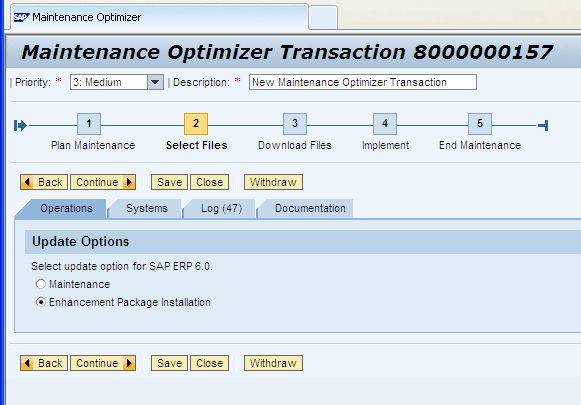
Figure 1
Select the option to install an enhancement package in transaction MOPZ
Next, click the Continue button and in the next screen (Figure 2) review the listings to ensure that the appropriate functionality is enabled (work with the appropriate business leads or liaisons to identify which applications to update or install). Click the Continue button.
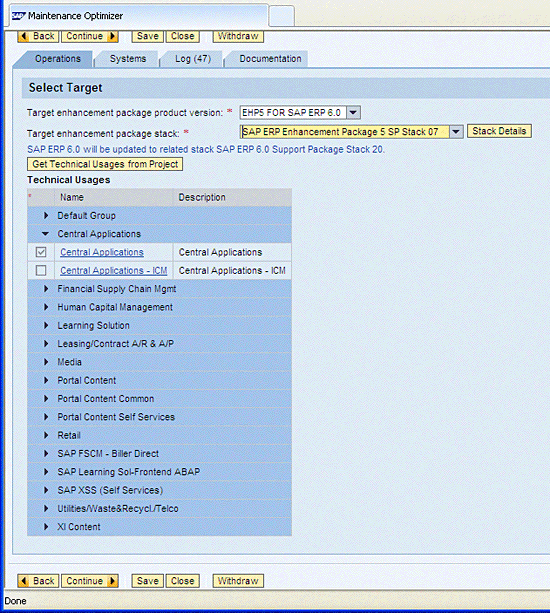
Figure 2
Select the appropriate applications or functionality to enable
Afterward, review the update’s priority. In the Confirm Major Target block, review the systems that the upgrade affects and then click the Continue button (Figure 3).
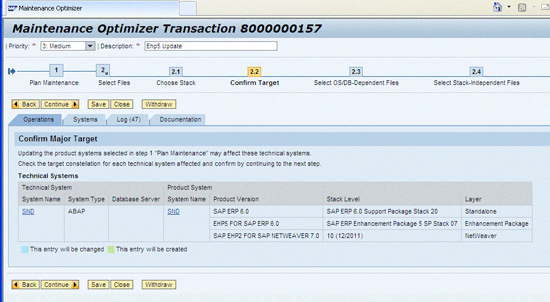
Figure 3
Confirm the major target
Select the appropriate OS/DB-dependent files (based on the operating system and database of the sandbox’s computing platform) and click the Continue button (Figure 4).
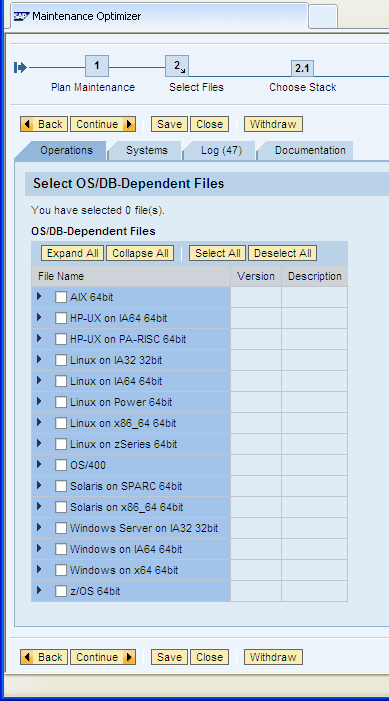
Figure 4
Choose the correct OS version, kernel, and database
Finally, add all the files to the download basket and then download this collection of files to your technical sandbox server.
Upgrade SAP NetWeaver
Installing EHP 5 requires that you upgrade SAP NetWeaver 7.0 to enhancement package 2 (7.02) or SAP NetWeaver 7.3. You perform this upgrade by using an installation tool known as the Enhancement Pack Installer, or SAPehpi. Download this tool separately from the SAP Service Marketplace (https://service.sap.com/swdc) by navigating to Support Packages and Patches > Browse our Download Catalog > Additional Components > Upgrade Tools > SAP EHP Installer > SAP EHP Installer 7.10.
To help you understand how to use the SAPehpi tool, SAP provides a link to its installation documentation. Go to https://service.sap.com/erp-inst and then follow menu path SAP Business Suite Applications > SAP ERP > SAP ERP 6.0 > SAP enhancement packages for SAP ERP 6.0 > SAP Enhancement Package 5 for SAP ERP 6.0
Java Considerations
If the system to be upgraded is a dual-stack ABAP and Java system, you also upgrade Java to SAP NetWeaver 7.0 enhancement package 2 (7.02). Of course, Java is only necessary when business processes require its use. In many cases, a separate Java instance has been installed. In my sample scenario, let’s assume that you want to remove Java and upgrade a pure ABAP system. However, let’s further assume that you inadvertently started the installation with Java installed. SAPehpi detects Java and automatically tries to upgrade it. To circumvent this potential problem, reset the installation, remove Java, and then restart the process.
A command-line switch is also available to ignore Java. To avoid touching Java during the installation, enter the following parameter when executing the STARTUP script:
-srvarg=/DSUService/javadisabled=true.
Start SAPehpi
To start the SAPehpi tool, log in as <SID>adm and unpack the EHPI sar file to create an EHPI directory in your d:usrsapSID directory. Run startup.bat as an administrator. If the Software Delivery Tool GUI does not start automatically, browse to the EHPIsdtexe directory and run DSUGui.bat. This batch file manually starts the EHPI GUI and allows you to log on (Figure 5).
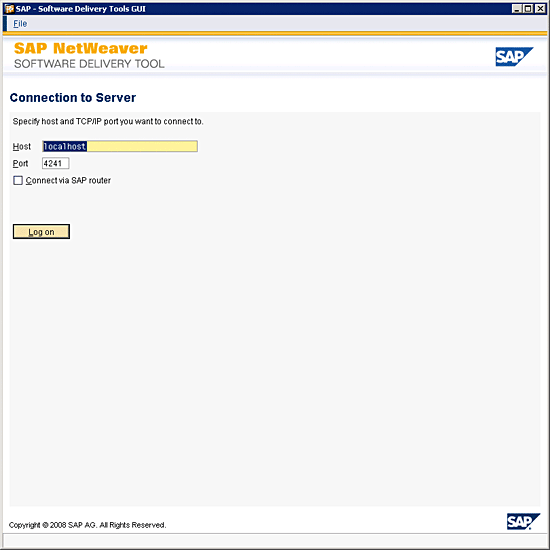
Figure 5
The login screen
Choose a user name, such as Administrator, and enter a password. Record these credentials somewhere safe. If you have to restart the GUI later, you need to re-enter the same user name and password credentials (Figure 6).
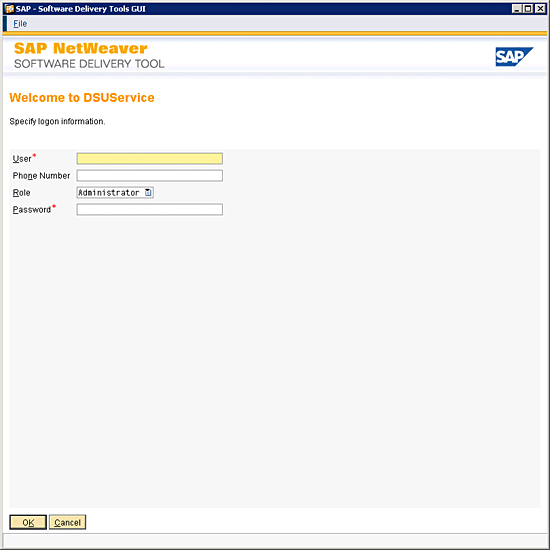
Figure 6
Create a user name and password
Now you are ready to start the Initialization phase, the first of the eight phases of the overall installation (Figure 7). At this point, the upgrade of SAP NetWeaver 7.0 EHP 2 and SAP ERP 6.0 EHP 5 happen together during the upgrade process.

Figure 7
The eight phases associated with running the SAPehpi installation tool
Installation Process for SAP ERP 6.0 EHP 5
The Initialization phase is the first of five EHP 5 installation phases specifically aimed at gathering information and generally preparing for the installation (Figure 8). During these first five phases, you can reset the upgrade and start over if necessary. No changes are made to your system until you reach step five, Preprocessing. During the Preprocessing phase, the shadow system is built. Explained in more detail later, the shadow system is simply another instance of an SAP application (including a kernel, unique instance number, and shadow tables in the database denoted with a ~). The shadow system’s kernel reflects the system-to-be (the future version of the SAP application after the enhancement process is completed).

Figure 8
Process flow for installing EHP 5
The first five phases comprise several important tasks, including:
- Enter the keyword from SAP Note 1298878
- Point to the EHP 5 download directory
- Enter passwords for DDIC and OS users
- Identify the OS type
- Select the database archiving mode
- Choose the number of batch, r3trans, and r3load processes
- Perform a SPAM update
- Resolve software upgrades for components not included in the downloaded stack
In phase 5, you have the option of locking development. At the end of phase 5, the system is stopped and ready to enter the downtime phase. In this case, the SAPehpi tool prompts you for a backup of the system. At a minimum, you need to back up the database transaction log at this point. If you have not executed a full backup recently, run one before continuing. To speed up the process, disable database archive logging or switch to simple mode (depending on your database).
Installation Options
To perform the actual upgrade, a certain amount of downtime is necessary. Choose the optimal balance between downtime and resource consumption based on your requirements. Note that the resource use options (phase 3), previously known as downtime minimized or resource minimized, have changed (Figure 9). Select the appropriate amount of resource use and then click the Continue button.
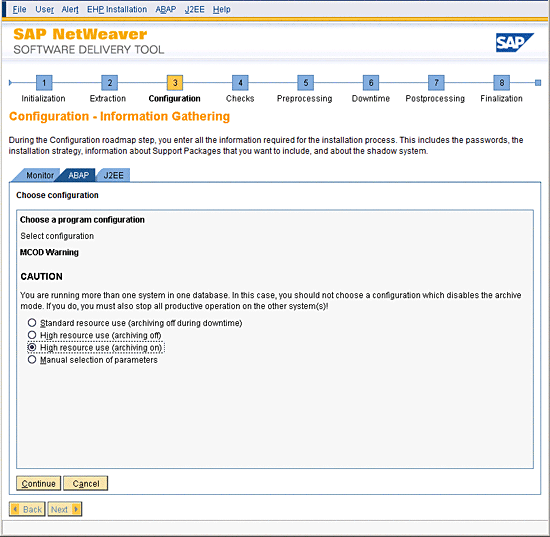
Figure 9
Resource use options
Choosing the appropriate option can help tune the upgrade process. For example, high resource use (archiving off) provides the best performance assuming the hardware platform has been appropriately sized. The GUI displays the detailed parameters, values, and descriptions associated with each choice (Figure 10).
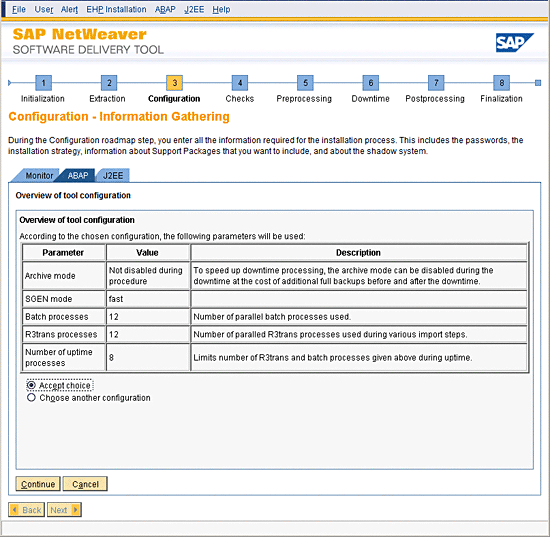
Figure 10
Overview of the Software Delivery Tool’s configuration
The Shadow System
As noted previously, SAP uses a concept called a shadow system to perform upgrades and enhancement package installations. A second instance is created with its own kernel and profiles, and shadow tables are created in the database (denoted with a ~). Consider sizing your SAP system instances so that each one has ample memory. In typical sandbox systems, you can run into memory issues during table activations. Balancing physical memory or RAM with the profile parameter physmem_size, combined with expanding the operating system’s page file or swap, may resolve such an issue. If you properly allocate memory, you may also solve this problem. For central systems (in which the SAP system and the database are installed on the same virtual instance or physical server), allocating 40 percent of the available RAM to the SAP system and another 40 percent to the database (leaving 20 percent for the OS) is a good place to start. Always consider how much RAM is left for the database and OS, and err conservatively if possible. Once the shadow system is created, SAPehpi begins to load and activate tables.
Subphase ACT_UPG
ACT_UPG is a long-running subphase that activates tables and other objects. Many errors can occur in this phase, requiring the EHP 5 installation to be unlocked for troubleshooting. In many cases, you can choose to accept non-severe errors and repeat phase ACT_UPG (completed by clicking the appropriate radio button displayed when such an event occurs), and then rerun the phase. In other cases, you must unlock the system as OS user <SID>adm using the command line SAPehpi unlockshd <SID> to unlock the shadow instance. Then you can log in to the shadow as DDIC and create another SAP_ALL user to troubleshoot. Lock the show after the fact using the command line SAPehpi lockshd <SID>.
Transaction SPAU
Once the downtime phase is complete, the EHP 5 installation prompts you to run transaction SPAU. You use transaction SPAU to adapt code modifications and code changes included in SAP Notes. Functional teams and developers are typically involved in resolving transaction SPAU conflicts. In a sandbox or evaluation environment, you can generally choose Reset to Original (an option provided through transaction SPAU). This option overwrites any modifications and resets code to SAP standard. When upgrading development, make sure that you review all SAP Notes and code modifications in detail and resolve them if necessary. A transport captures these changes, and they can be included in quality and production upgrades. This process is no different than handling a support package upgrade.
The Switch Framework
Once SPAU has been completed, the overall process is complete. Basic post processing tasks can now take place. You can run transaction SGEN to compile new ABAP code, reschedule batch jobs, and so on. To help you take advantage of the new enhancement package functionality, SAP requires activation through the Switch Framework, which is accessed through transaction SFW5. This is known as switching on business functions.
Be careful, however, as once you switch on a business function you may not be able to deactivate it. To be sure, there are some exceptions, and some business functions are reversible, but this reversal can only be performed in test and development systems. For example, the SAP ERP HCM component ESS in EHP 5 is now developed in Web Dynpro for ABAP rather than strictly Web Dynpro for Java, which required SAP NetWeaver Portal. To activate this functionality, the business function HCM_ESS_WDA_1 needs to be switched on in transaction SFW5.
Version Upgrade to ECC 6.0 Including EHP 5
SAP now supports upgrading to or installing SAP ERP Central Component (SAP ECC) 6.0 with EHP 5. SAP has released a full installation set of media that includes EHP 5. With this set, you can upgrade from an earlier version of SAP ERP, including SAP R/3 4.7 Enterprise, for example. The process is nearly the same as described earlier, except the SAPUP tool from the upgrade DVD is used rather than the SAPehpi tool. In addition, once you have SAP ECC 6.0 running and the core EHP 5 component, SAPehpi is no longer needed to load additional EHP 5 components. You can use the traditional transactions SPAM and SAINT to upgrade additional components.
Smooth Process
With enhancement package 5, SAP has provides a smooth upgrade process while reducing customer production outage windows. By adhering to the simple tips and tricks that we outline, a company’s SAP Basis team can quickly upgrade its SAP ERP 6.0 SAP ECC technical sandbox to EHP 5. During such an upgrade, the Basis team often realizes only a 12- to 15-minute downtime window based on just a few long running phases, such as ACT_UPG. Even better, you can reuse the download directory and stack XML file throughout the landscape (assuming all systems are on the exact same versions, as they should be). In doing so, you can expedite additional EHP 5 upgrades throughout the remainder of your SAP system landscape.
George Anderson
As a senior director and global program executive for an arm of Microsoft's consulting business, Dr. George Anderson leads teams of program and project managers, architects, and enterprise consulting professionals tasked with deploying various ERP solutions and other business applications. He’s co-authored several books including SAP Implementation Unleashed and the Teach Yourself SAP in 24 Hours series, serves as an adjunct professor teaching various project management and systems analysis courses, and holds a number of credentials including PMI PMP and several SAP and Microsoft certifications alongside a PhD in leadership/organizational change, an MBA with a concentration in Human Resource Management, and a bachelor’s degree in computer science.
You may contact the author at george.anderson@microsoft.com.
If you have comments about this article or publication, or would like to submit an article idea, please contact the editor.
John Dobbins
John Dobbins is an independent senior SAP Basis architect, business consultant, and global project manager with 20 years of enterprise IT business experience. John supports multiple SAP customers and projects around the world, spanning new implementations, functional and technical upgrades, OS/DB platform migrations, and more. His passions for technology architecture and customer enablement intersect well with his customers’ needs to streamline business processes and create agile solutions.
You may contact the author at john.dobbins@outlook.com.
If you have comments about this article or publication, or would like to submit an article idea, please contact the editor.