Learn the four steps for enhancing standard infotypes. Using infotype 0555 as the example, learn how to make enhancements to infotypes easily and quickly without changing standard ABAP code. These added custom fields behave exactly as the other fields of standard infotypes.
Key Concept
SAP allows enhancements to the Single Screens of the majority of its standard infotypes. The look and feel of these fields may be refined using the Screen Painter tool. Screen Painter is a tool within the ABAP Workbench for creating and changing ABAP program screens and flow logic. It has a graphical layout editor for making changes to the look and feel of screen fields.
The SAP ERP HCM module provides a number of useful infotypes. In many cases, users and developers may need to enhance standard infotypes by adding customer-specific fields, without altering the standard code. The goal of this article is to provide SAP users with an overview of the infotype-enhancement procedure to help them do this easily and efficiently.
I start with a brief explanation of infotype enhancement and the details of the transaction that allows you to do this. This introduction also shows a list of infotypes that are not included in the enhancement concept. I then take a look at the detailed steps for carrying out the enhancement of standard infotype screens, including creating the customer include, refining layouts using Screen Painter, and writing code to add validation checks for the custom fields (this last step involves writing code in the Business Add-In [BAdI] for the check class of decoupled infotypes).
The primary audience is SAP ERP HCM functional users and developers. In addition, functional users will learn how to use the enhancement concept to fulfill the needs of their SAP HR end users. Screenprints and coding illustrations are used throughout for edification, including screenprints for relevant infotype screens to show how they look before and after the enhancement.
Enhancing Infotypes: A Brief Background
SAP allows you to add additional fields to existing standard infotype screens(e.g., to enhance standard infotype screens) without changing the underlying standard code. This functionality allows additional field data to be stored along with the other fields of the underlying infotype. No additional code in the infotype module pool program needs to be written for saving the data entered in these additional fields in the infotype’s database table. These added fields are treated just like other fields within the infotype. Developers may also write validation checks for the entered data using the BAdI for infotype check class.
Note
The emphasis of this article is on the steps for adding company-specific
fields on the single screen of the standard infotype in question.
The benefits of enhancing infotype screens include:
- No modification of the original SAP code is required (e.g., after upgrades no particular problems occur).
- The added fields and validation checks are valid for both SAP ERP Central Component (ECC) (transaction code PA30) and the Employee Self-Services/Manager Self-Services (ESS/MSS) Portal.
- Any new fields added to a given infotype behave the same way as standard infotype fields; for example, when using these enhanced infotypes in reports, dynamic actions, or when creating infotype change logs, these enhanced infotypes perform the same as standard infotypes.
- The SAP system also allows you to delete or reset any enhancements that have been made at a later date.
It is important to note at this point that not all standard infotypes can be enhanced using these concepts. Table 1 shows some of the infotypes to which SAP does not allow enhancements to be made.
| Infotype number |
Description |
| 0000 |
Actions |
| 0005 |
Leave Entitlement |
| 0080 |
Parental Leave |
| 0081 |
Military Service |
| 0083 |
Leave Entitlement Compensation |
| 0302 |
Additional Actions |
| 0416 |
Time Quota Compensation |
| 2NNNN |
Time Management |
| 4000 |
Application Action |
Table 1
The list of infortypes that cannot be enhanced
Infotype Enhancement Steps in Detail
In this section, let’s look at the steps as applied to an actual infotype, such as infotype 0555.
The steps for enhancing the single screen of an infotype are as follows:
- Create a customizing include, within which the fields to be added to the infotype screen are specified.
- Refine the default layout generated in step 1, if required.
- Write any infotype validation checks for validating the entry of data made by the user.
- Test the result.
Following are the detailed steps for enhancing infotypes.
Step 1. Create the Customizing Include CL_PNNNN
The first step for adding company-specific fields to the standard infotype single screen is to create the customizing include CI_PNNNN for the underlying infotype table. Initially, the customizing include contains no fields, so you must specify the corresponding data fields for it. These fields then become part of the table PANNNN and the structure PNNNN of the underlying infotype, and will be used for storing the data entered by users.
For example, let’s say you’re adding company-specific fields to the standard infotype 0555 (Military Service). The include CI_P0555 initially contains no fields. Once you specify additional fields using the CI_P0555 include, they become part of infotype table PA0555 and structure P0555.
Note
There are two types of military service infotypes—0081 and 0555; 0081 cannot be enhanced; 0555 can.
To create the customizing include, execute transaction code PM01. In the screen that opens (Figure 1), select the enhance infotype SingleScrn tab.
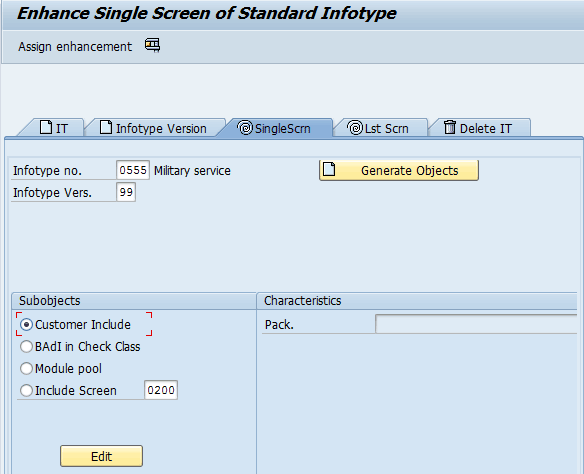
Figure 1
Enter the infotype number and version
Enter the infotype number (in this example, 0555) and version number in the relevant fields, and click the Generate Objects button. This opens the Create Dictionary object pop-up screen (Figure 2).

Figure 2
Create a new customizing include
Click the Create button. This takes you to the ABAP Dictionary transaction, where you can specify the fields for the customizing include CI_P0555 (Figure 3).
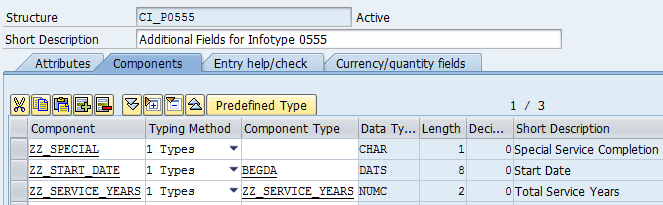
Figure 3
Add new fields to include CI_P0555
Specify the fields you want to add in the standard single infotype screen. All the field names must begin with ZZ. (A warning is issued if the ZZ_ naming convention is not followed.) In this example, I have added three fields: ZZ_SPECIAL, ZZ_START_DATE, and ZZ_SERVICE_YEARS.
You can base your fields on the existing component type or specify the type directly on this screen.
Note
Use F4 Help to search standard data elements (component types) for the
standard elements that serve as a basis for your additional fields.
As you can see, I have specified a one-character field ZZ_SPECIAL to be shown as a check box to indicate that a special service has been completed. Select the ZZ_SPECIAL line and toggle the Predefined Type button (Figure 3). This makes the data type, length, and short description fields editable (Figure 4). Now you can make the necessary entries.

Figure 4
Specify the field’s Data Type, Length, and Short Description
For the field ZZ_START_DATE, I used the standard data element BEGDA. The third field ZZ_SERVICE_YEARS is based on the already-existing custom data element ZZ_SERVICE_YEARS that uses standard domain NUM2.
Note
This method does have one limitation that should be noted. The total
length of the fields in structure PSnnnn of a given infotype, plus the
customizing include, must not be greater than 1500 bytes.
Once the entries are done, save and activate your include by pressing CTRL+F3.
Make sure that the customizing include is in an active state. Press CTRL +F3 to activate the include. Then click the back button in the ribbon (Figure 3).
The system now generates a program ZP055500 and the necessary 0002 screen that contains the layout of the additional fields for the infotype single screen. Any necessary entries for table T582C (Include Screens for Infotypes) are also automatically created. At this stage, when you access the infotype single screen via a transaction code, the three additional fields are now visible (Figure 5).
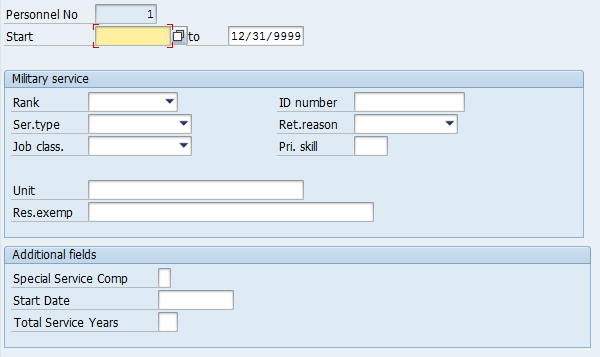
Figure 5
Additional fields on the infotype screen
In step 2, I show how to refine the additional field blocks that have been added.
Step 2. Refine the Look of the Additional Fields
The screen of the generated program is in a very raw form. Further refinement is usually required. This step deals with changing the look and feel of the additional fields. For example, if you have a one-character field, you may need to display it as a check box. You might also want to change the display of field labels, positions, and so on. You can also make fields mandatory (or not) for entry by using the screen layout designer.
Check transaction code PM01’s Single Screen Enhancement tab (Figure 1) to make sure the infotype number and infotype versions are correct. Then, in the Subobjects section (Figure 6), select the Include Screen radio button (with 0200 already entered in the screen field) and click the Edit button.
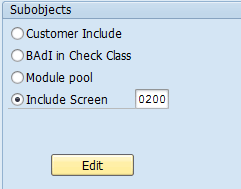
Figure 6
Add the Include Screen option
This takes you to the Screen Painter transaction code’s screen (Figure 7).
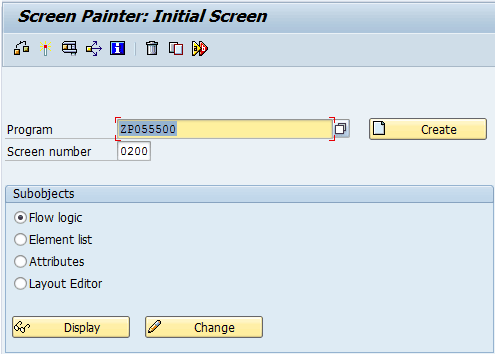
Figure 7
Screen Painter Initial Screen
Here, make sure the Program (ZP055500) and the Screen number (0200) fields are populated correctly in the appropriate fields, and select the Flow Logic radio button. Click the Change button and this takes you to the flow logic of the screen (screen not shown). Click the Layout button to open the layout editor (Figure 8).

Figure 8
The generated additional field layout
Now you can change the alignment, labels, and other properties of the fields according to your users’ requirements. Compare the screens in Figures 8 and 9 to see what changes have been made.
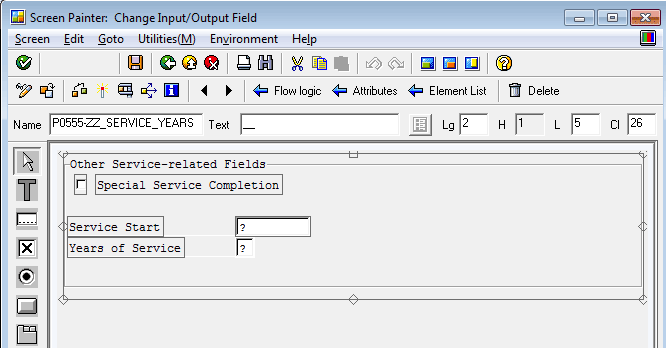
Figure 9
The modified layout
As you can see in Figure 9, the Special Service Completion character field has been converted from a field to a check box. The Service Start and Years of Service field labels have been adjusted, and the Service Start and Service Years fields have been made mandatory. In addition, I have changed the block text from Additional fields (Figure 8) to Other Service-related Fields (Figure 9).
Now that this step is complete, the next step is to write validation checks.
Step 3. Write Validation Checks for Additional Field(s)
You can use the BAdI class to add validation checks for your code.
Note
The BAdI check is only performed for transaction code PA30 when the
infotype is fully decoupled. Check the contents of the views
V_T582ITVCLAS and V_T582ITD to make sure the standard infotype is fully
decoupled. The contents of the views can be checked via transaction code
SM30. If the infotype is not completely decoupled, the check does not
work from transaction code PA30.
Once you’ve completed steps 1 and 2, the next step is to write validation checks for the fields added to the enhanced infotype’s single screen. To do so, go back to the enhancement infotype SingleScrn tab of the main screen of transaction code PM01 (Figure 10).

Figure 10
Select the BAdI in Check Class radio-button option
Make sure the correct infotype number is entered in the field (in this case 0002), select the BAdI in Check Class radio-button option, and click the Edit button. This takes you to the BAdI Builder Implementations Initial Screen. In the Create Implementation section of the screen (Figure 11), choose the New BAdI radio button and make sure the new enhancement (HRPAD00INFTYBL) is entered in the Enhancement Spot field. Then click the Create Impl. button. This opens the dialog box in Figure 12.
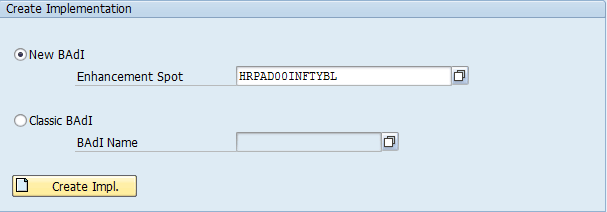
Figure 11
Create a new implementation for enhancement HRPAD00INFTYBL

Figure 12
Enter the details for the new enhancement implementation
Note
Validation through implementing the BAdI is applicable for ESS/MSS
Portal screens and for fully decoupled infotype screens when accessed
from transaction code PA30.
In Figure 12, enter the name of the enhancement implementation and the short text in the fields provided, and then click the green checkmark button. This opens the Create BAdI Implementations dialog window (Figure 13).
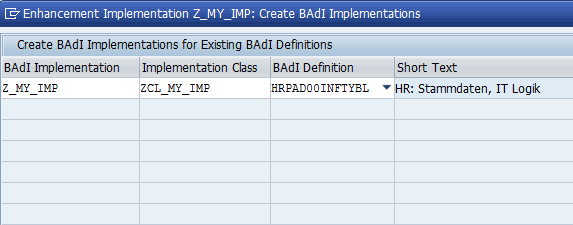
Figure 13
Specify the BAdI implementation class and name
In this case, the name of the BAdI implementation is Z_MY_IMP, and the implementation class to be generated is ZCL_MY_IMP. From the BAdI Definition column, choose BADI HRPAD00INFTYBL. Then press Enter to continue.
This brings up a dialog window (Figure 14).
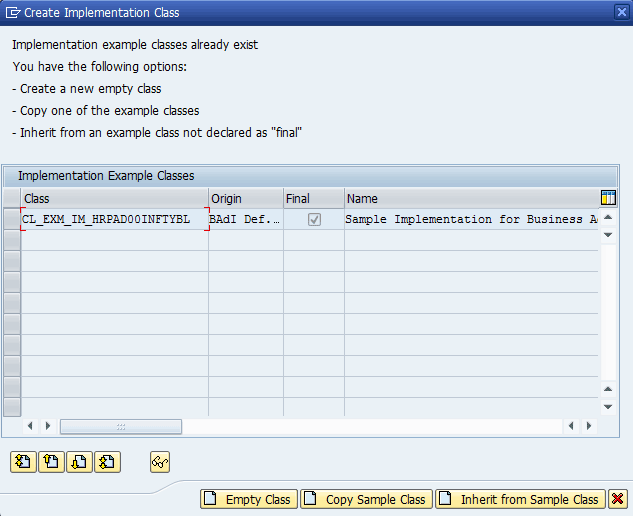
Figure 14
Generate the implementation class
Here, you have the option to create an empty class or make a copy of the existing sample class provided by SAP (see Figure 14). In this example, I choose the empty class option and specify that an empty class is to be generated without being a copy or a subclass of the SAP example class. This is the most suitable example to insert the check. It is not based on nor inherited from a sample class. On the screen that opens, press CTRL +F3 to activate the implementation. A screen appears as shown in Figure 15.

Figure 15
The list of methods to be implemented
Note
In this scenario, you need to validate the data entered in both the
create (Insert) and change (Modify) modes. The code is written in both
INSERT_COMPUTATIONS and MODIFY_COMPUTATIONS. For simplicity’s sake, I’m
using the INSERT_COMPUTATIONS method as my example.
From the left pane (Figure 15), expand the Z_MY_IMP node and double-click Implementing Class. The right side of the screen appears as shown in the figure.
On the right, select the insert computations method and double-click. A dialog window opens asking if you want to create a method implementation (Figure 16). Click the Yes button.

Figure 16
Create the method implementation
This brings up the ABAP code editor for the method, where you can write the code for the validation check. Before writing the code, it’s a good idea to familiarize yourself with the commonly used parameters of the method in order to write validation checks for the additional fields specified in step 1 of this article. The parameters are listed below:
- FLT_VAL: This four-character importing parameter contains the infotype number being maintained.
- PNNNN: The PNNNN parameter, with the type ANY, is a generic structure (also known as the primary infotype record) that contains the data entered on the infotype screen.
- MESSAGE_HANDLER: This the most important parameter used for issuing error messages (or warning messages). It is based on the IF_MESSAGE_HANDLER interface. When the INSERT_COMPUTATION method is called, this parameter is passed with an object reference of class CL_HRPA_MESSAGE_LIST. You can call the method ADD_MESSAGE using the MESSAGE_HANDLER in order to display an error or warning or an information message to the user. Some of the parameters of the ADD_MESSAGE method are shown in Table 2.
| Parameter name |
Meaning |
| MESSAGE |
Information about the message to be displayed |
| FIELD_LIST |
List of fields relevant to the message generated |
| CAUSE |
Cause of the error/message |
Table 2
Parameters of the ADD_MESSAGE method
Once you have become familiar with the main parameters of the INSERT_COMPUTATIONS method, you are ready to write the validation check code.
In the INSERT_COMPUTATIONS method, first use a check statement to ensure that the code is only executed for the infotype in question (e.g., 0555). The parameter FLT_VAL is used for this purpose:
CHECK flt_val EQ '0555'. ” step 1
Before the validation check can be written, you need to get the values entered by the user on the infotype screen. This is available in structure PNNNN in the INSERT_COMPUTATIONS method. Since PNNNN is a generic infotype record structure, define a structure based on your infotype (in this case, P0555), as shown here:
DATA p0555 TYPE p0555. ” step 2
p0555 = pnnnn.
Then assign the values in PNNNN to structure P0555.
Now, in the third step, display the error or warning message based on the fields under consideration (and their contents). Say you need a check for the service years—in this case, let’s say that when 40 or more service years are entered, an error is issued. Thus, the system should highlight both the Service Years and the Service Start fields.
For this, use an IF..ENDIF control structure to specify the condition of a 40-year limit for the Service Years field. Within the IF..ENDIF block, declare a structure MSG and an internal table IT_FIELDLIST. The class, number, and type of the message to be displayed to the user are assigned to the appropriate fields of structure MSG (Figure 17). (In this example, I’m assuming that the message 001 exists in the message class ZMSG.)
DATA msg TYPE symsg. “ step 3
DATA it_field_list TYPE hrpad_field_tab.
msg-msgid = 'ZMSG'.
msg-msgty = 'E'.
msg-msgno = '001'.
Figure 17
Assign values to structure MSG
Since the ZZ_START_DATE and ZZ_SERVICE_YEARS fields are to be highlighted, use APPEND statements to add them to the internal table IT_FIELD_LIST, as shown below:
APPEND 'P0555-ZZ_START_DATE' TO it_field_list. APPEND 'P0555-ZZ_SERVICE_YEARS' TO it_field_list.
Finally, the ADD_MESSAGE method is called to display the message to the user (Figure 18).
CALL METHOD message_handler->add_message
EXPORTING
message = msg
field_list = it_field_list
cause = if_hrpa_message_handler=>infotype_specific.
Figure 18
Call the ADD_MESSAGE method
The complete code listing for the BAdI implementation is shown in Figure 19.
METHOD if_ex_hrpad00inftybl~insert_computations.
CHECK flt_val EQ '0555'. ” step 1
DATA p0555 TYPE p0555. ” step 2
p0555 = pnnnn.
IF p0555-ZZ_SERVICE_YEARS GT ‘40’. ” step 3
DATA msg TYPE symsg.
DATA it_field_list TYPE hrpad_field_tab.
msg-msgid = 'ZMSG'.
msg-msgty = 'E'.
msg-msgno = '001'.
APPEND 'P0555-ZZ_START_DATE' TO it_field_list.
APPEND 'P0555-ZZ_SERVICE_YEARS' TO it_field_list.
CALL METHOD message_handler->add_message
EXPORTING
message = msg
field_list = it_field_list
cause = if_hrpa_message_handler=>infotype_specific.
ENDIF.
ENDMETHOD.
Figure 19
BAdI implementation code
Step 4. Test the Result
Once these three steps are correctly carried out, when the user executes transaction code PA30 and tries to create the infotype 0555 for an employee, the screen (with additional fields) appears as shown in Figure 20.

Figure 20
The infotype’s single screen with additional customized fields
Errors are displayed when the Service Start and Years of Service fields are left blank. If the user tries to enter a value greater than 40 in the Service Years field, an error is also displayed, and the two fields, Service Start and Years of Service, are highlighted.
Rehan Zaidi
Rehan Zaidi is a consultant for several international SAP clients (both on-site and remotely) on a wide range of SAP technical and functional requirements, and also provides writing and documentation services for their SAP- and ABAP-related products. He started working with SAP in 1999 and writing about his experiences in 2001. Rehan has written several articles for both SAP Professional Journal and HR Expert, and also has a number of popular SAP- and ABAP-related books to his credit.
You may contact the author at erpdomain@gmail.com.
If you have comments about this article or publication, or would like to submit an article idea, please contact the editor.


 Premium