Find out how you can use the Analysis Process Designer as an alternative way to reduce high OLAP time for SAP Business Explorer queries, especially when using them as a Business Intelligence Consumer Services or Query as a Web Service connection to feed dashboards.
Key Concept
The Analysis Process Designer is a workbench for the creation, execution, and monitoring of analysis processes. Data from different data sources in SAP NetWeaver BW can be combined, transformed, and staged for analysis in several individual steps so that it can be resaved in data targets in SAP NetWeaver BW (i.e., DataStore objects for direct updates or InfoObjects with attributes) or in SAP Customer Relationship Management.
You can use SAP BusinessObjects tools on top of SAP NetWeaver BW, given there are multiple integration techniques. Among them are direct access to InfoCubes (InfoProviders) and Business Explorer (BEx) queries. However, due to the availability of variables, hierarchies, and restricted and calculated key figures, a BEx query is still the preferred and controlled way to feed data to SAP BusinessObjects applications. Depending on your software version, you can either use a BEx query directly via a Business Intelligence Consumer Services (BICS) or via an SAP BusinessObjects OLAP universe, through Query as a Web Service (QaaWS).
Note
BICS is only available from the following software stack: SAP BusinessObjects Xcelsius Enterprise 2008 support package 2 when paired with SAP NetWeaver 7.0, enhancement package 1, support package 5 and BusinessObjects XI 3.1, support package 2. Also check out this SAP link for further prerequisites to
achieve a connection between Xcelsius and SAP NetWeaver BI. Based on your businesses reporting requirements, you can have simple or complex technical designs, but it’s always a challenge and a need to have optimized front-end solutions that combine SAP BusinessObjects with SAP NetWeaver BW as a data source. A fast BEx query’s response directly reflects on the performance of a dashboard. I am keeping simple designs out of this article because they are easy to handle in SAP BusinessObjects without compromising the design and performance. However, for complex reporting requirements in SAP BusinessObjects, it’s advisable to push the processor-intensive calculations back down to SAP NetWeaver BW.
If your source is a BEx query for handling complex calculations and restrictions, then it will increase your overall query run time. That is because the bulk of the calculations occur at run time, making the OLAP processor do more work.
In many scenarios, dashboards have multiple periodic trends (e.g., the past 12 weeks, months, quarters, or years of sales or production output) measured across a few characteristics (e.g., plant, product, and customers). This particular reporting requirement requires the BEx query to supply a few characteristics but multiple periodic bucketed key figures, which are based on numerous calculated and restricted key figures. If you have the luxury of running SAP NetWeaver BW Accelerator, your life is easy. However, if you have an extremely large and overloaded query with high total runtime and no accelerator, then you have few choices left.
So now you have this bulk of front-end calculations that drastically increase your query runtime. The first thing you do is look for some practical tips and techniques that can improve your query. These tips are great and we all try to follow them, but they have tradeoffs. They try to reduce the amount of data selected from the database, which avoids unnecessary database processing and data-transfer operations and reduces front-end restrictions and calculations. However, practical business requirements win the game and you are forced not to follow these techniques.
I have a solution that allows you to keep your front-end design as is, fulfill the business requirements, and still get super response time. I propose the use of the Analysis Process Designer (APD) as a less technical approach to store a BEx query’s result set back to a DataStore object. You use a simple query to feed the direct connection via BICS or build an OLAP Universe (through QaaWS) to use in SAP BusinessObjects. Keep in mind that the data refresh or update in SAP NetWeaver BW does not reflect in SAP BusinessObjects until you execute APD right after the data refresh. You can easily achieve this using process chains, which I explain at the end of this article.
Figures 1 and 2 show two scenarios in which BEx is used as a data source for SAP BusinessObjects.

Figure 1
A flow diagram of how an OLAP universe is used to get results from a BEx query

Figure 2
A flow diagram for how a BEx Query acts as a direct connection to a dashboard
These two options show how a complex BEx query feeds an SAP BusinessObjects dashboard. Such a query has a high OLAP time due to numerous periodic calculated key figures needed to create various trend charts in the dashboard.
Crafting a DataStore Object
To proceed with the idea of using APD, you need to first create a DataStore object (DSO). Right-click on any InfoArea and select Create DataStore Object. Give the DSO a technical name and description. In the DataStore maintenance area under settings, you will see Select Data Store Type. To use this DSO as a data target in APD, make sure you select Direct Update as shown in Figure 3.
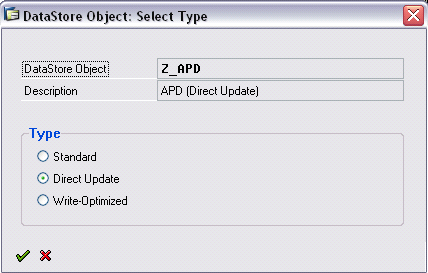
Figure 3
The type setting directs the system on how to update the DataStore object
The fields of the DSO should be identical to the BEx query. The key fields of the DSO can be the list of characteristics in the column section of the query.
Now open BEx Query Designer and create a new BEx query on this DSO. It can be a simple query made by just dragging the characteristic and key figures to the right in the Query Designer. To populate the DSO, you need to use APD to connect it with the complex BEx query. Call APD via transaction RSANWB or RSA1 > Goto > Analysis Process Designer (Figure 4).
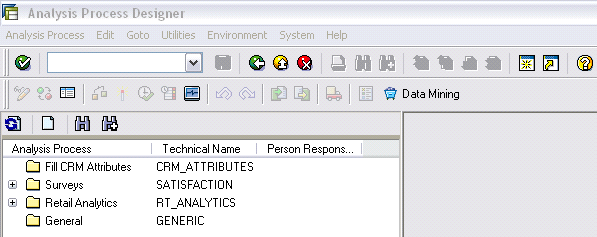
Figure 4
The APD workbench
Here you can create an analysis process by right-clicking on any existing application area on the left of the screen, by pressing F5, or by following menu path Analysis Process > Create. I won’t go into the details of how to create an APD in this article.
Mapping Between a Query and DSO
Once you define the BEx query as the data source and select your DSO as the data target, it’s time to perform mapping. Since the input from the BEx query should match exactly with the DSO, there should be a straight 1:1 mapping between the two objects. Figure 5 shows what the transformation mapping looks like. Here the target structure is the DSO and the source structure is the BEx query.
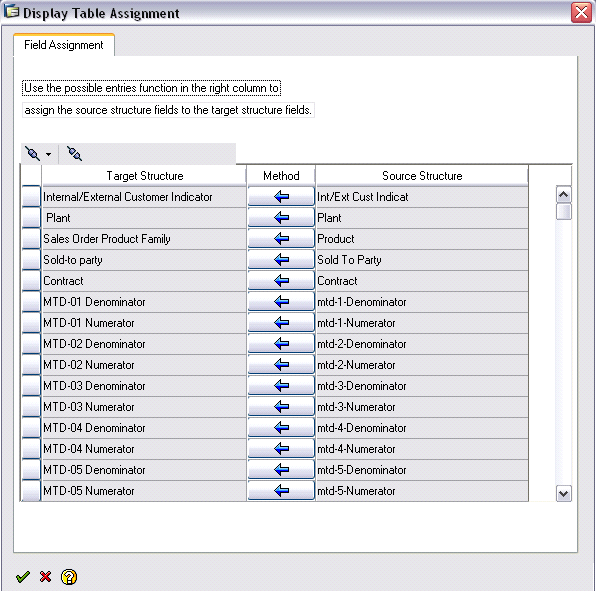
Figure 5
Direct 1:1 assignment between source and target structures
The final APD design is simple and looks similar to what Figure 6 shows once you create the APD.
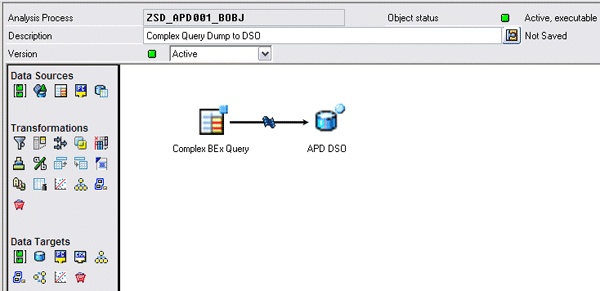
Figure 6
APD data model showing the data flow
Finally, you can automate the complete process via process chains (transaction RSPC) to keep the data ready via APD after the data loads. You can use program RSAN_PROCESS_EXECUTE to schedule the APD via a process chain. You can get detailed steps from the document, “How To Use Analysis Process in Process Chains,” published by SAP.
Note
You can further reduce the total query run time by filling the OLAP cache via information broadcasting. Add a data change event to the end of the process chain. This event triggers the broadcasts, which pre-fill the OLAP cache.
Puneet Kapoor
Puneet Kapoor is BI specialist at TIMET, a large supplier of titanium metal products. He has eight years of experience in SAP Netweaver BW and three years in SAP BusinessObjects.
You may contact the author at Puneet.kapoor@timet.com.
If you have comments about this article or publication, or would like to submit an article idea, please contact the editor.