SAP has no debugging tool for BW, but you can still debug routines in update rules through the PSA (persistent storage area). The author also shows another process for debugging transfer rules and user exits.
You included a routine for an InfoObject into an update rule for your data target. The code looks correct, but the results in the data target are not what you expected, or the process short-dumps because of an error in the routine. Ideally, you want to analyze your code further by running it through the ABAP Debugger. However, no debugging tool is available for BW. Therefore, you have only one way to debug your update rule: through the simulation process in the PSA.
Debugging through the PSA is not difficult, but the process is not well documented and many BW practitioners are not aware of it. I'll show you how to debug routines in update rules in the following seven steps.
Step 1. Load Your Transaction Data into the PSA Only
ProcessingOnly PSAUpdate subsequently in data targetsFigure 1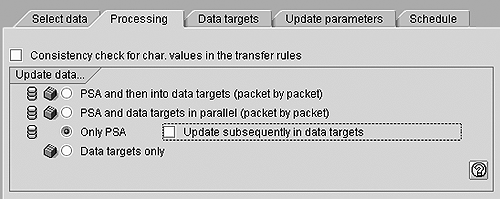
Figure 1
The three tables that make up the ODS in BW 3.0B
Step 2. Select Your InfoPackage Request
RSA1PSASimulate/Cancel Update
Step 3. Select Your Data Packet
DetailsSimulate updateFigure 2
Figure 2
Select the data packet you want to use for debugging
Step 4. Set the Simulation Options
Figure 3Set break points in update rules for debuggingSimulation records selection 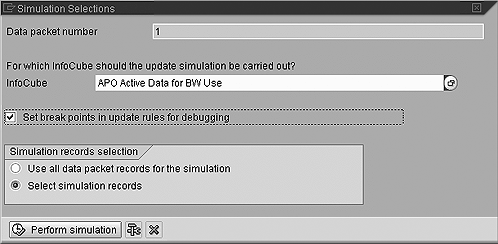
Figure 3
Select your simulation options
Step 5. Select the Data Packet Records
The next window, Figure 4, allows you to choose specific records from your data packets. Choose the records that you know will go against your routines and test all aspects of them. After you have made your selection, click on Copy, which brings you to the ABAP Debugger.
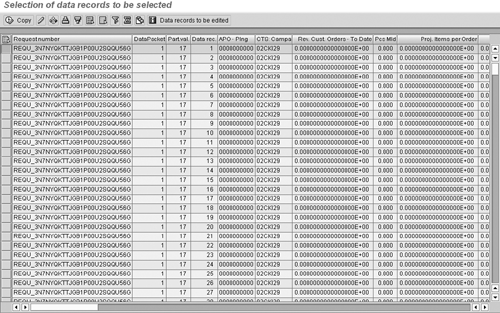
Figure 4
Screen for selecting the data packet records
Step 6. Locate and Step Through Your Code
PERFORMFigure 5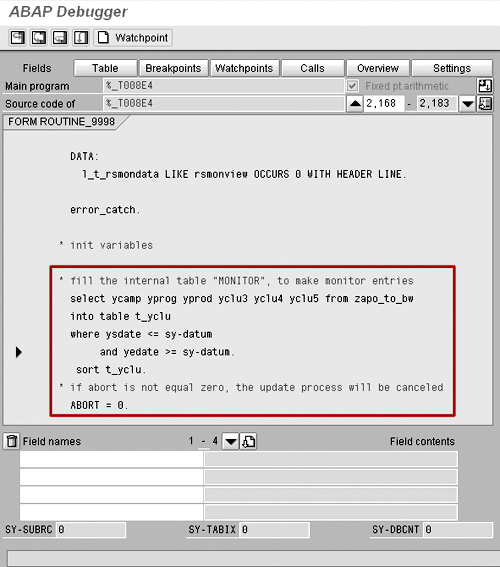
Figure 5
The routine you want to debug starts at the PERFORM statement
Go into that first PERFORM statement and press the F5 key to debug through your start routine by stepping through the code. (See Figure 6.) If you do not have a start routine, press F8 to continue on to the next break point.
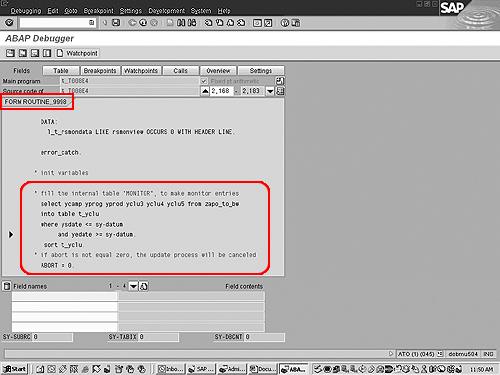
Figure 6
Begin debugging your routing here
At the update rule, you can create a routine at each characteristic for each key figure. A break point, marked by the PERFORM statement, appears for each of these routines in the debugging mode. To debug these routines, repeat the above process for this step by going to the PERFORM statement for each of these routines. Figure 7 shows where your routines would be placed.
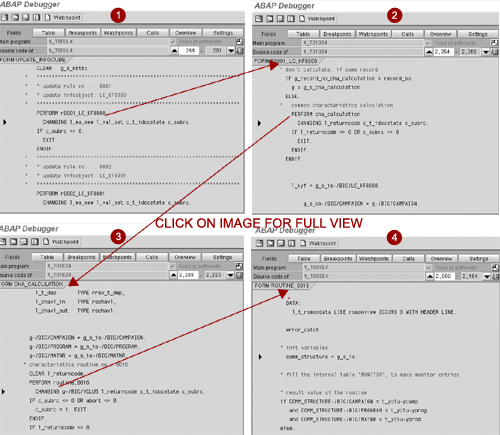
Figure 7
Repeat step 6 for all routines in your update rule
Step 7. Compare Before and After Results
Figure 8InfoCube viewFigure 9Communication structure
Figure 8
Data as it appears in the communications structure

Figure 9
Simulated results of the update rule as they would appear in the InfoCube
If you are using BW 3.0, you can debug a routine in a transfer rule or a user exit using this process. The sidebar “How to Debug Transfer Rule and User Exit Routines in BW 2.x” describes the simple process for earlier releases.
How to Debug Tranfer Rules and User Exit Routines in BW 2.x
As with update rules, BW 2.x offers no standard debugging tool for routines in transfer rules or user exits. Fortunately, a little trick will let you debug them anyway: Set up an infinite loop in your routine and then debug it from the Process Overview (transaction code SM50). The step-by-step instructions follow:
Step 1. First, insert the following ABAP code for an infinite loop in the routine that you would like to debug:
**** clear exit. do. if exit = ‘X’. exit. endif. enddo. ****
|
Step 2. Run your InfoPackage with Start Immediately. (Tip: Load to PSA only is preferable since you are still debugging).
Step 3. Open another session of SAP. Go to transaction SM50 and click on your load process. Then follow the menu path Program/Mode>Program>Debugging (see the Figure). A window will pop up asking you if you are sure you would like to debug. Click on Yes.
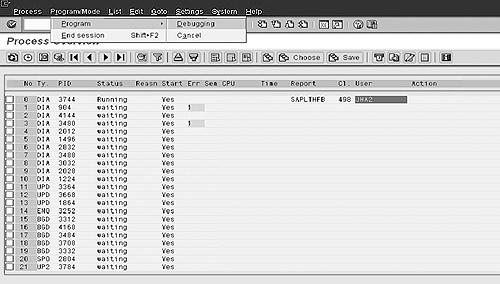
The screen for transaction SM50
Step 4. Go back to your previous session where you executed your InfoPackage. It is now an ABAP Debugger session, and the cursor will stop at the infinite loop code above. You can now see your routine and step through it.
Step 5. To get out of this loop, change the value of the field exit equal to X.
July Hartono
July Hartono has more than six years of experience as an SAP BW consultant. Currently with Alpha Net Consulting, LLC, she has helped several large clients implement BW. Data conversion and extraction, development of custom DataSources, and data modeling are among her best skills. July received mySAP.com Delta Certification for Business Information Warehouse in 2003.
You may contact the author at julyhartono@sbcglobal.net.
If you have comments about this article or publication, or would like to submit an article idea, please contact the editor.


