Learn about SuccessFactors Time Off functionality within Employee Central. This functionality is included in Employee Central to store the time information of employees per your company’s requirements. Gaining a good understanding of the Time Off module and its capabilities gives project teams an understanding of the capabilities and provides how-to solutions for requirements.
Key Concept
SuccessFactors Employee Central has leveraged and upgraded the Time Off module to help companies manage their employees’ time management data in the system. This module allows employees to request time off, view or cancel their time requests, and view team calendars, and managers and HR administrators can view, approve, and reject employees’ time-off requests.
When a company is implementing time off in SuccessFactors Employee Central, the design of the time types and accrual rule functionalities are strategic efforts that determine a lot of process-design decisions. These include finalizing holiday calendars, shortlisting leave types, determining time account types and accrual rules, and deciding which workflow participants should be included in the approval process. With the introduction of the Time Off module within Employee Central, organizations gain the ability to define and better organize their time-management process.
Note
In this article I discuss the Time Off functionality of Employee Central, not to be confused with timekeeping.
This article gives users an understanding of the Time Off functionalities available in SuccessFactors Employee Central and an introduction to the basic configuration required for Time Off and workflows and alerts. The Time Administration functionality is out of the scope of this article. First I discuss the Time Off functionality.
Activating the Time Off Functionality in Employee Central
To access Time Off in the SuccessFactors Employee Central portal, activate the Time Off functionality in PROVISIONING. PROVISIONING is the web-enabled tool that allows trained users who have access to activate or deactivate such functionalities in SuccessFactors. PROVISIONING is provided to Partner users to implement the SuccessFactors product.
Note
Another purpose of PROVISIONING is to use it to upload the XML code of
the configuration each time the coding is changed, but that topic is
beyond the scope of this article as XML code is not being loaded in the
example scenario.
Figure 1
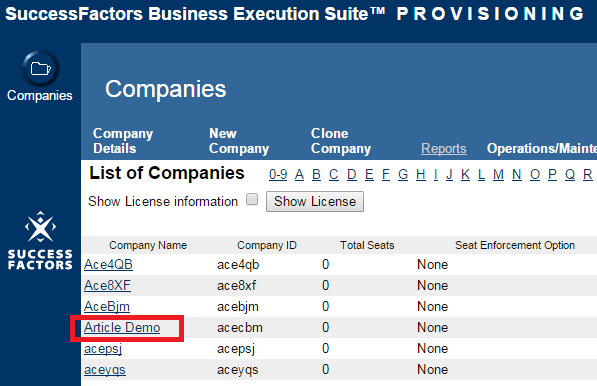
Figure 1
The initial PROVISIONING screen showing the instance details
Note
In this article, the terms “instance” and “system” are used interchangeably.
Figure 1Figure 2
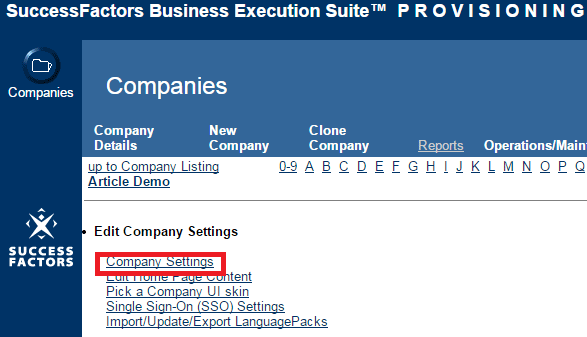
Figure 2
Edit the company settings link screen
Under the Edit Company Settings section, click the Company Settings link as shown in the Figure 2. This opens the screen in Figure 3 where all the system-level configuration settings are maintained. Scroll down the page to look for the Enable Time Off and Enable Generic Objects options and select the requisite check boxes (if they’re not selected already). Then click the save icon to save your changes.
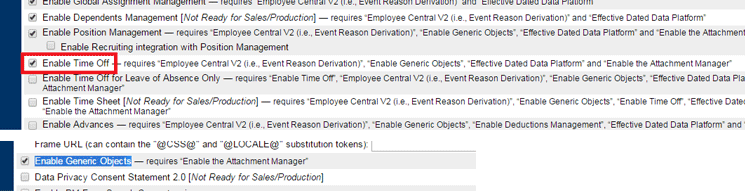
Figure 3
Enable Time Off and Generic Objects
Once you’ve completed these simple steps, the Time Off and Generic Objects functionalities are available in the system for configuration. Then, log out of PROVISIONING to proceed with the next steps.
Setting Up Security to Access Time Off
Once the Time Off and Generic Objects functionalities are enabled in PROVISIONING, you need to grant permission to the user to access and configure Time Off and Generic Objects. This is done in the Employee Central portal under Administration Tools (commonly referred to as Admin Tools or OneAdmin). First, determine what level of accessibility to give to the user (e.g., view, create, edit, or delete). Then you can set up the security access in Employee Central for the user or role using the system admin access, the security role/user setup, or the implementation to manage the security management.
Activating the Time Off Tabs
The next step is to activate the Time Off tabs so that they appear on the Employee Central employee maintenance screen for the users to perform transactions. This is done under OneAdmin in the SuccessFactors HCM instance. Log on to the instance using the link and the user credentials provided for your implementation. This opens the OneAdmin screen shown in Figure 4. Under the Employee Files option, select the Configure Employee Files link.
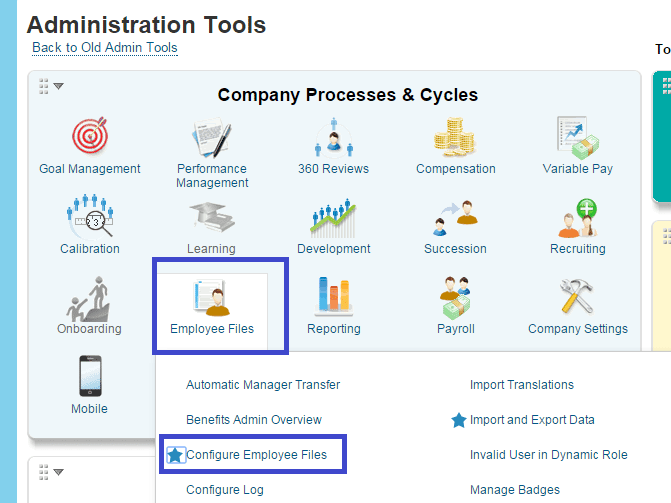
Figure 4
The OneAdmin screen
This opens the Design Employee Files Layout screen (Figure 5). Select the Time Off and Manage Time Off check boxes and save your changes. These settings give the user access to the Time Off and Manage Time Off screens in the Employee Central system, where they can make changes.
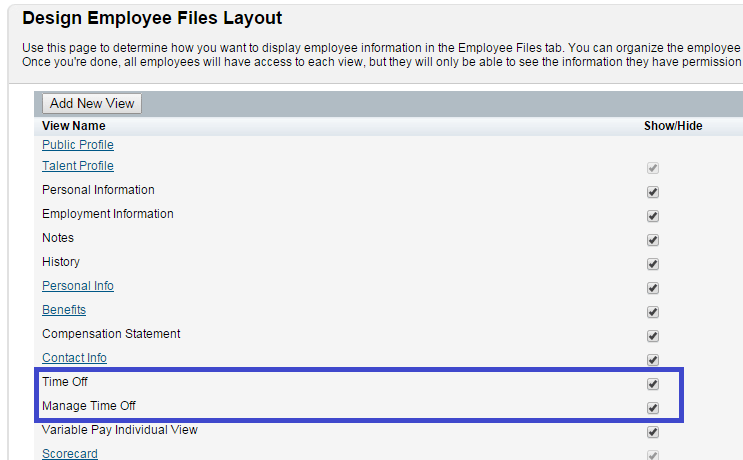
Figure 5
Select Time Off and Manage Time Off
Setting Up User Permissions
Once the Time Off and Manage Time Off tabs are activated to transact, you need to give approved users access to these tabs in order to update their time data. Most companies allow employees to initiate, view, and cancel time-off requests themselves, but only give access to HR administrators or managers to create or modify employees’ time information. For that reason, I am using those parameters in my example scenario. This access is set up as follows:
In the OneAdmin screen, click the Set User Permission icon and, from the options that open, select the Manage Permission Roles (Figure 6).
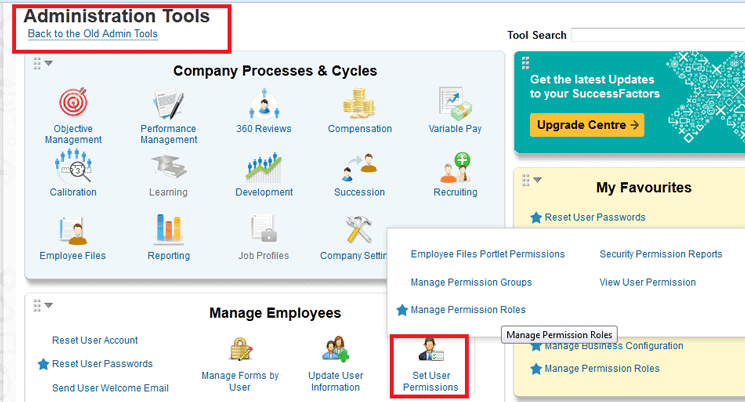
Figure 6
Configure the user’s permissions
The Manage Permission Roles link opens the Permission Role list where all the defined roles for the implementation are created. In this example you are creating a new role as Employee Self Service to provide access at the employee level. Click the Create New button as shown in Figure 7.
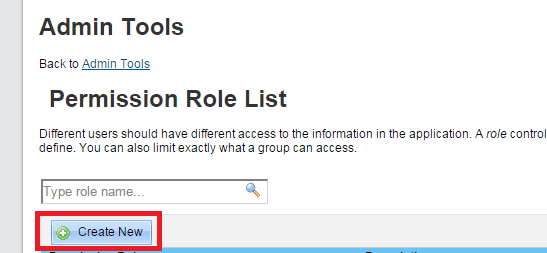
Figure 7
Set up the permissions for the defined role
The Permission Role Details screen in Figure 8 opens, where you configure the security settings for the new role to be created. Enter the Role name and Description, as shown in Figure 8, to set up the selected fields or portlets by role. Then click the Permission… button to open the Permission settings screen (Figure 9), where you set up the security settings for the role.
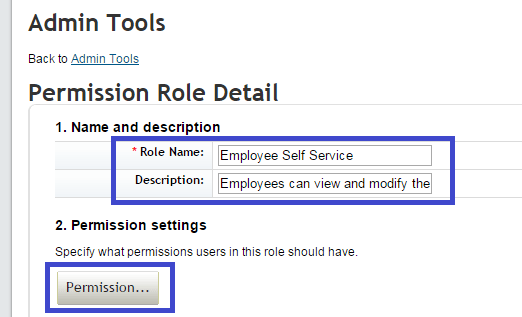
Figure 8
Set up the permission details for the role
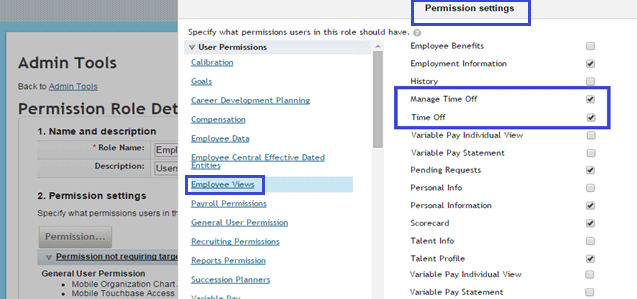
Figure 9
Activate employee access to the Time Off screen
The Permission settings screen (Figure 9) is where the user sets up different levels of access to the different screens, portlets, or modules available in SuccessFactors. In this example, you’re setting up the security for the Time Off module. In the screen in Figure 9, select the Employee view to activate the Time Off and Manage Time Off portlets for the user. To give the user access to the available Time Off functionality, select the Manage Time Off and Time Off check boxes in the Employee Views User Permission section, and click the done icon to save your settings. Once these options are selected and saved, the Employee Self Service role gets access to view the Time Off and Manage Time Off screens in their employee view section of Employee Central.
By activating Time Off and Manage Time Off for the selected user role, the SuccessFactors system makes the Time Information section available to the employee under their Employee Records section. The next step is to enable employees with the Employee Self Service role to view their Time Information data on the Job Information portlet. First, select the Employee Central Effective Dated Entities option (highlighted in Figure 10) under User Permissions, which opens the pane to the right where you can see the permission settings for that role. Select the check boxes next to the permissions you want to allow—in this example, Holiday Calendar, Work Schedule, and Time Profile. Then click the iDone icon (not shown) to save your changes. Once this is done, employees with the Employee Self Service role are able to see the fields under Job Information as shown in Figure 11.
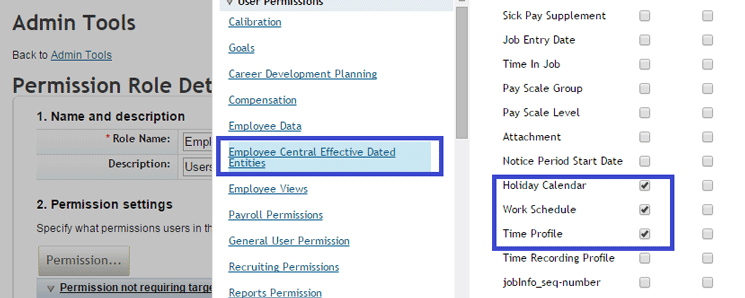
Figure 10
Job Information, Time Information access settings
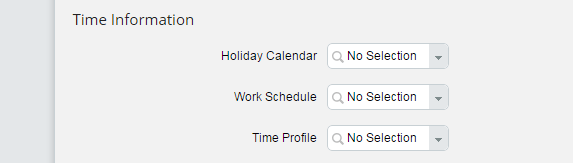
Figure 11
Time Information fields on Job Information screen
HR administrators (or the role responsible for managing employees’ time information) need additional access to manage employees’ time-off data. To manage the time data, select the time-data-related fields (available on the Job Information portlet security screen) that you want to provide to the user, as shown in Figure 12 (in this example, for the HR Administrator role).
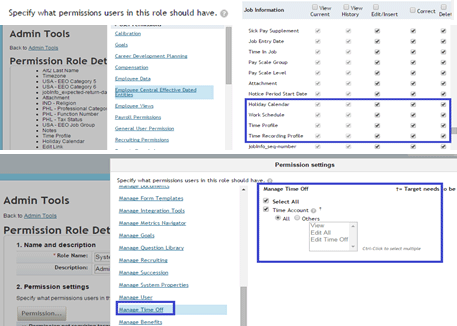
Figure 12
Permission Role settings for additional roles
In my example, Holiday Calendar, Work Schedule, Time Profile, and Time Recording Profile access are selected for the HR Administrator role to have the access for the employees on their Job Information portlet. This role then has the ability to View Current, View History, Edit or Insert, Correct, and Delete time data. Click each of these time-data fields to give all levels of access to act upon for the employee’s time information fields. Then click the save icon to save your changes to the Permissions settings section. Based on business requirements, these settings may change per implementation.
Once the field level settings are done, you need to provide access to HR administrators to manage employees’ time accounts, time structures, and time-off calendars. These security settings are under the Administrator Permissions > Manage Time Off section. Make the same security settings as shown in Figure 12 to complete the security configuration.
Once the settings for accessing and configuring Time Off are set up, the next step is to start configuring the Time Off settings.
Configure Holidays, Holiday Calendars, and Work Schedules
Companies have to define their holidays and holiday calendar each year to be in compliance with internal and external rules and regulations. In Employee Central, you define Holidays and Holiday Calendars, which form the basic structures for the Time Off functionality. Holidays can be configured from OneAdmin by following menu path Employee Files > Manage Data (Figure 13). Then select Holiday from the drop-down options in the Create New field (highlighted in Figure 13) and click the Save button.
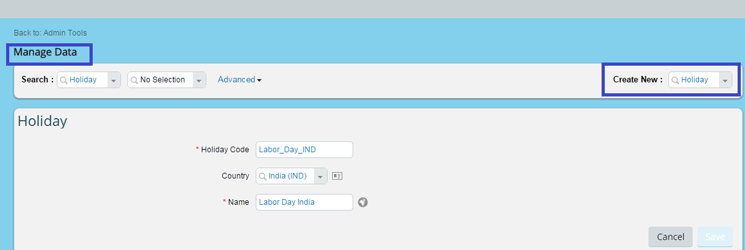
Figure 13
Define holidays in Employee Central
In my example, I’m creating the Labor Day holiday for India. Enter the External Code, Country (if you are creating a country-specific holiday), and name (the text that appears on the screen describing the holiday code) and click the Save button, which saves the holiday created. In this same way, you need to create all the holidays applicable to the company where Time Off is being implemented to attach these holidays to the holiday calendar.
Once the holidays are set up, the next step is to create the Holiday Calendar. If you are only creating a new Holiday calendar, follow this menu path: OneAdmin > Employee Files > Manage Data > Create New, and select Holiday Calendar. If you are continuing from the previous step (configuring a new holiday) simply click select Holiday Calendar from the Create New field drop-down options (highlighted in Figure 14), and the screen at the bottom of the figure opens.
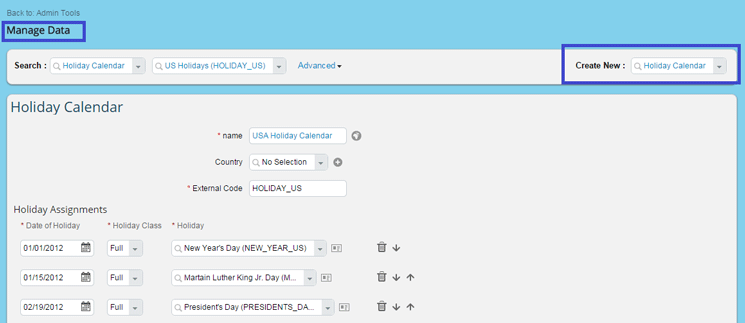
Figure 14
Create a Holiday Calendar with the new holidays
Here you enter the name, Country, and External Code. The External Code is a unique ID per each Holiday Calendar and helps later when employees search the calendar to find holidays. In the Holiday Assignments section, enter the dates of the holidays for which you want to create specific holidays. The Holiday Class fields allow you to define if the holiday is a Full day off, a Half day off, or None (not a day off). Here you select the holidays to be assigned to the Holiday Calendar created. Date of Holiday helps to decide on which date the selected holiday should be applied. In my example, I selected the date of 01/01/2012 for the New Year’s Day holiday. Employee Central allows you to create country-specific holidays by selecting specific countries from the Country field drop-down options. Once you’ve made your selections, click the Save button to save your new settings.
The next step is to create work schedules, which define the working days and hours assigned in a week for that specific work schedule. In this example, you create a work schedule that allows an employee to work Monday to Friday for eight hours a day. Any employee assigned to this work schedule, therefore, works 40 hours a week, Monday to Friday. To create a work schedule, follow menu path OneAdmin > Employee Files > Manage Data > Create New > Work Schedule (Figure 15).
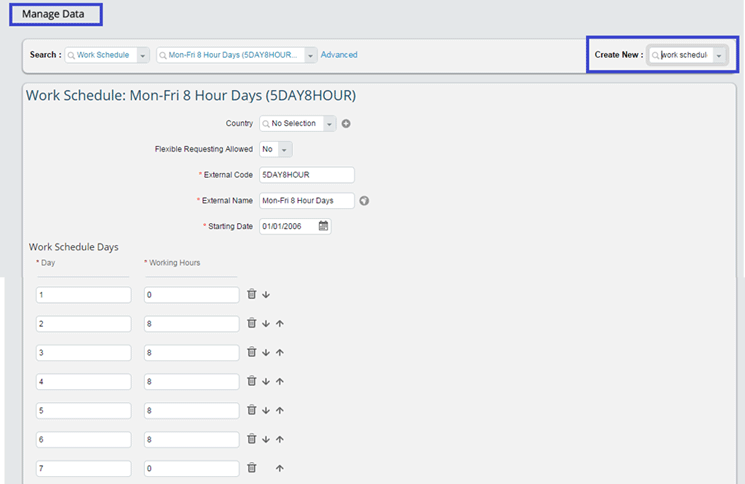
Figure 15
Create a work schedule
In the Work Schedule screen, select Work Schedule from the drop-down options in the Create New field (highlighted in Figure 15).
In the bottom of the figure, define the working schedule working hours pattern for the work schedule and assign to the country if the work schedule is country specific. Figure 15 shows the settings for working five days a week, eight hours a day, per week. Once you’ve made your entries, click the Save button to save your settings, and the new work schedule will be available for the selected country to use on the Job Information portlet.
An Overview of Time Off Design
Apart from the specific holidays created for a company, employees are entitled to other types of leave, such as paid time off (sometimes referred to as PTO), sick leave, maternity or paternity leave, time off for jury duty, and so forth. Companies have their own sets of rules for earning paid time off—for example, employees may earn one day off for each pay period worked, up to a total of 12 days a year. All such leaves are managed through Employee Central’s Time Off functionality. When you decide to implement the Time Off for any clients, the following factors play a major role in designing the Time Management process strategy.
The chart in Figure 16 shows the business process flow of the Time Off functionality. This decision path helps in the design of the time management process approach, and helps companies and managers understand and make decisions about how to configure time management for the company.
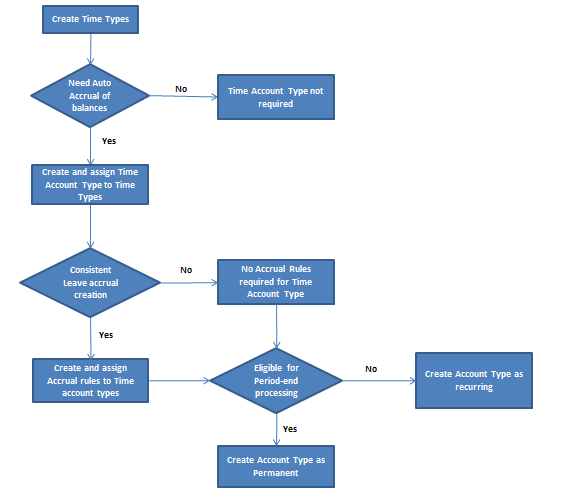
Figure 16
Time Off process design flow
Time Off Configuration Options
Next I explain the configuration options available with various Time Off options. These help when designing the Time Off configuration. There are five types:
- Time types
- Accrual rules
- Time account types
- Time type profiles
- Workflows and alerts
Time Types
In Employee Central, time types are the types of leave available to employees. For example, sick leave, jury duty, maternity or paternity leave, and so on. Users have the option to assign the workflow and time account types for time types based on their companies’ requirements.
Time types are created from OneAdmin by following menu path Company Settings > Manage Time Off Structures > Create New > Time Type (Figure 17).
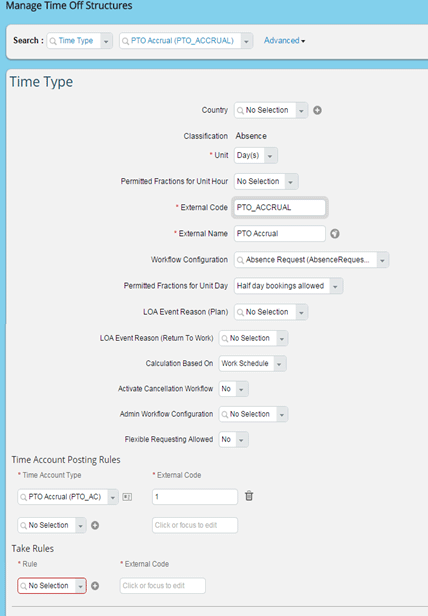
Figure 17
Create time type PTO Accrual
In my example, I create the time type PTO Accrual (for accruing paid time off). Here you can update basic information, such as units of leave type and if workflow is needed in order to create leave types. In many cases, paid time off needs to be accrued based on company-specific requirements; in this example, I assign the time account type for this time type to calculate the accrual. (See Table 1 for a handy guide to the sections and fields shown in Figure 17. This table lists all the fields and their options, definitions, and attributes.)
Field name
|
Definition/Attributes |
| Country |
If the time type created is country specific, then assign the country in this field; if not, leave this blank.
|
| Classification |
This defaults to Absences as the time type being created falls under absences. |
Unit
|
Here you define the unit of the time type being created (either in hours or days). |
Permitted Fractions for Unit Hour
|
For the unit type hour, users can define the fractions either in full hours or a full day booking. If flexible requesting is used, then users have the ability to request leave in increments of hours and minutes. |
| External Code |
This is the unique ID used in each implementation to create the unique time type to follow the naming standards used in implementation. |
| External Name |
The name of the time type being created. |
| Workflow Configuration |
If the time type needs workflow for approval, select the workflow created from the drop-down options for this field. |
| Permitted Fractions for Unit Day |
For the unit type day, users can define the fractions either in full
hour or full day booking. If flexible requesting is used, then users
have the ability to request leave in increments of hours and minutes. |
| LOA Event Reason (Plan) |
If the time type is attached to the leave of absence—LOA—process, select the Leave of Absence reason option from the drop-down menu. |
| LOA Event Reason (Return To Work) |
If the time type is attached to the leave of absence process for your company, select the appropriate Leave of Absence option that is applicable for the employee’s reason for absence. |
| Calculation Based On |
This field helps calculate the absences either in calendar days (if leave of absence is used) or work schedule (if time account type is used). |
| Activate Cancellation Workflow |
This field is available to attach to any applicable workflows. If Yes is selected, then workflow cancellation rules needs to be created. If No is selected, then workflows are not triggered for any cancellation. |
| Admin Workflow Configuration |
In this field, the workflow with only the CC option is attached if required; approval workflows are not supported here. |
Flexible Requesting Allowed
|
If Yes is selected, this field allows the employee to book the absence amount that varies from planned working time as per the time schedule. |
| Time Account Type |
Under the time account posting rule, you can attach the time account type to a time type that needs the accruals for calculating the balances. |
External Code
|
Here you enter an external code for the selected time account type to differentiate the time account type options. |
| Rule |
Under the Take Rules section, you assign the rule that is used to define the alerts or reminders created for the specific time type. |
| External Code |
Here you enter an external code for the selected rule to differentiate between various rules assigned for the time type. |
Table 1
Time type reference guide
Accrual Rules
Accrual rules help in defining the calculation of leave types in Employee Central. Many companies have the requirement to update some time types (like paid time off) based on accruals. In such cases, you need to create accrual rules and assign them to time account types. In most Time Off implementations, companies have a few leave types that accumulate based on accruals. For example, employees earn six hours of paid time off per pay cycle. For these kinds of leave types you need to create accrual rules to define how the leave accruals are to be calculated.
Based on the company’s requirements, accrual rules are created using the Configure Business Rules. These rules help in calculating the accumulation of the leave for a given time type. Accrual rules are assigned to the time account type, which I discuss next.
Time Account Type
The time account type determines how the time type should behave when it’s assigned to the defined time account type. Under the time account type, users have the ability to define:
- How frequently the accruals will be created (for example, weekly, bi-weekly, and monthly)
- The units in which the accruals are created (e.g., hours or days)
- If the accruals are recurring (with one-year validity) or permanent
- When the account should start accruing
- The time account type validity (e.g., which day and month the time account type becomes effective)
- Account Type posting order (determine how the time account types need to be processed—e.g., oldest first or newest first)
- The accrual/account/period-end processing rule assignment (e.g., assigns the rules to calculate the accrual, or create the account, or set the period-end processing dates)
You can create time account types by following menu path OneAdmin > Company Settings > Manage Time Off Structures > Create New > Time Account Type (Figure 18).
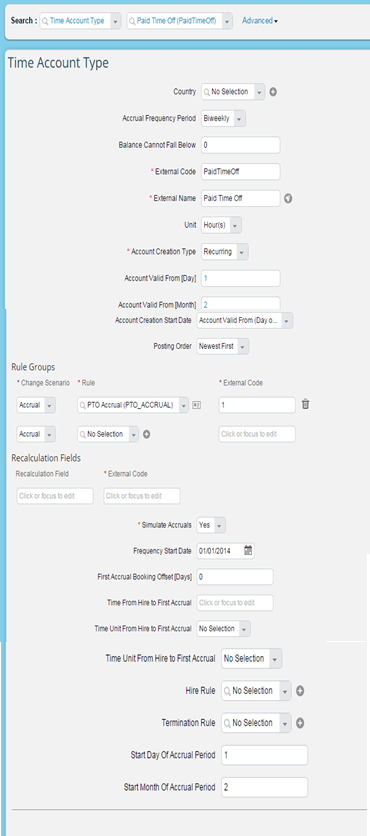
Figure 18
Time Account Type settings
In my example, I create the Paid Time Off time account type, which accrues hourly with a frequency of bi-weekly. This time account type is defined to create recurring, with a one-year validity to be effective from January 1 to December 31. I assign the PTO Accrual rule created using the business rules, which defines how the accruals are calculated for assigned employees. The time account type settings also provide employees with the ability to request leave that is not yet accrued during the time-off request based on the configuration settings. (See the reference list of time account field types in Table 2, for a handy guide to the sections and fields shown in the screen in Figure 18. This table lists all the fields and their options, definitions, and attributes.)
Field name
|
Definition/Attributes |
| Country |
If the time account type to be created is country specific, then select the country in this field from the drop-down list. If it’s not country specific, leave this blank.
|
| Accrual Frequency Period |
This defines the frequency of time account type creation. Available options are: Weekly, Bi-Weekly, Monthly, Twice Monthly, Annually, or Only Once. Based on the requirement to create the accruals, options from the drop-down are selected. |
Simulate Accruals
|
This appears once frequency is selected. This field allows users to request the time off that accrues in the future if the Yes option is selected; otherwise employees are allowed only to request the accrued period. |
Frequency Start Date
|
If the frequency selected is Weekly or Bi-Weekly in this field, you need to define the start date of the first accruals. |
| First Accrual Booking Offset [Days] |
This field defines when the accruals should be posted on employee’s account. For example, if 0 is selected, the posting is updated on the first day of the month and if 14 is selected, the posting updates on the 15th of the month. |
| Time From Hire to First Accrual |
Defines the time from which the new-hire leave accrual should start. |
| Defines the time from which the new-hire leave accrual should start. |
This supports the unit (e.g., Days, Weeks, Month or Years) for the number selected in the Time From Hire to First Accrual field. |
| Hire Rule |
If the accrual rules for new hires are defined under the business rule, select the rule from the drop-down list in this field. This helps in calculating the prorated accrual calculation based on the day of hire. |
| Termination Rule |
If you define the accrual rules for Termination under the business rule, select the rule from the drop-down list that helps in calculating the prorated accrual calculation based on the date of termination. |
| Balance Cannot Fall Below |
This defines the amount of time employees are allowed to borrow if they don’t have any accrued leave. Enter the amount that is allowed based on the unit selected for the time account type. |
| External Code |
This is the unique ID used to create the time account type to follow the naming standards used in implementation. |
| External Name |
The name of the time account type being created, such as Sick Leave, Annual Leave, or Paid Time Off. |
| Unit |
Define the unit of the time account type accrual being created (in hours or days). |
Account Creation Type
|
This field defines how the time account type accruals are created (e.g., either recurring or permanent). Recurring accruals are valid for one year, whereas permanent will be created with the end date of 12/31/9999. |
| Account Booking Offset [Months] |
This field is used when the creation type is recurring. The number entered in this field allows the user to get additional months for making the booking after the end of the validity period of one year. |
Account Creation Start Date
|
This specifies the date from which the Time account type should start for the employee selected. This can be the hire date (which allows users to have a valid account type from their work anniversary) or from the validity date of the time account type. |
| Posting Order |
Defines the order of processing by account type, either Newest First or Oldest First (e.g., based on the accrual type, accruals are posted first against the balance). |
| Rule Groups |
Based on the requirement, you can attach accrual, account creation, or period-end-processing rules for the time account types. These rules are created under the Business Rule section. |
| Recalculation Fields |
This field is used to calculate the prorated amount of the accrual. |
Table 2
Time account field guide
Time Type Profile
The time type profile defines the types of leaves (time types) employees are entitled to take from the Time Off module. Time types are assigned to the time profile that appear for employees to request during the time-off initiation. Time profiles are assigned to employees on the Job Information portlet.
In my example, I create the USA Salaried Profile time account type, which has three types of leaves assigned to it (shown in Figure 19). When an employee is assigned this profile in his or her Job Information portlet (Figure 20), they have the option to select from the three assigned types of leaves in their Time Off portlet (shown in Figure 21).
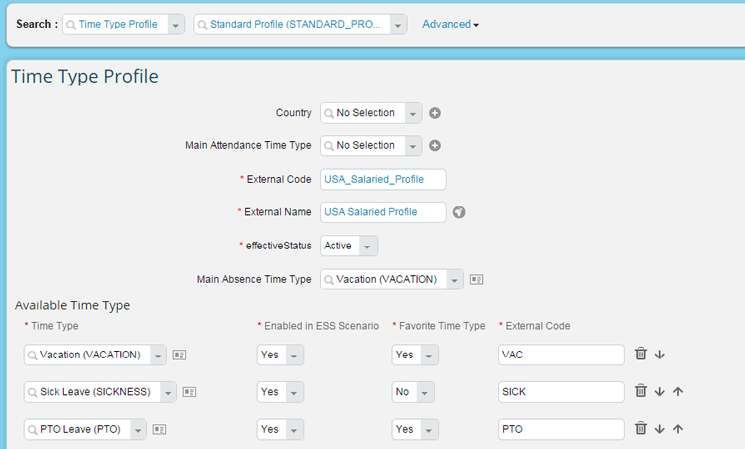
Figure 19
Configure the new time type profile
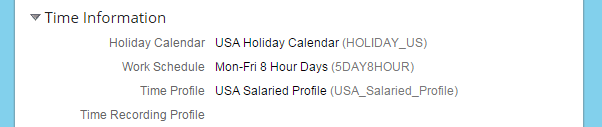
Figure 20
The available leave options are displayed in the Time Information section
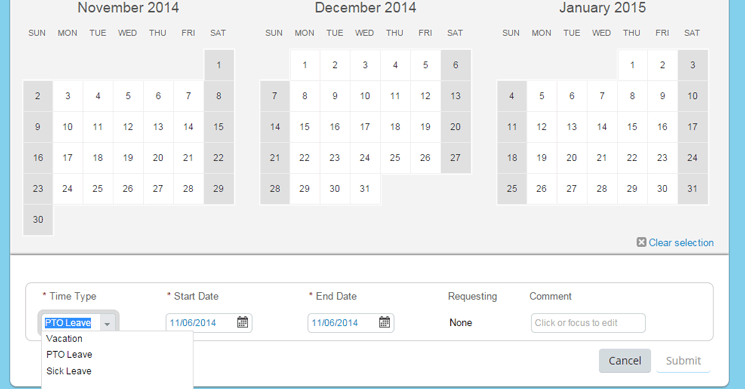
Figure 21
Select the type of leave requested
Workflows and Alerts
In many companies, employees follow an approval process when they’re requesting time off. If an employee wants to use paid time off or vacation time, he or she needs to get the leave approved by the approving authority as defined by the company. Users can define and attach workflows to the time types based on the requirements. For example, paid time off requires the approval of the employee’s manager and a notification must be sent to the HR administrator. This can be achieved using the workflow object available in Employee Central, as follows:
Workflow is attached to the time type after it is created. In my example, I create a planned time off workflow that requires the approval of the employee’s manager, and automatically sends a notification email to the employee’s HR administrator when paid time off leave is requested.
To create a workflow from OneAdmin, follow menu path Employee Files > Manage Organization, Pay and Job Structures > Create New > Workflow (Figure 22). In the screen that opens, make your entries per your requirement, and then click the Save button to save your new workflow.
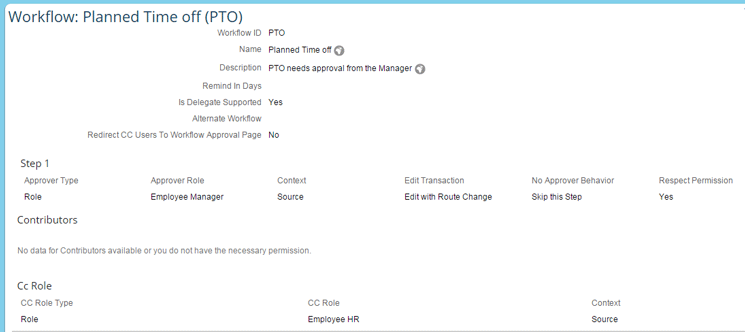
Figure 22
Configure the time type workflow
The reminder and alert functionality is useful for keeping managers and employees informed. For example, with this functionality, the system can send a reminder to a manager when an employee is due to return from leave or can send an alert to the employee when he or she requests more leave than they have accrued. Once the reminder or alert is created (per the requirements), rules needs to be defined to generate the alerts. In my example, the user gets an alert when he or she applies for more than 20 days of sick leave.
To create a new alert message, follow menu path OneAdmin > Employee Files > Manage Data > Create New > AlertMessage (Figure 23). Here you make the required entries to create your new alert, then click the Save button to save your changes.

Figure 23
Configure the alert message
Once the alert is created, you need to create a rule to calculate 20 calendar days which is assigned to Sick Leave to trigger when the user tries to apply for over 20 days of sick leave. Figure 24 shows the rule configuration which is created to calculate the 20 calendar days and trigger if the sick leave is applied for more than 20 days
To create your new rule, follow menu path OneAdmin > Company Settings > Configure Business Rules > Create New Rule (Figure 24). Here you make the required entries to create your new rule, then click the Save button to save your changes.
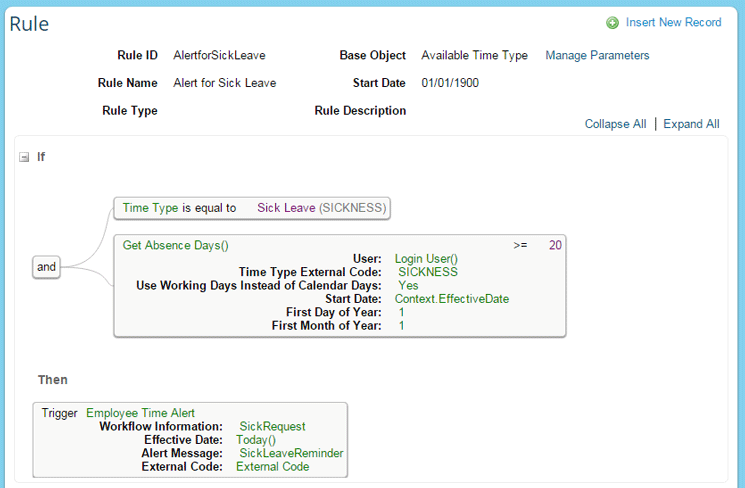
Figure 24
Configure the 20-calendar-day calculation rule
Once the alert assignment rule is configured, this rule is assigned to the create time type by following the menu path OneAdmin > Company Settings > Manage Time Off Structures > Search > Time Type (Figure 25). Here you make the required entries to create your new time type, then click the Save button to save your changes.

Figure 25
Assign the alert rule to a time type
Manjunath Bannur
Manjunath Bannur has been in the IT industry for over 13 years working in various areas of HR, including SAP ERP HCM (for 7 years) and now SuccessFactors Employee Central. He is experienced in implementing SAP ERP HCM and Employee Central globally.
You may contact the author at mbannur@gmail.com.
If you have comments about this article or publication, or would like to submit an article idea, please contact the editor.


