Manager
Leverage these techniques and standards to produce a business process hierarchy (BPH) that accurately represents your “to be” solution, improves solution documentation, reduces effort, and provides more intuitive navigation.
Key Concept
Taking advantage of standards for naming conventions, using shortcuts, and document linking can provide more insight into your solution design, improve transparency of process integration, and support end-to-end traceability.
Many projects do not take enough advantage of many of the features available in the Business Blueprint (transaction code SOLAR01) to improve efficiency during solution design, provide transparency of change impacts, organize processes into value chains, and deliver solution documentation that is easy to navigate to the business and to operational support teams. Learn how to establish good habits and take advantage of often overlooked features such as structure shortcuts and document links to build a better picture of your “to be” solution.
Prerequisite
SolMan 7.1 SP01 or higher.
Understanding the BPH Structure Element
Solution Manager provides the facility to build a process catalogue for your “to-be” solution in a hierarchical structure. Out of the box, this structure consists of the following components:
- Project: Master container for the entire business process catalogue.
- Organizational units: Contains the scope of the SAP organizational units to be used for the solution. These are the configurable organization elements that describe the solution. Some examples include company, plant, sales area, and credit control area.
- Master Data: Identifies the scope of master data to be used for the solution. This section of the hierarchy is used to identify how the master data is to be configured. As a general rule, I recommend that the processes on how the master data is to be created and maintained be described in the process area of the business process hierarchy (BPH).
- Scenario: The scenario section of the BPH is the first of the process-focused elements. The scenario is used to group processes into logical collections that describe the business value or purpose of the collection of processes. For example, the order-to-cash for contract sales step has the value that it provides for order fulfillment for the customer and for collecting cash for the business.
- Process: The process level of the BPH allows you to capture collections of business activities that help you achieve your interim goals while supporting the achievement of the ultimate value goal of the scenario. For example, in the scenario described above, some of the processes would include contract management, order processing, delivery management, and payment processing.
- Step: The step is the lowest order of granularity represented by the BPH structure. It is a discrete business activity or function that results in the completion of a business event that supports the business process. Examples of this component are: Create standard sales order, create return order, release orders, and create delivery.
- Shortcut: A shortcut is a reference or pointer to another node on the BPH. It allows for the representation of the same business process or step in multiple scenarios without repeating the underlying content, such as transaction codes or business content.
Figure 1 shows transaction code SOLAR01 where the key BPH structure elements, described above, are assembled.
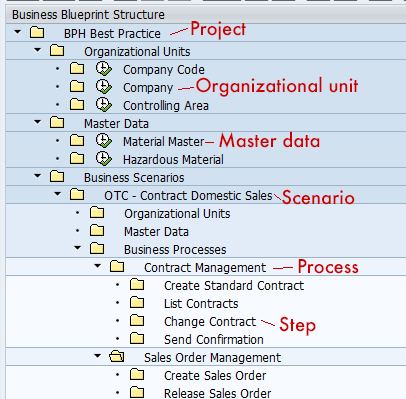
Figure 1
Transaction code SOLAR01 (key BPH elements)
Establishing Standards for Structure Naming
Standardized structure naming provides for consistency across process teams and assists with establishing a common language for describing the business solution.
Organizational Units and Master Data
The naming of Organizational Units and Master Data is standardized by SAP when you retrieve the content from the Business Process Repository (BPR). Figure 2 shows a sample of the organizational units delivered in the BPR.
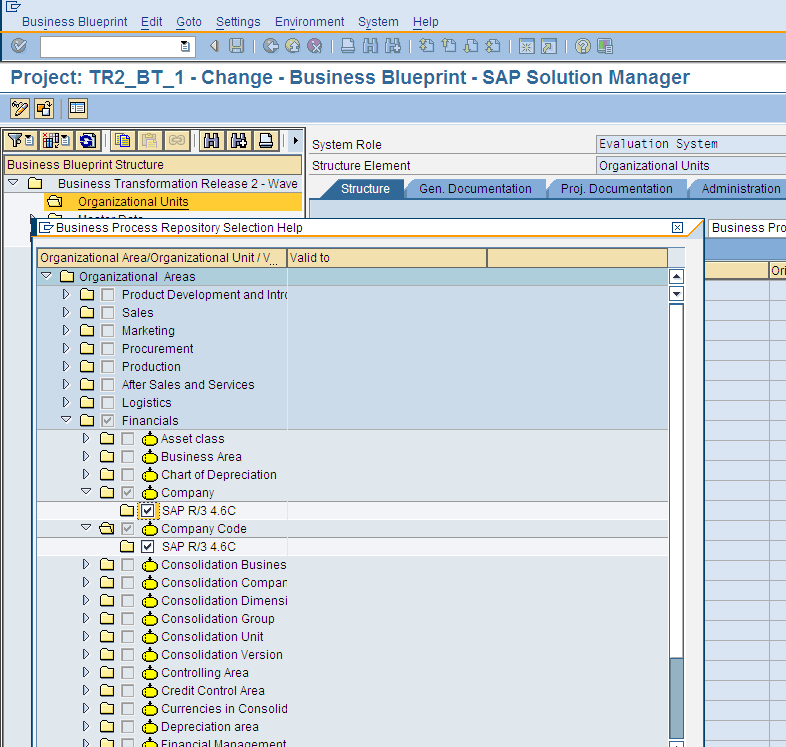
Figure 2
BPR view of organization units
While it is possible to rename the organizational units after they are retrieved, leaving them as delivered helps maintain consistency when performing the configuration during the realization phase. The master data structure elements should also be retrieved from the BPR and left with the standard names. Be aware that the content delivered in the BPR varies by process area and SAP product. It may be necessary to rename some content to provide for consistency within your BPH structure. Take the time to establish and adhere to project naming conventions.
The master data structure section is the first area where you should begin thinking about describing the whole solution, not just the SAP parts. The Solution Manager project should describe the entire solution being deployed including legacy systems, third-party systems, and manual processes and steps. This better positions your project for comprehensive testing, helps with change-impact assessments, and provides the solution support team with a comprehensive view of the solution to enable better end-user support.
Business Scenarios for Naming
If your project establishes and follows good naming conventions for the business scenarios section of the BPH structure elements, your solution will be more consistent across process areas and make for a more self-documenting project structure.
First, consider how your business operates in terms of the value that a group of processes brings to customers, both internally and externally. For example, order to cash is the collection of business processes that begins with a customer order and concludes when the payment is received and the accounts receivable is cleared. This collection of processes is called a scenario in the Solution Manager BPH.
When naming business scenarios it is important to think about the clear beginning and end of the value chain. This end-to-end approach helps you to clearly identify how particular business units, central functions, or profit centers perform processes and how the processes relate to one another to provide business value. Some examples of business scenario names include:
- Order to cash
- Financial plan to report
- Procure to pay
- Hire to retire
- Acquire to retire (fixed assets)
More examples of scenarios (with descriptions) can be found here at the SAP Community Network (SCN): https://wiki.scn.sap.com/wiki/display/BPX/End+to+End+Business+Scenarios.
Like organizational units and master data, you can retrieve business scenarios from the BPR. However, I recommend to my project leaders that they avoid this due the scope of the business scenarios delivered in the BPR. While the BPR is a great resource for reviewing scenario content, most of the projects I’ve worked with have had enough variation in the way their business operates relative to the SAP standard that importing whole scenarios from the BPR lead to a lot of pruning of the process hierarchy. Therefore, I recommend that the project leaders manually create the scenario level of the BPH and select the content from the BPR for the process-level content.
Naming Business Processes and Steps
It is important to remember that following a consistent naming convention for all process areas provides a common language across process teams and yields a clearer self-documenting BPH structure. After you have retrieved processes from the BPR, I recommend you review the Process names and follow a noun + verb naming convention such as Order Processing or Vendor Master Data Management.
At the Process level, using the gerund form of the verb shows that the process is dealing with multiple items or activities. For example, Sales Order Management uses a plural form of the verb manage so that it is more obvious that the scope of the process contains multiple order processing steps. Also, instead of using a name like Apply Cash, use Cash Application, Customer Payment Processing, or Accounts Receivable Clearing as these more fully describe the business objective of the process.
For process steps, consider using a verb + noun naming convention. For example, the step name Create Sales Order starts with the verb (create) followed by nouns (sales order). Note that it’s also a good idea to use describing words to qualify the noun such as Sales or Purchase so that it’s obvious what type of order is being created. For example, Create Purchase Order, Create Sales Order, and Create Internal Order.
As you reference other sources such as SCN, BPR, and the American Productivity & Quality Center (APQC), you see that this approach is not always consistently followed, but I encourage it strongly to preserve the consistency of language across process areas.
Smart Use of BPH Shortcuts
BPH shortcuts are quite handy for indicating a process or step re-use. It is quite common in integrated solutions to have the same business processes and steps used in multiple business scenarios.
The example I like to use is post goods issue. Many business processes use post goods issue as a step in the process. In my order-to-cash scenario, post goods issue is for sending products to a customer. However, in a warehouse and inventory management scenario, post goods issues is used when moving inventory within or between warehouses (or plants). In another example, in a procure-to-pay scenario the post goods issue step is used for processing vendor returns.
If the business performs the post goods issue step the same way for each of these scenarios, then re-using the step name using shortcuts is preferable to creating three separate nodes on the BPH. Multiple BPH nodes for the same process step risks having multiple versions of the solution design, as well as risking that you might make erroneous changes to the configuration, custom code, or even to the transaction assignments. This can cause confusion, flawed work efforts, and missteps in testing. Figure 3 shows how shortcuts appear in the BPH structure.
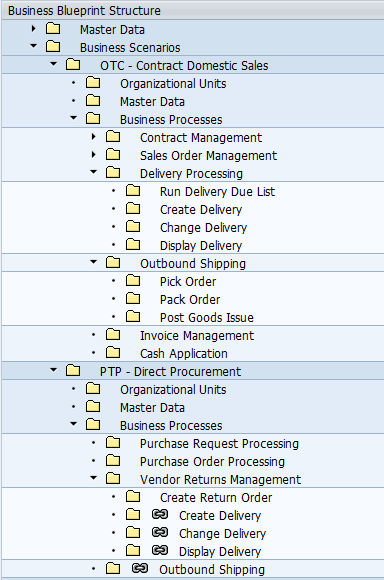
Figure 3
BPH process- and step-level shortcuts
Within the OTC [order to cash] – Contract Domestic Sales scenario you can see that Delivery Processing is one of the business processes (Figure 3). Within Delivery Processing there are a series of steps that support creating and completing deliveries for outbound product sales (e.g., Run Deliver Due List and Create Delivery, for example).
Similarly, the PTP [procure to pay] – Direct Procurement scenario needs to process deliveries to return products to vendors. The Vendor Returns Management process re-uses the delivery steps of Create Delivery, Change Delivery, and Display Delivery, from the Delivery Processing process from above (e.g., Create Delivery, Change Delivery, and Display Delivery). Note that only three of the four Delivery Processing steps are reused because the delivery due list is used in the Vendor Returns Management process for this example solution.
Similarly, the PTP – Direct Procurement scenario needs a process for outbound shipping. Since all the process steps are the same for Outbound Shipping in both scenarios, only one shortcut to the entire process is used.
Creating Shortcuts
It is important to understand that a shortcut is simply a pointer to another location in the BPH. Some might call it a link, however, it is better to avoid referring to shortcuts as links because the term link refers to another association in the BPH used for Documents, not the BPH structure itself. This is covered later in this article.
Creating a shortcut is a simple matter of copying and pasting an existing BPH node. To re-use a process or step, simply right-click the node and choose Copy from the context menu (Figure 4). Then move to the location where you would like to create your shortcut, and select the node above where you would like the shortcut created. Right-click again and choose Insert Shortcut from the context menu (Figure 5).
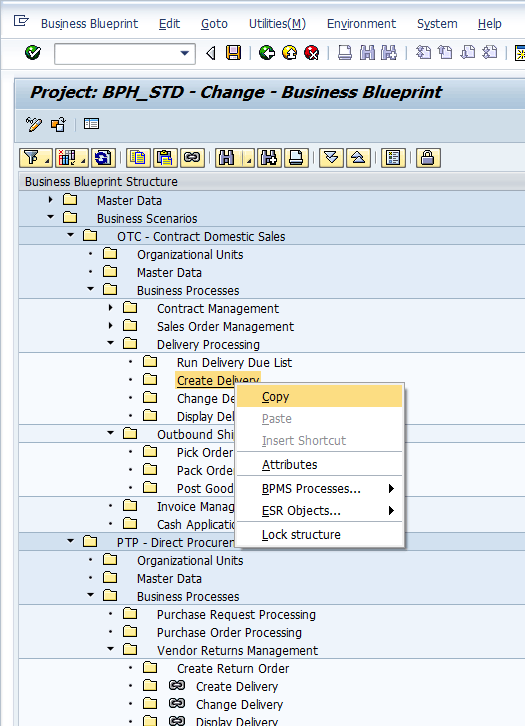
Figure 4
Copy a process step
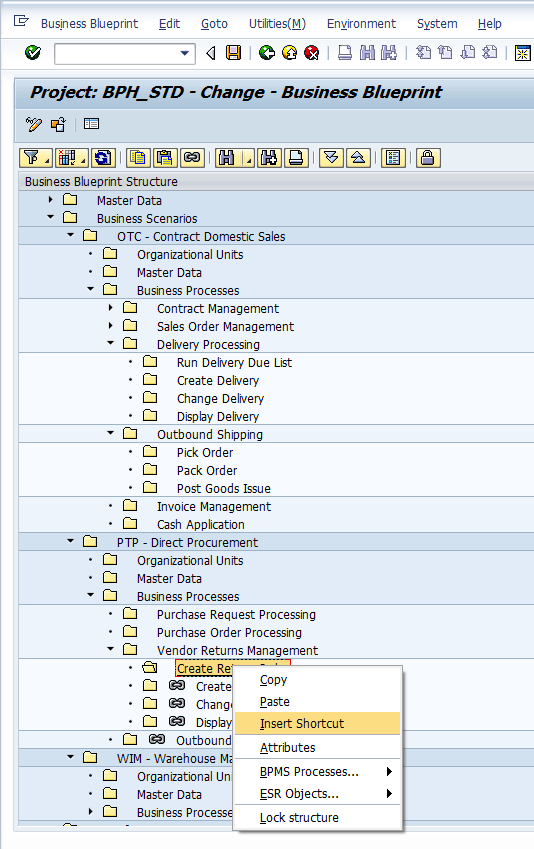
Figure 5
Insert a copy of the process step to create a new shortcut
When you select a BPH node that is a shortcut, the tabs on the right side of the screen no longer allow for any maintenance. Instead, there is simply a link to the original source node in the BPH structure. This allows you to indicate that a process or step is used in multiple scenarios without having to maintain the content in multiple places. This ensures that there are fewer inconsistencies in the description and scoping of the processes. It is a way of building once, using many.
Figure 6 shows the Gen. Documentation tab of a shortcut node. The other tabs have a similar look and feel. There is no table entry available, just a link to the source BPH node.
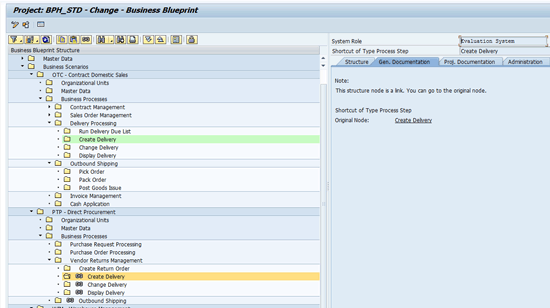
Figure 6
Shortcut node showing link to original source node
Figure 7 shows that the target node is highlighted, or selected, when you click the link. Clicking the link moves the selection to the target of the shortcut.
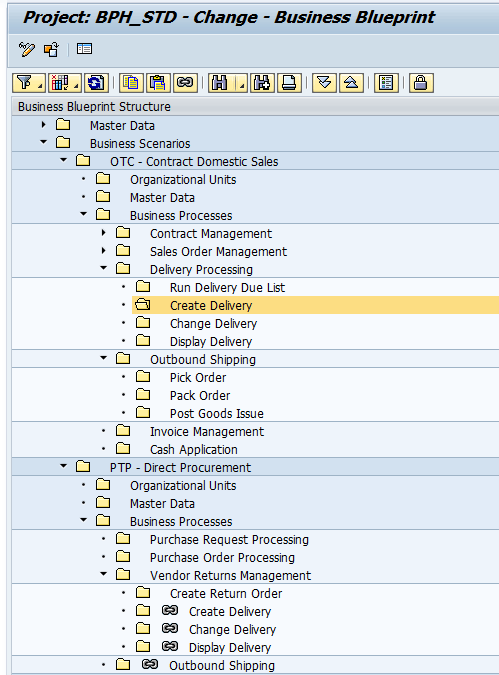
Figure 7
Selection change in BPH when shortcut link clicked
Storing the Solution Documentation Content
Solution Manager has a very nice content management capability integrated through its functionality.
Following a structured approach to storing your solution content can save you a great deal of time when you need to locate, maintain, or use the content. As you may know, large SAP projects can generate literally thousands of documents. Storing them in a process-aligned way is a great way to deliver a solution in which the logical bundle is the business process.
As a general rule, use the project or general documentation tabs for all documentation that is design related. These documents include the process design documents, functional specifications for custom code, key decision documents, and even design documents relating to the definition of master data in the system. Your document inventory may vary based on your project standards.
As you’ve seen, there are many levels to the BPH. Establishing a standard location or level for different documents is important so that the entire project team, and the business and support teams, have a consistent way of finding information when they need it.
I recommend that you store documents such as process designs and functional specifications at the Process Level on the documentation tab (general or project). Configuration documentation should be stored at the Process Level on the Configuration Tab along with the assigned configuration elements for a particular process. Similarly, store the technical design documentation for custom code on the Development Tab along with the custom program objects created to support the process.
More detailed items such as Business Process Procedures (or work instructions) that tend to be more specific to individual process steps should be stored on the documentation tab at the step level.
Leveraging the Linking Capabilities to Support Traceability
Solution Manager has the ability to link related documents to each other. This is an important feature for supporting full traceability. This is valuable for testing, change impact assessment, and meeting FDA validation and Sarbanes–Oxley Act requirements.
There are two types of links between documents: Unidirectional and bidirectional. The unidirectional links can be used to represent a hierarchical parent/child relationship. The bidirectional links can be used to represent when documents are peers. For example, a process design document could have a unidirectional link from the process design document to a functional design document that is supporting the process.
Links are created and maintained as part of the document attributes. To create a link, simply select the document and click the attributes icon  to open the attributes maintenance pop-up screen (Figure 8).
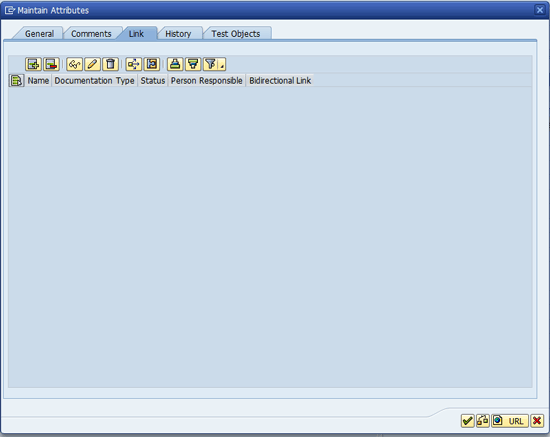
Figure 8
Maintain attributes pop-up with the Link tab selected
When you click the insert-link icon  , the Add Document pop-up screen appears allowing you to create or search for the document you wish to link to the selected document (Figure 9).
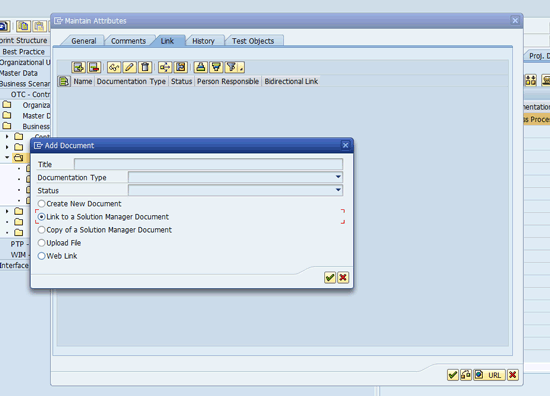
Figure 9
Add Document screen
Press Enter or click the green checkmark icon  and a search screen appears (Figure 10).
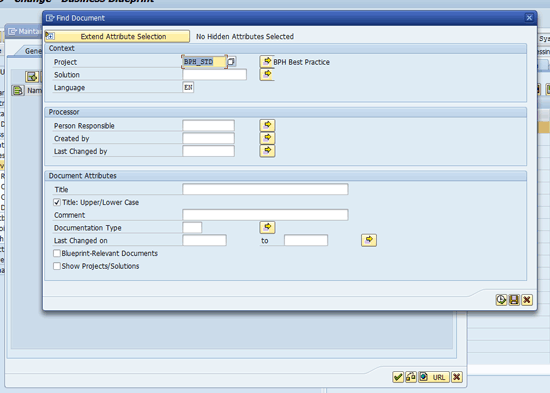
Figure 10
Search for document to link
By default, the Find Document screen (Figure 10) populates the Project field with the current project, BPH_STD in this example. However, you can link to documents from other projects if you wish.
Figure 11 shows the results of the search. By double-clicking the document title, the document is selected and added to the Link tab of the document attributes. After you double-click the document name your screen should look like Figure 12.
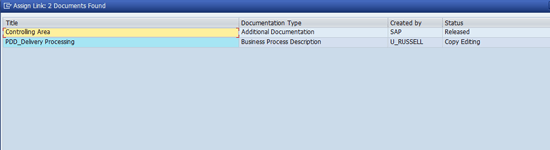
Figure 11
Document search results
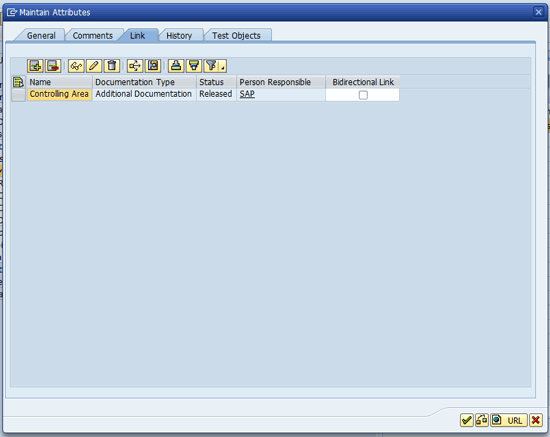
Figure 12
Selected document retrieved to the Maintain Attributes screen
By default, Solution Manager creates a unidirectional link from the document you started with to the document you selected from the search results. If you select the Bidirectional Link check box, you establish a two-way relationship between the two documents. A bidirectional link is visible from the attributes screen of both documents. If you use a unidirectional link, you can only see the link from the document originally selected to add the link.
Note
If you have configured your Solution Manager to lock documents at a particular status, there are limitations on how links can be added. If the document is in a status that makes it locked, you can only apply a unidirectional link from another document to the locked document. In addition, you are not able to create a bidirectional link with a locked document or add a unidirectional link from a locked document.
As with all of the recommendations in this article, it is important that you work with these features at the start of the project and immediately establish standards for their use at the beginning. Once you have a critical mass of content in your Solution Manager system, making changes in the way you use these techniques and standards later on can require significant effort.
D. Russell Sloan
D. Russell Sloan is a specialist in project and program governance for IBM. He focuses on the use of SAP Solution Manager for global rollout projects for IBM’s largest customers, having worked with SAP software since 1996. Russell has degrees in accounting and information systems and has been a team and project leader for SAP projects for more than 14 years. He has been developing and deploying software systems for over 30 years.
You may contact the author at solmanruss@gmail.com.
If you have comments about this article or publication, or would like to submit an article idea, please contact the editor.