Sandeep Kumar introduces a tool that allows you to run Batch Data Communication (BDC) through the SAP GUI. BDC can be used for a mass data update whenever a sample record is created using a standard SAP transaction. To create a BDC and run it, you need to perform a large number of manual activities. This BDC tool minimizes, to a large extent, the required manual activities.
Key Concept
Batch Data Communication (BDC) is a batch interface technique developed by SAP that can be used when you need to create or update mass data in an SAP system. BDC has three steps:
- Record a transaction.
- Prepare the BDC file using the BDC creation tool.
- Run BDC to update data.
A successful execution of BDC at this point shows that BDC was correctly created and can now be used for the reason it was created.
In the course of normal business, you frequently need to create or update mass data in your SAP system. This can be done using an SAP program, a Legacy System Migration Workbench (LSMW) script, a third-party tool, if available, or Batch Data Communication (BDC). If there are different requirements every time you need to create or update mass data and you do not have access to an SAP program, an LSMW script, or third-party tools, then BDC can be a great help. It is the best choice when correcting the data of a single field. For example, in purchase orders (POs) or sales orders (SOs), when the field you need to correct varies each time, you have to perform the correction each time.
Transaction code SHDB is an SAP transaction that records the steps you take within another transaction up to and including when you save your entries. This recording then turns to BDC and is repeatedly used with different inputs from the file the BDC creation tool prepares. This is particularly useful if you have a large number of records to create or update. For example, if you need to create thousands of IDocs for testing purposes, you can use transaction code SHDB to create one sample IDoc and then create a cloning script by recording. The IDoc creation recording (transaction code WE19) is created using transaction code SHDB in any core SAP system. The IDoc test tool is an SAP functionality that is used to create new IDocs by cloning existing IDocs. However, transaction code SHDB can only create one IDoc at a time. In order to create multiple IDocs, you need to use this BDC creation tool. This article explains how to create and use this tool.
Steps for Recording a Transaction
Step 1. Execute transaction code SHDB and click the New recording button (Figure 1). This opens the pop-up screen shown in Figure 2.
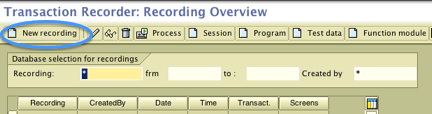
Figure 1
New recording through transaction code SHDB
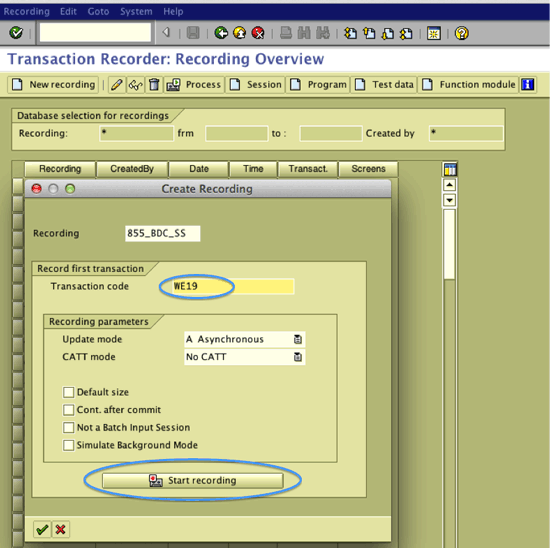
Figure 2
Create recording screen
Step 2. Give the recording a name of your choosing. Write the name in the Recording field (in this example, 855_BDC_SS) and enter the transaction code you want to record (Figure 2). In the example, I use transaction code WE19 to create cloned IDocs. You create cloned IDocs by copying another existing IDoc and then changing the fields that are different. This is easier than creating a new IDoc for which all the fields still need to be filled. You can use this tool for other transactions. For example, you can use transaction code ME22N to change a PO. Click the Start recording button to bring up the transaction screen for the transaction code you entered (Figure 3).
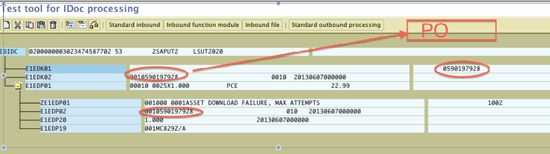
Figure 3
Transaction screen
Step 3. Make any necessary changes. In this example, you want to create many IDocs with different PO numbers, so you have to change the PO number in every IDoc. Enter all the data required (PO number, in this example) to run the transaction code. In this example, you have to change the PO number in all three places as IDocs have them at three places only (Figure 3). Press Enter to complete the execution of the transaction and the screen moves back to transaction code SHDB (Figure 4). Click the save icon to save the script (Figure 5). The system records the changes as script.
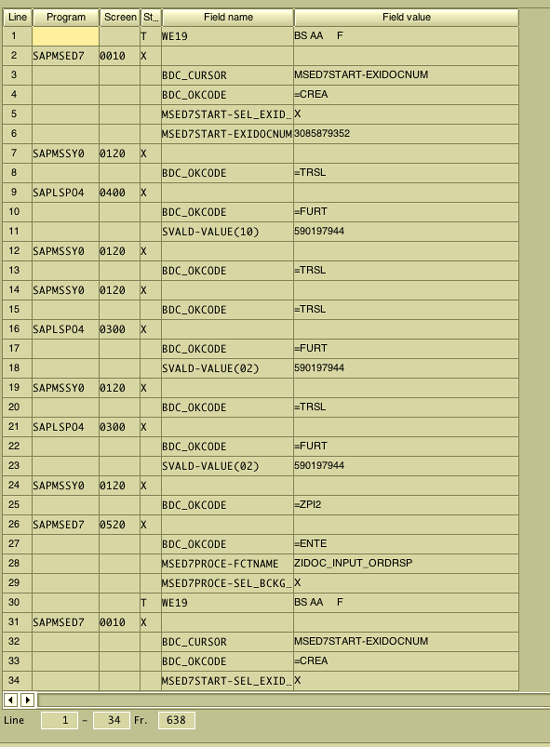
Figure 4
BDC script
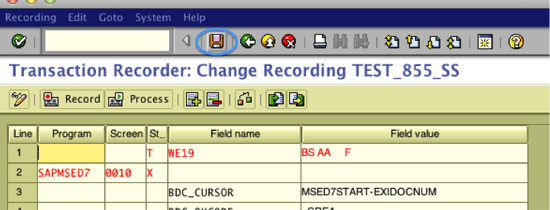
Figure 5
BDC script in change mode
Click the change icon  if you want to change the content as it opens in display mode.
Step 4. Check to see if the BDC script was created. Go back to transaction code SHDB and locate the script (Figure 6). Give the recording the name you gave it in Figure 2 or put in an asterisk to display all the recordings. Select your script from the menu by double-clicking it and it takes you to Figure 7.
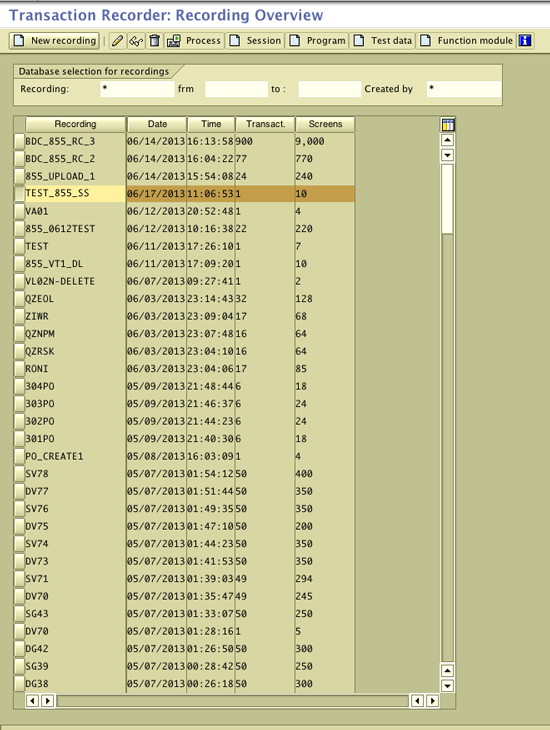
Figure 6
BDC created in SHDB
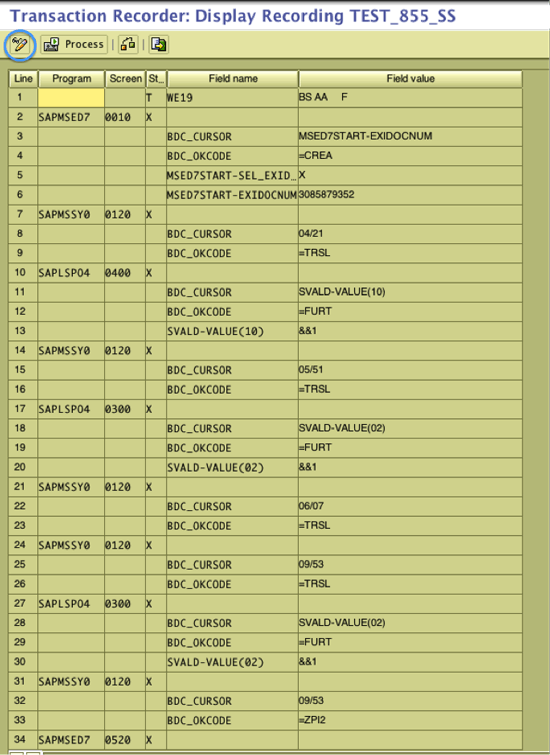
Figure 7
Click the change icon
Step 5. Go to change mode. In this example, go to change mode by clicking the change icon (Figure 7) to change the input values to make the script readable from the Excel file where all the PO numbers are available.
Step 6. Click the change icon in Figure 7 and it takes you to Figure 8. Replace the data values with &&n, where n represents the column number in the input Excel file with the PO details. Write && in front of the number for each column (e.g., &&1 for column 1.) I took all the values from the first column so all three entries are &&1.
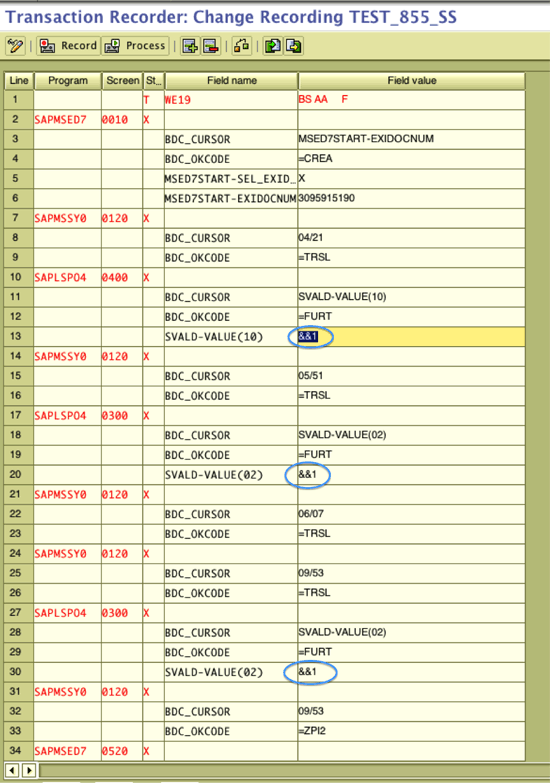
Figure 8
Replace data values iwht &&1
Step 7. You can remove the rows with the field name is BDC_CURSO. It is the recording of the cursor (mouse) movements as specified in Figure 9.
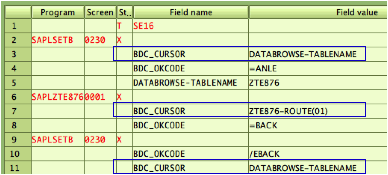
Figure 9
Transaction code BDC script with cursors
Step 8. Save the new script by clicking the save icon (Figure 10).
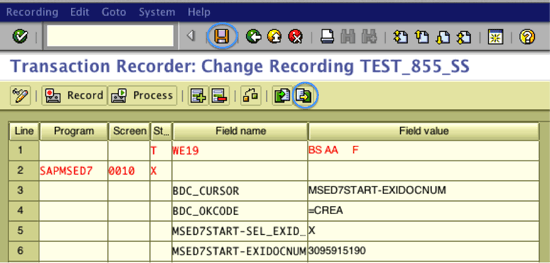
Figure 10
BDC script
Step 9. Export the script. Click the export icon and save the script to your desktop (Figure 11).
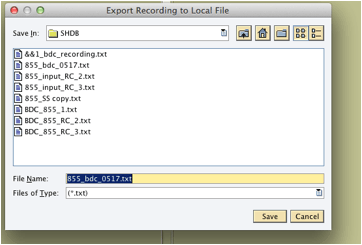
Figure 11
Save the exported file
Step 10 . Prepare your input file (Figure 12). This is the normal Excel file that you prepare with input values (PO numbers in this case). You put all the input values in respective columns as specified in Figure 8 (&&column no). At this point, you should have your data in an Excel sheet ready to be imported. The Excel sheet should have no headers, titles, or blank rows at the top. Pre-set any columns that the SAP system requires to be completed in full using Format > Cells > Custom. Save the file as UTF-16 Unicode Text (.txt).
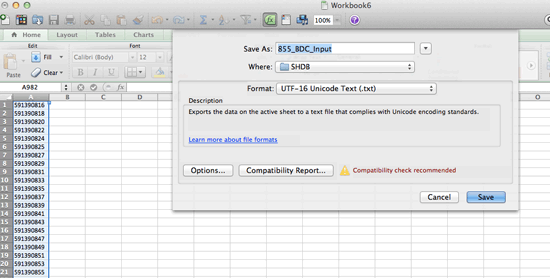
Figure 12
Prepare the input file
Step 11. Download the Excel file, which is the BDC file creator. Download the text file, which is the BDC file creator. You can open it here: Text file download.
The BDC file creator is a ready-made tool that you can use without having to import the code in Figure 13. When you open the Excel file in this example, it looks like Figure 14. If prompted by the system, click Enable Macros when opening the file. You can also create this file by importing the macro code in Figure 13.
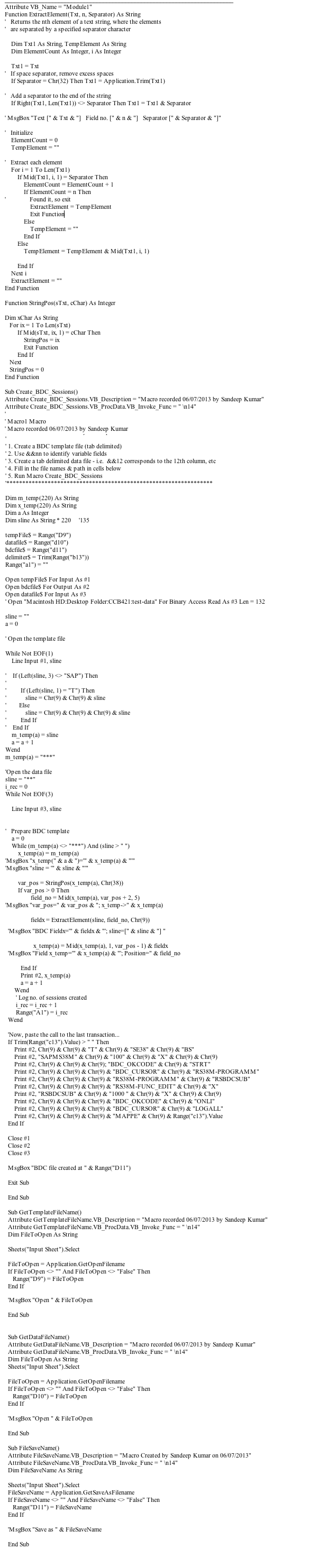
Figure 13
Sample macro code
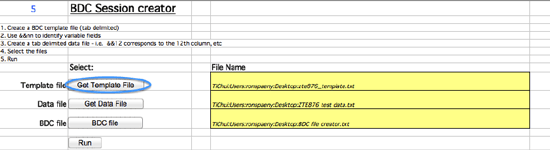
Figure 14
BDC tool Get Template File
Step 12. From the BDC file creator tool (Figure 14), click the Get Template File button. Select the file from step 8. Use the template file you exported from the SAP system and saved on the system.
Step 13. Click the Get Data File button (Figure 15). In the File Name cell, select the input file you created in step 9.
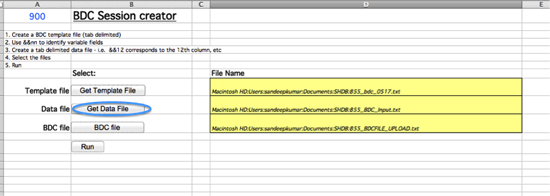
Figure 15
BDC file creator tool Get Data File
Step 14. Click the BDC file button (Figure 15). This specifies the name of the BDC file with your data and notes where on the disk it is created. Save it to the desktop as <script_name>_BDC.txt. The file type should be UTF-16 Unicode Text (.txt).
Step 15. Click the Run button (Figure 16). The cursor stays in the shape of a pointing hand and nothing seems to happen. However, the macro is now processing your data. Leave your system running for a little while. Once the macro is finished, the blue number in the top left cell shows you the number of records processed, 1000 in this example. It should correspond to the number of records in your input file in step 9. A confirmation pop-up window appears. Click the OK button and the file is saved in the location specified for BDC file in Figure 16.

Figure 16
Run to create a BDC file
Step 16. Execute transaction code SHDB in the SAP system to import the updated script. Start a new recording to upload the file from step 14 by clicking the New recording button (Figure 17). Note that this time you do not click the Start recording button. Just press Enter. A blank row is created (Figure 18).
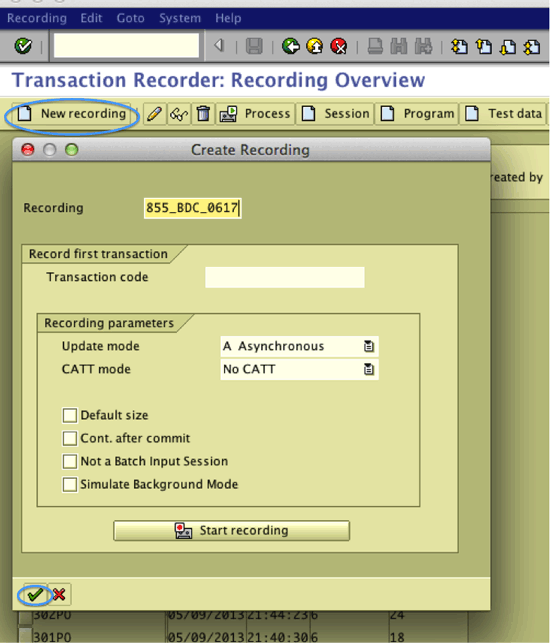
Figure 17
Importing the BDC file
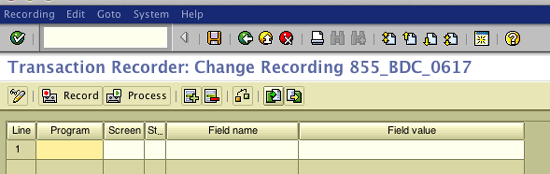
Figure 18
Change the recording mode
Import the BDC file from step 14. Click the import icon in your new session and import your file (Figure 18). After importing, the screen should match Figure 19.
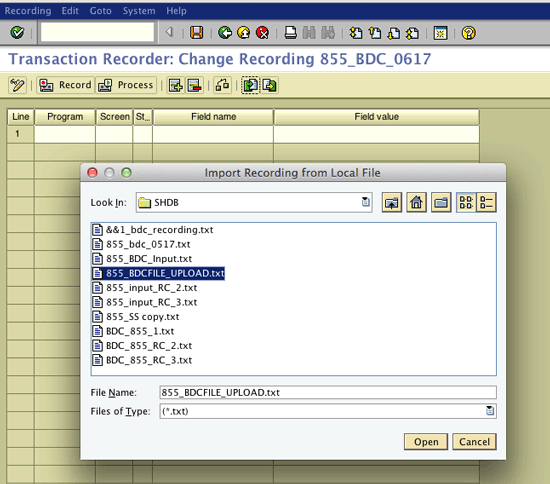
Figure 19
Imported BDC file
Import the script by clicking the save icon. A success message is displayed (Figure 20.)
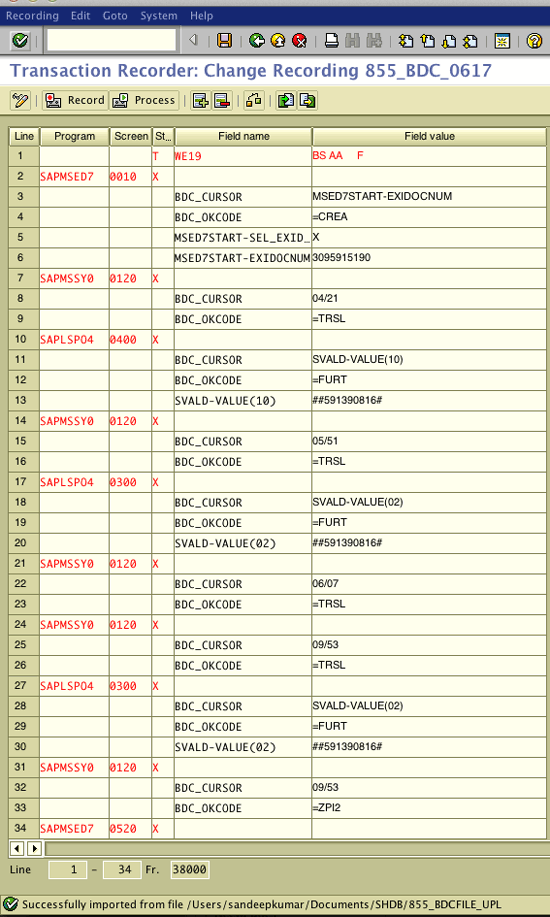
Figure 20
Success message
Step 17. In the same SHDB transaction click the Session button to create the session in Figure 21. Make sure you select the Keep session check box. Otherwise, your BDC session will not exist after executing. The BDC session is created and a success message is displayed (Figure 22).
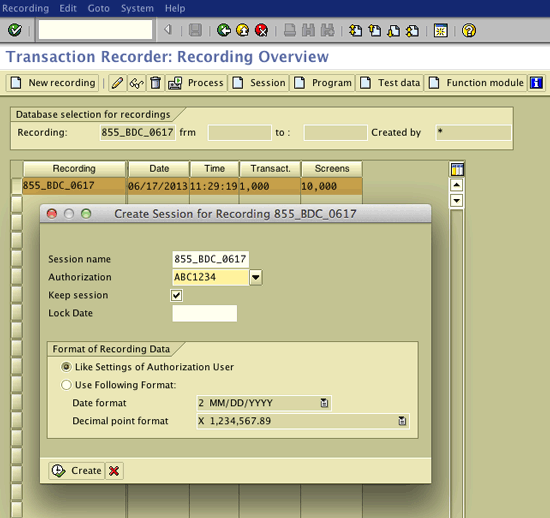
Figure 21
Create a BDC session
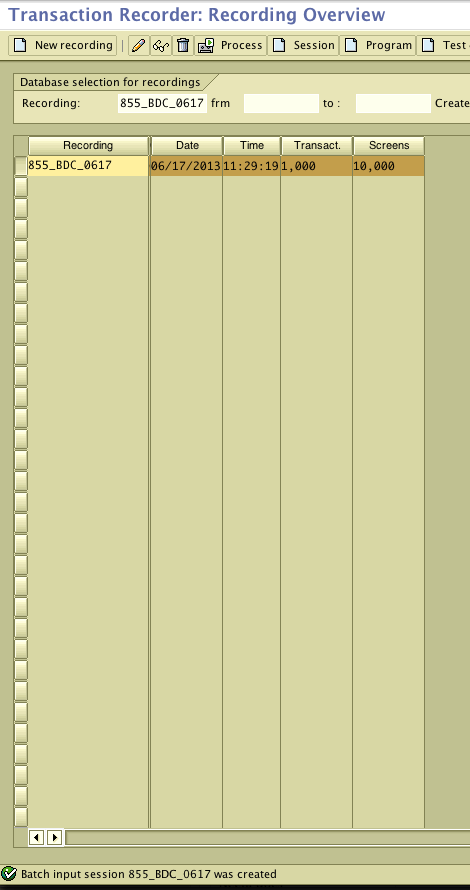
Figure 22
BDC session created
Step 18. Execute the BDC session. Execute transaction code SM35, select the session by double-clicking the Session name, and click the Process button (Figure 23). Select the Background radio button if you have a large BDC session (Figure 24) and click the Process button to execute. You can process in the foreground or background. The foreground process is executed from your system and is much faster, but the transaction stops running if system is shut down. The background process is recommended for high-volume data since it runs on the server and is executed in a queue. It keeps running even if the front-end system is shut down.

Figure 23
Process BDC session
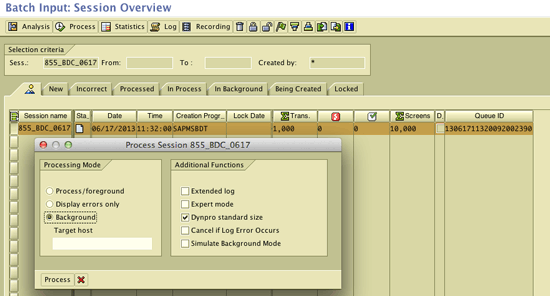
Figure 24
Select foreground or background mode
Step 19. Go to transaction code SM37 to check the log. When a program is executed in the background it creates a job. Fill in the job name field in Figure 25 with the name of the job (855_BDC_0617) and put an asterisk in the User name field. Click the execute icon to get the job status shown in Figure 26.
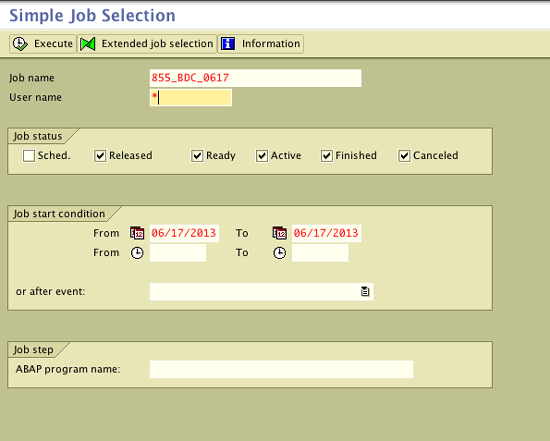
Figure 25
Enter the parameters
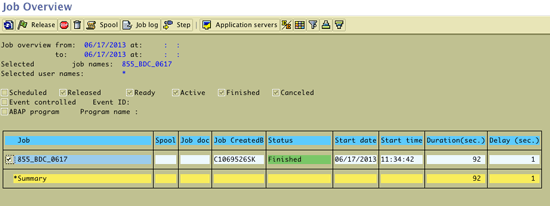
Figure 26
Get the job log
Step 20. Check the created data. In this scenario, you can see all the IDocs created through transaction code WE02 (Figure 27).
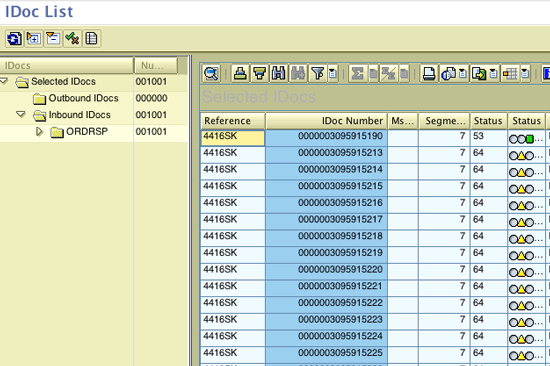
Figure 27
Created IDocs
Sandeep Kumar
Sandeep Kumar is a lead consultant with Infosys with more than 17 years of experience working in the automotive, aeronautical, and hi-tech manufacturing industries. He specializes in implementing SAP in the manufacturing industry domain. He holds a master's degree in financial management and a bachelor’s degree in production and industrial engineering.
You may contact the author at skumar0518@gmail.com.
If you have comments about this article or publication, or would like to submit an article idea, please contact the editor.