Learn how to delete company codes that aren’t necessary for the collections process in an SAP system. By deleting unnecessary company codes and their associated receivables data, you are able to run the collections programs more efficiently and keep only relevant data within the collections worklist.
Key Concept
The cornerstone of Collections Management is the collections worklist, the listing of all past-due customers ranked based on a specific formula. SAP Collections Management is a component of SAP Receivables Management (formerly SAP Financial Supply Chain Management).
Collectors in a company call past-due customers based on the results of a collection worklist that is generated each day. If the list is inaccurate, customers whose accounts are past due may not get a call or customers whose accounts are not past due, may get a call in error. When working accurately, the collection worklist reconciles with the values in the Customer Line Item Display (transaction code FBL5N). There are several reasons why this could get out of sync, including bad program runs or incorrect configuration.
Consider a scenario in which the collection worklist was not updated properly, causing data inconsistencies. An analysis of the values on the collections worklist (transaction codes UDM_SUPERVISOR / UDM_SPECIALIST) compared with the values in Process Receivables and the customer line-item display (transaction FBL5N) shows discrepancies in the values. The log in Distribution of Data to Collections Management (program FDM_COLL_SEND_ITEMS) returns messages that company codes do not exist in the logical system and that processing was terminated.
Symptoms
To check the customer balance on the Customer Line Item Display, execute transaction FBL5N. In the screen that appears, note in my example that the customer balance on the Customer Line Item Display differs from the values on the collection worklist by a significant amount (Figure 1).
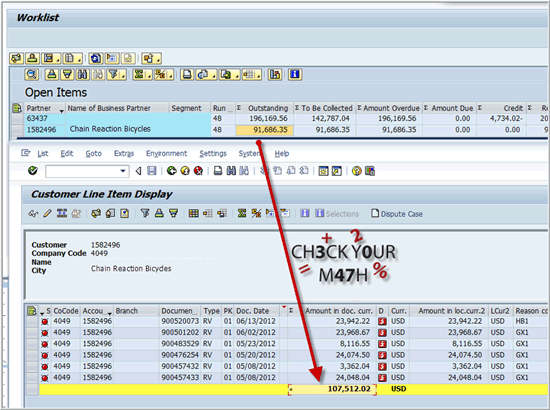
Figure 1
A comparison of outstanding balance between Customer Line Item Display (FBL5N) and the collection worklist (UDM_SUPERVISOR)
Error Messages
On a daily basis, the distribution of data to collections management (program FDM_COLL_SEND_ITEMS) is run to transfer the accounts receivable data to the collections management tables. With each run, a log is generated detailing which company codes were processed and if there were any errors. In my example, after I noticed discrepancies in the worklist, I found the following message: Company code does not exist in the logical system, Processing terminated (Figure 2).
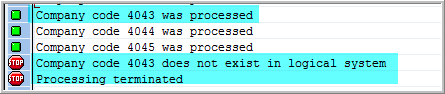
Figure 2
Job log for Distribution of Data to Collections Management (program FDM_COLL_SEND_ITEMS) showing error
Another helpful log is Analyze Application Log (transaction code SLG1). This transaction also displays messages from the job log as well (Figure 3).
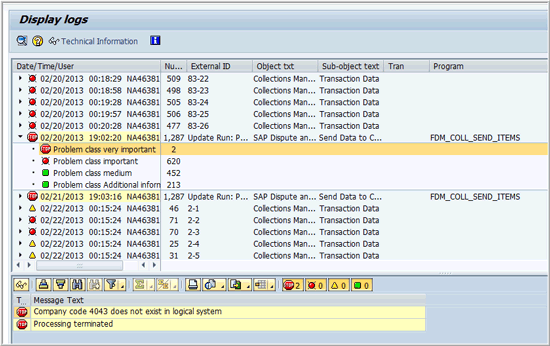
Figure 3
Analyze Application Log for Distribution of Data to Collections Management (program FDM_COLL_SEND_ITEMS) showing error
Table 1 lists the four places in the SAP implementation guide (SPRO) in which organization structures are configured for Collections Management.
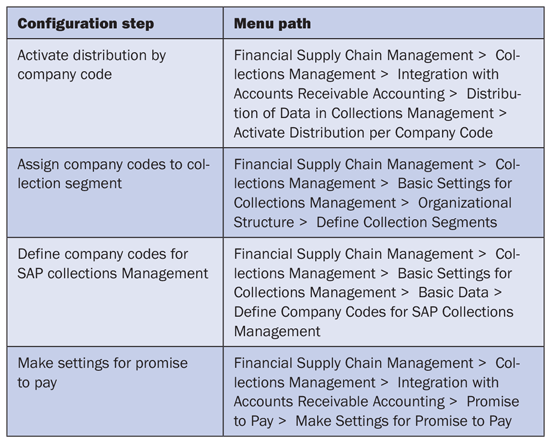
Table 1
SAP implementation guide menu paths for Collections Management
For regular daily processing of the collections worklist, the following programs are run each day:
- Distribution of data to Collections Management (FDM_COLL_SEND_ITEMS): This program transfers the accounts receivable data to the Collections Management tables, including UDM_COLL_ITEM Collections Open Items.
- Evaluation of Promise to Pay (FDM_P2P_Judge): This program valuates the open promises to pay to determine if customers kept their payment promises.
- Generate the worklist (UDM_GEN_WORKLIST): This program uses the transferred data to create the collections worklist.
If company codes were set up in Collections Management inadvertently, these company codes need to be removed from the configuration to ensure data integrity. There is no need for the collections programs to consider all the receivables data and master data for nonrelevant company codes.
Consider this example: When Collections Management was initially set up, company codes 4040, 4041, 4042, 4043, 4044, and 4045 were all set up for collections management. However, six months later, it was discovered that company code 4043 was set up in error, and management didn’t want to see that data in Collections Management.
It seems logical to go to the four configuration areas and just delete the company codes from the tables and be done. However, in addition to the master data that needs to be maintained, data in the collections tables need to be cleaned out; otherwise, the Distribution of Data to Collections Management program (FDM_COLL_SEND_ITEMS) errors out. It is important to follow the steps I describe in the “Resolution” section, to remove the configuration and run the programs with the specific settings so that both the configuration and the data are cleaned up without error the first time.
The steps need to be performed in the proper order because the Distribution of Data to Collections Management program (FDM_COLL_SEND_ITEMS) terminates if it encounters data in the UDM_COLL_ITEM table from a company code that is not in the configuration.
The program doesn’t skip the missing company code; it just stops sending any further data to Collections Management. Therefore, in my example, all company codes 4040–4042 process through the program. However, when the program comes to company code 4043, it does not find that value in the configuration table, so the program stops. It does not transfer any data for company codes 4044 and therefore, some of the worklist is correct, but part of it is not. This inconsistency leads to the error messages in the log and data inconsistencies in the tables and on the worklist.
Resolution
Follow these steps to ensure data integrity. You will need two transports because all the configuration cannot go in the same transport and you will need to run a program in between steps.
Step 1. Check if there is any data in table UDM_COLL_ITEM, Collection Open Items, for company codes that are going to be deleted. If there is no data in the table for the company codes you are deleting, proceed as there are other tables that are cleaned out in the process as well.
Step 2. Delete the company code from the configuration step Activate Distribution by Company Code. This action stops any additional data from being transferred from FI to Collections Management for those company codes. Save these changes in the first transport. When the user makes a change to configuration, a transport box pops up and then next step depends on how the project is managed:
- Users might need to create their own transport
- They may have to request one.
- They may use an existing one.
It all depends on project philosophy on managing transports.
Step 3. Delete the data from the Collections Management tables by running Distribution of Data to Collections Management (FDM_COLL_SEND_ITEMS) with the Initial Data Transfer radio button selected. This action deletes any associated data from the company codes you deleted in the previous step (Figure 4).
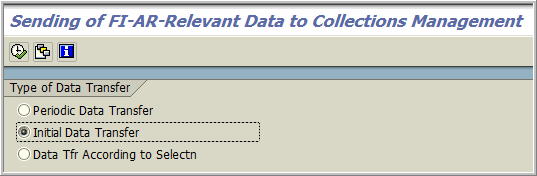
Figure 4
Distribution of Data to Collections Management (FDM_COLL_SEND_ITEMS) with the initial data transfer
Be sure to run the program in the background so that you can confirm the deletion in the log in the Job Overview (SM37) as shown in Figure 5.
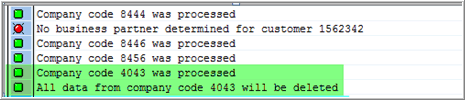
Figure 5
Job log in the job overview (SM37) showing the data in the company codes was deleted
If you find another stop sign when you run Distribution of Data to Collections Management (FDM_COLL_SEND_ITEMS), start again from step 1 (Figure 6).

Figure 6
Job log in the job overview (SM37) showing a company code in error
Step 4. As long as there are no more stop signs, in a second transport delete the company codes from the other configuration steps detailed above:
- Delete company code(s) from Define Company Codes for Collections Management
- Assign Company Codes to Collection Segment
- Make Settings for Promise to Pay
Reconciliation
There are two places to check to ensure the integrity of the data:
- Make sure that each of the four configuration areas has the same number of company codes. If not, go back and reconcile your table entries.
- Look at the data in table UDM_COLL_ITEM, Collection Open Items, to ensure that the data from the company codes you deleted, is no longer in the table.
Note
If you are in a production environment and multiple environments are involved, you have to be careful not to put all the deletions in the same transport; otherwise, you won’t be able to delete the data in between the steps. You need to put the configuration in step 2 in one transport, and as you move it through the landscape, you need to run Distribution of Data to Collections Management (FDM_COLL_SEND_ITEMS) with the Initial Data Transfer option in each client to delete the data. The second transport for the remainder of the deleted configuration then completes the process.
A Few Helpful Hints with Data Inconsistencies
If the data from a particular customer is not transferring over to Collections Management as expected or the data is inconsistent, run Distribution of Data to Collections Management (FDM_COLL_SEND_ITEMS) with the Data Transfer According to Selection option and specify the company code and customer with issues (Figure 7). Sometimes the data becomes “stuck” on the way from FI to FSCM, and this is one way to push the data through.
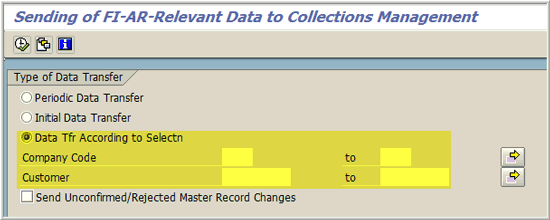
Figure 7
Distribution of Data to Collections Management (FDM_COLL_SEND_ITEMS) with the data transfer according to selection option
If that does not clear up the data inconsistencies, on an exception basis run the Deletion of Transaction Data in Collections Management Program (UDM_COLL_DELETE_ITEMS) (Figure 8). Then run Distribution of Data to Collections Management (FDM_COLL_SEND_ITEMS) with the Initial Data Transfer option (refer back to Figures 4 and 7), and that should resolve the inconsistencies.
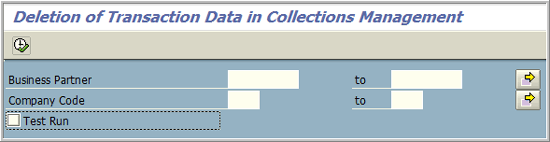
Figure 8
Selection screen for deletion of transaction data in Collections Management program (UDM_COLL_DELETE_ITEMS)
In the Extreme: Custom Reports
In addressing my data inconsistency issues, I created two custom analysis reports to help identify the problem data. The first report compares the open items in FI (BSID) to make sure that each open item is in the Collections Open Item table (UDM_COLL_ITEM). The second report compares the items in the Collections Open Item table (UDM_COLL_ITEM) and with BSEG to check that each item is still open in FI. The report output lists the problem documents for further analysis. These reports are run on a periodic basis to ensure that the data integrity is maintained.
And as you move into new environments and perform client copies, all the collections tables do not copy over because some are temporary tables. This is another source of inconsistent data. I created another custom program based on SAP Note 1277798 (Problem related to client copy). The program deletes all the data in the collections tables to start from scratch. When you perform a client copy, running this program is part of the initial system check. Table 2 lists all the tables that are included in the program besides what is listed in the note.
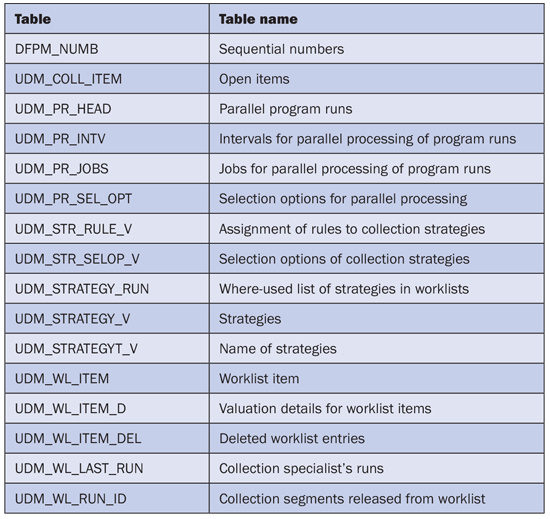
Table 2
List of tables that need to be cleaned up when performing client copies during testing
If you follow these steps, with a little patience you can ensure that the data in Collections Management maintains a high degree of integrity.
Kim Ciesla
Kim Ciesla is a senior financial consultant and instructor with SAP America, supporting and implementing SAP R/3 Financials. Kim has worked at SAP America for 19 years and has developed expertise in the areas of Collections and Dispute Management, lockbox, Accounts Receivable, Accounts Payable, and General Ledger, with an extensive background in cross-application functionality. In her free time, she is a world traveler, visiting 41 countries to date.
You may contact the author at kim.ciesla@sap.com.
If you have comments about this article or publication, or would like to submit an article idea, please contact the editor.