Discover how order change management (OCM) improves manufacturing accuracy and customer satisfaction by ensuring that production orders conform to the latest product structure and sales order data. OCM is well integrated with sales orders for configurable products. It also helps prevent the cancellation and repetition of sales orders by ensuring that changes to product features are transferred to manufacturing. Because OCM is expandable, you can apply it to production orders already in process.
Key Concept
Order change management within SAP ERP Central Component transfers the latest changes from sales orders and master data to existing production orders. Order change management works in tandem with engineering change management (which takes care of future procurement elements) by managing changes to the existing production orders.
You can’t always plan ahead when it comes to changes. In reality, changes are often made at the last minute to accommodate unpredictable events such as testing defects or a customer request. Companies need to have an effective method to manage these changes to avoid building products with the wrong parts, increased operational costs, and reduced customer satisfaction.
Order change management (OCM) is automatically initiated when an engineering change is made to master data or when changes are made to sales orders (Figure 1). A change automatically creates an initiating object record within the system based on master data and preset IMG configuration settings. The initiating object record identifies all the production orders affected by this change and creates a production order change record, which lists the steps that have already been executed and the overall OCM processing status. The proposed changes are checked for approval or rejection and are applied to the production orders. For sales order changes, simulation production orders are automatically created in OCM and are used for comparisons with the original production order.
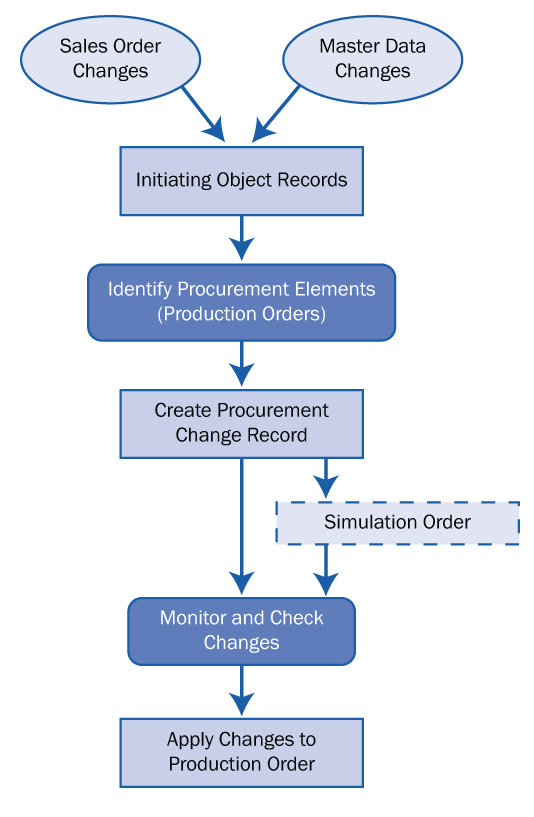
Figure 1
Production OCM process
Configure System Settings for OCM
To implement OCM, you must configure certain master data and IMG configuration settings within your SAP ERP Central Component (SAP ECC) environment:
- Individual change profiles
- Overall change profile
- Release keys for OCM
- Requirements class for sale order changes
Individual Change Profiles
Access the change profile screen by following menu path Production > Shop Floor Control > Operations > Change Management of Production Orders > Define Change Profile or by using transaction OPL7. The change profile outlines the key control parameters for OCM and is specifically defined for each change process (i.e., master data and sales order changes). The general settings in the change profile control whether you can apply the changes automatically or manually (e.g., adding items to a production order).
The general settings apply to all the objects within the change profile (Figure 2). For example, objects such as operations, components, and suboperations are chosen in the OCM and specific settings are defined for a system response whenever a conflict occurs for changes, deletions, and reassignments. This could be a warning message, an error message, or a special setting message such as Do Not Execute (Figure 3).
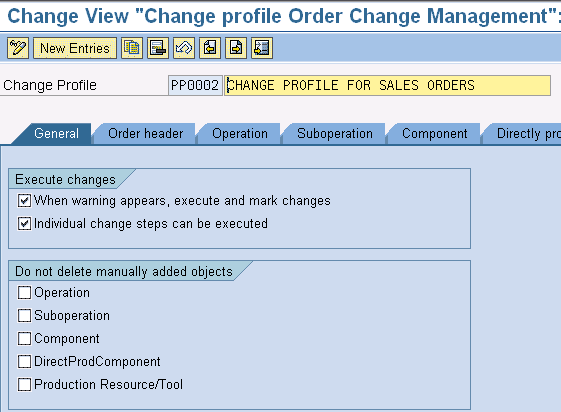
Figure 2
OCM change profile general settings
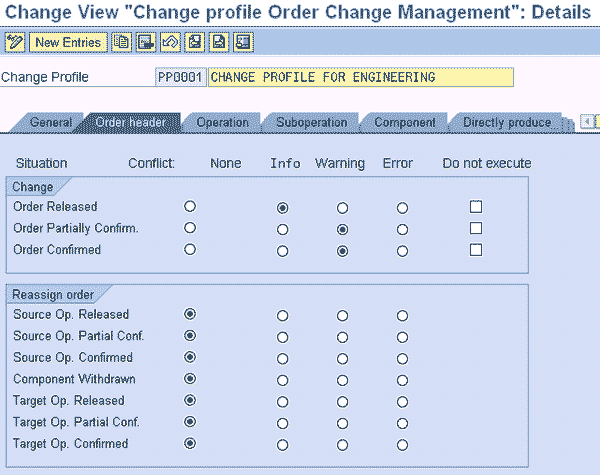
Figure 3
OCM change profile system response settings
Overall Change Profile
To access the overall change profile screen, follow menu path Production > Shop Floor Control > Operations > Change Management of Production Orders >Define Overall Change Profile or use transaction OPL9. This profile shows all the combinations of OCM change profiles that relate to sales order and master data (Figure 4). Use transaction MM02 to assign the overall profile to the material master work scheduling view (Figure 5). This assignment ensures that the material is intended for OCM and that further processing (i.e., sales order or engineering changes) depends on all the other associated settings.
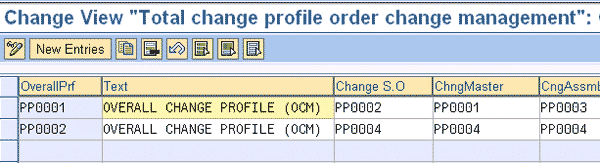
Figure 4
Overall change profile screen
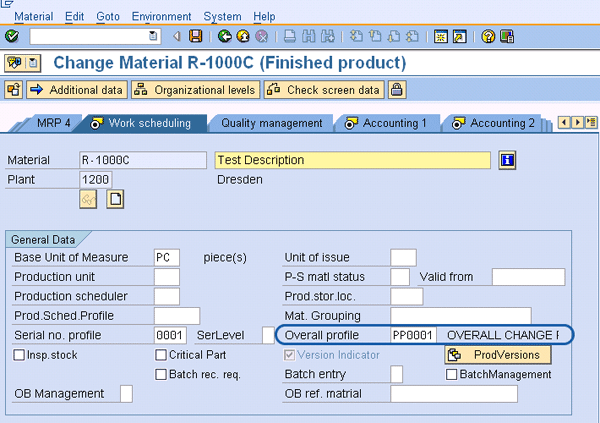
Figure 5
Overall change assignment to the material master
Release Keys for OCM
To trigger OCM for engineering changes, you must release the corresponding engineering change number with an OCM-relevant release key. The release keys are assigned to the engineering change numbers and control in which areas of the company the changes are taken into account. You do not have to create new release keys every time. You can define a release key once and continue to assign it when you create an engineering change number. You maintain the release keys in the customizing settings for release keys within engineering change management (ECM). Follow menu path Logistic > General > Engineering Change Management > Release key > Define Release key or use transaction OS69 to define your release key (Figure 6). After you define the release key, it is assigned to the release key field on the Change Change Master screen, which appears whenever an engineering change number is created (Figure 7).
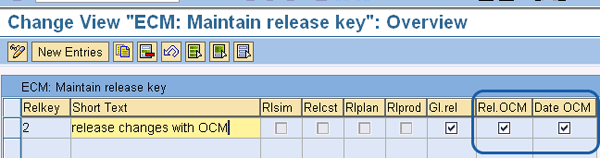
Figure 6
Release key customization screen
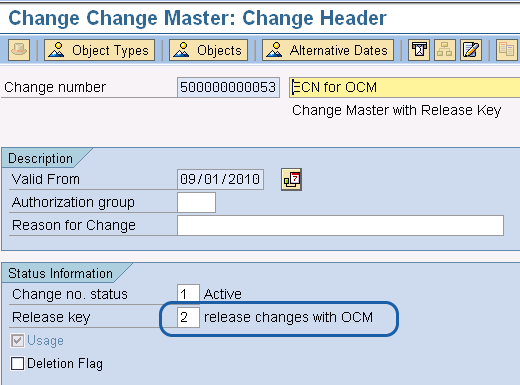
Figure 7
Release key definition and assignment to the engineering change number
Requirements Class for Sales Order Changes
To activate OCM for sales order changes, check off OCM check box in the requirements classes screen (Figure 8). To access this screen, follow menu path Sales and Distribution > Basic Functions > Availability Check and Transfer of Requirements > Transfer of Requirements > Define Requirement Classes or use transaction OVZG. The requirements class is further associated with the requirement type, which represents a specific strategy for the item and is automatically determined for the sales order item.
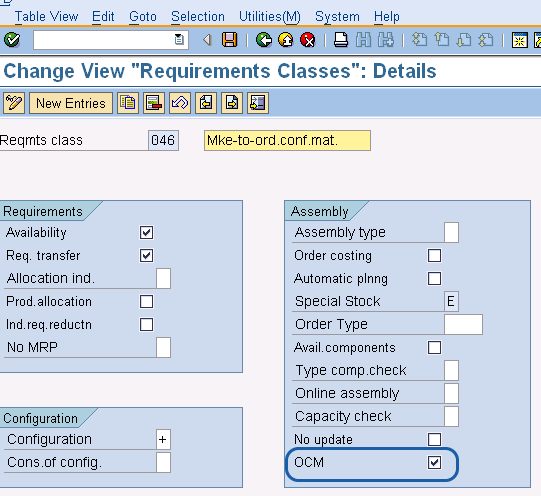
Figure 8
Activate OCM for the requirements class
OCM Process Initiation
To start OCM, follow these steps:
- Initiate object records
- Process initiating objects
- Check the changes
- Compare simulation orders and sales orders for changes
- Apply the changes to the original production order
Initiate Object Records
The initiating object record is created automatically when a change is made, and is the initial step in capturing data for OCM (Figure 9). The initiating object record contains the source for OCM (i.e., sales order or the engineering change number). The following changes automatically create initiating object records:
- Master data changes
- Release of a change number or additions to a leading change master record
- Shift in the validity date of the change number
- Sales order changes
- Changes to product features for configurable products
- Changes to the assigned serial number or parameter validity
- Any change to the direct assignment of the change number for a sales order item
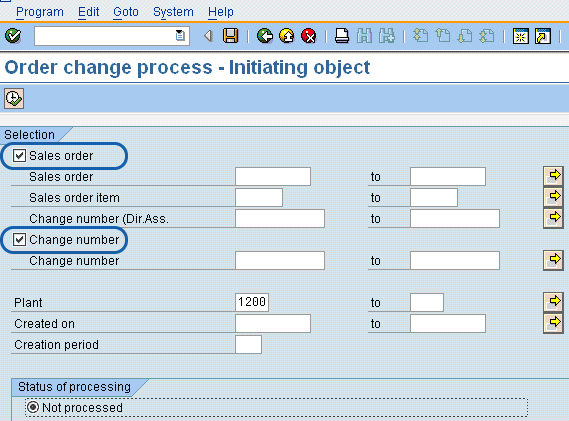
Figure 9
Initiating object record
You can also be manually create initiating objects for changes that are not configured as automatic in your settings. (This is usually an exception.) Use transaction COCM to make selections for sales orders, change numbers, and processing statuses in the initiating objects records. When the selections are executed, the OCM initiating objects records are listed for you to review (Figure 10).
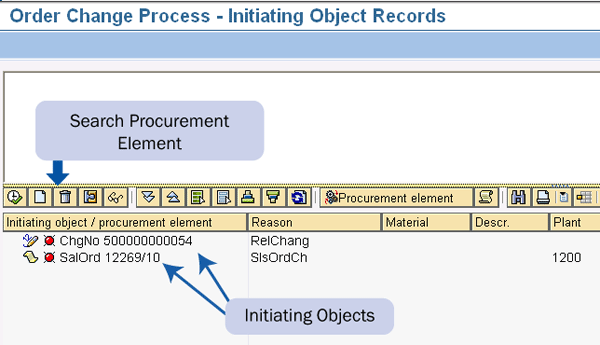
Figure 10
Searching for OCM-relevant production orders
Process Initiating Objects
All the production orders associated with OCM are automatically identified when the initiating objects are processed. The OCM production orders are listed with the initiating objects (Figure 11). The system also provides the log that has all information about the specific OCM process. This process can be completely automated and executed as a background job using program CO_OCM_OBJECT_LISTH.
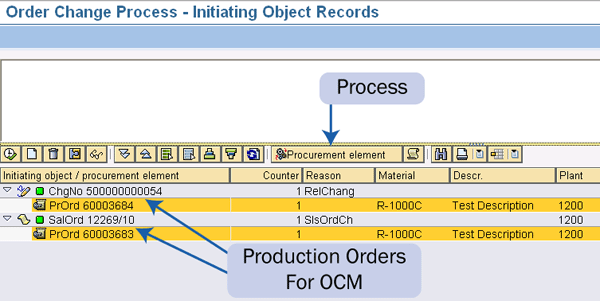
Figure 11
Listing OCM production orders with initiating objects
Check the Changes
You must check the OCM production order changes before the changes are finally performed. During the check, the original production order is locked against any further changes until the OCM check is complete. You can perform a check by reviewing the proposed changes for the production order. These changes are displayed in an overview screen with add, delete, reassign, and change object icons for the objects along with the conflict status lights that signify information, a warning, or an error.
These conflicts are determined based on the settings in the change profile and have to be resolved by user intervention. The proposed changes can be executed and locked to prevent accidental overrides (Figure 12).
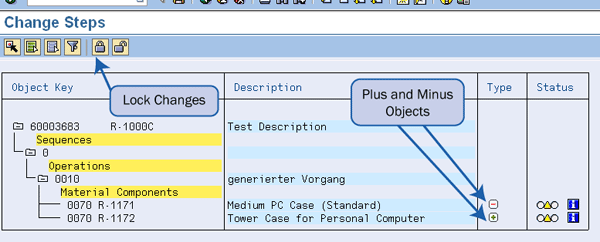
Figure 12
Processing OCM for production orders
Compare Simulation Orders and Sales Orders for Changes
Simulation production orders are special orders that are created automatically whenever any changes are made to the sales order. Like the original production order, the simulation production orders are assigned their own number. You use simulation change orders to perform detailed checking (using transaction CO03) and for comparison to the original production order (using transaction CO47) to ensure the changes are correct. You can perform this comparison for bill of material (BOM) components as well as operations and other affected objects (Figure 13).
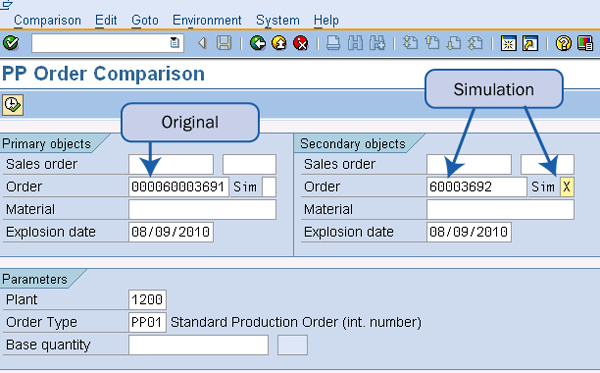
Figure 13
Comparison between original and simulation production orders
Apply the Changes to the Original Production Order
The changes are applied to the OCM production order when the process is executed using the option Change original order (Figure 14). All the changes are automatically applied, except for the changes that have warning or error messages. You can manually apply changes with warning messages. You can opt to execute changes with warning messages automatically (e.g., when the changes are numerous, manually applying warning messages becomes cumbersome). After all the changes are applied, you set the status of the original production order to complete (Figure 15).
Note
The changes are not reversible once the status is complete. However, you can undo processing steps such as creating a simulation order and checking changes before executing this final step.
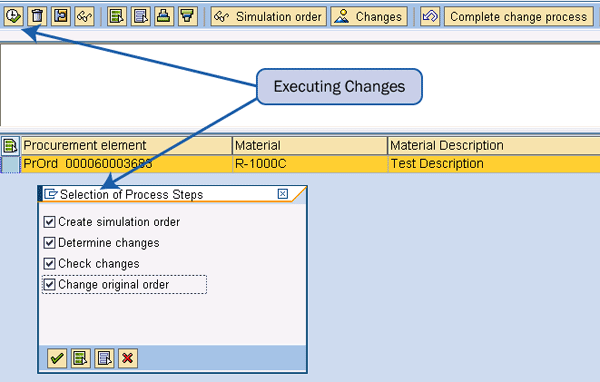
Figure 14
Change the original order
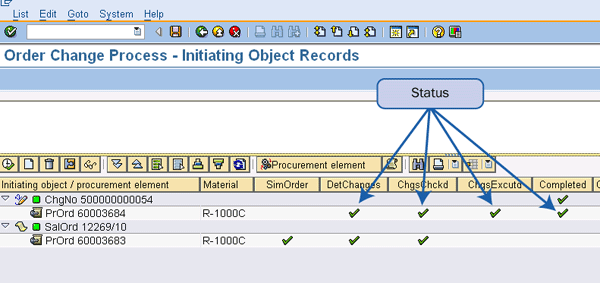
Figure 15
Processing status of OCM for production orders
Restrictions of OCM
OCM is an effective method to manage changes to production orders; however, there are a few restrictions to be aware of before using this functionality.
- The OCM process for sales orders does not support changes in components with batch split, co-products, and operation sequences.
- Master data changes for parts with material discontinuation, BOM alternative items, trigger points, headers of phantom assemblies, PRTs, network structure in collective orders, and changes with alternative dates are not supported by the OCM process.
- For multilevel make-to-order production, the sales order changes are only supported for the top order. The change in the date and quantity of the sales order is also not considered.
Sobhan Vemulapalli
Sobhan Vemulapalli is an entrepreneur and a director of SAP at Radinnova Inc. He is an SAP, APO, and PLM specialist with 10 years of experience and has implemented 12 projects across the US, Mexico, and India. He is currently focused on building a specialty practice in SCM, PLM, and MDM, targeting their niche areas. Sobhan holds a bachelor’s degree in mechanical engineering and an MBA in general management.
You may contact the author at sobhanv@radinnova.com.
If you have comments about this article or publication, or would like to submit an article idea, please contact the editor.



 Premium