Discover how to improve the performance of the CK40N program for split valuated materials without batch archiving.
Key Concept
CK40N (Automation of Standard Cost Estimate) or CK24 (Price Update with Cost Estimate) are the standard SAP transaction codes to run costing. Some companies do costing every year, and very few companies do it every month. With the help of transaction codes CK40N or CK24, you can load the standard price en masse. To get the correct standard cost, all the logistics data, such as material master, bills of materials (BOM), routings, recipes, activity rates, and costing sheets, must be accurate.
A company that uses split (batch) valuated materials ends up processing hundreds of thousands of batches. When a company does costing in the SAP system, the CK40N or CK24 programs try to look for all these batches for all materials. This process is very time-consuming and sometimes is not feasible when you have a short deadline to complete the costing. If you archive all these batches, the performance of the CK40N program can be improved, but batch archiving is itself a separate project. I explain how to improve the performance of the CK40N program for batch valuated materials without batch archiving.
First, I want to provide you with some information about split valuation. For certain materials, you need to valuate the various stocks in a particular valuation area separately. Here are some examples:
- Different origins of the material
- Different grades of quality for the material
- Different statuses for the material
- Differentiation between in-house production and external procurement
- Differentiation between different deliveries
If a material is subject to split valuation, the material is managed as several partial stocks and each partial stock is valuated separately. Each transaction that is relevant for valuation, such as a goods receipt, goods issue, invoice receipt, or physical inventory, is carried out at the level of the partial stock. When you process one of these transactions, you must always specify which partial stock is involved. This means that only the partial stock in question is affected by a change in value. The other partial stocks remain unaffected.
Alongside the partial stocks, the total stock is also updated. The calculation of the value of the total stock results from the total of the stock values and stock quantities of the partial stocks. You define whether the material is subject to split valuation on the accounting view of the material master record.
- Set the deletion flag at the valuation type level
- Implement SAP Notes 1297106 and 2140531
- Run the costing (Program CK24 or CK40N)
- Activate parallel processing
Step 1. Set the Deletion Flag at the Valuation Type LevelTo set the deletion flag for material, execute transaction code MM06 and follow menu path Logistics > Material Management > Material Master > Material > Flag for Deletion > MM06 > Immediately. In the screen that appears (Figure 1), populate the Material, Plant, and Valuation Type fields. Press the Enter key to save your data.
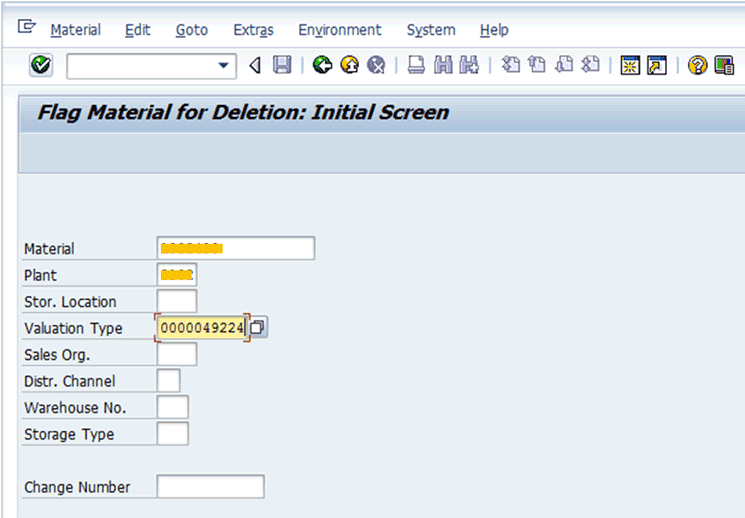
Figure 1
Flag material for deletion
After you press Enter, the system displays the screen shown in Figure 2. Select the check box in the Valuation Type section. Click the save icon to save your data.
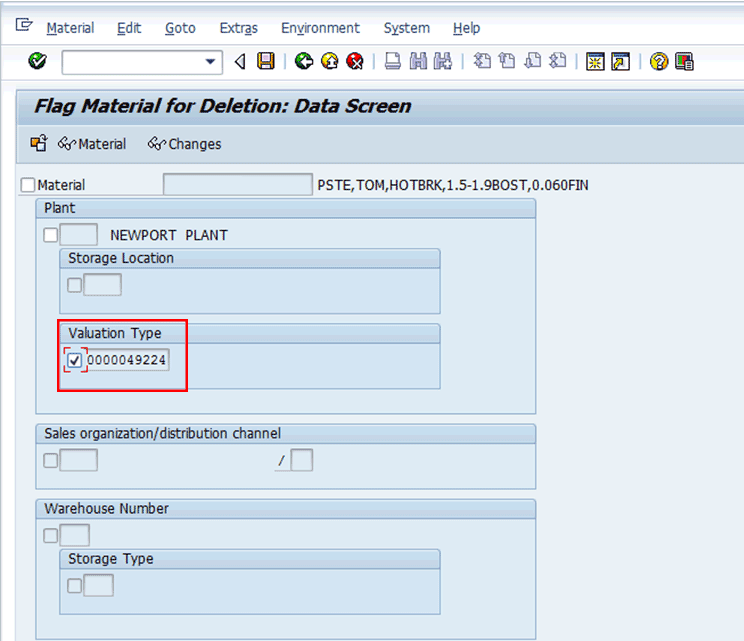
Figure 2
Select the Valuation Type indicator
You can create a Legacy System Migration Workbench (LSMW) to set the deletion flag en masse. LSMW is the standard tool provided by SAP to create or update master data as well as transaction data. With the help of an LSMW, you can create a simple recording of the Flag Material for Deletion transaction and then you can set the deletion flag for masses by maintaining and uploading the plant, material, and batch data in Excel. If you don’t have any security access issue, you can execute transaction code MM17 as well to set up the deletion flag en masse. However, note that this transaction code is wide open and may change any material master field.
Step 2. Implement SAP Notes 1297106 and 2140531
SAP has provided SAP Note 1297106 (CK40N: Performance for batches with active ingredient value assignments) that excludes all batches that have deletion flags set at the valuation type level while marking and releasing the standard price.
SAP has provided SAP Note 2140531 (CK40N: Performance of batches with assigned active ingredient values) that excludes all batches that have a deletion flag set or in the case of batches without stock.
You can implement whichever note is suitable for you based on your requirement. To implement the SAP Notes, you need to contact your development team (ABAP) and they will implement these notes.
Step 3. Run the Costing (Program CK24 or CK40N)
Information about this step has already been provided in Muralidharan Sethuraman’s article, “Avoid Manual Errors by Automating Your Costing Run.”
Step 4. Activate Parallel Processing
Parallel processing allows you to improve considerably the processing time of your system. You activate parallel processing at the start of the costing run or when you mark and release standard costing estimates. To activate parallel processing, execute transaction code CK40N or CK24 or follow menu path Accounting > Controlling > Product Cost controlling > Product Cost Planning > Material Costing > Costing Run > CK40N-Edit Costing Run OR SAP Menu > Accounting > Controlling > Product Cost controlling > Product Cost Planning > Material Costing > CK24-Price Update.
Generally, transaction code CK24 is used to create an individual cost-estimate run because you need to create a standard cost estimate manually and then you can run CK24. However, with transaction code CK40N, you can perform all costing (cost estimate creation, marking and releasing) with one transaction code. All information related to transaction code CK40N is explained in the article “Avoid Manual Errors by Automating Your Costing Run.”
In this step I explain how to use parallel processing for marking and releasing. After you execute transaction code CK40N and you complete the first four steps (selection, structure explosion, costing, and analysis), click the icon in the Marking row under the Parameter column (Figure 3).
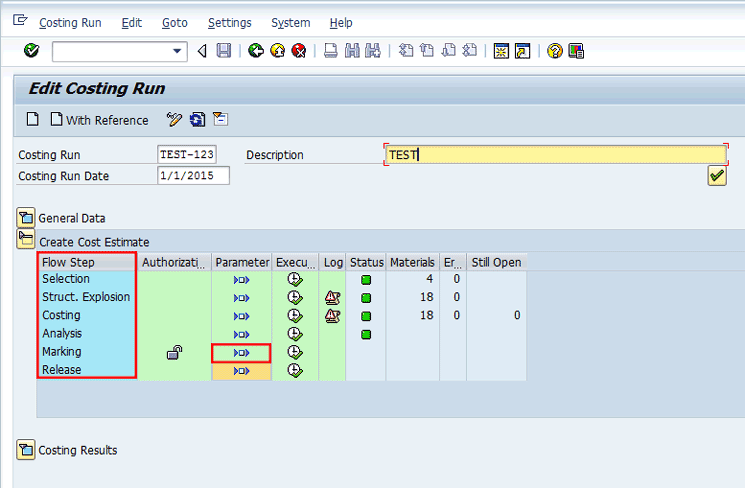
Figure 3
Execute marking for the costing run
This action displays the screen shown in Figure 4.
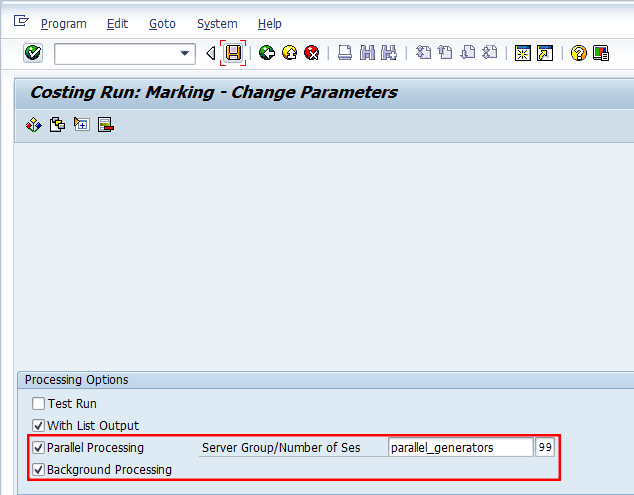
Figure 4
Costing Run: Marking – Change Parameters
In Figure 4, select the Parallel Processing and Background Processing indicators. In the Server Group/Number of Ses field, enter the name of a server group and the number of sessions. Click the save icon and then click the green-arrow back icon and it will take you the screen shown in Figure 5.
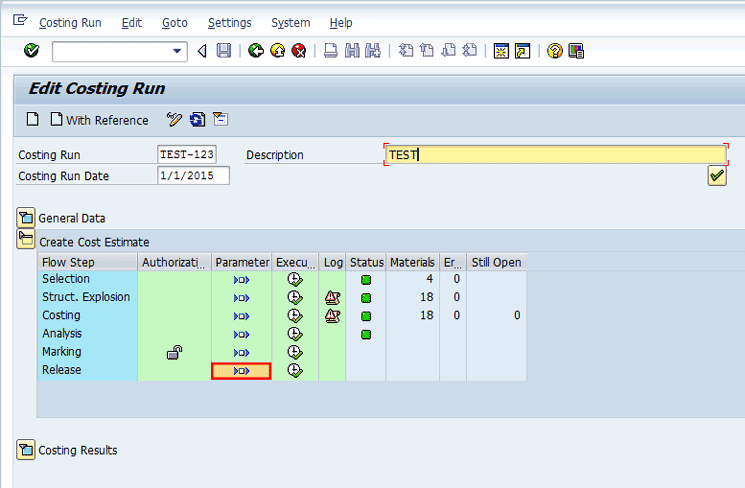
Figure 5
Execute marking for the costing run and release
In this screen you execute marking by clicking the execute icon. After you execute marking, you click the icon in the Release row under the Parameter column as shown in Figure 5. This action displays the screen shown in Figure 6.
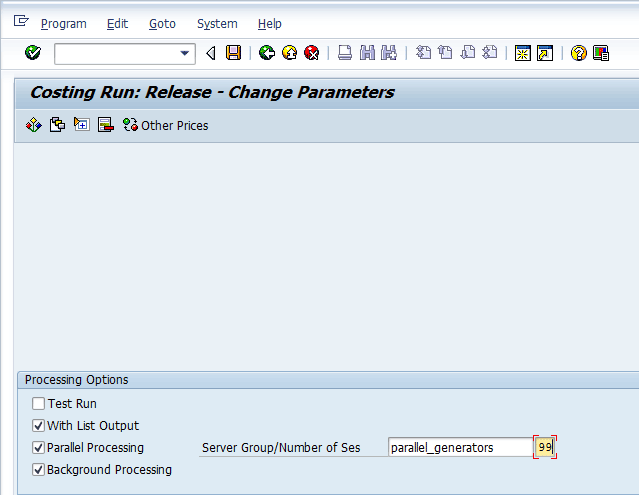
Figure 6
Costing Run: Release – Change Parameters
In Figure 6, select the Parallel Processing and Background Processing indicators. In the Server Group/Number of Ses field, enter the name of a server group and the number of sessions. Click the save icon and then click the green-arrow back icon. This action returns you to the screen in Figure 5 in which you execute releasing by clicking the execute icon in the Release row. After you click the Release execute icon, you notice a significant difference in performance compared with what you had earlier.
When using parallel processing, you have one background job that controls the overall processing that builds packages that are being processed in parallel by dialog processes. For example, assume you have a costing run with 100,000 pieces of material. Packages of 100 materials are created and sent to the dialog processes. This means that one dialog process processes 100 materials, finishes, and gets the next package of 100 materials.
Your SAP Basis system adminstrator can tell you what server group to use and the number of sessions required.
Mehulkumar Patel
Mehulkumar Patel is a senior system engineer and certified SAP controlling (CO) consultant with approximately 10 years of experience in SAP FI/CO. He has done multiple end-to-end SAP implementations of SAP applications. He holds bachelor’s and master’s degrees in computer science and an MBA in finance. He also is certified in SAP CO.
If you have comments about this article or publication, or would like to submit an article idea, please contact the editor.


 Premium

