Learn how to store annual salary details in infotype 0008 (basic pay) with complex pay periods in non-payroll SAP ERP HCM systems. You can then store variable pay periods for various employees with full annual salary details. This can be achieved with configuration without changing the standard SAP functionalities and without ABAP development.
Key Concept
In the SAP system, the SAP ERP concept for configuring salary can be made fairly simple and straightforward by using a few key features, such as ANSAL, and SAP ERP HCM tables, such as T539J. Using these configuration methods, most of the standard annual salary data can be effectively and efficiently maintained.
The SAP ERP HCM system captures the annual salary details of an employee for various purposes. The stored annual salary is not necessarily the actual amount paid to the employee, but it should be a fixed value that can be used for comparison and reporting purposes. (The actual amount paid to an employee is the net pay after taxes whereas the stored annual salary amount is the gross pay before taxes, so the amount stored in the system may not be what the employee is actually paid.) In this article I teach you how to store the annual salary details in infotype 0008 (basic pay). I also show you how to store annual salary details for different pay periods (other than 12) for different employees.
These configuration steps are appropriately implemented when there is a need for using variable pay periods for different employees. This would be the case, for example, with employees who are required by their collective-bargaining provisions or union agreements to be paid a certain way. In that case, the SAP ERP HCM system is used as a master system for storing gross pay details, and the net pay processing is done by third-party payroll systems. By doing this you can avoid having to do complex ABAP development, and you don’t need to worry about maintaining this functionality in the case of future releases of SAP ERP HCM Support Packages and version upgrades.
Storing Annual Salary
First, let’s cover the basics of storing an annual salary. As a gross component, it is stored in infotype 0008 (basic pay). The first step to store an annual salary is to choose the basic pay screen (screen number 2010) during configuration. This is the default screen in the SAP ERP HCM system for most countries. Other screens are available —2000 and 3000 — and they are used in implementations based on the need for the required fields. Next, to store the annual salary gross component in infotype 0008, you need to:
- Modify the indirect valuation module (ANSAL) feature as per your requirements
- Modify the per period (PFREQ) feature
- Check the wage type characteristics and modify, if required
- Check the basic wage type and modify, if required
Any SAP HCM ERP system user who is configuring the annual salary component generally follows these steps. The annual salary component is displayed in infotype 0008 according to the PFREQ and ANSAL features assigned to the standard wage type. There is no complexity in the above configuration.
As you look into the following requirements, a bit of tricky configuration is required to capture the annual salary component in the system. (I cover this later in the article, but I am not going to delve into the basics of how to configure annual salary.) Using example scenarios, I show two options (requirements A and B) for storing annual salaries with different pay periods.
Note
The article “
How to Define and Configure Benefit Salary” by Clay Molinari gives a brief overview of the concepts of annual and benefit salaries and enhances your understanding of the annual salary concept in the SAP ERP HCM system.
Requirement A
In this requirement, Employee A has a pay period of 12.5. His monthly base salary is $1,000, and his total annual salary is $12,500.
Requirement B
Employee B has a pay period of 14.06. Her monthly base salary is $1,000, and her annual salary is $14,060.
Note
in both example scenarios, the employees belong to the same employee group, employee subgroup, and pay scale type, area, group, and level.
Configuration Steps
To configure the SAP ERP HCM system to capture the annual salary component, follow these steps.
Step 1. Review and check the ANSAL feature to see the configuration. Two menu paths are available to see the configuration. Use either transaction code PE03 and enter ANSAL in the Feature field or follow menu path SPRO > Personnel management > Personnel administration > Payroll data > Basic Pay > Define Annual salary > Click Activity Wage type on Annual salary (Figure 1).
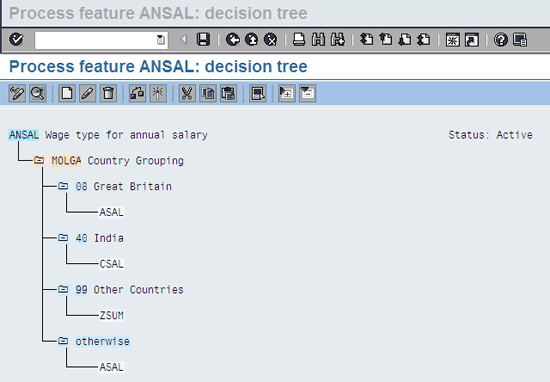
Figure 1
Feature ANSAL change view
In Figure 1, the return value for otherwise is ASAL, which means that ASAL is a technical wage type that is read by infotype 0008 to calculate the annual salary.
Note
I am not changing any configuration, but I am ensuring that the technical wage type ASAL is used for the annual salary calculation in the otherwise category.
Step 2. Using feature PFREQ, define the number of pay periods per year for the purpose of calculating the annual salary. Use transaction code PE03 and enter PFREQ in the Feature field or follow menu path SPRO > Personnel management > Personnel administration > Payroll data > Basic Pay > Define Annual salary > Click Activity Payment Frequency for Annual salary (Figure 2).

Figure 2
Feature PFREQ change view
The configuration in Figure 2 is as follows. The otherwise category in lines 1 to 5 indicates the period. The return values in this feature can be specified with up to four decimal places.
Line 1 – Weekly (52)
Line 2 – Fortnightly (26)
Line 3 – Half monthly (24)
Line 4 – Four weekly (13)
Line 5 – Monthly (01) (this line is used to ensure that the multiplication factor is correct for different pay periods)
Line 6 – Quarter yearly (04)
Line 7 – Annually (01)
Line 8 – Semi-annually (02)
Next, check the wage type characteristics for the annual salary-related wage type. To do this, you have to complete configuration settings in transaction SPRO. The menu path for the configuration setting is SPRO > Personnel management > Personnel Administration > Payroll data > Basic pay > Define Annual Salary > Wage type characteristics in table V_T511 (Figure 3).
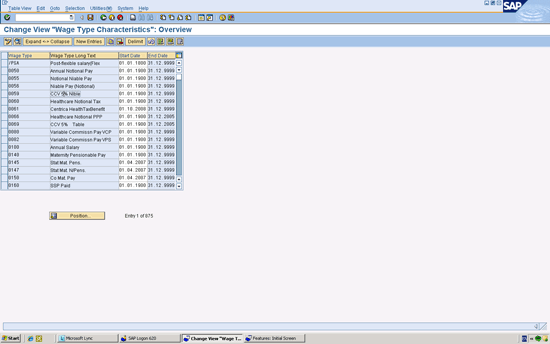
Figure 3
Wage type characteristics change view
Now, as shown in Figure 3, select the relevant wage type ASAL and click the details icon  . This takes you to the screen in Figure 4.

Figure 4
Wage type characteristics detailed view
The following is a description of the fields in Figure 4:
- Deduction WT check box: Selecting this check box makes the wage type a deduction wage type.
- Minimum amount: This is the minimum amount of the wage type.
- Maximum amount: This is the maximum amount of the wage type.
- Add to total check box: This is the amount that is added to the total field in infotype 0008.
- Amount (+): If there is a plus sign in this field, it means that the amount field in the front screen is an input field that is allowed for this wage type.
- Number/unit (–): If this field has a minus sign it means that the input field for the unit in the front screen is not allowed for this wage type.
- Basic hours: This determines whether this wage type is for basic, overtime, or bonus hours.
- Time unit/meas: This is where you assign the required units if applicable (hours or minutes).
- Minimum number: This is the minimum number or unit that is allowed to be input.
- Maximum number: This is the maximum number or unit that is allowed to be input.
- Indirect eval.module: This is where you check whether the ANSAL wage type is updated with the required drop-down ANSAL option. ANSAL is an indirect evaluation module used only for the wage type assigned for annual salary.
Requirement A
In this example, the employee receives a salary of $1,000 per month and a total gross salary of $12,000 per annum. Let’s analyze this example and see how the system calculates the dynamic field for the annual salary and displays it in the infotype 0008 (basic pay) screen (Figure 5).
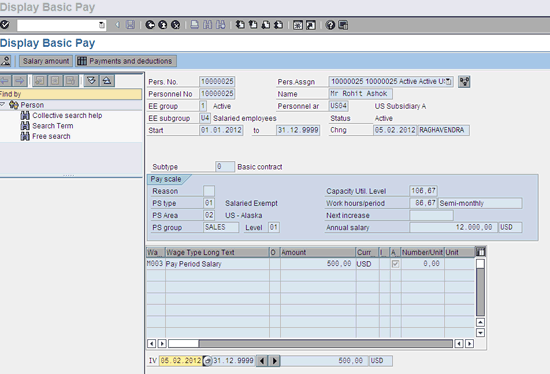
Figure 5
Display of basic pay view
The system multiplies the pay period salary (which is semi-monthly) with a payroll frequency of 12, as configured in Figure 2 in the line 5 otherwise category.
This configuration does not work in my example requirements. In my first example, requirement A, the employee has a pay period of 12.5, his monthly base salary is $1,000, and his annual salary is $12,500. In requirement B, the employee has a pay period of 14.5, her monthly base salary is $1,000, and her annual salary is $14,500. However, the configuration in Figure 5 is able to calculate only an annual salary of 12 pay periods. Here are some tips you can use to configure the requirements of A and B.
In the examples, you need to reconfigure the fields to store the variable component (pay period frequency) and the base pay period. Based on these two factors, the annual salary is calculated and displayed.
To achieve this, you need:
- The wage type to store base pay (i.e., M003)
- The wage type to store the pay period frequency (i.e.,1900)
- The logic to multiply both
- The final display of the annual salary
In this example, let’s assume you have created base wage type M003 under basic pay. The screen in Figure 6 shows the characteristics of this wage type. To achieve this, you need to complete these fields in the same way.
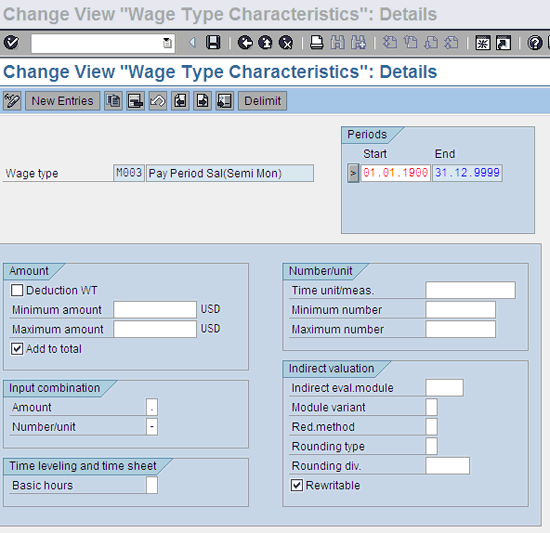
Figure 6
Wage type characteristics – change view for wage type M003 (table T511)
Now you need to set up the wage type characteristics for wage type 1900 (pay period), as shown in Figure 7.
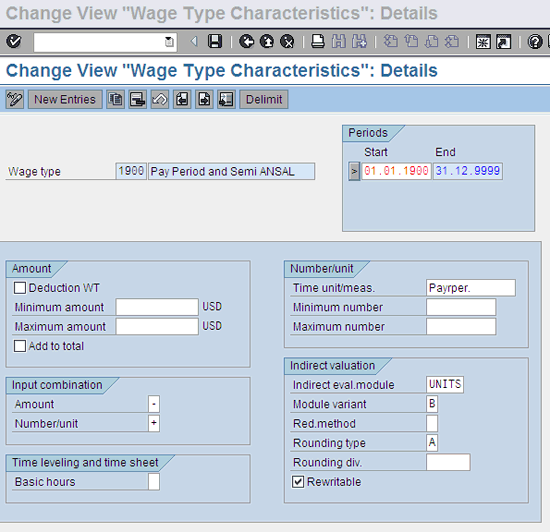
Figure 7
Wage type characteristics – change view for wage type 1900 (table T511)
The indirect evaluation module UNITS with the module variant B sets the configuration for variable pay periods. To calculate the correct pay period (12.5 in my example), use table T539J entry for calculation purposes.
Once you have completed the checks and the configuration steps, the next step is to create an entry in table T539J. Follow menu path SPRO > Personnel management > Personnel administration > Payroll data > Basic Pay > Define Annual salary > Relevant wage type for Annual salary valuation, which takes you to the screen in Figure 8.
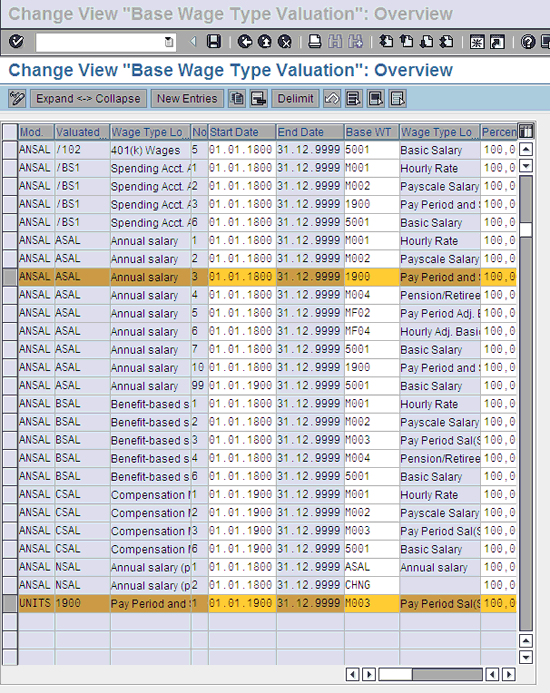
You can create the new entries by clicking the New Entries button in Figure 8 and save them by clicking the save icon. Ensure that you have created the two new entries as highlighted in Figure 8.
Based on this configuration, the annual salary amount is calculated based on the wage type M003 amount and the wage type 1900 unit (pay period). The final step is to make the following entries in table T549R. The menu path for the configuration setting is SPRO > Payroll > Payroll USA > Define Period modifiers (Figure 9).
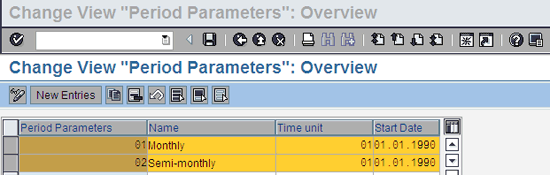
Figure 9
Period modifiers change view
Note
In my example, I am using USA for my country. Users should enter the appropriate country in this section.
To store the entries highlighted in Figure 9, click the New Entries button, and then click the save icon to save your new period parameters.
The next step is to create HR employee master data for testing the functionality of the two new wage types.
To create the HR employee master data follow menu path SAP Easy access > Human Resources > Administration > HR master data > Maintain. Enter infotype 0008 in the infotype box, the personnel number in the personnel number box, and click the create icon  . This results in the screen shown in Figure 10, where you make the following entries to create a record for requirement A:
- Employee number: 10000025
- Semi-monthly salary: $500
- Monthly salary: $1000
- Pay period: 12.5
- Annual salary: $12,500

Figure 10
Create basic pay view (maintain HR employee master data)
Once you have made the required entries in Figure 10, press Enter. You only need to input the semi-monthly salary and pay period.
The system is configured to have default values in the pay scale (PS) type, area, group, and level, and the wage type (M003). Now enter the following data in the same order:
- Date: 02/01/2012
- Wage type M003: $500
Press Enter, which results in the screen in Figure 11:

Figure 11
Create basic pay screen with entries for requirement A
Press Enter again, which takes you to the screen in Figure 12. Click the save icon to save and store your data.

Figure 12
Create basic pay with annual salary for requirement A
The system defaults with a semi-annual salary of $6,250 and an annual salary of $12,500 as per your requirement A for a pay period of 12.5.
Requirement B
In this example, the employee’s base pay period is 14.06, his monthly base salary is $1,000, and his annual salary is $14,060. Let’s analyze this example and see how the system calculates the dynamic field for the annual salary and displays it in the infotype 0008 (basic pay) screen (Figure 10). Here the dynamic field for annual salary shows the result of the multiplication of the pay period and the semi-monthly amount.
Here are the entries for requirement B to create the record:
- Employee number: 10000026
- Semi-monthly salary: $500
- Monthly salary: $1,000
- Pay period: 14.06
- Annual salary: $14,060
Follow the same menu path as before, SAP Easy access > Human Resources > Administration > HR master data > Maintain. Enter infotype 0008 in the infotype box, the personnel number in the personnel number box, and click the create icon. This takes you to Figure 13.

Figure 13
Create basic pay screen with entries for requirement B
In Figure 13, once you make the required entries (e.g., semi-monthly salary and pay period), the system defaults the following fields:
? Half year salary
? Annual salary
Then press Enter, which results in the screen in Figure 14.

Figure 14
Create basic pay for requirement B
The system defaults with an annual salary of $14,060 and a half-year salary of $7,030 USD, for a pay period of 14.06 (Figure 14). Similarly you can address any requirements of variable pay periods (such as 13.5, 12.5, 13, and so on) as agreed upon by the organization and the union or required by the collective bargaining agreement.
Note
Once you have completed these configuration steps, for all future employee master data of infotype 0008 (basic pay), you must enter wage type 1900 to set and assign the number of pay periods.
Raghavendran Parthasarathy
Raghavendran Parthasarathy works for Hexaware Technologies as a Principal Consultant,where he manages SAP solution design for customers across the globe. He has worked in SAP ERP HCM for over 14 years in various capacities, including payroll projects in the Middle East, Europe, and Asia/Pacific. In addition to payroll, Raghavendran has experience in negative time management, personnel administration, and recruitment. He has also been a part of portal implementations. Currently, he is involved with cloud-based HCM applications such as SAP SuccessFactors and Workday.
You may contact the author at raghs99@yahoo.com.
If you have comments about this article or publication, or would like to submit an article idea, please contact the editor.