Learn an SAP Organizational Management data model approach that is consistent with SAP system standard functionality. Supplement display and reporting capabilities with the functionality available in the leading org charting tools to reduce complex custom developments while improving end-user experience.
Key Concept
An organizational structure in an SAP system is used to support many HR-related processes, such as recruitment, compensation management, and personnel default cost assignment. Standard functionality relies on a prime organizational structure that is the foundation for using standard workflows, reporting, and integration with other SAP modules
SAP Organizational Management (OM) is designed to provide flexibility for building organizational structures for large and complex enterprises. However, there are some limitations in its display capabilities, which can be supplemented with the use of an org charting tool. When used properly together, SAP OM and org charting tools can be an effective way to respond to complex requirements while reducing customization needs.
A critical stage during the design of any organizational structure in an SAP system is when discussions start regarding what the organizational structure should look like. Different departments have their own way of seeing and using the company’s organizational structure, which presents challenges for finding solutions that satisfy everyone. This is where the real fun starts, and the addition of some creativity to your organizational design should prove helpful as well.
Note
The approach and insights included in this document are the result of several years of experience with SAP OM. Although I present generic solutions there might still be a need to partially adjust the designs to respond to specific requirements.
This article is intended for a functional audience and provides insights to common challenges found during the conceptual design phase. In addition, it also includes basic configuration details for implementing the proposed solutions to enhance end-user experience and to minimize complex custom developments.
SAP OM Fundamental Structures
During the organizational structure design phase there is a lot of discussion about what the organizational structure should look like. One of the first decisions that has to be made is whether to build the organizational structure based on a cost center structure, a functional structure, a reporting-to structure, or a geographical structure (Figure 1).
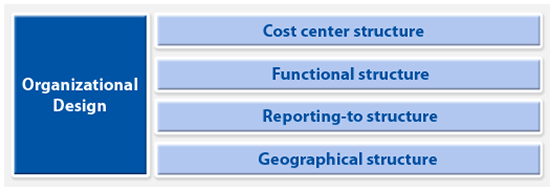
Figure 1
Challenges in organizational design
Although there are other design scenarios that could be analyzed beyond the main four listed in Figure 1 (assuming the four structures are different), for my purposes I focus only on the analysis of the fundamentals of these four structures. It is important to get the basics right in the beginning in order to avoid unnecessary and costly redesigns later on.
Tip!
The leading practice is to build the prime organizational structure based on reporting-to criteria. Alternative prime structures might not necessarily be a good idea in SAP OM as integration with other standard SAP functionality could be compromised (e.g., workflows not being routed to the right manager).
SAP OM is a very powerful way to define organizational structures within an organization. It can also be used as a reporting tool since it provides functionality that allows some graphical display of the organizational structure.
SAP OM has some display limitations, however; for example, employees and contractors can’t be easily differentiated. These limitations can easily be supplemented with the use of an org charting tool. Some of the benefits of using this type of tool are:
- Org charts can be published into the enterprise portal for a broader end-user audience, beyond SAP users.
- Different org chart display capabilities are made available to end users (e.g., display only three org levels down); therefore, user security can be built to better control the access to sensitive/confidential information.
- It’s easier to read org charts because the information is presented in boxes; organizational and employee data can be added to these boxes to facilitate the display of useful information on the org chart allowing non-HR users to better understand and use the published org charts.
- Different position types can be defined to facilitate the identification of certain types of employees or positions (e.g., differentiation between managers and supervisors)
- It’s easier to generate headcount reporting.
- Organizational charts are pre-generated, which means that it takes much less time to execute reports.
- Organizational charts can be exported to different formats, the two most common being a PDF file or Microsoft PowerPoint.
Figures 2 and 3 represent examples of an SAP org charting tool display compared to a generic org charting tool display.
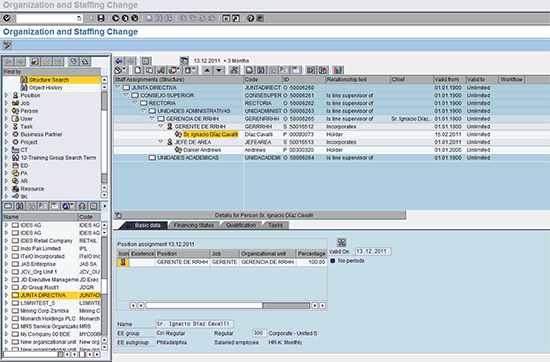
Figure 2
Example of an SAP system’s org charting tool (transaction code PPOME)
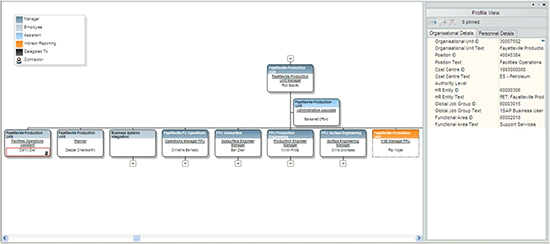
Figure 3
Example of a generic org charting tool
Cost Center Organizational Structure
Although cost centers are assigned to organizational units or positions throughout the HR organizational structure, cost center and reporting-to structures don’t usually mirror each other. In addition, some employees might have their cost center structure overridden in infotype 0027 (cost distribution), which adds more complexity to how these structures speak to one another.
The cost center structure drives financial reports while the reporting-to organizational structure should reflect the hierarchy used to execute HR processes. The cost center structure is represented in the FI/CO module and does not affect SAP OM structures. Cost center structure is defined through transaction code OKEON, where it defines the hierarchy of cost centers, and transaction codes KS01 and KS02, where all cost center attributes are defined (including who the manager is for each of those cost centers).
SAP OM structures can be defined via several transaction codes, with transaction code PPOME being the most commonly used to keep organizational structure up to date. SAP OM is the basis for multiple-functionality, such as:
- Employee and manager self-service (ESS and MSS)
- Talent management and acquisition
- Cost center assignment
- Workflows
- Reporting
- Security
As previously mentioned, the SAP OM structure is designed to be used primarily with a reporting-to approach. Therefore, there is a need to analyze how to provide the required reporting for the other structures mentioned, including cost center structure. One option is to adopt the cost center structure as the basis for your reporting-to structure, but this option is not always possible since the two structures are not necessarily aligned with one another.
As the cost center structure is defined in FI/CO, SAP OM provides limited reporting capabilities to obtain basic cost center reports. One option for displaying HR information through cost center structure is via BI reporting. Following this route, cost center groups and cost centers build the structure while the employee’s cost center is used to join the employee with the appropriate cost center.
In addition, an org charting tool can offer a better user experience than BI without significantly increasing the implementation effort. Therefore, the proposed solution consists of leveraging the configuration capabilities of an org charting tool to answer the following question: Which employees are assigned to a specific cost center within the cost center structure?
Tip!
A straightforward way to obtain the cost center structure from FI/CO and obtain the employees assigned to each of those defaulted cost centers is to configure an evaluation path to build the structure. A key consideration, though, is that neither controlling areas, cost centers, nor cost center groups are real objects in SAP OM (despite being part of the object list) and, therefore, no infotypes can be assigned to them. This might be a limitation for some org charting tools that use accelerators to integrate themselves with the SAP system. A valid workaround to these potential limitations is to develop a function module so that basic information such as cost center code, description, and owner can be read from FI. Functional modules can usually be included as part of the interface between the SAP system and the org charting tool.
Figure 4 shows how the cost center structure can be represented using a generic org charting tool.
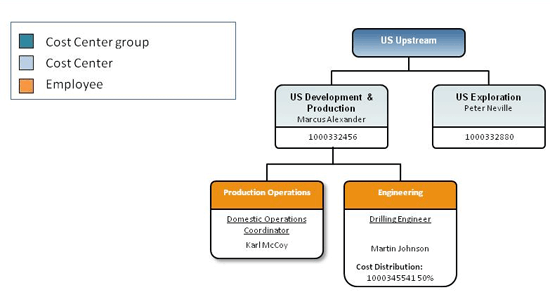
Figure 4
Cost center structure using a generic org charting tool
In the proposed solution, the cost center structure is represented by using two specific position types in the org charting tool: one for the cost center group and the other for the cost center, which includes the name of the cost center owner.
Following the appropriate evaluation path, it is possible to identify all organizational units assigned to that cost center and therefore all positions and employees assigned to them. Given that the cost center inherited from the organizational structure can be overridden at the employee level via infotype 0027 (cost distribution), I recommend that you incorporate that information into the org chart boxes.
Some org charting tools provide functionality to define groups of employees. This allows you to highlight employees with a cost center override that other employees do not have (e.g., adding a specific icon for these employees).
Proposed SAP OM Configuration for the Cost Center Organizational Structure Solution
First, create an evaluation path in table T778A that allows you to find the employees assigned to cost centers following the structure dictated by cost center groups. Figure 5 shows the evaluation path to be configured.
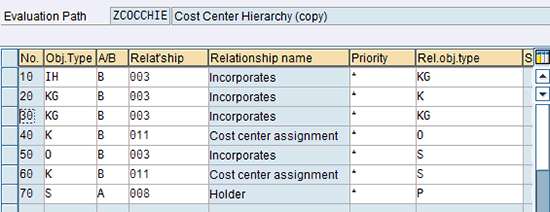
Figure 5
Evaluation path configuration to find employees assigned to cost centers
The master data considerations for representing the cost center structure in SAP OM are:
- Cost center structures must be maintained in FI/CO
- Cost centers need to be assigned to organizational units or positions
Standard report S_AHR_61016528 (structure display/maintenance) can be used to obtain organizational structure reports (Figure 6), but this report has several limitations. These limitations are:
- Only basic object information can be displayed in the report
- Numbers cannot be totaled
- All positions look alike (with the exception of managers)
- Report layout is not easy to read and execute
- Report execution can take a significant amount of time
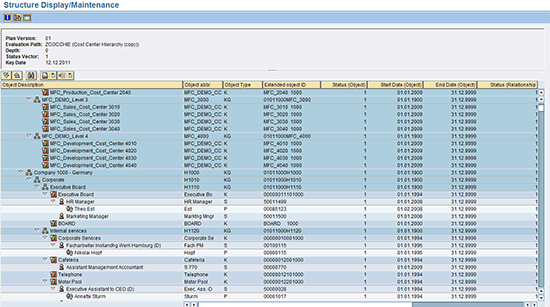
Figure 6
Standard report S_AHR_61016528
These limitations, however, can be easily solved with the use of an org charting tool.
Functional Organizational Structure
As mentioned before, the organizational structure needs to be built based on reporting-to criteria. Therefore, to capture the information in the SAP system, you need to define an alternative approach.
A functional organizational structure usually represents the organization from a talent management perspective. This type of organizational structure is based on functional areas and it is common to have an overall responsible for those areas for the organization.
Two questions that are commonly asked are:
- What is the physical distribution of employees belonging to a specific functional area?
- How many employees are assigned to a specific functional area?
Let’s start with the first question, as it is not clear how you can answer this without complex maintenance.
Determining the Physical Distribution of Employees by Functional Area
A geographical component can be added to the functional structure. This can be done by adding an additional object to the structure to capture the geographies where the functional areas can be found (e.g., APAC, EU, and South America).
Functional global leads and functional geographic leads are typical in this scenario and therefore are part of the proposed design. These leads are identified through relationships between the position and functional-geographic areas. Figure 7 shows the overall design.
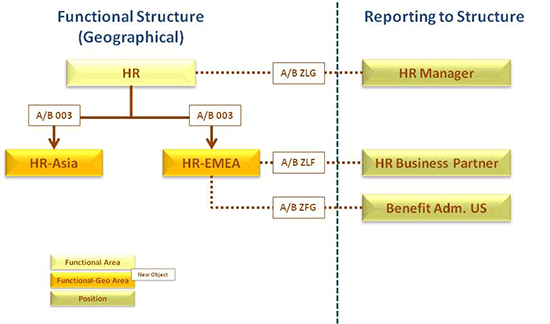
Figure 7
Conceptual design of functional organizational structure
As in the other organizational structures, an org charting tool also can be useful in representing this structure. Data to be included in the interface file between SAP OM and the org charting tool is collected via evaluation path Z_FUNGEO. This includes all the functional areas and global leads, functional geographic areas and leads, and all other positions and employees assigned to them.
To facilitate the identification of the leads, new position types are created for:
- Functional area global lead
- Functional geographic area lead
- Manager (non-leads)
- Employee (all other employees assigned to a functional area)
In addition to this identification, these additional attributes are included in the file:
- Functional area: abbreviation and description
- Functional geographic area: abbreviation and description
- Position: abbreviation and description
- Employee: organizational unit, job, cost center, personnel area, personnel subarea, employee group, employee subgroup, and manager
The interface can be executed through a batch job on a daily basis and afterwards made available to end users through the org charting tool. Figure 8 shows how this would look using a generic org charting tool.
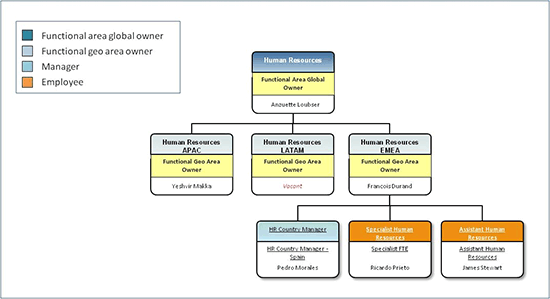
Figure 8
Example of functional organizational structure using a generic org charting tool
Some of the org charting tools are able to display additional attributes next to the organizational chart. If this is the case for the org charting tool being used on your implementation, I recommend that you standardize the information to be displayed for all positions. Information could be divided into two main groups:
1. Organizational details:
- Organizational unit ID
- Organizational unit description
- Position ID
- Position description
- Job ID
- Job description
- Cost center ID
- Cost center description
- Manager personnel number
- Manager full name
2. Personnel details:
- Personnel number
- Employee full name
- Personnel area code
- Personnel area description
- Personnel subarea code
- Personnel subarea description
- Employee group code
- Employee group description
- Employee subgroup code
- Employee subgroup description
Org charting tools can also be used for headcount reports. In this case, a classic question is to find out how many employees belong to a certain functional area and how they are distributed across geographies. This question can be answered creating a specific organizational chart to display the headcounts by functional area according to each of the geographies. Figure 9 can be used as a reference for the final outcome of this report.
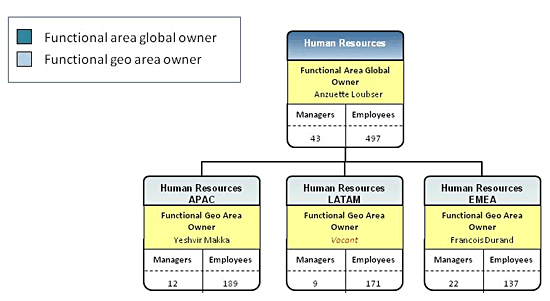
Figure 9
Example of a headcount report using a generic org charting tool
Proposed SAP OM Configuration for the Functional Organizational Structure Solution
First, you need to create a new object type (1F) called Functional-Geo area in table T778O. Then, infotype 1000 (object) and infotype 1001 (relationships) need to be made available for the new object in table T777I.
Create new relationships in table T778V for:
- Functional area global owner (ZLG)
- Functional geo area owner (ZLF)
- Included in functional geographical area (ZFG)
Once the new relationships are created, enable the allowed relationships in table T777E:
- A/B 003 between 1F and FN (assignment of functional geo areas to functional areas)
- A/B ZFG between 1F and S (assignment of positions to functional geo areas)
- A/B ZLG between FN and S (assignment of position to functional areas, global lead)
- A/B ZLF Between 1F and S (assignment of positions to functional geo areas, functional-geo lead)
When creating the new subtypes in table V_778U, make sure that the following time constraints are in place in table T777Z:
- Time constraint 2 for subtype A003 for infotype 1001 (1F to FN)
- Time constraint 3 for subtype B003 for infotype 1001 (FN to 1F)
- Time constraint 3 for subtype AZLG for infotype 1001 (S-FN)
- Time constraint 2 for subtype BZLG for infotype 1001 (FN-S)
- Time constraint 3 for subtype AZLF for infotype 1001 (S-1F)
- Time constraint 2 for subtype BZLF for infotype 1001 (1F-S)
- Time constraint 3 for subtype AZFG for infotype 1001 (S-1F)
- Time constraint 3 for subtype BZFG for infotype 1001 (1F-S)
The next step is to create an evaluation path that allows finding the employees assigned to those functional areas in table T778A (Figure 10).
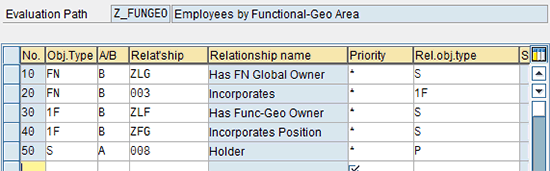
Figure 10
Evaluation path Z_FUNGEO configuration
There are some SAP OM master data considerations to take into account when you are defining a functional organizational structure. These are:
- Create a functional-geographical structure using functional area, functional-geographical areas, and the leads. There are several ways to create this structure although the one that requires the least additional configuration is through transaction code PP01.
- Establish the appropriate relationships between functional area, functional-geographical area, and positions.
- Assign one or more functional-geographical areas to positions.
In the proposed design it is assumed that one position can belong to multiple functional areas. Even though only one job is assigned to a position, sometimes positions are partially assigned to multiple functional areas.
Determining the Number of Employees Assigned to a Specific Functional Area
A similar approach can be followed to respond to the second question (i.e., how many employees are assigned to a specific functional area?). This scenario requires a less complex design and maintenance than the previous one.
A functional structure can be created based on specific requirements and independent of the reporting-to structure. The level of granularity of this structure is different between companies since if usually relies on job catalogues.
Figure 11 shows how to define a functional structure. Multiple levels can be defined using functional areas, job families, and jobs. To simplify maintenance, only jobs should be linked to the reporting-to structure.
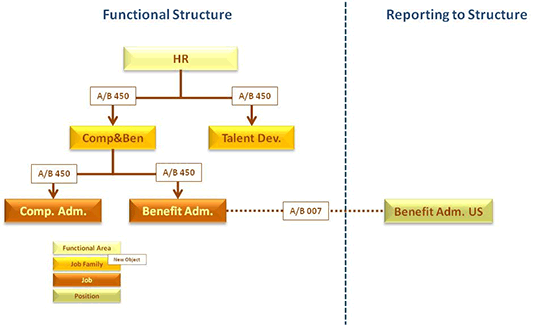
Figure 11
Conceptual design of functional organizational structure
Similar to the previous scenario, an org charting tool can easily represent this structure and provide the required headcounts to answer the question — to whit, how many employees are assigned to a specific functional area?
Proposed SAP OM Configuration for the Functional Organizational Structure Solution
The functional organizational structure SAP OM configuration is as follows:
- Create an evaluation path that allows finding the employees assigned to those functional areas in table T778A (Figure 12).
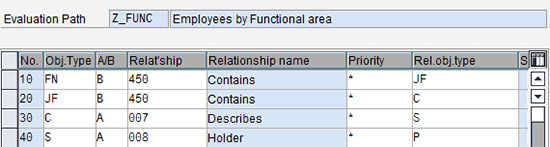
Figure 12
Evaluation path configuration
There are functional organizational SAP OM master data considerations that you have to take into account. These include:
- Create a functional structure using functional area, job family, and job. There are several ways to create this structure; however, the one that requires the least additional configuration is through the transaction code PP01.
- Establish the appropriate relationships between functional area, job family, and job.
- Assign one job to each position.
This solution requires that each position has a job assigned to it — otherwise the position, and therefore the employee, is excluded from the report. Functional areas and job families are not directly assigned to positions.
Geographic Organizational Structure
The geographic organizational structure is best understood looking at it from different points of view. Below are two common scenarios and the questions that result:
- How many employees are physically working in geographic location X?
- How many employees are supporting business Y for geographic location Z?
The first scenario refers to a structure that is usually closer to a reporting-to structure, whereas the second is usually closer to a functional structure. In other words, the first scenario captures where employees work and the second captures how they support the organization.
A geographic organizational structure can be created based on specific requirements and independently from the reporting-to structure. As mentioned before, this structure can be built based on physical geographic criteria or based on how the business is supported (e.g., an HR administrator supporting country A while being physically located in country B). In either of these scenarios the geographic structure can be linked to the reporting-to structure via positions.
Figure 13 illustrates how physical geography can be defined. Multiple levels can be defined but to simplify maintenance only work centers should be linked to the reporting-to structure.
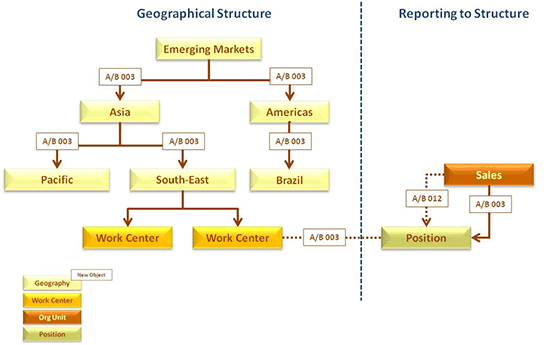
Figure 13
Conceptual design of geographic organizational structure
If the goal is to understand how the business is being supported then the geographic structure should be assigned directly to the reporting-to structure. Work centers cannot be used in this scenario as, by definition, they are related to physical location (Figure 14).
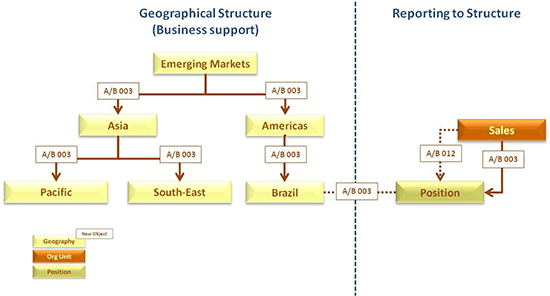
Figure 14
Conceptual design of geographic organizational structure (business support)
I’m using the first option (Figure 13) as my example scenario. An org charting tool is very useful in representing the geographic structure in order to answer the question posed earlier: how many employees are physically working in geographic area X? Figure 15 shows an example of how this structure could look.
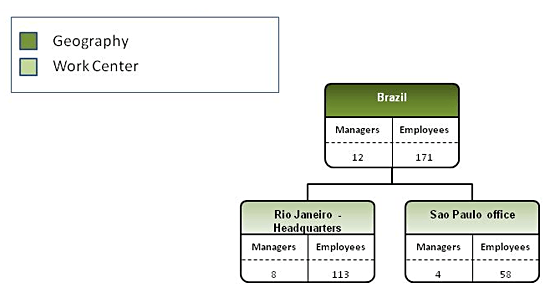
Figure 15
Example of headcount based on geographical organizational structure
Proposed SAP OM Configuration for the Geographic Organizational Structure Solution
The first step is to create a new object type 1G (geography) in table T778O. Then, infotype 1000 (object) and infotype 1001 (relationships) need to be made available for the new object in table T777I.
Enable the new object to use relationships with work centers in table T777E. Standard relationship A/B 003 can be used. Make sure that work centers have time constraint 2 for subtype A003 for infotype 1001 in table T777Z. This ensures that work centers can only be assigned to a single geography. Then, create an evaluation path that allows finding the employees assigned to those geographies in table T778A (Figure 16).
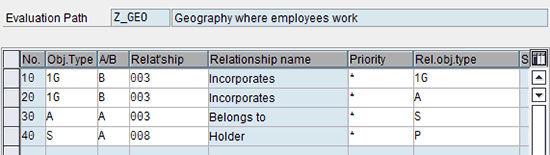
Figure 16
Evaluation path configuration
The geographic organizational structure SAP OM master data considerations are:
- Create a geographic structure using the new object geography. There are several ways to create this structure although the one that requires the least additional configuration is through transaction code PP01. Establish the appropriate relationships between geographies if applicable.
- Assign each work center to a single geography.
- Assign each position to a work center.
Note
Employees in positions without an assigned work center are not included in the report. When defining the geographical structure under physical location criteria, work centers should only be assigned to the lower level of the geographic structure. This is to ensure proper distribution of employees across the different geographies and to avoid duplicities on reports.
Jordi Castillo
Jordi Castillo has been working with SAP ERP HCM for more than 10 years and specializes in the SAP ERP HCM modules of Personnel Administration and Organizational Management. He is experienced in implementing SAP ERP HCM globally.
You may contact the author at jorcasver@gmail.com.
If you have comments about this article or publication, or would like to submit an article idea, please contact the editor.



 Premium