Learn about the latest changes that have been implemented in enhancement package 5.0 via business function sets — namely, FIN_FSCM_CCD_3 and FIN_FSCM_CCD_INTEGRATION_3. You can use these business function sets if you are planning on implementing SAP Financial Supply Chain Management (SAP FSCM), including SAP Collections Management, or if you have implemented an SAP Collections Management solution without any enhancement packages.
Key Concept
Various business function sets are now available within enhancement package 5. A business function set is a new functionality for users who have upgraded to enhancement packages within SAP ERP 6.0 (Business Suite 7). Within the business function sets is a plethora of new functionality that enhances the usability of the product and improves the integration between submodules. SAP releases a number of new business function sets within each enhancement package. Each business function set covers a functional area to allow users to enhance a current business process.
Enhancement package 5.0 provides new functionality for SAP Financial Supply Chain Management (SAP FSCM) via business function sets. Figure 1 shows the business function sets you need to activate to obtain the new functionality within enhancement package 5.0 and the earlier releases. If you are not familiar with enhancement packages see the sidebar titled “An Overview of Enhancement Packages.”

Figure 1
Required business function sets for SAP FSCM
An Overview of Enhancement Packages
Over the years SAP has released many different versions of its core ERP product. A number of system changes within each version have provided users with new functionality. However, to move from version to version requires a system upgrade. If users have custom code and processes, this upgrade process is very time-consuming and can be expensive as well.
In 2005 SAP announced the use of enhancement packages to release new functionality to its customer base. Once customers upgraded to SAP ERP 6.0, they would not need to perform a detailed upgrade. Instead, they would install the enhancement package and then activate a business function set to release the required functionality. If customers had a stable sales process, but wanted to enhance their financial processes, they could activate the business function sets that focused on finance, but not activate the new functionality within sales. This feature was not available with the previous method of upgrading to the latest system version. Now it takes much less time to install the enhancement packages because you do not need to perform a full system version upgrade.
In case you are not familiar with the process of using functionality within enhancement packages, note these three pieces of advice:
- A system has to have enhancement packages installed on it. This process is similar to a mini-upgrade. The installation loads the latest Support Packages as well as the business function sets. At this stage no new functionality from the business function sets is active. However, SAP recommends that after completing the installation of the new enhancement package version, a full system regression should be done (similar to the one made when applying Support Packages).
- To obtain the new functionality from the enhancement packages, you need to activate the required functionality within the business function sets. So to confirm that an enhancement package installs a number of new business function sets, the next step is to review them and then activate them.
- Some business function sets depend on earlier releases — for example, FIN_FSCM_CCD_3. You cannot install this business function set by itself; first you have to install FIN_FSCM_CCD and FIN_FSCM_CCD_2. If you use SAP FSCM and have not activated any business function sets, you have to activate the other dependent business function sets. A user on SAP ERP 6.0 without any business function sets who installed enhancement package 5.0 would benefit from all the new functionality — not just from FIN_FSCM_CCD_3, but also FIN_FSCM_CCD and FIN_FSCM_CCD_2. Note that SAP recommends isolated regression testing (functionality only) after activating new business function sets.
The business function sets that you now can activate enable your SAP system to take advantage of the new functionality provided by enhancement package 5.0. These business function sets integrate submodules and improve the usability of the product. The business function sets offer these features:
1. The ability to use only one button in place of several buttons. The first thing an existing SAP FSCM user notices is that some of the common buttons have been removed. At first I panicked, thinking that the business function set had removed some of the buttons, until I realized that SAP had simply combined several buttons into one. For example, within SAP FSCM and through enhancement package 4, individual buttons were used to create disputes and promises to pay. This feature has been replaced by a single (smaller button) that allows the user to create disputes, promises to pay, notes, and resubmissions. This feature frees up the screen and simultaneously provides more functionality. Figure 2 shows how SAP FSCM looked prior to the availability of enhancement package 5.

Figure 2
The collection worklist prior to enhancement package 5 view
Figure 3 shows how SAP FSCM now appears after the latest business function sets have been applied.

Figure 3
The new collection worklist view within enhancement package 5.0 with a single create icon
The new create icon includes the options shown in Figure 4.

Figure 4
The new create icon in enhancement package 5.0
2. The ability to enter notes without opening a new transaction. In addition to combining the create promise to pay and create dispute case icons into a single icon, users can now add notes. You can categorize the notes and also raise them against a customer, an invoice, or many invoices. This feature allows collection specialists to provide all their notes to either a salesman or a manager. In some cases, a customer’s debt would move to a debt collection agency if the debt was deemed to be bad (uncollectible). Currently, the process for obtaining all this information to provide a full contact history for the customer can be very time-consuming. Both of these issues are simplified with the new notes capability. The notes capability enables users to record all this information in a single common screen, thus simplifying the process.
Being able to record different types of customer contacts by the new types of notes within the collections worklist ensures that the data is held in a common format and removes the need for the collections specialist to open a new transaction to enter customer notes. This capability in turn improves the collections specialists’ efficiency as they are only working in a single transaction. Furthermore, the volume of information for review is in a common format. When specialists are unavailable, all notes and contacts are held in the same place. Thus, whoever is covering for them is able to easily access this information. The details of a customer’s notes can be seen in Figure 5.

Figure 5
The Notes tab showing notes made against invoices and customer-specific notes with attachments
Note
In Figure 5, the note reason named Bluefin represents a note that is not standard.
Notes within the system use the same functionality as resubmissions. This standard functionality provides the collections specialist with the option to exclude a customer from the worklist for a period of time. For example, the customer contact could not be reached, and he is not scheduled to be in the office until the following Tuesday. In this situation, the customers could have a resubmission so that they are excluded from the worklist until Tuesday.
To configure a new note type, use the same configuration as for creating a resubmission type: IMG menu path Financial Supply Chain Management > Collections Management > Basic Settings for Collections Management > Resubmission and note > Define Resubmission Reason and Note Reason. Figure 6 shows the configuration screen to create a new note type.

Figure 6
The new configuration screen to define a note and the use of the note
Figure 6 shows three options for entries: Contact Person Absent, Contact Person Requests Callback, and Bluefin type of note. The first two options can be used for both notes and resubmissions, but the last one can be used only for notes.
Entry options (new values for notes): To create an entry, you need a reason code and description. You then define how the note is used. The options for defining the note are shown in Figure 7.

Figure 7
Configuration of types of notes or resubmissions
Once you have configured the notes and started recording notes against the customer or invoices, the collections specialist has a record of all of the notes and can easily navigate to each of these documents. Figure 8 shows notes made against a customer.

Figure 8
The new tab within the collection worklist to detail customer notes
3. The ability to create correspondence from within the SAP Collections Management module. The create correspondence icon  appears in the collection worklist in Figure 3. By selecting this icon you receive the options detailed in Figure 9. This new functionality is only available in enhancement package 5.0. Users can now create all the types of correspondence in Figure 9 and detailed below.

Figure 9
New types of correspondence available in enhancement package 5.0
Previously, to create correspondence the collections specialist had to navigate away from the core collections worklist screen and use a different screen to send documents to the customer. This requirement obviously increased the effort of the collections specialist. Furthermore, the collections specialist had no standard way of recording that a correspondence had been produced and sent to a customer.
One of the common issues a collections specialist encounters is a request from a customer for a copy of the invoice. Some consider this request a tactic by the customer to delay the invoice process; however, the collections specialist can quickly overcome this hurdle by regenerating the output of the billing document to the customers (even while they’re still on the phone). This capability in turn can help change customer habits. Previously, the copying of the invoice would be done after the phone call, and would require a follow-up call to the customer to confirm that the copies were received and that payment was on its way. By being able to email the invoices to the customer immediately, at the time of the first phone inquiry, the collections specialist doesn’t have to make a second phone call to confirm receipt of the email and obtain a promise to pay the invoice.
Some organizations like to send correspondences to their customers after a customer contact has been made. This task can now be completed within Collections Management. For example, the collections specialist sends confirmation of the promise to pay to the customer to confirm the details of the payment.
Larger customers may require a printout of the outstanding invoices or a statement of their account. Previously, this request would have been done outside Collections Management, and a second follow-up call might have been necessary. Now with enhancement package 5.0 Collections Management can email customer statements or finance correspondences to the customer directly from the worklist, thereby reducing time and improving efficiency.
Some companies use dunning as a way to send follow-up letters for overdue debt. This task is normally performed via automated dunning runs on agreed dates. Customers can be included and excluded from dunning, and occasionally, a collections specialist might have to send an ad hoc dunning letter owing to the customer’s behavior. For example, a customer cannot be contacted, a promise to pay has been broken, or the collections specialist doubts the customer’s ability to pay.
4. The ability to create installment plans for customers. This new piece of functionality within Collections Management stems from installment payment terms. Some customers may have large invoices that they cannot afford to pay through a single payment. An invoice could be due in a few days, and the collections specialist may be empowered to offer the customer the ability to pay 50 percent within those few days, and then 50 percent a month later. From a cash-collection point of view, receiving 50 percent of a large payment immediately is much better than waiting a further month to receive the full amount of the invoice.
Previously, this process would have been managed outside of Collections Management. The installment plan could be noted in the contact history, or the original invoice could be cleared by a new accounting document that uses an installment payment term. The reporting and processing time of the current process is very poor. Note also that customers who require installment plans to pay their debt should be seen as high risk, as they don’t have the ability to pay their invoices according to the agreed payment terms. Business should focus on these types of customers and their payment behavior, and the installment plan offers the company the ability to do so.
Before using an installment plan, you need to build it. It is worth noting that this is a configuration step, and therefore a collections specialist is only able to offer a customer an installment plan that has already been configured.
Configuration for Installment Plans
To use the new installment plan functionality you need to perform the following configuration. Follow IMG menu path Financial Supply Chain Management > Collections Management > Integration with Accounts Receivable Accounting > Promise to Pay > Define Installment Plan Types for Promise to Pay with Installments.
Before configuring an installment plan, however, you need to understand your options. An installment plan can be made up of a number of payments based on a percentage split (e.g., 50 percent immediately and 50 percent a month later), or on a percentage of the total outstanding debt, or on dates (daily, weekly, monthly).
An installment plan based on payment dates would look at the date key figure (daily, weekly, or monthly) and the number of intervals, and split the outstanding debt accordingly. Figure 10 is an example of a date-based installment plan.

Figure 10
A date-based installment plan
For percentage-based installment plans, the calculation is slightly different. For example, you could take 60 percent in the first payment, 20 percent in the second payment, and 20 percent in the third. Figure 11 is an example of a percentage installment plan.
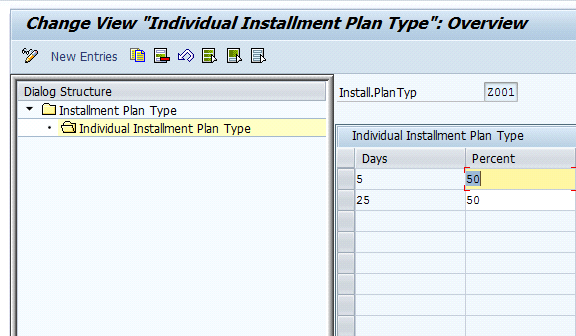
Figure 11
A percentage-based installment plan
Creating an installment plan is part of the promise-to-pay functionality. The collections specialist attempts to receive a commitment from the customer for the amount of a payment and the time it is due, so promise-to-pay is the best functionality for creating an installment plan. To create an installment plan, select the Installment Plan button (Figure 12).
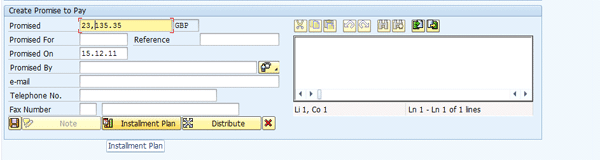
Figure 12
Promise to pay with the new installment plan button
Figure 13 shows a group of invoices that are included in a promise to pay. Once you select the new Installment Plan button, you need to select the installment plan type (Install.Plan Typ) from the drop-down menu on the right.
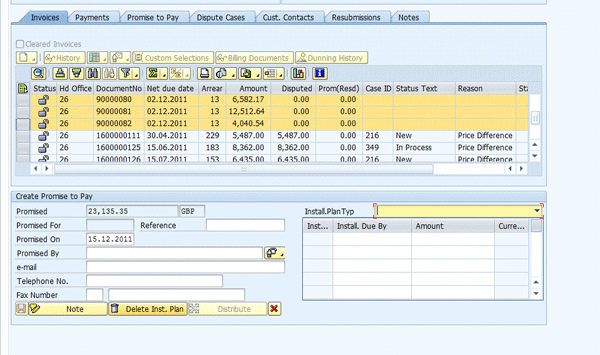
Figure 13
Create a promise to pay with an installment plan
Selecting Bluefin (which is the percentage-based installment plan) from the drop-down menu shown in Figure 14 updates the promise to pay. Note that the installment plan provides an extra five days for the first 50 percent of a payment and 25 days for the remaining 50 percent, as per the example in Figure 14.
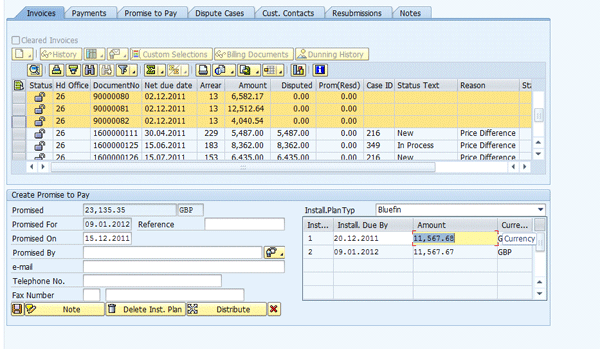
Figure 14
A percentage-based installment plan within the promise-to-pay create screen in SAP Collections Management
If you select Split in two first day of the month from the drop-down menu shown in Figure 15, the install due date is changed. The first installment has been moved back to the first day of the next month, and the second installment due date is a month later.
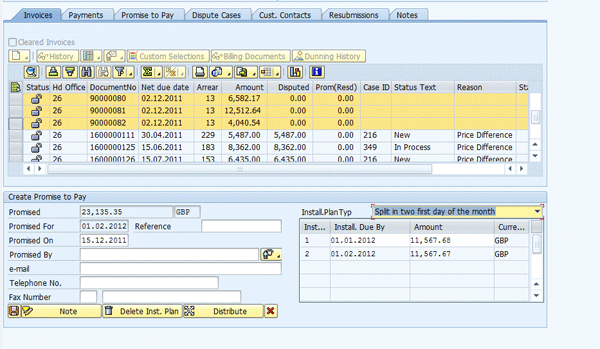
Figure 15
A date-based installment plan within a promise to pay
Activating all these new functionalities enables your collections team to be more productive and consistent. The functionality within this enhancement package is as useful to a potential Collections Management user as to an SAP user who has activated functionality within the previous enhancement packages. Collections Management can add benefit to both large multinational companies with shared-service centers with a team of 100 collections specialists or a single entity with a much smaller team.
Mark Chalfen
Mark Chalfen is the finance capability lead at Bluefin Solutions, a niche SAP consultancy in the UK, and an SAP mentor. Mark has more than 12 years’ experience in SAP FI/CO in a number of industries. Mark’s core skills include Financial Supply Chain Management (SAP FSCM) and the new GL. He is currently advising a wide variety of clients on maximizing their SAP landscape either in the current R/3 version or upgrading to SAP ERP.
You may contact the author at mark.chalfen@bluefinsolutions.com.
If you have comments about this article or publication, or would like to submit an article idea, please contact the editor.

 Premium