The debug mode is often underused considering its ability to speed up development efforts. Provided your ID has adequate authorization, you can enter debug mode at any time. The article also explains how to debug an Employee Self-Service transaction.
Although most technical readers are probably already aware of the debug mode, it is often underused considering its ability to speed up development efforts. Provided your ID has adequate authorization, you can enter debug mode at any time by typing /h<ENTER> in the command field of the SAP GUI. This allows you to step into the current R/3 program and learn how it works. This can be useful if a transaction is producing an error that has not been resolved through simple analysis. The debugger allows you to see which tables and values are being used in the SAP program. You can also use it to locate standard R/3 function modules that perform tasks required in a custom program.
Here is an example: You are required to write a program that displays annual salary information from infotype 0008. Partially through the development, you discover, by using the table browser, that the field ANSAL is blank on infotype 0008 for some employees. However, when you display infotype 0008 for these employees in PA20, the field has a value. How does R/3 display a value on the screen when the field is blank in the database?
To find out, enter /h<ENTER> on the PA20 transaction just before displaying infotype 0008 for one of these employees. The debugger displays the program with a pointer at the current line of code. You then can step through the program line by line using these commands:
- Press F5 to execute a single line of code.
- Press F6 to execute subroutines or functions without stepping into them.
- Press F7 to exit immediately from the current subroutine or function module.
- Double-click on variable names to display their contents.
- To exit the debugger, press F8. This allows execution to continue directly to the program end.
As you step through the MP000800 module pool, note that the function RP_ANSAL_FROM_WAGETYPES is used to calculate annual salary. You could use this function in your custom program, thereby assuring that your program always displays the same value as infotype 0008.
Debugging the Payroll Driver
The payroll driver executes thousands of lines of code controlled by schemas. Entering debug mode at the beginning of a payroll simulation can be frustrating if the questionable piece of code is near the middle or end of the process. You can use a breakpoint to cause the process to pause and enter debug mode at a specified location. R/3 provides the special command BREAK for setting a breakpoint in a schema. The syntax of this command requires a two-character prefix in the Par1 field. Figure 1 shows schema Z000 with a breakpoint included at line 30. (Use transaction PE01 to edit schemas.)
The breakpoint in the schema is activated when you update the parameter AB4 in your user profile to contain the same two-character prefix. The menu path for setting user parameters is System>User Profile>Own data. Then select the Parameters tab. Figure 2 shows the parameter value set to activate the breakpoint in schema Z000. This technique allows you to leave a few breakpoints in your production payroll schemas without affecting production executions. The breakpoints are activated only when the personal user profile of the person running payroll contains the corresponding AB4 parameter value.
The BREAK statement entered in the schema along with the AB4 parameter set in the user profile causes the payroll driver to pause at the specified location and display the source code in debug mode.
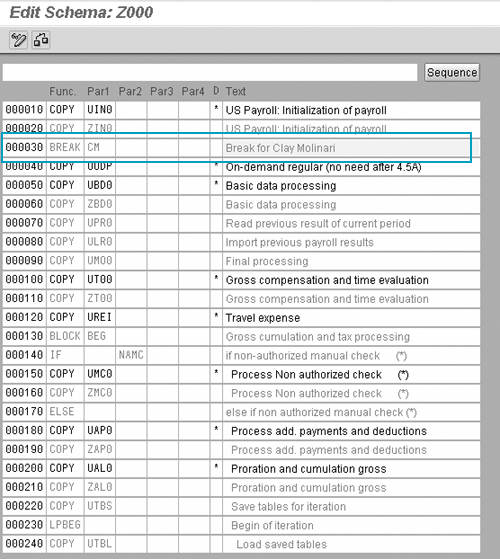
Figure 1
Establishing a breakpoint in a schema via transaction PE01
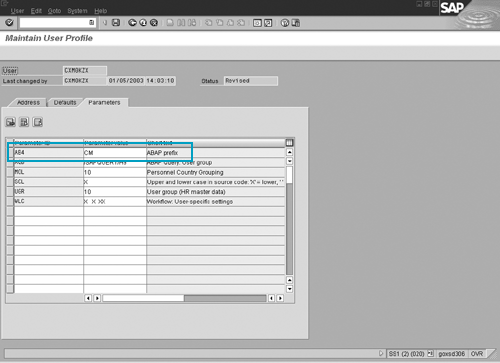
Figure 2
Setting the AB4 parameter
Debugging ESS Transactions
Trying to debug an Employee Self-Service (ESS) transaction can be difficult because many of the underlying R/3 transactions follow a different execution path, depending on whether they were called from the Web service or from the SAP GUI. To debug the ESS process, you must initiate the transaction through ESS. However, there is no command field in a Web browser for entering the /h command. A breakpoint does not cause the debugger to be displayed through the Web browser either.
If you are faced with a stubborn error in an ESS transaction, you may wish to employ a technique often used by object-oriented programmers. Rather than using a breakpoint, add a message command in the process after input (PAI) module of the transaction.1 Use the message to display the value of variables. Make it an informational type message instead of an error type message to allow the transaction to continue processing after the display. Figure 3 shows an example diagnostic message. When this transaction is accessed through the Web, it displays a dialog box containing the values of _datum and _bplan. Review the data and click on OK to continue with the transaction. Debugging in this manner is often an iterative process in which you display different variables from different locations within the program on each cycle. Eventually, you obtain enough clues to solve the problem.
if sy-uname = ‘CMOLINARI’.
message i001(zmsg) using ‘Date=’ _datum ‘Plan=’ _BPLAN. endif.
|
| |
| Figure 3 |
Example diagnostic message for ESS transaction |
Clay Molinari
Clay Molinari has 20 years of experience in the IT industry and has been working as an SAP HR consultant since 1997. He is currently president of C&C Savant, Inc., an SAP consulting firm that specializes in combining standard SAP configuration and custom ABAP programming to help its clients solve unique or complicated requirements.
You may contact the author at claymolinari@comcast.ne.
If you have comments about this article or publication, or would like to submit an article idea, please contact the editor.