The integrity of your master data is vital to your business. Manual data entry is often the source of errors in master data. To minimize incorrect information in your system, you can use standard functionality to default commonly used master data values and processes.
Key Concept
The 4.6C system has more than 4,000 user parameters. User parameters consist of a parameter ID and a corresponding parameter value that drive specific activity when associated with an R/3 user ID. Some user parameters default a value into a specific field, such as the payroll area field on infotype 0001. Other parameters define how system functionality appears for that particular user, such as defaulting which user interface appears for organizational management maintenance or which country version is used for screen control.
An adage applies to computer programs of all kinds — “garbage in, garbage out.” In other words, the quality and reliability of your output is only as good as your input. SAP master data and output processes are no exception. Whether you are processing your company’s payroll or managing its inventory in R/3, the importance of data accuracy cannot be overstated. This is why, as a keeper of data, you must find ways to reduce data-entry errors without sacrificing speed and timeliness.
Numerous methods from improved user training to business process redesign and the use of self-service applications increase data accuracy in R/3. One way to quickly and easily improve data entry is the use of defaults for more frequently keyed fields and processes. I will highlight three ways for users to default data in R/3 HR applications: user-specific PD defaults, set/get parameters, and the hold data function.
User-Specific PD Defaults
For users whose SAP roles require them to work repeatedly with the same Personnel Development (PD) objects and data, the user-specific settings for PD feature (Figure 1) allow defaults to be stored for several key PD data elements such as reporting period key dates, organizational unit, and plan version. You access the user- specific setting screen via menu path Human Resources>Personnel Management>Personnel Development> Settings or transaction code PPUP.
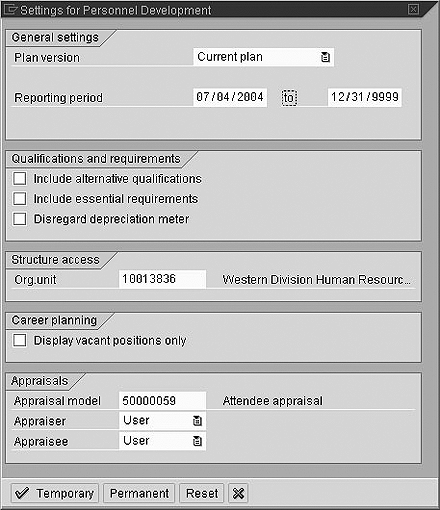
Figure 1
User-specific PD defaults via transaction PPUP
As the name of this feature implies, the client-specific settings maintained here are valid only for the user making them. With the proper authorization for transaction PPUP, users can maintain their own defaults and decide whether these defaults are temporary or permanent. The “temporary” setting is particularly helpful if a user is faced with a one-time task that requires heavy use of a particular value or date range. When defaults are saved as temporary, they are valid only for that current online session. Once the user exits R/3, the settings revert back to what they were before the last temporary settings were saved.
Saving defaults as “permanent” stores the defaults until they are changed again. The “reset” button returns the values to the most recent permanent settings without the user having to log off.
Note
If you use user-specific settings to default an organizational unit, you must also select a plan version on the settings screen that contains the defaulted unit.
Set/Get Parameters
One of the most commonly used defaults in SAP is the set/get parameter, typically referred to as the “user parameter.” User parameters are assigned directly to an R/3 user master record and define data entry defaults, functionality, and system behavior for that particular user only. The values stored in user parameters are client dependent and are in effect until the user or an administrator directly changes them. You access user parameters (Figure 2) from the R/3 menu path System> User profile>Own data or via transaction code SU3.
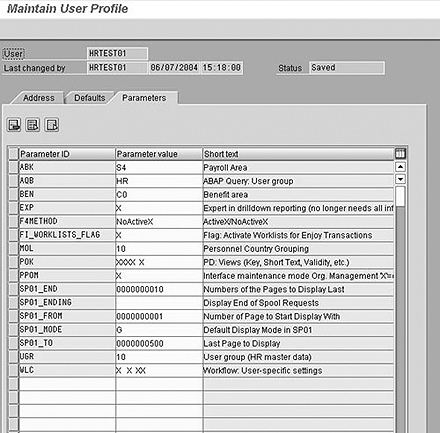
Figure 2
Set/get parameters accessed via transaction SU3
What often frustrates users and system administrators about user parameters is the lack of documentation explaining their use. User parameters contain no individual help text and also have no drop-down menu of possible values from which to choose. Often, it is only through trial and error that a user or administrator discovers the helpful functionality of a particular user parameter. For examples of user parameters, their usage, and their possible values, see Table 1.
| AB4 |
Any two-character string |
ABAP prefix — activates a soft break in the payroll driver. If this parameter is used, time evaluation automatically stops at the break points in your schema or personnel calculation rules. |
| ABK |
Payroll area value |
Payroll area — defaults a value in the payroll area field |
| AQB |
ABAP query user group name |
ABAP query: User group — defaults the specified user group for ABAP query function. Users can change to any user group manually if the default is not appropriate. |
| BEN |
Benefit area value |
Benefit area — defaults a specified benefit area value. This is especially helpful for organizations with multiple benefits areas. |
| MOL |
HR country code |
Personnel country grouping — indicates which HR country code will be used for screen display, user exit performance, configuration views, etc. |
| PER |
Personnel number |
Personnel number (HR) — defaults a personnel number in screens such as PA30 and PA20 that prompt for a value |
| PKR |
Employee subgroup value |
Employee subgroup — used to default an employee subgroup value for master data entry |
| PNALL |
X for active, for inactive |
Display country-specific infotypes — entering a value of X for this parameter allows you to view all country-specific infotypes for your specified country key vector |
| PNI |
HR country code |
Country key vector for country-specific infotypes — the two-character country code used by parameter PNALL to determine which country infotypes to display |
| PPOM |
X for simple maintenance mode, for organization and staffing mode |
Interface maintenance mode org management — entering a value of X here defaults the user’s PD maintenance display to the simple maintenance mode, while a blank defaults the organization and staffing mode |
| SAZ |
Time administrator value |
Time data administrator — When using the data entry view in CATS, all employees assigned to the time administrator you specify in this parameter are selected. This is useful for users who work with a single administrator value. |
| SCL |
X to switch ABAP editor to display mixed case, to remain caps |
Upper and lowercase in source code — Allows the user to control the text display in the ABAP editor, defining mixed case or all caps |
|
|
| Table 1 |
Twelve commonly used user parameters |
|
While users may maintain their own parameters (security permitting), it is often the job of the security administrator or role owner to determine which parameters are assigned to new user roles. A best practice is to create a list of parameters applicable for each role or group of roles in your user population and make this list part of the role documentation. This allows you to ensure consistency in the parameters held by similar users. For example, while most HR users contain parameter MOL to determine the default country version, only a time entry clerk role may contain parameter CVR to default a time-entry data profile.
Finally, while user parameters are assigned to individual user master records, security administrators may also maintain parameters in mass updates. Mass maintenance of user parameters may be performed via R/3 standard menu path Tools>Administration> User Maintenance>User Mass Maintenance or transaction code SU10. Once you are on the mass maintenance screen, select the personnel numbers of the user population you wish to modify and press Shift-F6 or click on the change icon. Next, choose the Parameters tab and enter the parameter IDs and values you wish to modify. Be sure to select the appropriate Add or Remove button before saving your change.
“Holding” Data
While set/get parameter values affect a specific user every time they log into R/3, at times it may make sense to establish temporary user-defined data entry defaults that are only valid for the current online session. For this purpose, R/3 allows a user to hold specific field values on HR infotypes (as well as other module screens). When using the hold feature, each time a user creates a new infotype that contains the held field, the field contents or value that was held appears in the field automatically and there is no need to rekey it.
As an example, let’s assume that you have been asked to input a new infotype 0006 address record using a subtype corporate housing address for 10 employees who are on a long-term assignment. All 10 people will be staying at the same property, so it is redundant to have to rekey the subtype of the corporate housing address along with the same city, region, and postal code for each individual employee. When you key the first entry into infotype 0006 and then “hold” the values that you plan to reuse for the remaining nine employees, R/3 prepopulates those values on the infotype 0006 screen for each subsequent new record you create until you either log off or choose to stop the hold process.
To access the hold data settings, choose the path System>User profile>Hold data from the R/3 menu bar. To hold a specific field value, enter the value in the appropriate field and then choose the Hold data menu option. You can do this for as many field values as you like. When entering infotype data using the hold data option, you are able to override the held value as you key new entries. For cases in which you do not need the ability to override the held value, choose the Set data menu option. Set data also holds your values as you specify, but skips those held fields during data entry so there is no need to tab over them. Finally, to remove the held and set data values, you can either log off R/3 to reset the values or choose the Delete data user profile menu option. This cancels all held and set values without forcing you to log off.
Note
To see if a particular data field has a user parameter associated with it, place the cursor on the field contents you wish to check and press the F1 key. When the help text window appears, click on the tools icon to view the technical information for that particular field (Figure 3). If a user parameter is associated with that field, the name of the parameter is listed under Parameter. Once you know the name of the parameter, you can experiment with it to determine the best way to default field values.
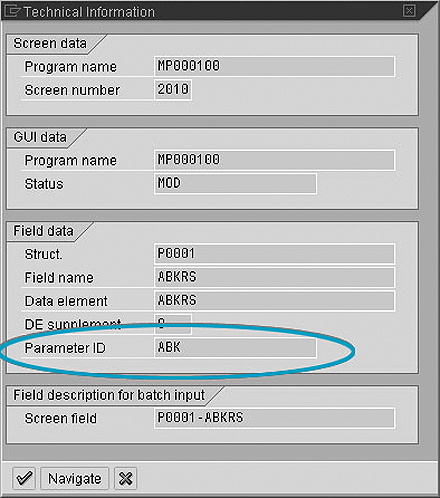
Figure 3
Technical information for the payroll area field showing the user parameter ID
Reader Input
I have found that some of the best tips and shortcuts can be learned by speaking to those closest to the system — the users. This is especially true when working with system elements such as user parameters that are not well defined or documented. My challenge for readers of this article is to submit your favorite user parameters and default tips and tricks. Send them in an email, along with a description of the user parameter and possible entry values, to aj_whalen@yahoo.com. You can also indicate exactly how this parameter makes your life easier. I will compile the list and present a reader’s list of defaults and user parameters in a future issue of HR Expert.
A.J. Whalen
A.J. Whalen has successfully combined more than two decades of global business expertise with in-depth experience in the strategic development, management, and delivery of large-scale projects and education for SAP ERP HCM. Prior to his current role as SAP Marketing Director at Velocity Technology Solutions, he served as lead consultant for several global SAP implementations and engagements as well as an SAP Conference Producer for Wellesley Information Services. A.J. has been invited to speak at nine annual SAP educational events and holds an MBA degree from the Stern School of Business at New York University.
You may contact the author at whalen.aj@gmail.com.
If you have comments about this article or publication, or would like to submit an article idea, please contact the editor.