Upon first running segregation of duties (SoD) reports in SAP BusinessObjects Access Control, management staff can become overloaded with data and assume that the results simply cannot be correct. It is then the responsibility of the owners of SAP BusinessObjects Access Control to prove that the reports are accurate. Step through the process that SAP BusinessObjects Access Control owners can go through to prove that the reports are correct. The steps are specific to SAP BusinessObjects Risk Analysis and Remediation (RAR) version 5.3, as this is currently the most used version. They are also applicable to SAP BusinessObjects Access Control 10.0.
Key Concept
Management staff must be confident that segregation of duties (SoD) reports are accurate in order to prove that controls are in place to prevent fraud or material misstatement. Being able to prove to management staff and auditors that the results are complete and correct is imperative in showing that the company is in control.
SAP BusinessObjects Access Control is a reporting application that depends on the segregation of duties (SoD) rule master data to analyze users’ access in the connected systems. When you are trying to prove that the results of the analysis are correct, your analysis needs to consider both the master data rule set, which is the responsibility of the company, and the processing logic of SAP BusinessObjects Access Control, which is the responsibility of SAP. I discuss both areas of analysis in this article.
SoD Report Concerns
Management has two types of concerns with regard to reporting accuracy. I walk you through validation steps for both of these concerns to prove to management staff and auditors that the results are correct. The two concerns are:
False Negatives
- The first validation check should be to check if there are rules that exist for the system for which the risk analysis is being run. This check has several parts:
a. First, check to ensure that risks are loaded into the system. Go to RAR > Rule Architect > Rules > Permission Rules. Enter the Risk ID that you are concerned with (Figure 1) and click the Search button. The results from this search appear as indicated in Figure 2. If no rules show, risks have not been correctly loaded. Follow SAP Note 1033326 (Risk Analysis and Remediation Rule Upload guidance) to load the rules into your system.
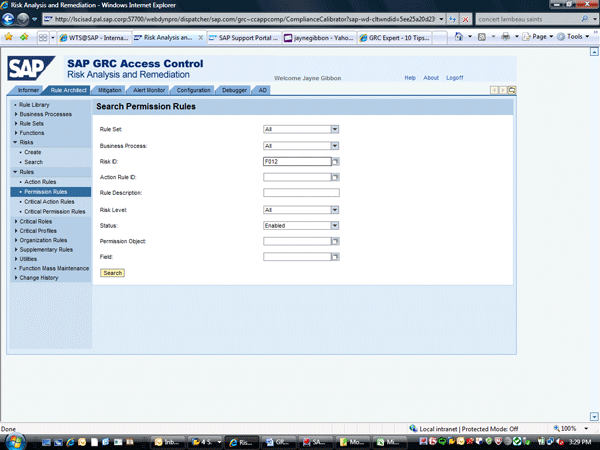
Figure 1
Searching for rules

Figure 2
Result of searching for rules
b. Next, check to see if actions are loaded against the system for which you are running the analysis. To do this, go to RAR > Rule Architect > Functions > Search. Once the function is found, click the change icon that brings up the screen shown in Figure 3. In the System column, ensure that you have the physical system ID that matches the physical system ID for which you’re trying to run analysis. The system must have actions loaded against it in the functions in order for risks to report. If your company uses logical systems to load rules, you need to ensure that the logical system contains the physical system for which you are running rules. To check, go to RAR > Configuration > Logical Systems > Search as shown in Figure 4.
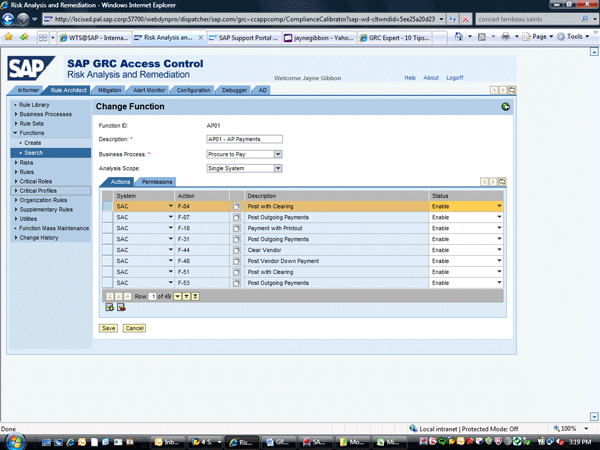
Figure 3
The function screen that shows the systems

Figure 4
The logical system search screen
Highlight the logical system that is contained in the Functions and click the Change button.
This action brings up a screen showing which physical systems are contained in the logical system (Figure 5). Ensure that the system on which you are trying to run analysis is contained in this logical system definition.
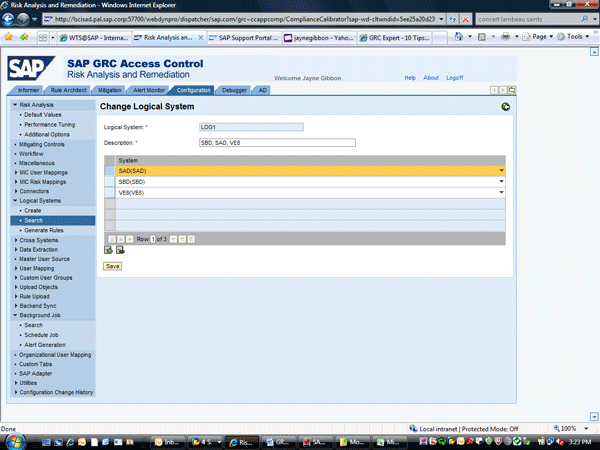
Figure 5
Definition of physical systems that are contained in the logical system
2. If you are confident the rules are created correctly, the next step is to validate the rule against the user’s access using transaction code SUIM in the SAP back-end system. Often, SAP BusinessObjects Access Control is correctly reporting based on how the rule is configured. To perform this analysis correctly, you must have a good understanding of SAP security logic as well as RAR analysis logic. Refer to the following list of SAP Notes for guidance, especially SAP Note 1514544:
- SAP Note 1514544: Explanation of logic between and within permissions
- SAP Note 1358952: Rule Architect — logic of the NOT operator
- SAP Note 1600667: Transactions that conflict with themselves
- SAP Note 1133589: CC 5.x — How to build rules for “all” or “any” values
- SAP Note 1223759: Risk Analysis and Remediation — Permission only Risks/Rules
- SAP Note 1121447: Update to Processing Logic of Rules
See the Validate Segregation of Duties Results: False Negatives
3. If the validation shows that the user has the necessary authorizations as defined in the rule, yet it’s still not showing, the next step is to review Critical Roles and Profiles. First, check to see if the system is configured to Ignore Critical Roles and Profiles. In RAR, go to Configuration > Risk Analysis > Additional Options. If the first option, Ignore Critical Roles & Profiles, is set to No, you can move on to step 4. If this option is set to Yes, however, as shown in Figure 6, then proceed with further analysis in this step. If this configuration option is set to Yes, all the roles defined as critical are excluded from analysis. So if the user has one of these critical roles, it could be the reason the user is not showing up in the report as having a specific risk. To check which roles are configured as critical roles, in RAR, go to Rule Architect > Critical Roles > Search (Figure 7).

Figure 6
Ignore Critical Roles & Profiles configuration

Figure 7
Maintenance of a critical role table
Using transaction SU01 in the SAP system, you can view what roles are assigned to specific users (Figure 8). If the user in question has a role defined as critical in RAR, the authorizations in that role will be excluded from analysis.
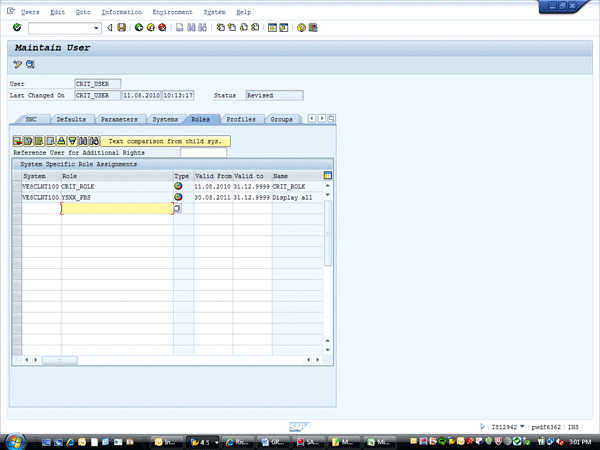
Figure 8
SU01 screen showing roles assigned to a user
There are two options for changing how RAR reports. Option one is to remove the role from the Critical Role table (Figure 7). The second option is to change the configuration of Ignore Critical Roles & Profiles (Figure 6) to No instead of Yes. This step then shows the risks that the user has because of being assigned this role.
4. After you check critical roles and profiles, you need to check the exclusions used when running the report. In RAR, go to Informer > Risk Analysis > User Level. Click the More Options blue link. This step opens additional reporting options as shown in Figure 9. This screen shows several different exclusion types and reporting variables.
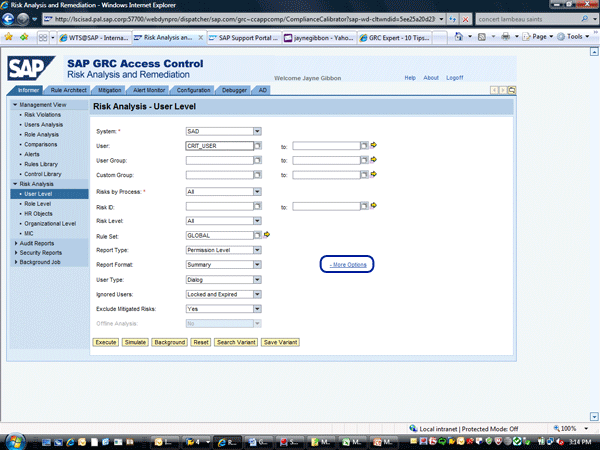
Figure 9
RAR risk analysis with exclusion options
a. Validate that the User Type filter corresponds to the type of user for which the reports are being run. To check the type of the user, go to transaction code SU01 in the SAP system, enter the user ID, and then click the Logon Data tab as shown in Figure 10. The user type as maintained in an SAP system has to correspond to the user type in RAR when the report is being run. In this example, the report does not show any results because the user type in RAR is dialog, while the user is actually a System-type user.

Figure 10
Transaction SU01 with user type field
b. The second piece to check in exclusions is the Ignored Users field. When running the RAR report, you can ignore Locked, Expired, or Locked & Expired users. If the users are one of these exclusions, they won’t show up on the report. To check their statuses, go to transaction code SU01 in SAP and click the Logon Data tab. If the user is locked, this tab shows a lock symbol (Figure 11). The expiration of the user is also maintained on this same tab in the Valid Through field. In this example, the user is both locked and expired. So when you are running analysis, if locked and expired users are ignored, this user does not show any risks.
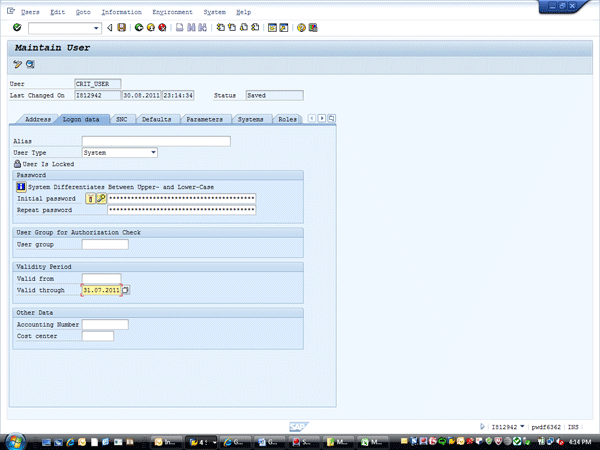
Figure 11
Transaction SU01 with locked and expired status
c. The third variable to check is the Exclude Mitigated Risks. If this is set to Yes, any mitigated risks will not show in the report. Simply change this variable to No to see if this is the reason that the risk is not showing. If this variable is set to No, the risk now displays with the corresponding mitigating control.
d. The final variable to review is the Offline Analysis variable. If this variable is set to Yes, then the report that is displayed is based off the last Batch Risk Analysis executed for the system so that it is not real-time data. If you want real-time data, this variable has to be set to No. (For a full explanation, see SAP Note 1126251 – Risk Analysis and Remediation — Offline vs. On-line Analysis.)
5. There are some known limitations regarding cross-system risks. (For specifics regarding this scenario and what the resolution is, see SAP Note 1390247 – Cross System Risks not reporting — more than 2 systems.)
6. Sometimes the issue is that users who should be shown in the management reports are not showing up. If this is the case, the Exclude Objects section of RAR should be reviewed. The Exclude Objects maintenance window can be found in RAR under Configuration > Background Job > Schedule Job (Figure 12).
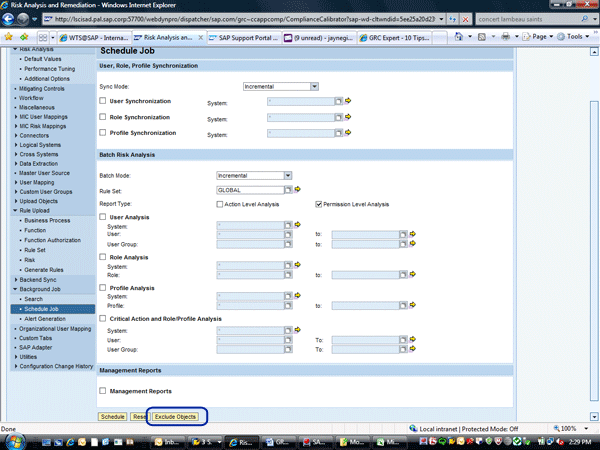
Figure 12
The Exclude Objects button
When you click this Exclude Objects button, RAR brings you to the table showing all the objects that are excluded (Figure 13). This object exclusion table is only relevant for management reports.
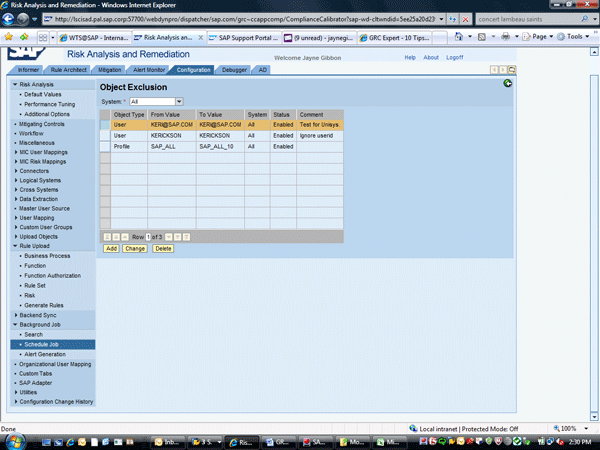
Figure 13
The Exclude Objects table
This functionality was introduced in SAP BusinessObjects 5.3, Support Package 5, as explained in SAP Note 1168120:
“Introduced a new Button 'Exclude Objects' has been provided in Configuration > Background Job > Schedule Job. When clicked, it opens a new screen for defining excluded If a certain user ID is part of this Exclude Objects page, then the ID does not show in the management report even if the user has SoD conflicts. To have the user show in the management report, the ID has to be removed from this Exclude Objects table and Batch Risk Analysis and Management Report jobs executed to repopulate the Management Reports."
(For more information about Exclude Objects functionality, see SAP Note 1327733 – Improper wild card functionality for defining Exclude Object and SAP Note 1510534 – Exclude Objects functionality times out.) users/usergroups/roles/profiles globally When batch risk analysis is run then these users/user groups/roles/profiles will be excluded from the analysis.
Note: When a user/user group/role/profile is defined as excluded, all the offline and management reports violation data for this user/user group/role/profile is deleted. If huge numbers of objects are defined to exclude, using range or wild cards like '*', it may take a long time to delete the violation data that may lead to a time-out situation. It is recommended that in such cases you delete the violation data for these excluded objects manually and then define them in exclude objects.”
If a certain user ID is part of this Exclude Objects page, then the ID does not show in the management report even if the user has SoD conflicts. To have the user show in the management report, the ID has to be removed from this Exclude Objects table and Batch Risk Analysis and Management Report jobs executed to repopulate the Management Reports. (For more information about Exclude Objects functionality, see SAP Note 1327733 – Improper wild card functionality for defining Exclude Object and SAP Note 1510534 – Exclude Objects functionality times out.)
7. The next step is to review the code changes that have been done in SAP BusinessObjects Access Control 5.3 as part of the Support Packages. Various code issues have been fixed that may resolve the false negative situation. The specifics of these code changes are outlined in SAP note 1168120 – Risk Analysis and Remediation 5.3 Support Package (VIRCC) and are summarized in this section.
Support Pack 7:
- Create a function and load data against a logical system instead of a physical system; the Critical Action report under Audit Reports is not working.
- When an authorization object in the rules is enabled with TWO fields and Search Type of AND, the analysis is not returning the right results. It expects all the values to be within the same authorization.
- In RAR, if a user has the same cross-system risk across different cross systems, it only returns the first cross system in which risk exists, and it does not return the risk existing in other cross systems. This results in false reporting of SoD conflicts on SoD requests.
Support Package 7, patch 1:
- Management report numbers are not correct when compared to the back-end number. Specifically, in the user analysis management report, there are negative figures for users with violations, which is not accurate.
- When you are running a risk analysis with SAP* as Exclude Object, the system excludes all IDs that start with SAP, not just the ID SAP*. Refer to the SAP note 1327733 for more details.
Support Package 8:
- The Org Rule Analysis is reporting only one (single) violation (i.e., the first in the alphabetical order for the multiple risks defined under one ORG RULE).
Support Package 9:
- Not all users who have conflicts in Portal systems are being reported if the Portal system ID is chosen. If the system "ALL" is chosen, users are being incorrectly reported. This problem is caused by an issue in user sync from the Portal system.
- Portal violations are not correctly being reported because when UME actions from portals are uploaded through files into RAR, all the actions are being converted into upper case. When rules are built using these actions, they are stored in all upper case. Because Portals actions are case sensitive and have both upper and lower casing, the risks are not returned correctly.
Support Package 10:
- When you are running risk analysis reports, if a range of risks is used, the "to" value risk is not included in the results. For example, if a risk range of B010*-B019* is entered in the report, risk B019* does not show even if the role/user has that risk. It will only show if the range is entered as B010*-B020*.
- Batch risk analysis is not showing any users as having risks even though risks exist. The problem comes when an entry is made in Exclude Objects table to exclude * Profiles. After making that entry when the full sync job for Users is run, the users are also marked as EXCLUDED in VIRSA_CC_GENOBJ table; however, that should not be the case, as only profiles are supposed to be excluded.
- When you are running risk analysis, certain user groups are excluded from the results, even though they are not in the exclusion tables.
Support Package 12:
- Risk analysis results in the ABAP system are not correct if rules are maintained in the back-end ABAP system, the risk is set as a function-level risk, and one of the functions only has transactions (no permissions).
Support Package 13:
- The user is shown as having a risk that the user does not really have. This is specific to cross-system risks. RAR was incorrectly pulling permissions from both systems to see if the user satisfied the rule instead of ensuring that the user had the required permission on each system based on the function permission definition for each system.
- Risks that contain functions that only have permissions defined are not reported correctly when running action level analysis. In Support Package 13, this issue has been fixed. If a function only has permissions defined, the risks that contain that function are now reported when running action level analysis.
- Org rule risk analysis is not reporting correctly. Risks that should be displayed are not.
Support Package 14:
- The detail level report is not showing all permission field values that make up the rule that is being reported. This problem specifically occurs if the function permission definition in the rules is set up with AND logic and the user obtains this specific permission from DIFFERENT roles/profiles.
- Portal risk analysis is not reporting correct results; specifically, users who have the risks are not being reported. This problem is caused when logical systems are used to load actions and permissions for portal systems. The risk analysis would only work if the actions and permissions were loaded directly to the physical portal system. With this Support Package, logical systems can now be used for loading portal actions and permissions.
- Users who have non-org level relevant critical action risks are not reporting correctly when running org rule reports. Specifically, users who should show as having a specific critical action risk are not showing when the org rule report is run. Prior to this support pack, only critical action risks that had org fields enabled were showing when critical action org rule reports were run. With this Support Package, all critical action risks are properly being reported when running the org rule report.
- Risk analysis is not correctly reporting users that do have a risk (false negatives). This problem occurs when an authorization object in the rules is enabled with TWO fields and Search Type of AND, and the rules were created by using the Rule Upload functionality. The 5.3 Support Pack 7 resolved this issue originally, but only resolved it for when functions are loaded manually using Rule Architect. This Support Package applies the same correction for when rules are loaded via Rule Upload in Configuration.
Support Package 15:
- Exclude Objects - Role After excluding objects like *R and then doing the full sync for role, then all the roles of that system gets excluded.
- Cross-system risk is not displayed for physical systems. With Support Package 15, cross-system risk is displayed for both cross systems as well as physical systems.
Support Package 15, patch 1:
- UME risk analysis returns inconsistent results. With this patch, portal/UME risk analysis is working correctly and giving consistent results.
Support Package 16:
- While doing user level risk analysis with a report type of Critical Role/Profile, running the report with "ALL" in the system field returns no results, which is incorrect. The report was only returning results when a specific system was selected. With this Support Package, running this report with "ALL" in the system field returns correct results for all connected systems.
8. One final check is to review the VIRSA_CC_AUTHMAP table. SAP Note 1611006 (Risks are not showing in SoD report that should) summarizes what could cause false reporting if this table has become corrupted. The SAP Note also goes through the specifics of how to check whether this might be the cause of the problem. If this is found to be the problem, the solution is to have the database administrator purge all data from the VIRSA_CC_AUTHMAP table. The database administrator will know how to do this purge, as the exact process depends on the database in use. Once the data is purged, regenerate the rules by going to RAR > Configuration > Rule Upload > Generate Rules as shown in Figure 14. This step repopulates the VIRSA_CC_AUTHMAP table and corrects any corrupted data.
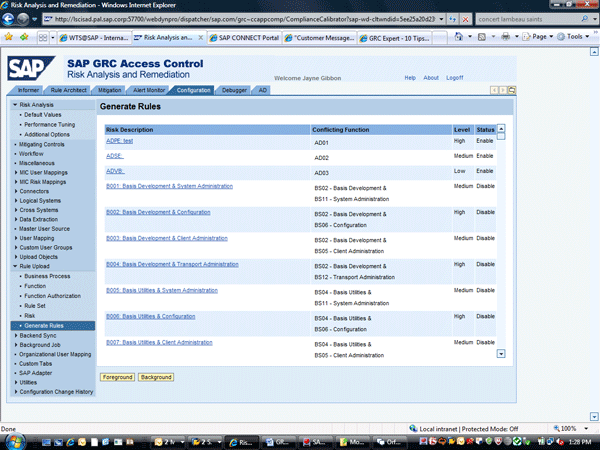
Figure 14
Generation of rules to repopulate table virsa_cc_authmap
9. If after following these steps management still feels RAR is not reporting users that it should, the final step is to open an SAP message using the SAP Service Marketplace under component GRC-SAC-ARA — Access Risk Management. The SAP Service Marketplace can be accessed by going to the Web site at https://websmp209.sap-ag.de/support.
When you are opening the message, it’s important to be very specific as to the exact issue. The following should be included in the problem ticket:
- User ID that is felt to not being reported correctly
- System ID for which risk analysis is being run
- Risk ID that is not being reported
The best documentation includes screen prints showing the exact variables used to run the report and indicates what results are expected, but not shown.
False Positives
- The first step with false positives is to validate the rule against the user’s security. As with false negatives, many times SAP BusinessObjects Access Control is correctly reporting based on how the rule is configured. See the
How to Validate Segregation of Duties Results: False Positives
2. There are some known limitations regarding cross-system risks. See SAP Note 1390791 (Cross-system simulation in RAR has false positives) for specifics if the false positive is related to a cross-system risk.
3. The next step is to review the code changes that have been done in SAP BusinessObjects Access Control 5.3 as part of the Support Packages. Various code issues have been fixed that may resolve the false negatives. The specifics of these code changes are outlined in SAP Note 1168120 and are summarized below:
Support Package 8:
- When a composite role is made a critical role, it's still showing up even when ignore critical role profile is set to Yes.
- RAR is reporting a cross-system risk for a user for which they don't satisfy part of the rule. Specifically, the user is showing as having a risk, but the user does not have the transaction from one of the systems that the rule says they must have.
Support Package 9:
- When a role has * in the TO field of any authorization object, RAR is incorrectly saying the role can do all transactions/permissions. This is not correct. When a role has * in the TO field, it can only do transactions starting with the value in the FROM field to the last transaction (ZZZZZ).
Support Package 10:
- Inaccurate risk showing when running org rule analysis. Risk is showing that the user does NOT actually have. The org rule analysis is not properly analyzing all permissions configured in the rules.
Support Package 11, patch 1:
- Critical permission type risks are not showing correctly after support pack 9. Users are showing as having critical permission risks when they do not actually satisfy all parts of the rule.
Support Package 12:
- SAP* user ID is still showing in batch risk analysis and management reports even though the ID is locked and/or expired.
- Users locked with lock code 32 (locked globally by administrator) are not excluded from analysis even when "exclude locked users" is set to Yes. This support pack is adding this lock code in to the exclusion code.
Support Package 13, patch 2:
- When a new permission/field combination is added to a function and that combination has never been used before in any other function is not generating the permission rules in Support Pack 13.
Support Package 15:
- RAR-Locked and Expired users. Previously locked and expired users were considered in Batch Risk Analysis and displayed in reports. Now, expired and locked users are not considered.
- Risk analysis SAP* ErrorSAP* user is locked in the back end, but it is still shown to have risks.
- Error on detail report for risk — HZ20.RAR informer risk analysis for critical permission summary report shows incorrect results while detail view is correct. This is the permission-only function risk. The object is disabled in the function, but summary report still shows risk.
Support Package 15, patch 3:
- User Analysis Management Report was displaying Incorrect Count in a scenario where user is mitigated and has risk. With this patch, this issue has been fixed.
Support Package 16, patch 2:
- If configuration option “Include Role/Profile mitigation to user” is set to yes, the role mitigation was not applied to user. With this patch, same has been fixed and now role/profile mitigation will be applied to the user if it’s set to "Yes" from configuration.
4. If after these validations it still appears to be a false positive, one final check is to review the VIRSA_CC_AUTHMAP table, similar to what is done for false negatives. Again, please review SAP Note 1611006 and the steps outlined in the False Negative section above.
5. If after following these steps management still feels RAR is showing a false positive, the final step is to open an SAP message using the SAP Service Marketplace under component GRC-SAC-ARA — Access Risk Management. Follow the steps outlined in the False Negative section on best practices for creating this note.
Jayne Gibbon
Jayne Gibbon, CPA, has been implementing SAP applications since 1996 and is currently a director in the Chief Customer Office at SAP. Jayne’s focus is making customers successful with their SAP HANA deployments. She has helped more than 100 customers drive business value with SAP HANA. Prior to joining SAP in 2007, Jayne worked for two multinational manufacturing companies based in Wisconsin. While an SAP customer, Jayne led the very first implementation of Virsa’s Compliance Calibrator, which is now part of SAP Access Control. Jayne’s experience includes internal audit; computer security; governance, risk, and compliance; SAP HANA; and SAP analytics.
You may contact the author at jayne.gibbon@sap.com.
If you have comments about this article or publication, or would like to submit an article idea, please contact the editor.