Learn how to run hazardous substance checks in SAP Environment, Health, and Safety Management using SAP BusinessObjects Global Trade Services. These checks for hazardous substances help gather information from the logistics system and pass it on to the trade compliance system for early warning, reporting, and appropriate corrective actions. They also help with import and export quantity restrictions, as well as import and export restrictions for products for specific countries of origin.
Key Concept
SAP Environment, Health, and Safety Management (SAP EHS Management) helps companies meet EHS compliance regulations. One piece of functionality enables you to run hazardous substance checks for the items in your SAP EHS Management logistics transactions using SAP BusinessObjects Global Trade Services. When you create a compliance document such as a sales order or delivery note, SAP BusinessObjects Global Trade Services creates an equivalent document in the system and performs a check for hazardous materials in SAP EHS Management.
In the process of manufacturing, assembly, or sourcing from a vendor, companies often deal with hazardous or dangerous goods. It is important to identify these parts or goods for tracking and to perform a compliance check for necessary trade regulatory checks for any import restrictions, export restrictions from a specific country, handling of the goods, and reporting to customs authorities.
To keep track of such information, you can use SAP Environmental, Health, and Safety Management (SAP EHS Management), a part of SAP ERP Central Component (SAP ECC). SAP EHS Management includes several components to handle EHS issues, including:
- Basic Data and Tools: Allows you to centrally manage the specifications for all other components (e.g., hazardous materials and dangerous goods)
- Product Safety: Allows you to manage hazardous substances with material safety sheets and labels
- Hazardous Substance Management: Allows you to manage hazardous material and report to authorities
- Dangerous Goods Management: Allows you to manage dangerous goods within your logistics, with relevant checks and documents to go along with the shipment
- Waste Management: Allows you to manage disposal processes, transportation reporting, distribution of waste, and cost of waste management
- Occupational Health: Allows you to perform health surveillance checks with your company and manage questionnaires that employees fill out
- Industry Hygiene and Safety: Allows you to organize safety and hygiene within your enterprise, manage hazards, and report events that could cause safety issues
I’ll go over elements of this functionality in SAP EHS Management and explain how you can integrate it with SAP BusinessObjects Global Trade Services for performing a hazardous substance check.
SAP EHS Management and SAP BusinessObjects Global Trade Services
When hazardous substances in logistics documents are transferred to SAP BusinessObjects Global Trade Services, the system performs compliance checks and updates the status in the SAP BusinessObjects Global Trade Services customs document.
If the status is blocked or not okay, you can stop the next process step. For example, if you have a sales order line blocked due to a hazardous material, you can set up the system to stop the delivery note creation. If there are restrictions on the quantity, the system can check for the quantity that is allowed.
This quantity check can also be applied to imported goods through purchase order (PO) and goods receipts logistics transactions. Use transaction SE37 and enter function module /SAPSLL/CD_PO_EHS_CHECK_RFC_R3 to perform EHS checks on POs (Figure 1).
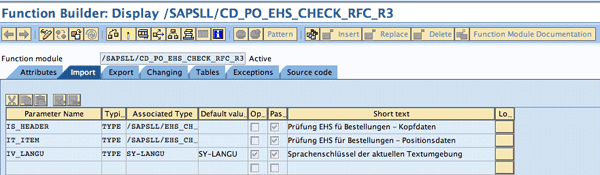
Figure 1
Function module /SAPSLL/CD_PO_EHS_CHECK_RFC_R3 checks EHS with POs
The input parameters have header (IS_HEADER), item (IT_ITEM), and language (IV_LANGU) keys under the Import tab, and the output from this function module provides the return value of okay or block (EV_BLOCK), which you can see on the Export tab (Figure 2).
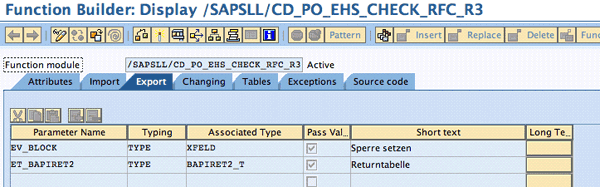
Figure 2
Output value of the function module in the Export tab (Sperre setzen is German for block or no block, Returntabelle is the return value that the system returns)
The /SAPSLL/CD_PO_EHS_CHECK_RFC_R3 function module is blocked and therefore invoked for an SAP EHS Management PO call for SAP BusinessObjects Global Trade Services to check.
Let me walk you through the configuration steps that are required for a hazardous substance compliance check. There are two parts to the setup: first in the SAP EHS Management system and second within SAP BusinessObjects Global Trade Services.
SAP EHS Management Configuration
Within SAP EHS Management, you need to set up configuration for hazardous substance information capture and tracking with the logistics documents. Follow these steps to enable this within SAP EHS Management:
- Step 1. Define a specific scenario
- Step 2. Specify selection criteria for volume tracking
- Step 3. Specify quantity limits and reactions on the overall status
- Step 4. Set up online checks
- Step 5. Specify data transfer in the property tree
- Step 6. Specify regulatory lists
Step 1. Define a Specific Scenario
Follow menu path SAP Reference IMG > Environment, Health and Safety > Product Safety > Substance Volume Tracking > Specific Scenarios > Specific Data Determination per Regulation and Scenario. Here you specify the scenarios or scenario categories for this configuration step. This might apply to the specified scenarios (e.g., import or export) or scenario categories (e.g., sales order and delivery, for export; PO or purchase requisition, for import). Figure 3 displays the settings for import scenarios and for scenario categories. As an example, you can use the function modules mapped to the scenario and scenario categories (e.g., CBRC_PUR_PL_DATA_READ under the Read Planning Data column and CBRC_PUR_CO_DATA_READ under the Read Confirmed Data column) to validate the quantities from purchasing data.
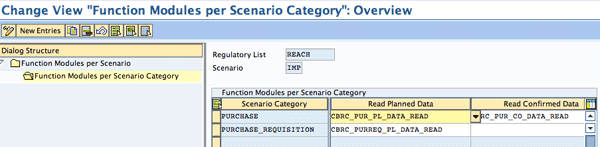
Figure 3
Function modules assigned to the scenario category
In this configuration step, you define the system data determination for individual scenarios and regulations. If a function module is entered for substance determination separately for the material and for the component explosion in an entry without a specified scenario, the components are filled independently of the scenario. Otherwise, they are filled according to the scenario. The advantage is that the component and the main item are checked for hazardous substances and then reported independently.
When defining scenarios, you can delete scenarios that are not required. You should not define new scenarios or change the assignments of scenarios and scenario categories delivered with the system. If you do specify your own function modules when assigning them to the scenario category, their interfaces must match those of the standard function modules.
Figure 4 displays the mapping of the function module (including the Material Determination and Substance Determination) for different scenarios. In this screen, you can see examples of import (IMP), export (EXP), and procurement (PRO) based on the regulation REACH.
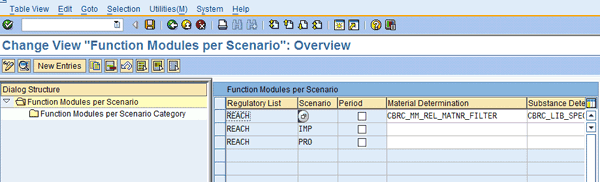
Figure 4
Mapping of a function module to scenarios
Step 2. Specify Selection Criteria for Volume Tracking
Follow menu path SAP Reference IMG > Environment, Health and Safety > Product Safety > Substance Volume Tracking > Specific Selection Criteria for Volume Tracking (Figure 5). Here you specify the selection criteria for the data from system tables (e.g., purchasing, sales, or delivery).
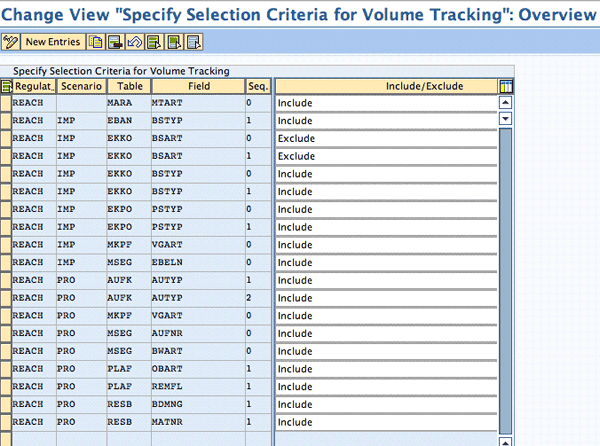
Figure 5
Specification of selection criteria for volume tracking
You can restrict the logistics data that is monitored, and specify, for example, which documents are tracked in substance volume tracking (a configuration step in Hazardous Substance Management in SAP EHS Management). If you want to restrict substance volume tracking and monitoring to specific transactions, you can use the respective values in the Table and Field columns. If you want to restrict substance volume tracking and monitoring in the online checks to specific transactions, add an entry with the table SYST and the field TCODE (Figure 5).
In substance volume tracking, the system reads logistics data from the following tables, depending on the scenario: Scenario, Scenario Type Tables, and Date for Planned Quantities. The date for planned quantities determines the monitoring period and the year to which the quantity is assigned. For processing of confirmed quantities, the posting date in the material document (MKPF-BUDAT) is decisive for all scenarios. For the production scenario (e.g., PRO), only the entries in the material documents table (MSEG) where the order number (AUFNR) is not equal to zero are relevant to substance volume tracking. You can reduce the number of material documents to be evaluated by filtering the relevant valuation types (field BWART).
Use the MARA table to define selection criteria for the materials to be monitored. You can also classify materials in MARA as relevant to substance volume tracking in the classification view of the material master. This classification is read if you click the folder Function Modules per Scenario Category in Figure 4 and enter the standard function module CBRC_MM_REL_MATNR_FILTER under Specify Scenarios in the Material Determination. The options described above for selectively restricting the materials for substance volume tracking affect the transfer of data from the logistics system.
In addition, the data transfer program in the standard system reads selection settings for the ESTRH table (specification headers) from the property tree to filter out specifications that are not relevant to material assignment. Use these filter options to limit the volume of data that is transferred from the property tree to the tables for substance volume tracking.
Step 3. Specify Quantity Limits and Reactions on the Overall Status
Follow menu path SAP Reference IMG > Environment, Health and Safety > Product Safety > Substance Volume Tracking > Specific Quantity Limits and Reactions on Overall Status (Figure 6). Here you specify the quantity limits that apply in the individual regulations for substances that must be tracked. For each regulation, you can specify several quantity thresholds. For the quantity thresholds, you can specify limit values. The general quantity limit value contains the quantity limit values from the regulation. For example, you could have the following quantity thresholds:
- Quantity threshold 1: up to 1 ton
- Quantity threshold 2: 1 to 10 tons
- Quantity threshold 3: 10 to 100 tons
- Quantity threshold 4: above 100 tons
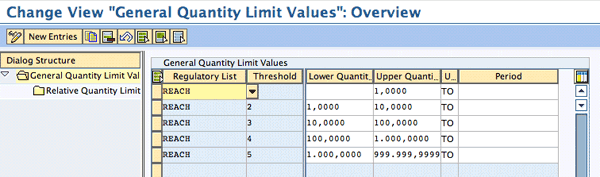
Figure 6
Quantity limit values
When you specify the general quantity limit values, you need to make sure they account for every possible quantity of a substance. The upper limit value for the highest quantity threshold must contain the maximum value possible. If you specify a time period, the limit values apply for this time period, but if you do not specify a time period, the limit values apply for a calendar year. The relative quantity limit value specifies the percentage value of the general quantity limit value that must be exceeded before the system carries out an action.
A general quantity limit value must always exist for a relative quantity limit value that is referred to by the relative limit value. There must always be at least one relative quantity limit value for each quantity threshold. Otherwise, an error message appears in the application log. By specifying different relative limit values for a quantity threshold, you can determine that the system carries out actions in stages. For example, you could determine that the system notifies you when 70% is exceeded and blocks the business process when 100% is reached (Figure 7).
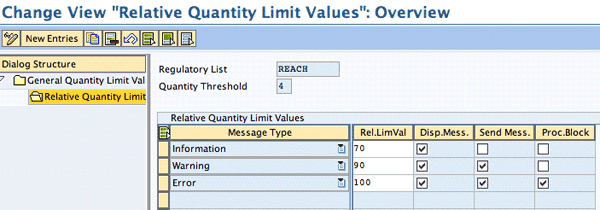
Figure 7
Relative quantity limit values
If the property tree does not contain a specific quantity limit value for a substance, then quantity limit 1 applies. You can specify the quantity that was registered for the substance (registered quantity) in the substance property tree. This quantity is the quantity limit for the substance and overrides the general quantity limit from this configuration activity. You can also specify a substance’s quantity limits, which override the relative quantity limits (the quantity set in the configuration). If you do not specify quantity limits for a substance, the system uses the relative quantity limits from this configuration, whose general quantity limit contains the registered quantity of the substance.
You have specified a substance’s registered quantity in tons in the screen in Figure 6, but you have not defined relative quantity limits. In this configuration, you have defined the four quantity thresholds mentioned above. Then the system uses the relative quantity limits for the substance that you entered in this configuration for quantity threshold 3 and relates the percentage values to 10 to 100 tons. When evaluating the quantity thresholds, the lower limit of an interval is not part of the interval, but the upper limit is.
Step 4. Set Up Online Checks
Follow menu path SAP Reference IMG > Environment, Health and Safety > Product Safety > Substance Volume Tracking > Set Up Online Checks > Set up Online Checks (Figure 8). In the online checks in substance volume tracking, the system checks at different places whether quantity limits are exceeded during certain actions. Thus, a quantity limit can be exceeded if, for example, you create a purchase order, manufacturing order, or sales document for a material to which a substance is assigned that is relevant for volume tracking.

Figure 8
Define function modules for online checks
You set up the following online checks:
- Specify how the system collects the orders and documents relevant to the online checks
- Specify how the system determines the substance quantities relevant for the online checks
- Specify how the system determines whether a quantity limit is exceeded
- Specify how the system blocks follow-on documents and collects and outputs messages when a quantity limit is exceeded
If you specify a regulation in an entry, the entry applies to that regulation only. If you do not specify a regulation in an entry, the entry applies to all regulations. If the system finds two entries (e.g., one with the relevant regulation specified and one without a regulation), it uses only the more specific entry — in this case, the one in which the regulation is specified.
Step 5. Specify Data Transfer in the Property Tree
Follow menu path SAP Reference IMG > Environment, Health and Safety > Product Safety > Substance Volume Tracking > Set Up Online Checks > Specify Data Transfer (Property Tree) (Figure 9). Here you specify how the system determines the substance data it requires for substance volume monitoring and tracking from the property trees and writes the data to the tables in substance volume tracking. You also specify how the system transfers the condensed quantity of a substance to be tracked to the property tree for the substance. This transfer serves to archive the total substance quantity determined over a monitoring period (for example, a calendar year).
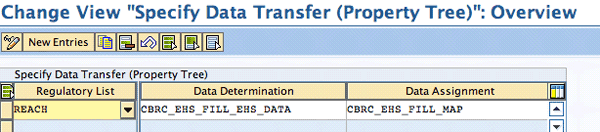
Figure 9
Specify data transfer in the property tree
Step 6. Specify Regulatory Lists
Follow menu path SAP Reference IMG > Environment, Health and Safety > Basic Data and Tools > Specification Management > Specification Master > Specify Regulatory Lists. Here, you create the regulatory lists you require, such as substance lists (Figures 10 and 11). By assigning a regulatory list to an identifier, you specify the regulatory list to which the identifier belongs or from which the identifier was taken. An identifier can relate to several regulatory lists. However, in a special case, one specification can occur under several different identifiers in the same regulatory list. For example, there are specifications that are entered several times in the CAS library under different CAS numbers. You need to ensure that the specification is maintained across the regulation list.
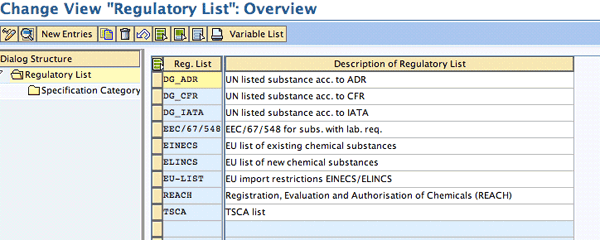
Figure 10
Regulatory list definition
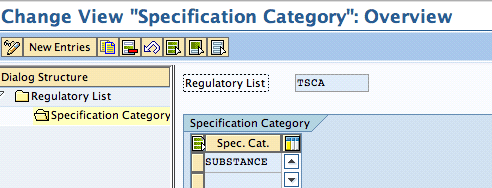
Figure 11
Specification category within the regulatory list
Entries for regulatory lists that have already been used once in the productive system must not be deleted because they are standard and could lead to inconsistency. You can also enter regulatory lists in Basic Data and Tools. For more information, see SAP Library for the Basic Data and Tools component under Regulatory List Management. In the next section, I will discuss the SAP BusinessObjects Global Trade Services configuration steps that enable the compliance check for SAP EHS Management.
SAP BusinessObjects Global Trade Services Configuration
You need to perform these steps in SAP BusinessObjects Global Trade Services to enable the compliance check:
- Step 1. Define legal regulations
- Step 2. Activate legal regulations at country or country group level
- Step 3. Define determination procedure for active legal regulations
- Step 4. Assign determination procedure for active legal regulations
- Step 5. Activate legal regulations
- Step 6. Define control data for hazardous substance check service
- Step 7 (optional). Define alternative Remote Function Call (RFC) destination for SAP EHS Management
Note
SAP BusinessObjects Global Trade Services was formerly known as SAP Global Trade Services or SAP GTS. You may find these terms in the system in menu paths or on screens. Similarly, SAP EHS Management has been known by a number of names, including SAP EH&S and SAP ERP EH&S.
Step 1. Define Legal Regulations
Follow menu path SAP Global Trade Services > General Settings > Legal Regulations > Define Legal Regulations. You’re defining the legal regulation for the hazardous substance check (Figure 12). In the Type of Legal Code field, select Prohibitions and Restrictions from the drop-down list and select Import/Arrival and Export/Dispatch from the Import/Export indicator. Enter the country in Original Ctry of LR (e.g., US).
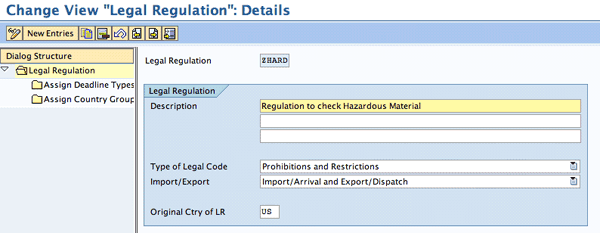
Figure 12
Define legal regulations
Step 2. Activate Legal Regulations at Country or Country Group Level
Follow menu path SAP Global Trade Services > General Settings > Legal Regulations > Activate Legal Regulations at Country/Country Group Level (Figure 13). Here, you need to list all the countries from which you export and into which you import. This country information is included in the logistics documents (e.g., sales order or purchase order), which will be used to perform the hazardous substance check.
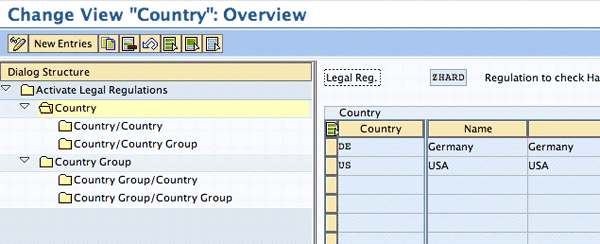
Figure 13
Activate legal regulations
Step 3. Define Determination Procedure for Active Legal Regulations
Follow menu path SAP Global Trade Services > General Settings > Legal Regulations > Activate Legal Regulations at Country/Country Group Level. Here, you specify which determination procedure the system should use to determine the active legal regulation in the hazardous substance check service. The determination procedure contains the rules that the system uses to determine the active legal regulation (Figure 14). Here you select the determination strategy for legal regulation determination. SAP BusinessObjects Global Trade Services has the sequence number 10 for legal regulation at country level and 20 for country group and country level. You can delete the 20 if you want to perform the determination against country level.
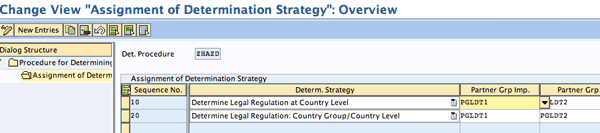
Figure 14
Assignment of determination procedure for legal regulation determination
Step 4. Assign Determination Procedure for Active Legal Regulations
Following the definition of the determination procedure, you need to assign it to the hazardous substance check for determination of active legal regulation. This helps the system determine the legal regulation based on the procedure defined in the earlier step. Follow menu path SAP Global Trade Services > SAP Compliance Management > “Hazardous Substance Check” Service > Assign Determination Procedure for Active Legal Regulation (Figure 15). You can select the determination procedure from the Det. Proc: Legal Reg drop-down list (e.g., ZHAZD).
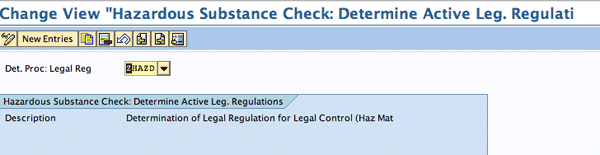
Figure 15
Assignment of the hazardous substance check determination procedure
Step 5. Activate Legal Regulations
Based on the countries you defined in step 2, you need to activate the import or export check for the hazardous substance check service. Follow menu path SAP Global Trade Services > SAP Compliance Management > Hazardous Substance Check Service > Activate Legal Regulation (Figure 16). Select Check: Dispatch/Export (Including Domestic) to check for export transactions and domestic transactions.

Figure 16
Legal regulation activation for import and export services
Step 6. Define Control Data for Hazardous Substance Check Service
Follow menu path SAP Global Trade Services > SAP Compliance Management > Hazardous Substance Check Service > Control Data for Hazardous Substance Check Service (Figure 17). Define the hazardous substance check for the legal regulation (defined in step 1) by checking the Haz. Subst. Check Active box. Then you need to define partner functions for exporting within the Partner Group to Determine Country of Dest. (destination) and for importing within Partner Group to Determine Country of Depart. (departure) drop-down lists (e.g., PGLDT1 and PGLDT2, respectively).
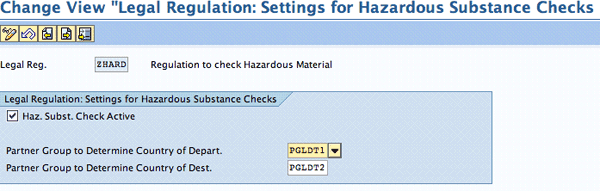
Figure 17
Control settings for the hazardous substance check
Step 7 (Optional). Define Alternative RFC Destination for SAP EHS Management
The hazardous substance check uses functions in SAP EHS Management to perform the checks of business transactions in SAP BusinessObjects Global Trade Services. If you have installed your SAP EHS Management on a system other than your feeder system, configure an IMG activity to specify the RFC destination from which SAP BusinessObjects Global Trade Services can call the hazardous substance check in SAP EHS Management. This is especially necessary in situations in which a company has multiple SAP R/3 or SAP ECC systems, where a dedicated SAP EHS Management system differs from the logistics system.
Follow menu path SAP Global Trade Services > SAP Compliance Management > Hazardous Substance Check Service > Define Alternative RFC Destination for SAP ERP EH&S (Figure 18). Choose the logical system from which you want to transfer the logistics documents, and assign it to the RFC destination for SAP EHS Management.

Figure 18
Define RFC destination for alternative ERP system
When you create a sales order, delivery note, or purchase order after completing the configuration steps, SAP BusinessObjects Global Trade Services creates a customs document within its Compliance Management component and performs the hazardous service check. If a hazard is found, then the system produces a block (or red light). In Figure 19, I ran an example report in SAP BusinessObjects Global Trade Services via menu path SAP GTS Area Menu > SAP Compliance Management > SAP Legal Control Export > Display Blocked Document. The document went through the hazardous service check, and there were no issues. (The two red lights are for legal control license determination, so they do not indicate issues with a hazardous substance.)
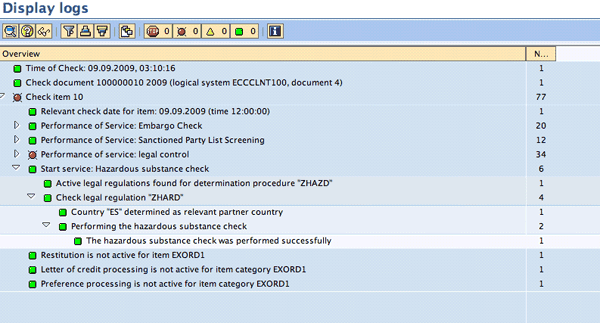
Figure 19
Hazardous compliance check in SAP BusinessObjects Global Trade Services
Rajen Iyer
Rajen Iyer is the cofounder and CTO at Krypt, Inc. Rajen has written several in-depth, best practice articles, white papers, patents, and best-selling books on SAP Logistics and SAP Global Trade Services, including Effective SAP SD and Implementing SAP BusinessObjects Global Trade Services. He is also an invited speaker at industry conferences.
You may contact the author at Rajen@kryptinc.com.
If you have comments about this article or publication, or would like to submit an article idea, please contact the editor.



 Premium