Once you have created an SIS structure, you have to populate it with historical data. The process, explained here, is relatively easy but has a few potential confusion points. These steps will help you upload the data without trouble.
Key Concept
Information structures, commonly referred to as "info structures," are data warehouse components that contain information relevant to applications used for analysis. Every info structure contains a time unit that summarizes information such as monthly sales bookings, characteristics such as customer or material that summarize the information, and key figures that provide values or quantities.
In March 2004, I showed you how to create a user-defined SIS structure. As
I mentioned in that article, the SIS structure is populated going forward — i.e., Sales and Distribution (SD) data
is populated once the configuration is in place. However, it is a common requirement to populate earlier historical
transaction data to this newly activated SIS structure for full and proper use for reporting. For example, if you
activated a user-defined structure in March, then it makes sense to load January and February data so that you are able to
see reports for the full year.
SAP provides many standard programs so that you can upload statistical data from earlier documents to SIS
structures. Table 1 lists some of the programs and transactions for updating statistical data. These
tools are available in IMG under menu path Logistics Information System (LIS)> Logistics Data
Warehouse> Data Basis>Tools>Setup of Statistical Data>Application-Specific Setup of Statistical
Data, as shown in Figure 1.
| RMCVNEUA |
OLI7 |
SIS setup for sales orders |
| RMCVNEUL |
OLI8 |
SIS setup for delivery documents |
| RMCVNEUF |
OLI9 |
SIS setup for billing documents (invoices) |
| RMCENEUA |
OLI3 |
Purchasing setup |
| RMCFNEUA |
OLI4 |
Production setup |
| RMCBNEUB |
OLI2 |
Inventory management setup |
|
| |
| Table
1 |
Standard programs to update statistical data to info
structures |
|
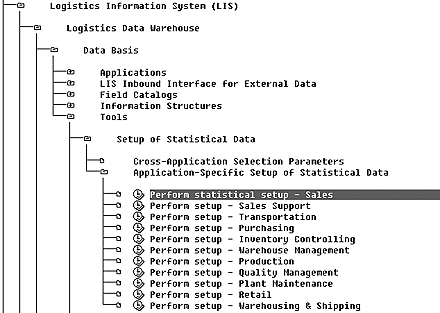
Figure 1
Programs to load statistical data to structures
You must update sales orders before deliveries and billing documents, so choose the activity SIS
setup: Orders (transaction OLI7, program RMCVNEUA) as shown in Figure
2 on the next page to add historical data about sales orders to the info structures. The program
RMCVNEUA is a standard SAP program used to set up statistical data for sales orders (Figure
3).
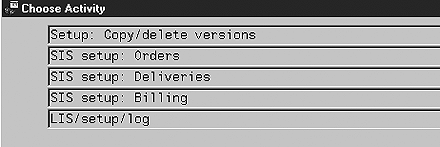
Figure 2
Choose activity to set up statistical data from old sales orders
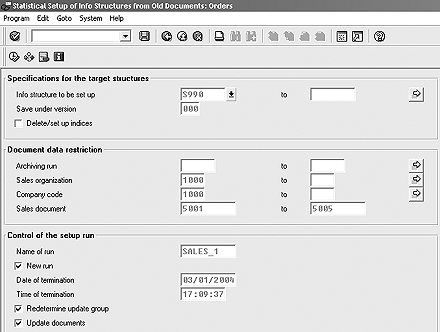
Figure 3
Update statistical data for sales orders
Enter the target structure as the user-defined structure you want to update. For actual statistical data,
use version 000, as shown in Figure 3. For ease of control, enter data restriction criteria so that the
upload is manageable. It is always a good idea to check first with a smaller number of transactions to validate whether
the data was updated correctly.
Assign a name for run of the report, so that in case the program is interrupted, the system subsequently
processes this run. Typically, if you were executing these programs over the weekend, you would want to stop the
processing before Monday morning. If you want the program to stop before a particular time, you can enter the termination
date and time. If you have made any changes to the customizing, it's a good idea to select the Redetermine update
group check box to save your customized settings. When the program is executed, the system updates SIS structures
with statistical data from the sales orders.
In this case, you have uploaded statistical data to version 000 directly. As version
000 is used to store actual statistical data during online transactions, it is highly recommended to
update the statistical data under version &(A, which is a naming convention reserved for the setup of
statistical data. You can update statistical data under a separate version for maintenance purposes. The recommended steps
to populate earlier historical transaction data to a newly activated SIS structure are as follows:
Step 1. Update statistical data under a separate version. Use program
RMCVNEUA to update statistical data for sales orders. Make sure that the version name is not
000 and begins with &( so that you can distinguish the updated statistical data from
real data and, if required, delete this updated statistical data without impacting real data.
Enter the info structure and version as S990 and &(A, as shown in
Figure 4. When you execute the program, it updates statistical data under a separate version,
&(A. You can view the table entries in the info structure table under this separate version as shown
in Figure 5.
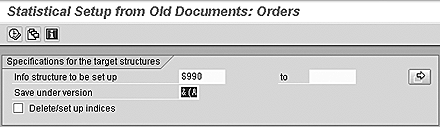
Figure 4
Use a separate version for statistical data update
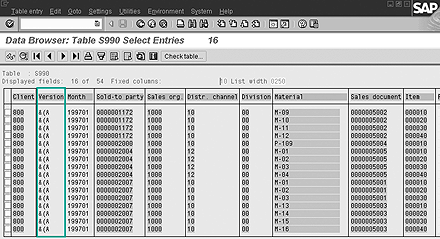
Figure 5
Statistical data is updated in S990 table under version &(A
Step 2. Validate the statistical update. You can use standard analysis programs
(transaction code MCSI, menu path SAP>Logistics>Sales & Distribution> Sales
Information System>Standard Analyses>Self-defined analysis) to validate whether the update occurred
correctly.
By default, standard analysis programs access statistical data from version 000. Set user
parameter MCR to X so that you can enter the version number, &(A in
this case, and run standard analysis programs for your version.
Step 3. Copy the statistical data to version 000. Once you have validated that the
statistical update is correct, you can copy the data to version 000. Program RMCSISCP is
primarily used for copying and deleting versions of info structures (Figure 6).
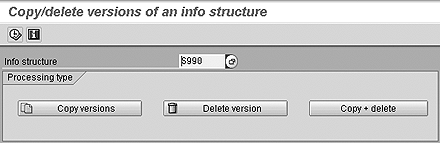
Figure 6
Use program RMCSISCP to copy and delete versions of info structures
Use program RMCSISCP to copy statistical data from version &(A
to 000. As suggested, instead of copying all records for the version, break down the copying
process by entering the copying criteria shown in Figure 7.
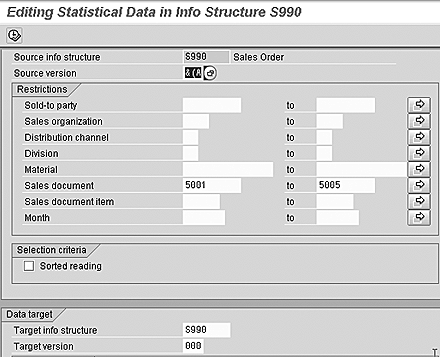
Figure 7
Editing options for copying versions
Once the data is copied to version 000, you can confirm the results using standard
analysis programs as mentioned in step 2 (transaction MCSI, menu path SAP> Logistics>Sales
& Distribution>Sales Information System>Standard Analyses>Self-defined analysis). If the statistical
update of old transactions has completed successfully, you may delete the statistical data from version &
(A.
Although this may sound obvious, it is always a good idea to run the programs for small amounts of data.
You should use extra caution, especially when you delete versions. For better manageability and control, run the setup
programs for small ranges, e.g., execute the program for a range of documents rather than all the documents. This way, you
will be able to validate that the data is updated correctly and will be able to filter out any errors.

Mitresh Kundalia
Mitresh Kundalia heads the SAP practice at Quality Systems & Software (www.QSandS.com), a consulting firm specializing in SAP S/4HANA, SAP General Ledger, and complex System Landscape Optimization (SLO)-type reorganizations. Mitresh is widely acknowledged as a leading SAP expert, with multiple publications and an SAP-PRESS book to his credit. He has published more than 50 peer-reviewed articles and white papers, and he has given presentations at various SAP conferences and events. Mitresh is the chief solutions architect of General Ledger Migration Optimizer (GLMO), a leading product to accelerate and jump-start the SAP S/4HANA and SAP General Ledger initiatives; SAP Data Reorganization Optimizer (SDRO), an SLO-type product for managing complex system landscape reorganizations; and Group Currency Activation and Conversion (GCAC), a product suite to manage introduction of parallel currencies and conversion of data in a live SAP system.
You may contact the author at Mitresh@QSandS.com.
If you have comments about this article or publication, or would like to submit an article idea, please contact the editor.



 Premium
