Importers must monitor and coordinate aspects of the importing process such as permits and admissibility requirements. Find out how SAP Global Trade Solution import functionality helps importers meet changing regulations, inspections, and other demands.
Key Concept
The Global Trade System offers a variety of import features in its Compliance, Customs, and Risk Management components. Importers can move away from the costly procedure of manually maintaining import control processes and use the system to ensure compliance with customs regulations and duty rates as well as electronically file the proper documentation required for imports.
It is the importers' responsibility to ensure imported goods meet admissibility requirements including
proper marking, safety standards, etc. They must also obtain all necessary permits in advance of the goods' arrival,
observe all duty rates when goods arrive, and make sure the all requisite documentation is filed with the proper
authorities throughout the import process.
GTS allows companies to remain compliant with trade regulations as they move goods and services across
boarders. It's a standalone application that can be linked to one or more ERP systems such as R/3 and non-SAP sources. For
an overview of the GTS system, refer to my article "Automate Global Import/Export
Processes Across Your Enterprise with SAP GTS."
Let's walk through some of the more often used import features of GTS to see how the system helps ensure
that customs requirements are met. I will highlight how the GTS Compliance and Customs Management components aid in
ensuring that your importing operations are in line with import compliance checks and allow you to be confident your
company's products will clear customs.
Note
If you have any preferences for trading with certain countries, the Risk Management component in GTS facilitates preferential handling. It also offers a restitution feature for retrieving monies from the customs authority under the appropriate conditions. My focus in this article is limited to the functionality supported by the Compliance Management and Customs Management components, which is used by the greatest number of importers.
Monitor Documents
GTS import functionality includes the Legal Control – Import cockpit in the
Compliance Management component (Figure 1). Access the cockpit directly via transaction
/SAPSLL/MENU_LC_IMP or from the GTS Compliance Management screen.
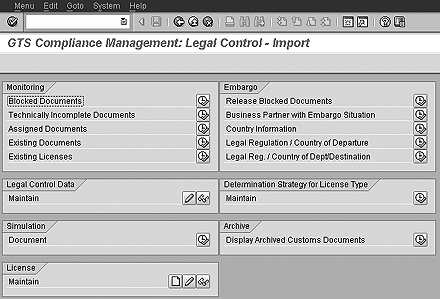
Figure 1
The Legal Control – Import screen with monitoring, license, and embargo options
The Legal Control Import (LCI) screens are set up identically to the Legal
Control Export (LCE) screens in the GTS system. (For more details about GTS export functionality, see "Stay
Compliant with Expert Controls Automatically Using SAP GTS," SCM Expert, October 2004.) The LCE does the export
determination based on the departure country and the LCI does the import control determination by the destination
country's regulations. Every export is an import for the receiving country. In terms of governmental regulations, however,
export and import laws are distinctly different and each have their own unique regulations, which the GTS system allows
you to address.
Much of the GTS system's import feature set is accessed via the main cockpit for import controls shown in
Figure 1. The Monitoring tab offers various options to view import transactions coming from an SAP or a
non-SAP feeder system. You can maintain import-specific licenses in the Maintain section of the
License tab or use the Simulation tab to simulate an import check on transactions. The
Legal Control Data tab allows you to assign an import commodity code, which is a code that controls
import licenses, and the Determination Strategy for License Type tab allows you to develop a license
determination strategy for imports. You can view archived documents with the Display Archived Customs
Documents option under the Archive tab.
Imports from Embargoed Countries
Importers must adhere to United States trade sanctions administered by the Office of Foreign Assets
Control (OFAC). These generally prohibit importing into the US and its territories, either directly or indirectly, most
goods, technology, or services originating in Afghanistan, Cuba, Iran, Iraq, Libya, North Korea, Serbia, or Sudan. Those
designated by the US Secretary of State as promoting the proliferation of weapons of mass destruction and named foreign
terrorist organizations are also under US trade sanctions, as are designated terrorists and narcotics traffickers. Vessels
and aircraft under the registry, ownership, or control of sanctioned targets may not import
merchandise into the United States.
Maintain embargo countries with the Country Information option on the
Embargo tab in Figure 1. If there is an import-specific embargo that doesn't apply to export processes,
you can use the Legal Reg./Country of Dept/ Destination option and define the import leg for embargo
control. With the Release Blocked Documents option, you can view and release embargo documents. Monitor
your business partners under embargo via the Business Partner with Embargo Situation feature.
Import Classifications
Another task that falls to the importer is classification — the act of placing goods into the
correct category. Classification determines how much duty to collect and it is more than simply looking up items in an
index. This complicated process requires applying the General Rules of Interpretation including the section, chapter,
subheading notes, and explanatory notes as needed.
The US International Trade Commission issues the Harmonized Tariff Schedule (HTS) prescribing the
classification of merchandise by product type — animal and vegetable products, or textile fibers and textile
products, etc. All imported goods in the US and many other countries are categorized according to the HTS, and the
importer is responsible for determining imported merchandise classification numbers.
In the GTS Customs Management: Classification cockpit, use the Classify
Products option on the Classification with Tariff Code Numbers tab (Figure
2) to assign classifications to products. Alternately, you can use transaction code
/SAPSLL/PR_CUSTOMS02. You can also use this cockpit to track import
classifications.
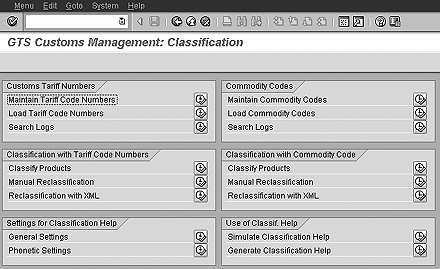
Figure 2
The GTS Customs Management: Classification screen helps sort imported goods
Via the Maintain Tariff Code Numbers option on the Customs Tariff
Numbers tab, you also can maintain classifications or HTS numbers. If you have a content provider such as Federal
Express for tariff numbers or duty rates, you can also use Load Tariff Code Numbers feature to load the
relevant HTS codes into the system.
Figure 3 shows HTS codes in the system arranged by Chapter/Heading/Sub-
heading. HTS codes are valid based on date and are used during the product
classification. You can populate official, commercial, and keyword text for HTS codes. You can also indicate
if the HTS code is country-dependent or independent.
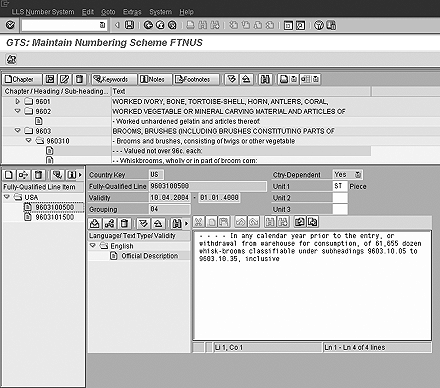
Figure 3
Maintain and assign HTS codes
Duty Rates
Importers must declare the dutiable value of their merchandise. In the US, the customs service does the
final appraisal using several methods to arrive at a value. The transaction value serves as the primary basis for
appraising merchandise. It is the price actually paid or payable by the buyer to the seller for the imported goods. Other
factors may also add to the dutiable value of merchandise, such as packing costs, selling commissions, royalty or
licensing fees, etc.
Custom duty rates are managed from within the GTS Customs Management: Master Data cockpit
(Figure 4) with the Customs Duty Rates tab. Use the master data icon to access the
GTS Customs Management: Master Data screen. If you have a content provider like Federal Express for duty
rates, you can use the Upload Customs Duty Rates option within the Customs Duty Rates
tab.
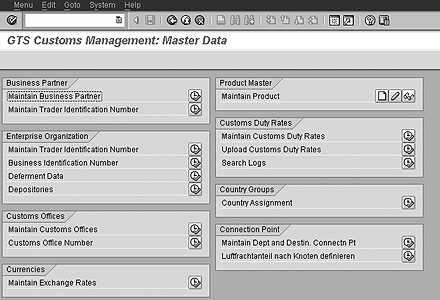
Figure 4
GTS Customs Management: Master Data screen controls duty rates
The Customs Duty Rates tab tracks duty rates for HTS codes and displays the required
details for maintaining them against HTS codes. Using the maintenance screen shown in Figure 5, you can
set Valid From and Valid To dates for a duty, and there are also fields to enter values
for the Calculation Base (weight, volume, or value in percentage), Amount, Price
Unit, and Percentage. The screen also allows you to accommodate any complex rate for calculation
and different notes as descriptions.
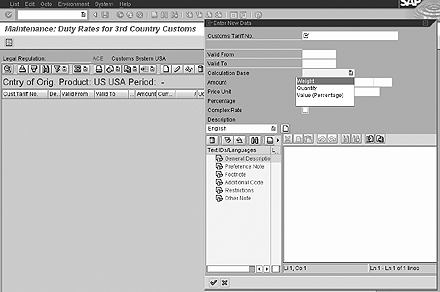
Figure 5
Maintain customs duty rates
When Goods Arrive
Countries don't allow imported goods to legally enter markets until a shipment arrives at the port of
entry and customs has authorized delivery of the merchandise. This normally happens after the importer or the importer's
agent files all the appropriate documents. To expedite the process, importers can present entry papers before the
merchandise arrives, but entry will not occur until the merchandise arrives within the port limits. While this practice
may vary from country to country, it is the norm.
The customs service in the US and many other countries defines "entry" not merely as the arrival of goods
at a port, but also the process of clearing goods through customs. The US customs service sends imported merchandise that
did not clear customs in a timely manner (within 15 calendar days of arrival) to a general-order warehouse to be held as
unclaimed.
As soon as a product ships, importers need to send data for clearance and
prepare for customs. Importers can
supervise customs entry with the GTS Customs Management cockpit (Figure 6). The GTS
Customs Management: Customs Processing for Import/Export screen is accessed from the
GTS main cockpit via transaction code /SAPSLL/MENU_LEGAL, or in the GTS Customs Management
screen, select the customs processing option. This cockpit performs the following actions:
- Manually create a new customs
shipment (export or import)
- View/edit all inbound (import) activities and procedures
- View/edit all outbound (export) activities and procedures
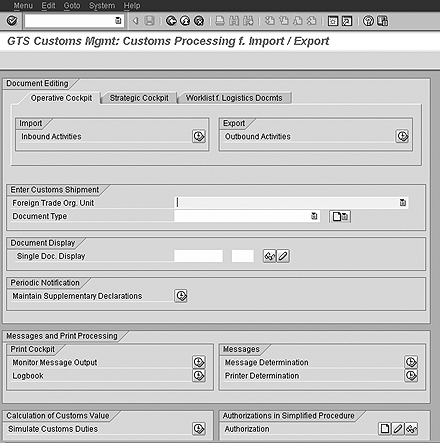
Figure 6
Manage goods arrival with the GTS Customs Management: Customs Processing for Import/Export screen
Activities Processing
Users can view all activities and sort them by activity type across a global enterprise in the SAP GTS
inbound
activities cockpit (Figure 7). It is accessed from within the GTS Customs Management:
Customs Processing for Import/Export screen under the Operative Cockpit tab. In the
Import section, there is an option for Inbound Activities. Here, different users can
quickly view the status of various customs entry types such as Entry for Consumption.
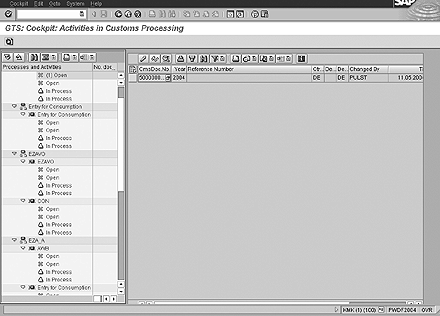
Figure 7
GTS cockpit to process customs activities
Customs Shipment Cockpit
The GTS customs shipment screen allows users to see data that creates a customs shipment document for
inbound processing (Figure 8). Notification is often sent by way of a delivery note, proforma invoice, or
commercial invoice, which is used to notify an importer that a shipment is arriving. Overseas advanced shipment
notification generates customs documentation, which triggers the required transaction to send the import documentation and
electronic file to the broker. This helps the broker review the information before arrival and submit an advance notice to
customs.
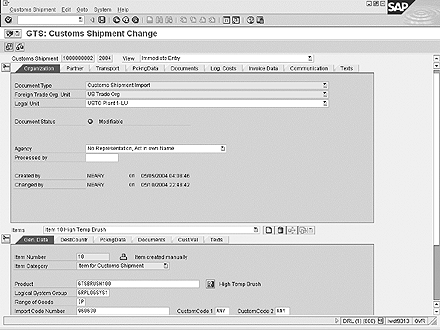
Figure 8
GTS customs shipment entry screen
To view and update the transport details associated to the inbound shipment, use the
Transport tab within the customs shipment screen. The mode of transport (MOT), port of departure (POD),
port of entry (POE), and date parameters required to create the valid customs clearance documentation can be set on this
tab.
Use the Invoice Data tab within the customs shipment screen to view and update the
invoices associated to the inbound shipment. This information is necessary to support the customs documentation.
On the Communication tab within the customs shipment screen, you can view and update the
creation of documents, alerts, and electronic messages associated to the inbound shipment. Users can see the documents
that will be generated for the current shipment and the status of those documents as well as manage the distribution of
the documents and electronic communication to external parties.
Formal Goods Entry
To make or file a consumption entry for imported goods going directly into the US with no time or use
restrictions placed on them, the following documents are generally required:
- A bill of lading, airway bill, or carrier's certificate (naming the consignee for customs purposes) as
evidence of the consignee's right to make entry
- A commercial invoice from the seller that shows the value and description of the merchandise
- Entry manifest (customs form 7533) or entry/immediate delivery (customs form 3461)
- Packing lists (if appropriate) and other documents necessary to determine whether the merchandise is
allowed into the country
Figure 9 shows one of the forms that the customs entry functionality produces —
form CH 3461 for entry/immediate delivery. GTS Customs Management functionality produces this type of
documentation, which can be filed
electronically via EDI with US customs, if you have the Automated Broker Interface with Customs. The same
customs entry can also generate other forms based on GTS data, such as form 7501, entry summary for the treasury.
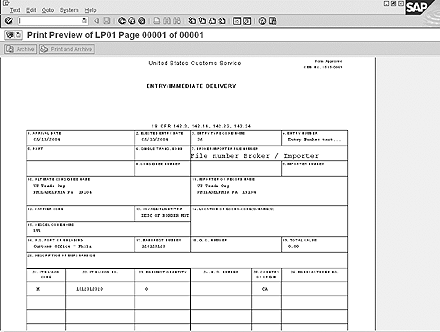
Figure 9
US customs form CH 3461 is just one of many that can be filed electronically via EDI with GTS
Rajen Iyer
Rajen Iyer is the cofounder and CTO at Krypt, Inc. Rajen has written several in-depth, best practice articles, white papers, patents, and best-selling books on SAP Logistics and SAP Global Trade Services, including Effective SAP SD and Implementing SAP BusinessObjects Global Trade Services. He is also an invited speaker at industry conferences.
You may contact the author at Rajen@kryptinc.com.
If you have comments about this article or publication, or would like to submit an article idea, please contact the editor.