You can modify the standard Supply Network Planning (SNP) interactive planning page to better support end users. Here’s how to improve the way that data is displayed so that users can quickly identify critical conditions.
Key Concept
The interactive planning table in SNP is the primary interface planners use to monitor their supply chains. It displays mission-critical information such as inventory levels, manufacturing and transportation schedules, and much more.
In my previous article, I offered seven tips to enhance the look and functionality of the SNP interactive planning table to better meet your individual needs. These tips focused on Customization with data view 1, which provides planners with data per product. You can also modify the SNP interactive planning table when displaying data view 2, which provides capacity load information per resource, by modifying a standard delivered macro.
I'll show how to change the macro so that you can present information in a manner that lets users quickly spot critical planning conditions such as capacity overloads and under loads. I'll also provide you with background information about the data available from data view 2 so you'll understand how it is used, as well as how capacity values are defined and maintained.
Planning in SNP vs. PP/DS
Data view 2 displays the available so-called bucket capacity of resources such as production, transportation, storage, and handling, and their load conditions. SNP-based planning allows planners to use "buckets" of resources, which is different than the time- continuous capacity metric used in the Production Planning and Detailed Scheduling (PP/DS) module.
When planning with buckets, the total required capacity over a certain period (e.g., a day) is compared to the total available capacity for that same period. The period is referred to as the bucket and the available resource "volume" is the bucket capacity. Any plan is feasible if the available capacity is greater than the capacity requirement, even if some capacity requirements overlap within a bucket.
Such planning is not performed in PP/DS. When using time-continuous capacity planning, a plan is only feasible if no orders overlap at any time. The orders are required to line up like pearls on a string, and each step must be completely performed before moving on to the next. Time-continuous capacity planning is normally carried out on production resources only.
Gaps between orders are normal when the production of a product is carried out using several resources. In these cases, one resource must wait for another to finish a certain step. To compensate for the gaps in resource usage, it is possible to define the percentage of time lost in the resource master. This is called the loss factor percentage and it reflects the amount of time usually lost due to production gaps as well as to the time required for setup and teardown of a resource. This planning is usually performed in PP/DS, and not in SNP.
Sometimes mixed resources are used to reduce the amount of master data being maintained. Mixed resources combine those defined with the time-continuous capacity used in PP/DS and the bucket capacity used in SNP. In these cases, data view 2 displays the bucket capacity-related data only.
Data View 2 Customization
Now that you understand the basic concepts behind bucket and time-continuous planning, let's look at how the SNP interactive planning page can be customized to better display the resource capacity.
A standard delivered macro used with data view 2 calculates the capacity load factor and displays load percentages. The macro displays data in a red field whenever an under-load or overload condition is detected (Figure 1). The cell color is gray if neither of the two conditions is true. In the example provided in the sidebar "Define Bucket Capacities," any load of less than 3.6 hours or more than 22.8 hours will be displayed in a red cell.

Figure 1
Data view 2 standard SNP interactive planning table has two fields highlighted
One of this macro's weaknesses is that both under-load and overload conditions are displayed in red cells, so it's difficult to pinpoint the precise nature of a problem at a glance. Moreover, a load of 100 percent is treated as an overload and displayed in red. I find this particularly annoying because the SNP Optimizer calculates a load of 100 percent as the ideal maximum load. The macro, however, then identifies the 100- percent load as an exception in the SNP interactive page.
The macro can be modified to conform to the rules set forth in Table 1, which allow end users to quickly ascertain load conditions by just looking over the planning table. The colors blue, cyan, yellow, and red are displayed only when the available capacity of the resource is greater than zero (Figure 2). If the available capacity is zero or if no load exists, then the field color is grey. A load is designated as Critical if it exceeds 90 percent of the maximum load percentage, and the data is presented in a yellow field. The maximum permitted load is not 100 percent, but rather the Overload percentage, which is set to 190 percent and presented in a red field.
| Load |
None |
Under |
Normal |
Critical |
Overload |
| Percentage |
0 |
<30 |
30-171 |
>171 |
>190 |
| Hours |
0 |
<3.6 |
3.6-20.52 |
>20.52 |
>22.8 |
| Cell color |
Grey |
Blue |
Cyan |
Yellow |
Red |
| Color code |
9 |
8 |
11 |
10 |
6 |
|
| Table 1 |
Define the macro with these values to improve the interactive planning page |
Note
The critical load value is defined in the macro and can be set to any required value.
Modify the Macro
All required key figures are present in the interactive planning table data view 2, so you only need to modify the existing macro to set the colors. Use transaction /SAPAPO/ADVM or follow the menu path Supply Network Planning > Environment > Current Settings > Macro Builder, select the planning book view PBSNP(2), and click the Execute button to modify the existing macro Resource Capacity Level (Figure 3).
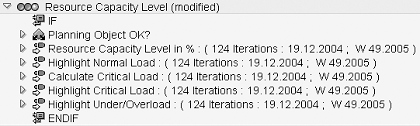
Figure 3
Modify the Resource Capacity Level in % step
As I noted earlier, the resource capacity level macro is the main macro available in the data view 2 used to calculate the capacity load factor. This is the relation between available and used capacity and is represented as a percentage. The macro checks the load factor against minimum and maximum load limits defined in the resource master as part of the Planning Parameters. In this example, the minimum load for the sample resource is 30 percent and the maximum load is 190 percent. These values are set per resource and not in the macro.
Click on Resource Capacity Level in % and modify the settings by adding the steps shown in Figures 4 through 8:
1. Add Initial Colors
The first job is to modify the background color settings in the standard delivered macro. Add the three rows Resource Capacity Level in % (Attributes) = in Figure 4 along with the subsequent definition rows. These set the cell background color default to gray (CELL_BG (9)), except if there is a capacity load but no available capacity, which will cause the cell background color to be displayed as red (CELL_BG (6)).
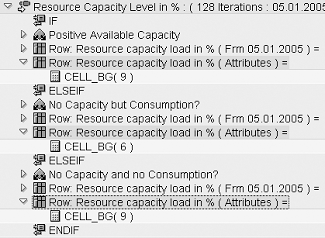
Figure 4
Customize the macro by adding cell background colors
2. Highlight Normal Load
Modifying this step (Figure 5) sets the background color of the row Resource capacity load in % to cyan (CELL_BG (11)) if the available capacity and the capacity load are greater than zero.
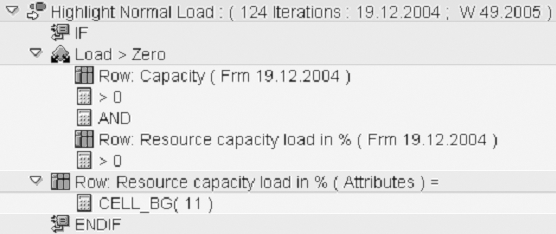
Figure 5
Modify the Highlight Normal Load step to display data in cyan field
Note
Steps 3 and 4 are optional and only required if the critical load for a resource must be calculated.
3. Calculate Critical Load
This step (Figure 6) calculates the critical load of a resource and stores the result in the auxiliary row Critical Load Level. The factor 0.9 defines that the critical load is reached if resource usage exceeds 90 percent. Factors other than 0.9 can be used as required.

Figure 6
Critical load is defined as 0.9 and reached when resource usage exceeds 90 percent
4. Highlight Critical Load
The actual load shown in row Resource capacity load in % is compared here (Figure 7) with the value defined in the row Critical Load Level. If the capacity load is above the critical value and the available capacity is greater than zero, the field color is set to yellow (CELL_BG (10)).
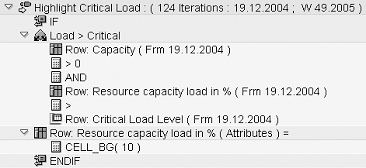
Figure 7
Step compares Resource Capacity load in % with the critical load defined in the Critical Load Level row
5. Highlight Under/Overload
The last step (Figure 8) compares row Resource capacity load in % with the Minimum Load % value defined in the resource master. If the capacity load is below the minimum and the available capacity is greater than zero, the color is set to blue (CELL_BG (8)). If not, then row Resource capacity load in % is compared to the Overload % value defined in the resource master. If the capacity load is above the maximum, then the color is set to red (CELL_BG (6)).
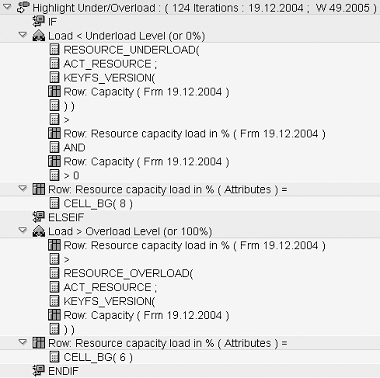
Figure 8
In the final step, modify the macro to determine if capacity is in a under-load or overload condition
Now click on the Generate Macros button to generate the newly created macros. Then click on the Back button and exit the transaction.
Sidebar: Define Bucket Capacities
In SNP, you can use mixed resources so bucket capacity calculations are based on the time-continuous capacity values defined in the resource master. Figure 1 displays the screen for the Standard Capacity tab in the resource master maintenance transaction (/SAPAPO/RES1). It shows the time-continuous capacity definition. The Start field shows 06:00:00 and the End field 22:00:00 so the calculated bucket capacity is 16 hours. Actual values can range from 00:00:00 to 24:00:00 to reflect all time availability.
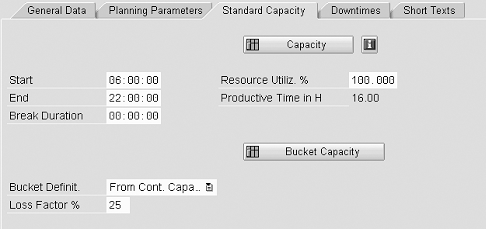
Figure 1
Standard Capacity tab showing time-continuous capacity definition
The Loss Factor % field is defined to provide SNP with a lower capacity than PP/DS, while the other resource capacity definitions remain the same. This provides PP/DS with the additional capacity needed for time-continuous order scheduling (i.e., scheduling considering sequence constraints) as noted in the text of this article. The loss factor value depends on production requirements. It is usually higher in scenarios with longer changeover times between production orders and when running multiple shorter production orders.
The Capacity button activates a pop-up window that displays the time-continuous capacity, while clicking on the Bucket Capacity button displays the bucket capacity. In this example, the calculated bucket capacity is 12 hours — 16 hours minus the 4-hour 25-percent loss factor.
Combining the capacity definition set on the Standard Capacity tab with the values set on the Planning Parameters tab (Figure 2) results in the planning overview shown in Table 1.
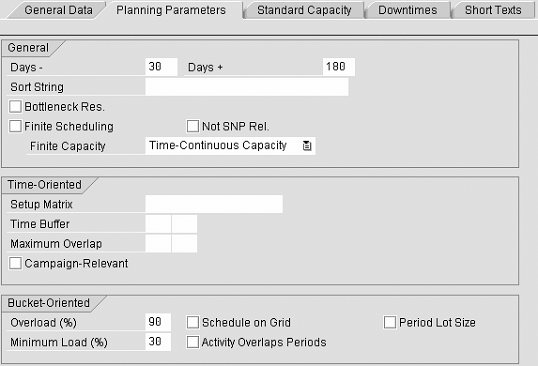
Figure 2
Planning Parameters tab settings are combined with Standard Capacity tab definitions
| Base load |
100 |
12 |
| Minimum load |
30 |
3.6 |
| Maximum load |
190 |
22.8 |
|
| Table 1 |
Example of planning overview |
|

Wolfgang Eddigehausen
Wolfgang Eddigehausen is a highly experienced expert in the areas of business process design, re-engineering, and user adaption, as well as process realization in complex SAP-centric environments. He has experience in solution and enterprise architecture and project management (PRINCE2 certified) domains defining enterprise capabilities with a focus on delivering effective and efficient solutions to organizations. Wolfgang's industry knowledge includes public sector, utilities, mining, distribution, general manufacturing, process and steel industries, and consumer goods.
In most roles his task is not only to architect a solution but also to evaluate and define strategic options with a focus on end-to-end solutions rather than systems. This also includes strong emphasis on the user acceptance through an innovative user experience and mobility enablement.
His career includes successful participation and management of projects in Australia, Europe, India, Japan, Singapore, South Africa, Taiwan, and the US. These projects required interaction with all levels of an organization, from the shop floor or office through to the CxO level. Throughout his career, Wolfgang has put emphasis on a holistic approach bringing together people, processes, information, and systems in project management, architecture, and implementation roles.
You may contact the author at we@avox.com.au.
If you have comments about this article or publication, or would like to submit an article idea, please contact the editor.


 Premium