Watch out for surprises when you integrate Production Planning for Process Industries with Advanced Planning and Optimization. Learn how to best set up recipes and capacity consumption in this environment to avoid errors.
Key Concept
Production Planning for Process Industries (PP- PI) is a planning tool in R/3 and SAP ERP Central Component used in batch-oriented process manufacturing. Just as its counterpart Production Planning (PP) is often used in discrete industries, you can integrate PP-PI into SCM to enhance your planning capabilities.
However, the release restrictions don’t tell you everything you need to know. I’ll describe some of the common problems that arise when PP-PI is integrated with APO in the Supply Network Planning (SNP) and Production Planning and Detailed Scheduling (PP/DS) areas. This document is not a step-by-step guide for a complete solution — you need some basic knowledge about PP-PI and APO. Nevertheless, I will provide cautions for designing your solution, which cover these topics:
- Observations about resources
- Common rules for recipes
- Relationships in recipes and SNP — limitations and solutions
- Capacity consumption in SNP within a PP/DS scenario
The examples in this article are based on ECC 6.0 and SCM 5.0, but you could easily use them with earlier releases. Table 1 contains a list of SAP Notes I reference in the article to guide you through the integration.
| 713429 |
Release restrictions for SAP SCM 4.1 |
| 832393 |
Release restrictions for SAP SCM 5.0 |
| 674838 |
Resource transfer from APO Release 4.0 |
| 826717 |
Renaming resource/work center in connection with SAP APO |
| 934481 |
Error in validity start date |
| 916496 |
Additional Business Add-In (BAdI) method call |
| 793626 |
Maintaining scheduled status in APO |
| 657185 |
Runtime objects (RTO): Sample code for calculating bucket consumptions 4.0 |
| 481906 |
SNP – PP/DS integration (documentation) |
| Table 1 |
SAP Notes for integrating PP-PI and APO |
Observations About Resources
When talking about integrating resources in APO, it’s actually the capacities that are sent to APO and not the resources. This means that the system might convert one resource in ECC to several resources in APO. This could happen if you have a resource that has machine and person capacity categories in which both are relevant to APO.
In ECC, several settings are relevant for the transfer of resources. You maintain the most important settings in transaction CFC9 (Figure 1). The transaction is part of the normal integration setup for SAP APO Core Interface (CIF), which handles the transfer of data between ECC and APO. Pay particular attention to the following three settings:
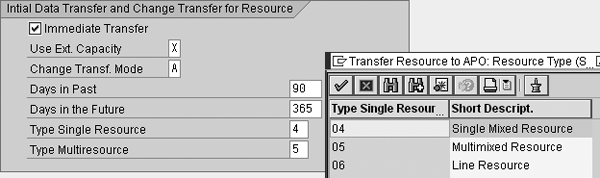
Figure 1
Resource settings in transaction CFC9
Type Single Resource/Type Multiresource. This indicates the category in which resources are created in APO. I recommend using 4 (Single Mixed Resource) or 5 (Multimixed Resource). This way you can use the resource across both PP/DS and SNP because SNP only supports bucket or mixed resources.
Use Ext. Capacity. With the X setting, you can maintain the resource’s APO-relevant data directly from ECC and transfer these settings to APO. This setting adds the APO Resource button on the capacity header to all resources in ECC. When you click on this button, an extra section appears in which you can maintain some basic, APO-relevant settings.
Days in Past/Days in the Future. These settings establish the limit for the period in which time streams are created for capacity data in APO (think “make capacity available”). This setting should match the maximum period for all resources in which you need capacity available. Outside this period, no capacity is available so capacity requirements are not created.
You still need to maintain the specific dates in which APO generates time streams for the resource itself. For example, for some critical resources you might analyze capacity for 360 days in the future, whereas it might be sufficient to analyze capacity for 180 days on the rest of the resources. To maintain the dates on the resource, click on the APO Resource button, which you activated in the previous section. Figure 2 shows an example in which I’ve specified that the system should use the resource for 30 days in the past and 300 days in the future.
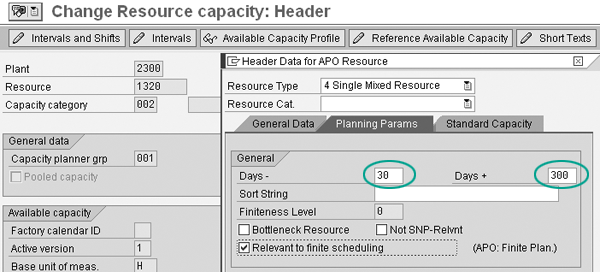
Figure 2
Maintenance of APO resource data
If you do not enter any values for the resource, APO uses values from the table /SAPAPO/RESLCT. If this table is also empty, a value of 360 days in the future is hard-coded in the transfer program for the resource in APO, which means that time streams are created 360 days in the future.
Additional Resource Tips
Tip 1. Check SAP Note 674838, “Resource transfer from APO Release 4.0,” and any related notes for more information about how the resource transfer from ECC to APO works.
Tip 2. The system transfers resource information from the Capacity Planner Group field in ECC to the Planner field in APO. The ECC Person responsible field in the Basic Data view does not have a counterpart in APO. Remember to add the necessary planners in APO by customizing the Specify Person Responsible (Planner) table or maintaining the view /SAPAPO/PLANNER directly via transaction SM30.
Tip 3. Don’t rename resources in ECC. Unless you delete the resource in APO first, the resource transfer from ECC to APO fails. You can implement the fixes in SAP Note 826717, which issues a warning message in ECC when the user tries to rename a resource that is connected to an APO system.
Tip!
Remember to extend the available capacity periodically in APO via program /SAPAPO/CRES_CAPACITY_LENGTHEN. When you create a resource in APO, the system only creates time streams (which store capacity requirements) for the specified period. If you do not extend the time streams for each resource, you cannot analyze the capacity situation in APO because you will be missing time streams.
Tip 4. If you inadvertently rename the resources and can’t change them back, it could be the result of limitations in an external shop floor or process control system. You can update tables directly in APO via a program or directly in transaction SE16 via debugging. I have tried the debugging approach via transaction SE16 and found it quite scary because months later the system returned consistency errors in SNP on the renamed resources. Based on that experience, I do not recommend renaming resources at all. If you must, at least take the time to write a program to perform the change.
Tip 5. Don’t change the number of resources on the capacity header to 0 in ECC — it causes the transfer of the resource to APO to fail. Instead, if you have temporary downtime, change the utilization to 0%, change the factory calendar, or block the resource in APO directly. If you need to reduce the available capacity on the resource to 0 permanently, replace the resource in all recipes and put a deletion mark on the resource.
Tip 6. You can’t change a resource from single to multi, or vice-versa, without deleting the resource and all dependent data in APO. This is especially critical when you increase the number of capacities in ECC to something higher than 1 and the resource was created as a single resource in APO. If single resources have more than 1 capacity, the transfer from ECC fails. Alternatively, it works if you change a multi-resource to only have one capacity, but some users might ask why a multi-resource only has one available capacity.
Tip 7. Changes to the factory calendar in ECC are not replicated to APO directly when you use the external capacity setting. You must first replicate the calendar to APO via transaction RSA1 (program RSIMPCUST), which you should do anyway as part of the normal APO process. Having the same calendars in both ECC and APO results in more consistent scheduling between the two systems, and maintaining them in just one place also means less work and fewer chances of them getting out of sync.
In transaction RSA1, right-click on the source system and select Transfer Global Settings to call the RSIMPCUST program. Select the settings shown in Figure 3 to replicate the factory calendar.
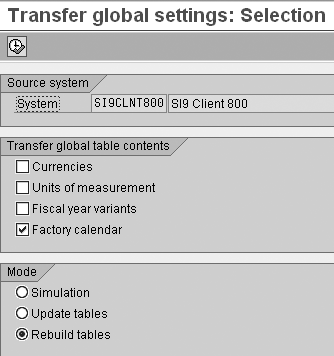
Figure 3
Program RSIMPCUST starts the actual transfer of global settings to APO
In addition to the transfer of global settings, you also need to run an initial load of the resources from ECC to APO using program RIMODINI. If you use the deactivation and activation processes in transactions CFM2/CFM3 instead, the system deactivates the resources during the initial load, but all the orders that the system sends to APO during that period have zero capacity consumption (something you really should plan for ahead of time).
Common Rules for Recipes
When integrating PP-PI and APO, make sure that you follow the established rules for recipe production versions, validity and lot sizing, recipe status, and quantity settings.
Production Versions
It’s a good idea to have a clear strategy for numbering the production versions in ECC so the same strategy is used across materials and plants. This way you can easily control which production versions you replicate to APO.
Here are some examples of groupings:
- Versions 00 to 29: Typical production versions used for actual production
- Versions 30 to 49: Trimmed-down production versions used for mid-term or long-term planning
- Versions 50 to 69: Costing recipes
- Versions 90 to 99: Rework recipes that have recursive bills of material (BOMs). Recursiveness is typically not allowed during stage numbering (low-level code calculation) in APO, so it’s easier to keep the recipes out of APO.
These are just examples — adapt the versions to your own requirements.
Validity and Lot Sizing
Next, you need to synchronize the validity dates on the master recipe and the BOM — the validity date of the BOM must at least have the same start date as your master recipe. Older R/3 releases checked validity in the past, but, as explained in SAP Note 934481, the check is now only performed from the current (system release) date forward.
Also check your lot-size validities for the master recipe and compare them against the material requirements planning (MRP) settings on the material master. It doesn’t really make sense to use a fixed lot size on the material master that is higher than valid lot sizes on the production versions.
You can find many recipe problems using transaction C223 in ECC. Often the transaction is only used to maintain production versions, but there is a nice check function in the transaction that can find some of the items that cause problems during the transfer of the recipe from ECC to APO. All the production versions you transfer to APO should be green (right square shaded in the highlighted box) after you have run the check function, as shown in Figure 4.
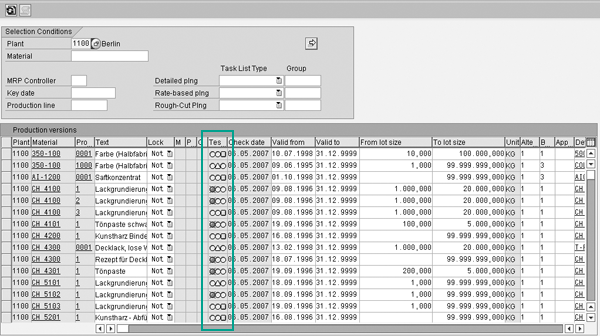
Figure 4
Use transaction C223 to check the production versions
The red indicators (the shaded circles in the highlighted area in Figure 4) identify potential problems in the production version that might cause complications when you transfer recipes from ECC to APO. You should investigate these problems further and correct the errors by referring to the tips mentioned in the previous section. Common problems found in the transaction are inconsistent validity dates between the recipe and the BOM or even a missing BOM.
Note
Recipes are usually transferred to APO as production data structures (PDSs). Technically, you can still use production process models (PPMs), but all examples here are based on transfers as PDSs.
Recipe Status
You should also check the status of a recipe in the recipe header which you can reach either from transaction C223 or directly for a single recipe via transaction C202. In the recipe header, the status is allocated in the Status field, as shown in Figure 5. In this example, the recipe has a status of 4 Released. During the transfer of recipes from ECC to APO, however, you should check how the customizing is set up for the recipe status in view V_T412. You can either access this via transaction SM31 or find the matching customizing transaction called Define Recipe Status.
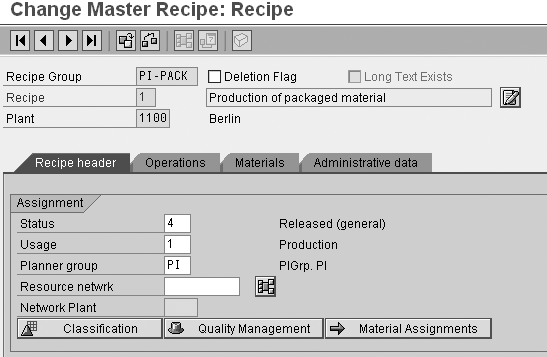
Figure 5
Status in the recipe header
Figure 6 shows an example for the customizing of the recipe status. The transfer program moves recipes from ECC to APO only if the recipe status has the RelInd field selected. If this field is not selected, the recipe transfer fails.
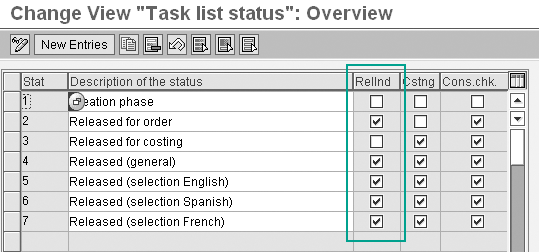
Figure 6
Customizing the recipe status
Quantity Settings
Be sure to keep your eye on the quantity settings for master recipe activities. APO has a more simplified representation of operation times and quantities on a PDS than on a recipe. In APO this means that all operating times are related back to the base quantity on the activity level. Furthermore, all six standard values for one activity in ECC are transferred to two fields on the activity in APO. One has the summarized value for the fixed time and another field has the summarized value for the variable time.
It’s a good idea to have consistent data for the quantities on the BOM and the quantities on the activities. This way APO won’t surprise you by scaling the quantities or operation times in an undesired way.
Relationships in Recipes and SNP
In APO, PDSs for SNP and PP/DS are two different entities and have very different limitations. The system limits which relationships are supported during transfer from ECC. To quote the release restrictions in SAP Note 832393, “Only linear chains of activities are modelled. Relations in recipes will be checked and cause an error if not linear.” Basically, this means that you should only use finish-to-start relationships and that all recipes with more than one phase relevant for APO must have at least one valid relationship.
Tip!
You can implement the correction described in SAP Note 916496 for additional recipe filtering. You may need to adjust the sample code to fit your requirements.
The scenario shown in Figure 7 is not valid because the relationships are not linear. The scenario in Figure 8 is not valid, either, because it does not contain any relationships. However, a scenario such as the one shown in Figure 9 is fine because the relationships are linear.
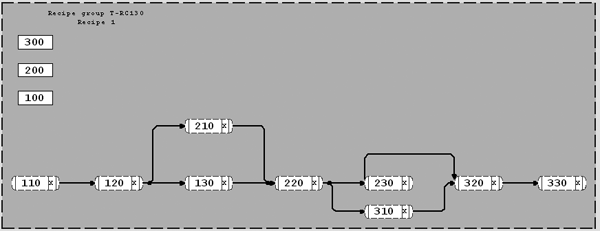
Figure 7
Recipe with parallel and start-to-start relationships
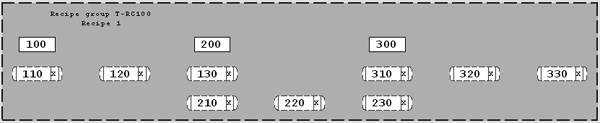
Figure 8
Recipe without any relationships
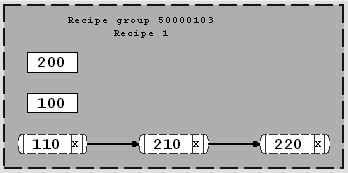
Figure 9
Recipe with only simple finish-to-start relationships
Nevertheless, it is highly unlikely that you have recipes with only linear relationships in PP-PI. You have two choices to remedy this:
- For SNP, keep a separate recipe with only linear relationships and hope that the users stick to the imposed rules for relationships
- Implement a Business Add-In (BAdI) in ECC that remodels the recipe before the transfer to APO
I prefer to implement a BAdI to reduce master data maintenance in ECC. I’ve included a simple example here in BAdI CUSLNTRTO_ADDIN, method CHANGE_CIF_STRUCTURES.
This solution works if you have simple SNP requirements and only make limited use of SNP PDSs. If you use SNP PDSs more often in an SNP heuristic or the SNP optimizer, you should probably adopt a more sophisticated approach in which you remove the correct relationships so that, for example, the lead times are correct. You can accomplish this with more complex coding.
Capacity Consumption in SNP Within a PP/DS Scenario
Often people think that SNP and PP/DS are two separate modules. This might be true if you have a business scenario in which you need to use Capable-to-Match (CTM) or the SNP optimizer. If your requirements in SNP are simpler and you just want to see and manage your capacity situation mid-term, you can think of SNP and PP/DS as integrated components that you use together to combine the medium-term planning in SNP with short-term planning in PP/DS.
This allows you to use PP/DS orders and heuristics to drive capacity data and make it available to SNP for medium-term capacity planning. Additionally, you get a more equal match between your planning situation in PP/DS and SNP. This can be an advantage if you have users who try to compare the capacity situation in SNP and PP/DS. Here is what you need to do to use the alternative approach — SAP Note 481906 contains more information about SNP and PP/DS integration.
Use mixed resources. This way you can reuse the PP/DS resources in SNP.
Have a parallel set of SNP PDSs. Even though all orders created in PP/DS are created with PP/DS PDS, you still need a complete, matching set of SNP PDSs. You need the SNP PDSs if you want to use interactive planning in SNP (transaction /SAPAPO/SDP94) to see which products and locations are causing the load. The system uses the SNP PDSs to find and show the relevant products and locations. The system still pulls capacity for a specific order from the PP/DS PDS.
Allocate PP/DS orders. This allows you to pull capacity in SNP for both planned and process orders. If you don’t use the normal process in PP/DS to allocate (scheduling) process orders — such as in the planning board — you can implement the procedure in SAP Note 793626 to allocate all orders sent from ECC automatically.
Create bucket capacity for PP/DS PDSs. SNP uses bucket capacity to calculate capacity. In standard APO, PP/DS PDSs don’t have bucket capacity calculated for mixed resources. You can implement a BAdI in /SAPAPO/CURTO_CREATE so the system calculates a bucket capacity for PP/DS PDSs. See SAP Note 657185 for the sample code to perform this.
To see if the PP/DS orders calculate bucket capacity correctly in APO you should first check the PP/DS PDSs, then the order in the product view, and finally the capacity consumption in SNP interactive planning.
First use transaction /SAPAPO/CURTO_SIMU to access the PP/DS PDSs. Figure 10 shows an example with calculated bucket capacity on the PP/DS PDSs. In the CapacityRequirements section, the chosen activity has a variable bucket capacity of 120 seconds for one piece, as shown in the second ResCons(V) field.

Figure 10
Bucket capacity on the PP/DS PDSs
Next check the PP/DS order in the product view. Access the product view via transaction /SAPAPO/RRP3 and open the details for a PP/DS order. The example in Figure 11 uses the same PP/DS PDS from Figure 10 and the order quantity is 1,000 pieces. As shown in Figure 11, the system calculated the bucket capacity in the BucketCap. field as 120,000 seconds, which equals 33 hours. This is correct because the bucket capacity on the PP/DS PDS is variable at 120 seconds per piece and the order quantity is 1,000 pieces.

Figure 11
Bucket capacity for a PP/DS order in the product view
Finally you should check the capacity consumption in interactive planning SNP, using transaction /SAPAPO/SDP94. The example in Figure 12 uses a selection which only includes the same resource from the example in Figure 11.

Figure 12
Capacity consumption in SNP interactive planning
As you can see in Figure 12, the order I used in Figure 11 is split over four days. If you summarize the values in the Capacity Consumption field, it is the same 33 hours as in the order from Figure 11. This means that the bucket capacity calculation in SNP works correctly, even though I used a PP/DS order.
Jan Lorenzen
Jan Lorenzen works as a senior consultant at Implement A/S. A six-time Danish Management Consulting Award winner, Implement A/S aims to set standards for implementation and value creation in cooperation with their customers. Jan has a master’s degree in industrial management.
You may contact the author at jlo@implement.dk.
If you have comments about this article or publication, or would like to submit an article idea, please contact the editor.



 Premium