Learn how number range buffering can improve the performance of your SAP NetWeaver BI or SAP BW system.
Key Concept
By buffering the number ranges, the system reduces the number of database reads to the NRIV table, thus speeding up large data loads.
The SAP BW system uses number ranges when loading master data or transactional data into BW. The system uses a unique master data number ID for each loaded record. Each new record reads the number range table NRIV to determine the next number in sequence. This ensures that there are no duplicate numbers. Not using unique number range values could compromise the data’s integrity.
Number ranges can cause significant overhead when loading large volumes of data as the system repeatedly accesses the number range table NRIV to establish a unique number range. If a large volume of data is waiting for these values, then the data loading process becomes slow.
One way to alleviate this bottleneck is for the system to take a packet of number range values from the table and place them into memory. This way, the system can read many of the new records from memory rather than repeatedly accessing and reading table NRIV. This speeds the data load.
A bottleneck can occur with both master data and transaction data. When the system loads new master data, it establishes a unique system identifier (SID) value to uniquely identify the master data record. By contrast, when the system loads transactional data into an InfoCube, the system must create unique dimension identifiers called DIM values. Like the SID values for master data, these DIM values establish a unique identifier of each transactional data value within the InfoCube dimension. The system gathers the last value from the NRIV table each time it adds an entry into an InfoCube dimension, and these multiple reads to the NRIV table slow large data loads.
You can set number range buffering for either or both the master data (SIDs) and dimension table (DIMs) to increase performance. Number range buffering helps when loading large volumes of data, but adds little if any performance improvement on smaller master and transactional data loads. Typically, you should set it for initial large data loads and turn it off once the load is complete. You can leave buffering on indefinitely if high volume loading occurs for all master or transactional data loads.
Tip!
As a rule of thumb, buffering starts to become useful when data volume exceeds 100,000 records.
Buffer Master Data SID Values
Determine the Number Range
To buffer the number range for SID records when loading master data, you must first determine the number range of the InfoObject you want to load. Use SAP standard function module RSD_IOBJ_GET via transaction SE37.
Fill in the function module name RSD_IOBJ_GET and press the F8 key to execute the function module (Figure 1).

Figure 1
Transaction SE37 runs the SAP function module RSD_IOBJ_GET
After pressing F8, enter the following values on the screen shown in Figure 2 (you can leave the rest of the fields blank):
I_IOBJNM = InfoObject name (in my example, 0EMPLOYEE)
I_OBJVERS = A
I_BYPASS_BUFFER = X

Figure 2
Enter the values for your InfoObject
Press F8 to execute. The system shows all information for the InfoObject (Figure 3). To see the number range object, double-click on the E_S_VIOBJ field, scroll to the right several screens, and look in the NUMBRANcolumn (Figure 4). This shows SAP’s unique internal identifier for this InfoObject, 0006001. You can use this value to look up the number range value for buffering — I’ll further explain this in the next section. Use this function module to look up all InfoObject number ranges anywhere you expect large volume data loads.

Figure 3
Information from function module for InfoObject 0EMPLOYEE

Figure 4
The NUMBRAN column shows the number range value
Set Up Buffering
Set up the buffering using transaction SNRO. Take the value in the NUMBRAN field and add the prefix BIM. In the example above, the value becomes BIM0006001. Enter this value in the Object field and click on the change icon or press F2 (Figure 5).

Figure 5
Add the prefix BIM to the value from the NUMBRAN field in Figure 4
To check the current buffering settings, look at the tab in the middle of the SNRO screen labeled Customizing specifications. If the system does not currently use buffering, you see the text Number ranges not buffered. Otherwise, the buffering parameters appear. To set up buffering, from the menu at the top of the SNROscreen, choose Edit>Set-up buffering>Main memory (Figure 6).

Figure 6
From transaction SNRO, follow menu path Edit>Set-up buffering>Main memory
The system automatically places a checkbox in the Main memory buffering field and prompts you to enter a buffering value. Enter a value in the No. of numbers in buffer field (Figure 7).

Figure 7
Enable number range buffering to read the number range table every 10000 records for this InfoObject
Note
Never set buffering on the InfoObject 0REQUEST. This is a special InfoObject used for data loads and could cause the system to lose data packets if buffered.
When loading ODS tables (if the ODS is enabled for reporting), the system also creates SID values for characteristics unless you’ve already established those values. For any high-volume ODS with values containing a large number of unique master data values, you should buffer the InfoObject number ranges or face slower performance.
The system’s memory stores a number of records equivalent to the number in this field. For example, for a value of 10,000, the system reads the number range table every 10,000 records. When loading a table with one million records, the system would only access the NRIV table 100 times, versus one million times without buffering enabled. I usually take one percent of the data volume and place that value in this field. For a one million row table, I set the value to 10,000.
After setting and saving this parameter, the buffered table is now immediately ready to load without logging off or restarting. You must individually configure each system where data loads occur. These settings remain until turned off. Thus, after a large initial data load, I recommend that you manually turn off buffering if subsequent loads are smaller. To turn off buffering, go back into SNRO, enter your number range, and choose Edit>Set-up buffering>No buffering.
Buffer Transaction Data DIM Values
Buffering the number ranges for dimension values allows a faster load into an InfoCube. The system establishes a unique DIM value for each unique value added to a dimension of an InfoCube. Thus, data load performance may improve for those dimension tables that have high volumes if you enable buffering for the dimension table number range.
Remember, this is buffering for the dimension table, not the fact table, so you must first estimate the number of entries that BW will add to each dimension table by looking at the transactional data. Dimension tables that generate very large numbers of unique records are good candidates for buffering. You must individually set each dimension table to buffer.
Tip!
For high-volume dimensions, it may also make sense to set them to line-item dimensions to increase loading performance. This would improve the data load performance without buffering. For more information, see my article, “
Better Star Schema Design Means Better Performance.”
Determine the Number Range
To buffer the number range for DIM records when loading InfoCube data, first determine the number range of the dimension you plan to load. Use function module RSD_CUBE_GET and transaction SE37 (Figure 8). Press the F8 key to run the function module.

Figure 8
Use transaction SE37 to run function module RSD_CUBE_GET
Fill in the parameters as follows (you should leave the rest of the fields blank):
I_INFOCUBE = InfoCube name (in my example, 0PA_C01)
I_OBJVERS = A
I_BYPASS_BUFFER = X
Press F8 to accept the values and run the function module (Figure 9). To see the number range objects for the dimensions, double-click on the E_T_DIME field, scroll to the right, and look in the NUMBRAN column. See Figure 10. This is the number range entry for this dimension table.

Figure 9
Results of running the function module RSD_CUBE_GET on InfoCube 0PA_C01

Figure 10
The NUMBRAN column in E_T_DIME shows the dimension number range value
Tip!
You can use the program SAP_INFOCUBE_DESIGNS to find the size of each dimension in your InfoCube. Run this program using transaction SE38.
Set Up Buffering
Now you are ready to set up the buffering for the dimension table(s). Use transaction SNRO, take the value from the NUMBRAN column in Figure 10, and add the prefix BID. In the example above, use value BID0002489 to buffer the second dimension shown. Enter this value in the Object field of transaction SNRO and click on the change icon or press F2.
Change the dimension table buffering by choosing Edit>Set-up buffering>Main memory. Again, I recommend using a value of one percent of the intended data volume loaded into the dimension as the buffering value. Buffer each of the high volume dimension tables (Figure 11).
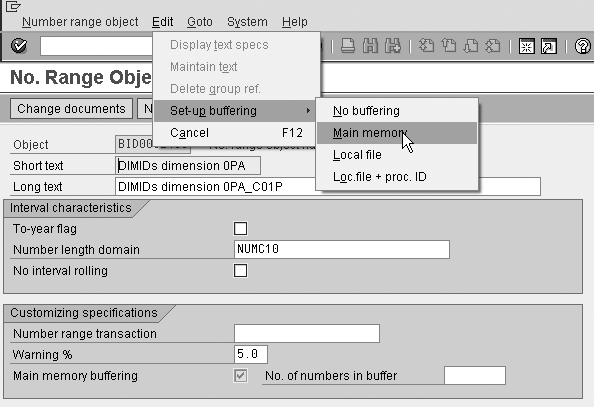
Figure 11
Buffer dimension number ranges using transaction SNRO
Tip!
Never enable buffering on the package dimension. This is a special dimension to record each data load. SAP does not recommend buffering this dimension.
Once high volume data loads are complete, you can turn off number range buffering. Go back into transaction SNRO, enter your number range, and choose Edit>Set-up buffering>No buffering.




 Premium