Learn how to write dynamic actions to automatically create records and quickly identify and resolve HR infotype debugging issues that can sometimes occur.
Key Concept
Dynamic actions are an effective way of adding or updating HR infotypes. During a standard HR business process such as hiring, promoting, or terminating, there is always a need to automatically create a record to reduce the effort for the user as well as to enforce the standard used in the organization so that the data is accurate. For example, every salaried staff needs to have a 5X8 weekly work schedule, which is essential for other SAP processes such as time capture. The hiring administrator can be asked to create this every time a new salaried employee is hired. However, an easier way is to create this record automatically for salaried employees through dynamic actions every time a hire action is performed in the system.
Although dynamic actions are very effective, they can be a challenge to debug. Only one table — T588Z — has all the dynamic action statements. It is not possible to split the logic into multiple tables so that it is easily readable. If complex scenarios are implemented using this SAP mechanism and they are not working well, it becomes very difficult to figure out where the problem lies. This is particularly true if the dynamic actions are a part of a global implementation that incorporates logic for different countries for the same infotype in the same table.
I am going to explain how the debugging process can be made simple, so that the problem can be diagnosed and resolved quickly. For example, salaried staff are supposed to be assigned a 5X8 work schedule, but they have been assigned a 4X10 instead by the dynamic action routine. It is 1,000 lines long, has evolved over the last 10 years, and has very little documentation. Several lines seem to assign the 5X8 schedule, but you really don’t know which line is being executed in this specific instance. If you knew you would find out what is causing this issue. I am going to discuss how you can get to the bottom of this issue by:
- Structuring the code
- Using debugging techniques to identify the code that is not working correctly
Note
This article does not cover basic concepts of how to write dynamic actions. For more information about how to write dynamic actions, refer to standard SAP documentation or reference previous articles about dynamic actions in the knowledgebase.
Step 1. Structure the Code
Laying out the code in a way that makes it easy to read is important to help future debugging efforts. Here are a few simple tips to do that:
- Determine the best possible place to call the code
- Separate the logic in “chunks” by rules for selection
- Include a check for country code for all country-specific rules
- Space out line numbers
- Introduce comment lines that identify each group
I explain these tips in more detail below.
Determine the Best Possible Place to Call the Code
First, identify the infotype. For example, if you want to create a work schedule, the infotype is 0007. Then think about the dependency of this piece of information on other data items. If you want to write a 5X8 work schedule for all salaried employees, you start by identifying that an employee is salaried. Typically, this information is stored in the employee subgroup. This is entered in infotype 0001. Therefore, the work schedule creation dynamic action must come during or after the creation of infotype 0001. Otherwise, the system is not able to identify the correct work schedule for each employee.
The dynamic action is triggered after infotype 0001 has been populated. Infotype 0001 is populated automatically from infotype 0000. Infotype 0002 follows this immediately with information such as first and last names and date of birth. In fact, the first field in a dynamic action line is the infotype from which the action is launched. In this case you have several choices for launching this action:
- Infotype 0000 (since it automatically creates infotype 0001)
- Infotype 0001
- Infotype 0002
One point to remember here is that the infotype screen that launches the dynamic action should not be in background mode. Thus, in the above example, if infotype 0001 is created from infotype 0000 in background mode, infotype 0001 cannot be the launching infotype for infotype 0007.
Separate the Logic in “Chunks” by Rules for Selection
The key word here is selection. Each dynamic action begins with a selection of records to determine if the action should be launched. This is usually determined by a business rule. Grouping by business rule helps you find the piece of code easily when you execute the dynamic action. For example, if the business rule is to create a 5X8 work schedule and a standard salary benefit group in infotype 0069 for a salaried employee, it would make sense to keep them together since they would require the same fields for selection and would logically be placed under the same launcher infotype.
Include a Check For Country Code For All Country-Specific Rules
Sometimes you need a separate rule for each country. In a global system, the dynamic action is going to trigger for all countries, since there is only one table that stores all dynamic actions (T588Z). Thus, for a global system, one must check the country code before executing the action. Even if the action applies to all countries, it is a better practice to include this check if there is a possibility that a country that has not gone live yet may not use this rule when it goes live in the future.
Space Out Line Numbers
The only way you can identify a dynamic action statement is by line numbers within infotypes. This line number is a critical piece of identification for a rule that is not working right. As part of debugging, you may have to introduce new lines. The SAP system automatically sorts the line numbers in ascending sequence within each infotype and executes the actions in that sequence as well. Therefore, it makes sense to keep some gaps between lines so that inserting a new line does not upset the original order. Numbering lines in increments of five or 10 is thus a recommended practice.
Introduce Comment Lines that Identify Each Group
Comment lines are great for debugging dynamic action code. It is common for configurors to mark both the start and the end of the rule using comment lines. Once the Function Code field is blank, the system treats the whole line as a comment. Since a null or blank value in the Function Code is not such a great character for visual recognition, I recommend an asterisk in this position to separate out the comment lines from the code.
Step 2. Debugging Dynamic Actions
The techniques below are ABAP techniques that ABAP programmers often use for debugging complex lines of ABAP code. The questions that you need to answer are:
- Where did the dynamic action fail?
- What was the value of the different data items when it failed?
The system never tells you directly why something failed, but the answers to the two questions above are critical to identifying the reason for the problem that is being investigated. Here is a simple example to demonstrate the debugging technique. Let’s say the dynamic action inserts the date infotype (0041) when you are in infotype 0002. The code for this action looks like what you see in Table 1.
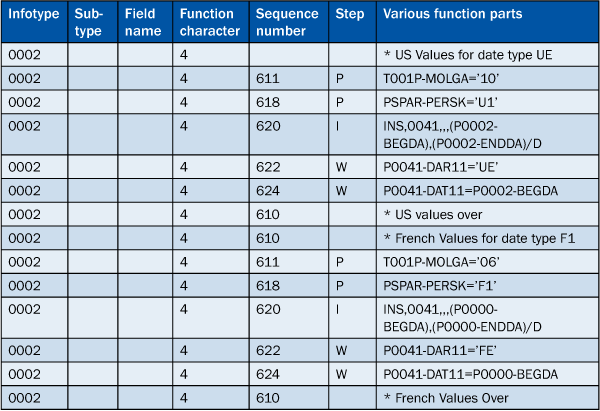
Table 1
Date infotype 0041
The function character specifies when the action triggers. Function character 4 means that this dynamic action triggers when you create infotype 0002. (You will find a more detailed explanation of dynamic actions in SAP standard documentation at https://help.sap.com/saphelp_46c/helpdata/en/57/5184ab7b35d111950d0060b03c6b76/content.htm.)
Set up a breakpoint in the code that handles dynamic actions. This ensures that when you run a transaction to trigger this action, it reaches the breakpoint and stops — giving you the control to proceed line by line if desired, as well as to display values. You can display the code for program mppers00 using transaction code SE38 (Figure 1). Click the display button and you see the code (Figure 2).
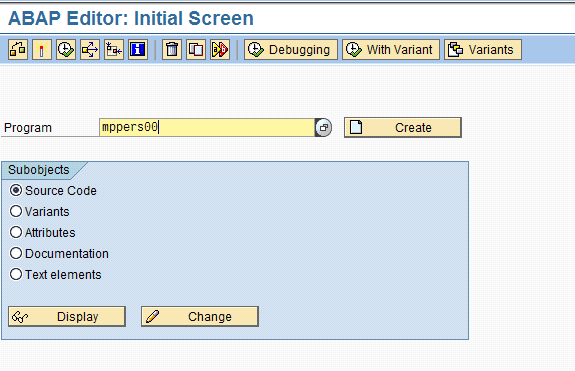
Figure 1
Click the Display button to see the source code
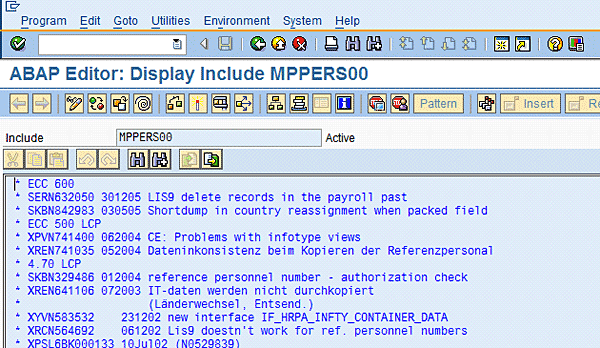
Figure 2
Program MPPERS00
Then click the binocular icon to get to the next screen. Enter perform measure in the Find what: field and click the Find Next button (Figure 3).
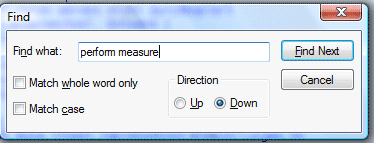
Figure 3
Find perform measure
Once you reach this statement containing perform measure, set up the breakpoint by choosing the Utilities menu (Figure 4).
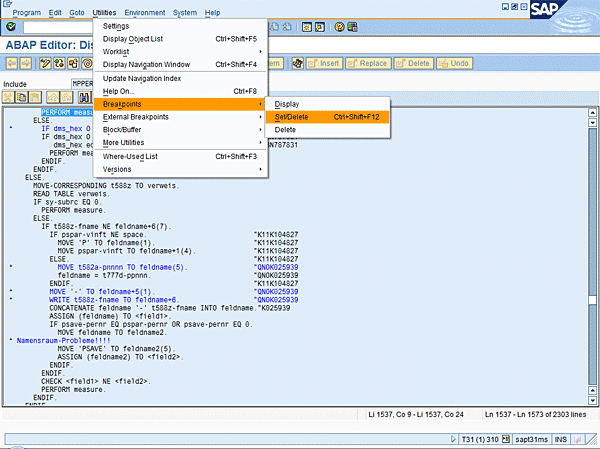
Figure 4
Select Breakpoints, then Set/Delete
Select the module pool screen (the main program for MPPERS00) for the infotype that you are interested in (Figure 5). Since my example uses infotype 0002, choose MP000200. (Note that the first four digits after MP in the name of a module pool represent the infotype.)
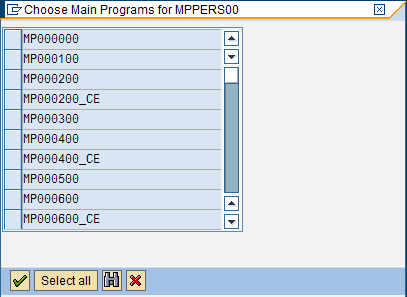
Figure 5
Choose MP000200 in the module pool screen and then click the green checkmark
Then when you execute the code by launching transaction PA30 and launch this infotype, the system takes you directly to the debugger and to the point in the program that executes the module pool for infotype 0002. The next step is to run the program. Run transaction PA30 and click the create icon, which is circled in Figure 6.
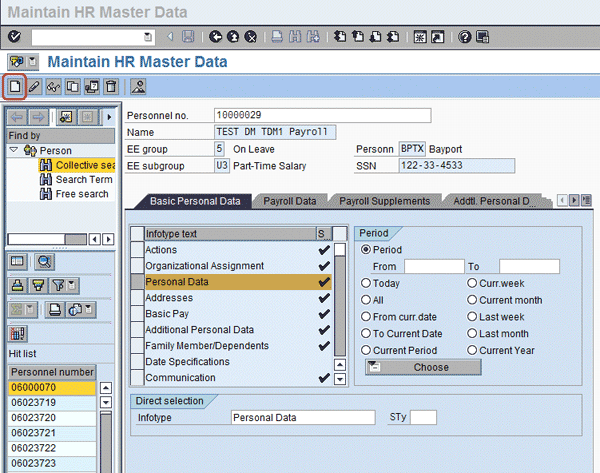
Figure 6
Click the create icon
The infotype 0002 screen comes up (Figure 7). Make a change to this infotype (e.g., enter a different first name) and click the save icon.
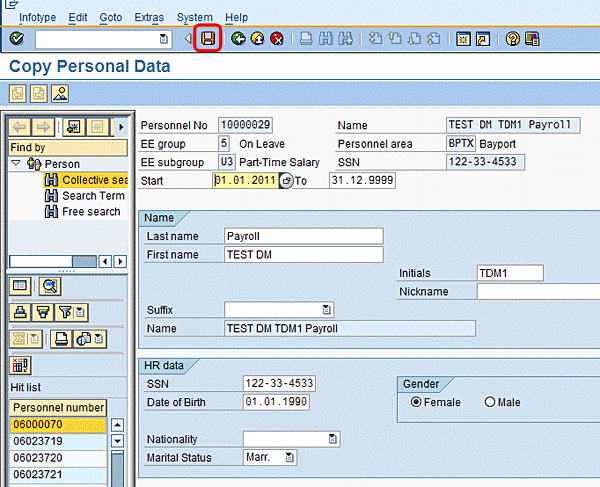
Figure 7
Change the infotype and click the save icon
Now the system takes you directly into the code where you previously set up a breakpoint (Figure 8).
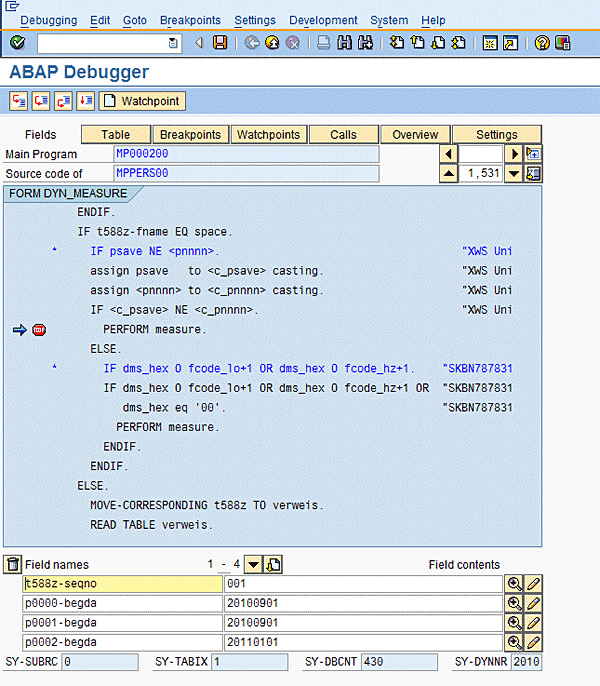
Figure 8
Code breakpoint
Enter t588z - seqno in the Field names field. It then automatically displays the line number it is on.
Enter t588z - INFTY. The system then automatically displays the INFTY (infotype) field.
From these two fields (seqno and INFTY) you can identify the exact statement that the dynamic action is currently executing. If you need to go forward to another line, press F7. From there you can move forward one statement at a time by pressing F5.
You can also display the various fields that you have used in the dynamic action logic. For example, you can enter p0000 – begda in the Field names field to display the value of the BEGDA field in infotype 0001 that this program reads (Figure 8). The general format for the field is P<four-character infotype>the character - <and field name>.
The important points to remember are that:
- Organization is the key to better investigation of dynamic actions
- When simple logic fails, use the debugger for ultimate insight into the problem
- Correction of the problem is not always straightforward and might involve reexamining the business rules that are in place
Deepankar Maitra
Deepankar Maitra has more than 25 years of consulting experience specializing in SAP-based solutions for human resources, supply chain, and reporting in multi-national companies around the world. He has successfully directed large implementation projects as solution architect, delivery manager, global lead, and country lead. His expertise lies in pragmatic harmonization of data and synthesis of processes using tools that improve process execution through quantum leaps in productivity.
You may contact the author at deepankar.maitra@accenture.com.
If you have comments about this article or publication, or would like to submit an article idea, please contact the editor.





