Some reports require two queries where the second query needs the results of the first. In situations for which such a report must run repeatedly for distribution to many people, this can result in slow performance due to a large number of database accesses. By using a pre-calculated value set rather than a pre-query variable, you reduce the number of database hits and improve performance.
Imagine this scenario: You have a requirement to create an Excel/Web query that answers the question, “What is the value of orders for a group of customers during a certain time period?” The data is in an InfoCube that contains customers, ordered quantity, and sales value at the header and item levels. The resulting report needs to be sent by email at the same time each month to the sales representative responsible for these customers.
Your only option to send the report automatically at a scheduled time is to run it in batch mode. The process appears simple: A Web report based on the query is run offline using BW's Reporting Agent, and the results are downloaded using the Download Scheduler found in BW 3.0B. The query results are then delivered by email as an Excel/Web report attachment to the inbox of the sales representative or the customer.
You have two choices for calculating variables in batch for your query: pre-query variables or pre-calculated value sets. The two are similar, in that both allow you to perform an initial query and use those results as variables in a second query. With pre-calculated value sets, however, the values for the variable are pre-calculated and stored. They can then be shared across multiple subsequent queries, whether online or in batch mode. A pre-query variable calculates the variables for the initial query for the first and every subsequent report request. For reports like the one in my example, the pre-calculated value set can significantly increase performance by dramatically reducing the number of database accesses needed. Figure 1 illustrates the differences between pre-query variables and pre-calculated value sets.
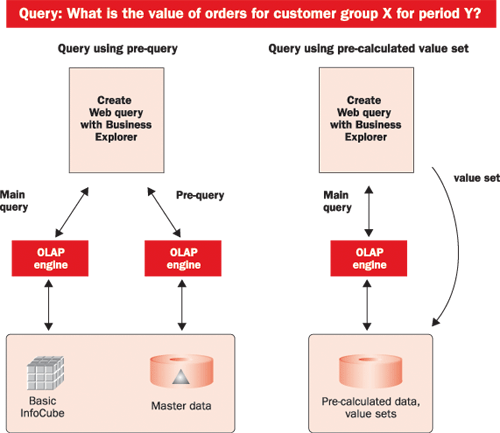
Figure 1
With a pre-query variable, a pre-query asks for the top 10 customers from the master data table in the database. The second, main query then uses that list to match the customers to receivables using data in an InfoCube. This happens at run-time for every person who should receive a report every time a report needs to be sent by batch. With the value set, the first of the two queries is executed once and stored as pre-calculated data. This happens only once, and not at run-time, no matter how many people receive reports. The second, main query then uses that pre-calculated data for every subsequent request.
For example, say you want to understand the relationship between your top 10 customers and their receivables. You need to write two queries—the first gives you the top 10 customers from the sales InfoCube, and the second gives you the receivables information for the top 10 customers. The second query uses a replacement path variable with the results of the first query. In this case, the first query (top 10 customers) has to be executed before the second query has the list of customers to select their receivables. If this method of analysis is used often and by several people, performance can be compromised if you use a pre-query variable to get the results for the first query. If you use a pre-calculated value set to get the results for the first query, they can be shared by several users and reports.
BW has had the value set query capability since Release 2.1C, but few BW practitioners use it because it is not well understood and some of the settings can be tricky. Using the example above, I'll walk you through the step-by-step process to create a value set query and then deliver the final query results in batch using Reporting Agent and Download Scheduler. I will use data from InfoCube 0D_SD_C03, which is part of the delivered SD (Sales and Distribution) module demo content in BW. It is not necessary to change the data model of the InfoCube for this example.
Step 1. Create a Query
Sold-to party (0D_SOLD_TO)RowsFigure 2Sold-to party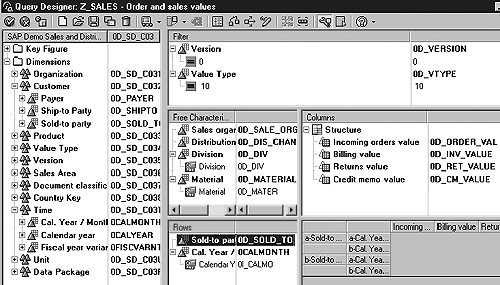
Figure 2
Create a BW query in Query Designer
Step 2. Create a Value Set
Go to the Reporting Agent section of the Administrator Workbench (transaction code RSREP). Here, you create a value set for 0D_SOLD_TO with the value for the sold-to customer country as USA. Navigate to the Value set area and choose Value set. Here you can create a value set for any characteristic. Click on the Create new setting button and enter the technical name of the value set and a brief description. I used Z_USCUST for the technical name and American Customers for the description.
Select the Parameter tab and enter the name of the characteristic for which you want to create a value set (0D_SOLD_TO), as shown in Figure 3. You need to enter the name of the query that you used to generate the values in the value set—all sold-to-parties in the U.S. In the BEx analyzer, I created the query Z_CUSTOMERS_US_VALUESET under InfoProvider 0D_SOLD_TO to provide the desired customer list for the value set. The query doesn't need any key figures, but be sure to add the characteristic for which you are trying to calculate the value set. You can also use conditions or a complex formula variable in this query to produce the desired list of values for 0S_SOLD_TO. If your value set query needs a variant, specify the variant name.
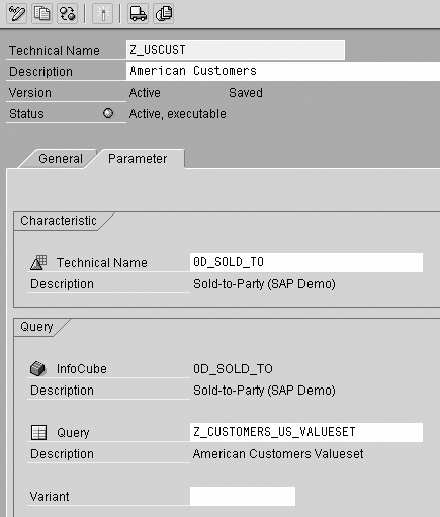
Figure 3
Enter the name of characteristic for which you are creating value set
Now save and activate the value set. After activation, BW generates the value set and creates a table named /BIC/OB00000008 for it. This table stores the surrogate IDs (SIDs) of the characteristic values for this value set. The value set contains only the SIDs that point to the actual characteristic table with values for the characteristic.
Tip!
In BW Release 3.0B with support pack 7, you can schedule this InfoPackage using a process chain (transaction code RSPC). To populate the value set, you ideally want to schedule this after a succesful load of the data target on which your value set query is based. All the Reporting Agent jobs (value sets, pre-calculating Web templates) can be linked easily using process chains.
Step 3. Schedule the Value Set in a Scheduling Package
SM37RAZ_CUSTVS_JOBOnce this value set has been generated and run, you can see an overview of how many values it has generated, which query was used, when the generation took place, and if it is active in table RSRVTABLEDIR (Figure 4). Use transaction code SE11 to view this table.

Figure 4
View a value set's status using table RSRVTABLEDIR
Step 4. Create a Variable for 0D_SOLD_TO
Sold-to partyNextFigure 5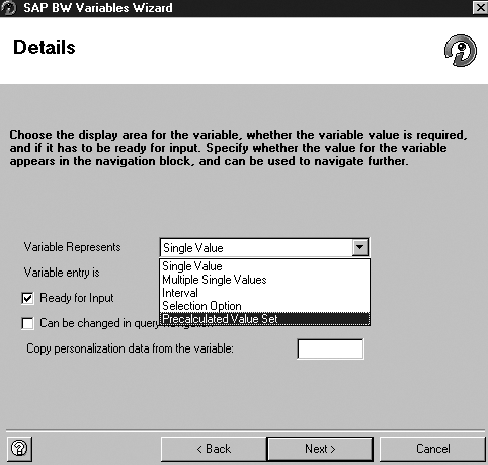
Figure 5
Choose a variable for the pre-calculated value set
Click on Next again and specify the name of the value set (Z_USCUST). Do not enter the name of the table generated by the value set. Now save the variable and BW automatically knows to refer to the SIDs created for the value set. This variable can have one or more values depending on the pre-query used to generate the value set.
Step 5. Create a Query Using the Variable
Z_VSUS0D_SOLD_TOFigure 6
Figure 6
Available value sets for American customers
Execute your query. As Figure 7 shows, the results generated are only for the values in the value set. Notice the text next to Sold-to party in the text elements; it displays complex selection, which means it was not entered by a user.
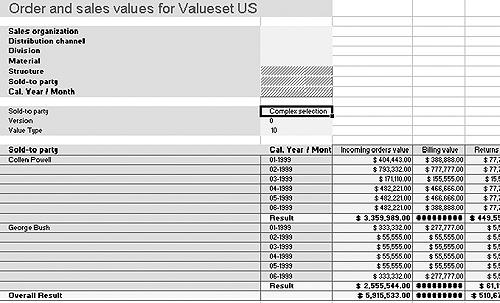
Figure 7
Value set query results
You now have all the steps for writing queries using value sets. The following steps show you how to deliver the reports generated from those queries to the sales rep who insists on receiving them only by email.
Step 6. Create a Web Template
TableDataProviderTable SALES_VS_US)SALES_VS_US_00001.XLSFigure 8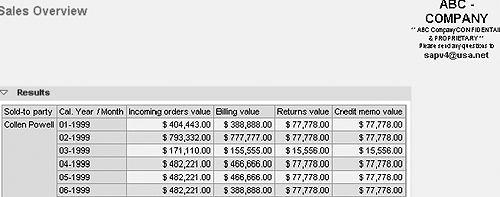
Figure 8
Query results in Excel format
Step 7. Pre-calculate the Template
RSREPWeb templatesFavorites
Figure 9
Enter a technical name and description for the Web template
Right-click on the Web template and select New setting. Give it a technical name and a description, as shown in Figure 9. Click on the Parameter tab and specify what formats of the report need to be pre-calculated. If you just want to pre-calculate an Excel report, select Excel. In some scenarios you want to send the pre-calculated Excel file by email and also give internal users access to the pre-calculated data via the Web. In Figure 10, I've chosen both Excel and HTML for the Web browser options. Both options pre-calculate the data, so there is no need to check the Data option.
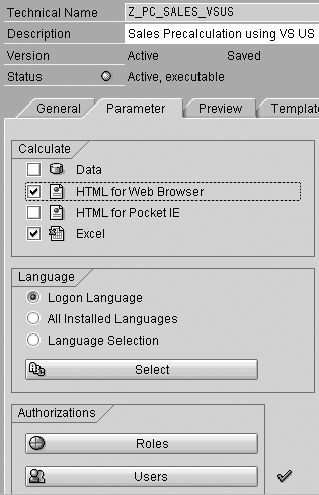
Figure 10
Specify the formats in which you want the reports pre-calculated
You have to specify all the users and roles that need access to the pre-calculated data. Since you are going to use a value set to determine the value of the variable for your query, specifying a control query is not necessary. Save and activate your Reporting Agent setting. Now you need to create a scheduling package to execute this Web template in the background. You can use process chains to schedule this package. Most likely you want to schedule this package after a data load to the InfoCube or the ODS against which the query is executed. The name of the job will be the name of the scheduling package prefixed by RA. The process chain shown in Figure 11 explains how to automate the pre-calculation of Web templates once the initial setup is completed.
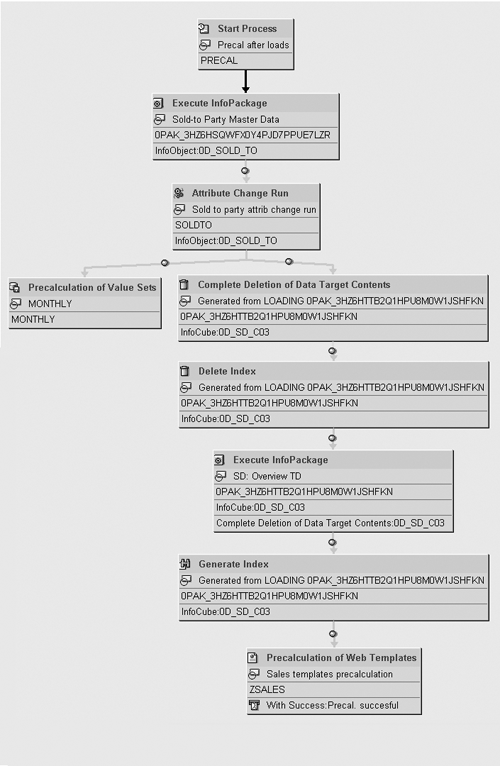
Figure 11
Process chain for automating pre-calculation of Web templates
Tip!
If you are pre-calculating many Web templates, watch out for the size of the cluster table RSIXWWW. This table needs to be reorganized on a regular basis. You can use the report SRA_CLUSTER_TABLE_REORG to do so.
Step 8. Make the Pre-calculated Data Accessible
DATA_MODE = STOREDSTATICDATA_MODE = STATIC or STATIC_HYBRIDSTOREDSTATIChttps:///sap/bw/
BEx?sap-language=EN&bsplanguage=
EN&cmd=ldoc&TEMPLATE_ID=Z_
OFFLINE_US&DATA_MODE=STORED
Tip!
As of BW 3.0B support pack 9, you can reduce the time it takes to access a pre-calculated Web template by using this URL instead of the above. The old procedure required two roundtrips to the Web application server; the new procedure needs only one trip to the server.
You can also see the results in the Administrator Workbench using transaction code RSRAPS. Here you see the results of pre-calculation for every time the report was pre-calculated. You can also export the HTML or Excel file to your desktop or send it by email by right-clicking on it and following the menu options.
Tip!
Regardless of which data mode the Web template is executing, a login to BW is required and all security checks are implemented.
Step 9. Download the Files
1Start>Programs Business Explorer>Download SchedulerFigure 12
Figure 12
All pre-calculated packages assigned to you
Click on Next and select what you want to download from the screen shown in Figure 13. I have selected both Excel and HTML files to be downloaded to the BW server. You can download to any network resource or to your desktop. If your BW system is running on Microsoft Windows, you should be able to easily map the BW server to a network drive. If you are on a UNIX system, which is what I'm using for my example, you need software (like Samba) to map the UNIX directories to Windows NT. Your UNIX system administrator best does this job.
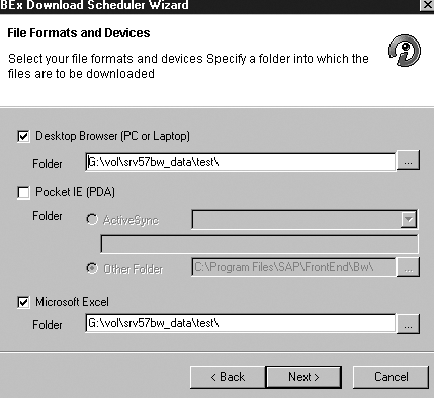
Figure 13
Selection screen for reports to download
In the next step you can choose to download immediately or schedule the download. If you want to do this on a regular basis, you can schedule the download in regular intervals.
Tip!
The scheduled task to download reports is controlled by the Windows Task Manager and will appear under the directory C:/WINNT/TASKS if you are using Microsoft Windows. If you are using an external job scheduler, you can probably integrate this job into your BW job schedule.
Tip!
Scheduling in the BEx Download Scheduler refers to the point in time the pre-calculated reports are downloaded from the BW server to the desktop PC. You cannot schedule scheduling packages in the Reporting Agent using BEx Download Scheduler.
Tip!
You can only download those pre-calculated files for file formats and devices that were scheduled in the Reporting Agent. If you select a file format or device in the BEx Download Scheduler that is not selected in the reporting agent settings of the pre-calculated Web template, you cannot download any files.
Step 10. Send the Report by Email
I'm assuming that you have already configured SAPConnect—a process beyond the scope of this article. You can configure SAP's Web Application Server 6.10 onwards for SMTP, a standard email transfer protocol. You need two programs to send email from BW, which I've provided. The first program checks if a file has been downloaded, and the second program sends the file by email and then deletes it after it has successfully been sent. You can find the source code for both of the programs on at the bottom of this page.
The process chain shown in Figure 14 shows how to automate the use of these ABAP programs.
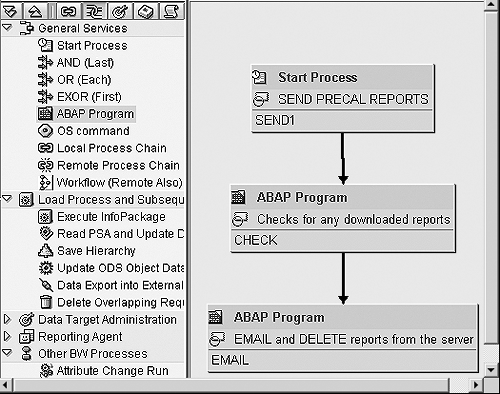
Figure 14
Process chain for automating the sending of reports using the ABAP programs
If you have to send this report every month, schedule the Download Scheduler to run on the first day of the month. The job to look for the file can be scheduled in BW to run every hour on the first day of the month. As soon as it finds the file it raises an event and this event triggers the email job, which emails the file and deletes it. You can also combine these two programs into one by checking for the file in the email program. To reuse these programs for emailing different files, create variants with the file names.
1 If you aren't on BW 3.0B, you can find Download Scheduler on the SAPGUI version 6.20 CD. You may also download it from service.sap.com/swcenter.
Satish Chalasani
Satish Chalasani is a SAP-certified independent BW/SEM consultant with more than four years of business intelligence and business analytics packaged product implementation experience. Prior to his independent status, he worked for Deloitte Consulting and Cap Gemini Ernst & Young. His data warehousing experience includes extracting data from both non-SAP and SAP products (EBP, CRM, Marketset, and R/3). His expertise also involves delivering BW content via SAP Workplace and SAP Enterprise Portal. He also does BW project reviews and project team training. Satish has been through seven BW/SEM implementations so far.
You may contact the author at sapv4@usa.net.
If you have comments about this article or publication, or would like to submit an article idea, please contact the editor.




 Premium