You have a variety of options for creating and maintaining dashboards in SAP BW 3.5, including a new approach that significantly reduces your development efforts. The SAP Business Explorer (BEx) Web Application Designer in SAP BW 3.5 introduces the Web template Web item so you can easily design dashboards that your end users are sure to love.
Key Concept
A fundamental building block of the BEx Web Application Designer is the Web item. These are controls for displaying elements such as tables, charts, drop-down list boxes, radio buttons, check boxes, etc. in Web templates. SAP BW 3.5 provides roughly 30 Web items and each has a number of user-defined settings stored as SAP BW library items that can be quickly deployed repeatedly with minimal setup time.
You’ll find several new Web items in the SAP Business Explorer’s (BEx) Web Application Designer (Web AD) in SAP BW 3.5. The new Web template Web item acts like a template in a template that allows SAP Business Intelligence (BI) Web content developers to quickly build and deploy dashboards (Figure 1), which are compact displays that render Web content graphically and easily.
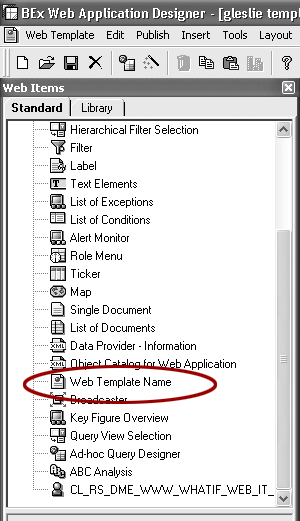
Figure 1
The new Web template Web item
With the template-in-template Web item, a single template contains multiple sub-templates. Content developers who reuse design elements are able to make global changes via sub-templates to enterprise-wide Web and portals content. Developers are able to maintain a uniform master template that serves as a framework for others to add detailed content using the template-in-template approach, which promotes consistency of SAP BW Web applications across an enterprise. The sub-templates readily accommodate existing Web templates created by SAP BW customers who often have invested precious resources in development.
The template-in-template concept builds on the idea of library items, which are user-defined settings for custom graphics stored in the system for later use. You can save various properties of a pie chart, for example, as library items so that it is quickly displayed as a 3-D graphic with labels formatted for currency and with specific color palette settings for each pie slice without a lot of development time.
The Web template Web item represents an advancement over the library concept in that it allows you to build discrete clusters of related Web items saved as a template and ready for inclusion in your master template rollout. Let’s say you are working with a so-called 2DD+T+C design, which features two drop-down boxes that control a table and chart that are next to each other, and you want to include that design in large number of templates. Instead of going into each individual template and adding the 2DD+T+C layout, you can simply include the entire layout in a master template.
Note that the concept of a master template is not specially defined within SAP BW or the Web AD — it’s simply a logical construct I used here to refer to a template that has other sub-templates embedded within it. Changes can be made to a sub-template and they are reflected in the design of the appropriate master templates that the sub-template is nested in. If your user community, for example, needs a third drop-down and a radio button group to be added to the template, you simply modify the sub-template with the 2DD+T+C layout and all master templates that contain it offer the updated design.
With template-in-template functionality there is no limit to the number of nested templates that can be created, giving developers full control over how they deploy their Web templates as components of larger Web pages or templates.
Go Beyond Frames
Because it does not require implementing frames, the template-in-template approach offers a significant improvement over previous dashboarding field solutions and other workarounds within SAP BW Web content. Frames are HTML tags () used by Web designers to layout a page providing separate areas of control such as the left panel or “pane,” right pane, header pane etc. Many developers avoid using frame tags because they can add to the complexity of Web page deployment.
Frames generally make navigating within a Web page hard to decipher for other developers. They don’t behave consistently across all browsers and Web pages. Many search engines — both corporate and Internet — either do not support frames or do not attempt to search Web pages containing frames. Whether you want to use frames or not, they are supported by the Web AD but not required.
Ease of Use
Figure 2 provides an example of the template-in-template design. The single master template contains five sub-templates that accommodate the header, footer, and each of the three tabs (Tab1, Tab2, Tab3). Two of the tab sub-templates are hidden after a tab is clicked on for display. There’s nothing unique to SAP BW 3.5 about the master template or these sub-templates and no new SAP BW functionality beyond the template- in-template Web item is employed. What’s different about this construct is that a template placed in the new Web item acts as a pointer to another template on the SAP BW system. Any template can be executed individually assuming the proper authorizations are in place.
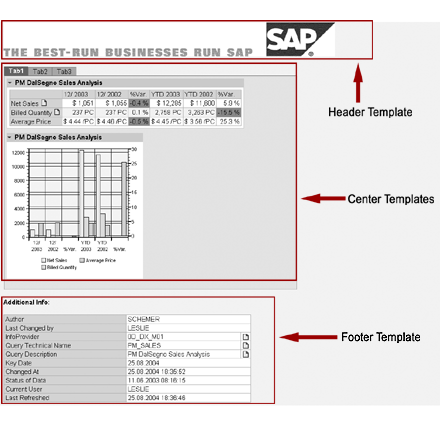
Figure 2
SAP BW template with multiple templates embedded
Creating and maintaining a tabbed dashboard is easier to manage using the template-in-template design. Figure 3 shows the Tab1 template from the above example in a dashboard. In the past, a Web author was required to cram all the Web items for all the tabs into a single template and juggle all those items as each tab was clicked on. In addition, all these design elements and code had to be manually copied and synchronized if they would be released in other templates.

Figure 3
Tab1 displayed as a standalone template
With the template-in-template feature, the author links SAP BW commands to hide or to show a tab. Figure 4 shows the developer’s template-in-template view of the master template in Figure 3. Each sub-template is uniquely identified by its technical name (TPL1, TPL2, and TPL3) specified in the Web item properties. Commands are tied to corresponding anchors via what’s know in HTML parlance as hyperlink references tags () in the master template so that Tab1 controls sub-template TPL1, Tab2 controls TPL2, etc.
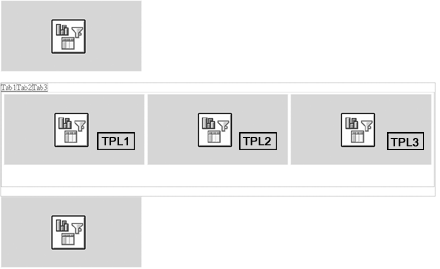
Figure 4
Developer's view of the template
All of this could be accomplished in previous releases of SAP BW 2.x and 3.x, but it took a lot more manual coding. Now entire templates can be worked on at one time, significantly reducing the amount code initially required as well as minimizing the re-coding effort needed to propagate changes as dashboard solution evolves.
Note
SAP provides documentation for different SAP BW style elements — not only for tab displays but for all elements available for a BEx Web template. Go to
https://help.sap.com/content/documentation/netweaver/index.htm and click on the most current Support Stack documentation link. Then, follow Information Integration>SAP Business Intelligence>BI Suite (Business Explorer)>BEx Web Application Designer and click on BW Stylesheets on the left side of the screen.
I should point out that my layout uses three tables in the center portion of the master template to position the tabs, which makes the design a little tricky. An outer table holds the other two tables in place and the tab texts are contained in a one-row table with three cells. The three middle template placeholders are contained in a single cell table. The tables also provide styling for both the tabs and the template as the tabs are clicked. The template-in- template Web item supports other methods of formatting such as Cascading Style Sheets (CSS) and HTML tags, which may offer a cleaner layout. I did not use them here because they would add complexity to the code in this example, but you can use them if you think they are helpful.
Template calls to the sub-templates are straightforward. Figure 5 on the previous page shows the HTML code in the BEx Web AD that hides or unhides one of the three sub-templates based on when a tab is selected. Initially, each line of code hides all three middle templates by using wildcards (‘*TPL*’). Next, it sets the command for the multiple providers (Multi=X) to HIDDEN. The code then unhides the template corresponding to the appropriate tab when the tab is clicked on.
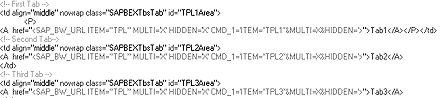
Figure 5
Code to switch templates
Hands On
Let’s look at the steps needed to set up the three-tabbed dashboard display in my example using the template-in-template Web item. I’ve included the code for this entire SAP BW Web template at this link for those of you who have access to a SAP BW 3.5 system. Setting the dashboard up will require knowledge of how to code in HTML.
First, you need to create five templates on the SAP BW system with the following technical names: MYHEADER, TEMPLATE_1, TEMPLATE_2, TEMPLATE_3, and MYFOOTER. You can modify my code to reflect templates that you’ve already created, if you prefer to use existing templates. You will need to replace occurrences of “MYHEADER” with “YOURHEADER” where YOURHEADER is the technical name of a template you’ve created, and repeat this step for all of your other existing templates.
Open SAP Web AD on an SAP BW 3.5 system and create a new blank template by clicking on the  icon. Switch to the HTML tab at the bottom of the display and paste the code from the Web site directly into the HTML tab of a blank Web template. Highlight the default code on this page and paste my code on top of it.
The table incorporates three SAP-supplied styles in BWReports.css (SAPBEXTbsTabs, SAPBEXTbsTabSel, and SAPBEXTbsBdyEdg), which assist manipulating the tabs as they are clicked on. Figure 6 shows how these styles are applied to the template to provide depth to the tabs and update the display when each tab is selected. SAPBEXTbsTabs governs the styles of the deselected tabs and SAPBEXTbsTabSel applies styles to the selected tab. SAPBEXTbsBdyEdg controls a key design element: the styles for the top of the table below the tabs, which gives the impression that clicking on the tab brings forward the attached page.
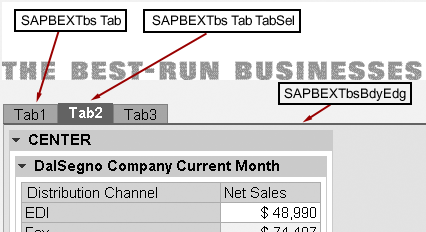
Figure 6
Three SAP-supplied CSS in BWReports.css
Code similar to that in Figure 5 allows SAP BW to hide all the templates and make the appropriate one reappear. The system must be told now to apply the tab-selected style as opposed to the tab-deselected style. To do this requires one simple JavaScript call at the bottom of the HTML, right before the tag in the Web template code:
Of course, you must define what the function check_tab() is actually doing by including the code in Figure 7. First, set up an array of the template names in the variable check_items, which allows you to easily accommodate more tabs if needed. Then retrieve an array of properties into prop from the check_item(i) by making the JavaScript call,1 SAPBWGetItemProp(). Next loop through the array of prop elements, specifically checking items 0 and 1. If element 0 is HIDDEN (set by the SAP_BW_URL command in Figure 5), then set the variable hidden to true(1) or false(0), based on a test of whether or not element 1 is set to X. The last If sets the correct CSS style and document properties for each of the tab items. While it may look exotic to those familiar with Web coding and the Document Object Model (DOM), the last IF statement can be found in any standard text on the subject and is indeed a standard call.<
Figure 7 Code to define the function check_tab()
Glen Leslie
Glen Leslie is a product manager for SAP’s Business Intelligence solution. Originally a data warehousing consultant, Glen has been working with SAP BW since the 1.2B release in a variety of environments.
If you have comments about this article or publication, or would like to submit an article idea, please contact the editor.