Management
In a typical e-learning course with recorded scenarios, end users are set in their minds to always move forward as they click from one step into the other — sometimes without much thinking or understanding of what is really happening between the clicks. Walk through a course that slows down the process by forcing end users to make mistakes and, in this way, makes them think about every step in the process. The course is therefore useful for both end users in their learning process and help desk agents in troubleshooting.
Key Concept
You can improve the e-learning process by making trainees think as they go through the steps. This is done through making deliberate mistakes the first time going through a process and then correcting them the second time.
In a typical e-learning course, end users go through a recorded scenario. In the absence of an instructor, the learning process can be ineffective and not challenging. It is a common belief that learning through mistakes is an effective way of learning. In an SAP system, when you make a mistake while working on a transaction, the system displays an error and you cannot move forward in the process until you fix your mistake. Errors in the SAP system are classified in accordance with their types. These errors are well documented, numbered, and searchable. Furthermore, this process can be applied to any SAP system.
I’ll show you how to develop an e-learning course that is based on objectives and that you can give to end users to show them how to perform various tasks. I’ll do this through a simple example that is related to service procurement. The course structure includes four lessons:
- Lesson 1 shows end users how to create a purchase requisition
- Lesson 2 teaches them how to create and approve a requisition supplement
- Lesson 3 shows the creation of a bid slate, or the selected bidders to be included in the request for quotation (RFQ) process
- Lesson 4 deals with creating and approving an RFQ
System errors are included in these lessons throughout the various steps. Of course, there are thousands of documented errors in the SAP system, but these cannot all be included in the course. Only important, common errors that can help in achieving the course objectives should be included. You have to be careful not to confuse end users and teach them how to do things incorrectly. Support and help desk people can help in identifying common errors.
The Model
The proposed course consists of four lessons and deals with contract pre-award stages in service procurement. In these stages, purchasing documents are created in a sequence so that one purchasing document can be a prerequisite for another purchasing document.
As end users go through the steps in each lesson, they are forced to make mistakes in some steps, and the system displays the corresponding errors. Following the display of each error, a tip is offered for end users to correct the mistake and try again. To avoid duplication, each lesson includes a set of errors that is somewhat different from the errors in other lessons.
The lessons are designed as follows.
Lesson 1: Create a Purchase Requisition
Here is the step-by-step process for creating a purchase requisition.
Step 1. Enter transaction code ME51N (Figure 1).
- Error E1: Not authorized to use transaction ME51N
- Tip: Make sure you have the appropriate role and authorization. Check with your manager to see if you have the right access.
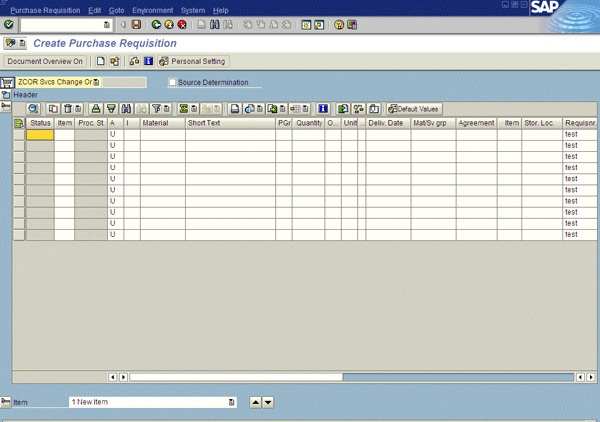
Figure 1
Initial screen for the purchase requisition
Step 2. Select the document type (e.g., ZCOR Svcs Change Or…) from the drop-down field in the top-left corner of the screen in Figure 1.
Step 3. In the Item Overview section (the main section shown in Figure 1), fill in only one field (it doesn’t matter which) and validate by pressing Enter.
- Error E2: Fill in all required entry fields
- Tip: You need to enter information in all required entry fields
Step 4. In the Item Overview section, fill in all fields, but some with undefined (i.e., not originally entered into the system) data and validate.
- Error E3: Purchasing group not defined (check your input)
Step 5. In the Item Details section (which appears below the Item Overview section once items are entered), do not enter service items and save. This section is typically at the bottom of the screen and is collapsed at the beginning. Once the Item Overview section is filled in, the Item Details section is expanded.
- Error E4: Please maintain services or limits
- Tip: You must define service items
Step 6. In the Item Details section, enter a nonexistent service master number.
- Error E5: Service number entered does not exist
- Tip: The service master must be defined and valid
Step 7. Do not complete a version of the document at this time. The system does not generate an error here. However, you cannot proceed with the procurement process without performing this step first.
Step 8. Save.
- Message: Purchase requisition number 3000006295 created. Figure 2 is displayed.
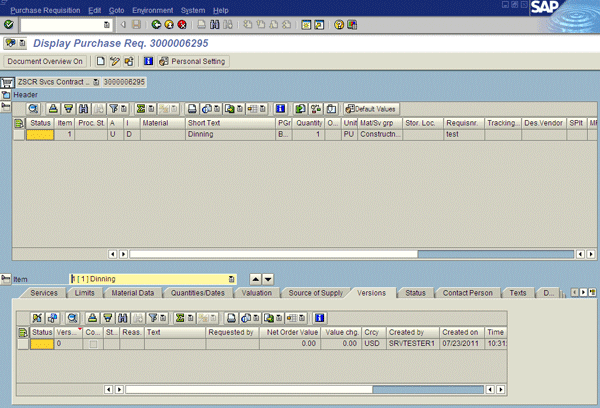
Figure 2
The purchase requisition is created
Lesson 2: Create and Approve a Purchase Requisition Supplement
Step 1. Enter a requisition number. Enter transaction code ZM0080 (Figure 3).
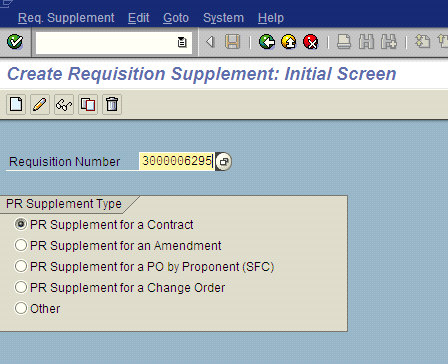
Figure 3
Initial screen for a purchase requisition supplement
Step 2. Select a document type (e.g., PR Supplement for a Contract) in the PR Supplement Type section.
Step 3. Fill in the fields under the Scope of Work/Dates tab (Figure 4).
- Error E2: Fill in all required entry fields
- Tip: You cannot move to another field until you complete entering data in the current tab
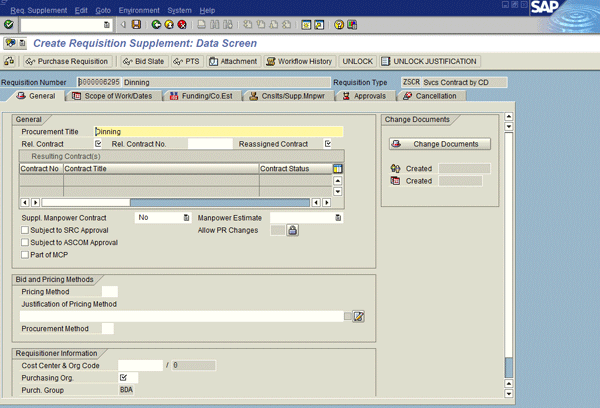
Figure 4
Purchase requisition supplement
Step 4. Fill in fields under the General tab.
Step 5. Fill in fields under the Scope of Work/Dates tab.
- Error E6: Effective date is later than completion date
- Tip: Enter the correct data
Step 6. Fill in the fields under the Funding/Co.Est tab.
- Error E7: Check the Approved Funds check box
- Tip: Select the check marks for the approved funds
Step 7. Fill in the fields under the Approvals tab.
- Error E8: Both Proponent and CD Rep cannot be the same person
- Tip: In accordance with segregation of duties, the two approvers cannot be the same person
Step 8. After the purchase requisition supplement is filled out, the creator needs to approve it before saving. This step triggers further approvals by management.
- Message: Workflow started and supplement is created. Figure 5 is displayed.
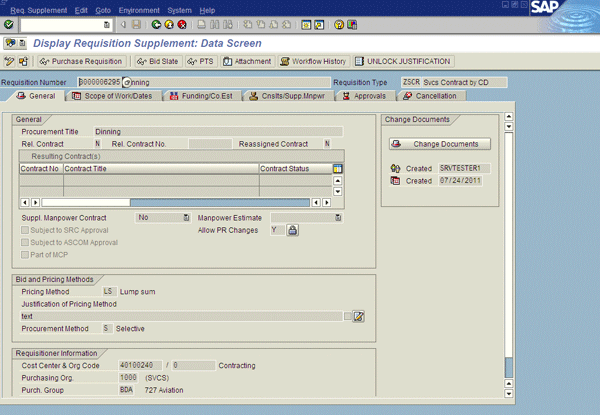
Figure 5
Purchase requisition supplement
Lesson 3: Create Bid Slate
Step 1. Enter transaction code ZM0009 (Figure 6).
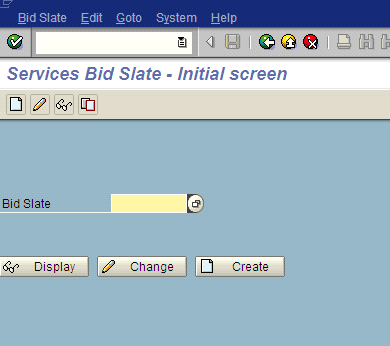
Figure 6
Initial screen for bid slate
Step 2. Click the Create button.
- Error E2: Fill in all required entry fields
- Tip: You must first enter a requisition number
Step 3. Enter a requisition number.
Step 4. In the Bidders tab, enter the bidders (Figure 7).
- Error E9: The vendor is not a service vendor
- Tip: Enter a valid vendor

Figure 7
The bid slate
Step 5. In the Approvers tab, enter approvers.
Step 6. In Review Team tab, enter reviewers.
Step 7. Save.
Lesson 4: Create a Request for Quotation
Step 1. Enter transaction code ME41 (Figure 8).

Figure 8
The initial screen for RFQ
Step 2. Enter Initial Screen data.
Step 3. Enter the requisition number.
- Error 10: PReq 3000006295/not convertible (status)
- Tip: You must first complete the version of the purchase requisition by clicking the green flag icon (Figure 9)
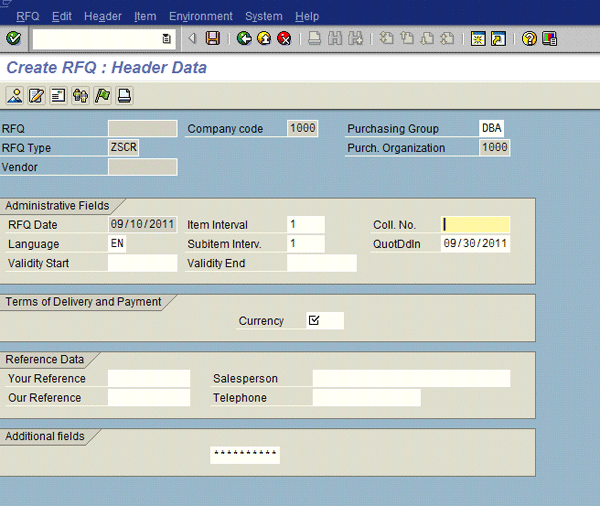
Figure 9
Create an RFQ
Step 4. Fill in the header data fields.
- Error 11: Requisition supplement and bid slate are not approved
- Tip: Approve the requisition supplement and bid slate. This step is done through the workflow engine. Approvers receive an email message requesting that they complete the approval.
Step 5. Copy service items from requisition.
Step 6. Complete a version.
Step 7. Enter a vendor (Figure 10).
- Error 12: Vendor has not been created for purchase organization 1000
- Tip: Select a valid vendor
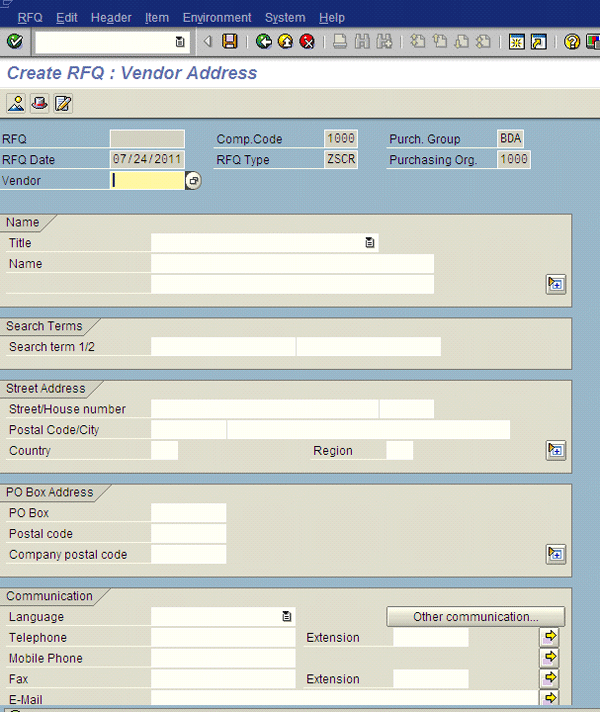
Figure 10
An RFQ’s vendor details
Step 8. Save.
- Message: Svcs Contract by CD created under the number 6000003965
Step 9. Enter another vendor.
Step 10. Save.
- Message: Svcs Contract by CD created under the number 6000003966
Analysis
Lesson objectives and system errors are summarized in Table 1, in which I’ve mapped errors to lesson objectives. For end users to successfully complete the lessons, they need to meet the objectives. System errors are displayed if the objectives are not met correctly.
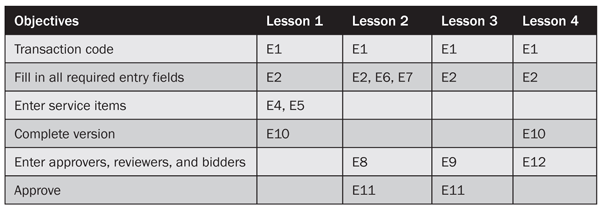
Table 1
Matrix of lesson objectives and system errors
It is clear from the matrix that some objectives and their associated errors are common among the four lessons. In the first objective, end users must know the transaction code for each purchasing document. If a different code is entered by mistake, one of the possible consequences is the system error E1. If a wrong document type is selected instead, the system does not display an error and the end user can still continue working. However, results from the transaction are not correct. With regard to filling in all required entry fields, the errors can vary from leaving mandatory fields blank to entering unacceptable data. The complete version function is required for the requisition supplement and the request for quotation documents, and you cannot proceed in the procurement process unless the version is completed for these two purchasing documents. Different levels of approval are required for the requisition supplement and the bid slate documents.
AbduNaser Shhub
AbduNaser Shhub has more than 15 years of experience in training, teaching, and academic research. He has spent seven years in managing training programs and developing training courses that are related to various SAP modules. He holds a Ph.D, MSc., and a BSc. in nuclear engineering and has four SAP consultant certificates in SAP ERP HCM, SAP CRM, SAP SRM, and SAP SCM.
You may contact the author at abdunaser.shhub.1@aramco.com.
If you have comments about this article or publication, or would like to submit an article idea, please contact the editor.





 Premium