The Family Medical Leave Act (FMLA) Workbench assists employers in administering the complex guidelines for determining eligibility and absence management. Understand the components that make up the FMLA Workbench and how each section of the workbench functions.
Key Concept
The Family Medical Leave Act (FMLA) Workbench is a tracking tool to assist in the administration and decision-making process for determining federal leave eligibility and the number of hours an employee has available. It associates qualifying absences with each request. The FMLA Workbench also provides historical reference for audit and legal compliance. What the FMLA Workbench does not do is trigger retroactive processing of the employee or place the employee on a leave of absence. All absence entry and personnel actions still must be executed independently of entry of the request for FMLA protection.
The Family Medical Leave Act (FMLA) Workbench is an invaluable tool for assisting with the recording and tracking of family medical leave. The workbench is configurable for both federal and state levels, and it provides the flexibility required to support changing legislation (for example, the new reason codes enacted in 2010 for service members and their families). If you are using SAP Time Evaluation, you have more configuration options for setting up the FMLA Workbench. If your organization does not use SAP Time Evaluation, you may still benefit from using the workbench. You can optimize the FMLA Workbench to ensure that both federal and state guidelines are met.
To receive job protection, employees must meet the eligibility requirements, which are typically based on seniority, minimum worked hours during a 12-month period, and remaining hours of family medical leave time. The employer is allowed to determine, as an organization, the 12-month base period in which the absences and eligibility will be calculated. The workbench supports all the allowable calculation periods, including the rolling 12-month period, which is the most advantageous to the employer, but also the most labor intensive in tracking both eligibility and hours used. (For more about FMLA, see the sidebar “FMLA Legislation.”)
By using standard SAP configuration groupings and modifiers, different methods may be established to calculate the creditable worked hours toward eligibility based on your employee population. For example, creditable hours for salaried or non-exempt employees may be based on scheduled hours from the employee’s Planned Working Time record or a constant value of 40, while actual worked hours for hourly employees are cumulated to a time type during time evaluation processing.
The workbench configuration provides the option to establish profiles, which can be used to limit access to various functionality of the workbench and allow for division of duties for processing leave requests within the department between staff, such as having one staff member who can create and approve and another who processes the absences for the request, if required. Transaction code PTFMLA starts the FMLA Workbench. The first step is to enter the employee number and click the Create Request button (Figure 1).
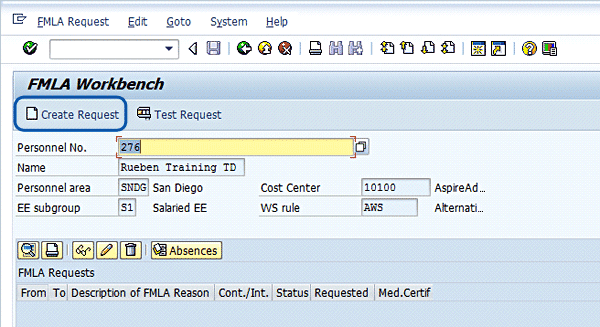
Figure 1
Create the request
You are then asked to provide the basic information required to begin determining eligibility and entitlement hours for the employee (Figure 2). Different reason codes have different eligibility or entitlement and must be selected first. Then, select whether the absence will be continuous or intermittent, and the beginning and ending dates of the request. If Intermittent is selected, planned hours must be entered as well, and the status defaults to In Process. The tab labeled Comment, if selected, allows for the entry of free-form text. The optional box for medical certification allows you to indicate whether you’ve received the required documentation, if applicable.
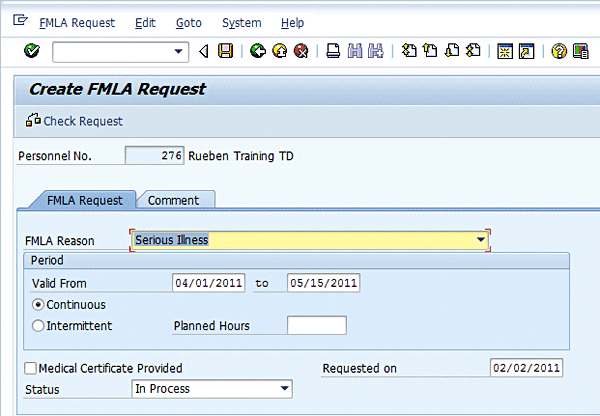
Figure 2
FMLA general request information
Once this information is provided, select the Check Request button. This begins calculating whether the employee has met the eligibility criteria for the reason code, the entitlement hours for that reason code, and the number of family medical leave hours the employee has remaining for use. You may opt to check the request before saving the information by using the Check Request button. The check request function also executes when you save the request (Figure 3).
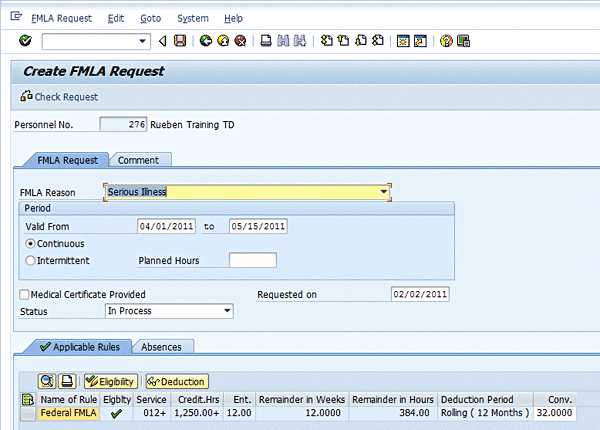
Figure 3
Results of the check request function
How do you interpret the data provided by the eligibility check function? Each reason code is associated with calculation rules in configuration. Which rule is applied is based on the reason code selected and, if applicable, other factors within the employee’s master data, such as work state, that may influence that employee’s eligibility or entitlement for more generous state guidelines.
FMLA Legislation
Congress passed legislation in 1993 providing job protection for employees experiencing personal or family emergencies. The Family Medical Leave Act (FMLA) of 1993, with amendments in 2010 for military service members and their families, mandates that employees may take unpaid leave time when they experience absences that meet specified criteria (as stated by the legislation) without penalty from the employer. Employers that meet the minimum employee requirements must adhere to the stated guidelines. In some states, more generous allowances are legislated for than in the federal reason codes. In addition, some states have enacted laws that provide additional family medical leave for state-specific reason codes with their own set guidelines, such as victims of domestic violence.
In the example shown in Figure 4, the employee meets or exceeds the 1,250 creditable hours as indicated by the plus (+) sign in the Credit Hrs column. The calculation of the creditable hours is based on your organization’s configuration settings. The employee has also met the minimum seniority guidelines as indicated by the plus (+) sign after the required months of seniority in the Service column. The green check indicates that the employee meets the pre-defined eligibility criteria for the requested reason code. Even though the workbench indicates that the employee has met the minimum criteria for hours worked and service, there may be other requirements the employee must meet in order to complete the eligibility determination, such as providing documentation from a physician or other outside information that would influence the final approval of the request.

Figure 4
Example of FMLA Workbench eligibility information for eligible employee
Figure 5 shows an example of the information provided if an employee has failed to meet the minimum eligibility criteria. The actual value for the eligibility criteria is shown with the minimum value in parenthesis in both the Service and Creditable Hours columns. The eligibility will show a red X. The administrator may override the calculation by using the Eligibility push button, which then marks the employee as eligible for the specified request. The request may then be approved by updating the request status field in the header information.

Figure 5
Example of FMLA Workbench eligibility information – ineligible
The next step is to determine how many hours the employee has available for use. Based on the reason code selected, the entitlement is provided using a time unit of weeks. The FMLA legislation mandates entitlement in units of weeks, not hours. Therefore, hours of entitlement is based on the employee’s hours per week. In Figure 6, this employee has weekly working hours of 32 hours per week. This translates into 384 hours of entitlement, based on 12 work weeks of absence. The number of hours is a calculated value based on the weekly conversion number, multiplied by the entitlement weeks, less any absences taken during the specified deduction period.

Figure 6
Calculating entitlement hours
The entitlement weeks are defined by reason code and rule in configuration and cannot be adjusted. The method of determining the weekly conversion field value is also defined in configuration, but this field may be manually modified. As with the calculation of the creditable hours, the supporting configuration for the weekly converter field is also customizable for different employee groups. It may be set using a constant value such as 40, using hours from the employee’s planned working time record, or if using time evaluation, the accumulation and averaging of actual worked hours over a set period of time. For workers where hours per week may vary, such as those on rotating shifts, the averaging method provides an accurate and fair determination of hours per week.
The deduction period is established in configuration and is not modifiable at the FMLA request level.
Once the request is created and a determination has been made as to whether the employee meets the criteria for family medical leave protection, the status can be moved from In Process to either Rejected or Approved. The employee must be eligible, whether based on the actual calculations or by use of the override option, in order to approve the request. If approved, absences can then be entered and assigned to the request for tracking the employee’s use of the allowed hours from the Absences tab.
To process absences for a request, select the tab labeled Absences. Figure 7 shows the information on the Absences tab. When you select the Process Absences button, based on configuration an independent transaction is started from the workbench to allow entry of absences. Transaction PA61 (Maintain Time Data) and the Cross-Application Time Sheet are oth options for time entry. Within the configuration, each reason code is assigned allowable absences from your organization’s absence catalog. Absences are made permissible by the request type, either Continuous or Intermittent. For example, if you have an absence code for maternity/paternity leave, this absence code would be allowable for reason code Birth/Adoption of a child but not for reason code of Serious Illness.
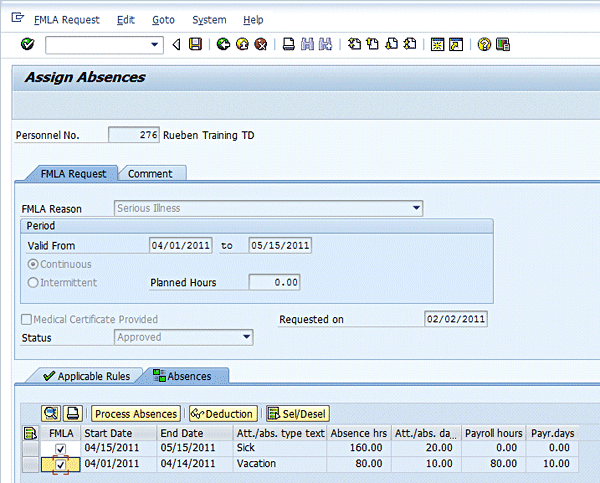
Figure 7
Absence entry and assignment
Employers may not mandate that an employee use paid time off for family medical leaves, but employees may choose to use any paid time off to supplement their income when utilizing family medical leave. When an employee opts to utilize paid time off hours, such as vacation, those hours run concurrent with the FML hours. In other words, if an employee has 80 hours of vacation and 320 hours of FML hours, the employee is not entitled to 400 hours of absence time under the legislation. The employee is only allowed 320 hours under the FMLA job protection legislation, with 80 hours of the 320 paid through their vacation entitlement bank — the remainder is unpaid hours.
Absences that are permissible for a reason code are displayed for the request period and can then be assigned to the request. Assigning the absences to the request, accomplished by placing a checkmark beside the absence, reduce the eligible hours for the deduction period. Note in Figure 7 that absence code Vacation has been assigned to this request. If this absence code is also configured to reduce a quota entitlement bank, the used hours for the entitlement will also be incremented, reducing the remainder. Figure 8 shows the impact of assigning the absences to the remainder in hours and weeks of entitlement.
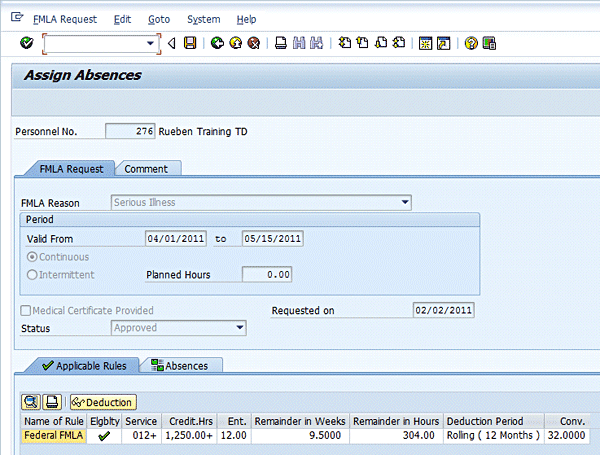
Figure 8
Reduction of entitlement weeks/hours with absence assignment
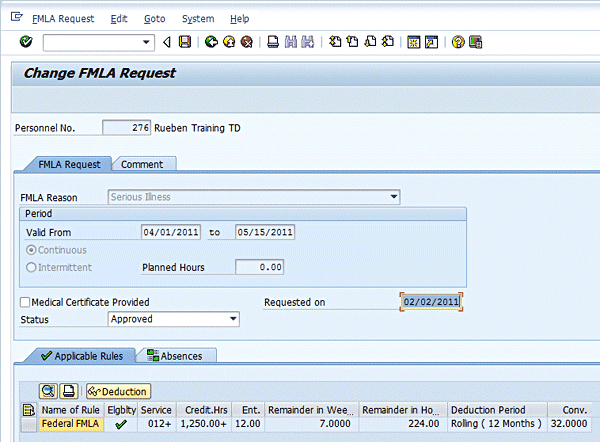
If additional requests are created, the remaining family medical leave entitlement is tracked across the multiple requests. Figures 9 and 10 show the results of the FMLA Workbench calculations, illustrating the remainder reduction across multiple requests. Note that both requests reflect the same remainder.
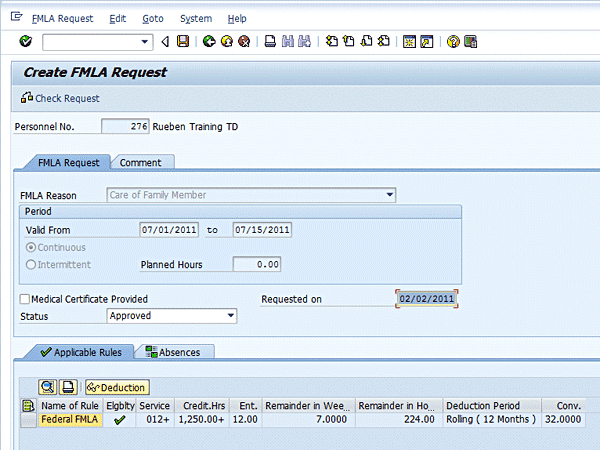
Figure 9
Results of the second request on entitlement hours
Jennifer Adams
Jennifer Adams has 15 years of SAP ERP HCM experience and currently works as a principal consultant with AspireHR, specializing in Time Management and US payroll. She will be a presenter at the HR 2011 conference to be held March 8 to 11 in Las Vegas. Her topic will be “A Comprehensive Guide to Configuring, Integrating, and Optimizing the Family Medical Leave Act (FMLA) Workbench.” Jennifer also has experience with Compensation Management, Personnel Administration, and Benefits. Before that, she spent 12 years in systems analysis and design for mainframe environments, supporting multiple business streams.
You may contact the author at jadams@aspirehr.com.
If you have comments about this article or publication, or would like to submit an article idea, please contact the editor.