Save time and avoid risks by using this ABAP program and process chains to load multiple flat file data into SAP NetWeaver BW. The code provided is for a Unix environment.
Key Concept
All the data stored in SAP NetWeaver BW is not necessarily sourced from SAP ERP Central Component (SAP ECC). Therefore, you might need to report on data from other systems, which could be provided as flat files. You also might have a need to automate the file loading process.
In a typical SAP NetWeaver BW implementation there is almost always a need to load flat file (PC) data into SAP NetWeaver BW InfoCubes, DataStore objects (DSOs), or master data objects. If the requirement is to load one file from the source, you can hardcode the file name. If the file name has a date prefix, the file name can be dynamically populated in the InfoPackage routine. However, this method allows you to load only one file at a time. If you need to load multiple files (e.g., one transaction file for each company code) and the number of files you need to load changes for every load, then it becomes difficult to automate the process.
I’ll explain how you can create an ABAP program along with two process chains (control chain and load chain) to automate the loading process. This method avoids the risks that modifying the SAP namespace presents to an SAP landscape and software life cycle. Let’s consider an example that loads multiple files to an InfoCube. In my example, I’ll be getting sales data for multiple company codes (T001, T002, and T003). Each company code has its own file.
Note
This program and example are applicable only to SAP NetWeaver BW installed on a Unix environment, not for a Microsoft Windows environment. The code uses Unix commands. If you are using a Windows environment you would have to tweak the code, but the rest of the process is still the same.
Step 1. Create a new InfoCube named ZBWEXPERT with the dimensions shown in Figure 1.
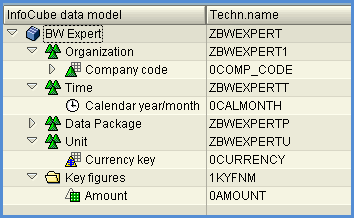
Figure 1
ZBWEXPERT: InfoCube DataModel
Step 2. Create a table using transaction code SE11 called ZBWEXP_CUR_FILE with the fields shown in Figure 2. You enter information in the Field and Data Ty… fields.
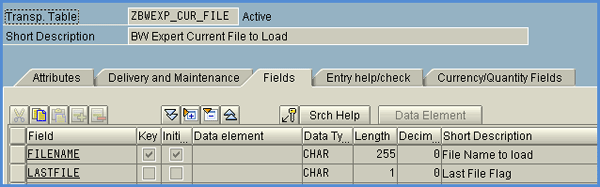
Figure 2
Table structure ZBWEXP_CUR_FILE
Step 3. Create a PC File DataSource with the fields shown in Figure 3.
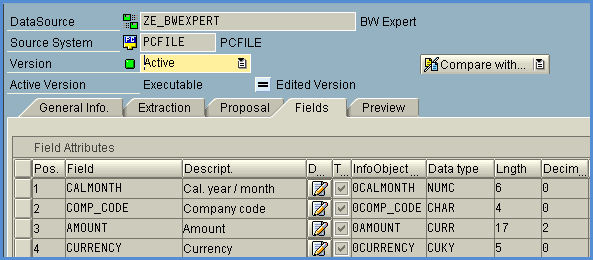
Figure 3
ZE_BWEXPERT: PC File DataSource fields
Step 4. Create an InfoPackage for the PC File DataSource ZE_BWEXPERT with the option to load the file from the application server on the Extraction tab shown in Figure 4. Type a routine name in the Routine Name field and copy the code shown in Figure 5.
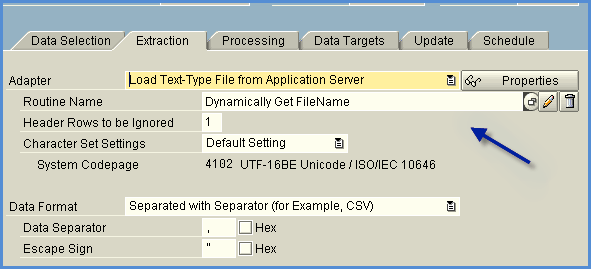
Figure 4
InfoPackage extraction setting
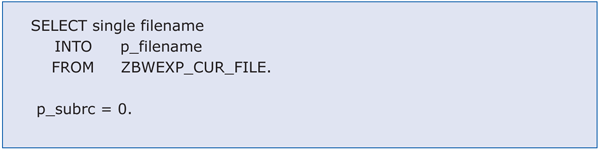
Figure 5
Dynamically get the filename: code for the routine
Step 5. Create a transformation from the DataSource ZE_BWEXPERT to the InfoCube ZBWEXPERT as shown in Figure 6.
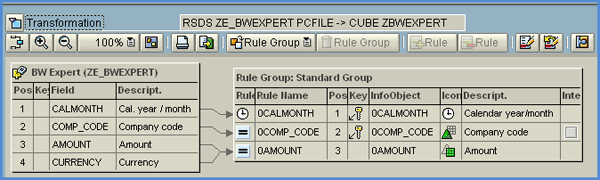
Figure 6
Create a transformation
Step 6. Create a data transfer process (DTP) to load the data from the persistent staging area (PSA) layer to the InfoCube.
Step 7. Create an ABAP program ZBI_BWEXPERT_LOAD_MULTI_FILES using transaction code SE38 (Figure 7). To download this ABAP code, click here. You use the program in the process chains in a later process.

Figure 7
ABAP program code
Step 8. Create three program variants for the program created in step 7. From transaction code SE38, type in the entries shown in Figure 8. Press CTRL-S and provide the variant name ZBWEXPERT_01 when prompted.
Following is an explanation of the parameter names used in the creating the variants, their purpose, and an example of their use:
- Pgm usage to check file exist: If this option is chosen, the program checks for any file existing in the folder provided in the File Input Path parameter. In my example, the program checks for any file in the application server folder /BIS/100/BWTEST/in/.
- Pgm usage to call load chain: If this option is chosen, the program calls the load chain. In my example, the program calls the process chain ZPC_BWEXP_LOAD_CHAIN.
- Pgm usage to move file: If this option is chosen, the program moves the last file loaded to the history folder specified in the File Output Path parameter. In my example, the program moves the last file loaded to the application server folder /BIS/100/BWTEST/out/.
- Logical System name: The logical system name of your SAP NetWeaver BW server. In my example, it is LOGICALSYS
- Last file check flag?: This is an optional flag that you can use if you need to call other process chains after loading all the files
- File Input Path: This is the application server folder in which the source files are placed. In my example, they are placed in source file /BIS/100/BWTEST/in/.
- File Output Path: This is the application server folder in which the source files are moved after they are loaded to the InfoCube. Typically, this would be the archiving folder. In my example, it is /BIS/100/BWTEST/out/.
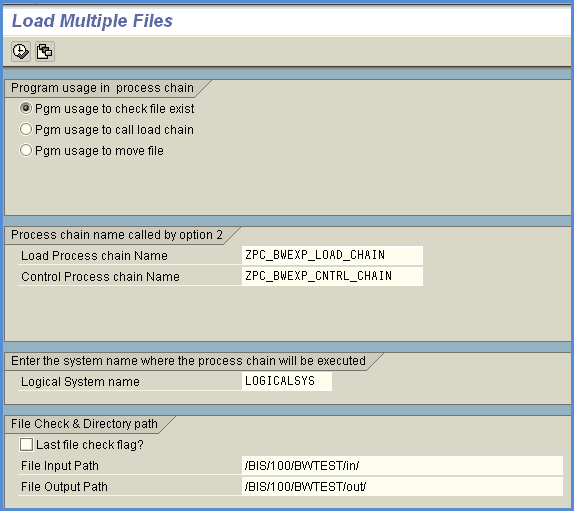
Figure 8
Enter the parameter values to create the variant ZBWEXPERT_01
Repeat the step and create the second variant ZBWEXPERT_02 the same way as you created the first, but select Pgm usage to call load chain (Figure 9).
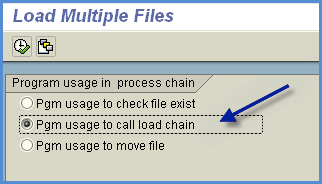
Figure 9
Select option 2 and create the variant ZBWEXPERT_02
Repeat the step and create the third variant ZBWEXPERT_03 in the same way as you created the first variant, but choose option 3 for program usage in the process chain. Also, select the Last file check flag? check box (Figure 10).

Figure 10
Create the third variant
Step 9. Create two process chains: a control chain to check for any existing file in the application server folder and a load process chain to load the file. The load process chain calls the control chain again if there are more files to load.
I’m going to create the first process chain, ZPC_BWEXP_CNTRL_CHAIN, which is the control chain. You create the control chain using two ABAP process types. Figure 11 shows the ABAP process type to use when creating the process chain.
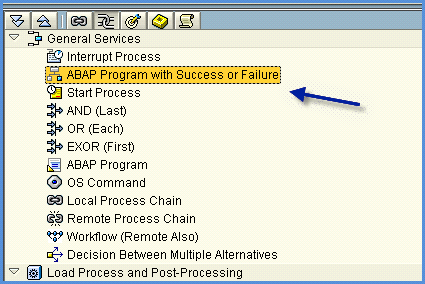
Figure 11
ABAP process type used in the process chain creation
The ABAP processes should call the program ZBI_BWEXPERT_LOAD_MULTI_FILES created in step 7. The first ABAP process should use ZBWEXPERT_01 as the first process program variant (Figure 12).

Figure 12
ABAP process with the Program Name and Program Variant
Add a second ABAP process to the process chain in the same way you performed the last step and use ZBWEXPERT_02 as the program variant (Figure 13).
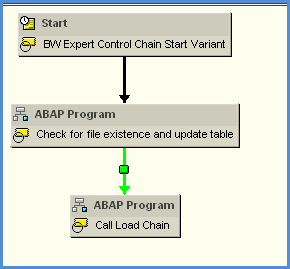
Figure 13
Add the second ABAP process type to the process chain
Now create the second process chain ZPC_BWEXP_LOAD_CHAIN. You create the load chain using the InfoPackage created in step 4, the DTP created in step 6, and the ABAP program created in step 7. Use ZBWEXPERT_03 as the program variant for the ABAP process and create the process chain as shown in Figure 14.

Figure 14
Process chain to load the file
Step 10. Push the source files to the application server folder using the process approved by your company. In my example, all the files have been moved to application folder /BIS/100/BWTEST/in/. Figure 15 shows three sample files loaded to the application server.

Figure 15
Three sample files
Step 11. Press F8 to execute the control process chain. After it has completed, check the process chain logs using the transaction code you used to execute the process chain. When you start the control chain, the control chain reads the first file and calls the load chain to load the first file. Once the load is completed, the load chain calls the control chain again for any additional files. This process repeats until the control chain finds no file. In my example I had three files, so the control chain executed four times and the load chain three times. The last time the control chain executed, it did not find any file and it terminated the process. After you execute the control chain, check the log of the control chain (Figure 16).
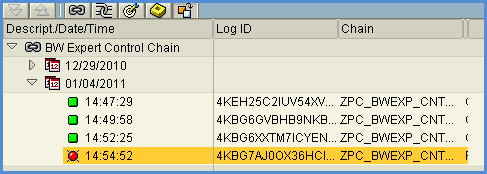
Figure 16
Log showing that the chain was executed four times
You should also review the load chain log to check the number of times the process chain has executed. Each execution should have loaded one file (Figure 17).
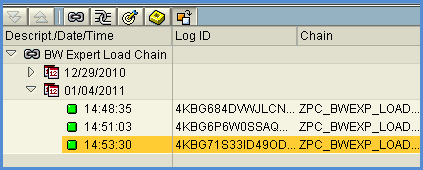
Figure 17
Log showing that the chain was executed three times
Thiagu Bala
Thiagu Bala is the owner of Aster Logic, Inc., and is an SAP-certified consultant in SAP BW 2.0, 3.0, and 3.5, SAP NetWeaver 7.0, SEM-BPS/CPM, Integrated Planning (IP), SAP BusinessObjects, and Crystal Reports. He has more than 13 years of experience in SAP specializing in BI, IP, SAP BusinessObjects, and SAP BusinessObjects Planning and Consolidation. You can check his profile on https://www.linkedin.com/in/thiagubala.
You may contact the author at thiagu.bala@asterlogic.com.
If you have comments about this article or publication, or would like to submit an article idea, please contact the editor.