See how to create a template that allows users to filter a Business Explorer Web Application Designer report by any list of values, even if they are not grouped in SAP NetWeaver BW.
Key Concept
You can use a TEXTAREA HTML tag and some basic JavaScript functions to add an input area into your Business Explorer Web Application Designer reports. You manipulate the content with JavaScript to change it from column format to a long string with semicolon separators. The Web template enables end users to filter reports by an external list of values coming, for example, from Microsoft Excel.
Perhaps you have an external Microsoft Excel file that holds a list of customers or employees. Did you know you can easily build a text area into Business Explorer (BEx) Web Application Designer (WAD)? The user then can paste a list of values from Microsoft Excel and filter the report by a random list of values, such as by country.
In BEx 3.5 you can click the more icon and get to the screen shown in Figure 1, in which you can easily upload a list of values from the clipboard. Using the Select Single Values tab, you can paste a list of values from the clipboard to the screen. However, in WAD 3.5 and 7.0, that functionality is not available.

Figure 1
Pasting a Microsoft Excel list of values in BEx Analyzer 3.5
By using a basic TEXTAREA HTML object with some JavaScript, you can add similar functionality to any Web template and any object. You can read more about the TEXTAREA HTML tag at www.w3schools.com/tags/tag_textarea.asp. To demonstrate the process, I've built a simple query over an 0COUNTRY InfoObject. It shows a list of countries (key and description) with a basic variable with selection options, as shown in Figure 2. To get to the screen, right-click the variable and then click the edit variable icon.

Figure 2
Create an optional variable with the selection option
When creating a variable, you give a technical name. Do so by clicking the General tab. In my example the variable technical name is VAR_COUNTRY2 (Figure 3). Save the query with the name Country_List.

Figure 3
General variable properties
Now I'm going to build the Web template with the TEXTAREA HTML object (into which users paste the list of values) and a simple analysis object to display the results. In addition I will create a button group with a Submit button and a script object for the simple JavaScript.
First create a blank Web template, save it with the name TEST_SEL, and connect it to the query. Click the New Data Provider button on the main template to get to the screen shown in Figure 4. Choose the query by selecting it from the drop-down list and then clicking the icon next to the query.
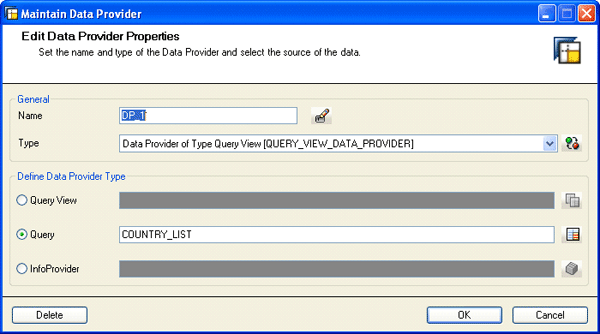
Figure 4
Add a new data provider by providing a name and choosing the query on which it will be based
Next, I add a TEXTAREA HTML object by clicking the Insert button (Figure 5). The Insert button lets you insert HTML tags such as DIV SPAN. To insert HTML tags that are not in the list, click Any Tag.

Figure 5
Click Any Tag
After clicking the Any Tag button, you get to the screen shown in Figure 6.
Then you choose TEXTAREA from the drop-down list.

Figure 6
Add the TEXTAREA HTML tag
Click the OK button to get to the screen shown in Figure 7, which is the TEXTAREA definition screen. In that screen I give my TEXTAREA an ID by clicking the Attributes tab and entering the ID in the Value field. In my example it is CountryList. It helps me get to the object with the JavaScript getElementById function. (Note that CountryList is the ID, but Country_List is the name of the query.)

Figure 7
Define TEXTAREA properties
You can use the TEXTAREA definition screen later to format the way that your TEXTAREA object looks on the screen. For my example, changing the ID is enough. You can experiment with other properties to change the way your TEXTAREA looks.
Next, I'm going to add the button group object so that I can add a submit button to fire the process. Drag the button group object from the pane into the main report area. You can find the button group object in the standard Web Items pane (Figure 8).
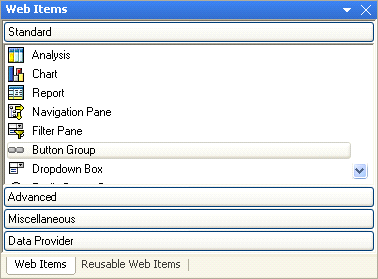
Figure 8
Standard Web items
I'll define the button inside the button group later after writing the script. I will give it an action and name. Add the Analysis item and connect it to DP_1 defined earlier in Figure 4. Drag the Analysis Web Item and drop it on the main report area. The Analysis Web Item can be found in the list of standard Web Items shown in Figure 8. Change its properties to work on DP_1. Click the Analysis Web Item and then on its properties screen select DP_1 as the Data Provider, as shown in Figure 9.

Figure 9
Analysis Web Item properties screen
If you have only one data provider, the system changes the properties automatically. It has only one option from which to choose. If you have more than one data provider, the system needs you to connect the object to the right data provider as you can see in Figure 9. The user just needs to select the right data provider from the drop-down list where is says DP_1.
The last object is the script object, which holds the JavaScript. Figure 10 is a summation of what the screen looks like after taking the previous steps.

Figure 10
Web template
Now I am getting to the main part, which is the script. To apply the list of values from the TEXTAREA to the variable, I'm going to do a quick manipulation on the list.
I'm going to transform it from a column-based list to a long string with semicolons between the values. Then I will apply the string to the variable. To do that, I'm going to use a JavaScript method called replace with a simple regular expression (Regexp).
You can read more about the method at https://www.w3schools.com/jsref/jsref_replace.asp.
To add the code to the template, you use the script Web Items and drag it to your main report area. You can find it on the Miscellaneous section of the Web Items as you can see in Figure 11.

Figure 11
Miscellaneous Web Items
Note that I also attached the following code, shown in Table 1, as a download so that you can copy it.

Table 1
Add this code to the template
The last step is creating the Submit button. In the Button group object properties that I created earlier (shown in Figure 12), click the Button Group Web Item on the main report area. On bottom left side of the screen shown in Figure 12 you see the Properties pane. Create a new button and call it Submit. Then you click the icon next to it and get to screen shown in Figure 13. The action is going to be a script function. Click the FilterData function from the list on the Script Function line.

Figure 12
Button group for Web Item Properties
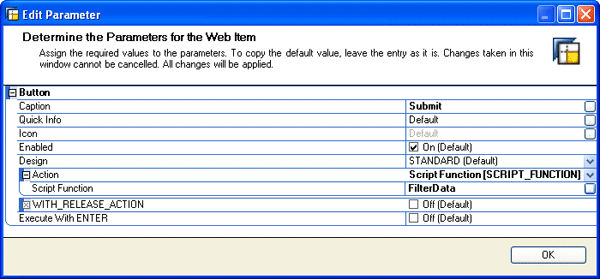
Figure 13
Define a script action on a button
The template is ready and should look like Figure 14.

Figure 14
The end user screen
You can now format it by adding a title and a description to your TEXTAREA to explain its use or change the layout or colors. If you would like to add the same functionality to another Web template or another InfoObject, you need to change the query and the JavaScript accordingly. Basically if you want to copy the process to another template, you need to think about the BEx variable, the TEXTAREA ID, and the JavaScript in which you need to change the TEXTAREA ID and the variable name.
Shlomi Weiss
Shlomi Weiss is CTO at BICS Israel LTD. He has 10 years of experience in classic BI and SAP NetWeaver BW. BICS Israel LTD is a niche BI consulting services company that provides a full spectrum of integrated enterprise information management consulting services and solutions, serving a wide variety of enterprises in many industries.
If you have comments about this article or BI Expert, or would like to submit an article idea, contact the BI Expert editor.
You may contact the author at Shlomi.Weiss@bics.co.il.
If you have comments about this article or publication, or would like to submit an article idea, please contact the editor.