Implementing enhancement packages is a less rigorous process than performing technical upgrades. See how to operate enhancement packages in the SAP ERP 6.0 system so you can access the new functionality they include.
Key Concept
Implementing enhancement packages can be fairly simple as some contain stand-alone new functionality that removes the need of regression testing the whole system. The process and timing of implementing enhancement packages can be staggered without too much involvement of the Basis or SAP NetWeaver team.
Enhancement packages deliver new functionality and technology so companies with SAP systems don’t have to change versions every year to get new functionality. To date, there have been four enhancement packages released by SAP, with a fifth on the way. When you implement the most current enhancement package, you automatically get access to all the functionality found in earlier enhancement packages.
If you implement a certain enhancement package, it does not activate automatically with all the functionality that is delivered. To activate functionality, you need to select certain enterprise business function sets. An enterprise business function set contains functionality that you can implement via enhancement packages. Normally, it contains a number of new functionalities in a common area of the SAP ERP system that have been linked together. Certain enterprise business function sets are dependent on others being activated before so careful planning and a good knowledge of the available functionality is required.
I’ll show functional users how to review and access the new functionality within the SAP ERP system without bogging you down in the technical material. For the technical side of things, you should consult an SAP NetWeaver specialist.
Note
There are various SAP Notes that provide specific information relating to the detail in the various enhancement packages, including 1052522 for enhancement package 2 and 1083576 and 1095233 for enhancement package 3. The SAP support Web site at www.service.sap.com/erp-ehp provides information regarding dependencies relating to support packages, and support stacks for your SAP ERP system.
On the SAP support Web site, there is a link to the solution browser, which allows you to see the new functionality available between versions of SAP by module. Access it at https://solutionbrowser.erp.sap.fmpmedia.com/Default.aspx (Figure 1).

Figure 1
Solution browser Web site
Select SAP ERP 6.0 for the Source Release Version, SAP enhancement package 4 for SAP ERP for the Target Release Version, Financials for the Solution Area, and AC (which represents Closing Cockpit for Accounting) for the Module from the available drop-downs to bring up the screen shown in Figure 2. There are other modules to choose from; I just chose AC for this example.

Figure 2
Solution browser details
Use transaction code SFW5 or follow menu path SAP Customizing Implementation Guide > Activate Business Functions to access the enterprise business levels (Figure 3).
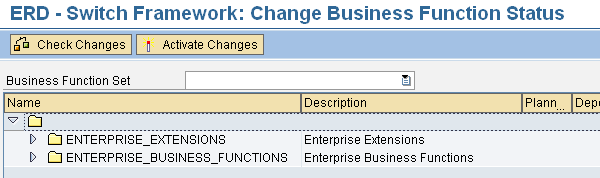
Figure 3
Transaction code SFW5 original screen
The drop-down list for the Business Function Set field allows the correct enterprise business functions to be displayed if an industry solution had been activated in the SAP ERP system (Figure 4). A business function set represents the various industry solutions that are now available in SAP ERP 6.0. The SAP ERP 6.0 system can only work with a single industry solution. The main exception to this rule is for the option Contract A/R + A/P, which can be activated with an industry solution. My example shows no industry solution activated in the system.

Figure 4
List of industry solutions for the Business Function Set field
By opening the ENTERPRISE_BUSINESS_FUNCTIONS folder, you can see the various business function sets as displayed in Figure 5. The default is that all business functions are initially inactive and I’ve activated FIN_ACC_LOCAL_CLOSE.
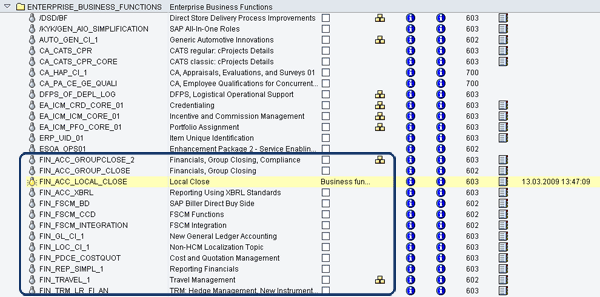
Figure 5
List of available enterprise business function sets
A lot of information is available from the transaction code SFW5 relating to a single enterprise business function set. Note that as of enhancement package 4, there are 13 specific enterprise business function sets that directly relate to SAP Financials. Those 13 are the ones circled in Figure 5.
From transaction SFW5 there are plenty of options to help you decide if you wish to implement the enterprise business function set. First, SAP provides all the relevant documentation that covers:
- Technical data
- Integration points
- Prerequisites
- Features
To access this information, you need to select the display documentation icon  , which is the first of the two blue icons shown in Figure 5. You can see examples of the documentation available in Figures 6 and 7 for the enterprise business function set FIN_ACC_LOCAL_CLOSE.
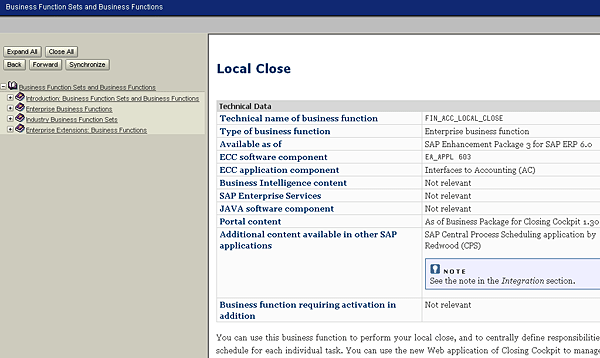
Figure 6
Documentation of local close: technical data
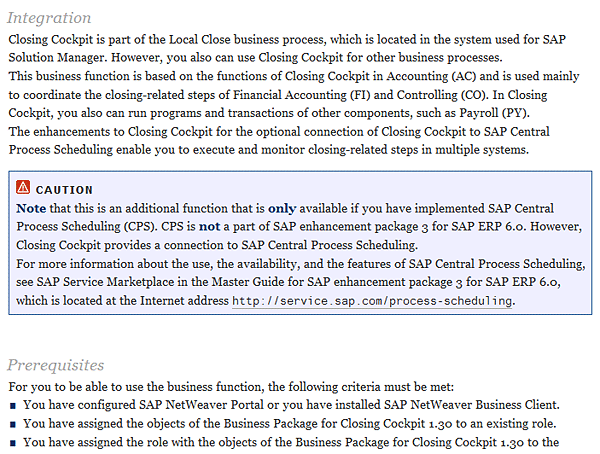
Figure 7
Documentation of local close: integration and prerequisites
You can also review the release information for the relevant enhancement package for the specific enterprise business function set you have selected. To do this, in the screen shown in Figure 5, click the display release information icon  to the right of the display documentation icon in the FIN_ACC_LOCAL_CLOSE row (Figure 8).

Figure 8
Release information for FIN_ACC_LOCAL_CLOSE
If you use the SAP test manager to perform testing within your SAP environment, SAP has provided some sample tests. You can use them when performing your own tests of the new functionality you have implemented via the enterprise business function set you have selected.
You can add new nodes or remove nodes to ensure you have all the required test cases assigned to the enterprise business function set. Click the display SAP test catalog icon  in Figure 5 to produce the linked test case screen (Figure 9). Click the Test Case button to produce the screen shown in Figure 10, which shows an example of an SAP-delivered test case.

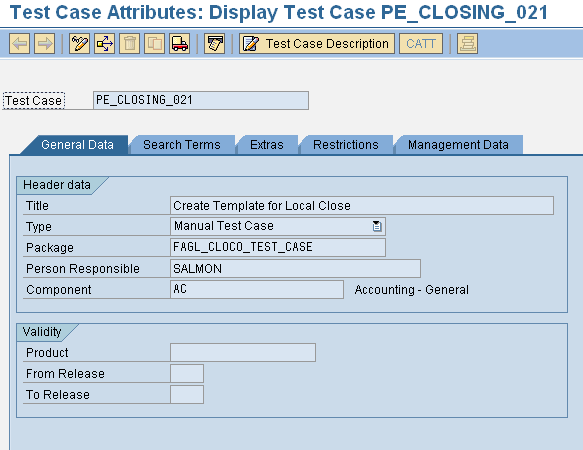
Figure 10
Example of test case for local close
After you have reviewed all the documentation, you can decide which enterprise business function sets you would like to activate. To activate, simply check the check box in the Plann… (Planned Status) column (Figure 11).

Figure 11
Change business function status
Once you have done that, you simply need to activate it by clicking the Activate Changes button and saving. After you save, the clear light-bulb icon  changes to a yellow light-bulb icon
  and the Planned Status check box is removed and replaced with the phrase Business function remains switched on.
One thing to consider is that you can only implement certain enterprise business function sets if another one has already been activated due to dependencies within the functionality. To see these dependencies, click the display dependencies icon  for the associated enterprise business function set (Figure 12). The bottom of the screen details the dependency between the various enterprise business function sets. In my example, the FIN_ACC_LOCAL_CLOSE is not dependent on any other enterprise business function set, but FIN_ACC_GROUPCLOSE_2, is dependent on FIN_ACC_GROUPCLOSE.

Figure 12
Displays the link between dependent enterprise business function sets
Mark Chalfen
Mark Chalfen is the finance capability lead at Bluefin Solutions, a niche SAP consultancy in the UK, and an SAP mentor. Mark has more than 12 years’ experience in SAP FI/CO in a number of industries. Mark’s core skills include Financial Supply Chain Management (SAP FSCM) and the new GL. He is currently advising a wide variety of clients on maximizing their SAP landscape either in the current R/3 version or upgrading to SAP ERP.
You may contact the author at mark.chalfen@bluefinsolutions.com.
If you have comments about this article or publication, or would like to submit an article idea, please contact the editor.


 Premium
