See how you can enhance your CRM WebClient UI business roles to launch thick client applications installed in a user’s desktop from the business role navigation bar. With this enhancement, you can make your SAP CRM business role the central homepage from which users can launch applications without extensive knowledge of the technology platform behind it.
Key Concept
Thick client applications include any application started with an executable file on the desktop. Examples include Microsoft Office applications, custom Visual Basic, and .NET applications.
Most companies use a mix of applications on various technology platforms to render an IT infrastructure to their business groups. This makes it a challenge to create a single portal from which users can access any tool required to accomplish their work-related tasks. With the new CRM WebClient UI in SAP CRM 7.0, SAP provides a central portal for users featuring the capability to launch external Web applications via an Internet Transaction Server (ITS) infrastructure.
The only missing piece is the ability to launch thick client applications and send contextual information from the CRM WebClient UI to this launched external application — or so you would think. I have come up with a solution in SAP CRM 7.0 that resolves this restriction by making CRM WebClient UI a true central homepage.
For an example of how this provides a benefit, say that a company is using a custom-developed .NET-based order entry application. When a customer calls to place an order, the call is received in the SAP CRM Interaction Center. The Interaction Center agent starts the process by finding the customer in the Interaction Center and then creates an interaction record to document the request. The agent then launches the .NET-based order entry application via a navigation bar entry in the CRM WebClient UI. The system transfers the already-available customer number and sales area information to the launched external application, thereby negating the need to re-enter this information in the external application. The agent completes the order entry in the external system and navigates back to the Interaction Center to end the customer call. This scenario is one of the many ways in which you can use this solution to improve the productivity of your agent and also use an IT system developed using technology platforms.
There are three prerequisites for the solution I present. First, the external application needs to be installed on your desktop on a predefined path. Also, the application should be able to accept the input parameters that you intend to transfer from the CRM WebClient UI context. Finally, you need ABAP and object-oriented programming knowledge. There is also a restriction to this solution: You can only launch the external application asynchronously.
Steps in the Process
Step 1. Create the new object ZLAUNCHAPP in SAP CRM using transaction SWO1 (Figure 1). This step defines the object used in the transaction launcher definition to execute the external application. The method display of this object takes the application execution path and the information to be sent to the external application as input parameters.

Figure 1
Create an object
Implement the method Display (Figure 2) with the code shown in Figure 3. Create two import parameters, Program and CommandLine, for this method Display (Figure 4). Then release and generate the object.

Figure 2
Implement the Display method

Figure 3
Code in the method Display
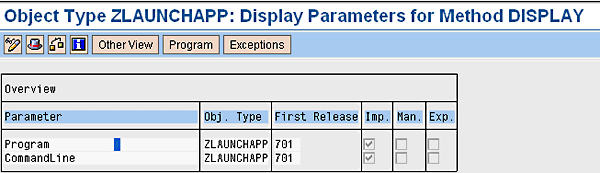
Figure 4
Create parameters for the method Display
Step 2. Define the transaction launcher for the executing external application. This step defines the transaction launcher that is invoked when the user clicks the navigation entry in the business role used to log into the CRM WebClient UI. This transaction launcher then invokes the Display method of the object ZLAUNCHAPP defined in step 1.
To start, follow IMG path Customer Relationship Management > UI Framework > Technical Role Definition > Transaction Launcher > Configure Transaction Launcher to launch the transaction launcher wizard. You can click the Continue button to move to the next screen in the wizard after you enter the required information.
In the first page, enter a technical ID for the transaction launcher (Figure 5), such as ZZ_LAUNCH_EXT_APP. You do not need to fill in the Component Set field. Click the Continue button.
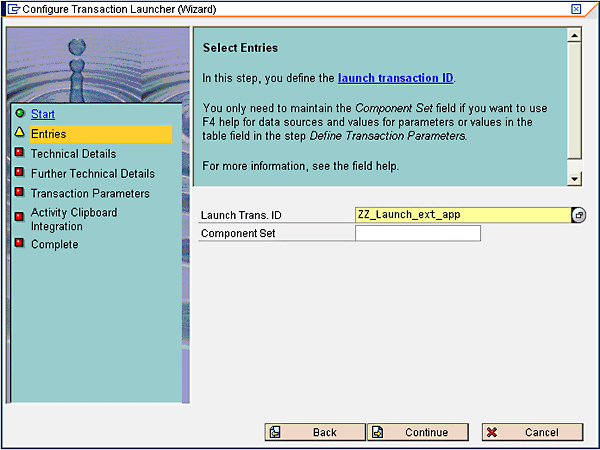
Figure 5
Start the transaction launcher and enter a launcher ID
Next, provide the name of the ABAP class that the system will generate with all the necessary code (Figure 6). You can also enter a description. Make note of this because you need to refer to this class in later in step 4.
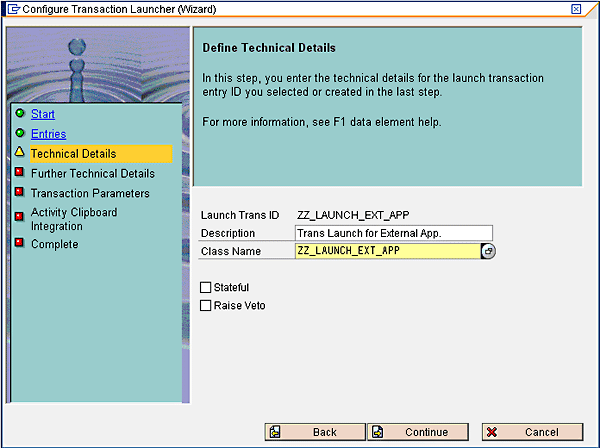
Figure 6
Enter a description and an ABAP class name
Next, define the method (i.e., Display) of the object ZLAUNCHAPP that should be called by this transaction launcher (Figure 7). For the logical system, select the destination for your SAP CRM system. If a destination is not already configured for the SAP CRM logical system in your environment, you can use transaction CRMS_IC_CROSS_SYS to do so. Fill the BOR Object Type field with the object name from step 1. Enter the method name DISPLAY.
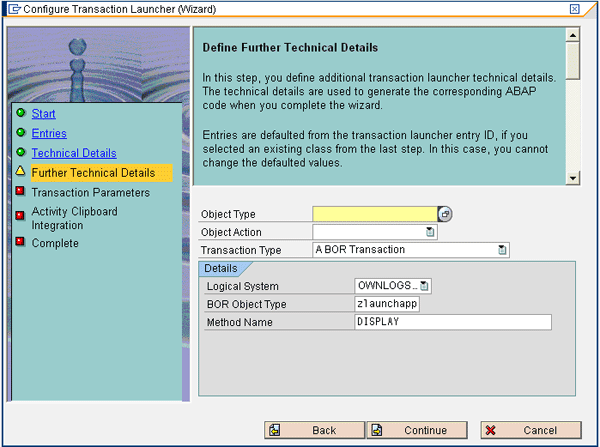
Figure 7
Define object and method mapping to transaction launcher
In the next screen, select the parameter PROGRAM Program Name to Exe from the drop-down menu in the Parameter field. Enter the path of the .exe program that you want to execute in the Value field (Figure 8).
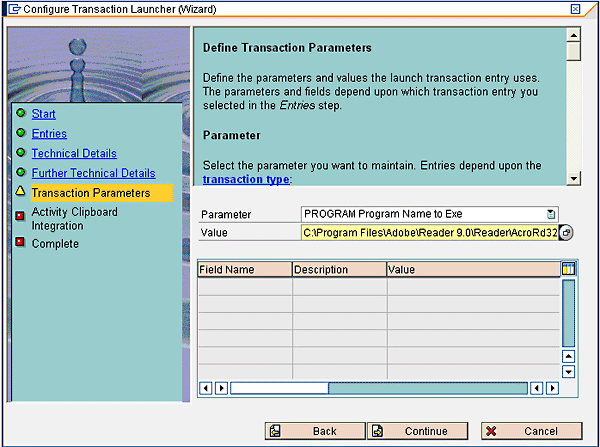
Figure 8
Fill the parameter PROGRAM with the path of the executable file
In the next screen, simply click the Continue button (Figure 9) to complete the transaction launcher.
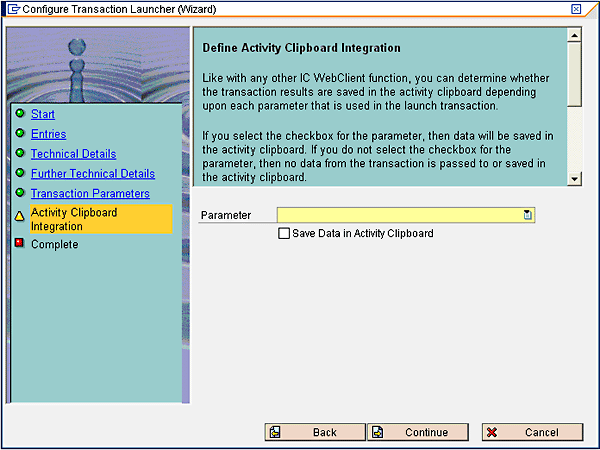
Figure 9
No action required in this screen
Step 3. Define a logical link and assign it to the navigation bar profile of the business role. In this step, you define the logical link that appears on the navigation bar of the business role. The logical link is mapped to the transaction launcher that you created in the step 2, which is then executed when the link is clicked.
First, follow menu path Customer Relationship Management > UI Framework > Technical Role Definition > Define Navigation Bar Profile. Click Define Logical Links in the Dialog Structure. Here, you define the transaction launcher that your external application link on the navigation bar executes (Figure 10).
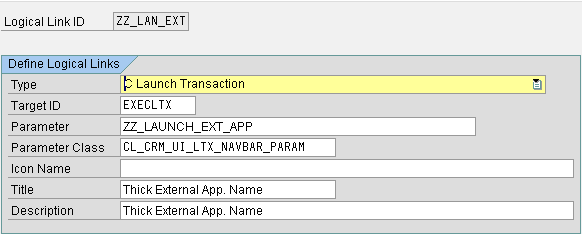
Figure 10
Define Logical Link ZZ_LAN_EXT
Select the type C Launch Transaction. Enter the Target ID as EXECLTX, which is the standard SAP setting for launch transactions. In the Parameter field, enter the transaction launcher ID you defined in the step 2. The Parameter Class for this example is the standard SAP transaction launcher class CL_CRM_UI_LTX_NAVBAR_PARAM because I am using the SAP transaction launcher interface. You should also provide a title and description for your link.
Next, assign this logical link to the navigation bar profile to display the link in the navigation bar of the business role. This is done as a part of the basic business role configuration and the details are beyond the scope of this article.
Step 4. Lastly, you need to redefine the method PREPARE_DATA_FLOW of the class ZZ_LAUNCH_EXT_APP that was generated when you created the transaction launcher with the wizard in step 2. With this enhancement, you can dynamically fill the information that you want to pass to the external application from the CRM WebClient UI. In the code in Figure 11, I provide an example of how to pass a confirmed customer in the Interaction Center to the external thick client application by appending the reference code in the method PREPARE_DATA_FLOW.
*** Fill the parameter to the external application with the confirmed account in the IC  ***

   DATA:     lr_gdc                TYPE REF TO if_crm_ui_data_context.
   DATA lr_entity_access_SOLD  TYPE REF TO if_bol_bo_property_access.
   DATA lr_entity_SOLD        TYPE REF TO cl_crm_bol_entity.
   DATA iv_sold_number type BU_PARTNER.
   data iv_sold_number_S type string.


 * Get GDC instance
   TRY.
       lr_gdc ?= cl_crm_ui_data_context_srv=>get_instance( ).
     CATCH cx_root.
       RETURN.
   ENDTRY.

   IF lr_gdc IS BOUND.

     TRY.
         lr_entity_access_SOLD = lr_gdc->get_entity( name = if_iccmp_global_data_cont_con=>GDC_CURRENTCUSTOMER ).
       CATCH cx_root.
     ENDTRY.
   ENDIF.


   TRY.
       lr_entity_SOLD         ?= lr_entity_access_SOLD.
     CATCH cx_root.
   ENDTRY.

   if lr_entity_sold is bound.
     iv_sold_number_s = lr_entity_sold->if_bol_bo_property_access~get_property_as_string(
iv_attr_name = 'BP_NUMBER' ).
   endif.
 * Setting up the parameter

   move iv_sold_number_s to COMMANDLINE.

   if COMMANDLINE is not initial.

     me->set_container_data(
       iv_name  = GC_COMMANDLINE
        iv_value = COMMANDLINE ).
   endif.
|
Sumeet Mishra
Sumeet Mishra is a senior SAP CRM consultant in the area of sales, service, Interaction Center, e-commerce, activity management, and marketing. Sumeet has eight years of experience in the software consulting industry and five full life cycle CRM implementations. Sumeet is currently working as a functional lead in a Fortune 500 company’s SAP CRM 7.0 upgrade.
You may contact the author at sumeet_mishra@hotmail.com.
If you have comments about this article or publication, or would like to submit an article idea, please contact the editor.




