Find out how to develop SAP Business Connector (SAP BC) Java services using a state-of-the-art Integrated Development Environment (IDE) such as Eclipse, how to set up source code versioning for developing Java services in a larger team using a third-party code revision control system, and how to debug Java services on the fly in a live system.
Key Concept
The smallest executable unit in an SAP Business Connector (SAP BC) is called an
SAP BC service. There are several different types of services. The most important ones are:
- Flow service: a graphical data mapping with basic control elements such as loops and conditional branches
- Java service: a data mapping (or other type of operation) written in the Java programming language. Used when you need better performance than a graphical mapping provides or when you need more advanced features.
- C/C++ service: a data mapping (or other type of operation) written in the C or C++ programming language. Used when you need absolute top performance or low-level access to hardware or operating system resources.
The execution of an SAP BC service can be triggered in several different ways, for example, when:
- SAP BC receives an HTTP request from a Web client
- SAP BC receives an Remote Function Call (RFC) or an IDoc from an SAP system
- An email arrives at SAP BC’s email listener
- A job in the SAP BC job scheduler is due for execution
In the past, developers working with SAP Business Connector (SAP BC) would create SAP BC services using the SAP BC Developer tool. While this is a great tool for developing record definitions and graphical data mappings (flow services), it offers only rudimentary editing capabilities for Java services and no Java debugging capabilities at all. Therefore, one of the most important new features of SAP BC 4.8 is the ability to switch the running SAP BC into debug mode on the fly, attach a convenient Java Integrated Development Environment (IDE) such as Eclipse, set a breakpoint in your custom Java coding, and then debug your Java service.
To illustrate this, I will develop a real-life IDoc mapping while also introducing the new Java IDoc API that allows you to process and convert IDoc data easily. I purposely insert a little bug into this mapping. Then I put SAP BC into debug mode, attach the Eclipse debugger to it, send an IDoc from the SAP back-end system, and capture it in the debugger. Using the captured IDoc data, I step through the mapping code, find the bug, and fix it — all without requiring a single restart of SAP BC. Other productive interfaces that this SAP BC installation processes are not interrupted at all.
In addition, I show you how to set up your Eclipse project to smoothly cooperate with the SAP BC Java service framework and how to integrate the resulting source files into a third-party code revision control system (such as Perforce, Concurrent Versions System [CVS], or Microsoft Visual SourceSafe).
Prerequisites
The SAP BC has become a mature and well-documented integration platform. Several thousand pages of documentation are available for the various features and use cases of the SAP BC. While you do not need to read all of it, this article assumes that:
- You are familiar with the SAP BC administration user interface (UI) and the way the various communication parameters are customized (see the central chapters of the SAP BC Administration Guide, if necessary)
- You understand the concept of SAP BC services and have used the SAP BC Developer tool to create simple mappings: flow services and Java services (see the SAP BC Developer Guide, if necessary)
- You know how to set up a Remote Function Call (RFC) connection between SAP BC and an associated SAP back-end system (see the basic chapters of the SAP Adapter Guide, if necessary)
You can download SAP BC as well as all the accompanying documentation at https://service.sap.com/sbc-download. (Service Marketplace login credentials are required for the download.)
Set Up the Java Project
An SAP BC Java service is not simply a Java method. It comprises additional input/output signature definitions so that a graphical flow mapping can easily invoke Java services and use their parameters. It includes structuring information so that you can organize Java services in hierarchical folders. Even the class loading is modified compared to normal Java Virtual Machine (JVM) class loading so that Java services can be edited and recompiled on the fly without requiring an SAP BC restart. Any change to a Java service is active immediately.
All this makes developing a Java service a bit complicated. Therefore, I use a combined approach by using Eclipse for editing the Java code — to take advantage of all the features of a modern IDE, such as code completion, syntax highlighting, and documentation browsing — and the Developer tool to ensure that the surrounding infrastructure is set up properly.
I assume that you have the usual setup of DEV, QA, and PROD installations, in which the SAP BC package replication process transports finished packages from DEV to QA and, after successful testing, from DEV to PROD. In a setup like this, developers can carry out flow development on the central DEV server if they log in to the server from their front-end PCs using the Developer tool. Java development can also be carried out centrally using the Developer tool because it performs all its work on the server, not locally. However, when the development tasks become more complex than just simple mappings with a few lines of code, you should use your favorite IDE for Java (or C/C++) development. I recommend the following approach, especially when working with a team.
Note
Transporting the package from QA to PROD is not advisable because it is a bit difficult to set up the QA system to simultaneously subscribe to the package from DEV and publish it to PROD.
Prepare the SPJ_JavaService Package and the mapOrders Java Service
Step 1. Log in to the central DEV server with the SAP BC Developer, create a package and the desired folder hierarchy, generate Java stubs for all your services, and define their input and output signatures.
I won’t go into the details of this because it is very well documented in the Developer Guide, p. 298, in the chapter “Building Java Services with Your Own IDE.” However, one pitfall is worth mentioning because it can lead to inconsistencies if you don’t know about it. Information about the service’s input/output signature is stored in special comments in the corresponding .java file as well as in the file node.ndf in the namespace directory corresponding to that service. When you create a new Java service, the SAP BC Developer first creates and saves the corresponding .java file. Afterwards, you define and save the signature, but saving the signature results only in an update of the node.ndf file — the .java file is not updated. Therefore, after you save the signature definition, you need to go back to the Source tab, enter something (e.g., an empty line), and then save the code. Now the .java file is updated with the signature information as well.
Go through this process now and create the package SPJ_JavaService and the Java service mapOrders as shown in Figure 1. (Don’t forget to change and save the Java source after you define the two input/output parameters.)
Note
You can find sample implementations of all the services discussed in this section in the package SPJ_JavaService_Solution.zip. Download this package at the end of the article and install it on your SAP BC. In step 1, you can build a similar package (SPJ_JavaService) with the same contents and then compare your results with the given solution.

Figure 1
Outline of the mapOrders service
Now the SAP BC Developer tool has done its work and you can switch to Eclipse. If you are carrying out development on a different machine from the one on which the DEV SAP BC server is running, I recommend creating a small SAP BC server installation on your front-end PC. It does not need much memory — 256 MB should be sufficient. It allows you to test your work on the fly before submitting it back to the central DEV SAP BC. Reloading the package is enough to make the latest changes visible.
Step 2. Publish the SPJ_JavaService package from the DEV BC to your local BC. In its packagesSPJ_JavaService directory, you find the following three files:
- The Java file codesourcespjjavasample.java: This is where you add the implementation of the mapOrders service
- The file nsspjjavasamplemapOrdersnode.ndf: This is where the service’s input/output signature is stored
- The file nsspjjavasamplemapOrdersjava.frag: The SAP BC Developer tool uses this internally
If you are using a source code revision control system, you only need to check in the javasample.java file. The other two can be reconstructed from the source using the jcode tool (which is also documented in the Developer Guide). For a folder structure inside the revision control system, I recommend something like <your company’s root folder>/packages/SPJ_JavaService/code/source/spj/javasample.java.
Then, any additional team members who want to work on the same source files only need to sync the packages folder into the packages directory of their local SAP BC installation and they are all set to proceed with the steps outlined in this article. Note that only Java source files need to be checked in to the revision control system. Don’t check in any class files, node.ndf, or java.frag files as I have noticed occurring in some projects. If you develop HTML and DSP files for user interfaces, check in these files from the package’s pub directory. If you develop flow services as well, then check in the corresponding flow.xml and node.ndf files from the package’s ns directory. This is all that needs to be in revision control. I will return to this topic later. For detailed information about naming the Java class, see the sidebar “Java Class Names.”
Step 3. Start Eclipse using the SAP BC JVM, for example: eclipse –vm sapbc48Serverjvmjrebinjavaw.exe –data %your workspace%. Create a new Java project. In the resulting wizard, first select the option Create separate source and output folders in the Project layout section (Figure 2). Next, click the Configure default… link in that section and set the folders as shown in Figure 3. Click the OK button. Back in the wizard, finish the rest of the settings as shown in Figure 2. Adjust the directory name as necessary if you are not using a local test SAP BC on your front-end PC.
Note
For some reason, when using Eclipse 3.4 you can no longer select Create separate source and output folders once other settings have been defined. This seems to be a bug in that version. With Eclipse 3.5 it works correctly. However, when defining the project folders first, you can still use 3.4.

Figure 2
Java project settings

Figure 3
Folder definition for Java Project
Click the Finish button. Eclipse finds the code generated by the SAP BC Developer tool, but it displays a couple of compile errors. Some libraries required by all SAP BC Java services are still missing. Right-click the Java project and in the Properties wizard select the Java Build Path. Click the Libraries tab and then click the Add External JARs… button to add the SAP BC client.jar and server.jar as shown in Figure 4. (If you don’t have a local SAP BC server installed on your front-end PC, you can instead find these two jar files in sapbc48Developerlib.) Also, make sure the default output folder is set to classes instead of source. Now all the preparations are finished and you can start coding.

Figure 4
The build path for the Java project
Implement the Java Mapping Using the SAP BC IDoc API
First, to illustrate how easily you can test your changes in the current setup, try the following:
Step 1. Log in to your local SAP BC with the Administrator UI as well as with the Developer tool.
Step 2. In the Developer tool execute the mapOrders service once — nothing will happen.
Step 3. Go back to Eclipse, open the javasample.java file, and after the line
- // [o] field:0:required flatData
add the two lines
- IDataCursor c = pipeline.getCursor();
- c.insertAfter("flatData","Hello World");
Step 4. Save the code.
Step 5. Switch to the Administrator UI and reload the SPJ_JavaService package. Then switch to the Developer and execute mapOrders again. Voilà! If you set up everything correctly, the output “Hello World” should now be displayed.
Note
At this point, use the SAP BC Developer tool only to execute services. Don’t change anything — otherwise you might accidentally overwrite your changes made in Eclipse.
Now you can start with the actual implementation of the mapping. Suppose your task is to process a standard IDoc of type ORDERS and write the address data from the E1EDKA1 segments into a CSV file. The SAP BC IDoc classes are located in sapbc48ServerpackagesSAPcodejarsstaticsapidoc3.jar. Add this file to the Eclipse project as an external jar as well. The JavaDoc for these classes is located at sapbc48ServerpackagesSAPpubdocidoc30index.html.
To use the IDoc classes in your mapping, just add an import to the beginning of javasample.java as follows:
// --- <<B2B-START-IMPORTS>> ---
import com.sap.conn.idoc.*;
// --- <<B2B-END-IMPORTS>> ---
Note
The syntax of these B2B tags must be exactly as shown, including spaces. Otherwise the jcode tool won’t recognize them. For details, see appendix F in the Developer Guide. Depending on what needs to be done with the CSV data in the next step, it may be better to use a byte array or a char array as output of the mapOrders service. I chose a string so that the result displays easily in the SAP BC Developer tool.
For the actual mapping code, see the example in SPJ_JavaService_Solutioncodesourcespjjavasolution.java. Just copy the implementation of the mapOrders method over to the javasample.java file, save it, and reload the package from the Administrator UI.
Using the Java IDoc API is relatively straightforward. All you need to remember is that the object you get from SAP BC is of type IDocDocumentList, whether the ALE settings on the SAP side say collect or send immediately. If the ALE outbound settings specify send immediately, you receive a list of size 1.
I prefer to first convert the list into an array. Then you can implement an efficient for-loop over it, and your code is prepared for IDoc packets as well as single IDocs. The sample code at the end of this article illustrates how to access fields of the IDoc control record and how to extract data from the IDoc segments — in this example, the E1EDKA1 and E1EDP20 segments.
Update the SAP BC Service Management
While you are editing the javasample.java source file in Eclipse, you must not change anything in the SAP BC Developer tool because at the moment, the source file and the SAP BC internal service management are out of sync. For example, if you add a new Java service to that folder or change an existing one, your source changes in javasample.java are overwritten.
If you need to create or edit any objects with the SAP BC Developer tool — such as adding an additional parameter to the signature of the mapOrders service — proceed as follows:
- Open a command prompt in sapbc48Serverbin
- Run the command jcode fragall SPJ_JavaService
- Now the changes you made in the IDE should be incorporated into the internal infrastructure. You can verify if it worked correctly by checking whether the BC Developer displays the correct Java code for mapOrders after a refresh.
- Perform the necessary work in the SAP BC Developer, such as editing the signature or adding a new service
- If you have changed signature definitions, go back to the command prompt and execute jcode compall SPJ_JavaService. This updates the javasample.java file with the necessary changes.
For more information about the jcode tool, see the Developer Guide p.302ff.
Tip!
In a fresh SAP BC installation, the jcode.bat/jcode.sh script is not yet operational. Open it in an editor and make the following changes:
- In the line SET B2B_ROOT=%%INSTALLDIR, set the installation directory of your SAP BC server — for example, D:sapbc48Server
- In the line SET JAVA_ROOT="%B2B_ROOT%jvm", remove the double quotes around the path. Otherwise, you receive NoClassDefFoundError.
- In addition, you need to append the following jar to the classpath variable:
- ;%B2B_ROOT%packagesSAPcodejarsstaticsapidoc3.jar
When your day’s work is finished, you want to bring your changes back to the central DEV SAP BC. I recommend the following procedure for this:
Step 1. On your front-end PC, check the javasample.java file into your source control system.
Step 2. Log in to the DEV SAP BC on the OS level and sync the sources to the current revision. The DEV SAP BC machine also needs to be connected to the source control system. Make sure the .java files are written into the correct subdirectory of the packagesSPJ_JavaServicecodesource directory.
Step 3. Run the command jcode update SPJ_JavaService as described above. This compiles the new code and updates the signature information in case it has changed.
Step 4. Reload the SPJ_JavaService package.
Any team member wishing to get the latest changes simply needs to check out the javasample.java file from the revision control system and perform the last two steps on his local SAP BC server.
Debug the Java Mapping
To test your ORDERS mapping, you have two options. If you have access to the SAP back end, set up the RFC connection between SAP BC and the SAP back end, make the necessary entries in the back end’s ALE customizing (so that the back end can send IDocs to the SAP BC), and then send an ORDERS IDoc to the SAP BC. All of this is documented in the SAP Adapter Guide.
Tip!
Transaction WE19 is a useful test utility if you don’t have the necessary application data setup in the SAP back end.
If you don’t have access to the SAP back end at the moment or don’t want to go through the effort of customizing it, you can use a little-known feature of SAP BC: the IDoc submission tester. In a browser, open the URL https://localhost:5555/SAP/Submit_IDocXML.html and click the Submit button. This simulates an IDoc being sent to SAP BC just as an IDoc would be sent from an SAP system.
In either case (whether you sent the ORDERS IDoc from a real back end or from the submission tester), SAP BC creates a new routing rule for message type ORDERS. The sender and receiver parameters depend on your back end. If you used the submission tester, the sender is 10019 and the receiver 0000040019. Complete the routing rule as shown in Figure 5 and enable it.

Figure 5
Routing rule for processing the ORDERS IDoc
Note
In a normal scenario, you typically use the mapOrders service as one step in a larger service instead of using it as the main processing service. With the current setting shown in Figure 5, although the SAP BC creates the flatData output, it won’t do anything with it. For the purpose of illustrating the debugging feature, however, this is sufficient.
Resend the IDoc from either transaction SM58 or the submission tester. This time it fails with the error message java.lang.NullPointerException, so obviously something is wrong with the Java mapping. If you know the structure of the ORDERS IDoc, you could find the error just by looking at the code — but let’s say that you don’t, so you need to debug.
Log in to SAP BC with the Administrator UI and follow menu path Server > JVM > Debugger Control. (This feature is available only if you are running your SAP BC with the SAP JVM.) Click the Attach Debugger button and note the debug port. SAP BC selects the first free port in the specified range, which is usually 8000.
Open your Java project in Eclipse and follow menu path Run > Debug. Choose the configuration for a Remote Java Application and click the New button. The wizard automatically presets all parameters as shown in Figure 6. Normally you don’t need to change these values unless you want to debug the Java service on a remote machine, such as the central DEV or PROD SAP BC. In this situation, you need to change the Host value from localhost to the corresponding hostname or IP address. Make sure your firewall settings allow a connection from your local development PC to that host on port 8000.
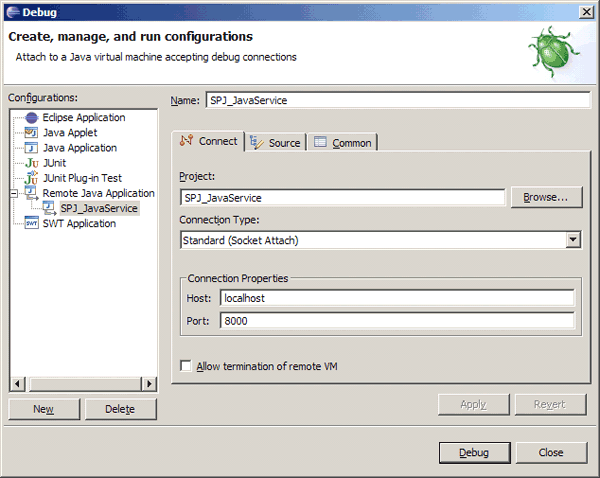
Figure 6
Debug settings for the Eclipse project
Click the Debug button and then set a breakpoint in the first non-comment line of the mapOrders method. Now you are all set. Resend the ORDERS IDoc from the back end or from the submission tester and execution should stop in Eclipse, as shown in Figure 7. You can investigate the contents of the pipeline by continuously opening the next node in that linked list.

Figure 7
The mapOrders service suspended in debug mode
Now step through the code until you get to line 62:
e1edp20 = root.getFirstChild("E1EDP20");
Here you can see that this statement returns null, which in turn causes the NullPointerException three lines later. A quick look into the ORDERS structure definition reveals that E1EDP20 is not a top-level segment but actually a child segment of the E1EDP01 segment, so you have found the error.
Stop debugging and change line 62 to:
e1edp20 = root.getFirstChild("E1EDP01")
.getFirstChild("E1EDP20");
Next, reload the SPJ_JavaService Package from the Administrator UI. (If the SAP BC is running on a remote host, you first need to copy the javasample.class file to the corresponding folder in that SAP BC’s installation directory.)
If you send the next IDoc to SAP BC, it processes correctly. You can see the flatData output it produced by following menu path Adapters > Routing… > Transactions > Update Search > TID of the latest IDoc > View as Values. It appears directly below the iDocList parameter.
Java Class Name
The default name for Java classes that contain SAP BC Java services is the name of the folder that contains the services. In my example, the name of the class is javasample and it is located in a Java package named spj. However, if you later add a subfolder (e.g., utils) to the javasample folder and then create a Java service in that subfolder, this results in a class named utils with a Java package name spj.javasample. The name spj.javasample now refers to two different things: the fully-qualified name of the Java class containing the mapOrders service/method and the name of the Java package containing the utils class.
Starting with Java 1.3, the Java compiler no longer allows this. Therefore, the SAP BC Developer tool renames the class javasample to JSBC_javasample when you create a subfolder with Java services inside the javasample folder. This can be inconvenient if you have already checked in that file to your source control system and added it to your Eclipse project.
Therefore, if there is a good chance that you might need to add a subfolder with helper services later, I recommend that you proactively rename the class before you copy it to your DEV PC and check it into the source control system. To do this, proceed as follows:
Step 1. Rename the file javasample.java to JSBC_javasample.java and then open it in a text editor to change the class name accordingly
Step 2. Delete the file SPJ_JavaServicecodeclassesspjjavasample.class
Step 3. Open a command prompt in sapbc48Serverbin and run the command jcode update SPJ_JavaService. (For more details on how to make the jcode tool work, see the tip in the section “Update the SAP BC Service Management” in the main article.)
Step 4. Reload the package from the Administrator UI
Note that in this article, I continue using the class name javasample to keep things simple.
Ulrich Schmidt
Ulrich Schmidt joined SAP in 1998 after working in the field of computational algebra at the Department of Mathematics, University of Heidelberg. Initially, he was involved in the development of various products used for the communication between SAP R/3 systems and external components. These products include the SAP Business Connector, which translates SAP’s own communications protocol RFC into the standard Internet communications protocols HTTP, HTTPS, FTP, and SMTP, as well as pure RFC-based tools, such as the SAP Java Connector and RFC SDK. Ulrich gained insight into the requirements of real-world communications scenarios by assisting in the setup and maintenance of various customer projects using the above products for RFC and IDoc communications.
You may contact the author at u.schmidt@sap.com.
If you have comments about this article or publication, or would like to submit an article idea, please contact the editor.




 Premium
