Manager
Learn how to configure the Solution Manager system to automatically determine the Change Advisory Board (CAB) whenever a new change request is posted in SAP Solution Manager based on the particular SAP component you are using, without any development. Step through the configuration necessary for automatic determination of the CAB, which is a group of change managers who are responsible for approving or rejecting a change request.
Key Concept
The Change Advisory Board (CAB) is a group that supports the change management team by assisting in the assessment and prioritization of changes and approving change requests. Generally it is made up of IT and business representatives that include the change manager, production manager, security manager, technical manager, and subject matter experts. These managers usually have a periodic CAB meeting at which they get the change request creation request, discuss its relevance, and then take the appropriate action on it.
One of the application life cycle management (ALM) features in SAP Solution Manager is Change Request Management (ChaRM), which refers to the complete centralized management of transports using Solution Manager. This means whenever there is a new change it follows a certain pre-defined process or workflow so developers can start building the change, and then document and store it centrally in Solution Manager.
ChaRM helps not only to document but also to transport the changes across the landscape in a controlled manner. Part of the ChaRM process involves the Change Advisory Board (CAB), which is a group of users that helps pass change requests through the system.
Figure 1 shows a typical process in which a requestor logs or creates a new change request that goes for approval to the CAB. Here they decide, categorize, or prioritize the development for this change and conduct a business impact assessment for the change request. Further, a change manager takes the responsibility for it and approves the change request.
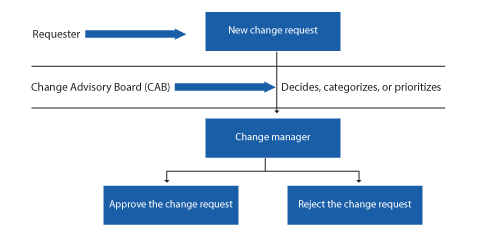
Figure 1
A typical example of change request creation and approval
The first step in ChaRM is to create a new change request that is posted by a requester in Solution Manager. If the CAB finds it suitable, it approves the new change request, and if not it rejects it.
Many times the person creating a new change request may not be aware of the identity of the change manager and therefore would like to forward it to the CAB. I’ll focus on how to configure the system to update the change request with the correct CAB group automatically based on the value of the CAB business partner that is filled in the change request. I’ll explore the various steps involved in creating the CAB and determining it automatically in Solution Manager.
Scenario
In Solution Manager 7.0 enhancement package 1, you can post a new change request by entering transaction CRMD_ORDER (Figure 2). You can see the Change Advisory Board field that by default has to be manually entered if no automatic determination is set.
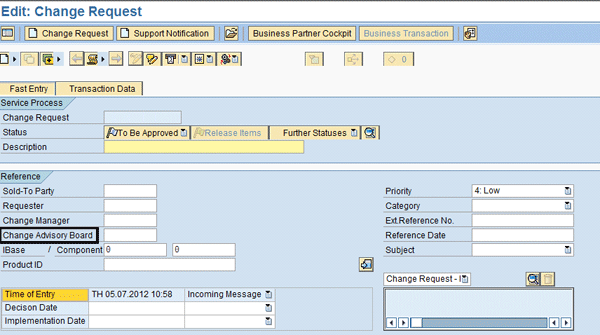
Figure 2
Change request creation screen
Typically the person posting the change request enters the information in the screen shown in Figure 2 by following this procedure:
- Enter the Business Partner in the Requester field. This is a unique number for the Requester in Solution Manager.
- Enter the IBase or the system information to which this change belongs
- Choose a Priority from the four available options: Low, Medium, High, Very High
- Choose a Category (e.g., Email)
- Choose a Subject (e.g., Urgent or Normal Correction)
Note
The basic concepts of ChaRM are not explained here, but for more you can go to
this SAP Help link.
Now consider a case in which you must determine the CAB value based on the SAP component or system landscape. For example, I am assuming you have two different groups: CAB ECC for the SAP ERP Central Component (ECC) landscape and CAB BI for the BI landscape. Using the above example, when a requester enters ECC landscape information, then CAB ECC is filled in automatically by the system.
Procedure
Step 1. Create a business partner (BP) for the CAB. To create a new BP for the CAB, enter transaction PPOCA_CRM (Figure 3). Choose the validity period for this organization or group of change managers. Press Enter.
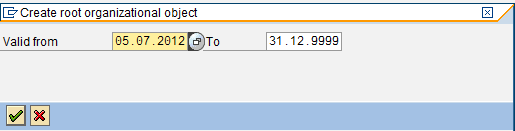
Figure 3
Create the root organization
Provide the details in the Basic data, Address, Function, and Attributes tabs (Figure 4).
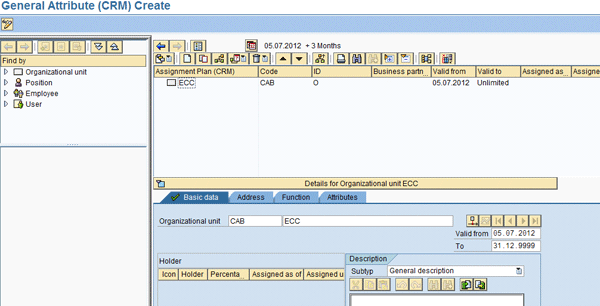
Figure 4
Create the organization model
Note
BP creation is master data configuration and therefore is just a one-time activity.
Click the Address tab and maintain the values based on your requirements (Figure 5).

Figure 5
Maintain the address data
Click the Function tab and choose Service (Figure 6). Select the Service Organization check box.
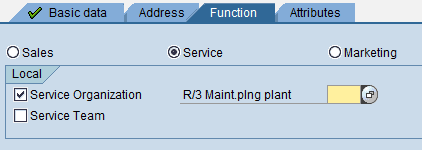
Figure 6
Maintain the function data
Click the Attributes tab, select the Obj. Permitted in Determination check box, and perform the consistency check for errors by clicking the check attributes icon shown in Figure 7.
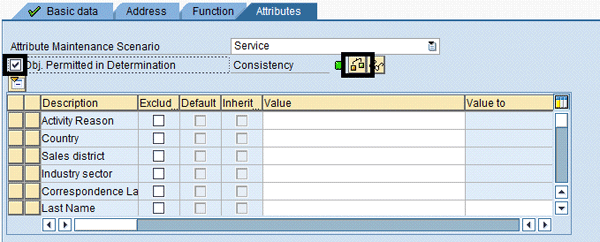
Figure 7
Maintain the attributes data
Step 2. Right-click the CAB ECC and select Create to create a new position (Figure 8). This is required so you can assign the relevant BP or team member (Change Manager for ECC) here. In the screen in Figure 9, double-click Position to create one.
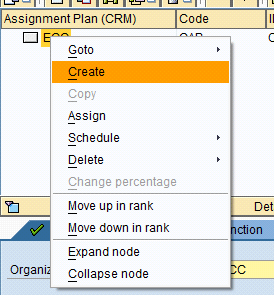
Figure 8
Create the position
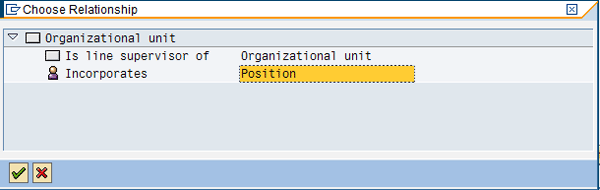
Figure 9
Position creation
Step 3. The system creates the position and assigns it to the ECC CAB (Figure 10). Note that the BP is generated as 131 in this example.
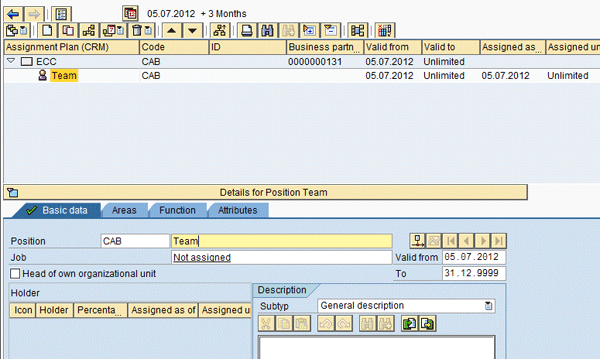
Figure 10
ECC CAB with the position and BP
Step 4. To assign the change managers for ECC to the ECC CAB, right-click the position and select Assign (Figure 11).
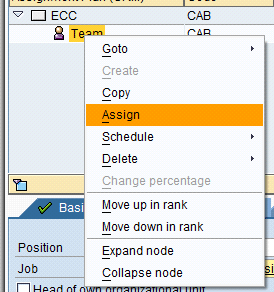
Figure 11
Option for assignment BP to Position
Step 5. Double-click Business partner in the screen shown in Figure 12.
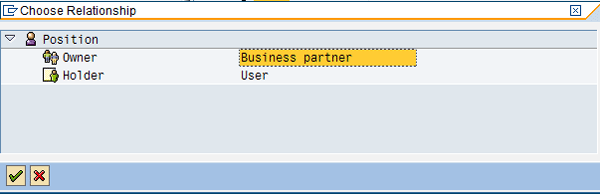
Figure 12
Assign the BP to the position
Step 6. Choose the relevant person or change manager by selecting the relevant names (Figure 13). Press Enter.
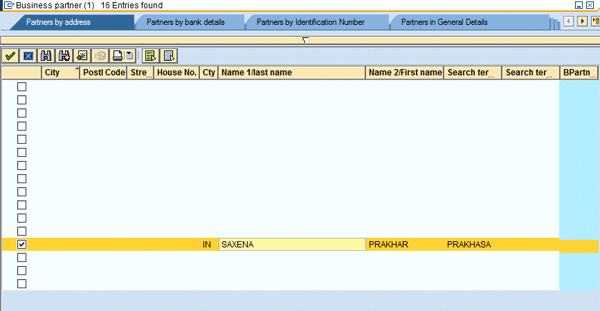
Figure 13
Choosing change managers
Step 7. All the change managers that are added are attached to become members of the ECC CAB as shown in Figure 14. Click the save icon and exit.
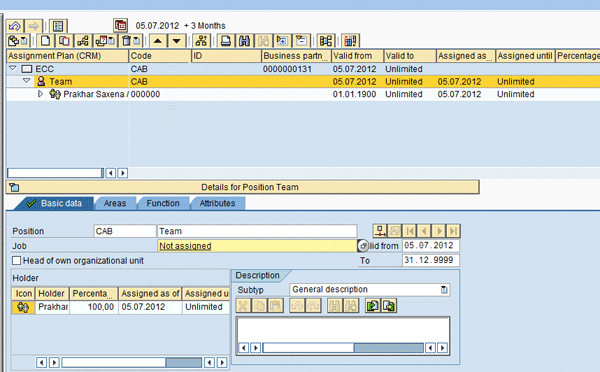
Figure 14
ECC CAB with members
If you want to create more CABs, you can repeat the previous process.
Step 6. Use transaction IB52 to make the entries of the newly created CAB in the IBase. This transaction in Solution Manager has information for all systems. Enter 1 (which represents the Solution Manager master IBase) in the Installed Base field and press Enter (Figure 15).
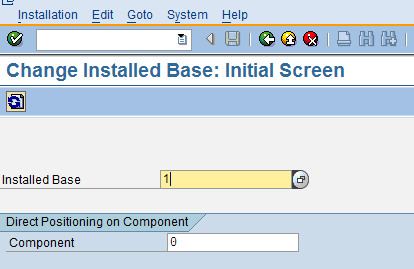
Figure 15
Change the installed base
Step 7. The next screen shows all the systems that are documented in Solution Manager (Figure 16). Choose the relevant system with the client (e.g., ECC) on the hierarchy on the left side of the screen. Click Goto and select Partner.
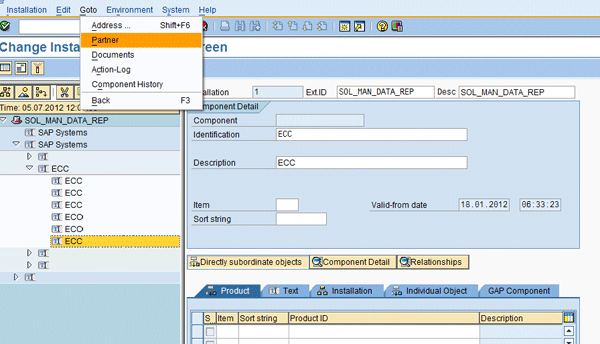
Figure 16
Click Partner
Step 8. Click the drop-down in the Function field and choose Change Advisory Board with the 131 value in the Partner field that you created earlier (Figure 17).

Figure 17
CAB partner value for ECC
If there are any errors while performing this step the message log is automatically updated and is reflected in the lower part of the screen.
Similarly, provide the value for the BI system by repeating steps 6 to 8. Click the save icon and exit once you have completed the steps for all the systems you use.
Step 9. In transaction SPRO, follow IMG menu path SAP Solution Manager > Scenario-Specific Settings > Service Desk > Service Desk > Partner Determination Procedure > Define Partner Determination Procedure (Figure 18). Choose the relevant partner determination procedure for your transaction type and on the left side click Partner Functions in Procedure.
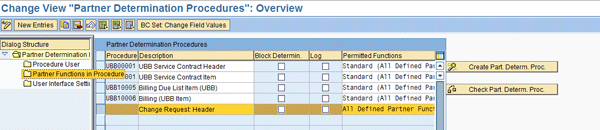
Figure 18
Partner procedure
Step 10. All the available partner functions (e.g., Sold to Party, Requester, Change Manager) are shown (Figure 19). Select Change Advisory Board (CRM) as highlighted and in the Access sequence column, choose SAP Service: Determination via IBase/Ind. Object from Ref.Object.
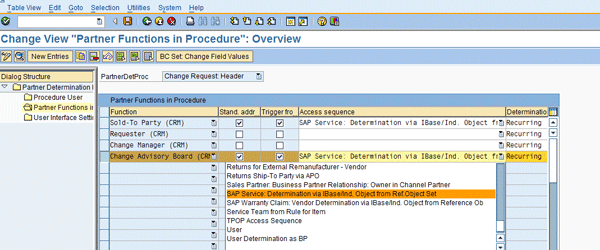
Figure 19
Access sequence assignment to the CAB
Note
This access sequence is standard and exists in both the 7.0 EHP 1 and 7.1 versions of SAP Solution Manager.
Save the changes in a transport request and exit.
These steps cover the required settings to determine the CAB automatically. Now I’ll show you how to use it.
Usage
This configuration is beneficial in the case in which larger landscapes are involved for bigger companies and you have separate teams involved for the CAB. If you have configured all the above steps and the requester is trying to create a new change request in Solution Manager using transaction CRMD_ORDER, the relevant CAB is automatically determined (Figure 20).
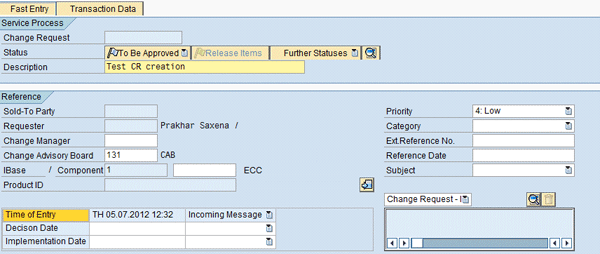
Figure 20
Automatically determined value for ECC IBase
This is advantageous because the expectation is to have as much automation as possible. This configuration enables the automatic determination for the CAB. The ECC CAB can see this in the queue and decide to approve or reject this change request.
Moreover it avoids mistakes. For example, in some cases a requester may enter the wrong CAB business partner and delay the process. To solve this, you could have a group email ID and save it to the CAB business partner. You then trigger the email to this group ID whenever a new change request is posted.
Prakhar Saxena
Prakhar Saxena is an SAP Solution Manager-certified consultant with more than six years of experience. He currently works with Capgemini India Pvt Ltd as an SAP Solution Manager SME and is involved with SAP Solution Manager Implementations and upgrades across the world for various clients. He has worked extensively with Project Management, Test Management, Solution Documentation Assistant, Service Desk, and Change Request Management. He has also built proof of concepts (POCs) and demos for various companies around the world.
You may contact the author at prakhar_alld@yahoo.co.in.
If you have comments about this article or publication, or would like to submit an article idea, please contact the editor.