You can configure source inspection functionality with one step so that you can inspect goods from a vendor at the source (at the vendor’s premises) before they are delivered. This brings about significant overall process improvements and helps reduce the overall lead time in ensuring that only quality goods are delivered by the vendor.
Key Concept
A Master Inspection Characteristic (MIC) is the quantitative or qualitative attribute of a material. For example, a quantitative MIC can be the thickness of a steel sheet (raw material). The thickness can then be measured with the defined limits of 0.45 mm to 0.65 mm. The surface finish of the metal sheet can also have attributes, such as extra-smooth, smooth, pitted, or rusted on the surface, which are examples of qualitative MICs. MICs have their own set of specifications that needs to be defined as QM master data.
Source inspection functionality in the quality management (QM) module ensures that the quality of procured goods is checked and approved for compliance before the vendor delivers them. The vendor can then deal with any defects in product quality immediately. A company can use this functionality to track when source inspection needs to be, and to carry it out. This saves the time that otherwise would have been lost if the defective goods were delivered by the vendor and rejected (or asked to be reworked) by the company.
The article begins by outlining an important configuration step needed to consider various options available for source inspection. If the goods at source inspection are rejected or asked to be reworked, one option is to not allow the vendor to deliver goods until the problem is rectified. Another option is to have a new inspection lot created when the vendor delivers the goods, despite having previously cleared source inspection. The business needs to evaluate the available options and accordingly have the necessary configuration undertaken in the QM control key.
Apart from the single configuration step, you need to set up the master data needed for source inspection. I’ll create a purchase order so you can see the importance of the delivery date and how source inspection is affected by it. You then create an inspection lot by manually triggering the program. Finally, you record the results and make usage decisions about the goods.
You can implement source inspection at any time, even after an SAP system and the QM module are already implemented in a company. Source inspection can be added as a part of ongoing improvements in business processes in general and the procurement process in particular.
Configuration of Source Inspection
You take a single step to configure source inspection, that of configuring the control key. The behavior of source inspection can be influenced by the control key, which is then assigned to the material master. A control key defines which functions are possible or allowed in accordance with a company’s business needs. To define a control key, follow menu path Quality Management > QM in Logistics > QM in Procurement > Define Control Keys (Figure 1). Figure 1 is the initial screen for the creation of control key.
Several standard control keys are available in the SAP system, as shown in Figure 1. Each control key offers different combinations of checks and controls, such as blocking the delivery from a vendor if a quality certificate is not submitted with the delivered goods, and blocking the invoice until goods are quality-cleared. Taking the control key 9001 as an example, let’s review the available options. Double-click 9001 to bring up the screen in Figure 2.
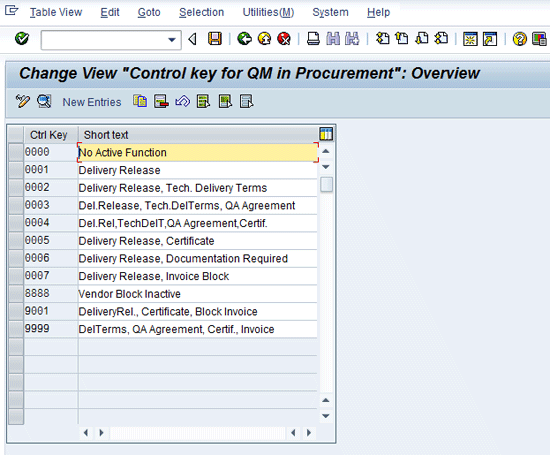
Figure 1
Initial screen for a control key for QM in procurement
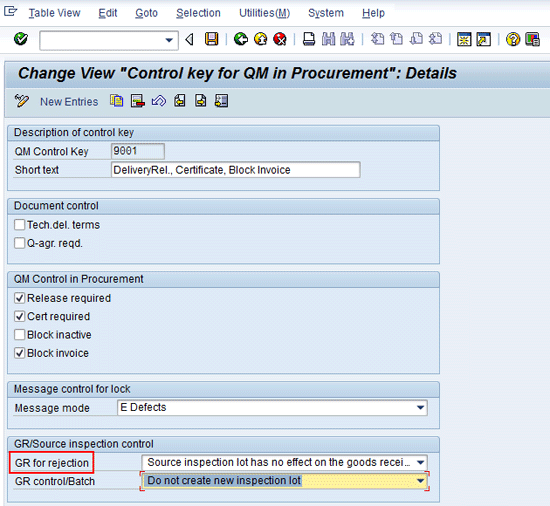
Figure 2
Configuration settings of control key for source inspection
In Figure 2, GR for rejection is a control function when the company rejects a vendor’s material at the source inspection level. GR control/Batch is a check for consistency between the vendor’s batch number given in the source inspection and the batch number at the time of goods receipt. If there is any inconsistency, you can create a new inspection lot at the time of GR or you can use the same inspection lot number that was previously created for source inspection.
Note
If you want to use a different control from the standard, you can implement the user exit QAAT0002, which allows you to specify your own specifications for materials, per the business needs.
You have now finished the necessary configuration. You next need to attend to the relevant master data. QM master data consists of the following:
- QM view of material master
- Quality information record (Q-info record): Procurement
- Master Inspection Characteristic (MIC)
- Inspection plan
QM View of Material Master
The QM view of the material master holds all the necessary information to effectively implement various functions and processes of quality management, including source inspection. To activate the QM view of material master, follow menu path Logistics > Materials Management > Material Master > Material > Create > Immediately or use transaction code MM01 (Figure 3). In the example in Figure 3, enter the Industry sector as M (mechanical engineering) and the Material Type as ROH (raw material). Click the Select view(s) button (1). In the pop-up window, select the Quality Management view (2) and click the enter icon (3). Click the Organizational levels button (4), which leads to Figure 4.
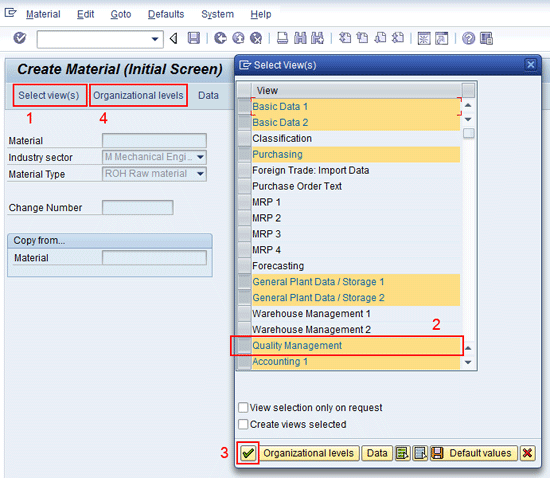
Figure 3
Initial screen for material master creation
In Figure 4, select the organizational level – that is, plant. In my example, I use plant 1000 and storage location 0001. Press Enter or click the enter icon. This leads to Figure 5, which is the QM view of the material master.

Figure 4
Organizational level of material master
Check the QM procurement active check box if your company requires a Q-info record when you create a purchase order. The Q-info record is the relationship between the vendor and material.
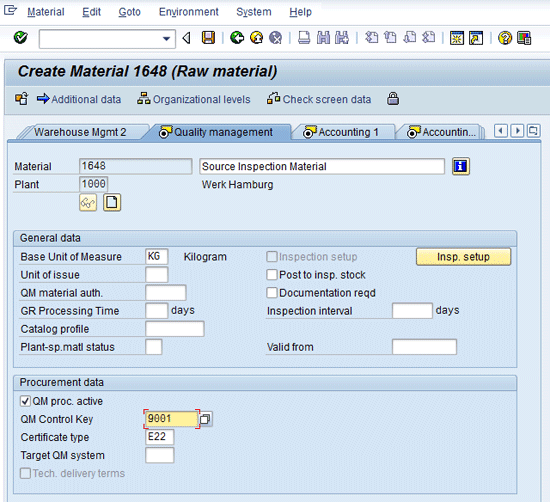
Figure 5
QM view of material master
Activating the QM procurement active check box also entails assigning a QM control key (configured earlier in this article), which controls what functions are allowed. For example, goods receipt may be allowed, but the invoice is blocked until the material is cleared from the QM module. The standard QM control key 9001 is available for this purpose. A lot of standard QM control keys are already available to fulfill most business requirements. A new key is needed only in exceptional business scenarios.
The next step is to click the Insp. setup button, as shown in Figure 5. This leads you to the screen in Figure 6.

Figure 6
Inspection setup data of material master
In Figure 6, new inspection type 0101 needs to be defined to activate source inspection for the material. To do so, click the Inspection Types button. Inspection type 0101 is available in the standard SAP system and is used for source inspection against the purchase order. Also, be sure to check the Active check box so that inspection type 0101 is active. If you need to deactivate an inspection type, simply uncheck the box. Details related to the fields in the lower half of the screen in Figure 6 and their functions are noted in Table 1.
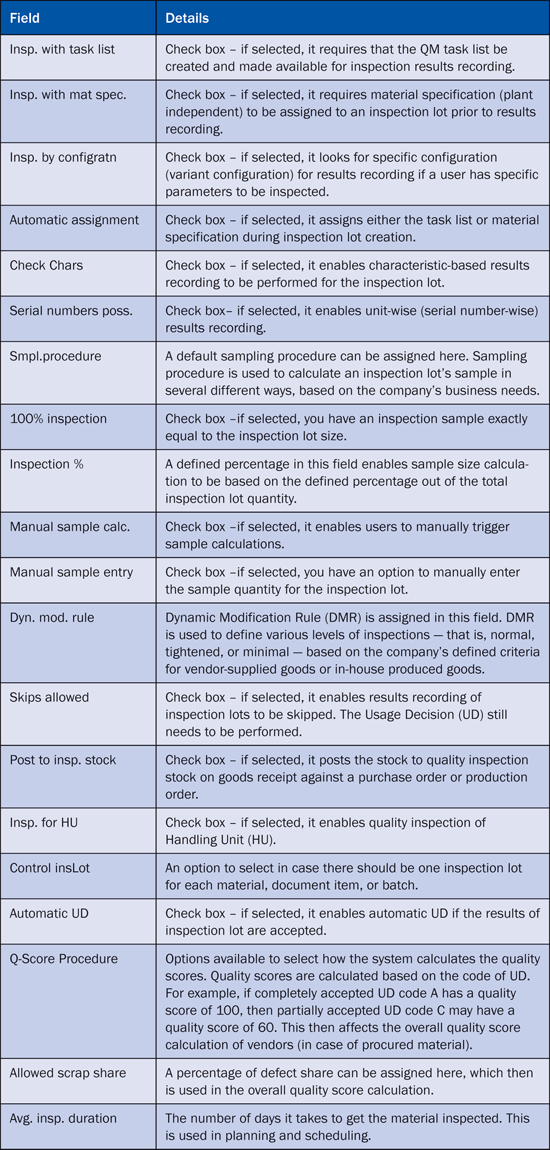
Table 1
Details of each field in Figure 6
Note
There is an option to select or deselect some of the check boxes in Figure 6 if they are not required for a business process. All options selected in check boxes subsequently act as a controlling function. For example, if the Automatic UD check box is deselected, no automatic UD for inspection lots belonging to this material is possible. Similarly, if the Manual sample entry check box is selected, the user has the option to manually enter the sample size of the inspection lot if there is such a business requirement.
Q-Info Record: Procurement
Revisiting Figure 5, recall that I selected the QM proc. active check box. In this step, you define a relationship from the material to the vendor as a part of QM master data. This relationship is called Q-Info Record: Procurement.
To create a Q-info record, follow menu path Logistics > Quality Management > Quality Planning > Logistics Master Data > Quality Info Record: Procurement > Create (Figure 7) or use transaction code QI01. Figure 7 is the initial screen for the creation of Q-info record, in which you define the previously created material, vendor, and plant. Press Enter to bring up the screen in Figure 8, in which you define the Released Until date, which is the last date the material can be supplied by the vendor. The Release quantity check box verifies that only orders you define up to the released quantity are placed with the vendor, before this relationship is again reviewed.

Figure 7
Initial screen for the creation of Q-info record

Figure 8
Release tab of Q-info record
Next, click the Insp. control tab of Figure 8, which leads to the screen in Figure 9.
In Figure 9, source inspection type 0101 is assigned, which ensures the creation of source inspection. The field Lead time (in days) is important as it is used in the calculation of the date when the source inspection at the vendor becomes due. Realistic and practical information in this field greatly helps in ensuring a timely source inspection. If the check box Source insp.-no GR is selected, no inspection lot is created at the time of goods receipt in the company’s own warehouse when the results of the source inspection are accepted. Save the Q-info record by pressing Ctrl-S.
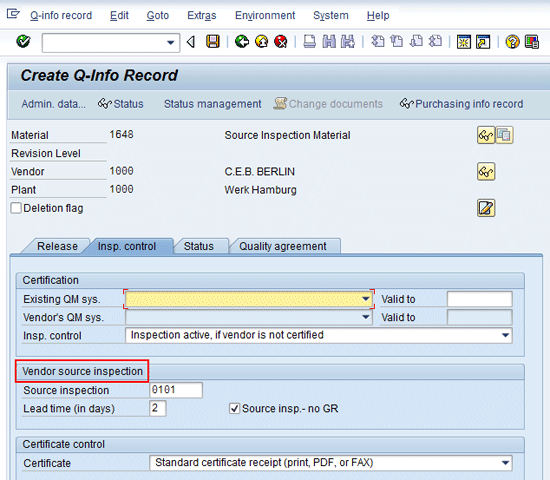
Figure 9
Insp. control tab of Q-info record
MIC
An MIC is the quantitative or qualitative attribute of a material. For example, a quantitative MIC can be the thickness of a steel sheet, while a qualitative attribute might describe the condition of the sheet’s surface (e.g., smooth, pitted, or rusted). MICs have their own set of specifications that needs to be defined as QM master data. To create an MIC, follow menu path Logistics > Quality Management > Quality Planning > Inspection Characteristic > Create or use transaction code QS21 (Figure 10). In my example, I created a quantitative MIC named QM01 on plant 1000.

Figure 10
Initial screen for the creation of an MIC
After defining the MIC, click the Master inspection characteristic button to bring up the screen in Figure 11. Here, I define the MIC to be quantitative (1) and give its short text the status of Released (2). I then click the Control indicators button (3), which leads to the Edit Characteristic Control Indicators screen (Figure 12).

Figure 11
Overview of a quantitative MIC
The control indicators are defined for MIC QM01 with requirements to define lower and upper limits as well as target values. Some of the other control indicators selected are Single result, which means that each result of a sample needs to be entered individually. Defect recording means that you can record any defects noted in production. Finally, I specify that MIC QM01 is a required characteristic and that the results must be recorded.
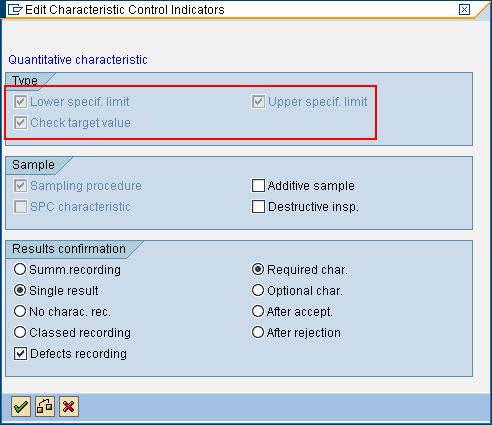
Figure 12
Control indicators for the creation of a quantitative MIC
Click the continue icon to access further control indicators (Figure 13). Here, I define that MIC QM01 does not have a fixed scope, which means you can still change its details later if necessary. I also select Long-term inspection, which means that in case the results recording of this specific MIC is delayed, the UD is still undertaken. I also choose the option to print the MIC in an inspection report.
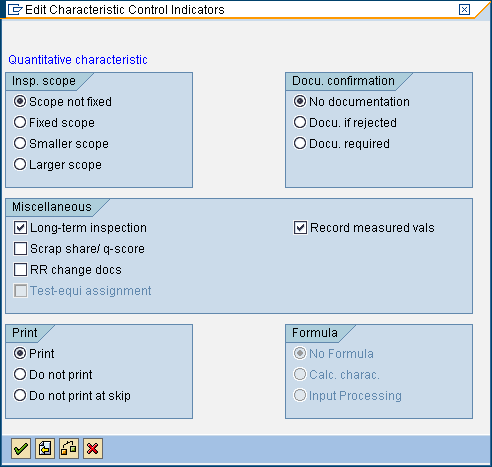
Figure 13
Further control indicators for a quantitative MIC
Click the continue icon. This leads to the screen in Figure 14, in which quantitative data is defined, such as the number of decimal places, the value of upper and lower limits, and the target value.
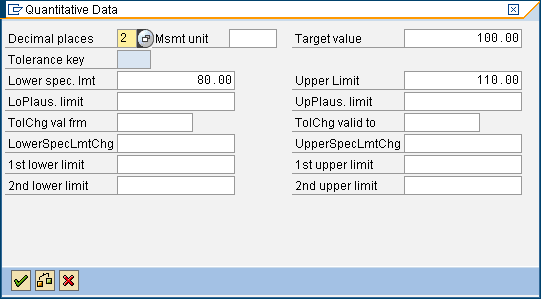
Figure 14
Specific quantitative data is entered for the MIC
Click the continue icon. The MIC can now be saved either by pressing Ctrl-S or by clicking the save icon.
Inspection Plan
An inspection plan is the task list referred to whenever an inspection lot against a purchase order is created. An inspection plan can have different usages. For example, a separate inspection plan for source inspection could include extensive checking and results recording. A goods receipt inspection against a purchase order could have a different set of specifications (MICs) to check. An inspection plan consists of previously created MICs.
To create an inspection plan, follow menu path Logistics > Quality Management > Quality Planning > Inspection Planning > Inspection Plan > Create or use transaction code QP01 (Figure 15). In my example, I define the material as 1648 and plant as 1000 for the creation of an inspection plan.

Figure 15
Initial screen for inspection plan creation
After entering the details for your inspection plan, press Enter or click the continue icon to enter header details (Figure 16). I enter usage 501, which is for source inspection, and the status of the inspection plan is set to 4, which is released.
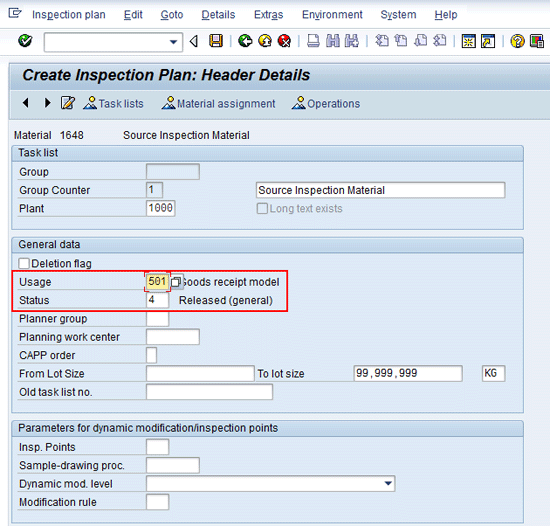
Figure 16
Header details of the inspection plan
A usage specifies the purpose for using a specific inspection plan. A material can have different inspection plans for different usages – for example, for goods receipt-specific usage or for a universal usage. A universal usage can be for all the different inspections or for a goods issuance usage that is used in a sales order-related quality check before goods are sent to the customer against a sales order.
Next, click the Operations button to view the Operations Overview screen (Figure 17). I assign work center 1111, on which the inspection is carried out. A work center is a production or assembly line.

Figure 17
Operations overview of inspection plan
Select line item 0010 and click the Inspection characteristics button. This leads to Figure 18, in which I assign the previously created MICs 8-101 and 8-105.
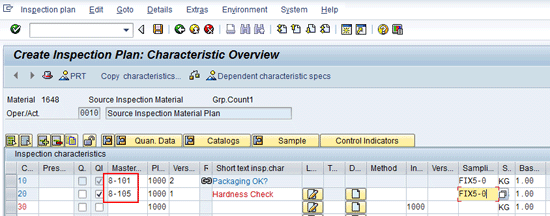
Figure 18
MIC view of an inspection plan
Note
If you have a quantitative MIC, then you can use the previously explained MIC, such as QM01, in Figure 18. You can now save the inspection plan by pressing Ctrl-S or clicking the save icon.
Source Inspection in Action
I now cover the creation of the purchase order followed by manually triggering the source inspection that results in the creation of the inspection lot.
Create Purchase Order
Create a purchase order for the same material and vendor for which the Q-info record was previously created, as shown in Figure 9. To create a purchase order, follow menu path Logistics > Materials Management > Purchasing > Purchase Order > Create > Vendor/Supplying Plant Known or use transaction code ME21N (Figure 19).
The purchase order is created for the same material (1648) and vendor (1000) for plant (1000) for which the Q-info record was previously created. In the purchase order, the important field is the delivery date (July 18, 2012), which is taken into account along with the lead time defined in the Q-info record for source inspection (refer to Figure 9).
Save the purchase order by pressing Ctrl-S and the system automatically generates a purchase order number. In this example, the purchase order number is 4500017331.
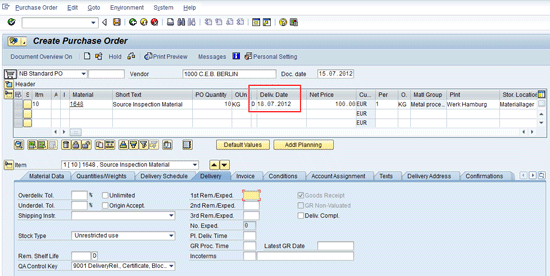
Figure 19
Initial screen for the creation of a purchase order
Worklist for Source Inspections
To regularly monitor all those materials for which a source inspection is due, you can either trigger the creation of an inspection lot manually or automatically via a batch input program. To trigger creation of inspection lots manually, follow menu path Logistics > Quality Management > Quality Inspection > Inspection Lot Creation > Source Inspection > Trigger Manually or use transaction code QI07. Figure 20 is the initial screen for the creation of source list inspection lots. The relevant parameters can be defined here and the resulting worklist brings the relevant inspection lots.
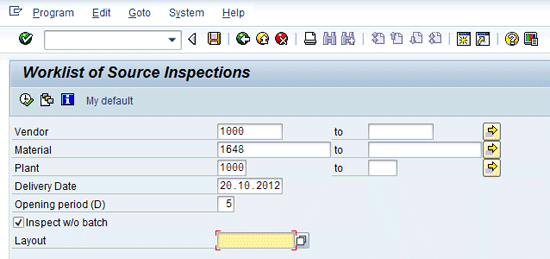
Figure 20
Initial screen for source inspections worklist
In Figure 20, I enter vendor 1000, the material 1648, and the plant 1000. I also specify that all materials that are slated for delivery between July 15, 2012, and July 20, 2012, (five days opening period) be available on the worklist.
The Inspect w/o batch check box also takes into account the materials that are not batch managed. Press F8 or click the execute icon, which leads to the worklist of the source inspection (Figure 21). Notice that the delivery date is the same (July 18, 2012) as was given in Figure 19. Select the line item and click the Inspection Lot button. The system automatically creates an inspection lot for source inspection.

Figure 21
Detailed worklist of materials for which a source inspection lot can be created
Note
To trigger a source inspection worklist automatically, use transaction code QA51.
Record Results for Source Inspection
Since the inspection lot for source inspection is already created, you can now initiate the results recording. Follow menu path Logistics > Quality Management > Quality Inspection > Worklist > Inspection > Change Data or use transaction code QA32 (Figure 22). Enter the initial parameters on the selection screen. These parameters can be material 1648, plant 1000, vendor 1000, and inspection type 0101. Press F8 or click the execute icon. This leads to the worklist of all the inspection lots for which the results recording or usage decision has not been taken (Figure 23).
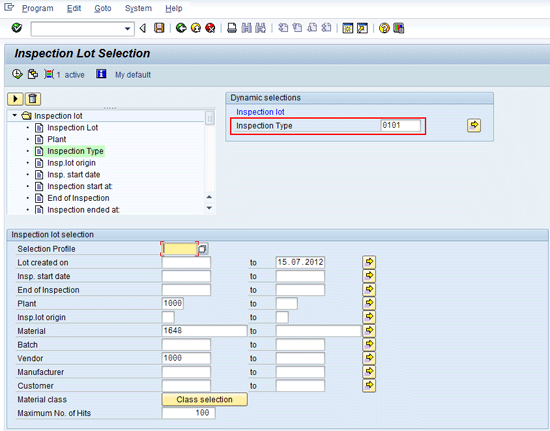
Figure 22
Initial screen for quality inspection lots selection
In Figure 23, all the inspection lots meeting the criteria are now available in the worklist. Select the inspection lot and click the Results button. This leads to Figure 24.

Figure 23
Worklist of inspection lot for source inspection
Figure 24 shows the results of the source inspection. Press Ctrl-S to save the results. Click the back icon to go back to Figure 23. In Figure 23, click the Usage Decision (UD) button this time, which leads to Figure 25.
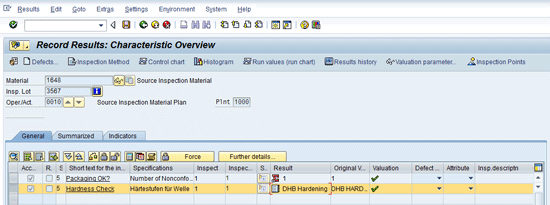
Figure 24
Results recording of source inspection lot
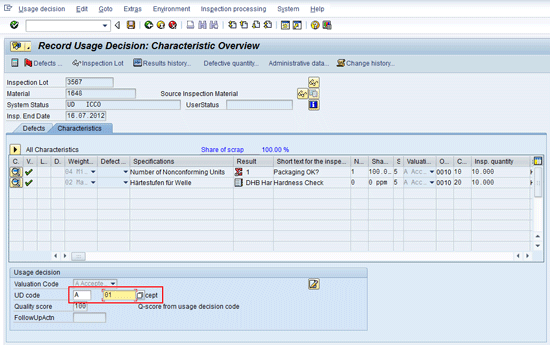
Figure 25
The UD of an inspection lot

Jawad Akhtar
Jawad Akhtar earned his chemical engineering degree from Missouri University of Science and Technology. He has 17 years of professional experience, of which nine years are in SAP. He has completed eight end-to-end SAP project implementation lifecycles in the areas of PP, QM, MM, PM, and DMS in the steel, automobile, chemical, fertilizer, FMCG, and building products industries. He also has worked as an SAP integration manager and an SAP project manager. He has been proactively involved in a business development and solution architect role for seven years. He is the author of Production Planning and Control with SAP ERP, it's filled with in-depth infomation on discrete, process, and repetitive manufacturing types. His profile on LinkedIn is at https://pk.linkedin.com/in/jawadakhtar. You may follow Jawad on Twitter @jawadahl. Currently, he is associated with AbacusConsulting as Head of SAP Delivery.
You may contact the author at jawad.akhtar@live.com.
If you have comments about this article or publication, or would like to submit an article idea, please contact the editor.