Manager
When performing maintenance or implementation projects in parallel, parts of the project can overlap or intersect, creating problems in the system. Learn how to use Change Request Management (ChaRM) in SAP Solution Manager to help you detect these project intersections, and then fix them.
Key Concept
Many companies work with multiple projects in parallel with the same production system or client as transport target, and face the problem of overlapping developments. Change Request Management (ChaRM) allows the user to detect critical transport objects and project intersections, and maintain predecessor relationships to avoid import problems. It helps control and organize changes.
One of the most common questions users ask me when implementing Change Request Management (ChaRM) in a multiple-projects environment — when projects are executed in parallel in the same system landscape — is how to deal with dependencies and critical objects that are part of more than one project. Users want to know, for instance:
- How to be aware of the existence of an object in a transport request from another project
- How to be aware of an object in a transport request being performed by another developer in the same project
- How to control the transport order so imports are executed accordingly
Some users only want to be informed that critical objects are included in the transports before they are released. One example is an object provided by SAP that can be repaired or manually corrected through SAP Notes. If it’s changed, it can create inconsistencies or modify a transaction. Each company can also have its own list of objects or table entries that must be considered critical for the company and need some special attention.
In some cases, users want to be informed about intersections to have a chance to avoid them. Intersections cannot always be avoided, however. Transports from different projects must be imported in such a way that they do not downgrade an object.
I will show you how to use ChaRM functions to deal with all the mentioned situations. This article is based on SAP Solution Manager 7.0 with enhancement package 1 and Support Package 23. I’m also assuming that you have completed ChaRM configuration.
Note
Refer to SAP Note 907768 for key critical transport objects and cross-system object lock fixes.
Critical Transport Objects and Modifications
In certain situations, you want to pay particular attention to specific objects that you consider critical, and control when they can be exported. Critical objects are objects that might cause problems during import or are critical for security. With ChaRM, you can activate a check on a system and client-specific level to determine if a transport request that is being exported contains critical transport objects, or subobjects of critical transport objects. If this is the case, the transport request cannot be released before the change manager's approval and the export will fail. The advantage of this check compared to transaction STMS (Transport Management System) is that the critical object check is performed before the transport request is exported.
You can activate the export check and configure your critical objects list by using transaction SPRO and following IMG menu path SAP Solution Manager > Scenario-Specific Settings > Change Request Management > Extended Configuration > Change Request Management > Specify Critical Transport Objects (or using transaction /TMWFLOW/CMSCONF) and selecting the Critical Objects tab (Figure 1). Select the development system by clicking the Status check box to activate the export check.
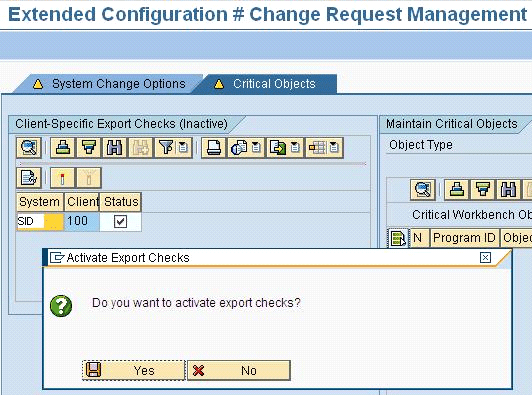
Figure 1
Activate export checks for the system and client
On the right side of the screen you can maintain your critical objects list (customizing and workbench). Select the Object Type and click the create icon (circled in Figure 2) to add a new entry.
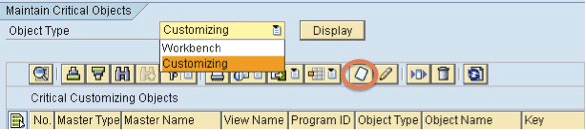
Figure 2
Select the type of critical object
In the next screen, enter the appropriate Master Type and Master Name. If the Object Type selected is Customizing, enter the Table Name and Table Key. Click the save icon to save your settings (Figure 3).
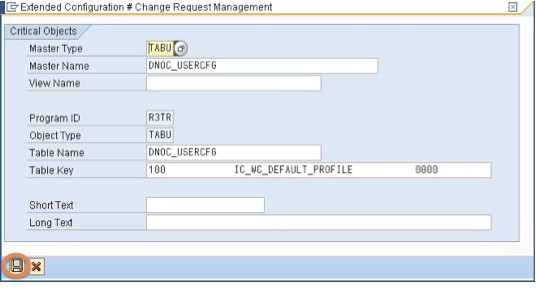
Figure 3
Example of a customizing object entry with table name and table key
You have to repeat the creation step for each critical object. When you finish you see a list of critical objects (Figure 4). You can change or delete any entry from your list by selecting the corresponding line and clicking the change icon  or the delete icon
  .
.

Figure 4
List of customizing objects defined as Critical
You can also define generic critical objects. For example, you can specify that a generic table key is critical when you enter the Master Type, Master Name, and Table Name, and set the Table Key as the client number and * (e.g., 100*). Another example is to define a generic table name. In this case, enter the Master Type and Master Name. Then in Table Name enter the generic name and *. For instance, if you enter DNO*, all customizing contents of tables that begin with DNO and subobjects of the Master Type and Master Name need approval before they can be exported. Workbench objects can have objects specified as generic critical objects by the object name only.
Now I will show you how to verify and approve critical objects in the ChaRM process. In my example, an Urgent Correction with status In Development has an open transport request. The developer finishes the change and one or more of the changed objects saved in the transport request are included in the critical objects list. The developer can release the task as usual. When it is time to release the transport request, the system performs a check and the transport request is not released (Figure 5).

Figure 5
Message in the transport request release
You can verify if a correction contains critical transport objects and release them by clicking the actions icon and selecting Critical Transport Objects from the standard screen for Urgent Corrections when they have the In Development status (Figure 6).

Figure 6
Verify and approve critical objects from an Urgent Correction
In the dialog box, click the Status icon  . To approve the object, click the Yes button in the pop-up screen. If it’s necessary to withdraw the approval, click the Status icon again (Figure 7).
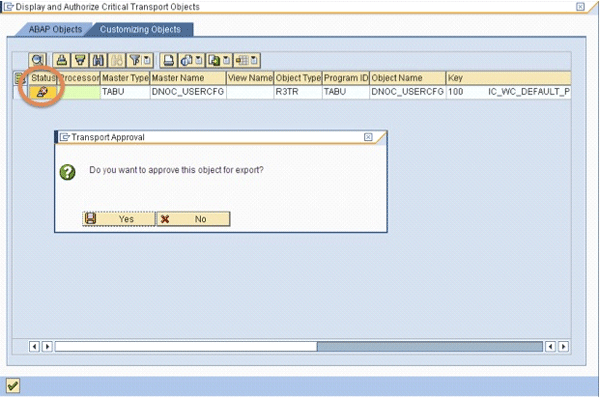
Figure 7
Approve ABAP and customizing critical objects
Since only the change manager of the correction can approve critical objects, the person executing the approval must be assigned as the change manager in the document. Otherwise, the message shown in Figure 8 pops up. This check is not related to authorization roles, but to the business partner role.
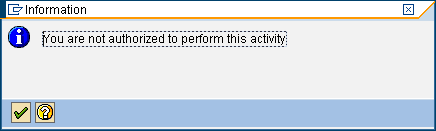
Figure 8
Authorization error
After the approval, the Status icon changes to green. The critical object is approved and can be exported (Figure 9).
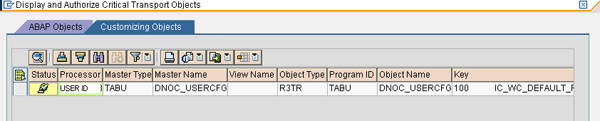
Figure 9
Critical object after approval
After all the critical objects are approved, the release of the transport request should finish with no errors. If later in the same correction a new transport request is created, and it contains a critical object, you again have to approve it before it can be exported.
You can also define modifications as critical transport objects. If the transport request contains objects provided by SAP, it needs approval before it can be exported. To activate the modifications check, use transaction SPRO and follow IMG menu path Solution Manager > Scenario-Specific Settings > Change Request Management > Extended Configuration > Change Request Management > Configure and Activate Cross-System Object Lock > Globally Activate Cross-System Object Lock (or use transaction /TMWFLOW/CONFIG_LOCK) and select Modification Checks Active. Press F8 to execute the report and save your entries (Figure 10).
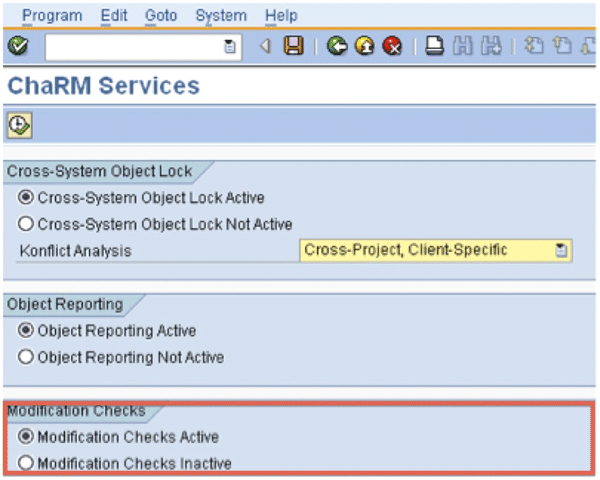
Figure 10
Activate modification checks
Cross-System Object Lock
An interesting piece of functionality for those who have parallel projects running with the same production system or client is the cross-system object lock. It helps you detect conflicts between objects when they are changed. When this check has been activated, a lock entry is created for the object in SAP Solution Manager. If another developer tries to change the same object in any other transport request that has the same production system or production client as the target, a message is displayed immediately after the transport request is selected. Depending on the type of conflict activated, the message can be either a warning (and the developer is allowed to save the change) or an error message preventing changes being made to that object in any other transport request.
The system can only detect a conflict when the transport requests were created within ChaRM. Each development system must be connected with the ChaRM client.
To activate the cross-system object lock at the client level, use transaction SPRO and follow IMG menu path Solution Manager > Scenario-Specific Settings > Change Request Management > Extended Configuration > Change Request Management > Configure and Activate Cross-System Object Lock > Activate Cross-System Object Lock in Satellite Systems (or use transaction /TMWFLOW/CMSCONF) and select the System Change Options tab. Select the development system and click inactive in the Cross Sys. Obj. Lock column. Click the Yes button in the resulting pop-up screen (Figure 11).

Figure 11
Activate cross-system object lock at the client level
To activate the cross-system object lock globally, use transaction /TMWFLOW/CONFIG_LOCK, the same used to activate modification checks. In the Konflict (Conflict) Analysis field you can select the conflict scenario you want to activate (Figure 12). The options are shown in Figure 13.

Figure 12
Activate cross-system object lock
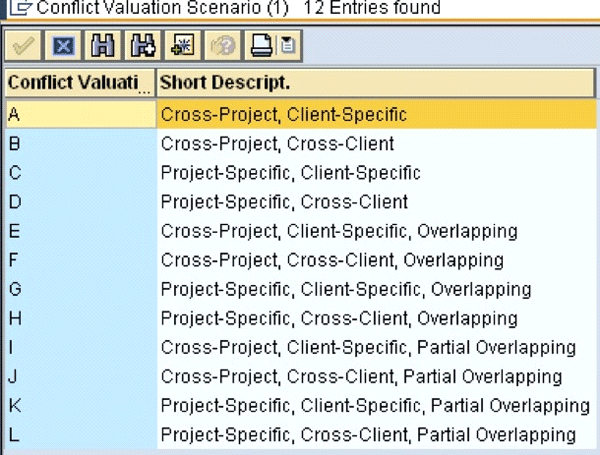
Figure 13
Conflict analysis list — valuation scenarios
The conflict scenario defines which type of conflict the system verifies and if the message is a warning or an error. Figures 14 and 15 show the different messages. The conflict analysis function differentiates between:
- Conflicts between urgent corrections and conflicts between transactions of another type (for example, a conflict between an urgent correction and a normal correction, or a conflict between normal corrections) and
- Conflicts between transport requests assigned to different projects and conflicts between transport requests assigned to the same project
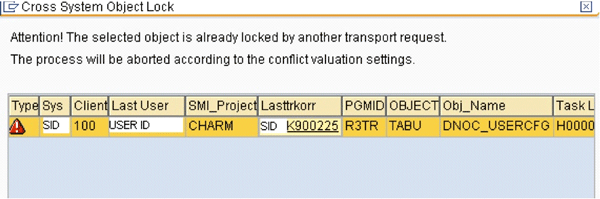
Figure 14
Error message when the process is cancelled

Figure 15
Warning message; the user can continue or cancel the change
The following conflict scenarios are available:
- Cross-Project, Client-Specific: This is the default scenario. If a client-specific customizing, cross-client customizing, repository, or Data Dictionary (DDIC) object is already saved in a transport request belonging to an urgent correction, and the user wants to change it in another transport request from another urgent correction, the system displays an error message and a cancellation occurs. The cancellation occurs if the urgent corrections are from the same project or from different projects. In all other cases, the system displays a warning and the user can decide whether to change the object.
- Cross-Project, Cross-Client: If a cross-client customizing, repository, or DDIC object is already saved in a transport request belonging to an urgent correction, and the user wants to change it in another transport request from another urgent correction, the system displays an error message and a cancellation occurs. The cancellation occurs if the urgent corrections are from the same project or from different projects. In all other cases, the system displays a warning and the user can decide whether to change the object.
- Project-Specific, Client-Specific: If a client-specific customizing, cross-client customizing, repository, or DDIC object is already saved in a transport request belonging to an urgent correction, and the user wants to change it in another transport request from another urgent correction, the system displays an error message and a cancellation occurs, but only if both urgent corrections belong to the same project. In all other cases, the system displays a warning and the user can decide whether to change the object.
- Project-Specific, Cross-Client: If a cross-client customizing, repository, or DDIC object is already saved in a transport request belonging to an urgent correction, and the user wants to change it in another transport request from another urgent correction, the system displays an error message and a cancellation occurs, but only if both urgent corrections belong to the same project. In all other cases, the system displays a warning and the user can decide whether to change the object.
Other conflict scenarios extend the check for a cancellation to all transaction types. They have the attributes Overlapping and Partial Overlapping. Overlapping extends the conflict analysis to any transaction type and Partial Overlapping extends the conflict analysis between urgent corrections and any other transaction type. Two examples are:
- Cross-Project, Client-Specific, Overlapping: If a client-specific customizing, cross-client customizing, repository, or DDIC object is already saved in a transport request belonging to a correction of any transaction type and the user wants to change it in another transport request from another correction of any transaction type, the system displays an error message and a cancellation occurs. The cancellation occurs if the corrections are from the same project or from different projects. In all other cases, the system displays a warning and the user can decide whether to change the object.
- Cross-Project, Cross-Client, Partial Overlapping: If a cross-client customizing, repository, or DDIC object is already saved in a transport request belonging to an urgent correction, and the user wants to change it in another transport request from another correction of any transaction type, the system displays an error message and a cancellation occurs. The cancellation occurs if the corrections are from the same project or from different projects. In all other cases, the system displays a warning and the user can decide whether to change the object.
When the message is just a warning, the change manager can decide whether or not the object can be changed. The message screen has the transport request number, its owner, and the project, so the user can identify the responsible change manager.
The object lock is removed as soon as the locking transport request is imported to the target system and production system. However, if the change manager decides to unlock the object, he can do it manually in the transaction /TMWFLOW/LOCKMON (object lock monitor). You can delete the object lock by clicking the Delete Selected Object button. For instance, the change manager may decide to delete the lock because the transport request is already in the import queue of the production system.
It may be necessary to activate or deactivate the cross-system object lock locally in the satellite system (e.g., if SAP Solution Manager is temporarily unavailable). You can execute report TMW_CONTROL_PROJECT_LOCK in the satellite system as shown in Figure 16. To do this you need change authorization for Transport Management System (TMS).
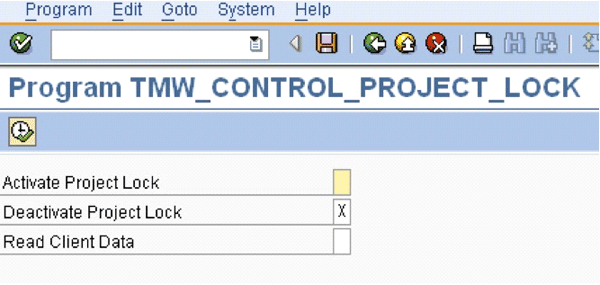
Figure 16
Warning message; the user can continue or cancel the change
If you need to manually change the object list of the transport request using the Transport Organizer, you need to update the central object lock information. Those changes are not recorded in the central lock management function. If you need to update the central lock information for a transport request and you are its owner, you are authorized to run report TMW_TRKORR_LOCK_UPDATE and enter the name of the transport request. The object entries are updated in SAP Solution Manager.
You may be wondering which Remote Function Call (RFC) connection is used between the development systems and SAP Solution Manager to manage locking conflicts. The default RFC connection used in the development systems is the one assigned to OSS_MSG configured in table BCOS_CUST. If you want to have a separated RFC connection for this purpose, create a new one that can display interactions. This means, for example, that you cannot use a Communication user. Create a trusted RFC connection or use the special Service user. This user must have at least the role SAPSOLMANTMWCOL. If your Support Package is earlier than 4, include the following authorization:
- Authorization object S_RFC with attributes:
- RFC_TYPE = FUGR
- RFC_NAME = /TMWFLOW/CROSS_SYSTEM_LOCK
- ACTVT = 16
Enter the new RFC connection in table BCOS_CUST with application SOL_CONNECT.
Note
Cross-system object lock is also available with Quality Gate Management. For more information on cross-system object lock, see
this SAP Help page.
Project Intersections Check
It may be possible that intersections between projects are necessary, for example, when there is a maintenance project and one or more implementation projects running in parallel in the same three-system landscape. You need to resolve the intersections accordingly before the import to the target system takes place, which means that maybe transport requests of different projects must be imported in advance to avoid the downgrade of the objects at a later point in time.
When the project intersections check is activated, the system automatically checks the object list of the transport request when it is released by ChaRM. If in this transport request there is an object identical to one included in the object lists of the already released transport requests, the system displays it as a prerequisite for this transport request in a dialog box called Dependency Infos for Request. You can then create a predecessor relationship by clicking the add icon (Figure 17). In the next screen, you see the current transport request and the corresponding correction number and description, and can select a predecessor (or successor) transport request (Figure 18).

Figure 17
Dependency information for a transport request
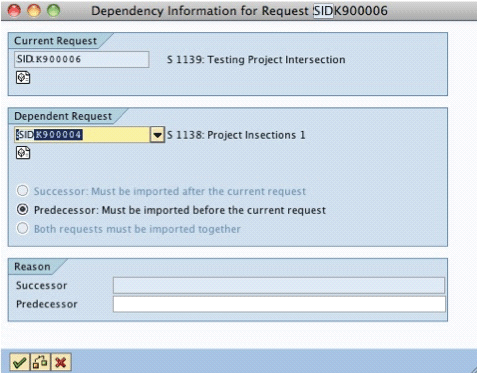
Figure 18
Create a dependency entry
To activate this project intersection functionality, you first need to activate the corresponding Project Status Switch. Use transaction SOLAR_PROJECT_ADMIN and click the Change Requests tab. Click the Show Project Status Switches button (Figure 19). Click the action icon of the Check for Project Intersections switch and select Yes in the pop-up screen (Figure 20). Repeat this action for all the CTS projects involved.
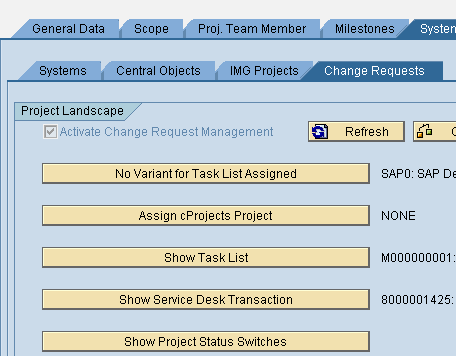
Figure 19
From SOLAR_PROJECT_ADMIN, click Show Project Status Switches
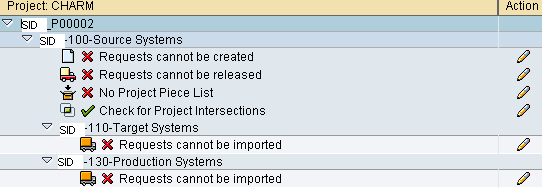
Figure 20
Activate the Check for Project Intersections status switch
Then, the next step is not so easy and, based on SAP Note 1069495, you will need SAP Consulting since this is a Consulting Solution. It’s necessary to implement enhancement spot /TMWFLOW/SCMA_TRANSPORT (Figure 21), which has two BAdI definitions:
- /TMWFLOW/SCMA_TORDER_RELEASE1: Enhancement in program /TMWFLOW/SCMA_TRORDER_RELEASE/
- /TMWFLOW/SCMA_TRODER_IMPORT1: Enhancement in program /TMWFLOW/SCMA_TRORDER_IMPORT
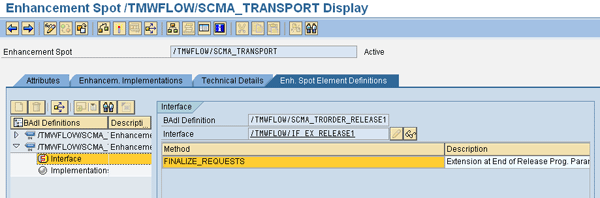
Figure 21
Enhancement spot /TMWFLOW/SCMA_TRANSPORT and its BAdI definitions
Raquel Cunha
Raquel Cunha is an independent consultant who has worked with SAP solutions in Latin America and Europe since 1998. She started as an ABAP developer and has also worked as an ABAP team leader and HR application consultant. Raquel has a bachelor’s degree in computer science and is certified on ABAP and ITIL V2 and V3. She changed her focus to SAP Solution Manager, with particular emphasis on Service Desk and ChaRM, and has been implementing Solution Manager in four different countries since 2005. Raquel is currently an SAP Mentor.
If you have comments about this article or publication, or would like to submit an article idea, please contact the editor.