Manager
SAP Solution Manager is often used to store and manage documents. Occasionally, you come across the need to upload multiple documents together. Explore how to do a mass upload without having to use any development.
Key Concept
SAP Solution Manager Document Management is configured as a central repository for storing all the project documents. Storing all the project documents in Solution Manager provides a central platform for maintaining and storing all project information in one place, reducing total cost of ownership (TCO) and eliminating the need for a third-party tool.
SAP Solution Manager stores all solution documentation, including business process documentation, technical landscape documentation, and project documentation (e.g., functional specifications, technical specifications, configuration guides). It affects all types of users — business, technical, and project oriented.
For a large global rollout or implementation, where there is a central repository that stores more than 1,000 documents, there is always a need to mass upload a similar type of document – for example, uploading 100 Business Blueprint documents together. I’ll show you how to do just that using a standard report. This is advantageous if you are in the initial phase of any project in which you don’t know the business process or don’t even have the complete transaction SOLAR01 structure mapped for the Solution Manager project. Note that it’s a prerequisite to have a Solution Manager project already created with transaction SOLAR01 or the Business Blueprint Structure. This article applies to Solution Manager 7.1 systems.
Scenario
Solution Manager stores documents centrally in the Knowledge Warehouse (KW). The system puts the documents in a location in the KW that you specify when you create the project. The screen in Figure 1 comes up whenever you create and save a new project in transaction SOLAR_PROJECT_ADMIN. It states the KW folder in which the project documents are stored.
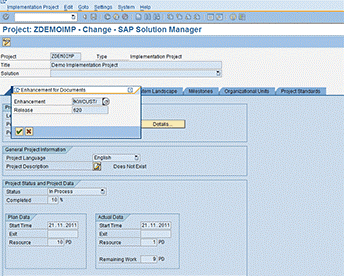
Figure 1
KW pop-up
Note
The SAP KW is an integrated environment for creating, translating, presenting, distributing, and managing information objects. If you want to explore more about KW, see
this SAP Help link.
Whenever an implementation, template, or any other type of project is created, the system automatically creates a folder for it in the KW. Not only that, but it also creates a folder group with the same name.
To upload multiple documents of the same type, use report SM_FILES_UPLOAD to upload the documents into the SAP Solution Manager central repository.
Procedure
I’ve created a project with a sample structure for this example. To upload the documents into it, click the add document icon (circled in Figure 2). Even if there is no structure in transaction SOLAR01, you can still proceed further and upload the documents for this project. Let’s get into those steps now.
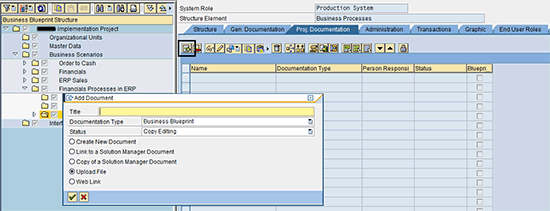
Figure 2
Document upload option in transaction SOLAR01
Step 1. Use transaction SE38 and provide the name for the report as SM_FILES_UPLOAD (Figure 3). Click the execute icon or press F8.
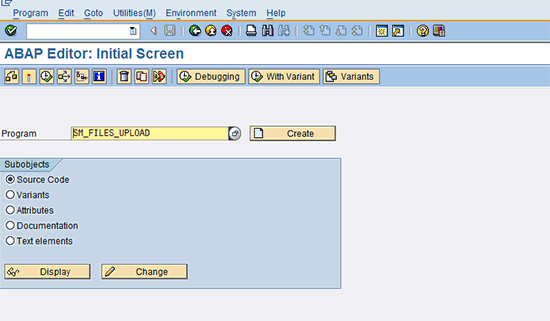
Figure 3
Enter the program name
Step 2. Provide the value for the Folder name (Figure 4). It should be the one created when the new project is created (e.g., /KWCUST/ in Figure 1). Click the icon next to the Folder field or press F4 to see your choices (Figure 5).
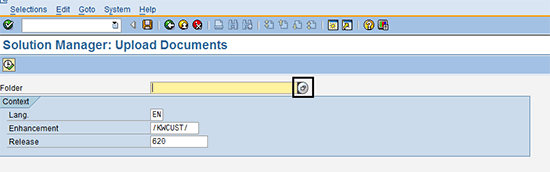
Figure 4
Initial screen for the SM_FILES_UPLOAD report

Figure 5
The search KW folder screen
Step 3. Based on the input, you can explore the folder for your project. Provide a name for the Person Responsible field (or any other parameter) and search it (Figure 5). A detailed list appears based on the input you provided (Figure 6). Choose the appropriate folder for your project and press Enter. You return to the initial screen with the correct folder name for your Solution Manager project (Figure 7). Click the execute icon or press F8.
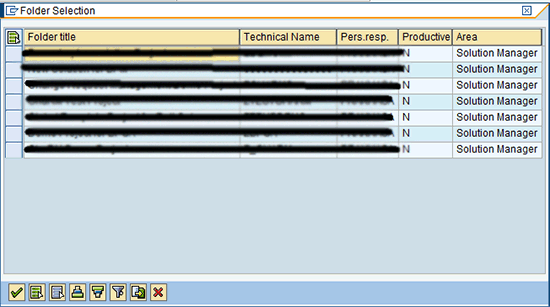
Figure 6
The KW folder result screen
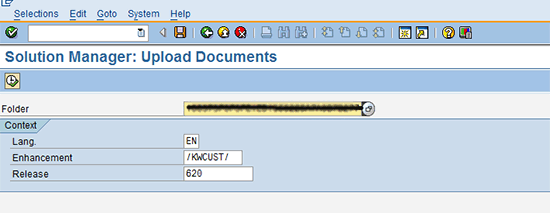
Figure 7
Return to the initial SM_FILES_UPLOAD screen with the KW folder name
Step 4. The screen for the mass uploading of documents appears (Figure 8). The mandatory fields are Person Responsible and Documentation Type. For Person Responsible, select the user who is uploading the document. For Documentation Type, select the appropriate value. Click the Add button to add files to be uploaded (Figure 9).
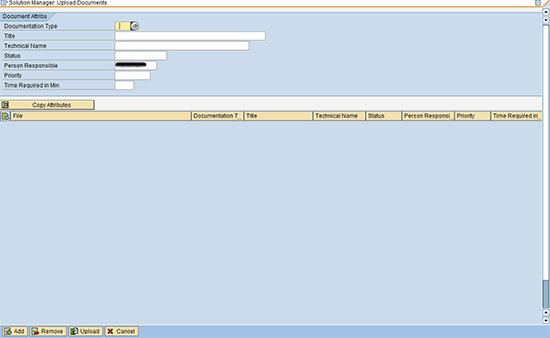
Figure 8
The SM_FILES_UPLOAD screen for mass uploading documents
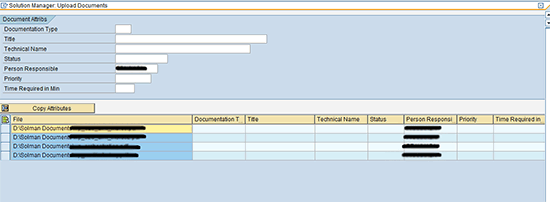
Figure 9
Add files
Step 5. Now you need to maintain the attributes for these documents. Again, the only two mandatory fields are Documentation Type and Person Responsible. Click the Copy Attributes button to copy the attributes to all the files together and then assign the attributes to them at once (Figure 10). Once copied, the attributes are shown with respect to each document (Figure 11).
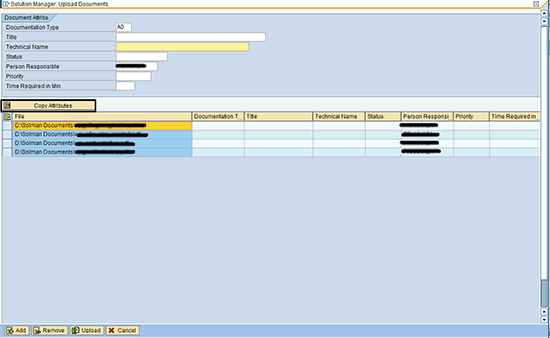
Figure 10
Maintain the document attributes
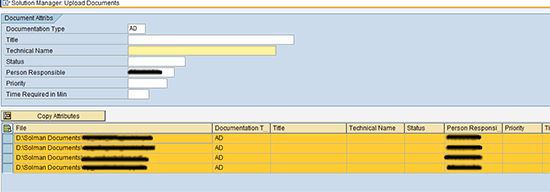
Figure 11
Documents with attributes
Step 6. Now you are ready to upload all the files together to your project or the KW folder. Click the Upload button at the bottom of the screen (shown in Figure 12). You can remove files from the list by clicking the Remove button, but this does not delete the files completely. You can cancel the upload process by clicking the Cancel button. When you click Upload, the pop-up screen in Figure 13 appears. Click the execute icon.

Figure 12
Click Upload
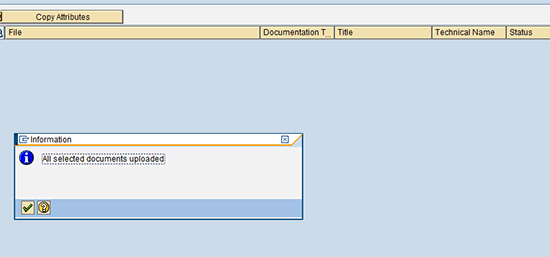
Figure 13
Upload confirmation
Step 7. To verify if the document uploaded for your project is now available, use transaction SOLAR01 and go to Business Blueprint > Find Document… (Figure 14). To link these documents to the respective business process or step, click the + icon in the screen in Figure 15. In the resulting pop-up screen, select Link to a Solution Manager Document. Press Enter.
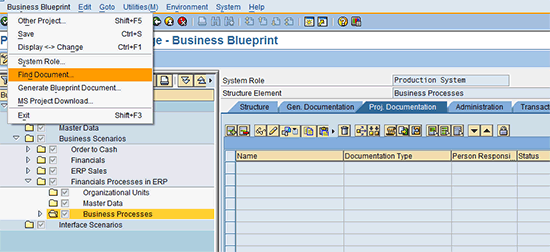
Figure 14
The Find Document option in transaction SOLAR01
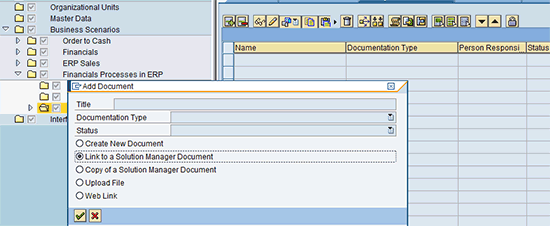
Figure 15
Link to a Solution Manager Document option in transaction SOLAR01
Step 8. In the selection screen in Figure 16, provide inputs and get the existing documents list. Click the execute icon.
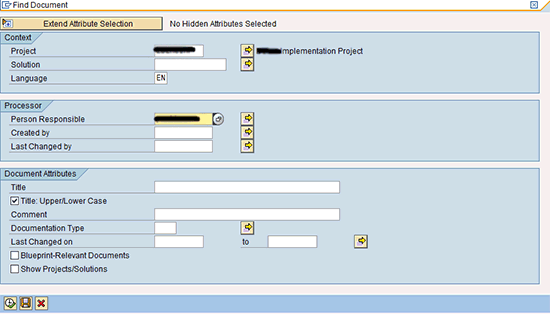
Figure 16
The search selection screen for finding documents in Solution Manager
Step 9. Use the selection screen to provide inputs and get the existing documents list (Figure 17). Double-click the selected document in the screen Figure 17 and you can see the document that is linked to the respective business process or step in transaction SOLAR01 (Figure 18).
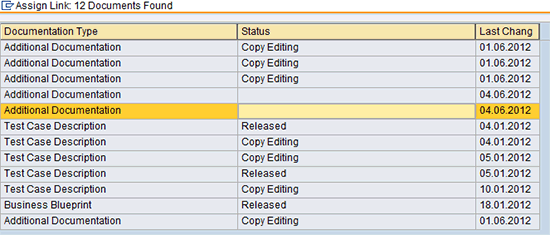
Figure 17
The document list
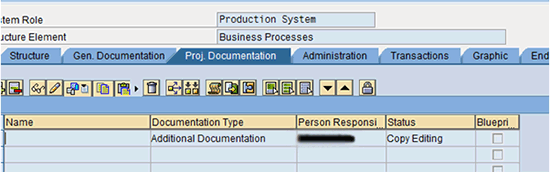
Figure 18
The document is linked
Prakhar Saxena
Prakhar Saxena is an SAP Solution Manager-certified consultant with more than six years of experience. He currently works with Capgemini India Pvt Ltd as an SAP Solution Manager SME and is involved with SAP Solution Manager Implementations and upgrades across the world for various clients. He has worked extensively with Project Management, Test Management, Solution Documentation Assistant, Service Desk, and Change Request Management. He has also built proof of concepts (POCs) and demos for various companies around the world.
You may contact the author at prakhar_alld@yahoo.co.in.
If you have comments about this article or publication, or would like to submit an article idea, please contact the editor.





 Premium