Find out if your company should use organization rules for eliminating false positives from reports.
Key Concept
You use organization rules to provide an additional layer of segregation of duties (SoD) analysis to remove false positives that may result from segregating based on organization levels. You perform this analysis on top of your core Compliance Calibrator SoD analysis. The organization rules allow a company to define the combination of organization levels that result in a true SoD conflict. Companies should not institute organization rules until the remediation phase of their project. It is only after identifying a possible organization rule scenario that you should create the organization rules. You should not use organization rules for grouping users into reports by organization levels to distribute SoD reports to various management levels.
The first time a company runs its segregation of duties (SoD) analysis using Compliance Calibrator, a tool that identifies and eliminates risks while maintaining preventive controls, it may have thousands, if not millions, of conflicts. Remediating these issues can seem overwhelming. Many times, a company’s initial reaction is that the reports simply cannot be accurate and must include false positives, meaning users are reported that don’t actually have the conflict. Most companies upon review, however, realize that the majority of conflicts are true conflicts and work to remediate through reassignment of access. That said, there are sometimes false positives in the reports. One cause of these false positives may be the company’s institution of segregation via organization levels.
Within Compliance Calibrator, SAP created organization rule functionality to eliminate these false positives based on organization level restrictions. It is important to understand that you should only use organization rules in those specific situations in which a company has made a conscious decision to segregate via organization levels.
In my experience, many companies think they have organizational segregation, but really they do not. I’ll discuss the business cases that justify using organization rules, but also reinforce that the functionality comes with a cost, so companies should perform analysis prior to implementation to ensure their situation warrants the use of organization rules. You can also use organization level reporting to consolidate reports of conflicts for a specific organizational unit to assist in distributing reports to the risk owners of each area. I’ll look at this later in the article. First, I’ll go through organization rules.
For an example of a proper use of organization rules, imagine a company has a shared service center in which it allows a team member to process vendor invoices and create Accounts Payable (AP) payments. Normally, this would be a high risk level conflict. However, the shared services center has specifically segregated its team members so that it cannot perform these two functions for the same organization levels.
In the example in Figure 1, during the remediation phase, the business owner who is responsible for the Procure to Pay business process has indicated that one of the risks that is coming up for the user Jane Doe is a false positive. The owner’s justification is that this person cannot perform these functions in the same organizational level, so the conflict cannot be exploited.
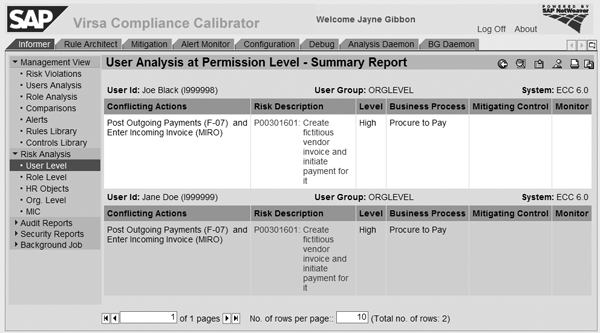
Figure 1
The system shows a false positive
Upon review, Jane Doe can enter invoices for plants BR01 and BR03 (which are part of company code 1000). However, she can only process payments for company 2000. She can’t actually enter a fictitious vendor invoice and then render payment to the same vendor because the organization levels prevent her from doing this. Therefore, the business owner believes that Jane Doe should be excluded from the report using organization rules. You can follow a five-step process to create the organization rule, which I’ll show you next.
- Step 1. Schedule the organization user mapping job
- Step 2. Determine what is being segregated by organization levels and for which risks
- Step 3. Enable the organization level variables in the functions
- Step 4. Create the organization rule
- Step 5. Run organization rule analysis
Create the Organization Rule
Step 1. Schedule the organization user mapping job. Click on the Configuration tab and then Org. User Mapping. Complete the fields System ID and User, then click on the Background button.
Schedule the job to execute immediately by selecting the Immediate start button, and then periodically after that by clicking on the Schedule periodically check box and selecting the appropriate button (Figure 2). The best practice is to run the job at least weekly to ensure that the system accurately reflects in the front end any changes made regarding user organization levels via roles assigned in the back end. This job replicates the organization levels users are assigned via their role assignments in the back end into the front-end Compliance Calibrator system.
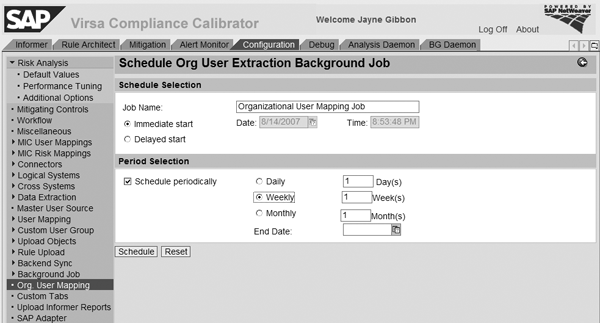
Figure 2
Schedule initial and future jobs
Step 2. Determine what is being segregated by organization levels and for which risks. Identify which risk is being mitigated by segregating organization levels. In this example, it is risk ID P003 (process vendor invoices and AP payments). Discuss with business process owners which organization levels you should not combine. In the example, users should not have access to enter vendor invoices for plants BR01 or BR03 and also be able to pay vendors in company code 1000.
Step 3. Enable the organization level variables in the functions. Click on the Rule Architect tab, expand Functions, and then click on Search. Enter the first function that is part of the risk that needs an organization rule and click on Search. Highlight the function and select Change. Then click on the Permissions tab.
For each action under this function, expand the action and find the permission that contains the segregated organization levels. In this example, permission F_BKPF_BUK for action F-07 restricts for which company code you can execute the transaction code (Figure 3). Check to make sure there is a valid activity (01, not 03) and change the status from Disable to Enable for both the activity and the organization variable. For the organization field itself, ensure you leave the dollar value as is. Save the function.
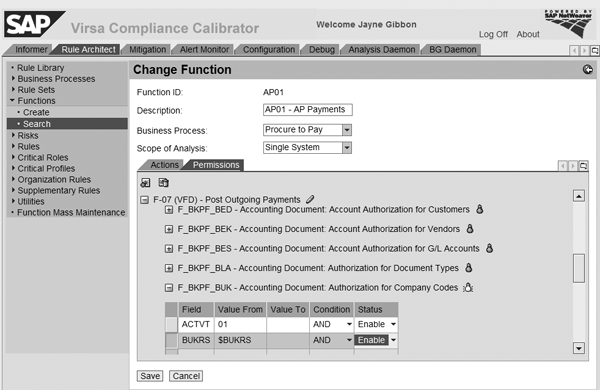
Figure 3
Change the status from Disable to Enable
Repeat this process for the second function that makes up the risk to be segregated by organization levels. In this example, permission M_RECH_WRK for action MIRO restricts for which plant you can execute the transaction code (Figure 4).
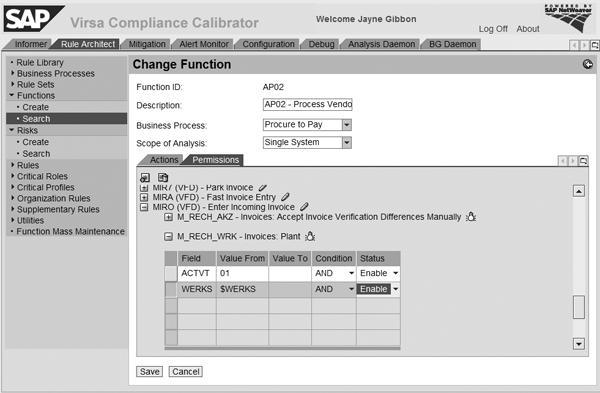
Figure 4
Repeat the process
Step 4. Create the organization rule. Return to the Rule Architect tab, expand the Organization Rules menu, and click on Create (Figure 5). You can use a naming convention that tells the user which Org Rule ID to enter in the risk analysis selection. Enter the Risk ID that is relevant for this organization rule and the corresponding organization levels that the user wants to review. In this example, the settings indicate that only those users who have access to company code 1000 and plants BR01 or BR03 have an SoD conflict. Save the organization rule.
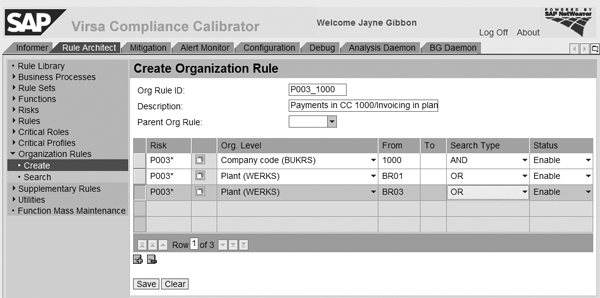
Figure 5
Create the organization rule
Step 5. Run organization rule analysis. Go to the Informer tab, and expand Risk Analysis. Click on Org. Level and in Analysis Type. Choose Org Rule. Enter the organization rules and user IDs that you want to analyze and then execute the report. Note that now Jane Doe does not show up anymore. Only Joe Black does, as he has access to company code 1000 and plants BR01 or BR03, which means his conflict is a true conflict (Figure 6).
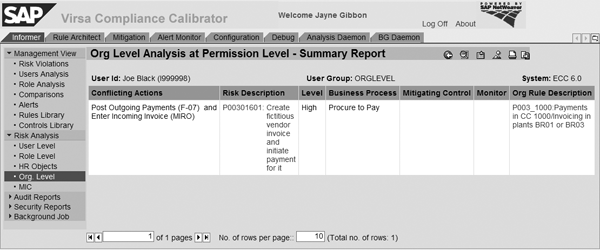
Figure 6
Only Joe Black remains
In configuration, you can consider organization rules when updating management reports (Figure 7). By default, the system sets it to No. What this means is that when the management reports are updated using the Batch Risk Analysis function under the Configuration tab, none of the organization rules are used. This results in 100% of the users being shown as having the conflict, even though those such as Jane Doe don’t really have the conflict based on organizational segregations. If you set this option to Yes, then the Compliance Calibrator administrator must create all possible variations or organization value combinations.
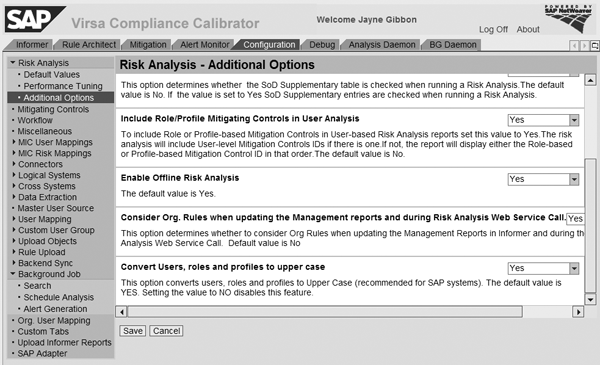
Figure 7
Set the configuration option to Yes for considering organization rules
Say in addition to company code 1000 with plants BR01 or BR02 a conflict also exists when a person has company code 3000 with plants CAP1 or CAP2. In this example, new user Billy White has the conflict, but with company code 3000 and plant CAP1 (Figure 8). Just as in the previous example, if you run risk analysis at the organization rule for these users, using the organization rule created for company code 1000 with plants BR01 or BR03, only Joe Black shows up (Figure 9).
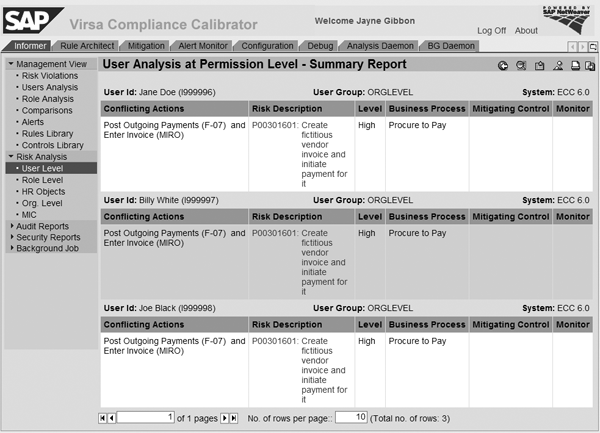
Figure 8
A new user has a conflict
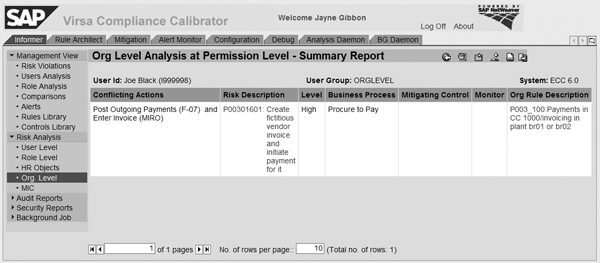
Figure 9
Risk analysis for the three users
When you set configuration option Consider Org Rules to Yes, then the system filters all risks for which you have created at least one organization rule. In this case, because there is only an organization rule for company code 1000, only Joe Black shows as having this conflict, even though in actuality, Billy White should have it as well (Figure 10). Figure 11 shows the same report when you’ve set this configuration option to No so that the system does not consider organization rules.
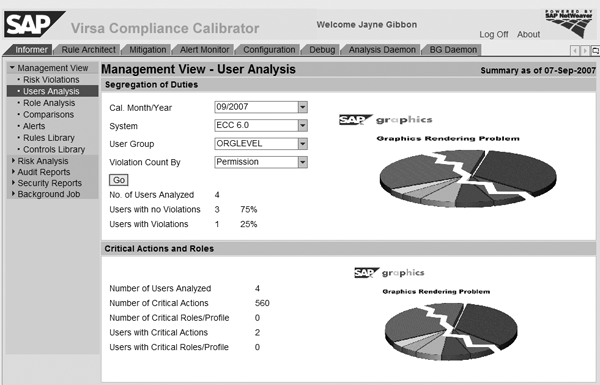
Figure 10
Report when Consider Org Rules is set to Yes
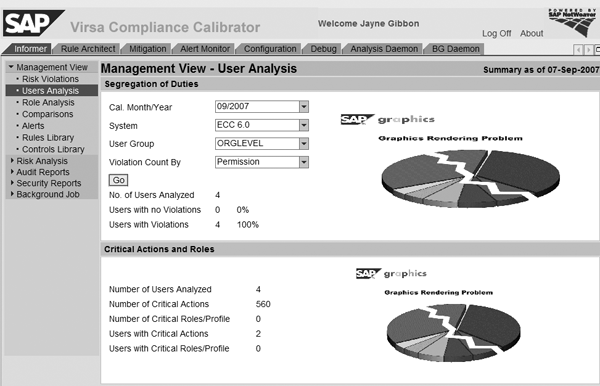
Figure 11
Report when Consider Org Rules is set to No
Billy White shows on the management reports only if you create a new organization rule for company code 3000, plant CAP1 or CAP2. Therefore, if you set this configuration option, it’s imperative that the company create all necessary organization level rules. Otherwise the reporting contains false negatives (not all users who actually have the conflicts are shown). This is another reason a company should fully evaluate its SoD by organization level. The system might not report people that it should if you set up organization rules incorrectly. From an audit perspective, this is very risky because a company would be unaware of users that have conflicting access, which could result in fraudulent activity going unnoticed.
In Compliance Calibrator 5.2, you can create a mitigating control at the organization rule level, versus at the risk level. Mitigating controls document the additional controls that are put in place to minimize a risk when a conflicting duty is assigned to a user and you cannot remove it. You assign mitigating controls to the user or role and risk ID combination so managers may track that the control is being appropriately followed.
Figure 12 shows how to assign the mitigation to an organization rule ID. However, when you create a mitigation at the organization rule level, the system does not display this mitigation when you run normal risk analysis (Figure 13).
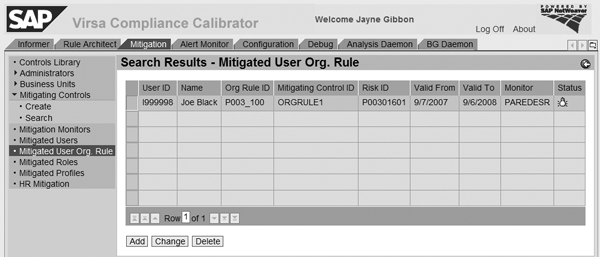
Figure 12
Assign a mitigating control at the organization rule level

Figure 13
The mitigating control does not display when running normal user analysis (see risk P00301601)
The mitigation only shows when you run the organization rule report. This allows you to have separate mitigations based on the organization rules for the same risk and user. For example, a user might have the same risk, but for two different organization rules. You could attach the mitigation for one of the organization rules, but not for the other. Therefore, when you run the organization rule report, the mitigation just shows against the organization levels mitigated, whereas the other organization rule report would not be mitigated. Figure 14 shows how the system displays the organization rule mitigation.
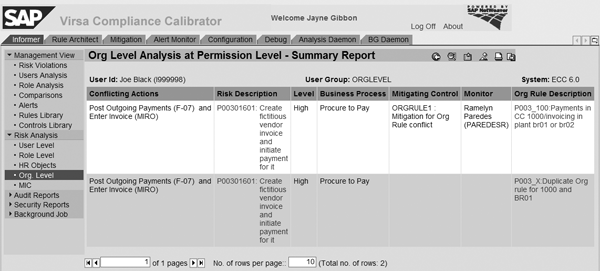
Figure 14
The system displays a mitigating control assigned at the organization rule ID level when running the organization level rule report
You can also include organization rules and mitigations during Access Enforcer risk analysis. Access Enforcer is a tool that assesses risks in real time and automates approval workflows. A prerequisite to this is that you must set up the organization rules in Compliance Calibrator as defined above. You can follow two basic steps to do this.
Step 1. Retrieve the URL for risk analysis Web service configuration. Enter the URL to get to Web services navigator using the convention https://: /index.html. An example would be https://iwdfvm2363:51000/index.html where the server is iwdvm2363 and the port is 51000. Scroll down the screen and expand the VirsaCCRiskAnalysisService folder. Click on Document. Right-click on the URL underneath the WSDL: header and select Copy Shortcut.
Step 2. Configure risk analysis integration with Compliance Calibrator. Log into Access Enforcer, click on the Configuration tab, and then choose Risk Analysis. Select 5.2 Web Service from the drop-down menu next to the Version field. Enter the WSDL URL that you copied in step 1 in the URl field. For example, using the convention https://:/VirsaCCRiskAnalysis Service/Config1?wsdl&style=document, it would be https://iwdfvm2363:51000/ VirsaCCRiskAnalysisService/Config1? wsdl&style=document. Select the check box for Perform Org Rule Analysis (Figure 15).
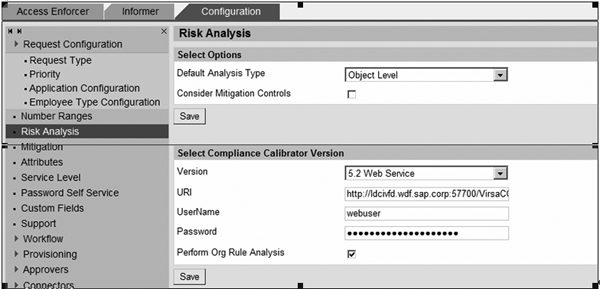
Figure 15
Select Perform Org Rule Analysis check box
When you select this check box, the system operates the same as it does when you set the configuration option in Compliance Calibrator to consider organization rules. If you set this, you need to ensure that you build all possible organization level combinations into your organization rules or the system may exclude possibly valid conflicts. For more explanation, refer to the “Management Reports” section. In addition, you need to set the same URL identified in step 1 into the Mitigation area of Access Enforcer configuration, especially if you have mitigated users at the organization rule (Figure 16).
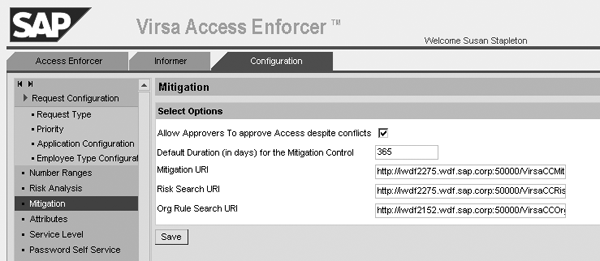
Figure 16
Set the Org Rule Search URl criteria in the configuration screen in Access Enforcer
Many companies assign individual owners who are responsible for reviewing SoD in their areas of control. As discussed earlier, many companies think that organization rules are a way to group reporting by organization levels, but this is not an appropriate use of organization rules. You can use organization level reporting in two steps to see users who have access within their areas of control.
Step 1. Schedule the organization user mapping job. This is the same job that is scheduled in step 1 of the Organization Rule section. You need to schedule this job to run organization level reporting.
Step 2. Run the organization level analysis. This allows you to select users who have access to a specific organization level and then run SoD analysis against this population. In this example, the report pulls all users who have any access to BUKRS (company code 0001) and then runs the normal SoD rules against them (Figure 17). This access to company code 0001 might come via display roles or update roles. This does not do any kind of organization rule analysis; it just selects which individuals you want to run the report against. Remember, this report doesn’t just show conflicts that contain BUKRS. It shows all conflicts for users who have access to company code 0001 anywhere.
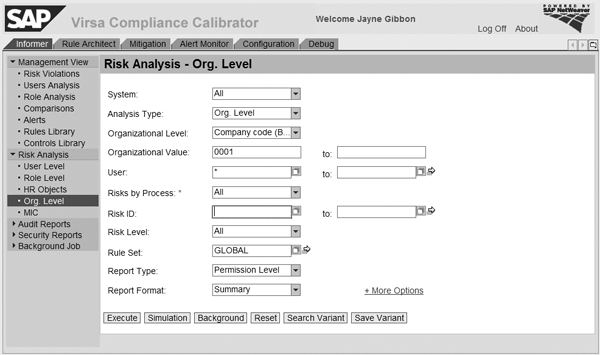
Figure 17
Run organization level analysis
Jayne Gibbon
Jayne Gibbon, CPA, has been implementing SAP applications since 1996 and is currently a director in the Chief Customer Office at SAP. Jayne’s focus is making customers successful with their SAP HANA deployments. She has helped more than 100 customers drive business value with SAP HANA. Prior to joining SAP in 2007, Jayne worked for two multinational manufacturing companies based in Wisconsin. While an SAP customer, Jayne led the very first implementation of Virsa’s Compliance Calibrator, which is now part of SAP Access Control. Jayne’s experience includes internal audit; computer security; governance, risk, and compliance; SAP HANA; and SAP analytics.
You may contact the author at jayne.gibbon@sap.com.
If you have comments about this article or publication, or would like to submit an article idea, please contact the editor.