Discover the standard payroll operations and functions provided by SAP ERP HCM that enable users to query the age and gender of employees. Also learn how to calculate date differences from date of birth to the current payroll period.
Key Concept
Data fields in infotype 0002 (personal data) can influence payroll processing. For example, the title of an employee determines the employee gender in the SAP ERP HCM system. You can use the date of birth field to calculate a date differences (i.e., the age of an employee up to the current payroll period) or use the hiring date (infotype 0000) to determine the seniority of an employee in an organization in terms of number of days, months, or years. I show how you can use data fields from infotype 0002 (personal data —i.e., date of birth or gender) in personnel calculation rules to meet these types of payroll requirements.
Among the most common challenges that users face during SAP payroll implementations are the many nonstandard requirements that vary from company to company and country to country.
For example, in the US employment discrimination on the basis of gender is prohibited by a collection of state and federal laws, as well as by ordinances of counties and municipalities. However, in some countries payroll decisions are still made on the basis of age or gender. Female employees in some countries may be given income tax relief solely because of their gender. In other organizations a conveyance allowance is given to male employees since they are not provided with transportation to and from work, as female employees are.
There can be a difference in income tax rates for males and females (the bracket of minimum and maximum income amounts used to match employees’ salaries for tax purposes, known as slab tax rates). In some countries there is a legal requirement that employees from age 65 on get a personal allowance that allows them to save tax-free income each year. In other companies, a seniority allowance is paid to employees as a reward for long service.
In addition to these nonstandard requirements, users need to focus on the fundamental processing part of the payroll system (i.e., the date specifications of an employee when a business decision must be made on the basis of an employee’s gender, age, or date of hire).
First, the following quick overview of payroll schemas and personnel calculation rules (PCRs) shows why you need them and how to affect payroll processing with custom logic. By using these simple techniques when implementing SAP payroll, SAP ERP HCM system users can avoid ABAP developments and enhancements, and increase efficiency and accuracy in payroll.
Users do not need an in-depth knowledge of payroll. The following section on the basics of SAP payroll provides information about SAP schemas and rules. From there you can use that knowledge to carry out evaluations based on employee gender and age and to work with dates in your PCRs. All examples are taken from an SAP ERP Central Component (SAP ECC) 6.0 system with enhancement package 4 and are applicable from SAP ECC 6.0 on. All functions and operations are country independent and are intended for both functional and technical users.
Payroll Processing Overview
SAP payroll schemas and PCRs provide the processing logic for payroll systems. They can be used to enforce business rules in payroll, which increases process consistency and payroll quality.
There are several stages of configuration to manage wage types during the SAP system payroll calculation process (i.e., table and wage type control through configuration — this is generally an easy and efficient option). If you cannot manage wage types using configuration, then you have to turn to ABAP customization.
A payroll schema is a group of functions put together in a specific order, with each passing its result to the subsequent step. The functions provide logic for payroll calculations such as importing time results, gross calculation, and calculation of taxes. Several functions are available in the system including some that are country specific. Functions may have parameters to be set in the schema and may also allow users to read infotypes, process rules, and process payroll internal tables. Functions ACTIO, PIT, PORT, and P0014 are just a few of the standard functions already available in an SAP system. In transaction PE04 you can see the ABAP code associated with every function. This means that you can make custom functions with ABAP forms starting with fu.
PCRs are a collection of operations generally used to manipulate the wage type amount, rate, and number field. Some operations are used to retrieve a specific date from an employee’s master data based on which you can make your own decision flows. Functions OUTWP, VAKEY, and ADDWT are few examples of operations. In transaction PE04 you can see the ABAP code associated with every operation. This means that custom operations can also be made with ABAP forms starting with op.
Documentation for functions and operations can be found via transaction PDSY or PE04. In addition to the wage type configurations mentioned above, there are a lot of articles and documents about this topic around the portal that describe in detail the payroll schemas and PCRs. For more information, read these SAPexperts articles: “Understand Payroll Wage Type Processing: Payroll Schema and Rule Basics” and “Four Tips on Applying Payroll Schemas and Rules,” by Steve Bogner.
For the purpose of this article I focus on the three most common wage type calculations: an employee’s gender, age, and date of hire.
Evaluating Employee Gender Using PCRs
Infotype 0002 (personal data), is one of the most important mandatory infotypes for time evaluation or payroll. In this infotype you record the employee’s basic personal data, such as first name, last name, title, and date of birth. In the ABAP Dictionary, infotype 0002 is a structure called P0002, which contains the infotype key field and all the other data fields from structure PA0002. I use this structure for evaluating employee gender in payroll calculations.
In my example, the requirement is that a travel allowance of 20 percent of basic pay is paid only to male employees but not to female employees (Figure 1). I came across this scenario when a client required that a conveyance allowance only be paid to male employees since all female employees were provided transportation to and from work by the company. Payroll users can use this knowledge base as and when required.

Figure 1
PCR for conveyance allowance based on gender
In Figure 1, I marked each parameter with a number. Following is an explanation of the steps for calculating gender-based evaluations.
Step 1. In this step I used an asterisk which determines that the PCR is written for all employee subgroupings (e.g., hourly wage earners, piece workers, and salaried employees). This grouping can be restricted based on user requirements.
Step 2. Infotype 0001 is the wage type for basic pay allowance for which this PCR is applicable. You can also use an asterisk if it is required for all wage types that lie within the above-defined employee subgrouping for PCRs. This is based entirely on user requirements.
Step 3. Operation TABLEP0002 prepares access to the database table, which contains the dictionary fields for the SAP structure.
Step 4. You can move the character fields read by the TABLE operation into the variable key using the operation VARGB. This operation works in combination with the TABLE operation and uses the data fields in the table mentioned, provided that the table is an ATAB table (to learn more about this table, refer to your ABAP expert). Use data field GESCH for gender-based evaluations. GESCH is a one-character field in which the value 1 is used for males, the value 2 is used for females, and the value blank is used for both males and females.
Step 5. Using operation VARGB along with operation GESCH automatically opens a sub-level where you can enter the value keys (which are based on the PCRs to be processed). The payroll logic comes under these value keys (as in my example, above)
This completes the PCRs for gender-based evaluations. Now using the same example, I make the calculation a bit more complex by using age as a further criterion to be checked under gender evaluation as a factor for my wage type calculation.
Evaluating Employee Age Using PCRs
In this section I give two examples that show how to configure your own requirements more effectively on the basis of employee age. In some countries (for income tax purposes) age is evaluated, and a tax relief is given based on the age of the employee.
I am using the same PCRs as in my example in Figure 1, which is restricted to run for only male employees, but this time it is more complex because the payroll system first checks the gender of an employee (because of the difference in pay for conveyance). Once the gender is validated (i.e., verified that the employee is male), the system checks the age criteria and then performs the wage type calculation.
Figure 2 defines the steps of writing PCRs in detail. The resulting age (operation CPAGE) is compared by the specified number (22, in my example).
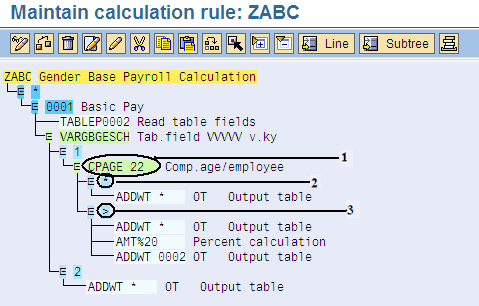
Figure 2
Gender- and age-based evaluation PCRs
Step 1. Leaving a blank space between CPAGE and 22 determines that the employee age is calculated from the infotype 0002 (date of birth) data field. Using this operation automatically opens a sub-level where you can enter the value keys based on the PCRs to be processed (in this case, based on the employee’s age in relation to his or her years of employment). The data in the variable field is used to compare with a specified number; in this example, 22.
The syntax and parameters used for operation CPAGE are as follows.
The syntax is CPAGESVVFX.
Operators determine the access method for the current number, amount, and rate fields. Examples of operators are the symbols: =, *, %, and /. In the CPAGE syntax, S determines the place for the operator.
Operands explain the method of determining the value of the operator that can be transferred to the current number, and later can be used to compare the resulting value with any specified value. Operators are followed by operands. In the CPAGE syntax, SVVFX determines the place for the operands. Table 1 explains each of the CPAGE parameters in detail; the usage of these parameters depends on the user requirement.
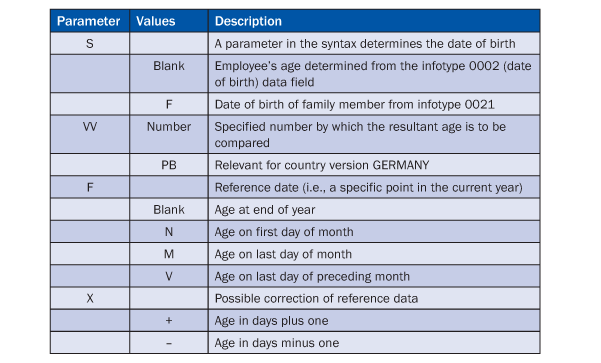
Table 1
List of CPAGE operands
Step 2. The operand > serves as the decision criterion. In case of >, the system checks to see if the age is greater than 22. Then, as per this configuration, payroll creates a conveyance allowance of 20 percent of basic pay and enters it in the internal table OT. In this example I have explained the use of operand > but if the value is not greater than 22 then you need the system to shift to other cases (i.e., the or else case, which is determined by the asterisk operand).
Step 3. If the value is not greater than 22 in this case, then the system simply puts the basic pay wage type to the subsequent internal table OT.
Operation CPAGE
Operation CPAGE calculates the age of a person at a certain reference date. The reference date is the date of current payroll in which the payroll is being run. This operation calculates the difference from the date of birth to the reference date. To understand how the CPAGE operation works, let’s explore the following scenario, using these parameters:
- The employee’s date of birth is April 3, 1989 (recorded in infotype 0002)
- The payroll run date is July 2011 (this is the current payroll period — July 2011 in my example)
Assuming that the payroll is run in July 2011 and that the employee’s date of birth in infotype 0002 is 4.3.1989, the total number of completed years is 21 years instead of 22 (because the system calculates a full calendar year from January to December). Therefore, in this case, the year of birth (1989) is not considered a whole year because it started in April, in the middle of the year, and the system does not count this as a complete year. Using the payroll run date as of July 2011 as your parameter, the same thing happens in the year 2011. In this case, the system counts the number of years from 1990 to 2010, which equals 21 years.
In certain cases, the objective is to get more accuracy by calculating the same employee’s age in terms of calendar days, months, and years. Usually for such requirements you turn to your ABAP staff, and, depending on the nature of the requirement, they develop a report, payroll function, operation, or Business Add-In (BAdI).
These kinds of scenarios are common in most organizations. For example, some businesses require a certain payment to be calculated on the basis of the employee’s seniority. That is, technically speaking, calculating the date difference between the hiring date and the current payroll date results in the exact seniority in number of days, weeks, months, complete calendar months or years, and also the age, which is calculated from the date of birth record in infotype 0002 to the current payroll period. Once you have this number, you can perform certain calculations. However, for some calculations you need the date difference to be calculated from infotype 0041 (date specifications) to a certain period. For record-keeping purposes you specify dates against each date type (e.g., wedding date [for calculating a wedding anniversary allowance] or leaving date) in infotype 0041. These dates can be used for reporting or evaluation purposes.
Using Payroll Dates in PCRs
In the SAP ERP HCM system, dates play a vital role in determining the validity period of any specific record. For payroll the most important dates are the hiring, leaving, re-entry, and birth dates. In the SAP payroll system, the DATES function provides the schema with all the date specifications from the work center by providing dates from infotype 0000 (actions). These can be hiring, leaving, or re-entry dates. It also provides dates from infotype 0002 (personal data), such as date of birth and the last change of capacity utilization date from infotype 0008 (basic pay). Following is another scenario that illustrates how you can influence PCRs with these important dates.
As discussed above, payroll operations generally manipulate wage type amounts (AMT), rates (RTE), and numbers (NUM), with each having their own specific use. For example, overtime rates are calculated and set in the RTE field of a wage type, the NUM field may contain number of overtime hours entered by user or the number of units produced, and the result of the two can be set in the AMT field. In the following example I use the NUM field. The processing of rates and amounts are identical.
In my example I have placed the dates function above the custom PCRs, which provides the payroll program with the dates in the work center/basic pay (WPBP) table. The WPBP table contains information from infotypes 0000 (actions), 0001 (organizational assignment), 0007 (planned working time), and 0008 (basic pay). Figure 3 is from sub-schema XAP9 (import additional payments or deductions INTERNATIONAL). In this case the subsequent step, P0014 X011 GEN NOAB internal table OT, contains the basic pay wage type needed for the calculation. Through the payroll log, users can analyze where to place their custom PCRs in the payroll schema.
Figure 3 shows a list of WPBP table dates updated by the dates function during payroll processing.

Figure 3
Placement of dates function in payroll schema
The following payroll log shows a list of WPBP table dates updated by the dates function during payroll processing (Figure 4).
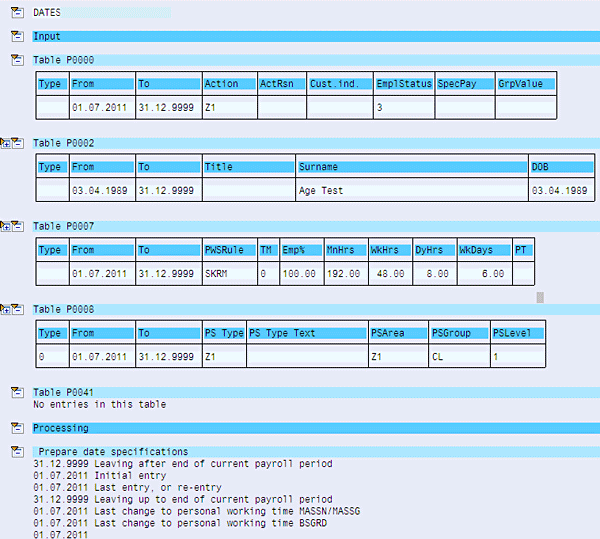
Figure 4
WPBP table dates in the payroll processing view
Before I begin with the PCRs, it is important to understand the number (NUM) operation. The operation NUM is used to manipulate data in the number field of the wage type in question. The syntax of the NUM operation is NUMSVVVVV, which includes operators and operands.
Operators determine the access method for the current number, amount, and rate fields. Example of operators are the symbols =, *, %, and /. In the NUM syntax, S determines the place for the operator.
Operands explain the method of determining the value of the operand that can be transferred to the current number, amount, or rate field, and later can be used to compare the resulting value with any specified value. Operators are followed by operands. In the NUM syntax, VVVVV determines the place for operands.
The above applies to the amount and rate fields as well as the number field. For additional documentation refer to transaction code PE04 > NUM/AMT/RTE operations documentation. The syntax of the evaluating date type is NUM = Faaesb. Table 2 explains the operands used for evaluating date specifications.
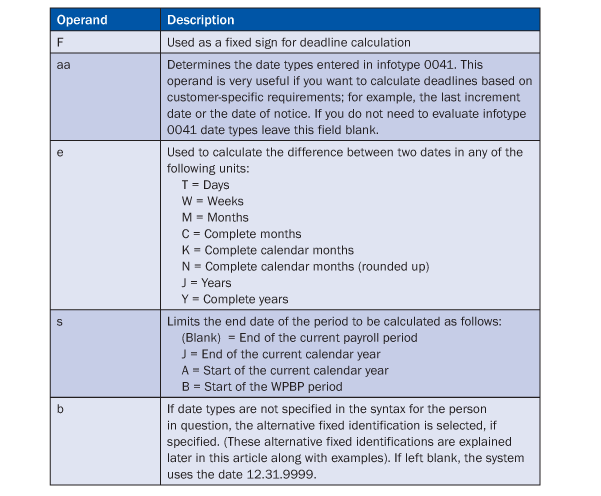
Table 2
List of operands used for evaluating date specifications
In my example (Figure 5), PCRs ZDTE demonstrates how you can put the total number of months in number field.
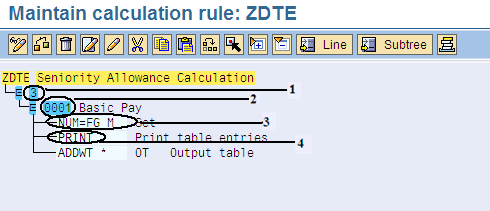
Figure 5
PCRs for calculating total number of months in the NUM field
Step 1. The number 3 in Figure 5 determines that the rule is being written for all employee subgroupings (i.e., hourly, salaried, and piece workers).
Step 2. Infotype 0001 is the wage type number for basic pay allowance. The user can enter his or her own wage type for which they require the processing.
Step 3. The NUM=FG M number operation with these specific operands puts the employee date of birth from infotype 0002 in the number field of the basic pay wage type as the number of total months between the date of birth and the current payroll period (i.e., in my example date of birth 4.3.1989 to 7.1.2011 which equals 267 — the total number of months). The highlighted number field in the payroll log (Figure 6) contains the total number of months.
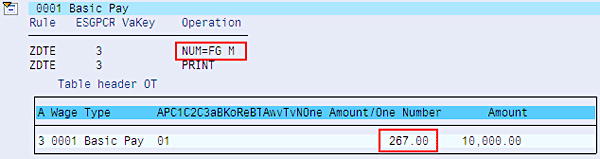
Figure 6
Total number of months in the number field
Step 4. In this step I have used the PRINT operation which prints the table entries being processed by the PCRs (Figure 6). This is normally used by payroll consultants to verify the processing of the PCR.
In contrast to the above example, if the requirement says the number of months are to be calculated from the date of birth to the start of the current year, then use the same operation as NUM=FG MA (Figure 7). The operand value A determines the start of the current year (i.e., in this case the system calculates the difference between 4.3.1989 to 1.1.2011, which equals 260 months).
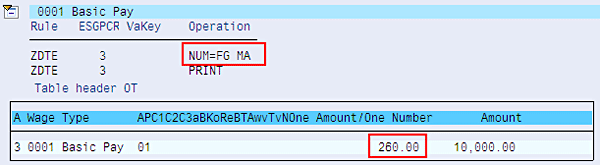
Figure 7
Total number of months to the start of the current year in the number field
If you want the resultant number in days, weeks, or years, as explained above in the syntax table of evaluating date types (Table 2), you can place the parameters for operand e. Based on the resultant value, you can further extend your logic — for example, compare the number to a certain limit and add an allowance. Using the techniques explained above, you can easily calculate the accurate timelines between dates.
Irfan Malik
(Muhammad) Irfan Malik is a senior managing consultant at IBM Global Business Services in Pakistan and has been working as an SAP HR consultant for many years. He has consulted for various global, public, and private companies on their SAP HR core modules including Payroll and Time Management implementations.
You may contact the author at irfanmalik_sap@yahoo.com.
If you have comments about this article or publication, or would like to submit an article idea, please contact the editor.


 Premium