Learn the four basic steps involved in setting up a trust relationship between mySAP CRM and R/3, or mySAP ERP Central Component (ECC) 5.0. Also find out how to set up user authorization profiles to enable access to both systems.
Key Concept
When you set up a trust relationship between two systems, you only need one user ID/password combination to access both of the systems. In a trust relationship, the calling system (client system) plays the role of the trusted system, and the called system (server system) plays the role of the trusting system.
Say you wanted to obtain a detailed analysis of documents displayed in a customer fact sheet, a document that summarizes customer information (e.g., credit status, marketing attributes, number of back-orders) from different sources (mySAP CRM, R/3, and BW). In a mySAP CRM system, you may place numerous Remote Function Calls (RFCs) to integrated SAP systems to gather this information.
These RFCs normally require you to log into the system with your personal user name to guarantee the tracing and control of all your actions and to restrict your access to specific transactions. For security reasons, I do not recommend maintaining generic user login data (user ID and password) in an RFC destination, because everyone could use that RFC destination to access the other system’s information and execute any tasks there.
If you frequently access other systems from mySAP CRM, you need a way to guarantee fast and operational calls. Therefore, it’s important to provide a means to execute these calls without requiring a new login or another system’s password. At the same time, you want to ensure the system landscape security and restrict data access according to user authorization profiles. In this case, SAP allows you to create trust relationships between SAP systems. I will describe the trust relationship and explain how it avoids the risks involved with using an RFC destination with a generic user name. My example uses R/3, but you can also use this process with mySAP ERP Central Component (ECC) 5.0.
Trust Relationship Concept
To prevent security risks, you can define a trust relationship between the calling system (client) and the called system (server). The target system (trusting system) then accepts connections from dedicated calling systems (trusted system), which allows you to log in with your user name without a special password. Your access to the called system is restricted to what your authorization profile permits.
Note
The trust relationship applies to only one direction. If you need a bidirectional trust relationship, you must define each of the systems as trusted systems.
In addition to avoiding risks associated with generic user names and transmitting passwords in the network, trusted systems offer a timeout mechanism to prevent replay attacks, which involve unauthorized users storing information then retransmitting it to trick the receiver into unauthorized operations such as false identification or authentication. In trust relationships, the trusting system checks user-specific login data and authorization profiles.
By using a trust relationship between the mySAP CRM and R/3 systems, companies ensure that only users who have access to both systems may access R/3 information while logged in to the mySAP CRM system. For instance, if you create a customer fact sheet with a sales document view and you assign a trust RFC connection to access it, only the users who have a user login for the R/3 system may see this information from the mySAP CRM system. At the same time, the system checks the user’s R/3 authorizations to access the sales document and displays only the information the user is authorized to obtain.
Establishing a Trust Relationship
In this example, you are logged in to a mySAP CRM system (C00) and you must frequently access an R/3 system (S00) through customer fact sheet links. You need to set up a trust relationship between the mySAP CRM and R/3 systems. In this example, mySAP CRM is the trusted system and R/3 is the trusting system (Figure 1).
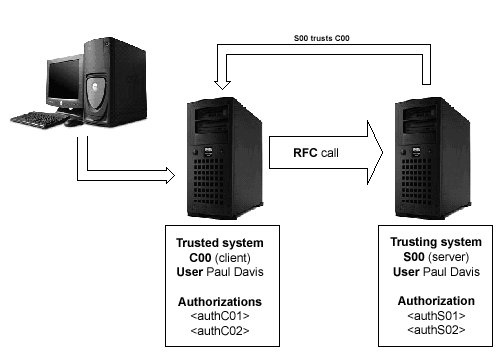
Figure 1
RFC trusted system landscape
To establish a trust relationship, you follow four basic steps:
Step 1. Create a client destination to trusted system
Step 2. Create the trust relationship
Step 3. Check that the RFC destination automatically created works with the trusting system
Step 4. Create an authorization profile for trust relationships and assign the users
The system administrator usually performs these steps. The functional expert assigns the RFC destination created in step 3 in the action box configuration (transaction code BD97) or in the customer fact sheet parameters (transaction R3AC6, key CRMCFSOLTP, parameter name CRMCFSOLTP).
Step 1. Create a client destination to trusted system. In R/3, access transaction SM59 (Figure 2). In this screen, set the Connection type to 3 R/3 connection to create a client destination to the mySAP CRM system. You should use this destination only for creating and deleting the trust relationship, so you should name it accordingly under the Description tab. Under the Security Options section in the Logon/Security tab, set the Trusted System option to No to make it inactive. To prevent a remote login, you should not store any login data under the Logon tab. Fill in the target host and the system number in the Technical settings tab.
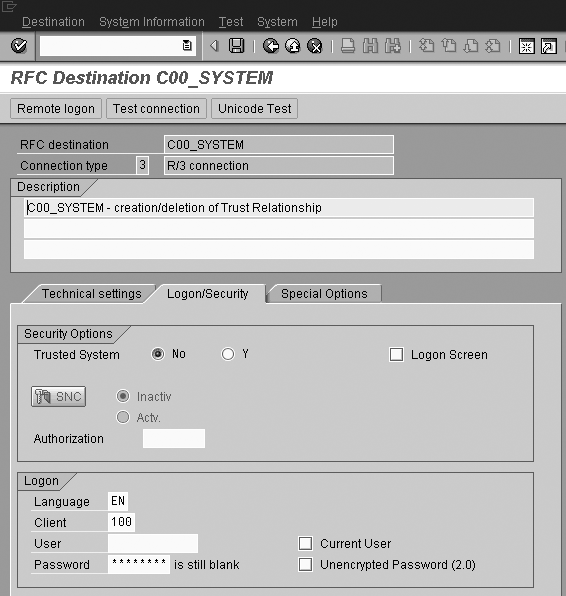
Figure 2
Set up the RFC destination to trusted system
Step 2. Create the trust relationship. In R/3, access transaction SMT1 (or SM59 and follow menu path RFC>Trusted Systems). Create the trusted system using the destination to the mySAP CRM system defined in the previous step. The system calls for a login to mySAP CRM. After a successful login, the system exchanges the required information and creates the trust relationship. If you go back to transaction code SMT1, you can view the trust relationship in the Display and Maintain Trusted Systems screen (Figure 3). Simultaneously, you create an RFC destination to R/3 in the mySAP CRM system, with the naming convention TRUSTING_SYSTEM@.
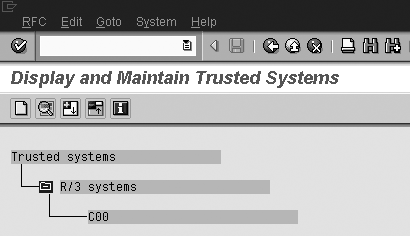
Figure 3
Trusted systems display
Step 3. Check that the RFC destination automatically created works with the trusting system. In mySAP CRM, access transaction SM59. Sometimes problems caused by server network configuration settings occur with the TRUSTING_SYSTEM@ destination. If you try to log in remotely, you receive an error. To quickly solve the problem, create a new RFC destination to R/3 (trusting system) and fill in the R/3 target host and system number in the Technical settings tab. In the Logon/Security tab, select Y (yes) for the Trusted System option in the Security Options section, fill in the R/3 client, and flag the Current User field in the Logon section (Figure 4).
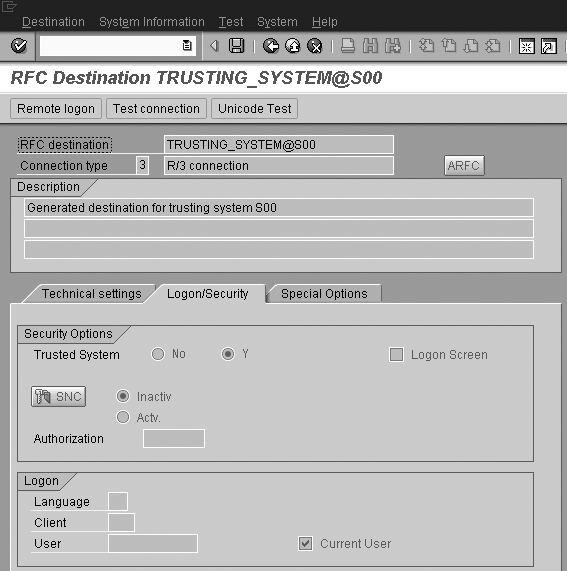
Figure 4
RFC destination to trusting system
Step 4. Create an authorization profile for the trust relationships and assign the users. In R/3, access transaction PFCG. To use the trusted RFC destination, your authorization profile in the trusting system must have the authorization object S_RFCACL.
When you access two different systems, you can either have the same user name in both or a different user name for each system. If you access the target system with a user name that is different from the one you use in the source system, the authorization profile definition must display this user name conversion. Table 1 shows the authorization profile definition for each situation.
Scenario A: Equal user name IDs in
both systems
CRM User ID (U1) = R/3 User ID (U1) |
Scenario B: Different user name IDs in
each system
CRM User ID (U1) ¹ R/3 User ID (U2) |
| Authorization settings for user U1 in R/3 system |
Authorization settings for user U2 in R/3 system |
| RFC_SYSID |
C00 |
RFC_SYSID |
C00 |
| RFC_CLIENT |
M1 |
RFC_CLIENT |
M1 |
| RFC_USER |
|
RFC_USER |
U1 |
| RFC_EQUSER |
Y (for yes – same user ID in both systems) |
RFC_EQUSER |
N (for no – different user ID in each system) |
| RFC_TCODE |
* |
RFC_TCODE |
* |
| RFC_INFO |
* |
RFC_INFO |
* |
| ACTVT |
16 |
ACTVT |
16 |
| Table 1 |
Authorization profile definition options |
Imagine that you face scenario B from Table 1 and you need to create an authorization profile for user U2 in the R/3 system. This user usually calls the R/3 system when logged in with the user name U1 in the C00 system (client 100) using a trust relationship. The user authorization profile definition should appear as displayed in Figure 5.
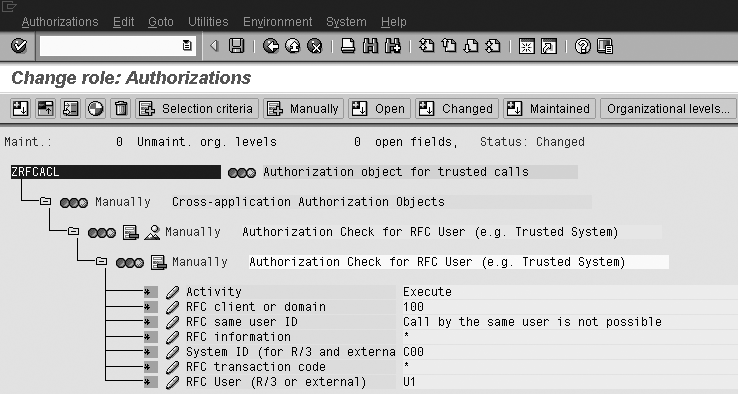
Figure 5
Authorization profile for trusted calls for scenario B with different user name IDs in each system click here to view a larger version of this image
Be aware that authorization object S_RFCACL is not included in the SAP_ALL authorization profile, so even if you have an SAP_ALL profile, you need a specific authorization role with S_RFCACL.
Susana Messias
Susana Messias has an administration academic background and has been a CRM business consultant since 2002. She has participated in several CRM projects implementing interaction center solutions with sales, service, and marketing functionalities, and she is certified in these solutions.
You may contact the author at Susana.messias@gmail.com.
If you have comments about this article or publication, or would like to submit an article idea, please contact the editor.





 Premium